Last Updated: October 2026
October is Cybersecurity Month, and honestly, it’s a good excuse to finally do that security audit you’ve been putting off. You know the one.
If you’re managing Google Workspace, you probably already have decent security in place. You’ve got two-factor turned on (hopefully), you’re using the security center, and you’ve blocked a few sketchy apps. But even well-run domains have blind spots. Little things that don’t seem urgent until they become very urgent.
I’ve been working with Google Workspace admins for years, and I keep seeing the same gaps pop up. The frustrating part? Most of them are fixable in an afternoon. You just need to know where to look.
So let’s walk through five areas that tend to fall through the cracks. No complicated overhauls, just practical things you can check and fix today.
Quick Answer: What Are the Most Common Google Workspace Security Gaps?
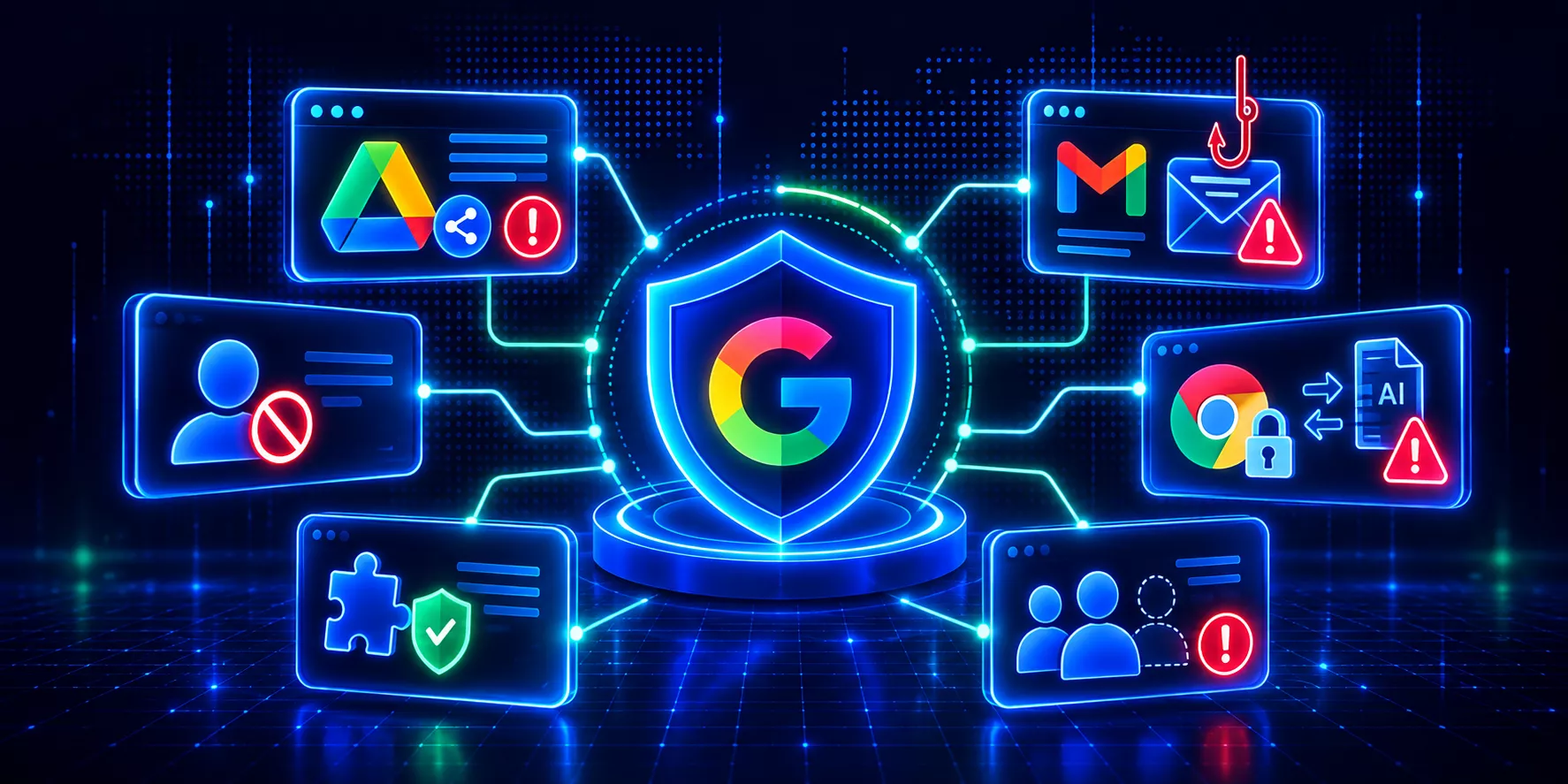
The most common Google Workspace security gaps include excessive Drive sharing permissions, phishing and identity attacks, unmanaged third-party applications, unmonitored browser activity, and incomplete user offboarding. Admins can reduce these risks by reviewing existing access, enforcing strong authentication, monitoring suspicious activity, and regularly removing permissions that are no longer needed.
1. Drive File Sharing (Especially the Files You Don’t Own)
Here’s something that catches admins off guard: files that live outside your domain but are shared with your users.
Someone at a vendor company creates a spreadsheet, shares it with your team, and suddenly your employees are working with potentially sensitive information in a file your organization doesn’t own.
You may have limited control over its permissions, and it might not appear in the same reports as files owned by your organization.
Then there’s the other side of the problem: files your employees have shared externally.
A contractor receives access to a project folder. Someone shares a document using “Anyone with the link.” Months later, those permissions may still be active.
Google introduced new Drive sharing controls in September 2026, allowing organizations to apply restrictions based on data sensitivity and permitted audiences.
But there’s an important detail: new sharing policies don’t automatically remove every existing external permission.
What should admins check?
- – Identify files shared outside your organization, including public links.
- – Review externally owned files shared with internal users.
- – Look for former contractors and external partners who still have access.
- – Review sensitive files with broad sharing permissions.
Start with Google’s Drive audit reports to investigate sharing activity.
For a broader view, GAT+ helps admins identify externally shared files, investigate externally owned files shared into the domain, and manage permissions at scale.
That means less time chasing individual files and more visibility into existing exposure.
2. Phishing (Because It’s No Longer Just About Stealing Passwords)
Google’s phishing protections help stop suspicious emails, but attackers have developed ways to target users beyond traditional password theft.
Today, a phishing attack might involve a fake Google login page, a malicious OAuth consent screen, or an attempt to steal an authenticated session.
And here’s the problem: even users with MFA enabled can be targeted by attacks that exploit an already authenticated session.
That’s why strong authentication needs to be combined with monitoring and investigation.
What should admins check?
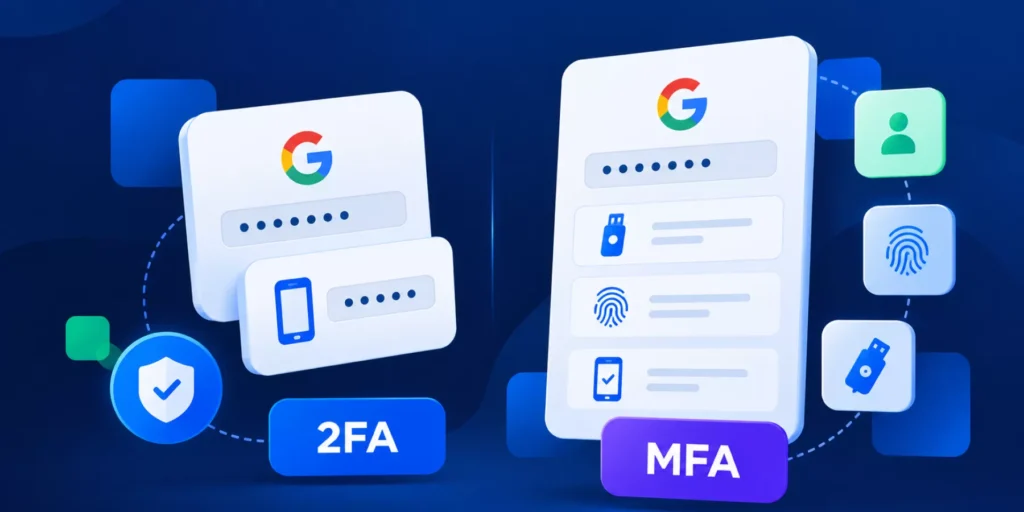
- – Enforce phishing-resistant MFA wherever possible.
- – Review unusual sign-ins and suspicious account activity.
- – Check for unexpected Gmail forwarding rules and delegated access.
- – Investigate newly authorized OAuth applications.
- – Review and revoke suspicious sessions following a suspected compromise.
If a phishing email reaches multiple employees, responding quickly matters.
With GAT+, admins can search for suspicious messages across the domain and remove them from affected mailboxes through an approved process.
This is also useful when sensitive information has been sent accidentally or an email needs to be removed from multiple accounts.
Actions involving mailbox content and deletion require the appropriate authorization, including GAT Unlock and Security Officer approval where applicable.
Related reading: Google Workspace Identity Attacks: OAuth Abuse, SIM Swaps, and MFA Bypass
3. Third-Party Apps (The Ones People Install Without Asking)
Your users find an application that makes their job easier, click through the permissions screen, and get back to work.
Nothing unusual there.
But what happens when that application requests access to Gmail, Drive, or other sensitive Workspace data?
Or when employees stop using the application, but its OAuth permissions remain active?
Dormant OAuth applications can retain authorized access long after anyone remembers installing them.
And if an application is compromised or its permissions are misused, that access can become a security risk.
What should admins check?
Navigate to Security > Access and data control > API controls in the Google Admin console.
Review connected applications and the permissions they’ve been granted.
Ask yourself:
- – Does that note-taking application really need access to Gmail?
- – Does a scheduling tool need permission to modify Drive files?
- – Are there applications nobody has used in months?
- – Are users granting access to applications that haven’t been approved?
Google’s native API controls allow admins to manage application access and restrict permissions.
GAT+ provides additional auditing and application management capabilities, helping admins investigate third-party access and apply supported controls.
Before blocking an application, check whether any teams or automated processes still depend on it.
4. Insider Threats (Which Aren’t Always Malicious)
Not every security incident involves an attacker.
Sometimes it’s an employee downloading hundreds of files before leaving the company. Sometimes it’s someone accidentally sharing sensitive information with a personal account.
And increasingly, it might involve copying confidential information into an external AI tool without understanding where that data goes.
The problem isn’t always the user’s intention. It’s the lack of visibility into what happens to company data after someone accesses it.
Google Workspace audit logs provide important information about file activity, but they don’t necessarily show everything happening inside the browser.
What should admins check?
- – Look for unusual downloads of sensitive files.
- – Review large transfers and unexpected external sharing activity.
- – Monitor risky browser extensions and applications.
- – Evaluate how employees interact with external AI tools.
- – Investigate unusual browser activity involving company data.
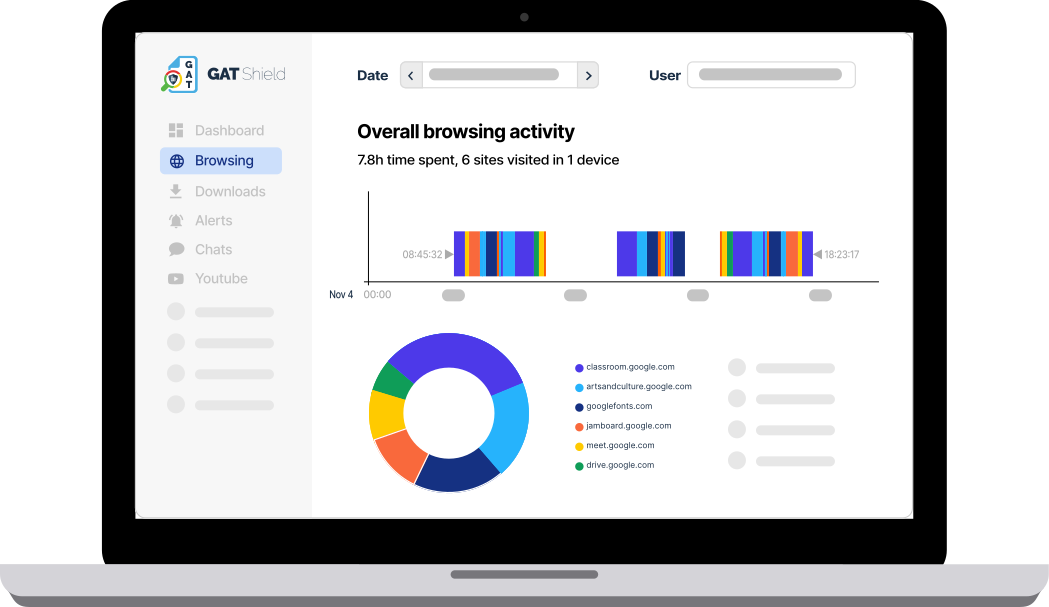
GAT Shield adds browser-level visibility into activity such as browsing, downloads, and extensions.
Depending on the controls configured, admins can receive real-time alerts and apply restrictions to certain actions that could expose sensitive information.
For organizations using GAT Shield+, continuous identity verification adds another layer of protection during active Chrome sessions.
Related reading: Quick Guide to Data Loss Prevention for Google Chrome
5. Suspended and Dormant Accounts (What Happens After Someone Leaves?)
A contractor leaves the company, their account gets suspended, and everyone moves on.
Problem solved?
Not entirely.
Suspending a Google Workspace account prevents that user from signing in, but the account may still own important Drive files, calendars, and other resources.
And what about accounts that haven’t been suspended at all?
Dormant active accounts are especially worth reviewing, because they may retain access and permissions that nobody needs anymore.
An incomplete offboarding process can also leave behind unnecessary group memberships, delegated access, or application permissions.
What should admins check?
- – Identify active accounts with extended periods of inactivity.
- – Review suspended accounts and the resources they still own.
- – Transfer important files and shared resources to appropriate owners.
- – Remove unnecessary group memberships and administrative privileges.
- – Review application access and verify session revocation during offboarding.
If you’re managing a large organization, completing every step manually can become difficult.
GAT Flow allows admins to automate offboarding workflows, including ownership transfers, group changes, license management, and other account actions.
That helps make offboarding more consistent, even when you’re managing hundreds or thousands of users.
Related reading: Zero Trust Offboarding in Google Workspace
Why These Security Gaps Matter
Here’s what makes these risks difficult to manage: they don’t always look suspicious when they first appear.
A file is shared with a contractor. An employee authorizes an application. Someone downloads a document to work offline.
Each action may be perfectly legitimate.
But over time, permissions accumulate, applications remain connected, and accounts retain access they no longer need.
The longer these changes go unnoticed, the harder it becomes to understand who has access to what.
That’s why Google Workspace security isn’t only about configuring policies. It’s also about regularly reviewing access, investigating unusual activity, and taking action when something changes.
Just Pick One and Start
You don’t have to fix everything this week.
Start with the area that presents the greatest risk to your organization. Review external Drive sharing, check OAuth applications, or investigate accounts that haven’t been used in months.
Then move to the next one.
The goal isn’t to complete a security checklist once a year. It’s to make these reviews part of how you manage Google Workspace.
And if you need more visibility across Gmail, Drive, Chrome, and user activity, GAT Labs brings auditing, security monitoring, and automation together in one platform.
Want a clearer picture of your Google Workspace security risks?
Book a GAT Labs Demo and see how to identify and address gaps across your environment.
Frequently Asked Questions About Google Workspace Security
What are the biggest security risks in Google Workspace?
Common Google Workspace security risks include excessive Drive sharing permissions, phishing and session hijacking, unmanaged OAuth applications, unauthorized data transfers, and inactive accounts with unnecessary access. These risks often develop over time as users, permissions, and applications change.
How can Google Workspace admins identify security gaps?
Admins can use the Google Admin console to review login activity, Drive sharing events, OAuth application access, and user permissions. Regular security reviews should also include externally shared files, inactive accounts, and suspicious browser activity. Additional auditing tools can help correlate activity across users and services.
Is Google Workspace secure enough without third-party security tools?
Google Workspace provides built-in security controls, including multi-factor authentication, audit logs, data loss prevention, and application access management. However, available capabilities depend on the Workspace edition. Organizations may need additional tools for more detailed auditing, browser-level monitoring, bulk remediation, and automated security workflows.
How often should Google Workspace admins perform security audits?
Google Workspace admins should continuously monitor high-risk events and schedule regular reviews of external sharing, OAuth permissions, privileged accounts, and inactive users. Monthly reviews are a practical starting point for many organizations, while high-risk environments may require more frequent checks.
Insights That Matter. In Your Inbox.
Join our newsletter for practical tips on managing, securing, and getting the most out of Google Workspace, designed with Admins and IT teams in mind.