Last Updated: October 2026
Data loss doesn’t always start with a cyberattack. Sometimes, it’s an employee sharing a confidential document with the wrong person, sending sensitive information through Gmail, or uploading company data to an unauthorized website.
For Google Workspace admins, these everyday activities create security risks that traditional access controls alone may not address.
Data Loss Prevention (DLP) helps organizations identify sensitive information, control how it’s shared, and reduce the risk of accidental or unauthorized exposure.
Google Workspace includes built-in DLP capabilities for services such as Gmail, Drive, and Chat. However, the protection available depends on your Workspace edition, the policies you configure, and where employees interact with company data.
In this guide, we’ll explain how Google Workspace DLP works, how to configure policies, and how GAT Labs can help you extend visibility and protection across Google Workspace and Chrome.
Quick Answer: What Is Google Workspace DLP?
Google Workspace Data Loss Prevention (DLP) helps administrators detect sensitive information and apply rules that control how it is shared through services such as Gmail, Google Drive, and Google Chat.
Depending on the service and Workspace edition, admins can configure policies to identify personal information, financial records, or confidential business data, then trigger actions such as warnings, sharing restrictions, message blocking, or alerts.
For protection beyond native Workspace controls, GAT+ provides additional auditing and DLP alerting, while GAT Shield extends monitoring and data protection to activity within the Chrome browser.
Chapter 1: Understanding DLP in Google Workspace
How Does Data Loss Prevention Work?
Google Workspace DLP uses rules to identify sensitive information and determine what should happen when that information is shared or handled in ways that violate company policies.
For example, imagine an HR employee accidentally attempts to share a Google Drive document containing employee Social Security numbers with an external email address.
With the appropriate DLP rule configured, Google Workspace can detect the sensitive information and prevent external sharing.
The process generally involves three components:
1. Detect Sensitive Information
DLP rules identify information using predefined detectors, keywords, custom expressions, or other supported conditions.
Common examples include:
- – Credit card and bank account numbers.
- – Social Security numbers and other personal identifiers.
- – Passport numbers.
- – Confidential project names or internal reference codes.
- – Sensitive information identified through custom patterns.
2. Apply Security Policies
Admins define what should happen when sensitive information is detected.
For example, a company may allow internal collaboration on financial documents while restricting access for external users.
3. Take Action When a Rule Is Triggered
Depending on the Google Workspace service and edition, DLP rules can:
- – Block or warn about external file sharing.
- – Block, warn about, or quarantine email messages.
- – Generate alerts for administrators.
- – Record incidents for investigation.
- – Apply supported classification labels to sensitive content.
The available actions are not identical across Gmail, Drive, and Chat, so administrators should configure policies for each service rather than assume one rule protects every channel.
Key Areas of Concern: Gmail, Drive, Chat, and Beyond
Employees interact with sensitive information across multiple Google Workspace services. Each presents different risks.
Gmail: Prevent Sensitive Information from Leaving Through Email
Email remains one of the most common ways confidential information is accidentally shared.
An employee might send a customer database to the wrong recipient, forward a financial report to a personal account, or attach a document containing information that should remain internal.
Google Workspace Gmail DLP can help administrators:
- – Detect sensitive information in email messages and supported attachments.
- – Block or warn users before sending messages that violate policies.
- – Quarantine certain messages for administrator review.
- – Apply classification labels based on message content.
- – Generate alerts and records of DLP incidents.
Example: A finance employee attempts to send an email containing credit card information to an external recipient. A configured Gmail DLP rule detects the information and blocks the message.
This allows administrators to reduce accidental disclosure without relying entirely on employees to recognize every sensitive-data risk.
Google Drive: Control External Sharing of Confidential Files
Google Drive makes collaboration easy, but it also creates opportunities for sensitive documents to reach unauthorized users.
A file might be shared with an external contractor, made accessible through a public link, or remain available to someone long after a project has ended.
Drive DLP helps administrators identify sensitive content and apply restrictions to supported sharing activities.
Depending on the configured rules, admins can:
- – Detect sensitive information in Drive files.
- – Block or warn about external sharing.
- – Generate alerts when rules are triggered.
- – Investigate DLP incidents.
- – Apply policies to supported organizational units and groups.
Example: An HR document containing employee identification numbers is about to be shared outside the company. Drive DLP identifies the sensitive content and blocks external sharing.
However, DLP should not be confused with a complete permissions audit.
A file may have been shared externally before a policy was introduced, or it may contain confidential information that a particular detection rule does not recognize.
This is why administrators should combine DLP policies with regular reviews of existing sharing permissions and external access.
Google Chat: Protect Sensitive Conversations and Attachments
Employees also exchange information through Google Chat, including project details, customer information, and confidential documents.
Supported Google Chat DLP policies can help detect sensitive information in messages and attachments and restrict certain sharing activities.
For example, a rule may be configured to prevent an employee from sending a message containing protected financial information.
Admins should review the specific Chat DLP capabilities available in their Workspace edition and configure them separately from Gmail and Drive policies.
Google Meet introduces additional considerations around recordings, transcripts, and meeting content. These should be addressed through the relevant Workspace access, retention, and sharing controls rather than assuming that Chat DLP policies automatically cover all Meet activity.
Chrome and External Websites: Address Data Risks Beyond Workspace
Not every data leak happens inside Gmail, Drive, or Chat.
Employees may copy sensitive information into external websites, upload documents to unauthorized cloud services, or paste internal company information into generative AI tools.
These activities can fall outside the protection provided by traditional Google Workspace content-based DLP rules.
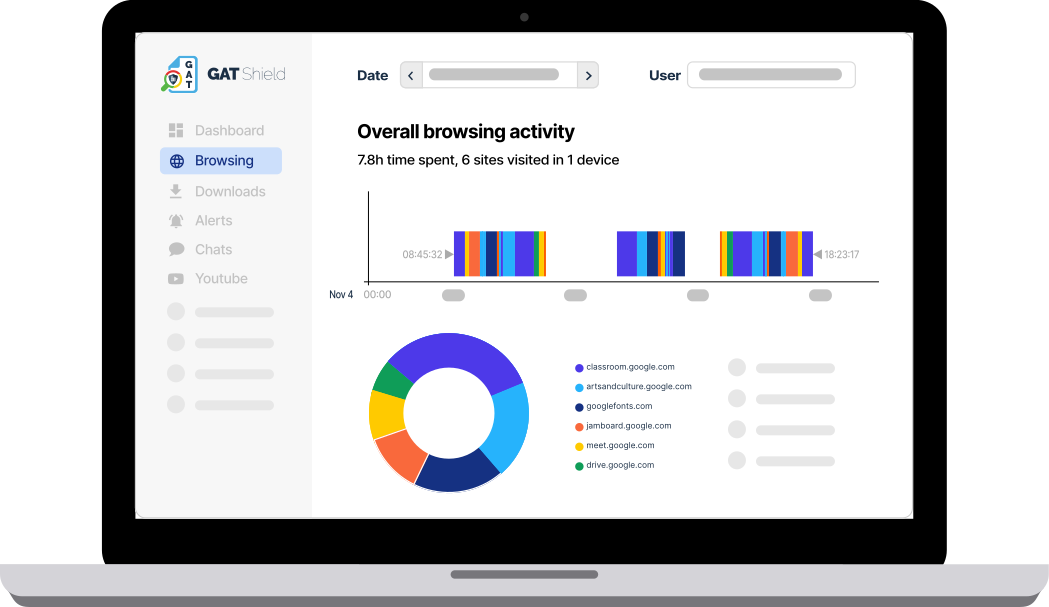
For organizations that need browser-level visibility, GAT Shield provides additional monitoring and DLP controls within Chrome.
This is particularly relevant when employees work across Google Workspace, third-party SaaS applications, and AI platforms throughout the day.
Customizing DLP Policies for Your Organization
Not every department handles the same information.
Your HR team may need to protect employee records, while Finance handles payment details and Legal works with confidential agreements.
Rather than applying identical restrictions everywhere, administrators should develop policies around the information each department manages.
For example:
| Department | Sensitive Information | Example DLP Policy |
|---|---|---|
| HR | Employee identification numbers and personal records | Restrict external sharing of documents containing protected identifiers. |
| Finance | Payment details and financial reports | Detect credit card information in outgoing email. |
| Legal | Confidential agreements and internal reference codes | Monitor documents containing specified confidential terms. |
| Sales | Customer records and contracts | Flag sensitive information sent to unauthorized recipients. |
When creating custom rules, start with the information that would cause the greatest damage if exposed.
Then test your detection conditions and enforcement actions before applying them to the entire organization.
Key takeaway: Effective DLP policies reflect how your organization handles data. A rule that works for Finance may not be appropriate for Sales, HR, or Legal.
Chapter 2: Implementing Google Workspace DLP
Understanding DLP is the first step. The next is translating your organization’s data protection requirements into practical policies.
Google Workspace provides tools for creating content-based rules, selecting enforcement actions, and investigating violations.
The following process provides a starting point for administrators configuring DLP.
Step 1: Access Data Protection Rules in the Google Admin Console
Sign in to the Google Admin Console with an account that has the necessary administrative privileges.
Navigate to:
Security > Access and data control > Data protection
From here, you can create and manage supported data protection rules.
The options available depend on your Google Workspace edition and administrator permissions.
Before proceeding, verify that your subscription includes the DLP capabilities you intend to use.
Step 2: Identify the Sensitive Information You Want to Protect
Start by selecting the information your organization needs to detect.
Google provides predefined detectors for common types of sensitive information, including financial and personal identifiers.
You can also create custom detectors for information specific to your business.
For example, your organization might use internal customer account codes with a consistent format.
A custom regular expression (regex) could help identify these codes when they appear in supported content.
However, pattern matching requires careful testing. A broad expression may produce false positives, while an overly restrictive expression may miss sensitive information.
Step 3: Define Your DLP Rule Conditions
Once you’ve identified the information to protect, determine when the policy should apply.
Depending on the service, supported conditions may include:
- – Whether specific sensitive information is detected.
- – The number of times a matching data pattern appears.
- – The organizational unit or group covered by the policy.
- – Supported content classification conditions.
Example: Protecting HR documents
Your organization wants to prevent employees from sharing Drive files containing Social Security numbers with external users.
You could configure a Drive DLP rule that detects Social Security numbers and blocks external sharing when the rule conditions are met.
This approach allows employees to continue collaborating internally while reducing the risk of exposing protected information outside the organization.
Step 4: Choose the Appropriate Enforcement Action
Not every DLP violation should result in an immediate block.
In some situations, a warning may be enough to prevent accidental sharing. In others, particularly when handling regulated personal information, stricter restrictions may be necessary.
Depending on the service, Google Workspace supports actions such as:
– Audit only: Record matching incidents without enforcing a restriction. Useful when testing new policies.
– Warn: Notify users that their action may violate a data protection policy, with the possibility of proceeding where supported.
– Block: Prevent a specified sharing action or email delivery.
– Quarantine: Hold applicable Gmail messages for administrator review.
– Alert: Notify designated administrators about relevant DLP incidents.
Select the action based on the sensitivity of the information and the potential consequences of exposure.
Step 5: Test Your DLP Rules Before Deployment
A policy that blocks too much can interrupt legitimate work. A policy that detects too little can leave sensitive information exposed.
Before activating restrictive policies across the organization:
- Start with audit-only rules where supported.
- Review detected incidents and false positives.
- Test representative documents, messages, and sharing scenarios.
- Adjust detection conditions and thresholds.
- Introduce enforcement gradually and monitor the results.
Google Workspace supports audit-only testing for applicable DLP rules, allowing administrators to evaluate matches before introducing blocking or warning actions.
DLP in Action: Three Practical Scenarios
Scenario 1: Preventing Email Data Leaks
A sales employee prepares to email a contract containing sensitive customer information to an external recipient.
A Gmail DLP rule detects protected information in the message or supported attachment.
Depending on the policy, the employee receives a warning, the message is blocked, or it is quarantined for review.
Result: Sensitive information receives additional protection before email delivery.
Scenario 2: Restricting External Access to HR Documents
An HR employee attempts to share a Drive document containing personal identification numbers with an external consultant.
A configured Drive DLP rule identifies the protected information and blocks external sharing.
Result: The document remains available for authorized internal collaboration without being exposed through that sharing action.
Scenario 3: Investigating Unusual Download Activity
An employee downloads an unusually large number of files from Google Drive.
This situation differs from a traditional content-based DLP rule. The primary concern is the volume and pattern of activity, rather than whether individual files contain a specific sensitive-data pattern.
Administrators can use activity auditing and appropriate alerting tools to investigate unusual download behavior.
GAT+ supports configurable alerts for Drive activity, including situations where the number of downloaded files exceeds a specified threshold.
Result: Admins gain visibility into potentially suspicious data movement that may require investigation.
Testing and Optimizing Your DLP Policies
DLP requires ongoing review as business processes and data handling practices change.
Monitor which rules trigger most frequently, identify recurring false positives, and review whether restrictions are affecting legitimate collaboration.
It is also worth reassessing your policies when departments introduce new tools, change their data-sharing practices, or begin using external AI applications.
Key takeaway: Start with your highest-risk data, test your rules, and expand protection based on what you learn from actual incidents.
Chapter 3: Extending Google Workspace DLP with GAT Labs
Google Workspace provides native tools to identify sensitive information and restrict certain sharing activities.
However, protecting organizational data also requires understanding where files are shared, how users interact with information, and what happens outside Google Workspace applications.
This is where GAT Labs complements Google’s built-in controls.
GAT+ supports auditing, reporting, and DLP-related alerting across Google Workspace, while GAT Shield provides additional visibility and controls for activity within Chrome.
Together, these capabilities help administrators investigate risks that content-based DLP policies alone may not address.
Why GAT Labs Takes a Different Approach to DLP
One of the guiding principles behind GAT Labs’ approach is to reduce unnecessary exposure of sensitive information.
A confidential document stored privately in Google Drive does not present the same immediate sharing risk as a document being sent outside the organization.
Rather than treating every stored document as equally exposed, GAT Labs focuses important DLP capabilities on data movement and sharing activity.
For example, GAT+ can evaluate supported newly shared-out Google files against configured content patterns and generate alerts when sensitive information is detected.
GAT Shield extends protection to activity within Chrome, where employees may interact with websites and services outside Google Workspace.
The objective is to help administrators identify risky activity without introducing unnecessary additional handling of sensitive documents.
1. GAT+: Audit Google Workspace Data and Detect Risky Sharing
GAT+ provides administrators with domain-wide auditing and reporting capabilities across Google Workspace.
For DLP-related investigations, this includes visibility into Google Drive sharing activity, permissions, and supported user actions.
Identify Files Shared Outside Your Organization
External sharing is not always a security incident.
Employees regularly collaborate with clients, vendors, and partners. However, administrators need to understand which files are accessible outside the domain and whether that access is still appropriate.
With GAT+, admins can investigate externally shared files, review permissions, and identify exposure that may require action.
This is particularly useful when reviewing existing external access that predates newer sharing restrictions.
Create DLP Alerts for Shared-Out Files
GAT+ supports configurable Drive alerts that can detect sensitive information in supported newly shared-out files using regex matching.
For example, an administrator can create a rule to identify a particular sensitive-data pattern when a Google file is shared outside the organization.
Depending on the configured alert, administrators can receive notifications and take follow-up action.
This adds another layer of visibility into sensitive information moving beyond the domain.
Detect Unusual Drive Activity
Not every data security incident involves an obvious sensitive-data pattern.
A user downloading hundreds of files or sharing an unusually large number of documents externally may warrant investigation.
GAT+ supports alert rules based on activity thresholds, such as the number of downloaded or externally shared Drive files within a defined period.
These alerts help administrators identify activity patterns that might otherwise go unnoticed.
Review and Address Existing External Access
Content-based DLP rules are only part of a complete data protection strategy.
Administrators also need to review historical sharing permissions, externally owned files, and access that may no longer be required.
GAT+ helps teams audit sharing relationships and investigate existing exposure.
Where supported, administrators can use GAT Labs’ permission-management capabilities and appropriate approvals to address unwanted access.
2. GAT Shield: Extend DLP Protection to Chrome
Employees don’t work exclusively inside Google Workspace.
They browse websites, upload files to third-party services, interact with cloud applications, and increasingly use generative AI tools.
These activities introduce risks that may not be addressed by Gmail or Drive DLP rules.
GAT Shield provides browser-level monitoring and real-time DLP capabilities for Chrome.
Depending on the configured policies and deployed components, administrators can monitor relevant browsing activity and apply supported controls.
Monitor Browser Activity
GAT Shield gives administrators visibility into how users interact with websites through Chrome.
This can help security teams investigate potentially risky activity involving external services and unauthorized destinations.
Detect Risky Uploads and Browser Actions
Employees may upload company information to websites or services that have not been approved for handling sensitive business data.
GAT Shield supports browser activity monitoring and configurable alerts that can help administrators identify relevant upload and download activity.
Supported enforcement capabilities depend on the configured Shield policies.
Address Data Risks from AI Tools
Generative AI applications create additional ways for company information to leave approved systems.
An employee might paste internal documentation into an AI chatbot or use an external service to process confidential information.
Browser-level visibility can help administrators understand usage of AI websites and investigate potentially risky interactions.
Where the deployed GAT Shield or Shield+ configuration supports specific browser restrictions, administrators can apply controls to relevant activity.
For a broader look at browser data protection, see Google Chrome Data Loss Prevention.
3. How GAT+ and GAT Shield Work Together
GAT+ and GAT Shield address different parts of the data protection process.
| Capability | GAT+ | GAT Shield |
|---|---|---|
| Google Drive sharing audits | Yes | Not its primary function |
| External permissions visibility | Yes | Not its primary function |
| DLP alerts for supported shared-out Google files | Yes | Not its primary function |
| Drive activity threshold alerts | Yes | Not its primary function |
| Chrome browsing activity monitoring | Not its primary function | Yes |
| Browser-level DLP controls | Not its primary function | Yes |
| Browser upload and download activity visibility | Not its primary function | Yes |
For example, an administrator might use GAT+ to investigate confidential documents shared outside the organization and GAT Shield to monitor activity involving external websites.
This gives security teams a broader picture of how data is accessed, shared, and moved across the working environment.
4. Practical DLP Resources for Google Workspace Admins
Ready to put these controls into practice? The following GAT Labs tutorials walk you through configuring specific DLP alerts and monitoring data movement in Google Drive.
- – Create DLP Alert on Externally Shared Google Docs in Drive: Detect sensitive information using custom regex patterns when supported files are shared externally.
- – Set Up Google Drive DLP Alerts for Shared-Out Files: Configure alerts to monitor external sharing activity.
- – Set Up a Google Drive DLP Alert When the Number of Downloaded Files Exceeds X: Identify users downloading an unusually high number of files.
- – Set Up a Google DLP Alert on the Number of Drive Files Shared Externally: Receive alerts when external sharing exceeds a configured threshold.
Find these tutorials and additional configuration examples in the GAT Labs DLP Knowledge Base.
For a broader approach to organizing policies and responsibilities, see our Google Workspace DLP Framework.
Key takeaway: Google Workspace DLP helps control sensitive information within supported Google services. GAT+ adds auditing and alerting around Workspace data and activity, while GAT Shield extends monitoring and protection to the Chrome browser. Each addresses a different part of the data loss problem.
Insights That Matter. In Your Inbox.
Join our newsletter for practical tips on managing, securing, and getting the most out of Google Workspace, designed with Admins and IT teams in mind.