Quick Answer
Google Workspace Admins can now create Drive data protection rules that combine DLP conditions with audience restrictions. A single rule can identify sensitive content or classification labels, then restrict sharing based on the intended audience, including external users, specific domains, groups, or organizational units.
The new sharing boundaries began rolling out in September 2026 for supported Google Workspace editions.
Google has introduced a new way for Workspace administrators to control how sensitive files are shared in Google Drive. Admins can now combine data sensitivity and sharing audience within the same rule.
Previously, these controls were managed separately. Drive DLP policies identified and protected sensitive information. Trust rules controlled who users could collaborate with.
The new approach connects the two, so a sharing policy can consider both:
- What data does this file contain?
- Who is the user trying to share it with?
For Admins managing sensitive company data, this means more granular control over external and internal sharing than either system offered on its own.
What changed in Google Drive sharing controls?
Until now, Admins approached these controls through two separate systems.
DLP focused on the data itself. Rules could detect sensitive information in Drive files and determine what should happen when that information was found.
Trust rules focused on collaboration. They controlled who users could share files with or receive files from.
Google’s new sharing boundaries bring both concepts into one rule. Admins can now evaluate a file’s sensitivity and the intended audience at the same time.
Before:
Sensitive file → DLP policy
User sharing externally → Trust rule
Now:
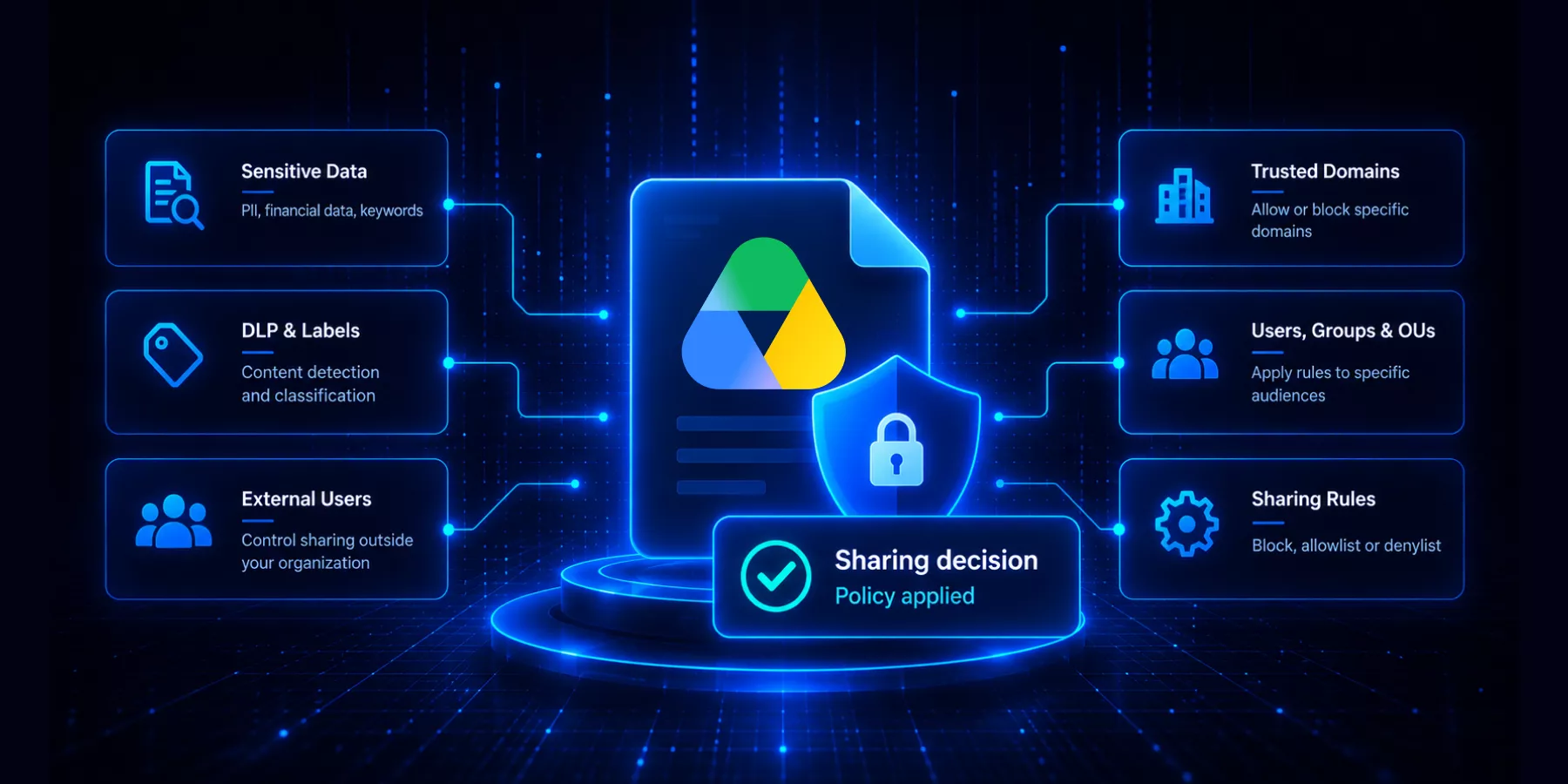
Sensitive file + intended audience → Sharing decision
That distinction matters. Not every file needs the same sharing restriction.
How the new sharing decision works
Sensitive data
DLP conditions or classification labels identify the files that need stronger controls.
Intended audience
The rule evaluates who the user is attempting to share the file with.
Sharing decision
Google evaluates both conditions together before determining whether sharing is permitted.
What can Admins control with the new rules?
Google provides three audience restriction options within the new rules.
– Block sharing with all external users: Admins can prevent files matching specific content criteria from being shared outside the organization. Files containing financial information, for example, could remain shareable internally while external sharing is blocked.
– Allow sharing only with approved audiences: Sensitive files can be restricted to an allowlist of trusted internal OUs, groups, or external domains. This can be useful when employees need to collaborate with known legal advisers, auditors, or other approved partners.
– Block sharing with specific audiences: Admins can create a denylist that prevents sensitive information from being shared with specified internal OUs, groups, or external parties while allowing other collaboration to continue.
The result is more targeted control than applying the same sharing restriction to every file in Drive.
Why does data classification matter more now?
These controls only work as well as an organization’s ability to identify sensitive files in the first place.
Google is expanding its approach here too.
Gemini-based AI classification for Google Drive is currently in open beta. Admins can give Gemini instructions to evaluate Drive files and apply data classification labels automatically. Those labels can then support DLP policies, retention rules, and investigations.
For Enterprise customers, Gemini-based AI classification is currently available with Enterprise Plus.
This creates a connected process:
Identify sensitive data → Classify it → Apply a sharing policy → Monitor access → Investigate activity
For large Workspace environments, this matters because no Admin team can manually review the sensitivity and sharing configuration of every file.
Does a sharing policy solve everything?
No. Preventing inappropriate sharing going forward is only part of Drive data governance.
Admins still need visibility into what has already happened across the environment. That means answering questions such as which sensitive files are already shared externally, which external users have access, which files have broad or unusual permissions, whether a user’s sharing behavior has changed, and what happened before or after sensitive information was shared.
A policy controls what happens next. Auditing tells you what has already happened.
Admins need both.
What visibility does Google already provide?
Google is also expanding the native visibility available to administrators.
Drive Inventory Reporting can provide external sharing insights through BigQuery. Google consolidates information from direct permissions, group memberships, domain-wide access, and public links to help Admins understand how files are exposed.
Admins can also cross-reference this information with DLP metadata to investigate whether sensitive files are externally accessible.
These capabilities give Admins another way to analyze Drive exposure using Google’s native security and reporting tools.
For organizations that need ongoing domain-wide auditing, however, the question becomes how easily Admins can investigate this information as part of their day-to-day Workspace management.
How does GAT Labs add visibility around Drive sharing?
GAT+ gives administrators domain-wide visibility into Google Drive permissions, external sharing, file activity, and user access.
With GAT+, Admins can audit Drive files across the domain, see who a file is shared with, filter files by number of shares to identify highly shared documents, and identify externally owned files that have been shared into the domain.
This complements Google’s native controls rather than replacing them.
Google’s data protection rules define and enforce sharing boundaries. GAT+ helps Admins investigate the sharing that already exists.
That includes current exposure, external access, permissions, and activity across the domain over time.
What should Admins review now?
The new controls are a good reason to revisit your current Drive sharing policies.
1. Review your existing DLP and trust rules. Look at how these controls are currently separated in your environment and identify where combining sensitivity and audience criteria could address existing gaps.
2. Look at the data itself. Identify which types of information require stronger sharing restrictions and whether your existing classification labels accurately represent that information.
3. Review external access already in place. Pay particular attention to sensitive files shared with personal accounts, former partners, vendors, contractors, or domains that no longer require access.
Then decide where a universal sharing policy makes sense and where sensitivity-based rules can allow collaboration while applying stronger controls to sensitive information.
The goal isn’t to stop external collaboration. It’s to make the sharing decision match the sensitivity of what’s being shared.
Frequently Asked Questions
1. Can Google Workspace Admins block sensitive Drive files from being shared externally?
Yes. Admins can create data protection rules that identify sensitive content and block matching files from being shared outside the organization.
2. Can different sharing rules apply to different types of files?
Yes. Sharing boundaries can use DLP conditions or classification labels to determine which files a rule applies to, allowing Admins to apply stricter controls to more sensitive information.
3. Can Admins allow sensitive files to be shared with trusted external domains?
Yes. Google supports allowlists that can restrict sharing to approved internal OUs, groups, or external domains.
4. Do the new Drive sharing controls replace DLP?
No. They extend how DLP conditions can be used. Admins can combine data sensitivity with audience criteria when deciding whether sharing should be allowed.
5. Which Google Workspace editions support the new Drive sharing boundaries?
The new capability is available for Google Workspace Enterprise Standard and Enterprise Plus, as well as Enterprise Essentials, Frontline Standard and Plus, and Education Standard and Plus.
6. How can Admins find files that are already shared externally?
Google Workspace provides native security, investigation, and Drive inventory capabilities depending on the organization’s edition.
Third-party tools such as GAT+ can add domain-wide visibility into external file sharing, permissions, users, and activity across the environment.
A More Context-Aware Approach to Drive Security
Google’s latest changes point toward a more contextual model for protecting Workspace data.
Instead of treating sensitive content and user access as separate questions, Admins can now build policies around both at once:
What is the data? Who can it be shared with? Where could it go?
For organizations moving large amounts of information through Google Drive every day, answering those questions together makes sharing controls more precise.
But policy is only one side of the equation.
Admins also need to understand the access and exposure that already exists across Drive.
Insights That Matter. In Your Inbox.
Join our newsletter for practical tips on managing, securing, and getting the most out of Google Workspace, designed with Admins and IT teams in mind.