MFA remains one of the most effective controls against credential-based attacks. But attackers now target the authentication methods themselves, so the method you choose matters. This guide covers the options available in Google Workspace, how to choose between them, and what to monitor after login.
What is Multi-Factor Authentication (MFA)?
MFA requires users to prove their identity with more than one factor. Factors fall into three categories:
- – Something you know: a password or PIN
- – Something you have: a phone, authenticator, or hardware security key
- – Something you are: a fingerprint or facial recognition
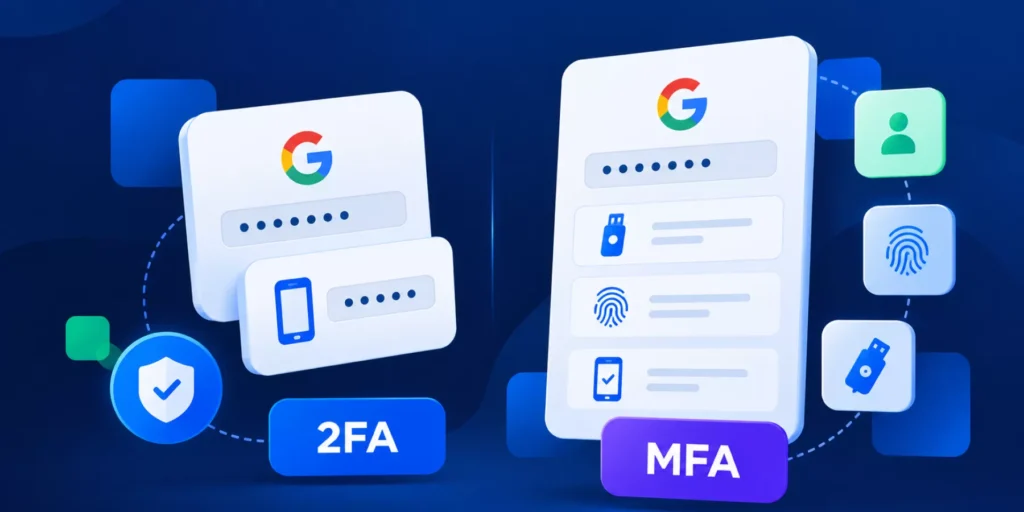
Google calls its implementation 2-Step Verification (2SV). A second factor means a stolen password alone may not be enough to access an account. How much protection you get depends on the verification method.
Which MFA methods does Google Workspace support?
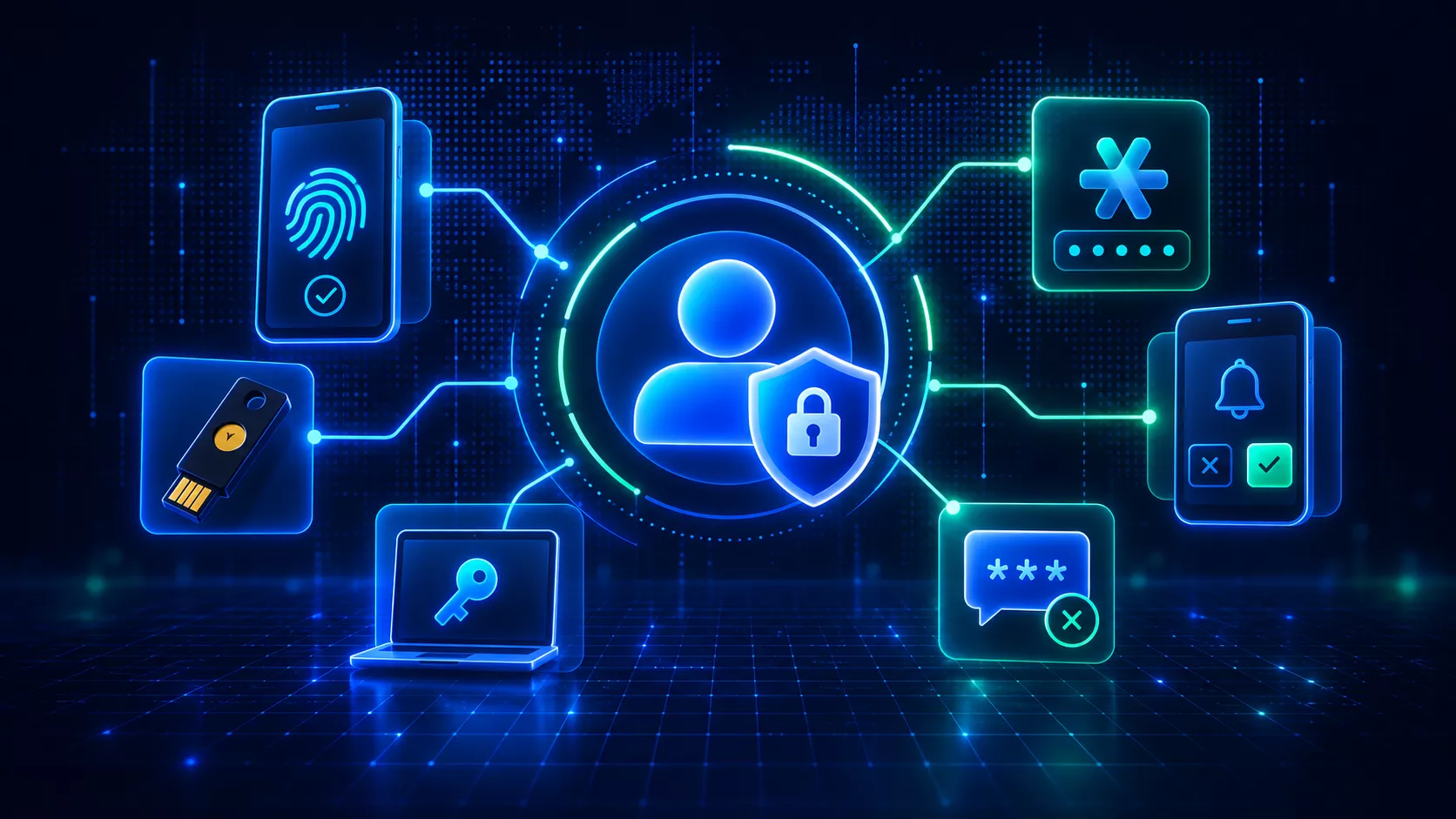
| Method | Security level | Main consideration |
|---|---|---|
| SMS or phone codes | Lower | Vulnerable to phishing, interception, and SIM swapping |
| Authenticator apps | Stronger than SMS | One-time codes can still be captured through phishing |
| Google Prompt | Stronger than SMS | Users must recognize and reject unexpected sign-in prompts |
| Hardware security keys | Phishing-resistant | Requires compatible hardware and deployment planning |
| Passkeys | Phishing-resistant | Requires supported devices and admin configuration |
CISA’s ranking of MFA methods puts security keys first, and text or email codes last. Google’s 2-Step Verification deployment guide shows how to require specific methods for specific teams.
SMS-based MFA
SMS sends a one-time code to the user’s phone. It is easy to deploy, but the phone number becomes part of the authentication chain. In a SIM swap, an attacker takes control of the victim’s number and receives the codes. Reduce reliance on SMS wherever a stronger option is available.
Authenticator apps
Apps such as Google Authenticator generate time-based one-time passwords without using the carrier network. That removes the SIM swap exposure. Users still type a code, though, and sophisticated phishing can capture it. Authenticator apps are stronger than SMS but not phishing-resistant.
Google Prompt
Google Prompt sends a sign-in request to the user’s registered phone. The user approves or rejects it directly. It is stronger than SMS, but users must recognize and reject requests they did not start.
Hardware security keys
Security keys use cryptographic authentication instead of a code that can be intercepted or entered on a phishing site. They suit administrators, finance teams, executives, and anyone with access to sensitive data.
Should Google Workspace admins use passkeys?
Passkeys are a strong option, particularly for privileged and high-risk accounts. A passkey verifies the user with a device’s screen lock, fingerprint, facial recognition, PIN, or a compatible security key. Google states that unlike passwords, passkeys can’t be shared, copied, or written down. For accounts with 2SV, a passkey can satisfy both the first and second factor.
Admins control this in the Admin console. Under 2-Step Verification enforcement, the “Only security key” option now accepts both security keys and passkeys, and Google notes they offer the same level of phishing protection. Passkeys let you reduce reliance on passwords and SMS at the same time.
How should Google Admins choose an MFA method?
Match the method to the risk of each role.
Privileged accounts: Super Admins and other privileged roles should use passkeys or security keys. A compromised admin account can give an attacker control over users, settings, security policies, and organizational data.
Users handling sensitive data: Finance, HR, legal, and executive teams should also get stronger authentication. The value of the data the account can reach should decide the method you require.
General users: Where phishing-resistant authentication is not yet possible, Google Prompt or authenticator apps are stronger than SMS. The long-term goal is to move away from methods users can disclose, or attackers can intercept.
What authentication challenges do Google Admins face?
- 1. Phishing: Attackers target both passwords and the authentication process. See our guide to Google Workspace phishing threats.
- 2. Weak password practices: Reused or exposed passwords are still the first step in many compromises.
- 3. SIM swapping: SMS depends on control of a phone number, which attackers can transfer.
- 4. MFA fatigue and social engineering: Users may approve requests an attacker started. CISA recommends number matching as an interim control while you move to phishing-resistant MFA.
- 5. Account recovery: Lost phones and security keys need recovery processes that don’t weaken your controls.
- 6. User experience: Controls should protect accounts without adding friction to everyday work.
Turning on MFA is the start. Choose methods that match the risk of each account.
How does MFA fit into a wider breach prevention plan?
MFA reduces the risk from stolen credentials. A compromised account can still expose Gmail, Drive, Chat, and Calendar, so admins also need visibility into file sharing, OAuth access, user activity, and changes made after login. Our OAuth app security guide covers the audit steps for third-party app access.
Best practices for MFA in Google Workspace
- Reduce reliance on SMS. It beats a password alone, but it is the weakest method in the table. Move users to stronger methods where possible.
- Prioritize passkeys and security keys. Use them for administrators and users with access to sensitive data. They remove the codes attackers try to capture.
- Enforce strong authentication for privileged accounts first. Use 2SV enforcement by organizational unit to start with Super Admins and other privileged roles.
- Give users secure recovery options. Plan for lost devices and keys before you enforce stronger methods. Insecure recovery can undo a strong policy.
- Monitor login and account activity. Investigate suspicious logins, unexpected authentication activity, unusual browser behavior, and changes to sensitive settings.
- Train users. Teach them never to approve unexpected requests or enter credentials and codes on untrusted sites, and update the training as phishing techniques change.
What happens after authentication?
MFA verifies identity when someone signs in. The browser session continues after that. An attacker can steal an authenticated session or abuse existing access, which raises a different question: is the person using the account still the legitimate user?
GAT Shield+ adds identity verification inside Chrome. Its ActiveID feature measures the timing of a user’s typing. It does not record the words typed. Machine learning models compare current typing against the user’s established profile throughout the session.
If behavior does not match the expected user with sufficient confidence, Shield+ alerts the administrator and triggers your configured response. Depending on policy, that can be a passkey challenge or clearing browser cookies to end active sessions. The Shield+ overview covers the available controls.
FAQs
1. Is SMS-based MFA safe for Google Workspace?
It is better than a password alone, but it is the weakest MFA method in this comparison. SIM swaps can allow an attacker to receive SMS codes intended for the legitimate user, while phishing can capture them before they are used. Passkeys and security keys are phishing-resistant.
2. Should Google Workspace admins use passkeys?
Passkeys are a strong option, particularly for privileged and high-risk accounts. They resist phishing, and in the Admin console, the “Only security key” enforcement option accepts both passkeys and security keys.
3. Which MFA methods provide the strongest phishing protection in Google Workspace?
Passkeys and hardware security keys provide phishing-resistant authentication. Unlike SMS and one-time codes, they use cryptographic authentication tied to the legitimate service, making them resistant to credential phishing.
4. Are authenticator apps and Google Prompt phishing-resistant?
No. They are stronger than SMS, but attackers can capture one-time codes through phishing, and users can be tricked into approving prompts they didn’t start.
5. Does MFA protect an account after login?
MFA verifies identity at sign-in. To check identity during the session, admins can add controls such as GAT Shield+ ActiveID.
Verify identity beyond login
MFA verifies the user at authentication. GAT Shield+ ActiveID continues checking identity during the Chrome session.
Insights That Matter. In Your Inbox.
Join our newsletter for practical tips on managing, securing, and getting the most out of Google Workspace, designed with Admins and IT teams in mind.