
Updated Nov 2026
A phishing email reaches 50 employees before IT is notified. A former employee’s mailbox is still forwarding messages to an external account. Someone accidentally sends a spreadsheet containing confidential customer information to the wrong recipient.
How quickly could you identify and respond to these situations?
For Google Admins, email security goes beyond preventing malicious messages from reaching users. It also involves understanding where data goes, who can access it, and what happens after an email is delivered.
In Part 6 of our 10-Step Google Workspace Auditing Guide, we’ll explore how to conduct an email audit, identify security risks, and improve Gmail governance across your organization.
Quick Answer: How Do You Audit Email in Google Workspace?
To conduct a Google Workspace email audit, review Gmail log events, email forwarding, mailbox delegation, external communications, and email security settings. Verify SPF, DKIM, and DMARC configurations, assess data loss prevention (DLP) policies, and review email retention requirements. Document your findings, address security gaps, and establish recurring audits.
What Is a Google Workspace Email Audit?
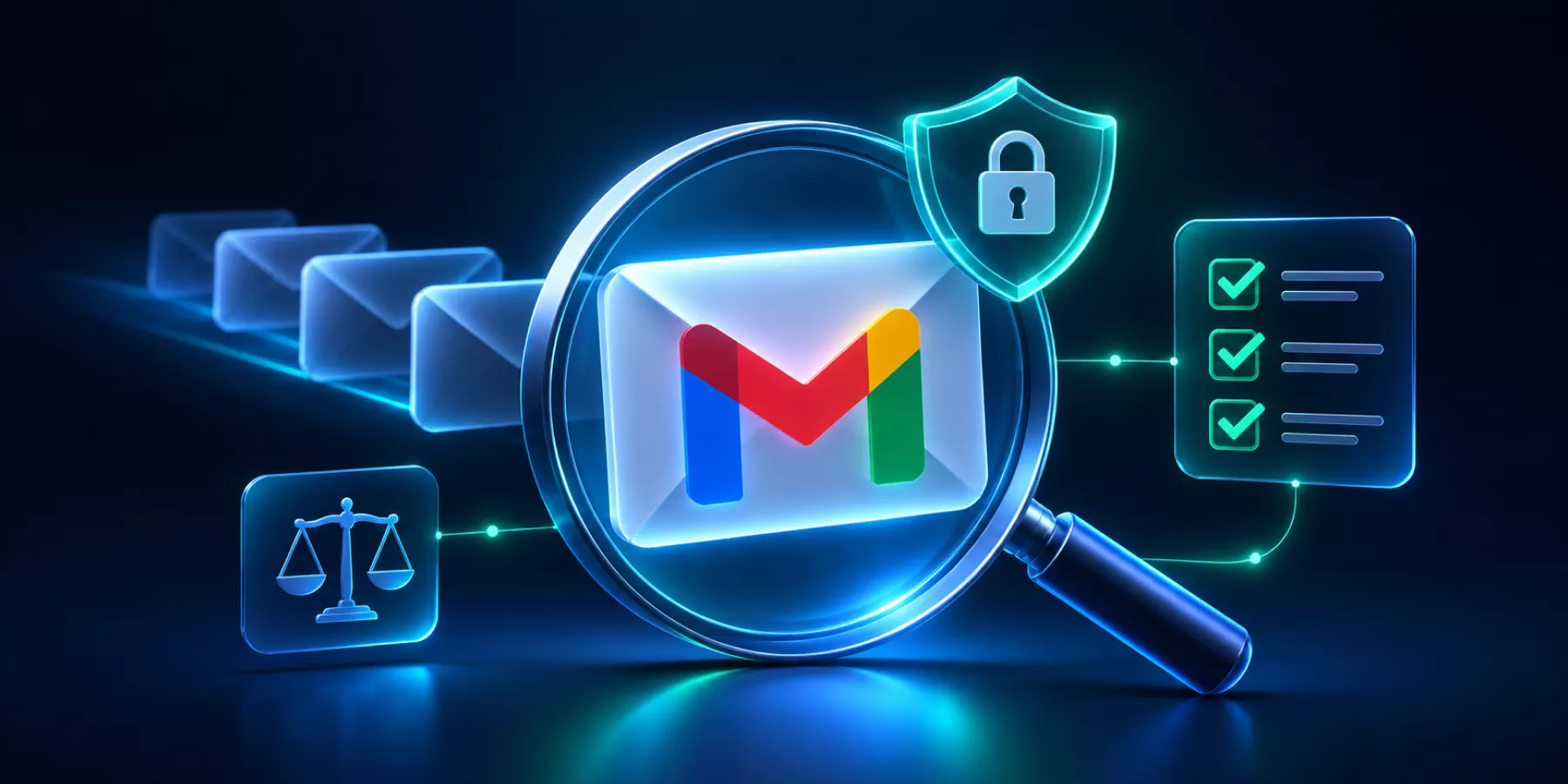
A Google Workspace email audit is a systematic review of email activity, mailbox access, security configurations, and compliance policies across an organization’s Gmail environment.
An effective email audit covers three main areas:
- – Email security: Detecting phishing, suspicious activity, and potential account compromise.
- – Email compliance: Reviewing data handling, retention policies, and regulatory requirements.
- – Email governance: Managing mailbox access, forwarding, delegation, and administrative oversight.
Together, these areas help Google Admins understand how information moves through their organization and where it may be exposed.
Hidden Email Security Risks in Google Workspace
Even with strong email security policies in place, everyday activities can introduce risks.
| Everyday Scenario | Hidden Security Risk |
|---|---|
| An employee forwards work emails to a personal account. | Corporate data leaves the managed environment. |
| A manager changes departments. | They retain delegated access to confidential mailboxes. |
| A phishing email bypasses spam filters. | Malicious content remains accessible to employees. |
| An employee emails a confidential document to the wrong recipient. | Sensitive information is exposed externally. |
| An outdated retention policy remains active. | Business records may be deleted too early or retained unnecessarily. |
Many of these risks develop after an email has been delivered, making ongoing visibility and remediation particularly important.
How to Conduct a Google Workspace Email Audit
1. Review Email Activity and Gmail Log Events
Start by understanding how email is being used across your organization.
In the Google Admin console, navigate to Reporting > Audit and investigation > Gmail log events.
Look for:
- – Unusual email sending volumes.
- – Unexpected external recipients.
- – Suspicious message activity.
- – Spam and phishing-related events.
You can also use Email Log Search to investigate message delivery and trace specific emails.
Consider this: An employee who typically sends 30 emails a day suddenly sends 500 messages to external addresses.
This could be legitimate business activity, but it could also indicate a compromised account or unauthorized bulk communication.
Investigating these patterns alongside login activity can help you determine whether further action is needed.
With GAT+, administrators can audit email activity across their domain and analyze incoming and outgoing communications.
2. Audit Email Forwarding and Mailbox Delegation
When was the last time you checked who receives copies of your employees’ emails?
Automatic forwarding and mailbox delegation serve legitimate business purposes, but outdated or unauthorized configurations can expose sensitive information.
During your audit, review:
- – Automatic forwarding to external email addresses.
- – Unnecessary or outdated mailbox delegation.
- – Email routing rules and exceptions.
- – Forwarding and delegation associated with former employees.
For example: An attacker gains access to an employee’s Gmail account and enables automatic forwarding to an external address.
Even after the employee changes their password, the forwarding configuration may remain active, allowing new messages to continue reaching the attacker.
With GAT+, administrators can review email forwarding and delegation across their organization and remove unauthorized configurations.
Read more: How to Investigate Google Workspace Account Compromise with GAT+.
3. Identify Sensitive Data Leaving Your Organization
Email is one of the most common ways employees exchange confidential business information.
But can you identify when that information is being sent outside your organization?
Review external email activity, paying particular attention to sensitive attachments, recurring communications with unauthorized recipients, and potential data loss prevention (DLP) incidents.
Imagine this scenario: A Finance employee regularly sends spreadsheets containing customer information to their personal email address to work from home.
The employee may have no malicious intentions, but those documents are now outside the organization’s security controls.
This is an example of how shadow IT can introduce data exposure through email.
With GAT+, administrators can monitor external email attachments and investigate relevant email activity.
Where supported by your Google Workspace edition, configure Gmail DLP rules to detect sensitive information and warn users, block messages, or apply other policy-based actions.
4. Review Email Authentication and Security Settings
A Google Workspace email audit should also examine the configurations that protect your organization against email-based attacks.
Start with these three email authentication protocols:
| Protocol | What It Does |
|---|---|
| SPF | Specifies which mail servers are authorized to send emails on behalf of your domain. |
| DKIM | Uses a digital signature to verify message authenticity and integrity. |
| DMARC | Defines how receiving mail servers should handle messages that fail aligned authentication checks and provides reporting capabilities. |
Together, these protocols help reduce domain spoofing and email impersonation.
Also review your Gmail phishing and malware protection settings, attachment security, spam filter exceptions, and multi-factor authentication (MFA) enforcement.
Pay particular attention to accounts belonging to executives, administrators, and employees who regularly handle sensitive information.
5. Investigate and Remove Risky Emails After Delivery
What happens when a malicious email has already reached your employees?
Preventive security controls are important, but they cannot guarantee that every harmful message will be blocked.
Consider the following scenario:
A phishing email is delivered to 50 employees. One employee reports it to IT, but the remaining recipients may still have the message in their inboxes.
The security team needs to:
- Identify the malicious email.
- Determine which employees received it.
- Investigate whether any accounts show signs of compromise.
- Remove the malicious message from affected internal mailboxes.
- Document the incident and review existing security policies.
Depending on your Google Workspace edition and administrator privileges, you can use Google’s security investigation tool to investigate and remediate email threats.
With GAT+ and GAT Unlock, administrators can search for specific messages across multiple Gmail accounts and remove them in bulk with the appropriate Security Officer authorization.
This is also useful when confidential information is accidentally emailed to internal recipients.
Read more: How to Delete Spam, Inappropriate or Accidental Emails with GAT+.
6. Review Email Retention and Compliance Policies
How long should your organization retain business emails?
The answer depends on your industry, legal obligations, and internal data governance policies.
If your organization uses Google Vault, review:
- – Default and custom retention rules.
- – Legal holds on relevant mailboxes.
- – Access permissions for Vault administrators.
- – Alignment between retention rules and internal policies.
- – Procedures for preserving email records during investigations and employee departures.
Keeping emails indefinitely can introduce unnecessary data exposure, while deleting them too early may create legal or compliance risks.
Regular email audits help identify inconsistencies between established policies and actual configurations.
For organizations subject to regulations such as GDPR or HIPAA, email auditing can also support compliance documentation and investigations. However, auditing alone does not establish regulatory compliance.
Google Workspace Email Audit Checklist
Use this checklist during your next Gmail security and compliance review.
| Audit Area | What to Check |
|---|---|
| Email activity | Unusual sending patterns and suspicious communications |
| External emails | Sensitive information and attachments sent externally |
| Email forwarding | Unauthorized or outdated forwarding configurations |
| Mailbox delegation | Excessive or unnecessary mailbox access |
| Email routing | Outdated routing rules and exceptions |
| Email authentication | SPF, DKIM, and DMARC configurations |
| Security settings | Phishing, malware protection, and MFA |
| Data loss prevention | Gmail DLP policies and reported incidents |
| Threat remediation | Procedures for identifying and removing risky emails |
| Email retention | Google Vault retention rules and legal holds |
| Audit reporting | Documented findings, incidents, and corrective actions |
Consider conducting a comprehensive email audit quarterly, supported by ongoing activity monitoring and additional reviews following security incidents.
Download our Google Workspace Auditing Guide for a complete auditing reference.
How GAT Labs Helps You Audit and Secure Gmail
Managing email security across hundreds or thousands of mailboxes requires visibility and the ability to act on your findings.
GAT Labs helps Google Admins combine email auditing, threat remediation, and automation.
GAT+: Gain visibility across your Gmail environment. Audit incoming and outgoing email activity, investigate external communications, review attachments, and identify forwarding and delegation configurations.
GAT Unlock: Protect sensitive administrative actions. Use multi-party authorization to access email content or remove specific messages from employee mailboxes.
GAT Flow: Automate mailbox management. Incorporate email delegation and forwarding changes into onboarding, offboarding, and employee lifecycle workflows.
GAT Shield: Reduce browser-based data exposure. Monitor and control activities such as file uploads, downloads, and copy-and-paste actions within managed Chrome environments.
Together, these capabilities help administrators identify email security risks, respond to incidents, and maintain greater control over corporate data.
Email Security Doesn’t End at Delivery
Blocking phishing attempts and malicious attachments is only one part of protecting your Gmail environment.
Knowing where sensitive information goes, who has access to it, and how quickly you can respond when something goes wrong is equally important.
Regular email audits help identify security gaps before they develop into larger incidents.
If a malicious email reached 100 employees today, how quickly could your IT team identify and remove it?
Insights That Matter. In Your Inbox.
Join our newsletter for practical tips on managing, securing, and getting the most out of Google Workspace, designed with Admins and IT teams in mind.