Updated Nov 2026
An employee connects an AI meeting assistant to their Google account. Someone in Marketing authorizes a new productivity tool. A project management application your team stopped using months ago still has access to Google Drive.
Individually, these connections may seem harmless. But across hundreds or thousands of users, how many applications have access to your organization’s data without your knowledge?
A Google Workspace application audit helps you answer that question, assess application permissions, and regain control over third-party access.
This is Part 4 of our 10-Step Google Workspace Auditing Guide.
Quick Answer: How Do You Audit Third-Party Apps in Google Workspace?
To audit third-party apps in Google Workspace, navigate to Google Admin console > Security > Access and data control > API controls > Manage Third-Party App Access. Review connected applications, authorized users, OAuth scopes, and access settings. Identify unnecessary or high-risk applications, revoke unwanted permissions, and configure policies to restrict future access. Monitor new application authorizations between scheduled audits.
Why Should You Audit Third-Party Applications?
When employees authorize third-party applications using their Google Workspace accounts, they may grant access to corporate data through OAuth permissions.
The risk isn’t always a malicious application. Sometimes, it’s a legitimate tool with more access than it needs.
Consider these scenarios:
An employee connects a free PDF converter.
The application requests broad access to Google Drive files.
A department stops using a productivity tool.
The application retains its OAuth permissions.
An employee installs an AI meeting assistant.
Sensitive meeting information may be processed by an external provider.
An approved application suffers a security breach.
Corporate data accessible to the application may be exposed.
Without regular audits, these connections can remain unnoticed for months or even years.
How to Conduct a Google Workspace Application Audit
1. Find Out Which Apps Have Access to Your Domain
How many third-party applications are connected to your Google Workspace? And how many has your IT team actually approved?
In the Google Admin console, navigate to:
Security > Access and data control > API controls > Manage Third-Party App Access
Start by identifying connected applications, their authorized users, and their permissions.
With GAT+ Applications reporting, you can also investigate application connections across users, groups, and organizational units (OUs).
2. Look Beyond the Application Name
An application may appear trustworthy, but its OAuth permissions tell a different story.
For example, a meeting scheduling tool may need access to Google Calendar. But does it also need permission to read your emails or modify your Google Drive files?
During your audit, prioritize applications with permissions to:
- – Read, modify, or delete Gmail messages.
- – Access or modify Google Drive files.
- – View organizational directory information.
- – Access multiple Google Workspace services.
GAT+ App Risk Assessment grades applications based on their API scopes, helping you identify which ones require closer investigation.
3. Identify Forgotten Apps and New AI Tools
Imagine your organization switches project management platforms. Six months later, the previous application still has authorized access to employees’ Google Drive files.
Nobody uses it anymore, but the connection remains.
The same visibility problem applies to newly adopted AI tools. Employees may connect AI assistants, transcription services, or document summarizers without going through IT.
Ask yourself:
- – When was the application last used?
- – Does it still serve a business purpose?
- – Has IT approved its use?
- – What sensitive information can it access?
Remember: An unused application does not necessarily have inactive permissions.
OAuth audits also have their limits. They do not capture activities such as manually uploading documents or pasting confidential information into external AI chatbots.
4. Revoke Unnecessary Access and Set Application Policies
Finding risky applications is only half the job. The next step is deciding what to do about them.
Suppose you discover that 30 employees have authorized an unapproved file conversion tool. Revoking their existing permissions addresses the immediate exposure, but what happens if employees authorize it again?
Your remediation strategy should address both:
- Existing access: Revoke unnecessary OAuth permissions.
- Future access: Configure application policies to restrict unauthorized connections.
Google Workspace API controls allow administrators to manage application access.
With GAT+ Application Policies, you can also apply Trust or Ban policies to specific users, groups, or OUs.
5. Don’t Wait Until Your Next Audit
You complete an application audit on Friday. By Monday, five employees have authorized new third-party tools.
Your application inventory has already changed.
With GAT+, you can configure alerts for newly installed third-party applications and investigate them without waiting for your next scheduled review.
Combine these alerts with recurring audits, an application approval process, and documented remediation actions.
Google Workspace Application Audit Checklist
Use this checklist during your next application security review.
| Audit Area | What to Check |
|---|---|
| Application inventory | Third-party apps connected to your domain |
| OAuth permissions | Excessive or sensitive API scopes |
| User authorizations | Who has granted application access |
| Dormant applications | Unused or outdated integrations |
| AI applications | Access to sensitive data and approved usage |
| Application policies | Trusted, restricted, and blocked access |
| Security alerts | Notifications for newly installed applications |
| Remediation | Revoked permissions, exceptions, and documented changes |
Download our Google Workspace Auditing Guide for a complete auditing reference.
How GAT Labs Helps You Stay in Control of Third-Party Apps
Managing application risks requires visibility into both Google Workspace and the browser.
With GAT Labs, administrators can address these risks across three areas:
– GAT+: Audit and manage application access. Identify connected applications, assess OAuth permissions, apply app policies, and receive alerts for newly detected applications.
– GAT Flow: Automate access revocation. Revoke all third-party application tokens for selected users as part of offboarding or security remediation workflows.
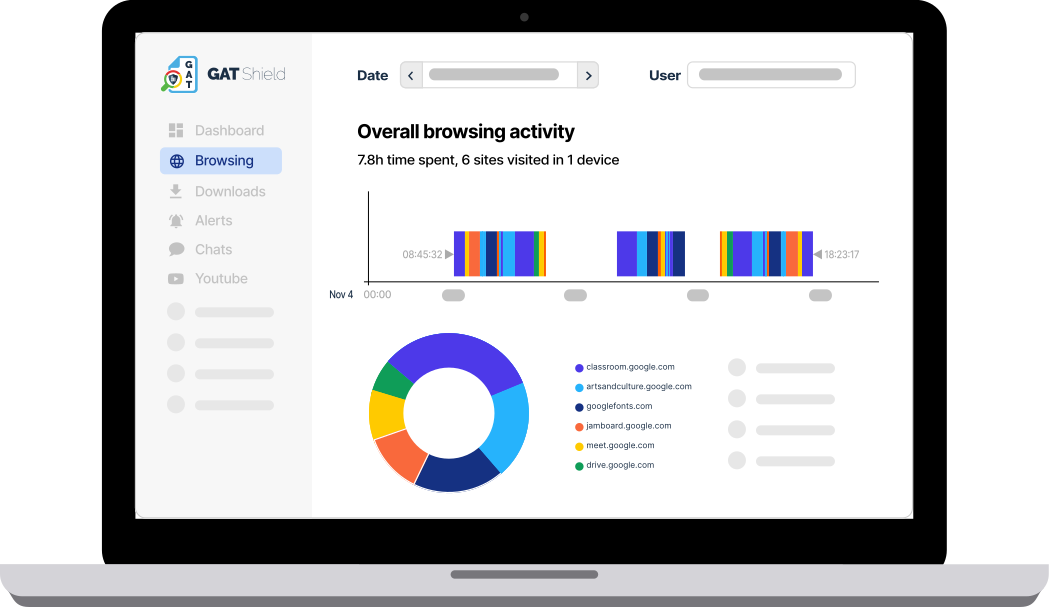
– GAT Shield: Monitor browser-level risks. Audit Chrome extensions and monitor or restrict sensitive data transfers through Chrome, including uploads to external AI platforms.
Know What’s Connected to Your Google Workspace
You don’t need to block every third-party application to protect your organization. But you do need to know which applications have access, what they can do, and whether that access is still necessary.
Regular application audits help you maintain that visibility.
When was the last time you reviewed the applications connected to your Google Workspace?
Up next: Part 5. How to Audit Google Drive and Shared Drives: A Guide for Admins
Insights That Matter. In Your Inbox.
Join our newsletter for practical tips on managing, securing, and getting the most out of Google Workspace, designed with Admins and IT teams in mind.