
Updated Nov 2026
A Google Workspace security audit helps administrators identify configuration gaps, investigate suspicious activity, and verify that security controls are working as intended.
From authentication settings to third-party application access, regular reviews help IT teams detect risks before they develop into larger security incidents.
This is Part 3 of our 10-Step Google Workspace Auditing Guide. In the previous chapters, we covered access management audits and administrator role audits. Now, we’ll focus on auditing your Workspace security configuration and activity.
Quick Answer: How Do You Conduct a Google Workspace Security Audit?
To conduct a Google Workspace security audit, review authentication settings, administrator privileges, user activity, third-party applications, and data-sharing controls in the Google Admin console. Use audit logs and available investigation tools to identify suspicious activity, verify security policies, and document corrective actions. Repeat these reviews regularly and after significant security or organizational changes.
What Should a Google Workspace Security Audit Include?
A security audit should focus on the settings and activities that present the greatest risk to your organization.
1. Authentication and Account Security
Start by reviewing how users authenticate to Google Workspace.
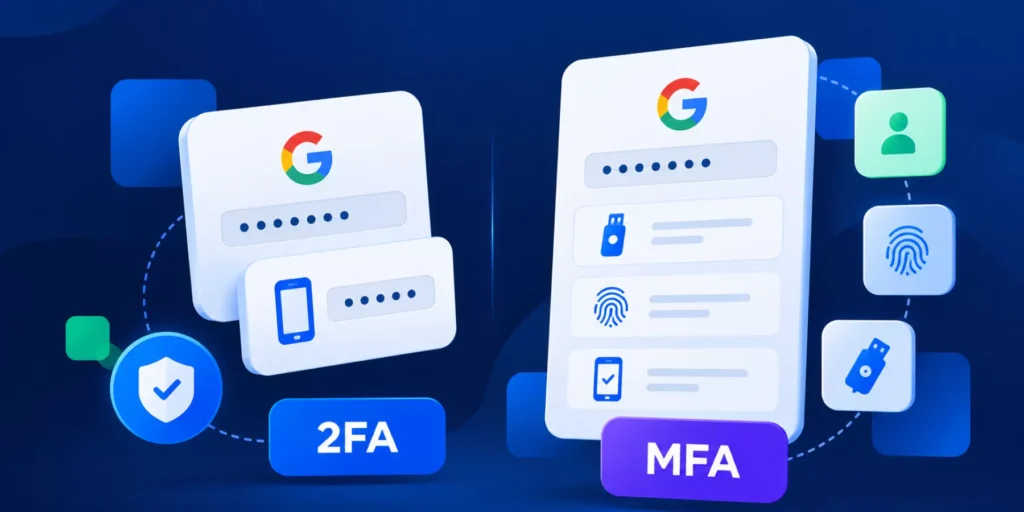
- – Check 2-Step Verification (2SV) enforcement and enrollment.
- – Review passkey and security key policies, particularly for privileged accounts.
- – Identify suspicious sign-ins and unusual account activity.
- – Review account recovery settings and inactive accounts.
Google supports phishing-resistant authentication methods, including passkeys and security keys. These are particularly relevant for protecting administrator accounts.
2. Administrator Privileges
Excessive administrative access increases the impact of compromised accounts.
Review which users have Super Admin privileges, whether delegated roles remain necessary, and whether permissions follow the principle of least privilege.
Google Workspace also supports more granular administrative privileges, including OU-scoped device management capabilities.
Our administrator role auditing guide explains this area in more detail.
3. Third-Party Applications and OAuth Access
Connected applications can request access to Gmail, Drive, and other Workspace data.
During your audit:
- – Review authorized third-party applications.
- – Examine the OAuth permissions they request.
- – Identify unnecessary or unapproved applications.
- – Revoke access where appropriate.
Pay particular attention to applications with broad permissions or access to sensitive information.
Read our third-party application security guide for additional recommendations.
4. Google Drive and Gmail Security
Review how organizational information is accessed, shared, and protected.
For Google Drive, examine external sharing, public links, sensitive files, and Shared Drive membership.
For Gmail, review relevant security settings, suspicious activity, and available email investigation data.
Where supported, Data Loss Prevention (DLP) rules can help restrict inappropriate sharing of sensitive information.
See our updated Google Drive and Shared Drives Auditing Guide for practical steps.
Which Google Workspace Tools Can Admins Use?
Google Workspace includes several native tools for auditing security settings and investigating activity.
| Tool | What Admins Can Review |
|---|---|
| Security Health | Security configuration recommendations and settings, where available. |
| Audit and Investigation | Admin actions, user activity, Drive events, and other supported logs. |
| Security Investigation Tool | Advanced investigation and response capabilities on supported editions. |
| Alert Center | Security alerts and potential threats requiring investigation. |
| App Access Control | Third-party application access and OAuth permissions. |
To begin, open the Google Admin console and navigate to Reporting > Audit and investigation to review available log events.
For security configuration reviews, check the relevant settings under Security and the Security Center features included in your edition.
Note: Available logs, investigation capabilities, and security reports vary by Google Workspace edition and administrator privileges.
Google Vault can support retention, legal holds, and eDiscovery, but it isn’t a replacement for security audit logs or investigation tools.
Google Workspace Security Audit Checklist
Use this checklist to guide your next security review.
| Audit Area | What to Check |
|---|---|
| Authentication | 2SV enforcement, passkeys, and suspicious sign-ins |
| Administrator roles | Privileged accounts and unnecessary permissions |
| User accounts | Inactive users and account security settings |
| Third-party apps | OAuth permissions and unauthorized applications |
| Google Drive | External sharing, sensitive files, and access permissions |
| Gmail | Security settings and suspicious email activity |
| Security alerts | Unresolved alerts and unusual events |
| Follow-up | Corrective actions, documentation, and recurring reviews |
For a downloadable reference, use our Google Workspace Auditing Task List.
How Often Should You Audit Google Workspace Security?
The frequency depends on your organization’s size, security requirements, and risk exposure.
A practical starting point is to:
- – Review high-risk alerts and suspicious activity regularly, ideally as part of ongoing security monitoring.
- – Review authentication, external access, and application permissions monthly.
- – Conduct broader security configuration and administrator access reviews quarterly.
- – Perform additional audits after security incidents, major policy changes, or organizational changes.
Document your findings, assign responsibility for corrective actions, and verify that identified issues have been addressed.
How GAT Labs Supports Google Workspace Security Audits
Google Workspace provides native security controls and audit logs. GAT Labs adds auditing, reporting, and administrative capabilities to help teams investigate risks and manage access across their environment.
With GAT+, administrators can:
- – Review user and administrator activity.
- – Investigate Google Drive sharing and permissions.
- – Audit third-party applications and OAuth scopes.
- – Configure supported security alerts.
- – Generate scheduled reports for recurring reviews.
- – Take administrative action on identified access risks.
For browser-level security, GAT Shield+ adds continuous identity verification and advanced protection for enterprises using Chrome.
These capabilities complement Google’s native security controls and help administrators investigate risks across Google Workspace and Chrome.
Make Security Auditing a Regular Practice
A Google Workspace security audit shouldn’t be limited to annual reviews or incident investigations.
Regularly review authentication, administrator access, connected applications, and data-sharing activity to help IT teams identify security gaps and remove unnecessary access.
Start with your highest-risk settings, document the findings, and establish a recurring review process.
Up next: Part 4, How to Audit Google Workspace Admin Roles and Permissions.
Insights That Matter. In Your Inbox.
Join our newsletter for practical tips on managing, securing, and getting the most out of Google Workspace, designed with Admins and IT teams in mind.