Updated October 2026
Google Workspace file sharing governance involves reviewing external and internal sharing permissions, managing file ownership, controlling third-party application access, and monitoring sharing activity. Admins should regularly audit public links, inherited permissions, shared drives, and OAuth-connected apps to identify unnecessary access. Google Workspace provides native sharing controls, while GAT+ adds domain-wide auditing, reporting, and permission management capabilities.
It usually starts with a simple question.
“Why can they see this file?”
Someone has opened a document and noticed that people outside the organization still have access. The project ended months ago. The original owner has moved teams. No one remembers who shared it, and no alert was ever triggered.
Now the admin is digging through permissions, trying to understand what happened and how long the exposure has existed.
If you manage Google Workspace, this situation is probably familiar. Sharing in Drive happens in seconds, but reviewing that sharing rarely happens at all. Files are shared outside the domain and forgotten. Public links stay active long after they are needed. Ownership drifts as users change roles or leave the company.
The first signal is rarely a dashboard notification. It is usually a colleague who finds something they should not.
The consequences of poor file sharing visibility can be significant. A document shared for a short-term project may contain financial information, customer records, or internal business plans. If access is never reviewed, that information can remain available to people who no longer need it.
For Google Workspace admins, security depends on understanding how data moves, who owns it, and who can access it. These controls need regular attention, not just an annual review or a response after an incident.
File sharing governance is an ongoing security responsibility.
Here are five areas every Google Workspace admin should review to reduce unnecessary data exposure without disrupting collaboration.
1. Kill the “Ghost” Shares: Audit External and Public Links
External sharing is one of the most common ways organizations lose track of who can access their data. This is not usually due to malice. Google Drive is built for collaboration, and a user can share a document with a partner for quick feedback before moving on to the next task.
Months later, that “Anyone with the link” access may still be active. Depending on the file’s contents, anyone who obtains the link could access information that was only meant to be shared temporarily.
Many admins assume they will notice these exposures, but old shares do not necessarily generate new alerts simply because they remain active.
What about Google’s newer Drive sharing controls?
Google has introduced additional data protection controls that help administrators restrict how sensitive files can be shared, including rules based on sharing audiences.
These controls help prevent future exposure, but they should not be treated as a complete cleanup of existing file permissions. Previously granted access may still need to be reviewed and removed separately.
For example, a confidential document shared with an external contractor months ago may still be accessible even after administrators introduce stricter sharing policies.
The takeaway: Preventing new risky shares and reviewing existing permissions are two separate tasks. Google Workspace admins need both.
The Goal: Identify externally shared files, review who still needs access, and remove permissions that no longer serve a business purpose.
Google Workspace provides native sharing controls and audit information. GAT+ adds domain-wide visibility into externally shared files and supports bulk permission changes, helping admins review and address existing exposure.
For practical instructions, see how to find and take action on externally shared files with GAT+.
Admins can also configure scheduled reports to remove public link permissions based on defined criteria.
2. Solve the Ownership Gap for Sensitive Data
Ownership feels like an administrative detail until it becomes a security issue. When high-value files are associated with former employees, contractors, or users who have changed departments, responsibility for reviewing access can become unclear.
If no one knows who is responsible for a file, permissions may remain unchanged long after the original business need has ended.
Every admin should be able to answer one question: Who is responsible for the most sensitive data in this domain?
That means understanding both file ownership and access management responsibilities. Files in My Drive and shared drives have different ownership models, so administrators need to account for both.
The Goal: Integrate file ownership transfers into standard offboarding and role-change processes.
Handling this manually across hundreds or thousands of accounts is difficult. GAT+ helps administrators audit Drive ownership and permissions, while GAT Flow supports automated user lifecycle workflows.
For temporary collaboration, administrators should also consider access expiration dates where supported. Google Drive allows eligible sharing permissions to expire automatically, reducing the need for manual follow-up.
However, expiration dates are not available for every permission type. Admins should still review ownership, inherited access, and shared drive membership as part of their regular governance process.
3. Tighten the Perimeter: Internal Oversharing
We often focus on external threats, but sensitive information can also be exposed through overly broad internal access.
It is common to find folders shared with everyone in the organization or with large Google Groups that no longer serve a clear purpose.
This creates a discovery risk. An employee could find payroll information, financial documents, or strategic plans simply because access was granted too broadly.
The issue is not necessarily malicious activity. It is that permissions may extend far beyond the employees who actually need the information.
Don’t overlook inherited permissions
Files inside shared folders can inherit access from their parent folders. This means reviewing an individual file is not enough if the broader folder still grants access to employees who should not see it.
When reviewing sensitive information, administrators should check both direct file permissions and access inherited from parent folders or shared drives.
They should also examine group memberships. A file shared with a Google Group may be accessible to more employees than its owner realizes.
The Goal: Move toward intentional, role-based access.
Periodically review internal sharing and remove unnecessary domain-wide permissions.
Focus on sensitive folders, legacy Google Groups, inherited access, and permissions that no longer match employees’ responsibilities.
4. Audit Your Shadow IT: Revoke Risky OAuth Permissions
Third-party applications can create access risks that are easy to overlook in Google Workspace. Employees may authorize productivity tools, automation platforms, and AI applications without fully reviewing the permissions requested.
Depending on the OAuth scopes granted, these applications may be able to read, modify, or delete Google Drive files. Some authorizations can persist beyond the initial session, even after employees stop actively using the application.
AI-powered meeting assistants, writing tools, and automation services are increasingly part of this conversation.
The risk is not simply that a tool uses AI.
The risk is that its access may not be regularly reviewed.
In some cases, these applications enter the environment without formal IT approval. Employees adopt them directly, making it harder for administrators to understand which integrations are required and which permissions are appropriate.
An application with broad Drive access that is no longer needed represents unnecessary exposure.
The Goal: Review third-party application access with the same attention given to user permissions.
With GAT+, administrators can assess third-party applications by their OAuth scope risk scores, examine connected users, and identify applications that may require further investigation.
Admins can also audit and manage third-party application access through GAT+ application policies.
For a detailed walkthrough, read OAuth App Security: The Invisible Backdoor in Google Workspace, including how to review permissions and identify unnecessary access.
5. Move from Manual Checks to Ongoing Monitoring
Periodic audits help administrators identify existing risks, but they cannot always reveal new sharing activity immediately.
A file might be shared externally shortly after an audit. If the organization relies only on quarterly reviews, that permission could remain unnoticed for weeks.
This is where monitoring and alerting become important.
With GAT+, administrators can configure alerts and reports for activity such as files shared outside the domain and new third-party application connections.
These capabilities help teams identify activity that requires investigation without relying entirely on manual reviews.
However, GAT+ auditing and reporting depend on the availability and processing of Google Workspace activity data. They should not be described as instantaneous monitoring.
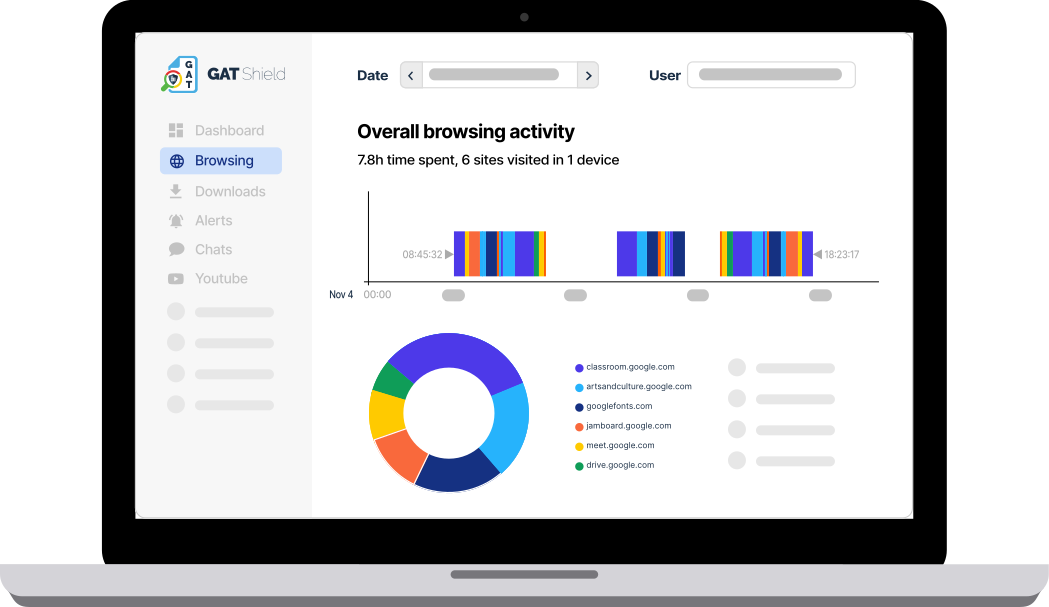
For use cases that require real-time browser activity monitoring and alerts, GAT Shield provides additional visibility at the Chrome browser level.
Turn findings into action
Identifying a risky permission is only the first step. Administrators also need a consistent process for reviewing and addressing it.
For example, GAT+ supports scheduled reports that identify externally shared files containing sensitive information and remove external sharing permissions, based on configured criteria and actions.
Admins can also use report-only configurations to notify file owners before making permission changes.
This allows organizations to choose between reviewing potential violations, notifying users, and applying corrective actions where appropriate.
The Goal: Combine periodic access reviews, scheduled reporting, relevant alerts, and defined remediation processes.
Effective governance depends on both understanding existing exposure and identifying new activity that requires attention.
Final Thoughts: File Sharing Security Requires Ongoing Attention
Google Workspace makes collaboration easy. The challenge is keeping access appropriate as files, employees, and business needs change.
External links can remain active long after a project ends. Internal permissions can grow too broad. Third-party applications may retain access that no longer serves a business purpose.
For Google Workspace admins, effective file sharing governance comes down to three actions: know what is shared, understand who has access, and regularly review whether that access is still necessary.
Start with visibility. Follow with consistent access controls and monitoring.
That’s how organizations reduce unnecessary data exposure without disrupting collaboration.
Take Your File Sharing Review Further
Need a practical framework for reviewing Google Drive access?
Our free Google Workspace File Sharing Governance Guide covers external sharing, file ownership, permissions, and ongoing access reviews.
FAQs About Google Workspace File Sharing Governance
What is file sharing governance in Google Workspace?
File sharing governance in Google Workspace is the practice of controlling how files are shared internally and externally, who owns them, which users and applications can access them, and how changes are monitored.
It helps administrators reduce unnecessary data exposure while allowing employees to collaborate in Google Drive.
Why is external file sharing a security risk in Google Drive?
External file sharing becomes risky when access is not reviewed regularly.
Files shared with external users or through public links can remain accessible long after the business need has ended. Without regular audits, sensitive information may be available to people who no longer need it.
Why does file ownership matter for Google Workspace security?
File ownership helps establish responsibility for managing and reviewing access.
When employees leave or change roles, administrators need to confirm that important files remain accessible to the appropriate people. For shared drives, organizations must also review membership and management responsibilities.
Clear ownership and access responsibilities help organizations manage permissions consistently.
How can Google Workspace admins find externally shared files?
Administrators can review sharing settings and relevant Drive activity through Google Workspace’s native tools.
GAT+ provides a domain-wide view of externally shared files, allowing administrators to filter results, examine permissions, and take action on unnecessary access.
How do Google Workspace admins manage third-party application access?
Administrators can review third-party applications through Security > Access and data control > API controls > Manage App Access in the Google Admin Console.
They can examine requested OAuth scopes and configure application access. GAT+ adds application auditing, risk assessment, and policy management capabilities.
What is the difference between audits and alerting in Google Workspace security?
Audits help administrators review existing permissions and investigate past activity. Alerts notify administrators when configured conditions or events are detected.
Both are important for file sharing governance. Audits help identify existing exposure, while alerts can help teams respond to new activity sooner.
Alert timing depends on the monitoring system and the availability of activity data.
Insights That Matter. In Your Inbox.
Join our newsletter for practical tips on managing, securing, and getting the most out of Google Workspace, designed with Admins and IT teams in mind.