

See Details
Why create a delegated auditor in GAT+?
By default, only Google Workspace Super Admins have access to the GAT+ tool.
With the delegated auditors functionality Super Admins can assign users to audit or analyze others within their domain without ever having access to the Google Workspace Admin Console (admin.google.com).
How is this useful? Many organizations have multiple offices, departments, campuses, or locations with the delegated auditors feature you can assign the right person to perform the auditing of a group or organizational unit.
Here are a few examples of when delegated auditors could be used:
- A sales manager would like to create reports for his/her sales team covering data across all of the different Google apps like Gmail and Google Drive.
- A school IT Director would like to give another IT member access to GAT+ but not to his/her Google Workspace Admin Console.
- A Super Admin would like to delegate responsibility to his internal auditing team to give them scope over a specific Org unit.
Creating a Delegated Auditor
In GAT+ navigate to Configuration > Delegaed auditors > + button (Add new auditor)

View the auditor and fill in the details for the Auditor you want to create.
- Product – select the product needed
- GAT+ – create an Auditor for GAT+
- Shield – create an Auditor for Shield
- Auditor – select the user who will be the Auditor
- User – select an individual user to be the Auditor
- Group – select a group of users to be the Auditors
- Org. Unit – select org. unit of users to be the Auditors
- Scope – select the users to who the Auditor will audit and have access in GAT or Shield. Users will be under the scope of users the Auditor will manage.
- User – select the individual user to be the Auditor
- Group – select a group of users to be the Auditors
- Org. Unit – select org. unit of users to be the Auditors
- Include sub. org. units
- Include sub. org. units

- Access areas – select what areas in GAT+ and Shield the Auditor will have access to. Access areas visible to the Auditors

- Enable any of the Audit areas
- Enabled – the area will be visible to the Auditor
- Disabled – the area will not be visible to the Auditor
Super Admin
Super Admin (warning! Can change permissions and more like Google Workspace Administrator)
This is a “custom” Google Super Admin within GAT+ only.
The User with Super Admin Delegated auditor will have the same access Super Admin from Google would have – but only within GAT+ and not within the Google Admin console.
- Enable changes – Enabled by default – Unchecking will give ‘Read-only’ access to GAT for the Auditor
- Valid to – select the time until the Auditor will be enabled.
- Indefinite expiration period
- Active – enable or disable the Auditor
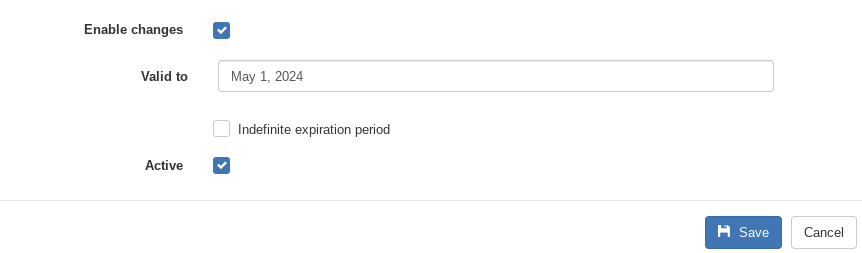
- Click on Save to create the Delegated auditor.
Giving GAT+ Auditor Additional Privileges
When a GAT+ delegated auditor policy is active, you can give the auditor additional privileges. Those privileges allow the Auditor to make changes via Export/Import functionality.
With these additional privileges, the auditor can
- Export any metadata to a Google spreadsheet
- Edit any field in the spreadsheet
- Import the spreadsheet back in to confirm the changes.
Note: A Super Admin has these types of privileges by default.
In Delegated Auditors > click on “lock icon” under Actions to add Additional permissions
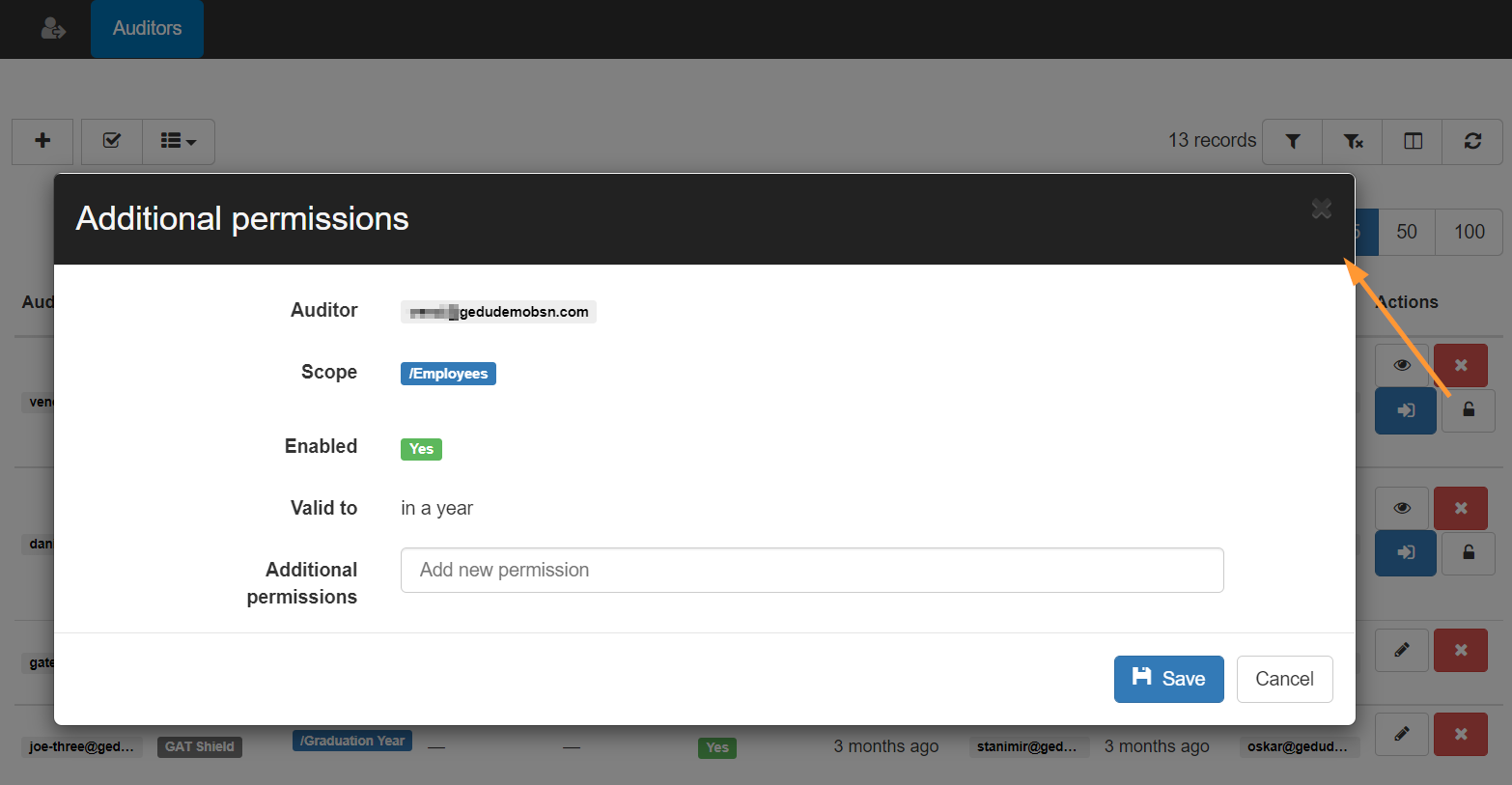
Manage additional permissions – in the following areas:
- Classrooms import
- Groups import
- Users import
- Automatic email forwarding
- Email delegation
- Students import
- ChromeOS device import
For example:
- If Email delegation is enabled, the Delegated auditor will be able to use Unlock and request enablement of Email delegation.
- If Email delegation is not enabled as additional permission, the Delegated auditor will not be able to use Unlock and request the action.

Add the Additional permissions and click on the Save button
Access GAT+ as Delegated auditor
Your delegated auditor can now launch and access the tool from their Google Apps button.
In the Google Chrome session click on the Google Apps menu button > scroll down in the menu and click on GAT+
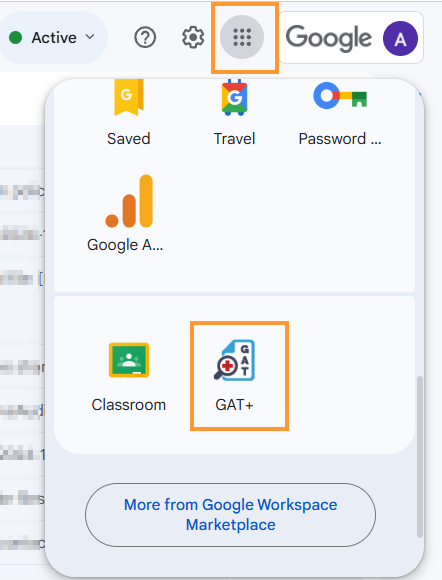
Accessing the tool as a delegated auditor
When the Auditor logs into GAT+, they will have access only to the selected Admin audit areas
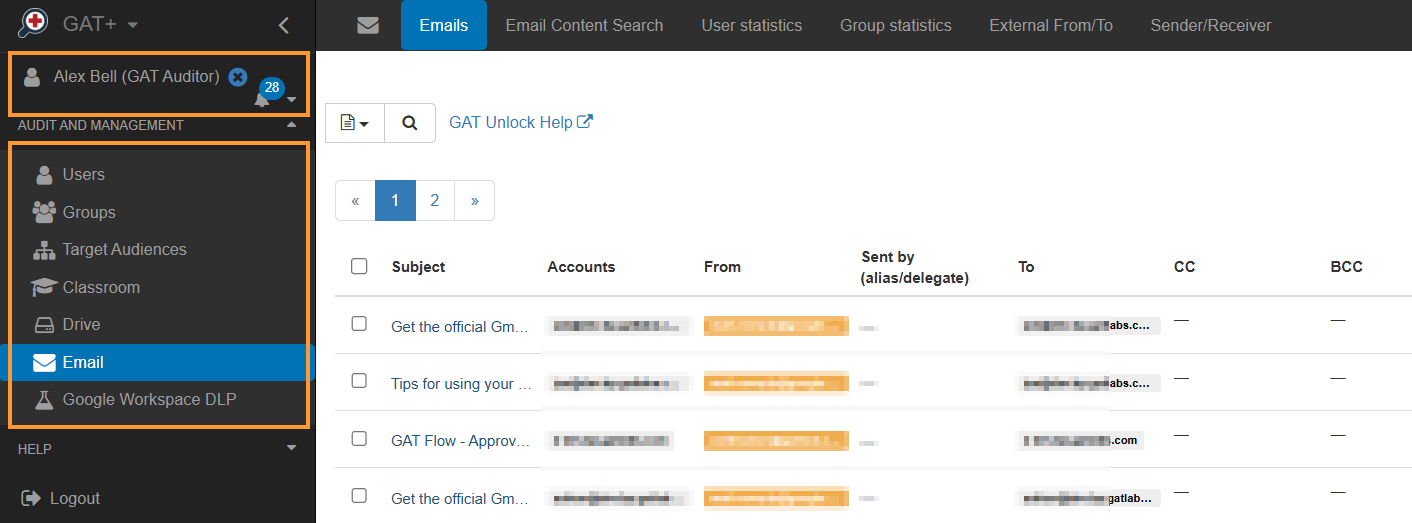
Navigating within GAT+
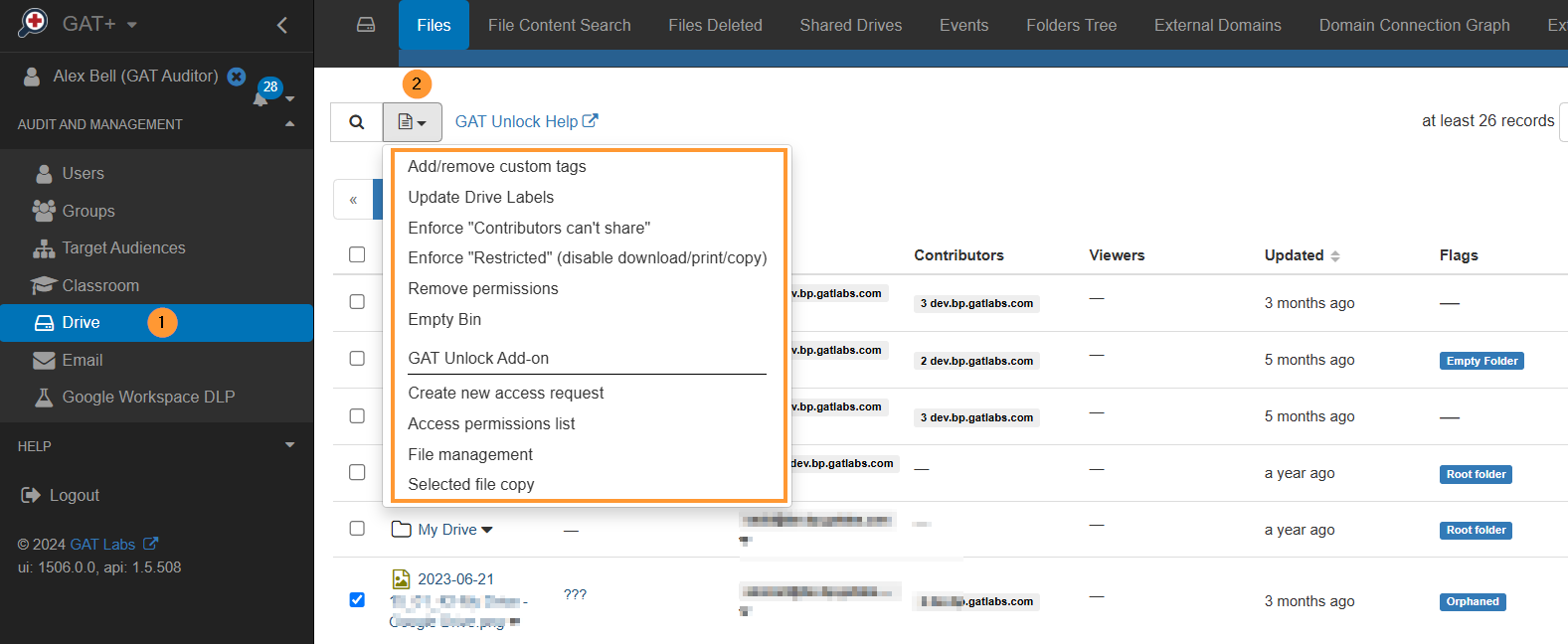
In the Auditing Areas, they can utilize all of GAT Unlock’s features with Security Officer approval.
- They can modify and remove permission to download or view file content.
- They can download emails, view emails, and remove emails from users’ Gmail accounts.
- They can set up email delegation to give one user direct delegation into another user’s Gmail account.
- They can remove and add permissions from Drive and much more
Security Officer
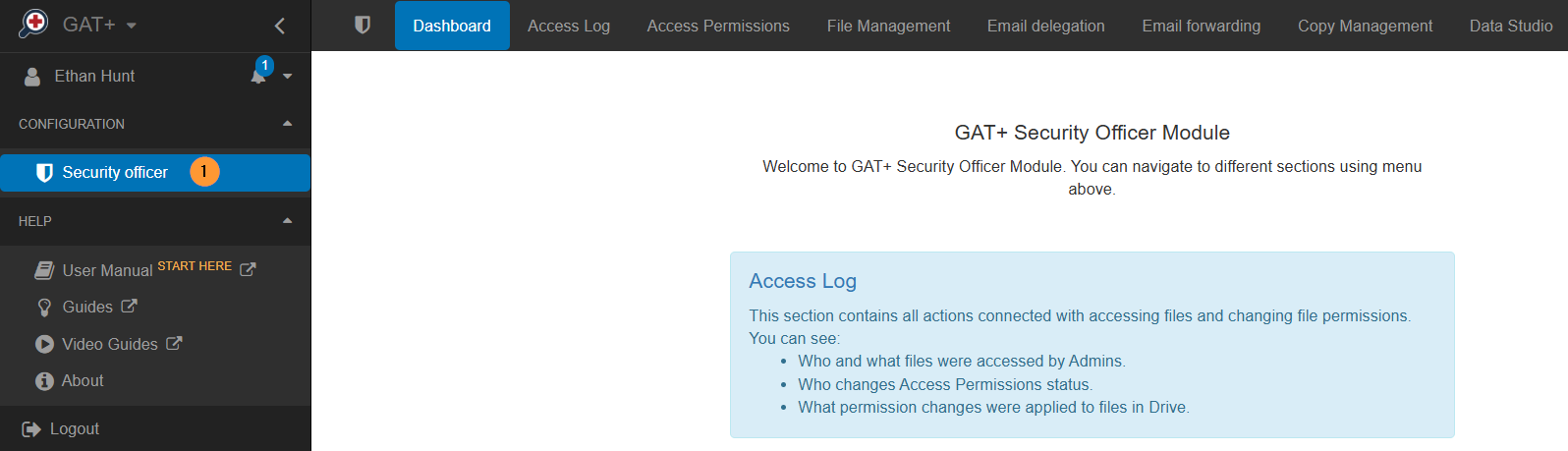
If the Auditor is also a Security officer – they will be able to see the Security Officer section in GAT+
Navigate to Configuration > Security officer
See Details
Why create a delegated auditor in GAT+?
By default, only Google Workspace Super Admins have access to the GAT+ tool.
With the delegated auditors functionality, Super Admins can assign users to audit or analyze others within their domain without ever having access to the Google Workspace Admin Console (admin.google.com).
How is this useful? Many organizations have multiple offices, departments, campuses, or locations with the delegated auditors feature you can assign the right person to perform the auditing of a group or organizational unit.
Here are a few examples of when delegated auditors could be used:
- A sales manager would like to create reports for his/her sales team covering data across all of the different Google apps like Gmail and Google Drive.
- A school IT Director would like to give another IT member access to GAT+ but not to his/her Google Workspace Admin Console.
- A Super Admin would like to delegate responsibility to his internal auditing team to give them scope over a specific Org unit.
Creating a Delegated Auditor
In GAT+ navigate to Configuration > Delegaed Auditors > + button (Add new auditor)
View the auditor and fill in the details for the Auditor you want to create.
- Auditor – select the user who will be the Auditor
- User – select the individual user to be the Auditor
- Group – select a group of users to be the Auditors
- Org. Unit – select org. unit of users to be the Auditors
- Scope – select the users to whom the Auditor will audit and have access in GAT or Shield. Users will be under the scope of users that the Auditor will manage.
- User – select the individual user to be the Auditor
- Group – select a group of users to be the Auditors
- Org. Unit – select org. unit of users to be the Auditors
- Include sub. org. units
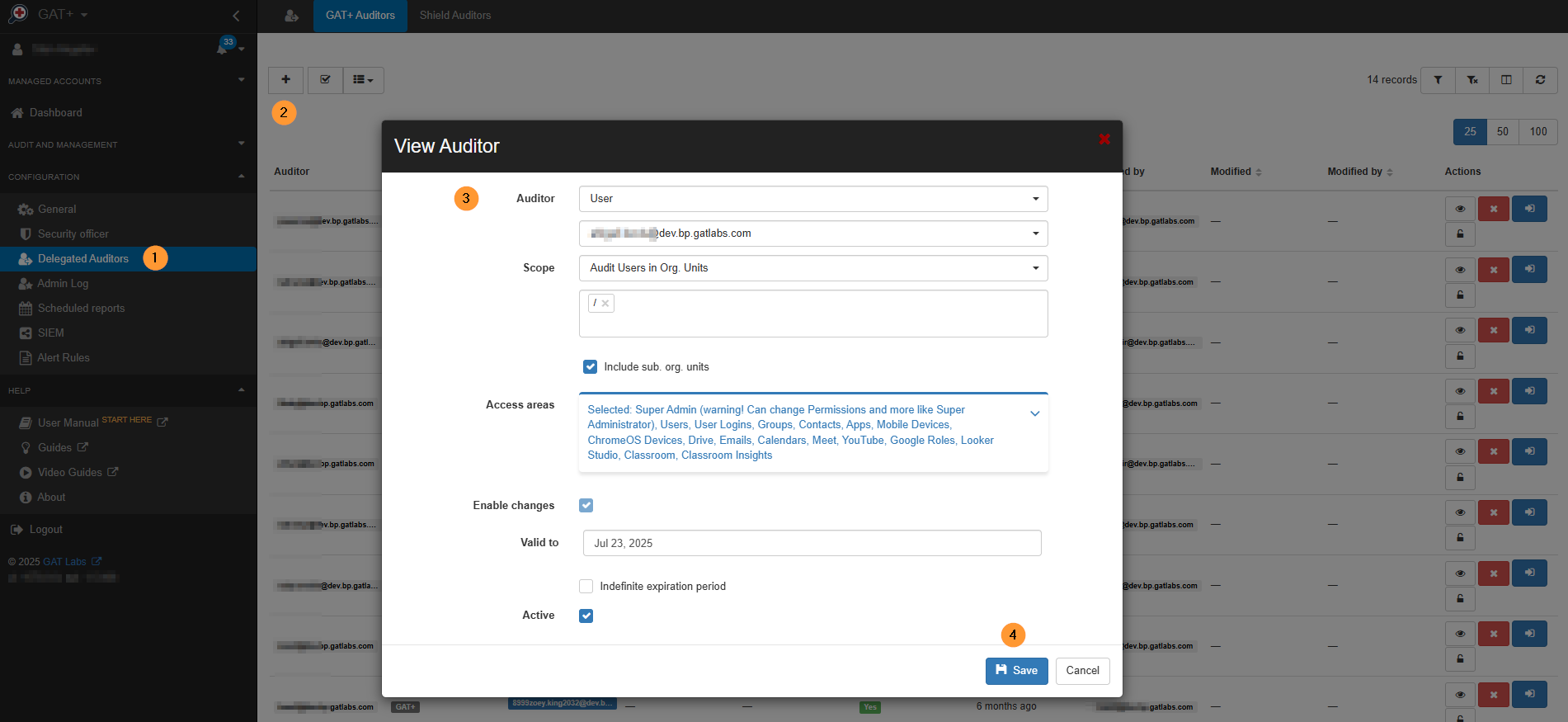
- Access areas – select what areas in GAT+ and Shield the Auditor will have access to. Access areas visible to the Auditors
- Enable any of the Audit areas
- Enabled – the area will be visible for the Auditor
- Disabled – the area will not be visible for the Auditor
Super Admin
Super Admin (warning! Can change Permissions and more like GSuite Administrator) – This is a special permission and allows the Auditor to have Full Admin privileges, the same as a Google Super Admin has using GAT+.
To enable this “Super Admin”, please contact us at support@gatlabs.com
- Valid to – select the time until the Auditor will be enabled.
- Indefinite expiration period
- Active – enable or disable the Auditor
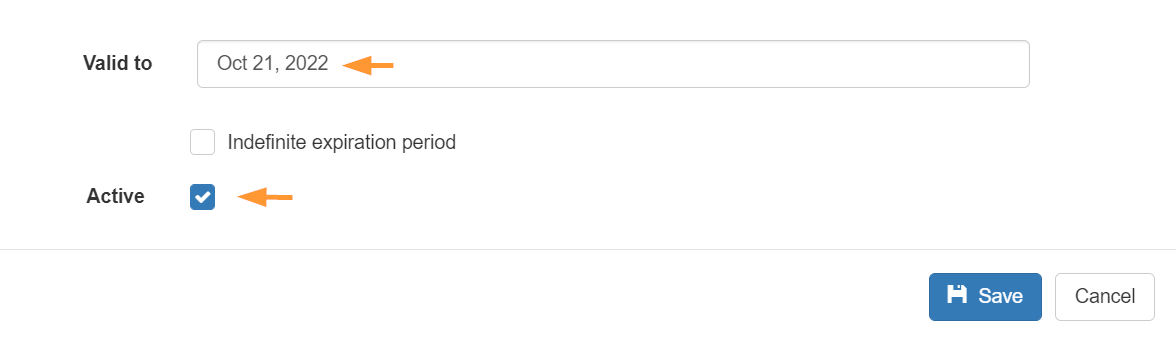
- Click on Save to create the Delegated auditor.
Additional Privileges for Education Domains
When a GAT+ delegated auditor policy is active, you can give the auditor additional privileges. Those privileges allow the Auditor to make changes via Export/Import functionality.
With these additional privileges, the auditor can
- Export any metadata to a Google spreadsheet
- Edit any field in the spreadsheet
- Import the spreadsheet back in to confirm the changes.
Note: A Super Admin has these types of privileges by default.
In Delegated Auditors > click on “lock icon” under Actions to add Additional permissions

Permissions for Education domains
Manage additional permissions in the following areas:
- Classroom import
- Group import
- User import
- Automatic email forwarding
- Email delegation
- Students imports
- ChromeOS devices import
The Admin can create Delegated auditors in the education domain, and allow the Auditors to fully audit and manage Google classrooms.
- Classroom import allows:
- Import/export Students from the domain
- Add and delete Google Classroom
- Add and delete Teachers and Students from Google Classroom
- Add or delete student Guardians
Add the additional permissions and click on the Save button
Access GAT+ as a Delegated auditor
Your delegated auditor can now launch and access the tool from their Google Apps button.
In the Google Chrome session, click on the Google Apps menu button > scroll down in the menu and click on GAT+
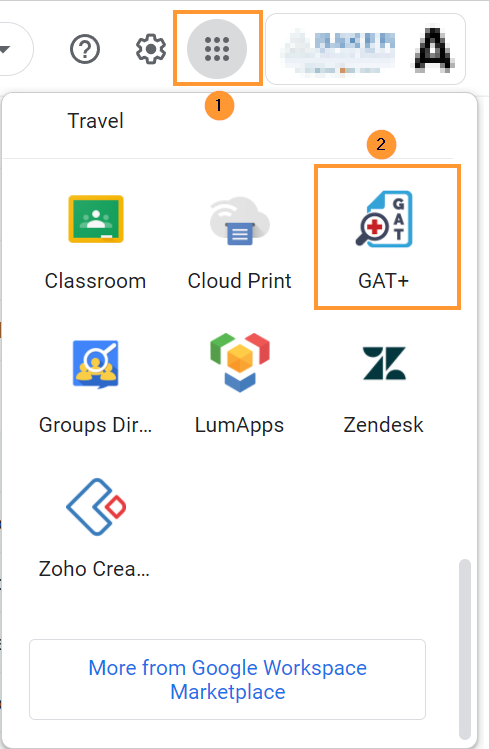
Accessing the tool as a delegated auditor
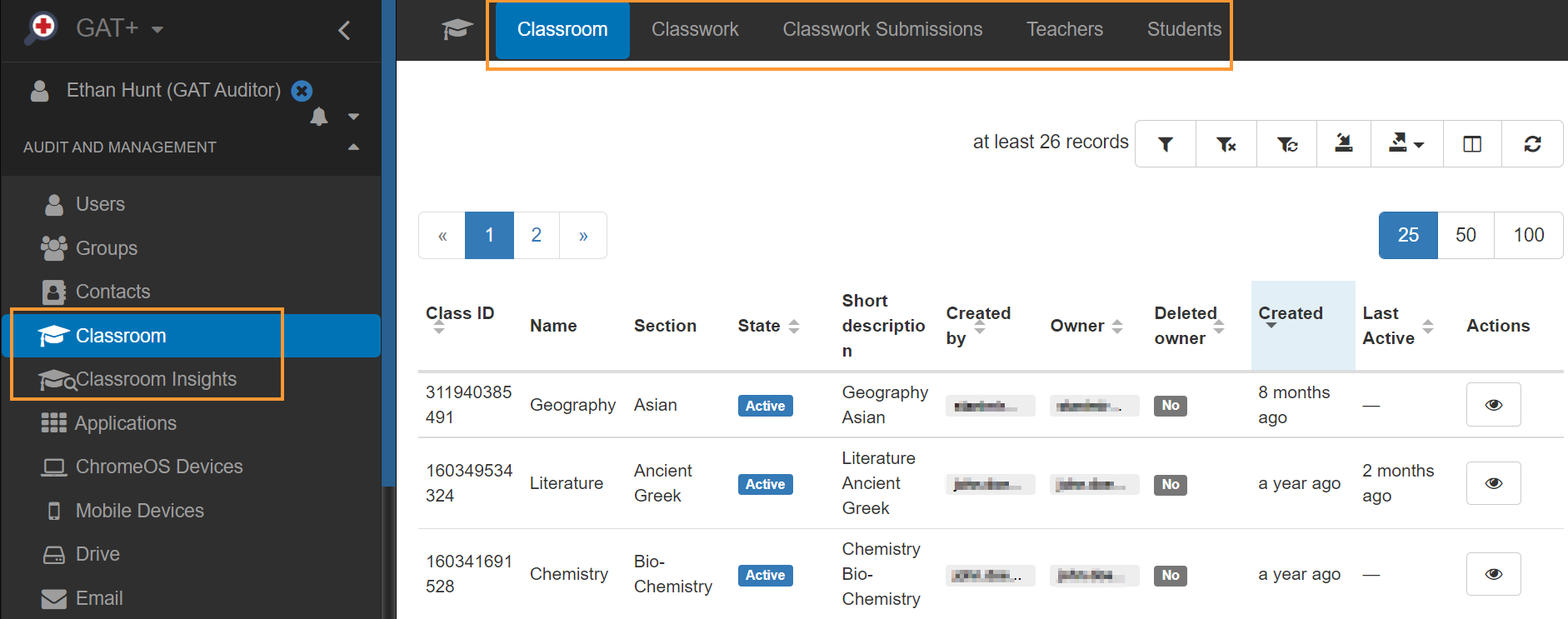
When the Auditor logs into GAT+, they will have access only to the selected audit areas

In the Auditing Areas, they can utilize all of the features of GAT Unlock, of course, with Security Officer approval.
- They can modify and remove permissions to download or view file content.
- They can download emails, view emails, and remove emails from users’ Gmail accounts.
- They can set up email delegation to give one user direct delegation to another user’s Gmail account.
- They can remove and add permissions from Drive
- They can manage Classrooms by adding or removing Students and Teachers from Google Classrooms
- They can delete or archive Google Classrooms in bulk
- They can add or remove students’ Guardians in bulk
Security officer
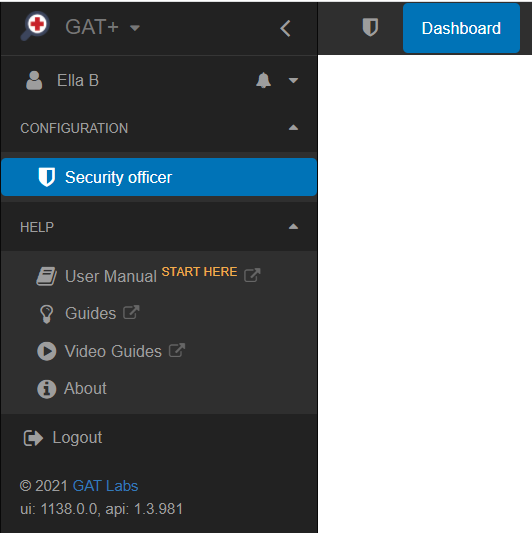
If the Auditor is also a Security officer, they will be able to see the Security Officer section in GAT+
Navigate to Configuration > Security Officer
See Details
GAT Flow is a tool allowing Admins to OnBoard, OffBoard, and Modify existing accounts of your domain.
By default, the tool is for Super admins only, but Flow can be set and given access to (non-admin) delegate users.
Allow an admin to delegate access to GAT+ Flow to (non-admin) account, thus allowing the new user to create, delete and modify existing accounts
Set up Delegated access to Flow
Navigate to GAT+ → Flow
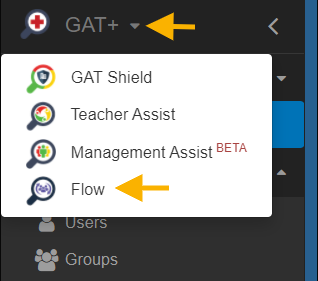
In Flow select Delegate flow from the menu on the left
A new window will be displayed, on the top-right corner click on Create role button.

A new window will be displayed, fill in the details
- User – enter the user who will have access to Flow
- Role – Flow
- Active – enable or disable the User role
- Valid to – select the date until the user will have access to Flow
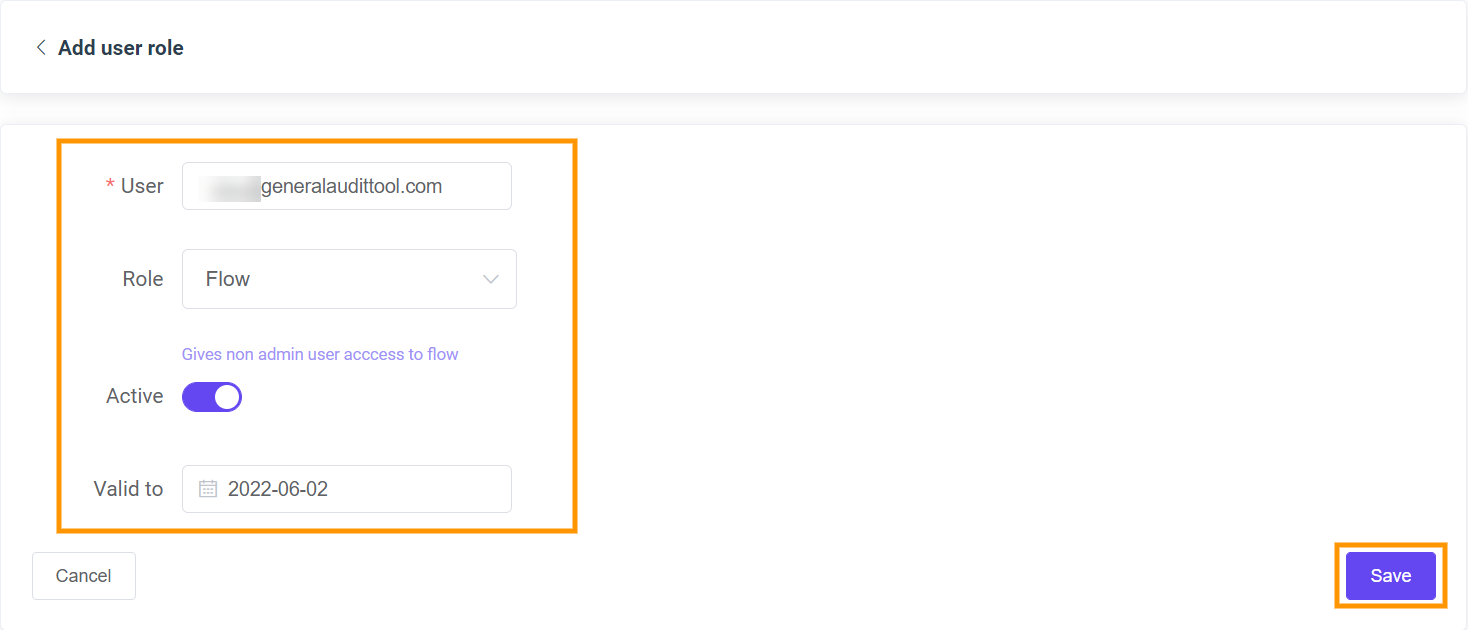
Click on the Save button.
Login to Flow as a (non-admin) delegate
The delegated user can log in to Flow from the Google Apps button.

Click on the GAT Flow button to log in

Result
The selected non-admin user will have delegated access to Flow.
View details
View details for the user role and edit the access when needed (pen icon)

Video how-to
See Details
Unlock is a feature within GAT+ that allows Google Workspace admins to take different actions across their domain. The Unlock functionality is required for:
- Viewing content of Files and Emails
- Changing ownership of Google Drive Files
- Copying Google Drive folders and moving them to another user
- Adding or removing users from Drive and Shared Drive files
- Setting up email delegation to user accounts
- Using the GAT Flow functionality to:
-
- Onboard users into the domain
- Offboard users from the domain
- Modify users in the domain
-
The Unlock functionality requires each of the actions above to be approved by the Security Officer. This is designed as a security feature. Note: To have access to GAT Flow you must have GAT Unlock configured, this product requires a paid subscription.
What is pre-approved access in GAT Flow?
Preapproval in Unlock allows the action chosen for Flow, Drive, or Email to be done without the need of the Security Officer’s approval for every request. i.e.: Allowing Unlock to be used without approval by the Security officer. The setting up of Pre-approval must be set up and approved by Security Officer
How to set up GAT Flow pre-approval in GAT+?
Navigate to GAT+ > Configuration > Security Officer > Access permissions  In Access Permissions click on the + button <- Click here to create new preapproved access A new window will be displayed fill in the details required:
- Authorized user – select the user who you want to set pre-approved access to
- Type – Flow, Drive, Email
- Scope – User, Group, Org.Unit
- Valid until – set the time until pre-approved access will be granted
- Flow types – select the type of workflow
- Onboarding
- Offboarding
- Modify
 Click on Save
Flow setup
Navigate to Flow > Preapproved access > Create preapproved access  A new window will be displayed fill in the details required:
- User – select the user who you want to set pre-approved access to
- Scope type – User, Group, Org.Unit
- Scope – enter the user/group/org.unit
- Valid to – set the time until pre-approved access will be granted
- Flow types – select the type of workflow
- Onboarding
- Offboarding
- Modify
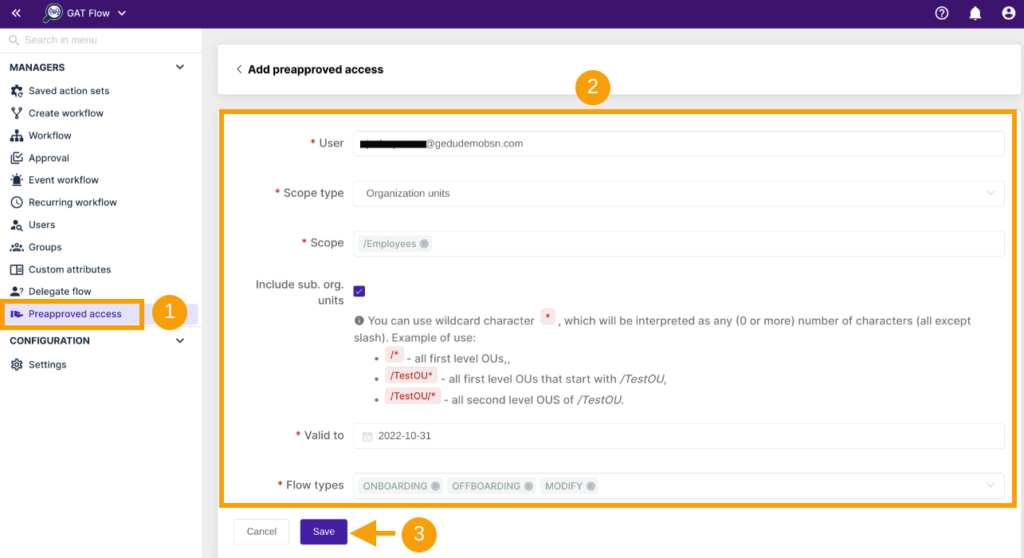 Click on Save
Result
The Pre-approved access will be granted to the selected user. The Pre-approved access must be approved by the Security Officer. 
Approval in Flow

Approval in GAT+

Create workflow result
When pre-approval in Flow is enabled, the Admin will receive pop-up notifications every time they are about to send the request. The pop-up will show them that pre-approval is enabled and security officer is not required When the Admin “Create workflow”, they will receive a pop-up message as below. 
Event and Recurring workflow result
When Event or Recurring workflow is used:
- The Event and Recurring workflow needs to be approved separately from the Pre-approval
- The “pre-approval” option must be selected

Edit preapproval
Edit existing pre-approved access. Navigate to Flow > Preapproved access
- Click on the “pen” icon to edit existing preapproved access.
- Click on the (x) to delete the preapproved access.
 Navigate to GAT+ > Configuration > Security Officer > Access permissions Find the Preapproved access > click on the “eye” icon and edit the Flow types Video of setting up pre-approval in Flow
See Details
GAT Flow is a User management tool part of the GAT Suite of products. It allows Google Workspace Admins to Onboard, Offboard, and Modify users of the domain.
It allows taking bulk action on multiple users at the same time. The actions the can be taken are
- Drive
- Calendar
- Users
- Groups
- Classrooms
- Devices
For Email one of the options available is setting up Email delegation
Set up workflow
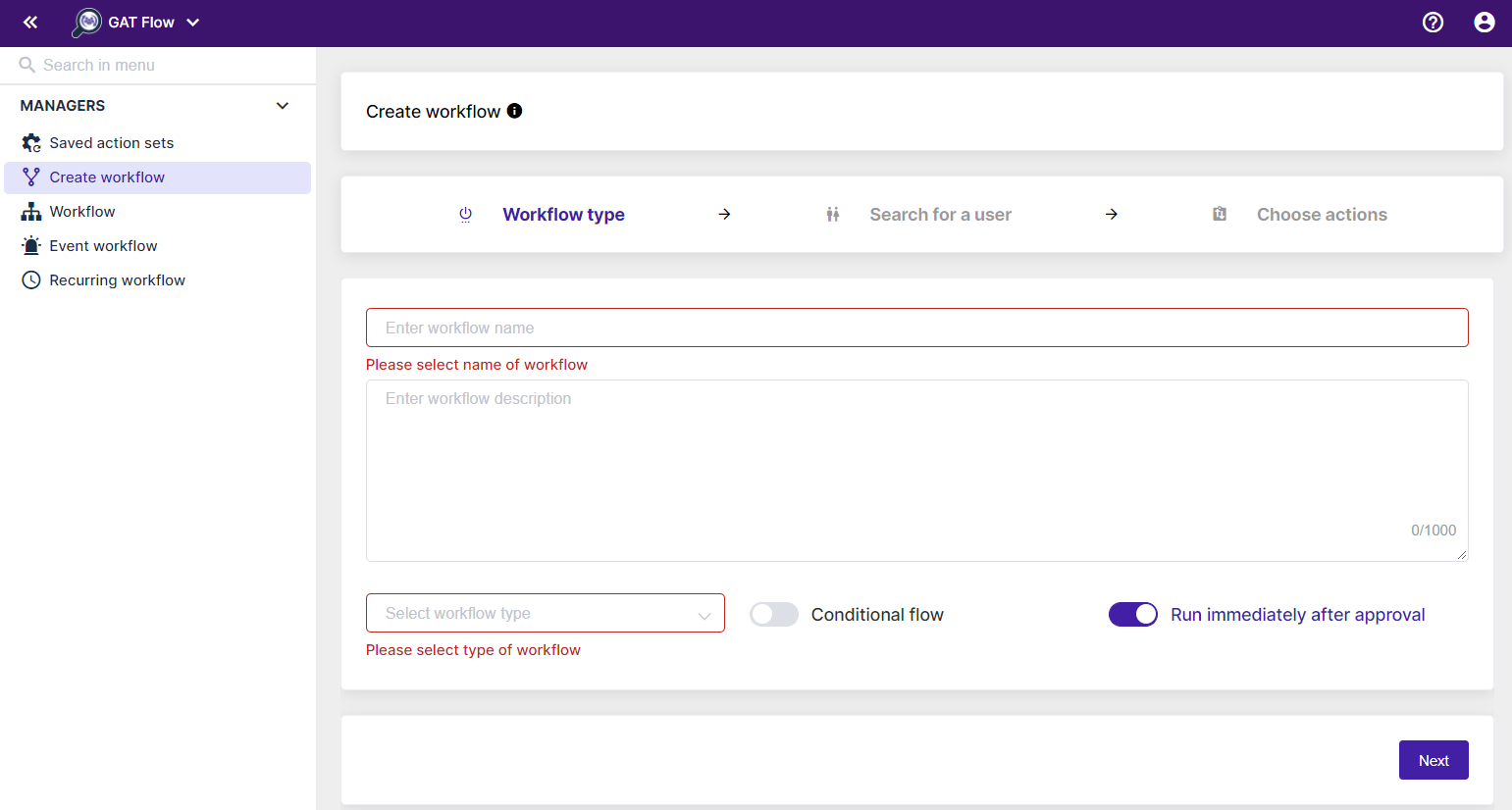
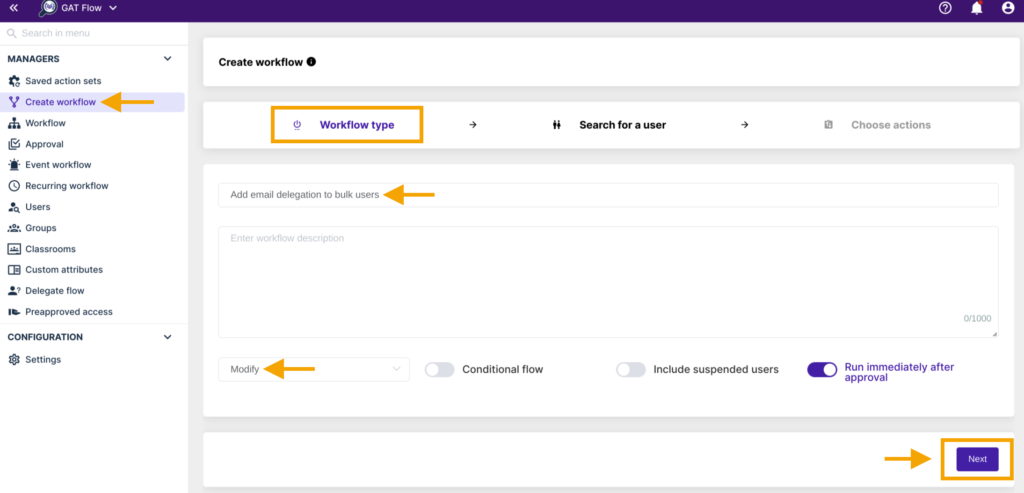
Navigate to Flow → Create workflow
Workflow type
Enter the details
- Name – a name for the workflow
- Type – select Modify
- Next – click to proceed
Email delegates
Enter the emails of the users who will have Email delegation set up
Search for a user
Search for the users and add them
- Search for a user – click and search for individual users
- Search for a group – click and search for a group of users
- Search for an OU – click and search for OU of users
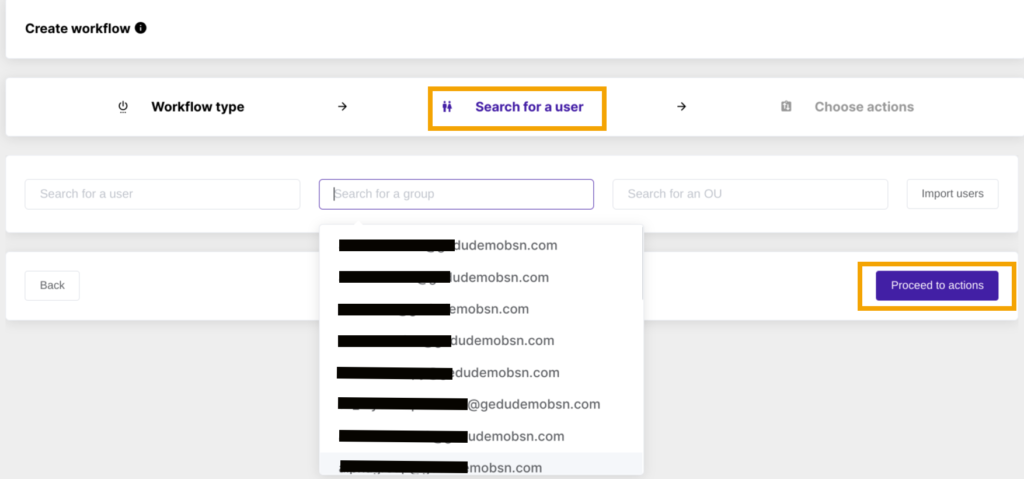
When users are selected click on Proceed to actions
Choose actions
To Add action or Add action set, please select the plus button shown in the screenshot below accordingly.
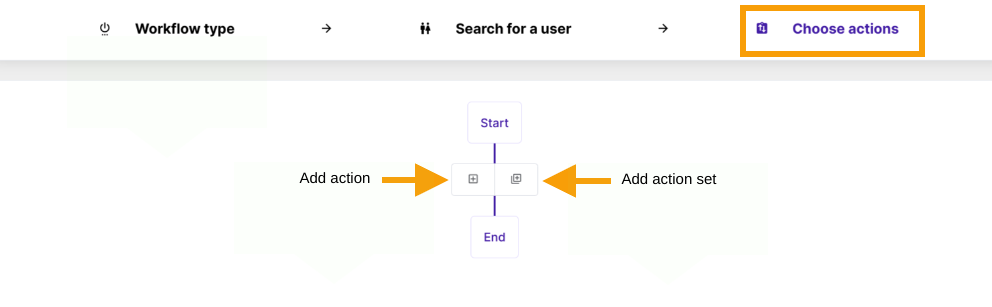
If the process hasn’t been set before, please use Add action button and create the node.
Select the action Set email delegation from the menu
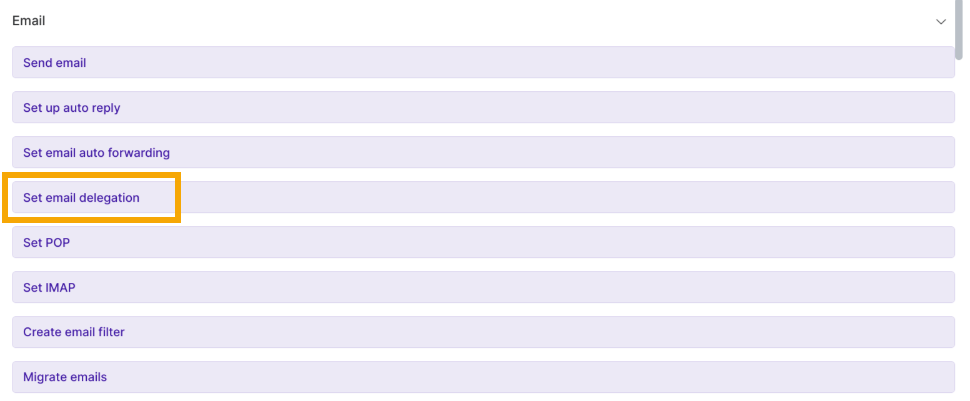
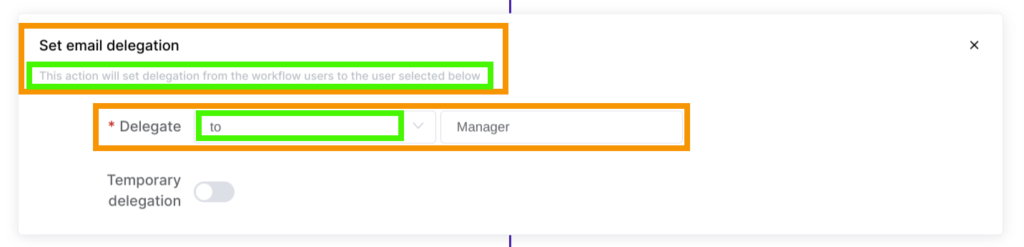
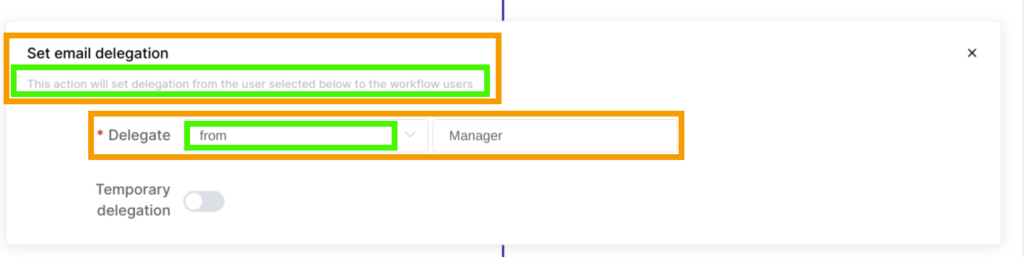
As Set email delegation feature is bilateral, an Admin can set email Delegation To or From the selected user(s).
Delegate TO action triggers delegation from the user(s) selected in this workflow to the user specified in the below job setup (in other words: one user (‘Manager‘) gains access to the email box of one or multiple users):
Delegate FROM action triggers delegation from the user specified in the below job setup to the user(s) selected in this workflow (in other words: one or multiple users gain access to one user’s email box (‘Manager’)):
Choose the desired action and fill in the details:
- Delegate to: enter the email (user) who will have Delegated access to all the selected users
- Delegate from: enter the email (user) whose access will be Delegated to all the selected users
- Temporary delegation – click on the checkmark to enable temporary time
- Hours active – how long the Email delegation will last (if ‘Temporary delegation’ is enabled)

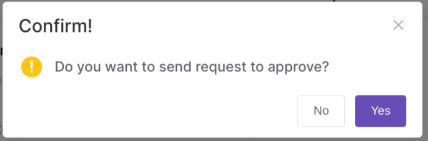
A pop-up message will be displayed, click Yes to proceed.
If pre-approval enabled – a new message will pop up as below, click on Yes to proceed

Security officer approval
An email will be sent by Admin and received by the Security officer.
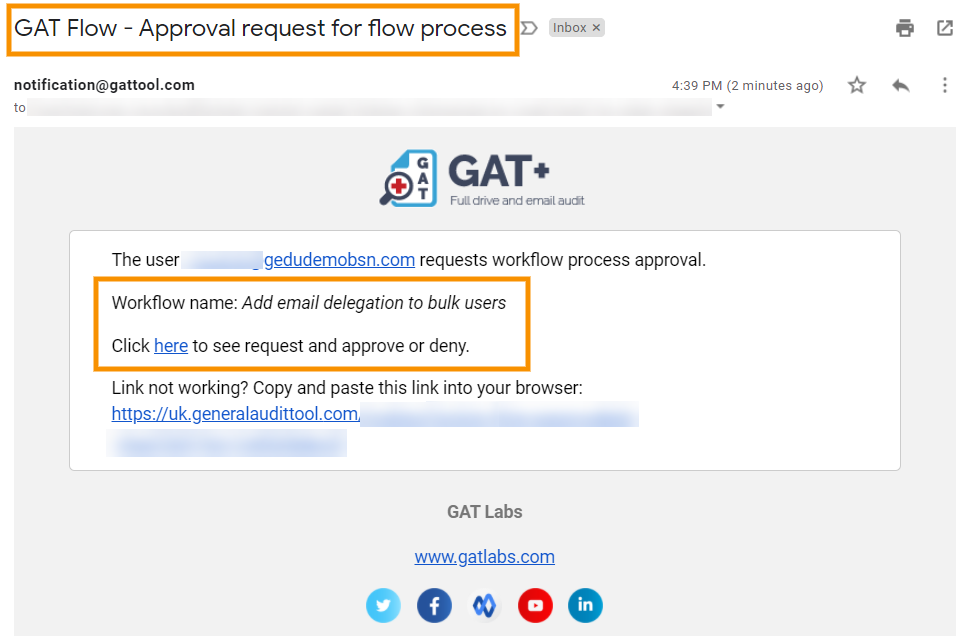
This will allow them to Approve or Deny the request.
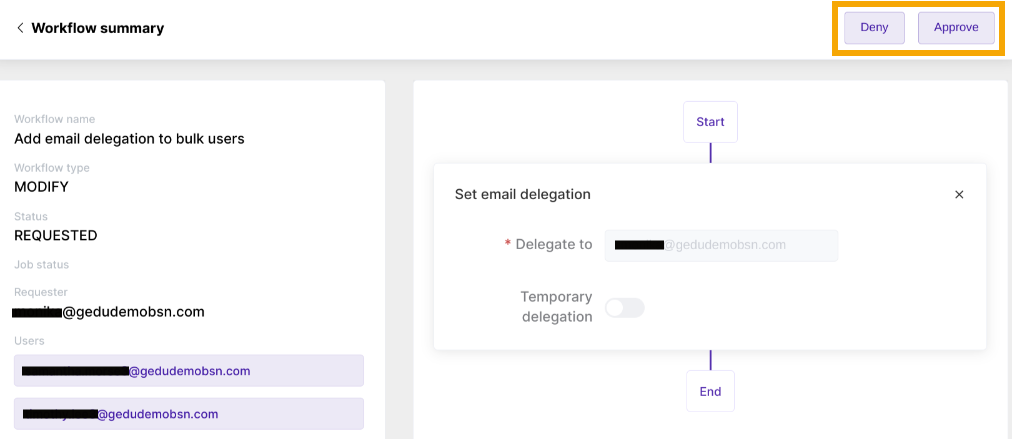
Result
When the request is approved, the Email delegation job will be set and requested to run.
Note: It might take some time for the job to run, depending on the size and actions required.
The Email delegation will be set. The Delegate to user will have access as an Email delegate to all users chosen in the Search for a user section.
The Email delegate will have access to the Inboxes of all bulk selected users.

Note: Refresh the Gmail inbox of the delegate to view the emails of the delegated accounts.
When the time deleted in “temporary delegation” expires, the delegation will be automatically removed.
See Details
A Google Workspace Super Admin can add a user, group, or Org Unit as an auditor to monitor a specific scope, such as a user, group, classroom, or Org Unit.
Why is a Delegated Auditor needed?
By default, the GAT Shield tool is accessible only to Workspace Super Admins. However, regular users are not prohibited from entering the tool.
Example of Using a Delegated Auditor by a School District
A school district in Texas, USA, has a Google Group for its lead teachers who regularly need to assess and track the performance of students who have been misbehaving or falling short on their performance.
The Workspace Super Admin can give those head-teachers selective monitoring oversight while ignoring other students within the GAT Shield console.
Best of all, for Super Admins, after setting up a few delegation policies, they can have these policies exported to a spreadsheet, which can be manipulated in bulk, and the changes imported to take effect.
A delegated auditor can be configured from the GAT Shield Console settings area or the GAT+ Console settings.
Set up a delegated auditor
Navigate to GAT Shield > Delegated auditors
Click on the New Auditor button
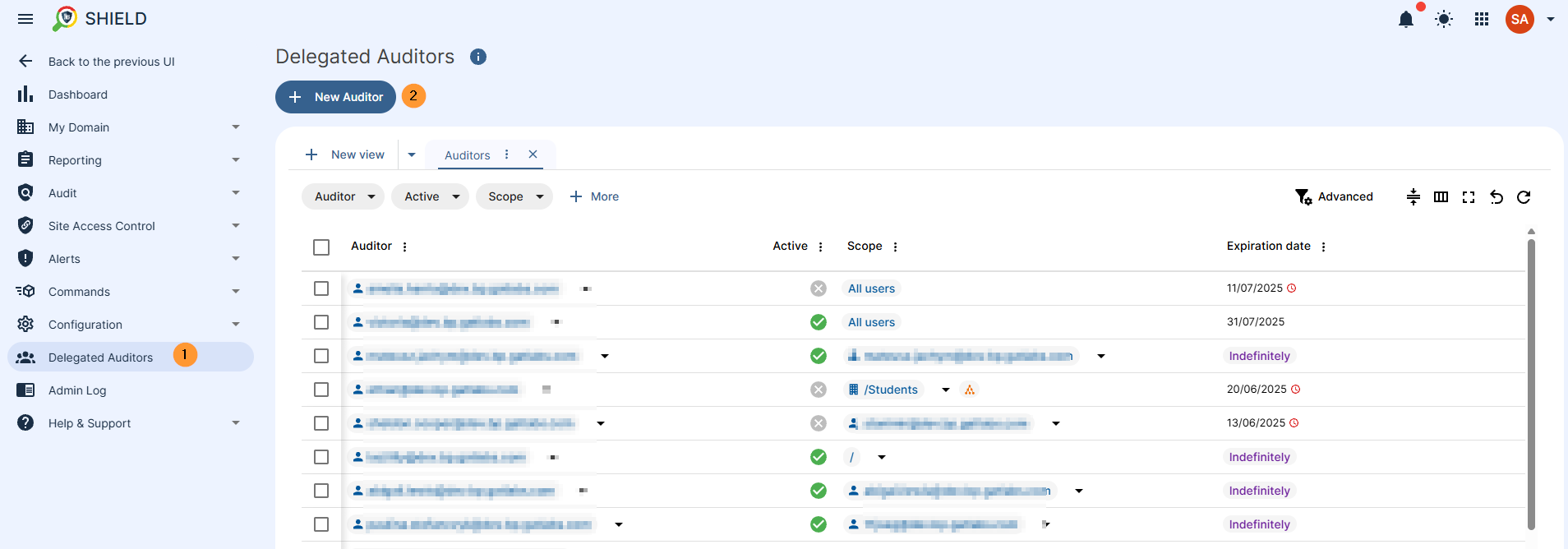
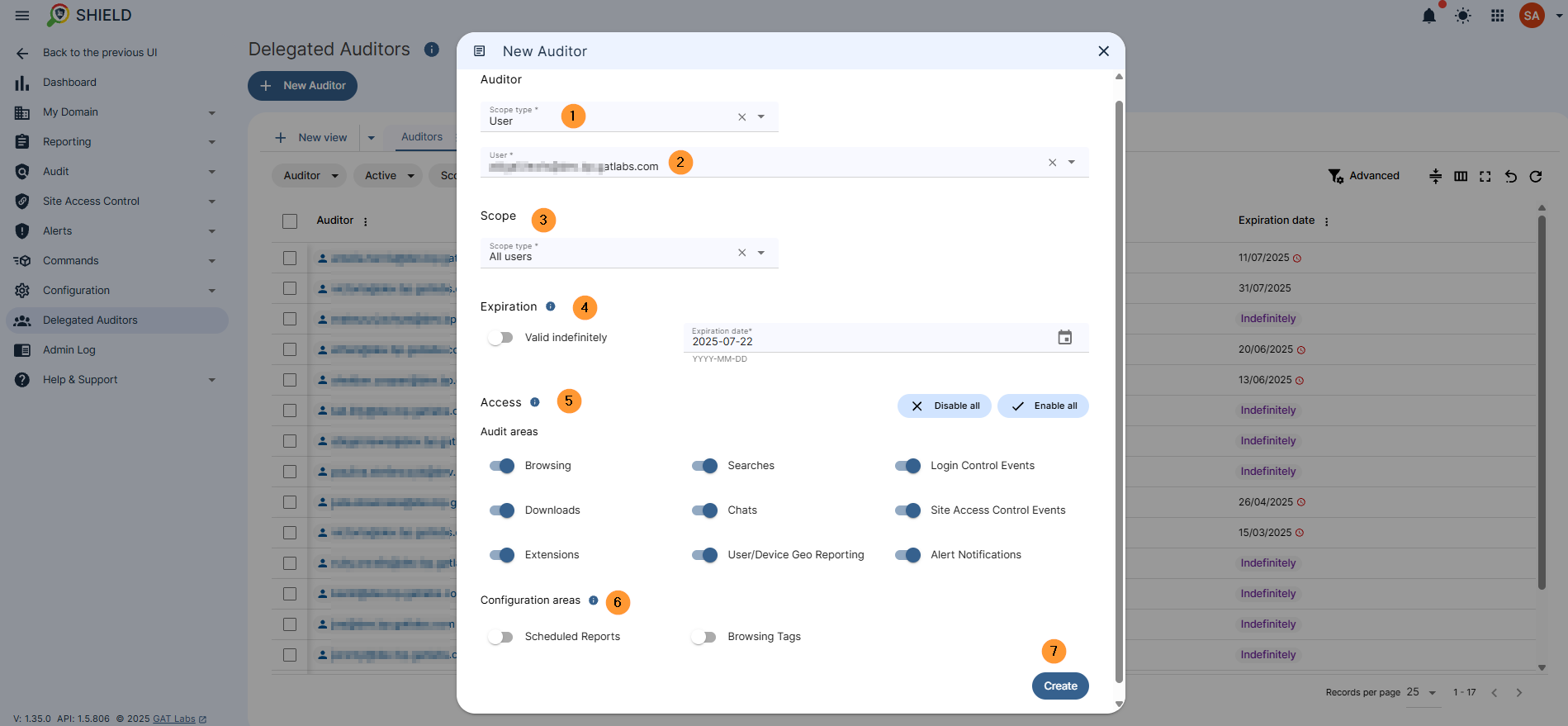
In the menu option that is displayed, fill in all the details to create the auditor access.
- Auditor – select the auditor’s email address
- Scope – select which users the auditor can audit
- Expiration – Set the auditor’s access expiration date or select indefinite access.
- Access – Select auditor access in the audit and configuration areas.
- Configuration area – In the configuration areas, the selected Scope is ignored.
- For selected areas, the auditor will have the same capabilities as administrators: access to all the data and the actions that can be performed.
- Create – click to create the auditor
Result
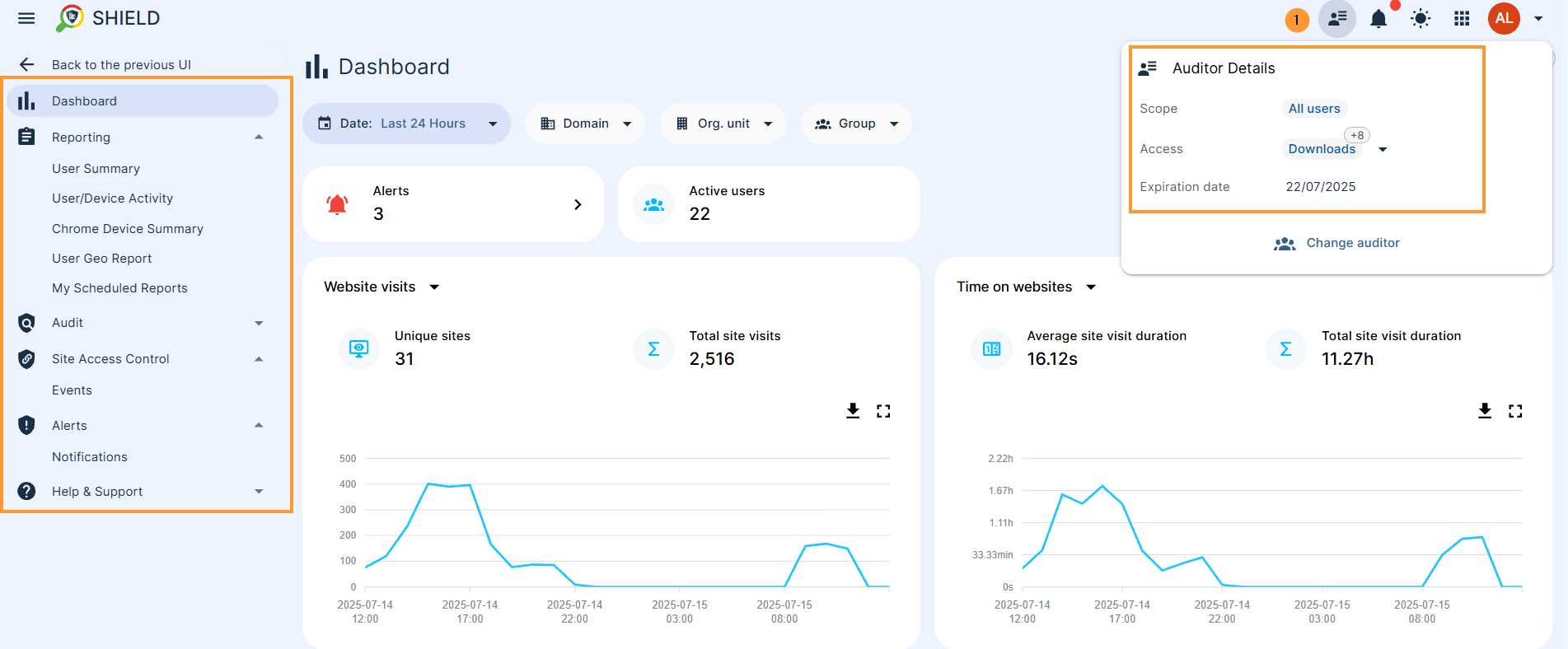
When the Delegated auditor is created, they will be able to log in and use the tool as a Super Admin would, but limited to the scope given by the Admins.
The auditor will see the data from the scope of users they’ve been given access to via the Auditor.
In the top right corner, the auditor can view the details for their access
See Details
Unlock is a feature within GAT+ that allows Google Workspace admins to carry out different actions across their domains. The Unlock functionality is required for:
- Viewing the content of Files and Emails
- Changing the ownership of Google Drive Files
- Copying Google Drive folders and moving them to another user
- Adding or removing users from Drive and Shared Drive files
- Setting up email delegation to user accounts
- Using the GAT Flow functionality to:
-
- Onboard users into the domain
- Offboard users from the domain
- Modify users in the domain
-
The Unlock functionality requires each of the actions above to be approved by the Security Officer. This is designed as a security feature. Unlock pre-approval can be set up only by the Security Officer.
What is pre-approved access in Unlock?
Pre-approval in Unlock allows the Action chosen for Flow, Drive, or Email to be done without the need for the Security Officer’s approval for every request. i.e.: Allowing Unlock to be used without approval by the Security officer. The setting up of Pre-approval must be set up and approved by Security Officer
How to Set up Unlock Pre-approval for Google Drive?
How to set up Flow preapproval within GAT+ Navigate to GAT+ > Configuration > Security Officer > Access permissions  In Access Permissions click on the + button <- Click here to create new preapproved access A new window will be displayed fill in the details required:
- Authorized user – select the user who you want to set pre-approved access to
- Type – Drive
- Scope – User, Group, Org.Unit
- Scope select only users of whom access will be pre-approved for
- Valid until – set the time until pre-approved access will be granted
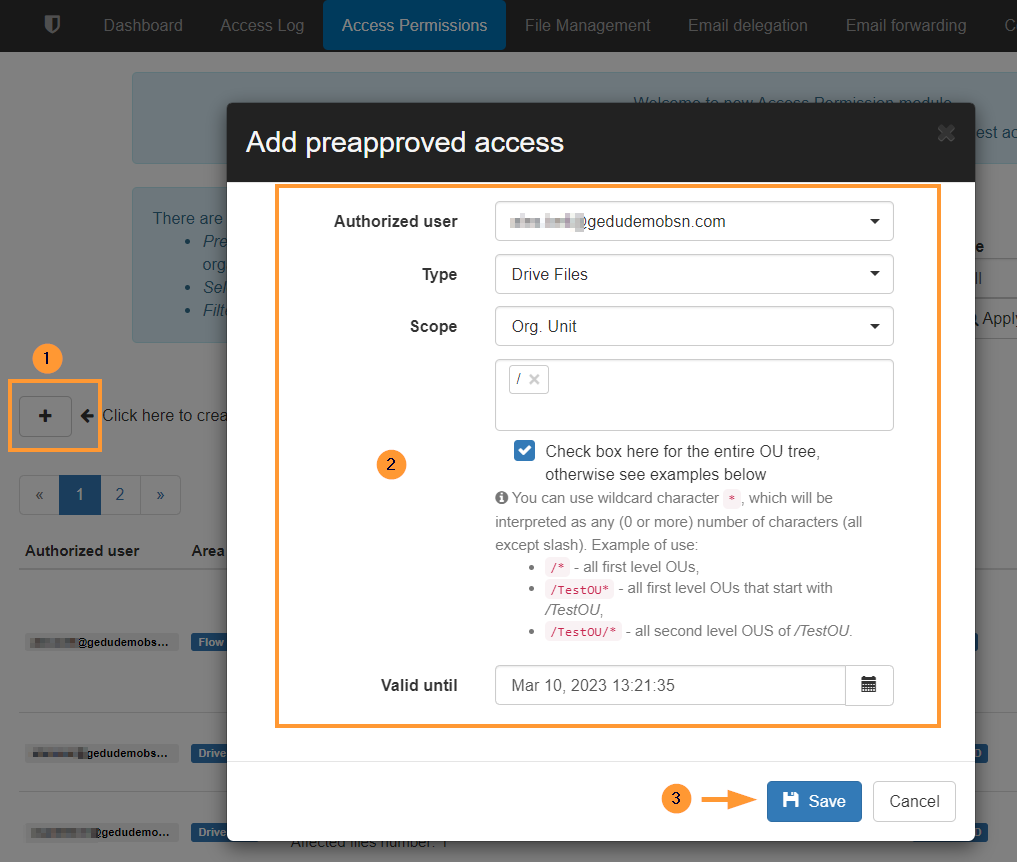 Click to Save
How to set up Unlock pre-approval for Email?
How to set up Flow preapproval within GAT+ Navigate to GAT+ > Configuration > Security Officer > Access permissions In Access Permissions click on the + button <- Click here to create new preapproved access A new window will be displayed fill in the details required:
- Authorized user – select the user who you want to set pre-approved access to
- Type – Email
- Scope – User, Group, Org.Unit
- Scope select only users of whom access will be pre-approved for
- Valid until – set the time until pre-approved access will be granted
- Can remove emails – enable or disable to allow or not the removal of emails
- Remove emails – permanent
- Remove emails – trash only
- Can add email delegation – enable or disable to allow or not setting up of Email delegation
 Click on Save
Approval email
NOTE: Unlike the normal requests no email will be sent to the Security officer for approval. The Security Officer must log in to GAT+ and approve the requests. The Security officer must navigate to GAT+ > Configuration > Security Officer > Access permissions – and Approve the request.
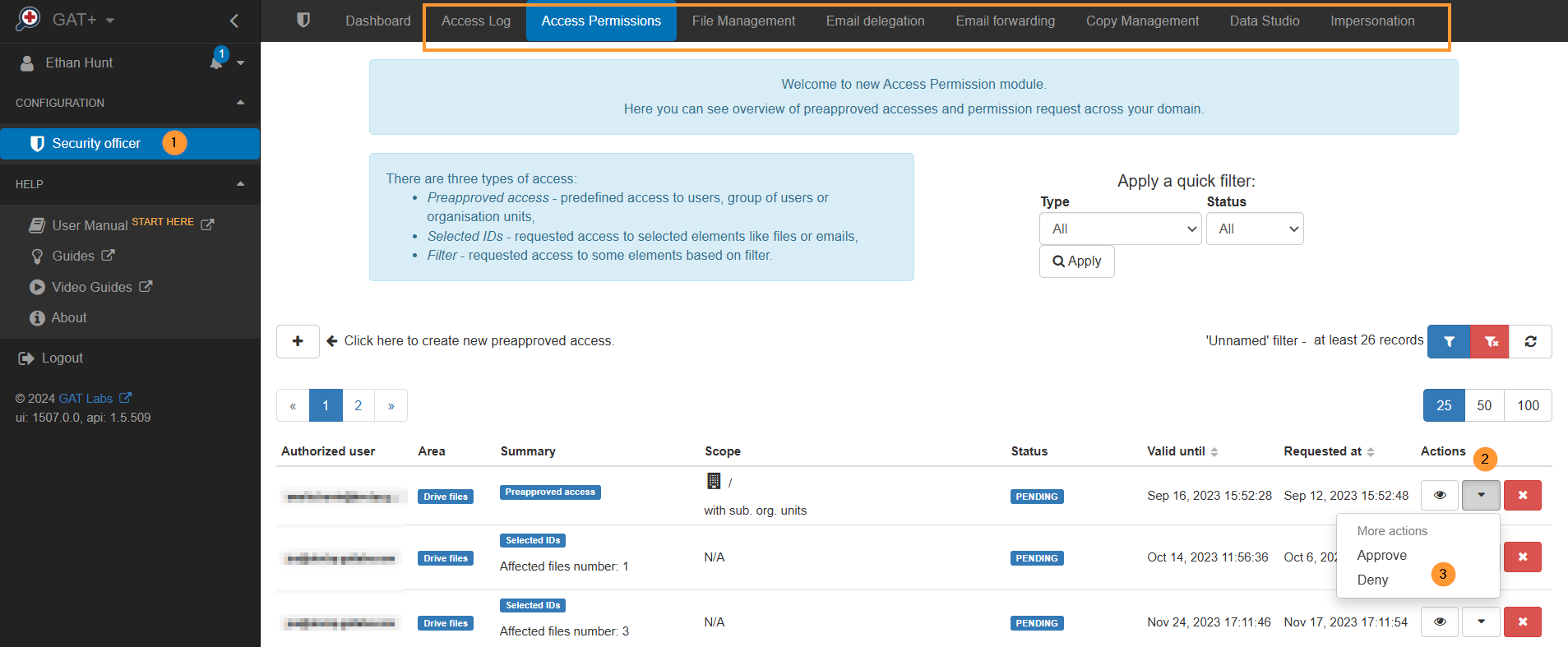
Result
The “Pre-approved” access will be granted to the selected user. When the pre-approved is enabled, the Admin does not need approval for every request. When the Admin wants to use Unlock, the action they choose requiring Unlock will start right away, without sending a request to the Security Officer.
Example of pre-approval enabled
If preapproval is enabled no email will be sent to the Security Officer, the request will be approved, the access to the Files will be granted The Admin will have access to view and download all the files by default from all the users selected in the Scope 
Approval in GAT+
