
| KEY TAKEAWAYS FOR SCHOOL ADMINS |
▪️ Efficient and secure user access permission management starts with auditing user roles and privileges and evaluating current needs across different groups: students, teachers, administrators, and the school board. ▪️ Automated user lifecycle management and attribute-based access control strengthen the protection of sensitive data, help prevent human error, and save IT teams time. ▪️ Advanced auditing and management tools for Google Workspace, such as GAT Suite, go beyond the capabilities of the Google Admin Console. They provide a real-time overview of all user permissions and streamline permission changes. |
As schools increasingly rely on Google Drive resources and AI-based apps, they need to focus on PII protection and maintaining compliance at all times.
Learn how to manage user permissions and strengthen access control in Google Workspace for Education to cover your school’s evolving needs.
What Are User Access Permissions?
User access permissions specify each user’s access to domain resources, such as files, folders, applications, and devices, within the Google domain. They determine who, how, and when authorized users can access and use these resources.
Access permission scope can depend on roles, devices, or locations. In educational settings, access control policies usually differ for students, teachers, and administrators. User permissions management is essential for protecting sensitive data, supporting effective collaboration, and ensuring compliance at school.
Learn more about the Principle of Least Privilege on our blog for enterprises.
How to Manage User Access Permissions in Google Workspace for Education?
Follow these steps to determine which access permissions your school needs and how to adapt them for specific groups in line with your data protection policies.
1. Define User Roles and Access Level Required
Start identifying users and groups that need different levels of access to specific resources for work or learning (e.g., teachers, students, the school board, after-school volunteers, etc.).
To manage user access permissions efficiently, you need a clear picture of the roles, responsibilities, and assets within your institution. Ask yourself these questions to make sure your user base is up to date:
- How many users and groups do you have?
- Which user groups have you created currently? Would you need to create more specific role-based groups?
- What access permissions does each user group need? (see our example below)
- Are they aligned with specific member roles, or should you customize them more?
- How often would users use new access permissions?
- How long should specific access permissions be granted for users and groups?
- What school data is sensitive and should be highly restricted?
2. Access Permission Level According to the School Role
Here, we’ve compiled example school roles and the access levels they may require, depending on their function and compliance regulations.
| Role | Access Level |
| Administrator | All Drive folders and files in the domain User devices and online activity insights Security, third-party apps, and file download overviews |
| School Leader | Everyone’s personal sensitive data (PII) Salary information, school financial data HR and staff data and performance + same as teachers and students |
| Teacher | Students’ grades, assignments, behavior, and progress reports Classrooms’ Drive resources and activity insights Third-party apps used for instruction Parent-teacher communication |
| Student | Personal Drive Classroom Drive resources for viewing only Their own grades and assignments Vetted AI tools and other third-party apps |
3. Audit Current User Access Levels
Once you have mapped out your key user roles, it’s time to review your existing access permissions and how they are being used across the domain.
Google’s Security Investigation Tool lets admins audit current access permissions based on system logs:
- Drive Log Events for specific users, their access level, and files, their visibility levels, and sharing logs
- Shared Drive Events, including member additions and role changes
- Admin’s privileges report
GAT+ adds a layer of understanding of what your users can access right now, and lets you instantly modify their permissions if needed. In one platform, you’ll view the following real-time data:
- All users with assigned roles and privileges
- All Drive events, including when a user accessed or changed a specific file
- All files and folders shared by users, including permissions for external sharing, and add or remove share permissions
- All OUs, their members, and assigned permissions and policies
Google Admin Console & GAT Suite for User Access Permissions Audit
| Google Admin Console | GAT Suite | |
| Visibility | Data spread across the Security Investigation Tool and Google Admin Console | All data overview in one dashboard |
| Data Source | Based on Drive, Gmail, and user logs in the Google domain | Based on the entire users’ online activity in Google Workspace and the Chrome browser |
| User Access Monitoring | Manual checking of log-based data, which allows for incident remediation | Real-time alerting on suspicious user activity to monitor user access proactively |
| Approval Model | Single-party approval: Only the admin’s approval is needed to modify permissions | Multi-party approval: both the admin and the Security Officer need to approve permission modification |
3. Update and Manage User Access Permissions
Since you’ve gained a clear overview of all your users’ roles and existing permissions, you can start adjusting access permissions to your current school’s needs.
To achieve this in the Google Admin Console, you need to add specific user groups in separate OUs and manually assign or remove given permissions. That way, you can manage the entire OU’s access to Shared Drives, including disabling external file shares.
GAT Suite operates on top of the Admin Console’s capabilities:
- GAT+ enables constant, detailed permission audits and controls. Additionally, admins can quickly review and change user permissions and file ownerships and delegate access to users’ Gmail.
- GAT Flow automates user access management with customized modification workflows triggered by specific events (e.g., suspending a user).
🔎 USE CASE
Imagine you discover an unauthorized user accessed a folder with sensitive information stored on the school’s Drive. There is no time to investigate whether it has been shared with someone else. You just need to prevent data leakage and similar incidents quickly. Remove ALL access permissions, or only external shares, from ALL sensitive folders with GAT+.
4. Automate User and Access Lifecycle Management
There is another essential yet repetitive need of every school. How do you manage user access when onboarding, offboarding, or a role is being modified?
If your school serves a small number of students, the admin can probably do it manually. But if you’re on your own with thousands of users, automating user access management is indispensable.
Consider using GAT Flow to modify user access in bulk and keep permissions aligned as roles change. Automated, customized workflows will save admin time, support data security and compliance, and maintain operational efficiency in your institution.
📌 ADMIN TIP
Assign access constraints to large groups of users in bulk. All students and teachers should have been restricted from sharing sensitive information externally. Admins and school leaders should be the only ones with access to confidential data, available only from verified school devices and accounts.
5. Implement Attribute-Based Access Control
As the next step in securing user access, leverage user attributes to assign permissions. Advanced customization of user access levels enables more detailed control and strengthens data security.
- Determine User Attributes: Analyze your school environment to choose relevant attributes (age, role, group, location, time of access, device type, file sensitivity and type, etc.).
- Build Customized Policies: Create access control policies including these attributes. For instance, students might be able to access the classroom Drives only during class hours.
- Combine with Your Tools: Integrate customized policies into your existing Google Workspace for Education tools. For example, GAT Shield provides real-time monitoring of users’ online activity in Chrome, including specific data access. You can use these insights to implement your attribute-based access control.
6. Maintain and Audit Access Controls Regularly
Don’t forget to review your users’ roles and access permissions they require on a regular basis. Positions and responsibilities may change, and this should be reflected in the access scope for each user: student, teacher, and other school staff.
Regular inspections of access levels and group memberships help you maintain a safe and compliant Google Workspace environment with a low risk of data leaks.
Stay on top of critical changes to user permissions with continuous, centralized, real-time monitoring and automated alerts in GAT+, ensuring tight control over user access.
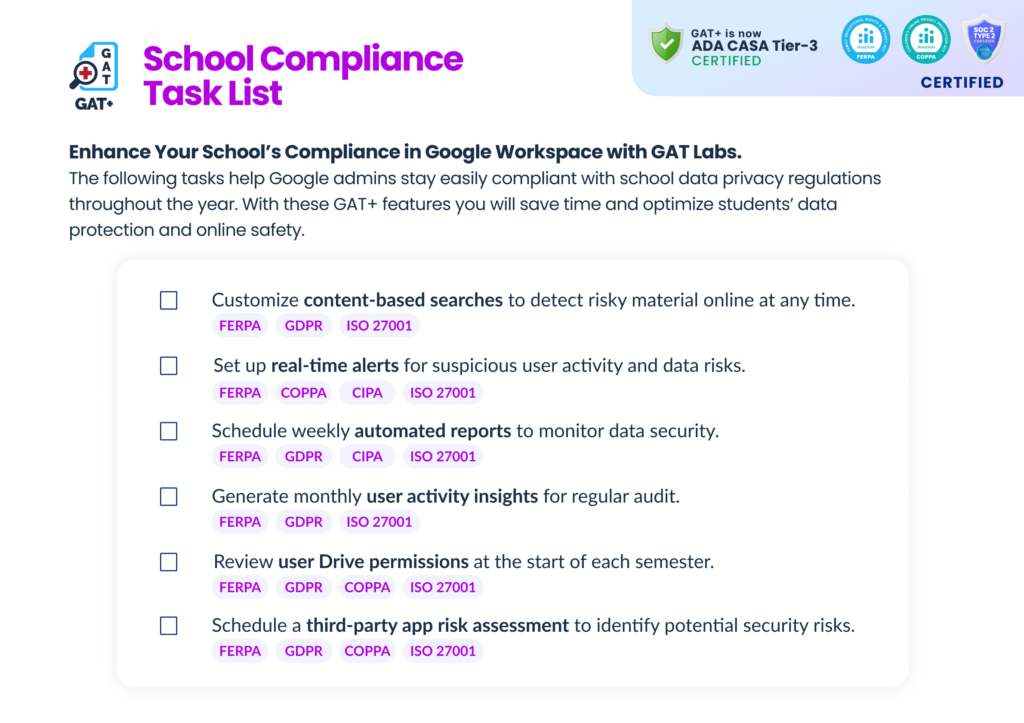
This GAT+ task list will help you monitor data security and compliance in Google Workspace for Education across the school year.
Why User Access Management Matters
Insufficient user access controls pose several risks to institutions that rely on digital networks such as Google Workspace for Education.
- Sensitive Data Leaks: Too broad user permissions and unmonitored access to confidential information on school Drives can lead to unauthorized exposure, both to internal and external users and organizations.
- Liability & Compliance: Strict data privacy laws such as COPPA, FERPA, and GDPR require educational institutions to monitor and protect students’ personal data. When noncompliant, schools may lose federal funding and face financial penalties.
- AI Tools Governance: With increasing integration of AI-driven tools into educational environments, a new risk of inadvertently exposing inadvertenly personal data arises. Uncontrolled user and third-party app permissions create a grey zone where schools can’t closely monitor their data.