

GAT Flow is a user management tool for Google Workspace domains to take actions on the users in their domain in bulk. It now also supports actions on Suspended users.
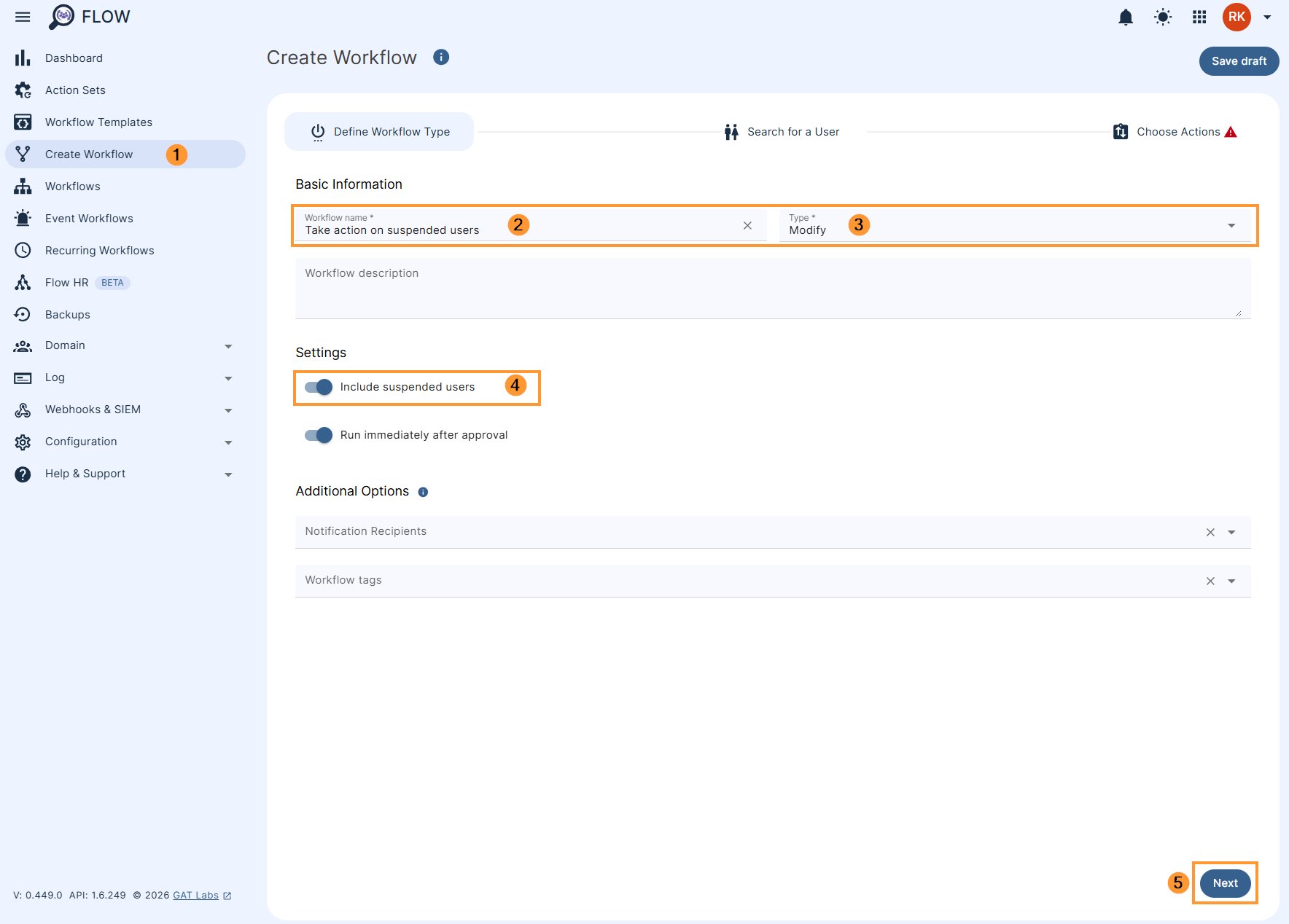
To select the suspended users when creating a workflow, toggle the ‘include suspended users’ button at the bottom of the screen. This option is only available for Offboarding and Modify workflow types.
Identifying suspended users #
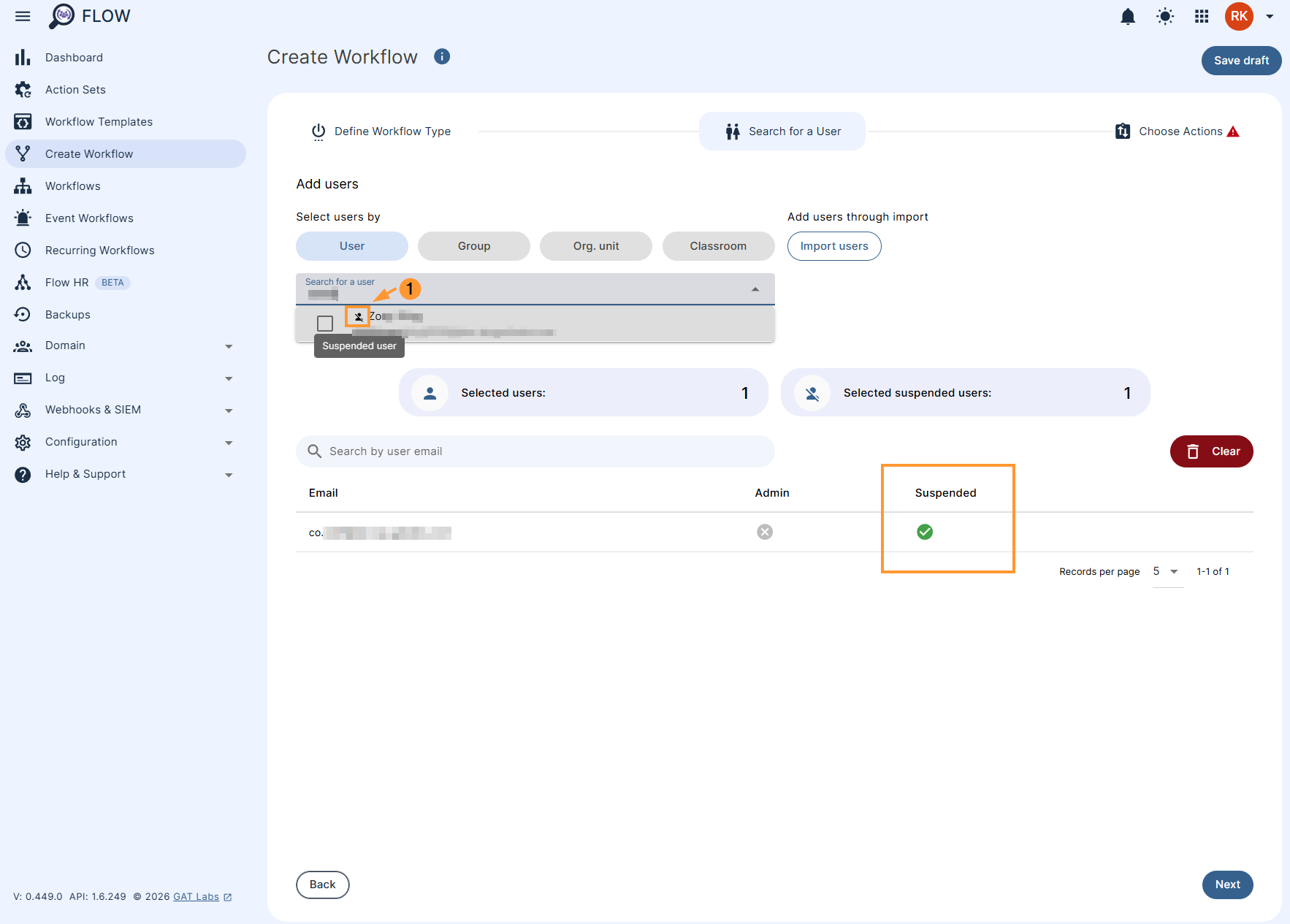
When enabled suspended users can be identified by the ‘struck out user icon’ before their respective email addresses as shown below (1). Furthermore, the status of the suspended users is indicated as ‘Yes’.
Actions supporting suspended users #
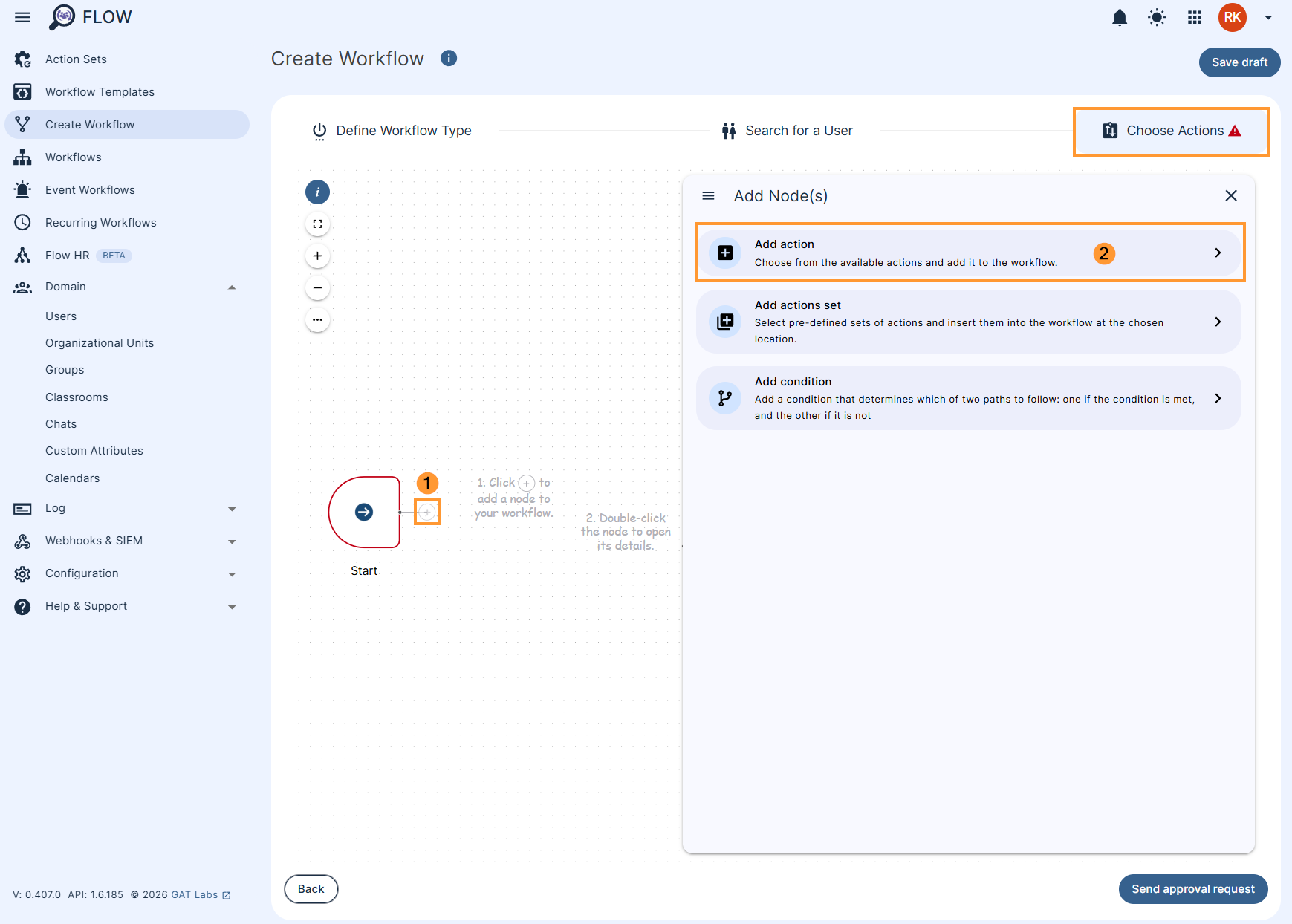
On Choose actions screens, Admins or Delegated auditors can select any actions to be taken for the user accounts.
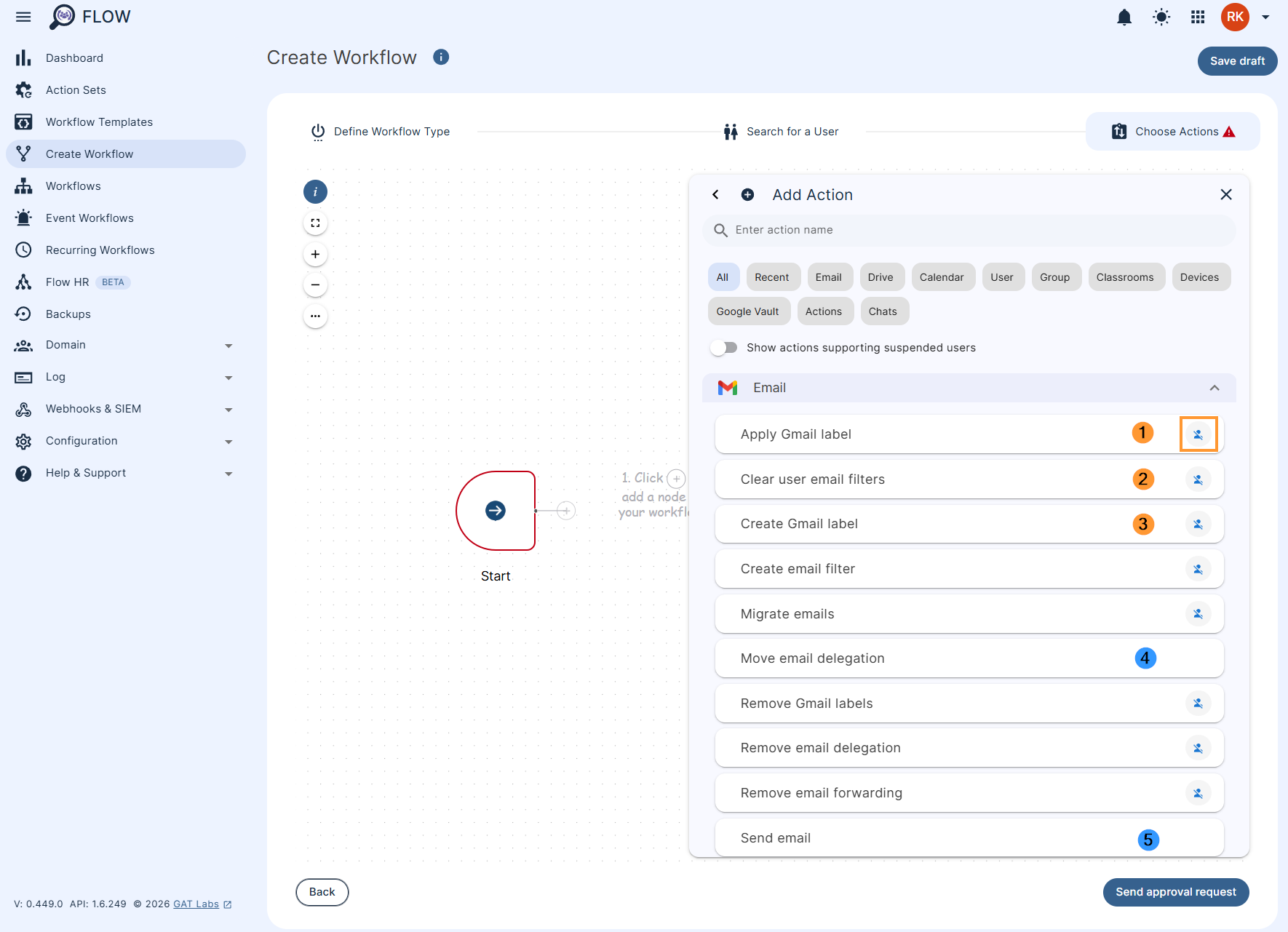
But the actions that can only be taken on suspended users will be represented by the ‘struck-out person icon’ in front of the action name (1,2,3).
The action that does not have this icon will not work on suspended users, even if suspended users are selected (4,5)
Filter actions supporting suspended users #
To filter and view all the actions available for suspended users only, toggle the ‘Show actions supporting suspended users’ button.
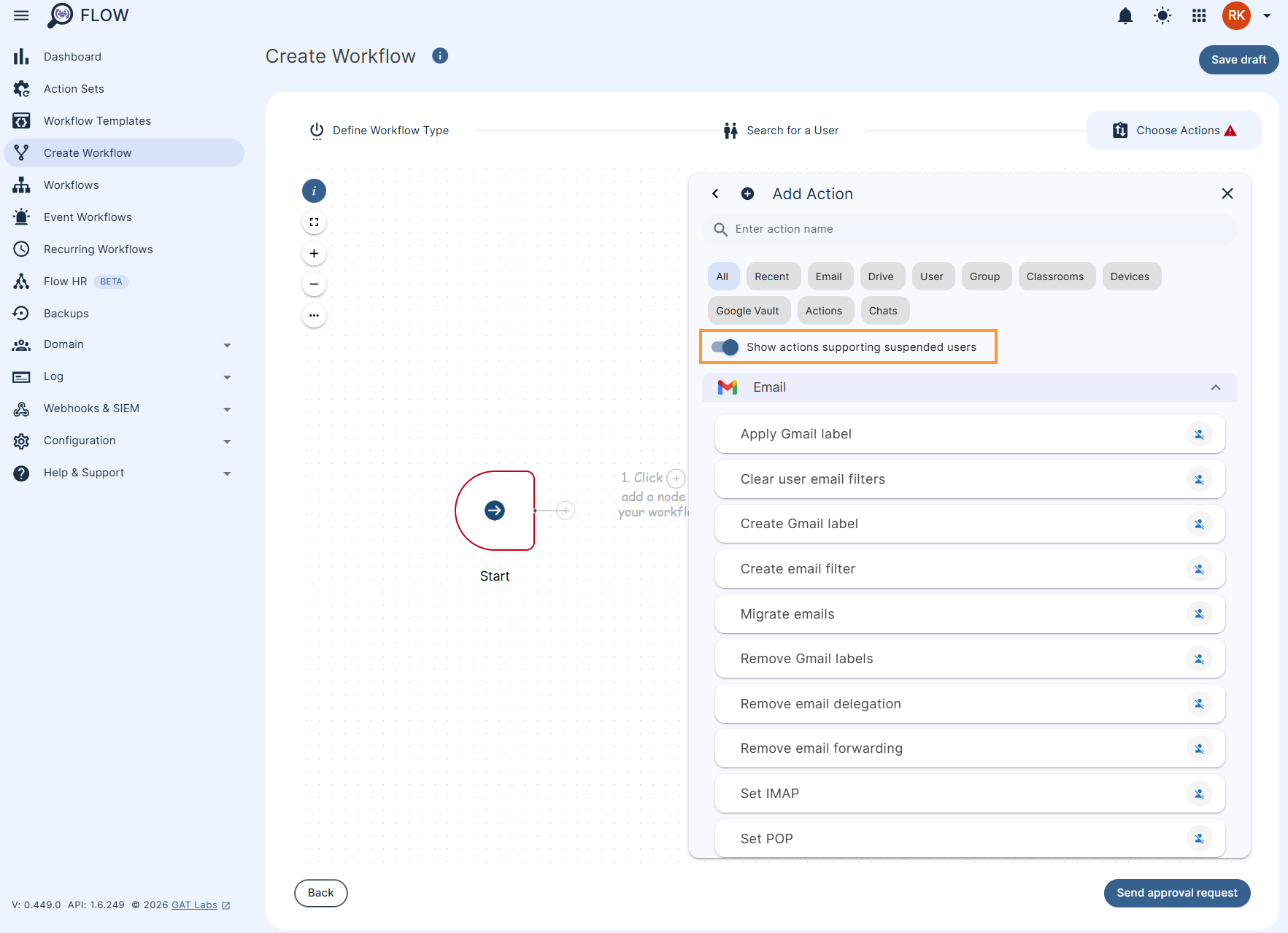
Actions on suspended users in Event and Recurring workflow #
The option to include suspended users is also available for Event and Recurring workflow.
Actions available for suspended users #
Flow allows the following actions to be taken on suspended users –
- Email
- Apply Gmail label
- Clear user email filters
- Create Gmail label
- Create email filter
- Migrate emails
- Remove Gmail labels
- Remove email delegation
- Remove email forwarding
- Set IMAP
- Set POP
- Set email auto-forwarding
- Set up auto-reply
- Drive
- Copy folders to the selected user(s)
- User
- Add user email Send As
- Add user email alias
- Archive user
- Change global directory visibility
- Change user email
- Change user organizational unit
- Change user password
- Change user password at next login
- Change user’s employee information
- Clear recovery data
- Clear user aliases
- Clear user email Send as
- Copy user contacts
- Delete app-specific passwords
- Delete user profile picture
- Google application data transfer
- Make YouTube videos unlisted
- Manage Flow user delegation
- Migrate Google Keep
- Remove user access to files and folders
- Remove user from Google Sites
- Remove user from all calendars
- Remove user manager
- Remove user role
- Revoke apps tokens
- Set address me as
- Set as super admin
- Set email signature
- Set recovery email
- Set recovery phone
- Set user custom attribute
- Set user manager
- Set user role
- Set user’s preferred language
- Suspend user
- Sync contacts
- Unarchive user
- Unsuspend user
- Group
- Add user to groups
- Change group member subscription
- Delete user from groups
- Classroom
- Remove student(s) from all Classrooms
- Remove teacher(s) from all Classrooms
- Devices
- Change chrome os device status
- Change google license assignment
- Wipe devices
- Wipe mobile devices
- Google Vault
- Create Google Vault export
- Remove user from hold
- Set Google Vault hold
- Actions
- Approve workflow
- Broadcast Flow event
- Delay workflow
- Send webhook call
- Chats
- Add user to Google Chat spaces
- Remove user from Google Chat spaces


