
Last Updated May 2026
The email arrives from your legal team with a straightforward subject line: “Data Subject Access Request – Sarah Chen.” Your former marketing director wants a copy of all her personal data, every email thread, shared Drive file, Calendar invite, and chat message where her information appears. You have 30 days to deliver it completely and accurately.
This is a Data Subject Access Request (DSAR), a legal right under GDPR and CCPA that gives individuals the power to request all their personal data that your organization holds. The compliance clock is now ticking.
If you are a Google Workspace admin managing a DSAR, the real challenge is not just finding Sarah’s data. It is that her digital footprint is scattered everywhere. She commented on shared documents, attended cross-departmental meetings, and her contact details live in teammates’ personal Drive folders. Some data is obvious, some is buried in shared drives, and some exists only as @mentions in old Chat threads.
The thought of hunting down every trace while avoiding accidentally including other people’s personal information can feel overwhelming. But with the right approach and tools, handling a DSAR in Google Workspace becomes a methodical, repeatable process.
This guide will show you exactly how to handle your next DSAR with confidence.
The Challenge: Why Google Workspace Makes DSARs Difficult
Google Workspace is built for collaboration. That’s also what makes a DSAR feel like a scavenger hunt. Data isn’t in one place. It’s:
Scattered: across Gmail, Drive, Chat, Docs, Sheets, Slides, Calendar, and more.
Intertwined: a single document may contain personal data belonging to multiple individuals.
Hidden: shared drives, archived messages, and third-party app integrations all hold data.
Time-sensitive: deadlines under GDPR (30 days), CCPA (45 days), and equivalent US state laws are non-negotiable. A disorganised search can quickly lead to non-compliance and significant fines.
The solution is a structured workflow, not a manual search through scattered data.
The Solution: Your 6-Step Plan for DSAR Compliance
Step 1: Acknowledge and Verify the Request
Before you touch any data, complete the legal groundwork.
- Confirm identity. Verify who is making the request. Request government-issued ID or use your organisation’s standard verification process. This prevents sensitive data from being handed to the wrong person.
- Assess scope. Is the request for all personal data, or a specific subset — emails only, for example? The scope affects how you search and what you export.
- Set expectations. Acknowledge receipt of the request and confirm the response deadline to the data subject.
Step 2: Leverage Google Vault for E-Discovery
Google Vault is your primary tool for DSAR e-discovery. The Admin Console handles basic exports; Vault is built for legal holds and comprehensive data retrieval.
- Create a Matter. In Vault, create a new Matter for this specific DSAR. It keeps your searches and exports organised in one place.
- Define your searches. Search across Gmail (
from:user@domain.com/to:user@domain.com), Drive (files owned by or shared with the user), and Chat (conversations where the user participated). - Preview before exporting. Use Vault’s preview function to confirm you’re capturing the right data before running a full export.
Step 3: Export the Data
Once you have identified all relevant data, it’s time to create the official export.
- Initiate the export: Select your search results within the Matter and choose Export.
- Choose the format: Vault produces PST or MBOX files for email, and ZIP files for other data, both forensically sound and legally defensible.
- Organise the output: Download and label files clearly: requester name, date, and request reference. Keep everything in a dedicated folder.
Step 4: Supplement with Other Google Admin Tools
Vault covers the core, but a few other tools help complete the picture.
- Admin Console User Export. Provides a quick summary of core account data: profile info, group memberships, licenses.
- Audit & Investigation Tool. Detailed activity logs: login history, file creation and deletion, sharing events.
A note on Google Takeout. Takeout lets users export their own data, but it is not an appropriate method for an organisation responding to a formal DSAR. It lacks the legal rigour and scope of a Vault export.
Step 4.5: Automate and Audit with GAT
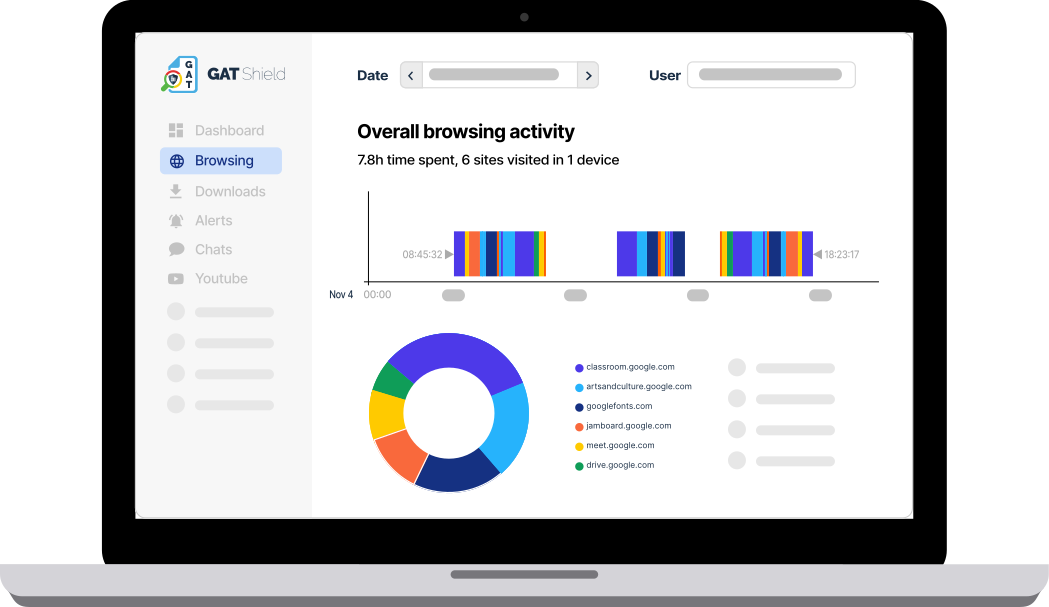
Google Vault and Admin Console give you the basics, but they can be slow and manual. With GAT+ and GAT Shield, you can manage DSARs faster, more securely, and with full visibility across your domain.
Here’s how:
1. Audit at File Level (GAT+): Search across Gmail, Drive, Calendar, Groups, and more. Go beyond metadata with content-based searches to quickly identify personal data related to a subject.
2. Control Access and Permissions (GAT+): See exactly who has access to what, and adjust permissions or ownership where needed to limit unnecessary exposure.
3. Generate Legally Defensible Exports (GAT+): Export data in bulk, with full logging and audit trails. Every action is recorded, making compliance reviews easier.
4. Monitor Data Handling (GAT Shield): Set up alert rules to detect sensitive information (like SSNs) in real time. This helps you track and document how data is accessed or shared during the DSAR process.
5. Delegate Securely (Security Officers in GAT+): Assign DSAR-related tasks to Security Officers who can approve or deny sensitive actions. This adds a compliance checkpoint and protects Super Admins.
By combining Vault with GAT, you move from a reactive, manual process to a structured system that saves time, reduces risk, and keeps you audit-ready.
Step 5: Review and Redact
This step is frequently underestimated. The data subject has a right to their own data, not to the personal information of others that appears alongside it.
- Manual review. Review exported data to identify and redact third-party personal information: names, email addresses, and financial details in shared documents.
- E-discovery platforms. For large or complex requests, consider importing exports into a specialised platform to assist with automated redaction at scale.
Step 6: Securely Deliver the Data
- Encrypt the package. Compress the final, redacted data into an encrypted ZIP file.
- Use secure delivery. Do not email the file directly. Use a secure file-sharing service or a password-protected link. Send the password via a separate channel, text message or phone call.
- Document everything. Keep a detailed log of every step: when the request was received, searches run, data exported, who reviewed it, and when it was delivered. This is your audit record if the response is ever challenged.
FAQs About DSARs in Google Workspace
1. What is a DSAR?
A legal right under GDPR, CCPA, and equivalent privacy regulations that allows individuals to request a copy of all personal data an organisation holds about them — emails, documents, chat messages, calendar entries, and any other identifying information.
2. Who can make a DSAR?
Anyone whose personal data you process: current and former employees, customers, contractors, vendors, or any individual whose information is stored in your Google Workspace domain.
3. What are the response deadlines?
GDPR: 30 days (extendable by 60 days for complex requests). CCPA: 45 days (extendable by 45 days). US state privacy laws (Virginia, Colorado, Texas, and others): typically 45–60 days. Check local requirements for your specific obligations.
4. Do I need to verify the person’s identity?
Yes. Always. Provide data only after confirming who you’re responding to. Use government-issued ID or your organisation’s standard verification process.
5. What format should the data be in?
A commonly used, machine-readable format. For Google Workspace: emails as PST or MBOX, documents as PDFs or native formats, structured data as CSV, with a clear index explaining what’s included.
6. What if the data includes information about other people?
Redact or remove it. The data subject is entitled to their own data only.
7. What happens if I miss the deadline?
GDPR fines reach up to 4% of annual global revenue or €20 million, whichever is higher. CCPA fines run up to $2,500 per unintentional violation, $7,500 for intentional violations. Reputational damage compounds these costs.
8. Can I refuse a DSAR?
Only in limited circumstances: you cannot verify identity, the request is manifestly unfounded or excessive, you hold no personal data on the individual, or specific legal exemptions apply. Legal consultation is advised before refusing.
9. What if I can’t find all the data?
Make reasonable, documented efforts to locate everything. If data has been deleted under your retention policy, explain this in your response. Undocumented gaps in a search can still constitute a compliance violation.
Conclusion: From Reactive to Proactive
A DSAR doesn’t have to be a fire drill. With a structured process and the right tools, it becomes a repeatable workflow.
The steps are straightforward: verify the request, search thoroughly, export precisely, review carefully, deliver securely, and document everything.
Where most organisations lose time is in the manual execution. Searching the Vault service by service, downloading exports to local devices, and manually managing redactions. GAT+ and GAT Flow address each of those bottlenecks directly, without replacing the tools you already use.
Don’t wait for the next request to arrive. Audit your data retention policies now, assign clear roles to your legal, HR, and IT teams, and build the process before you need it.
Insights That Matter. In Your Inbox.
Join our newsletter for practical tips on managing, securing, and getting the most out of Google Workspace, designed with Admins and IT teams in mind.