
Originally published April 2022. Updated April 2026 to reflect current Chrome market data, the shift to Manifest Version 3, new GAT Shield capabilities, and the rise of AI tools as a browser security risk.
Chrome is where most of your users spend their working day. Email, documents, collaboration tools, cloud applications, almost everything runs through the browser.
That makes it the single most important security perimeter you manage. It is also the one that most admin tooling was not designed to cover.
According to StatCounter, Chrome holds around 65 percent of the global browser market. On desktop, that figure climbs above 76%. With approximately 3.8 billion users worldwide, Chrome is by far the dominant enterprise browser. Its built-in security features, support for managed policies, and deep integration with Google Workspace make it the natural choice for organizations running on Google’s infrastructure.
But the browser is also where data leaks happen. A user uploads a file to an unapproved AI tool. Someone installs an extension that quietly reads every page they visit. Credentials get entered on a phishing site. None of these events creates an alert in your Admin console by default.
This guide covers eight controls that close the most common gaps. Each one works for the Chrome desktop browser regardless of operating system, including ChromeOS.
WAY 1: Turn ON Chrome’s Safe Browsing
Employees spend long hours surfing the web for information. That’s why it’s important to protect them from shady websites out there. Chrome’s ‘Safe Browsing’ feature acts as an alarm that notifies users when they attempt to visit a suspicious site.
In the Admin Console, go to Devices > Chrome > Settings > Users and browsers. Under Safe Browsing, set the policy to “Always active” for your entire domain or specific OUs. This enforces the setting centrally rather than leaving it to individual users.
For users accessing sensitive data or operating in regulated environments, set Safe Browsing to Enhanced protection. This provides more aggressive real-time checks at the cost of some additional data being sent to Google for analysis.
Google’s documentation on Chrome Safe Browsing policies
WAY 2: Block Unsafe Websites for Users
Take your users’ Chrome browsing security one step further by setting up a policy to ban certain websites.
That way, when a user attempts to visit a blocked website, Chrome will show an error page instead of loading the website.
This increases users’ Chrome browser security, productivity, and protects your organisation against viruses and malicious content on some websites.
How to block URLs in Google Chrome?
For basic URL management, use Chrome’s URL blocklist and allowlist settings in the Admin Console under Devices > Chrome > Settings > Users and browsers. This lets you block specific sites or entire categories of domains.
For more granular control, blocking by category, applying different rules to different OUs, or creating dynamic block lists from a spreadsheet, GAT Shield’s Site Access Control gives you full filtering policies applied at the user, group, or OU level. You can test whether a specific URL would be blocked for a specific user before rolling out rules, which helps avoid over-blocking that affects productivity.
One increasingly common use case is blocking or restricting access to consumer AI tools — ChatGPT, Gemini (personal accounts), Claude (free tier), and similar services — where users may inadvertently share company data with systems operating outside your governance policies. This is a direct shadow IT risk. Site Access Control allows you to create a category rule that blocks these destinations across specific OUs or your entire domain, with exceptions where needed.
WAY 3: Deploy Chrome Browser Data Loss Prevention (DLP) Policies
DLP in Chrome means detecting and acting on sensitive data before it leaves your environment, across any site your users visit, not just Google’s own services.
GAT Shield uses regex-based DLP rules that run locally on your users’ browsers. The rules detect patterns you define, credit card numbers, national insurance numbers, internal reference codes, specific document classifications, as they are typed or pasted into browser fields. When a rule fires, the action you have configured runs immediately: a warning message to the user, the tab closing, a screenshot capture for the audit record, or a combination.
Because processing happens locally, sensitive content never reaches GAT’s servers to be checked. This is particularly important for organizations with strict data residency requirements.
WAY 4: Remove Risky Chrome Extensions for Users
Not all Chrome extensions are created equal. An extension that needs to “read and change all your data on the websites you visit” has access to every page your users open, including Google Workspace apps, internal tools, and any site where credentials or sensitive content appear. Across a domain of hundreds or thousands of users, that is a substantial attack surface.
Managing extensions has two parts: knowing what is installed and controlling what can be installed.
For visibility, GAT Shield’s extension audit gives you a full view of every extension installed across your fleet — including install date, enabled or disabled status, and a permission score based on the level of access the extension requires. High-risk extensions are flagged automatically. You can filter across your entire domain and identify which users have extensions that should be reviewed.
For a deeper explanation of how permission scores are calculated and what the risk tiers mean, see the Chromebook Extensions Risk Assessment knowledge base article.
For control, use the Admin Console under Devices > Chrome > Apps and extensions to create an allowlist of approved extensions and block installation of anything not on it. For organizations with tighter requirements, you can block all extensions by default and whitelist only explicitly approved ones.
Risky extensions are one of the most overlooked shadow IT vectors in Google Workspace environments. Many extensions request permissions to access every page, upload files, or monitor network activity — capabilities that go well beyond what the extension’s stated purpose requires. Regular audits are the only way to catch what has been installed since your last review.
WAY 5: Audit User Browsing Activity
Browser activity is your best source of behavioral signal for Chrome security. Patterns in browsing (unusual site visits, bulk downloads, activity outside working hours, access from unexpected locations) are often the first indicator of a compromised account, a malicious insider, or data moving outside your environment.
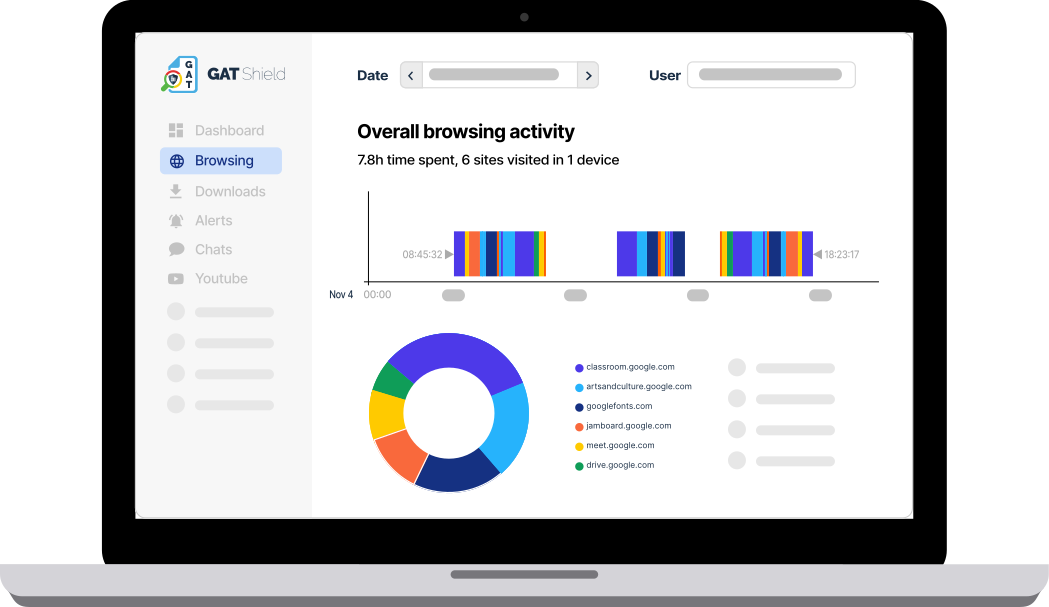
GAT Shield’s browsing audit gives you a real-time and historical view of activity across your domain: sites visited, time spent, downloads, searches, and login events. You can filter by user, OU, or time range, and schedule regular reports to maintain an ongoing record for compliance purposes.
Specific capabilities worth knowing:
– See all search queries happening on your domain’s Chrome browsers: useful for identifying users searching for tools or services outside your approved stack.
– Block .EXE file downloads with alert rules: catches one of the most common malware delivery vectors before it completes.
– For investigations, the User and Chrome Device History Explorer gives you a 90-day record of which users logged into which devices, useful when a security incident requires you to reconstruct what happened.
WAY 6: Secure Identity Management in Chrome with Zero Trust
Standard MFA is a one-time check at login. Once the session is established, there is no further verification. If a session cookie is stolen or a logged-in device is compromised, MFA has already been satisfied.
Continuous identity verification addresses this gap by validating user behavior throughout the session, not just at login. With GAT Shield, you can monitor browser activity patterns and detect deviations that may indicate account takeover or unauthorized use. When behavior changes unexpectedly, alerts are triggered for immediate investigation.
This is especially important for high-privilege accounts such as admins, finance users, and executives, where the impact of a breach is highest. It applies across all sites accessed in Chrome while the user is authenticated with their Google Workspace account, not just Google apps.
WAY 7: Add Chrome Password Protection
Google Chrome offers a few powerful password protection options to better secure users’ credentials in the browser on Windows.
For instance, you can prevent users from using their passwords on dangerous websites or on websites that aren’t authorised by your organisation.
Learn more about Chrome’s password protection options here.
Password reuse across sites is one of the most persistent credential risks in enterprise environments. Chrome’s password protection policies let you set warnings when users enter a saved password on an untrusted or potentially phishing site, and you can configure this centrally from the Admin Console. For high-risk accounts, combine password protection policies with 2FA enforcement.
WAY 8: Set Up Chrome Advanced Protection for More At-Risk Users
Protect users who are at risk for a targeted attack using Chrome Advanced Protection.
This option helps you apply a curated group of high-security policies to enrolled accounts.
Enroll admin accounts, executives, finance users, and anyone with access to sensitive data or elevated permissions. Advanced Protection enforces security keys over other MFA methods, restricts third-party app access, and applies more conservative download scanning. The UX impact for enrolled users is minimal once setup is complete.
These eight controls work as a layered system. Safe Browsing and URL blocking stop known threats at the perimeter. DLP rules catch sensitive data before it moves. Extension auditing removes the access you did not intend to grant. Browsing activity monitoring gives you the signal to detect what others miss. Identity verification ensures the right person is behind each session.
No single control is sufficient on its own. The combination is what gives you LAN-level oversight across a managed Chrome environment.
FAQ: Securing Enterprise Chrome in the AI Era
Q: How can I prevent employees from leaking sensitive data into public AI tools like ChatGPT or Claude?
A: Blocking AI tools is often too restrictive. Instead, control how data is shared through the browser.
Use Google Workspace policies like DLP and OAuth restrictions to reduce exposure at the source. Then extend visibility with GAT Shield to detect risky actions such as copying or uploading sensitive data to unapproved apps, and trigger alerts or blocks.
Q: Does Google Chrome’s “AI Mode” pose a security risk to my organization?
A: Chrome’s built-in AI features (like multi-tab context and Google Drive integration) can boost productivity but may expose sensitive session data. Admins should use the GenAiDefaultSettings or SearchContentSharingSettings policies in the Google Admin Console to centrally manage whether AI can access tab content or Drive files.
Q: What is “Shadow AI,” and how do I detect it in my domain?
A: Shadow AI refers to the use of unsanctioned AI browser extensions or web tools without IT approval. You can detect this by auditing User Browsing Activity and Extension Permissions. Look for extensions with “Read and change all your data” permissions, as these often bypass older security filters.
Q: How has the shift to Manifest V3 impacted Chrome extension security?
A: Manifest V3 (enforced in 2024-2025) improved security by limiting an extension’s ability to execute remotely hosted code. However, malicious extensions now use “obfuscated logic” to request broad permissions during installation. Regular Extension Risk Assessments are essential to identify which tools have the technical capability to scrape your internal Google Workspace data.
Q: Can I block AI tools only for specific departments (OUs)?
A: Yes. Using the Google Admin Console or a third-party tool like GAT Shield, you can apply Site Access Control at the Organizational Unit (OU) level. This allows your Data Science team to use approved AI tools while blocking them for departments handling highly sensitive financial or legal data.