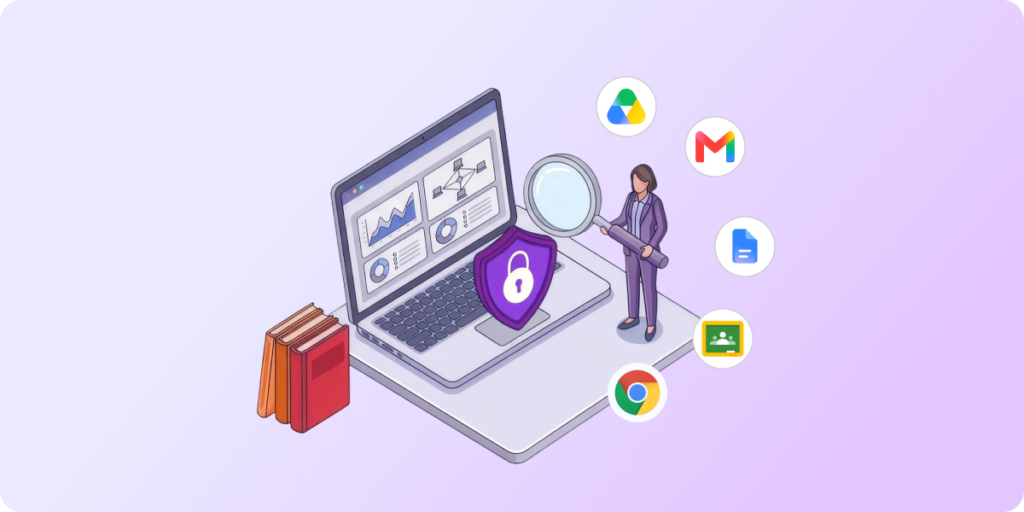

- Without efficient management and monitoring of student online activity, Google Classroom can overload teachers and waste time that should go to instruction, not technical issues.
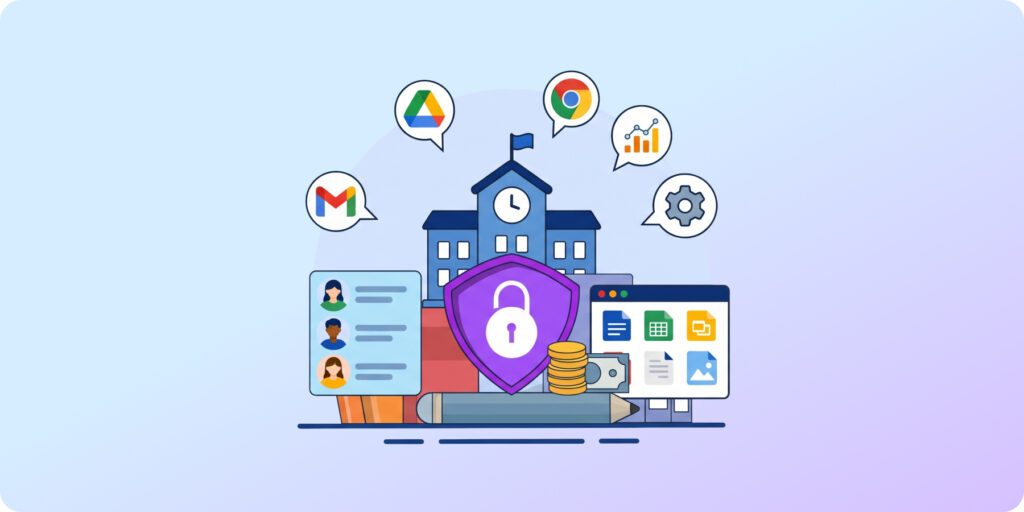
- Teacher-admin collaboration can reduce educators’ workload during Google Classroom sessions while giving the IT team and school leaders insights into student security and performance.
- GAT Labs solutions optimize classroom management, giving teachers and admins full control over classroom sessions and student browsing, automating classroom reporting, and strengthening online safety.
Face the most common Google Classroom management struggles with GAT Labs
Teachers’ daily routines in Google Classroom can be demanding: setting up digital classrooms and resources before the first bell, managing student distractions online, driving engagement, and, above all, keeping the lesson plan moving.
Without efficient practices to manage classroom-related workload, it can feel truly overwhelming.
That’s why we’ve put together the most popular GAT Labs classroom management features in one post. They help admins and teachers save time, streamline online instruction, strengthen safety policies and keep students focused in Google Classroom.
Why Teachers Feel Overloaded in Google Classroom
While digital learning platforms like Google Classroom are designed to support teachers, they sometimes create new issues teachers struggle with. Complex technical features, unclear tools, or unlimited student browsing and AI usage can significantly increase teacher workload and disrupt class time.
- Time-consuming Classroom Management: Technical issues consume instructional time, while pressure to keep up with the curriculum continues. Without automation, monitoring and reporting on student progress takes a lot of time. Hybrid learning may duplicate work for teachers who must manage both in-person and online classrooms simultaneously.
- Student Online Distractions and Screen Overuse: Unmonitored digital devices in the classroom can lead to endless student distraction. However, supervising every student’s browsing while teaching simultaneously can exhaust educators. Additionally, excessive screen time affects both students’ and teachers’ attention spans and cognitive capacity.
- Lack of Teacher Technical Skills and Training: Limited edtech experience, too many digital tools, features, and notifications, and insufficient training can easily overwhelm non-tech-savvy teachers. Misconfigured settings and underutilized existing tools add to teacher overload instead of lightening it.
The 10 Most Popular GAT Labs Classroom Management Features
These are the top GAT Labs features teachers and IT teams use daily to ease the hassle of Google Classroom management. Teacher Assist, GAT Shield, and Taskmaster reduce teacher workload and improve effectiveness by maintaining screen control and redirecting student attention.
1. Lock Student Screens for Exams and Classwork
Tool: Teacher Assist
For whom: Teachers
How it Works: Lock a single tab or domain and push specific URLs to all student screens during a classroom session. When students attempt to open a new tab, they are automatically redirected to the approved screen.
Outcome: Teachers keep control of student access to online resources during classwork. Students stay focused on the assignment as they can’t leave the specific tab.
→ Learn more in our Knowledge Base
2. Block Embedded YouTube Videos in Google Sites
Tool: GAT Shield
For whom: Admins
How it Works: Prevent students from playing YouTube videos on all or a specific Google site. The videos will be shown as unavailable.
Outcome: Students can no longer bypass YouTube filters via Google Sites, helping teachers keep their attention on the class.
→ Learn more in our Knowledge Base
3. Manage What Students See in the Browser
Tool: Teacher Assist
For whom: Teachers
How it Works: Allow or block sites available to students, and push specific websites to their Chrome browsers during the class. Review allowed and blocked websites and student actions on them.
Outcome: Teachers manage student browsers and maintain control over what appears on their screens. They can review and analyze detailed logs of student online activity after class.
→ Learn more in our Knowledge Base
4. Block Specific AI Sites in the Classroom
Tool: GAT Shield
For whom: Admins
How it Works: Restrict access to popular, unsafe, or unapproved AI websites with Site Access Control applied to a group of students or all users.
Outcome: Students can’t use specific AI-powered online tools during classwork. Teachers save time they would otherwise have to spend verifying assignment originality.
→ Learn more in our Knowledge Base
5. Control Explicit AI Deepfake Online Searches
Tool: GAT Shield
For whom: Admins
How it Works: Monitor in real time when students attempt to search or access websites related to explicit AI deepfakes. Close their window, redirect them, or show a warning message.
Outcome: Admins are immediately notified when students try to search for explicit AI deepfake content and can take a specific action to protect them from inappropriate materials.
→ Learn more in our Knowledge Base
6. Manage Student Tabs in Chrome
Tool: Teacher Assist
For whom: Teachers
How it Works: Review and manage tabs on each student’s screen in real time by opening, closing, switching, and pushing them.
Outcome: Teachers distribute relevant online resources to student devices and keep their screen content aligned with the class subject.
→ Learn more in our Knowledge Base
7. Review Student Real-Time Online Activity
Tool: GAT Shield
For whom: Admins
How it Works: Audit student browsing in real time and within a specific timeframe, and report on classroom online activity from up to 180 days ago.
Outcome: Admins can review how much time students spend in Google Classroom, what websites they visited, and track their activity in real time and for a specific date range.
→ Learn more in our Knowledge Base
8. Get Evidence of Student Browsing in the Class
Tool: Teacher Assist
For whom: Teachers
How it Works: Take a screenshot of a student’s current browsing activity during a Google Classroom session and upload it to Drive.
Outcome: Teachers gain visual evidence of student online behavior at the moment and can save it for further investigation or school-parent communication.
→ Learn more in our Knowledge Base
9. Verify Student Assignment Originality and Detect AI Content
Tool: Taskmaster
For whom: Teachers
How it Works: Review student assignments in Google Docs to detect copied-and-pasted text blocks, unusual student typing patterns, and AI-generated content.
Outcome: With the tool integrated with Google Docs, teachers can automatically track student progress on assignments, verify authorship, and protect academic integrity without spending extra hours on manual checks.
→ Learn more in our Knowledge Base
10. Monitor Students Using Inappropriate Language
Tool: GAT Shield
For whom: Admins
How it Works: Admins control the use of inappropriate language across Google Workspace and Chrome in real time. When a student types a flagged word, admins get a notification, and it can trigger a specific action.
Outcome: The school tracks student online misbehavior and takes immediate action when a student uses an inappropriate word while logged in with their Google account.
→ Learn more in our Knowledge Base
How GAT Labs Supports Schools in Optimizing E-Learning in Google Classroom
▪️ Teachers
Less tech, more teaching
GAT Labs solutions put teachers back in command of their classrooms, saving time and reducing stress over student distractions and cheating. With real-time monitoring and management of student activity during a session, teachers can supervise all student screens and stay focused on education.
▪️ IT Teams
Automated management & auditing
School admins gain full visibility across Google Classroom and the entire domain. They can quickly audit student online behavior, classroom performance, and security risks. Customized web filtering, live domain activity monitoring, and automated classroom settings reduce teacher and IT team workload and school online safety concerns.
▪️ School Leaders
Easy reporting, safer students
With GAT Labs auditing capabilities, school leadership receives comprehensive reports on each classroom and student, enabling it to evaluate learning effectiveness and student performance. Personalized online safety policies help safeguard students and ensure compliance in Google Classroom.