

GAT+ Google Calendar audit presents all Calendars existing on your domain.
- Calendars
- Calendar events
- Calendar resources
In Calendars, the admin can add and remove any additional owners to any existing calendar owned by users of your domain.
Thus allowing them to also add Writers, Readers, and Free/Busy readers to any calendar.
Calendar permissions #
Auditing different Google Calendar Resource
- “Free/Busy Reader only” – Read access to free/busy information.
- “Reader” – Read access to the calendar. Private events will appear to users with reader access, but event details will be hidden.
- “Writer” – Read and write access to the calendar. Private events will appear to users with write access, and event details will be visible.
- “Owner” – Ownership of the calendar. This role has all of the permissions of the writer’s role with the additional ability to see and manipulate ACLs.
They can be managed with Calendar permissions management allowing the admin to manipulate the users of the Calendar.
Permission change #
Note: Add and Remove additional owners is possible, but removing the original (primary) owner is not allowed.
Admin can add and remove:
- The additional Owner (non-primary)
- Contributor – calendar Writer
- Viewer – Calendar Reader
- Free/busy readers
Add Additional Calendar Owner #
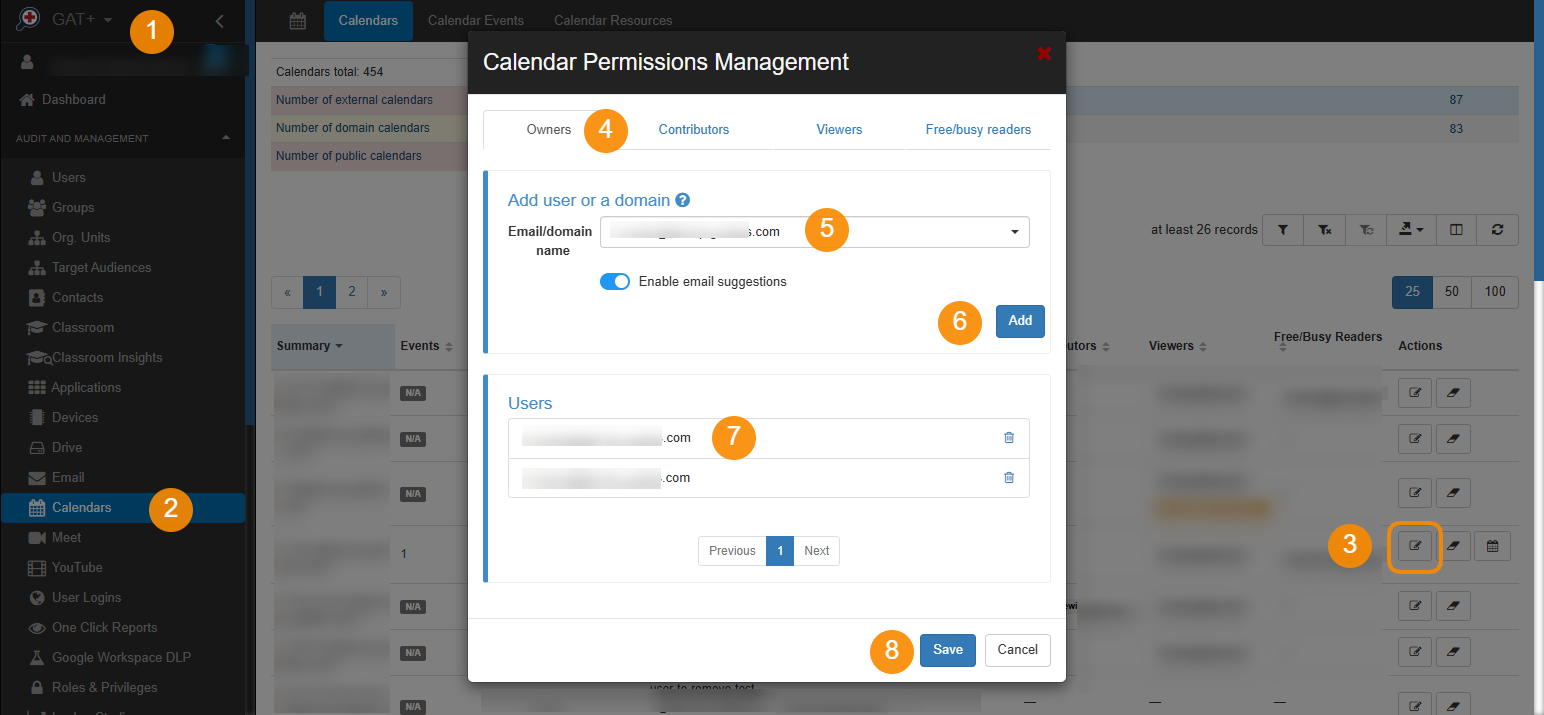
Navigate to GAT+ (1) > Calendars (2) > Calendars
Select the Calendar needed > click on “pen icon” (3) under Actions. Calendar Permissions Management window will be displayed.
Owners, Contributors, Viewers, Free/Busy readers – select Owners tab to be able to amend the Owners lists.
Under the Owners tab (4) file in the Add user or a domain field (5) by selecting or typing an additional Owner email address > confirm the change by clicking on Add button (6) > user/domain will be added under Users section (7) > click on Save (8) to add the user/permission to the selected calendar.
Result #
An email notification will be sent.
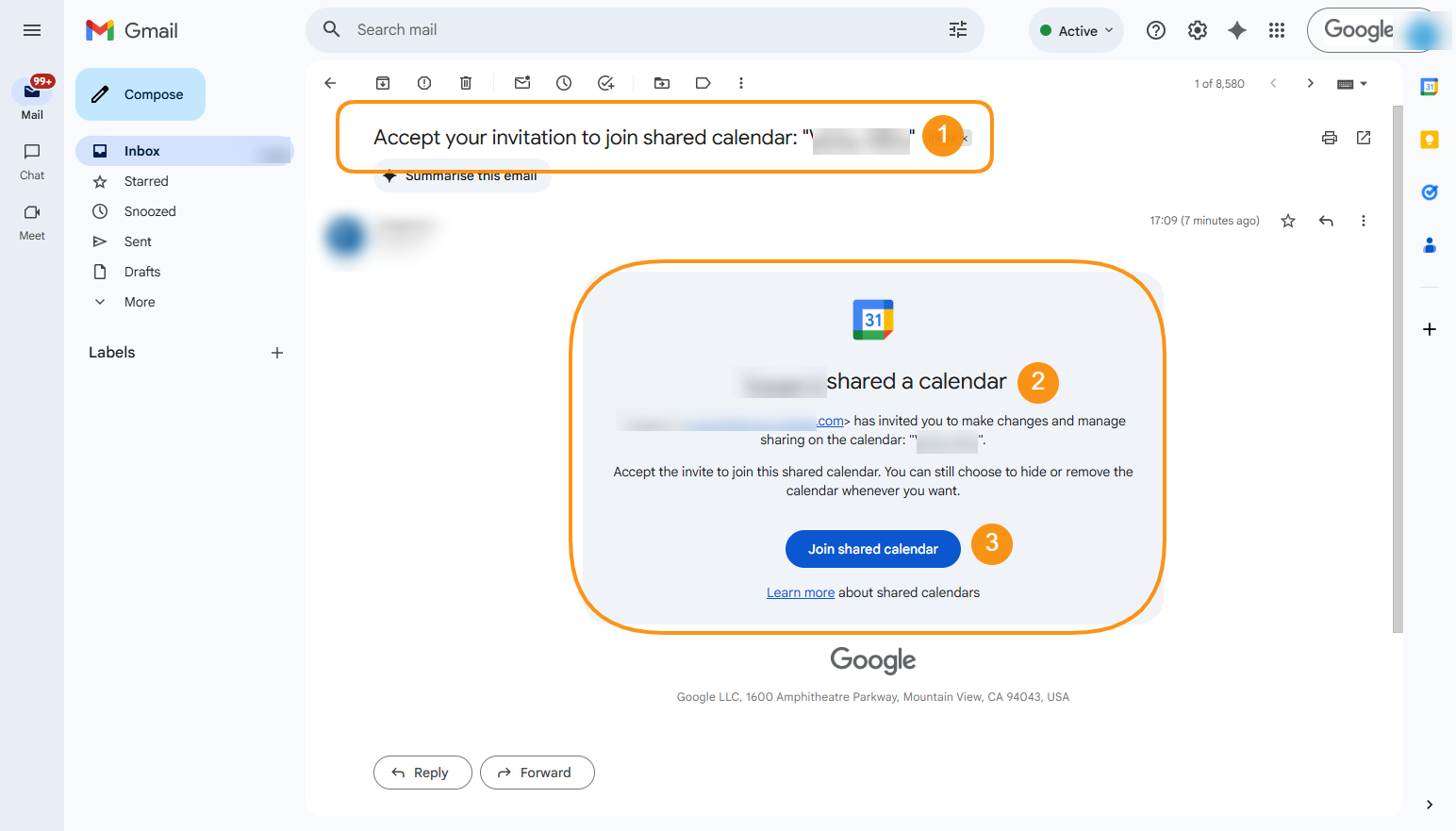
The user who is added as an additional owner will receive an email with a description that are invited to the given Calendar.
Once clicked “Join shared calendar” displayed in the email content, the user is redirected to the Google Calendar from where they can approve the invite by clicking on the Add Calendar button.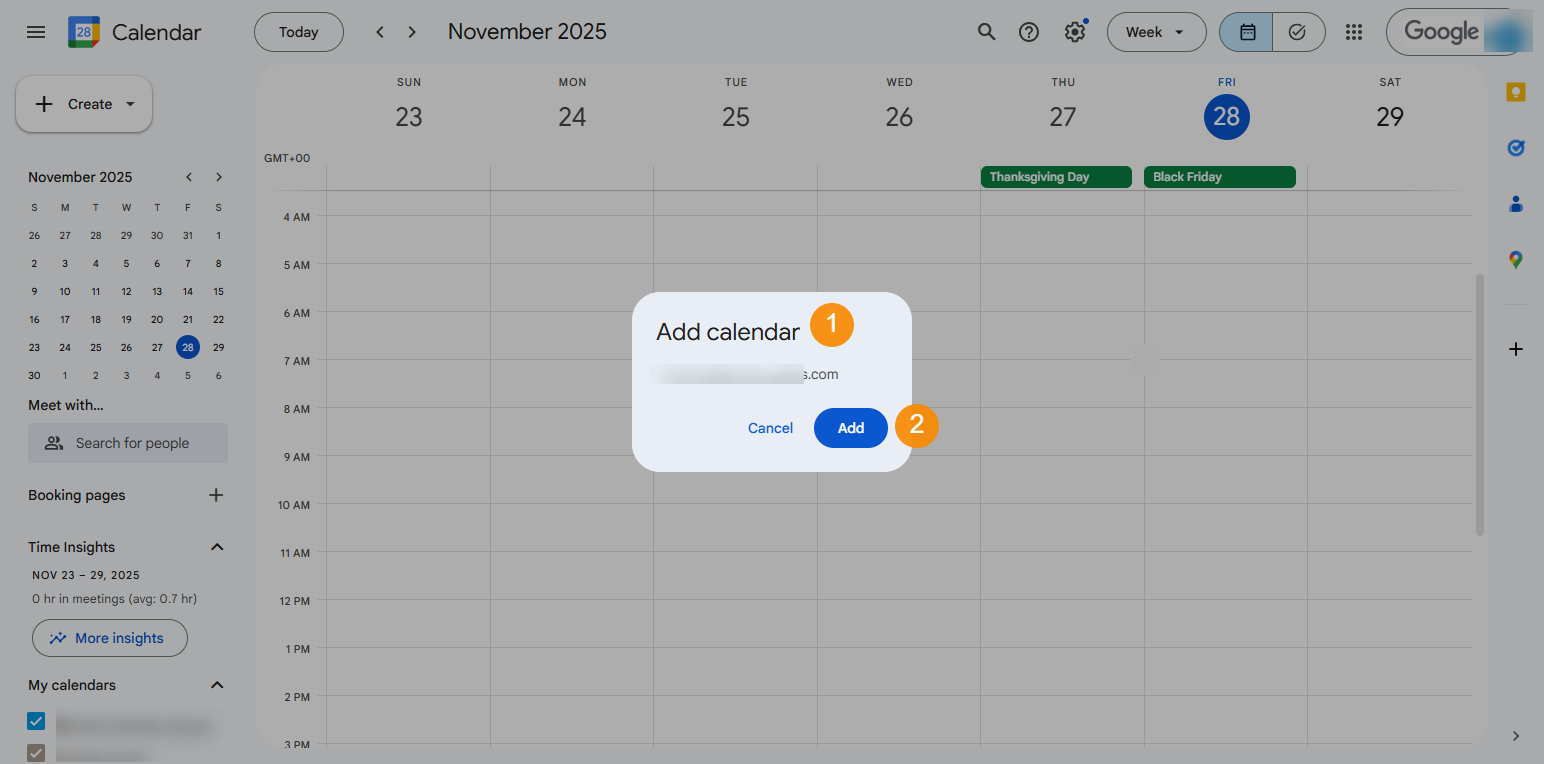
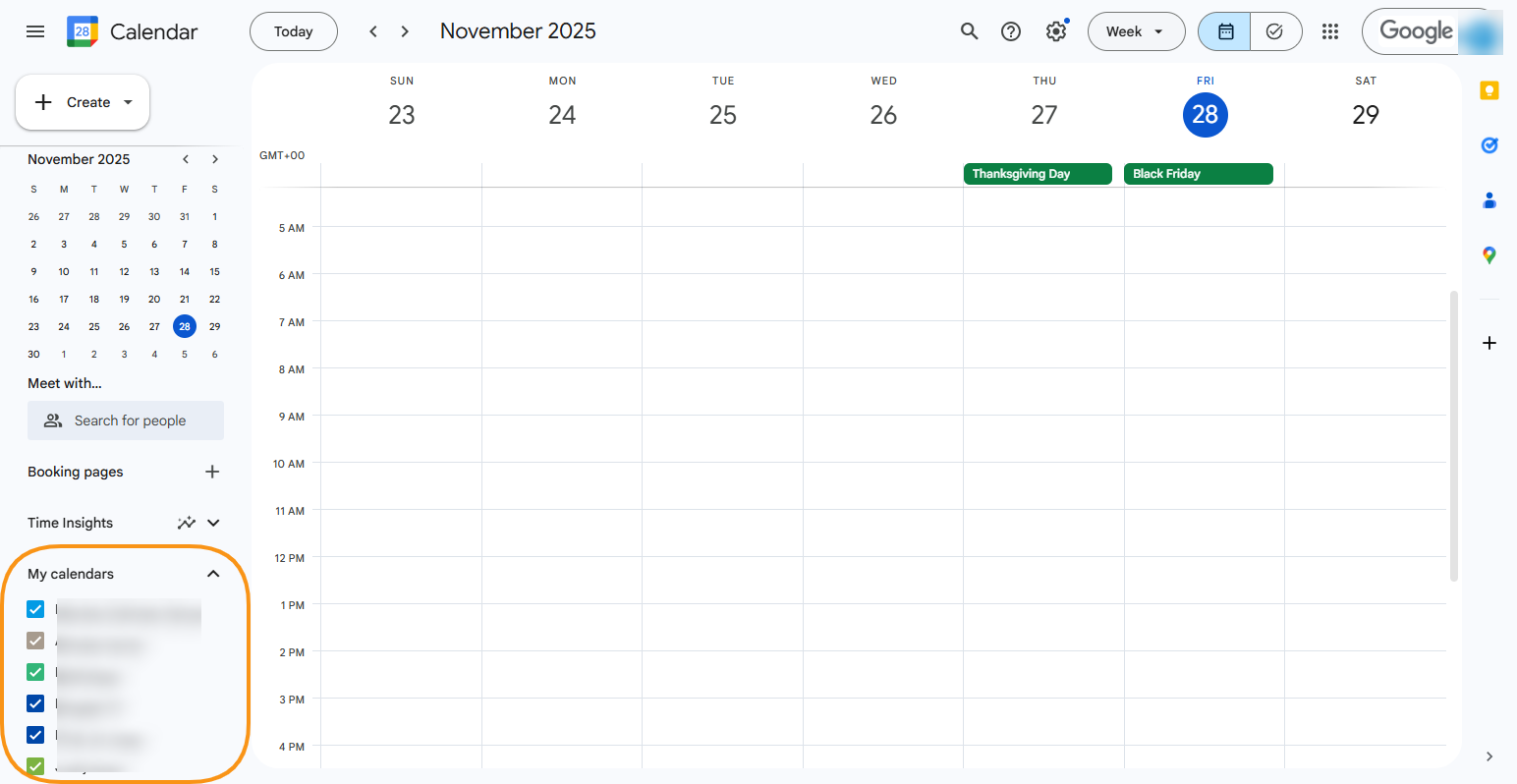
Once the calendar is added by the user, the shared calendar will be visible under the heading ‘My calendars’.
The newly added user will have access to Manage events and sharing settings for the Google Calendar.
All additional owners will have full control over the original owner’s calendar.
GAT+ allows also to delete the original owner from a non-primary calendar.
Note: If the Calendar is not a primary calendar, meaning it is not the default calendar of a user, the Admins can remove the previous owner entirely after they have added an additional owner.
Add Writers or Readers to existing calendars owned by users on your domain #
Navigate to GAT+ (1) > Calendars (2) > Calendars
Select the Calendar needed > click on “pen icon” (3) under Actions. Calendar Permissions Management window will be displayed.
Owners, Contributors, Viewers, Free/Busy readers – select Contributor or Viewer tab to amend the Writers or Readers lists accordingly.
To amend the contributors list, under the Contributors tab (4) file in the Add user or a domain field (5) by selecting or typing an additional Writer email address > confirm the change by clicking on Add button (6) > user/domain will be added under Users section (7) > click on Save (8) to add the user/permission to the selected calendar.
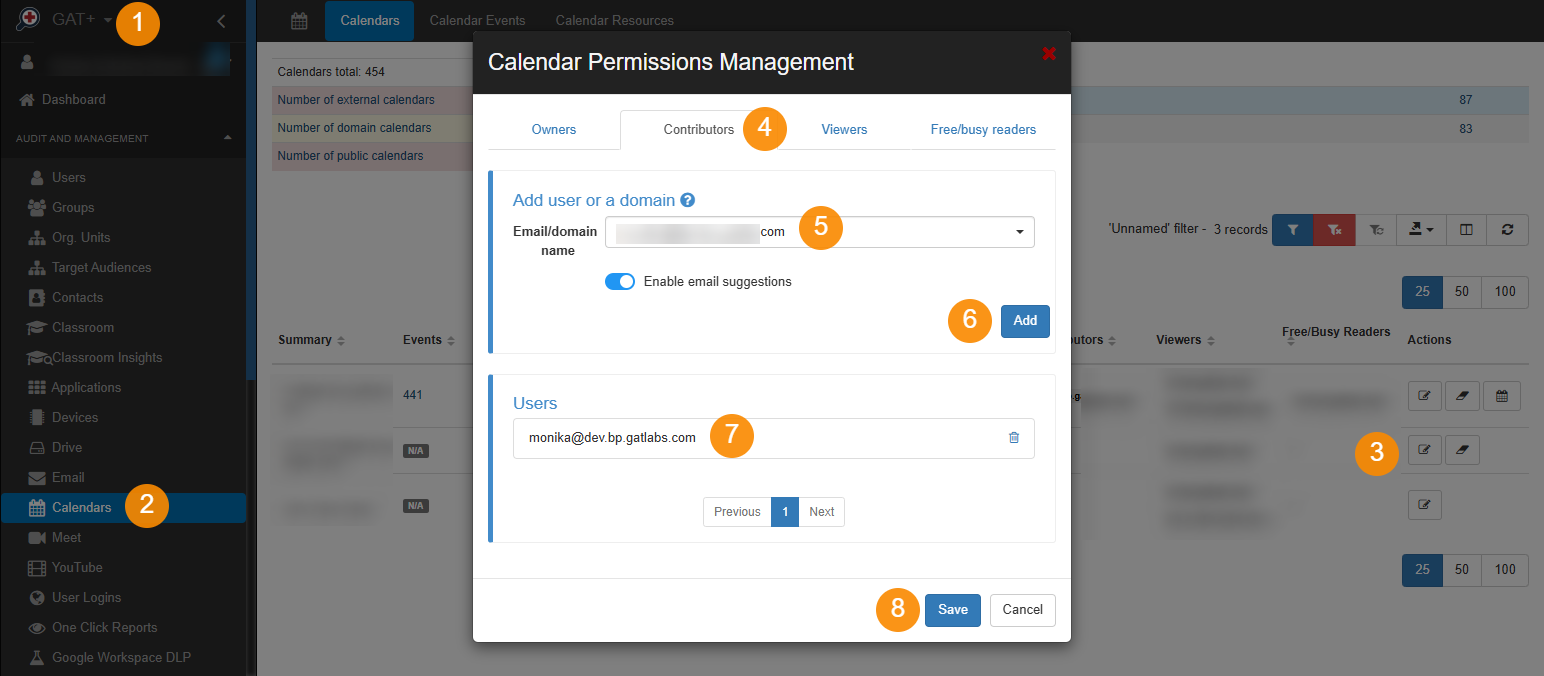
When the user is added as writer or reader in the calendar permission, they will have access to those resources
Results #
The added users will receive an email notification with an invite to the Calendar.
The user who is invited as Contributor will receive an email with a description that are invited to the given Calendar.
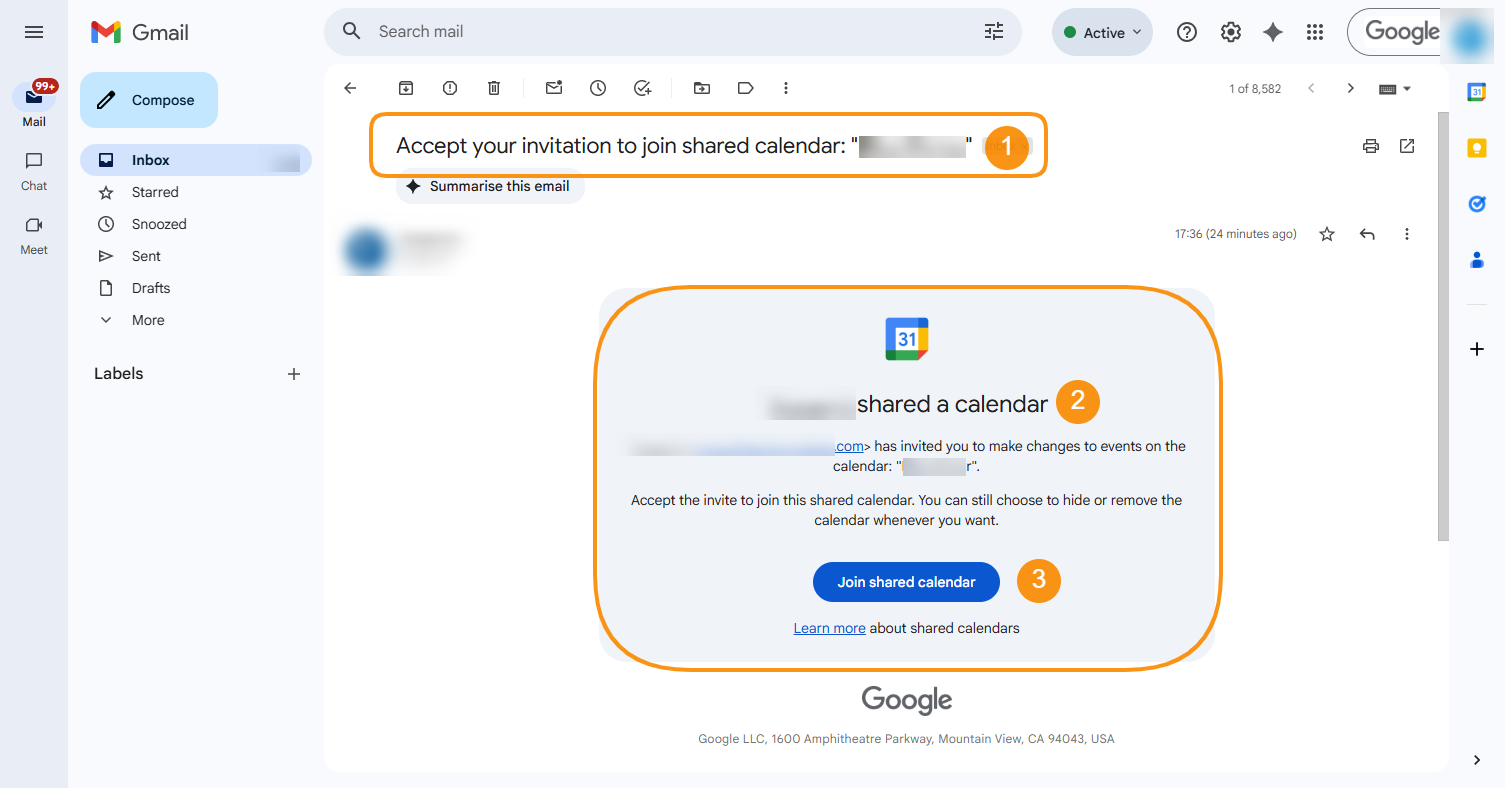
Once clicked “Join shared calendar” displayed in the email content, the user is redirected to the Google Calendar from where they can approve the invite by clicking on the Add Calendar button.
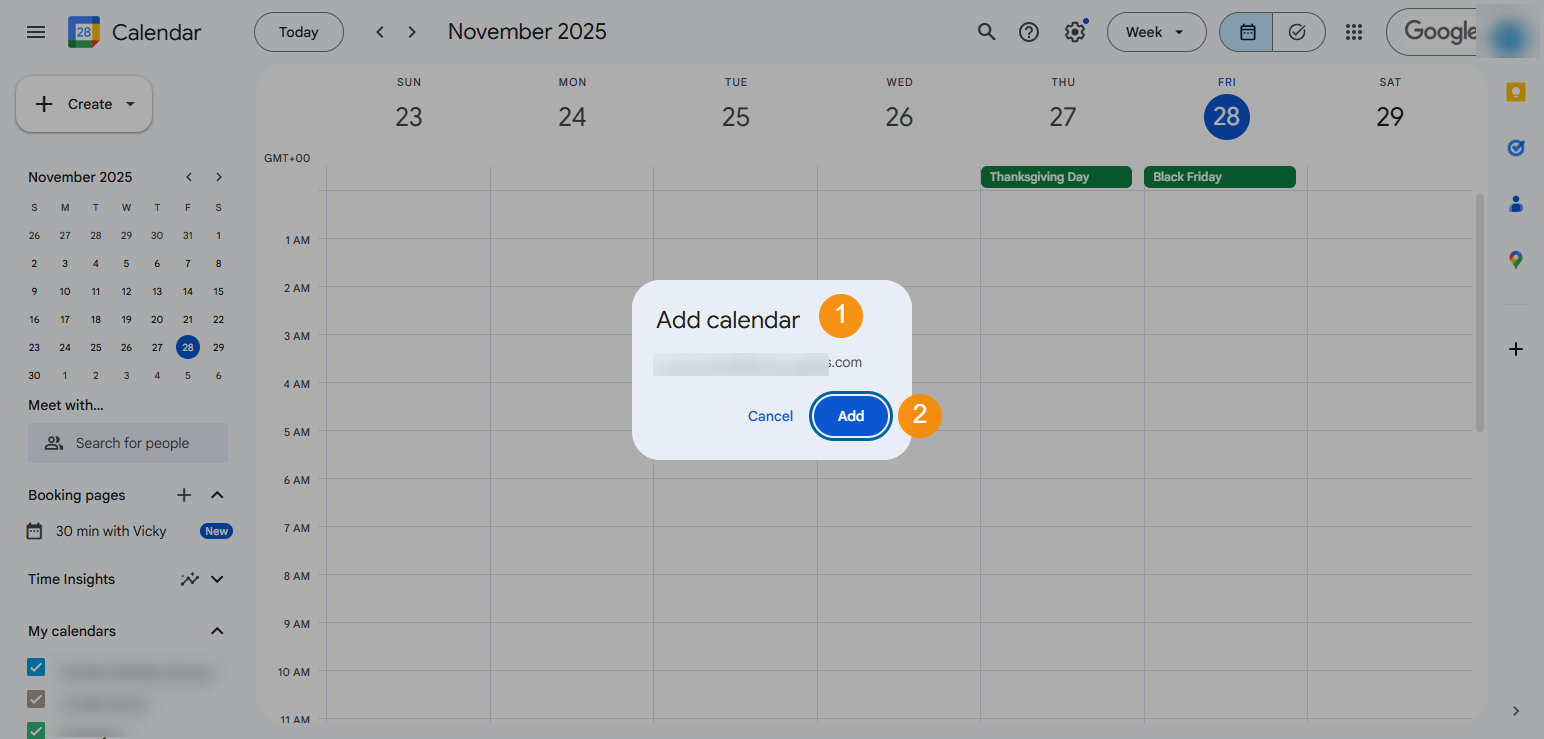
The shared Calendar will be displayed under My calendars.


