

GAT Flow: Conditional Workflows for Google Workspace #
GAT Flow is a powerful user management tool for Google Workspace admins.
Admins typically use it to easily onboard, offboard, and modify users across their Google Workspace domain and automate relevant admin tasks.
Conditional Workflows for Google Workspace #
Using a conditional workflow, you can specify a condition based on which steps are to be executed or skipped.
Conditional workflows are available in:
- Action set – setting up, as in Action set
- Create workflow – create a one-off workflow
- Event workflow – create an automated workflow based on different Events occurring
- Recurring workflow – create an automated workflow based on the Time period
How to use Conditional Workflows? #
The conditional workflow is used when you create any type of workflow.
Choose actions #
The condition workflow can be selected in the Actions tab on every workflow.
In the Choose actions section, click on the + button to add a note, select Add condition
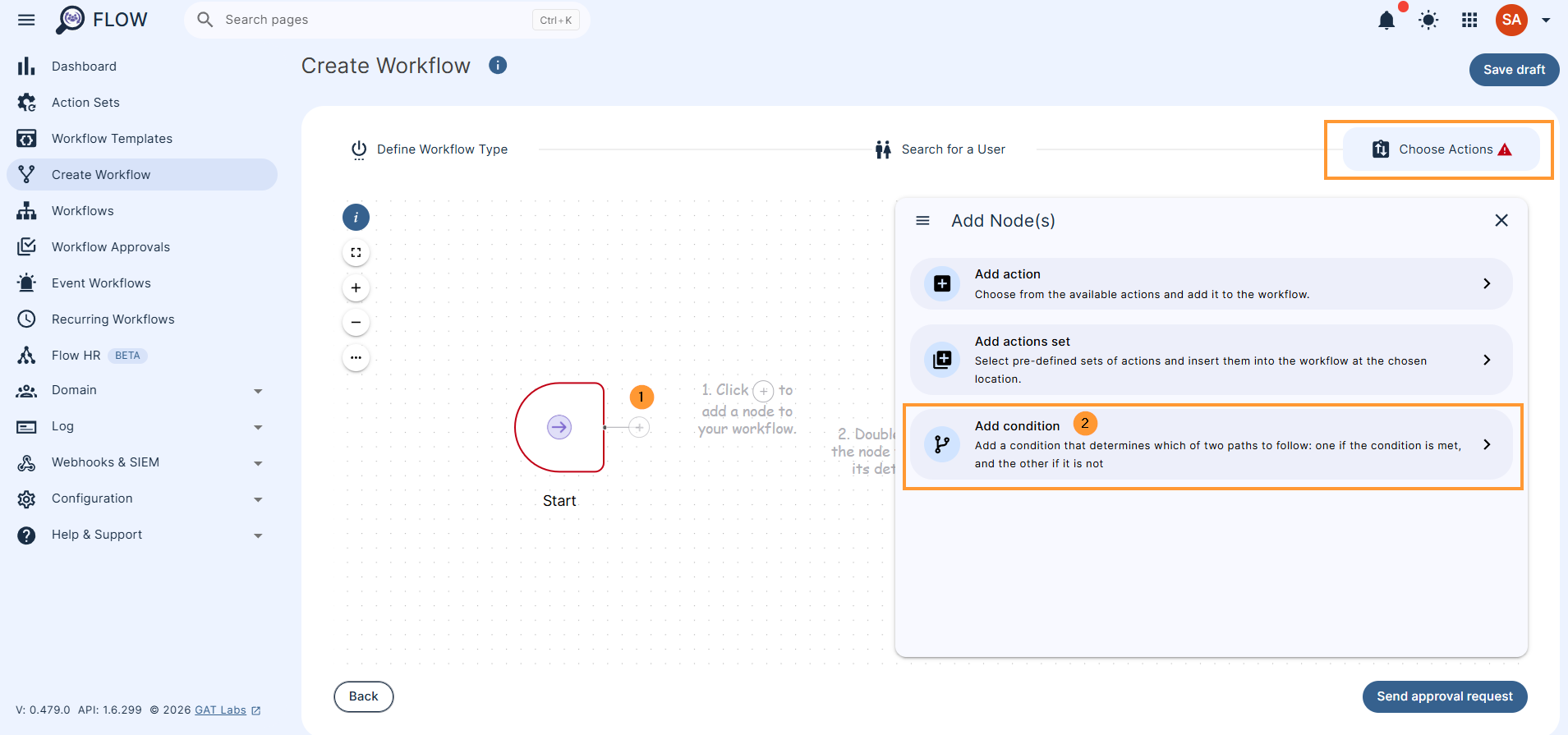
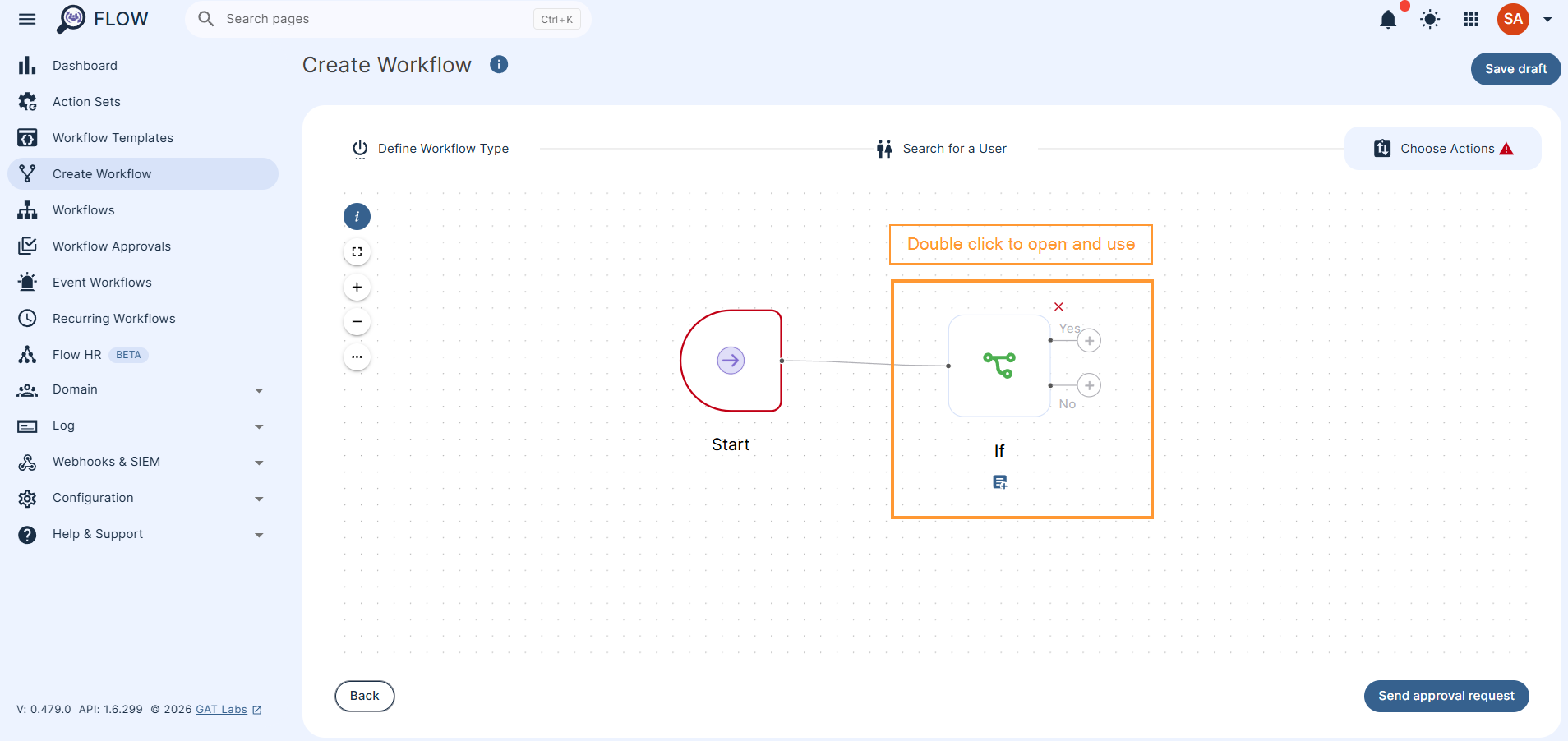
When the “condition” is added, double-click to set up the condition.
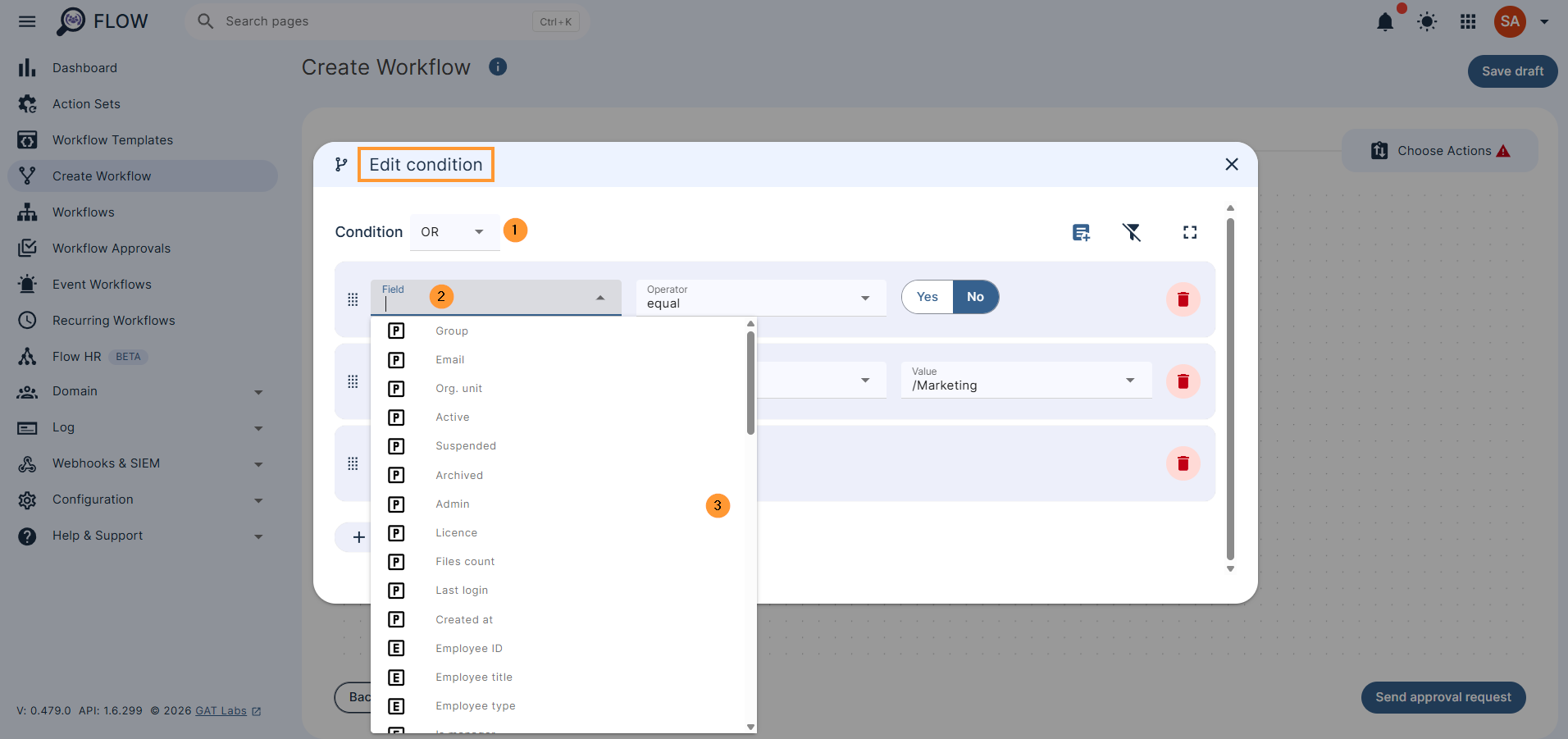
The conditions will be shown; select any of the multiple lists of conditions.
Conditions #
Select any of the conditional options and fill in the details. Set up the condition to be AND or OR.
- Group
- Org. unit
- Active
- Suspended
- Archived
- Admin
- Licence
- Files count
- Last login
- Created at
- Employee ID
- Employee title
- Employee type
- Is manager
- Manager email
- Department
- Cost centre
- Building ID
- Floor name
- Floor section
- Work phone
- User ID – User ID
- Custom attributes
- Select any of your custom attributes to work as a condition
Example #
In the condition, you can set up whatever you want to be a trigger condition.
Criteria in which, if met, x action will happen or not.
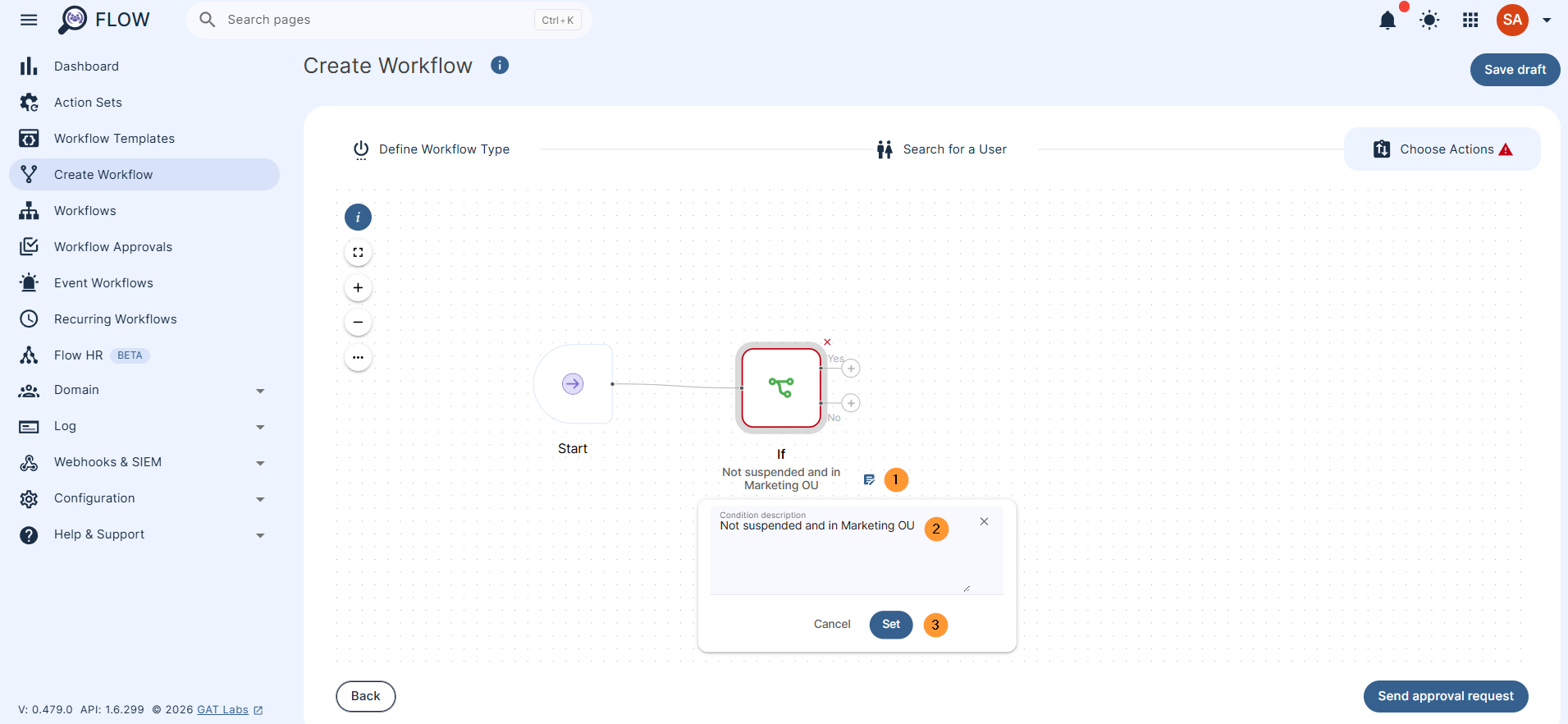
The condition we select is Suspended equal to No (not suspended) and org. unit equal to Marketing
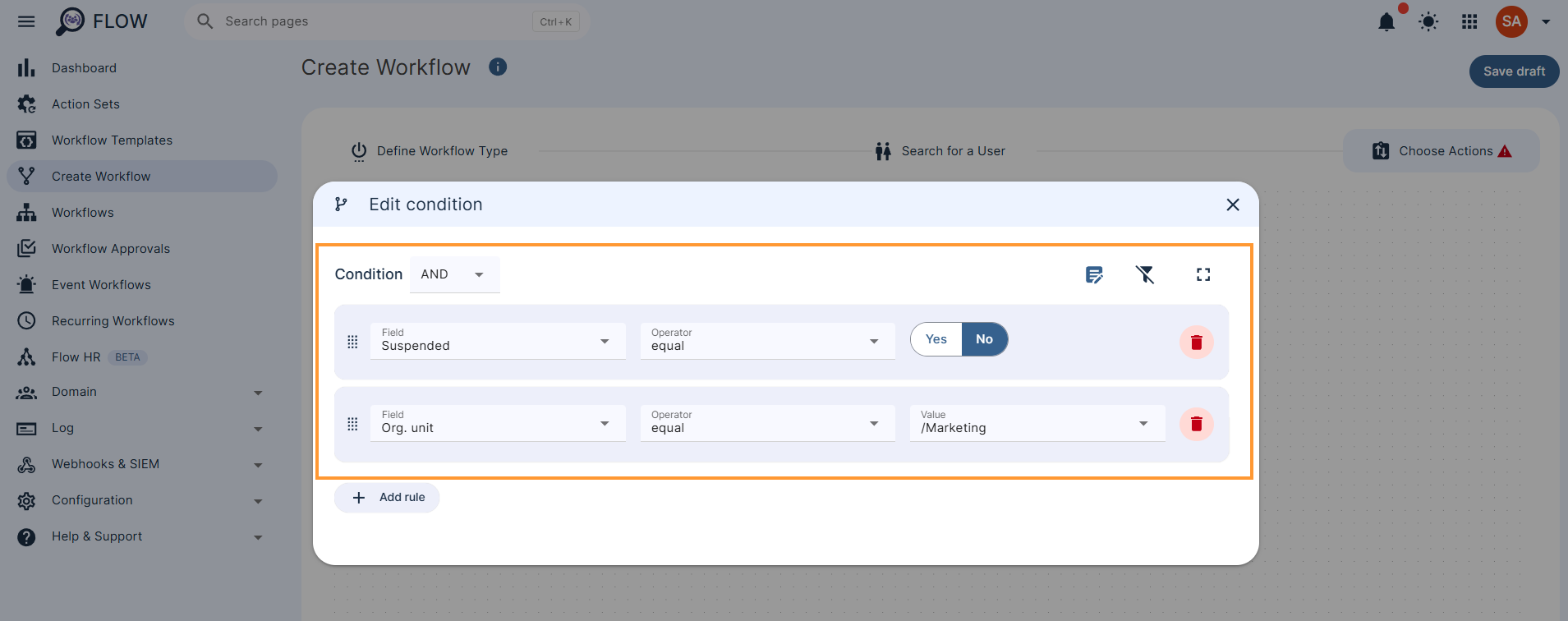
Additionally, add a note to know what is the condition.
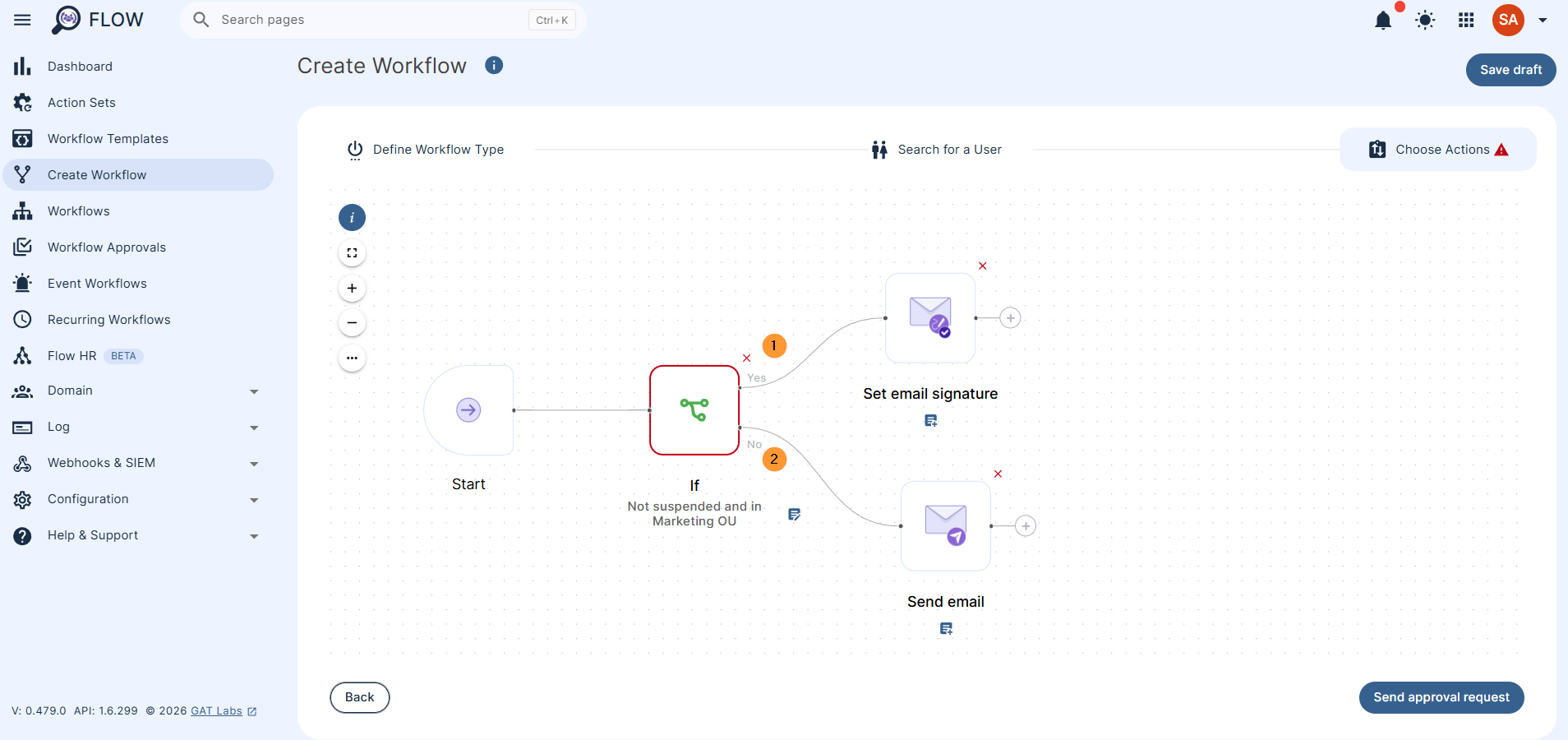
Fill in additional action to be triggered based on the Condition set.
Click on the + button for each outcome, if the condition criteria is met (Yes) or not (No).
Conclusion #
As a result of the workflow, the outcome of it will be based on whether the condition is met or not.
Integrating conditions into your GAT Flow workflows transforms routine Google Workspace administration into a smart, hands-off operation.
Instead of building separate workflows for different scenarios, conditional logic allows you to house multi-layered processes within a single execution plan.
By leveraging triggers – from suspension status to custom department attributes – you reduce the risk of administrative error, enforce organizational policies automatically, and save valuable IT hours.


