

GAT Flow allows admins to onboard, offboard or modify existing users/students in bulk. The tool can also copy multiple folders to multiple users into their Google Drive, allowing any selected group of users to have a copy of specific folders in bulk.
This action will create a copy of the existing folders and the copy will be placed in the Drive of the selected users.
Navigate to GAT Flow #
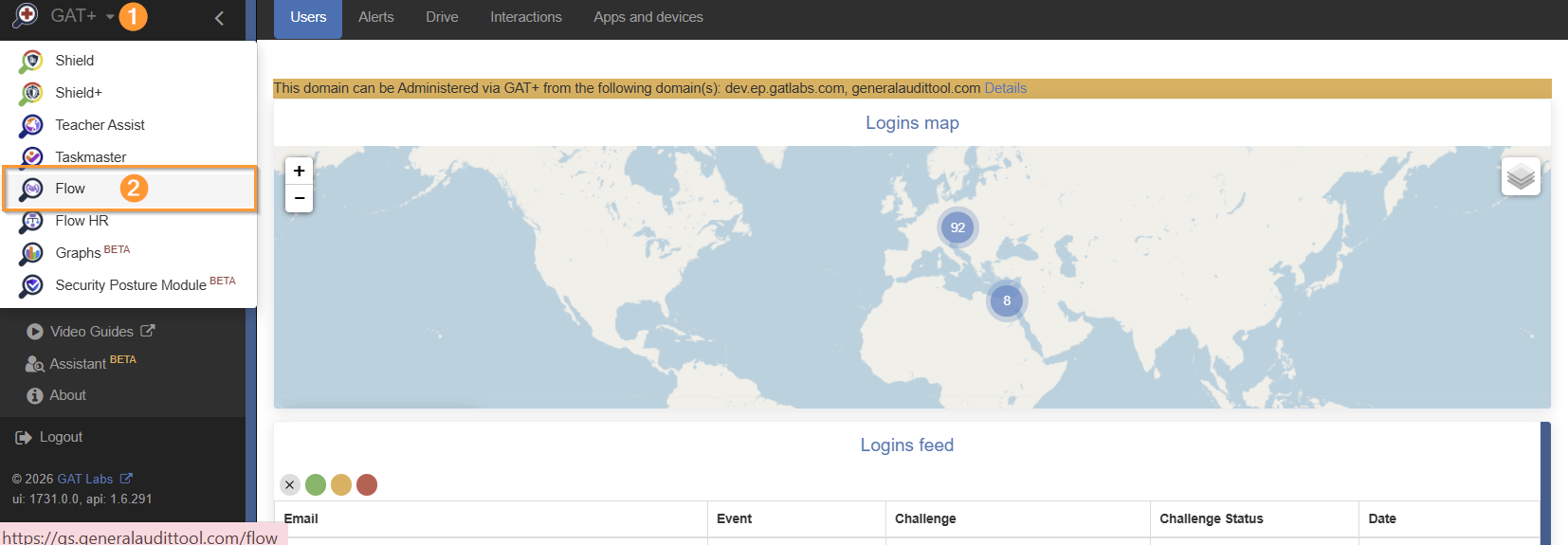
To copy folders, go to your GAT+ app (1), then navigate to and click Flow (2).
Create Workflow #
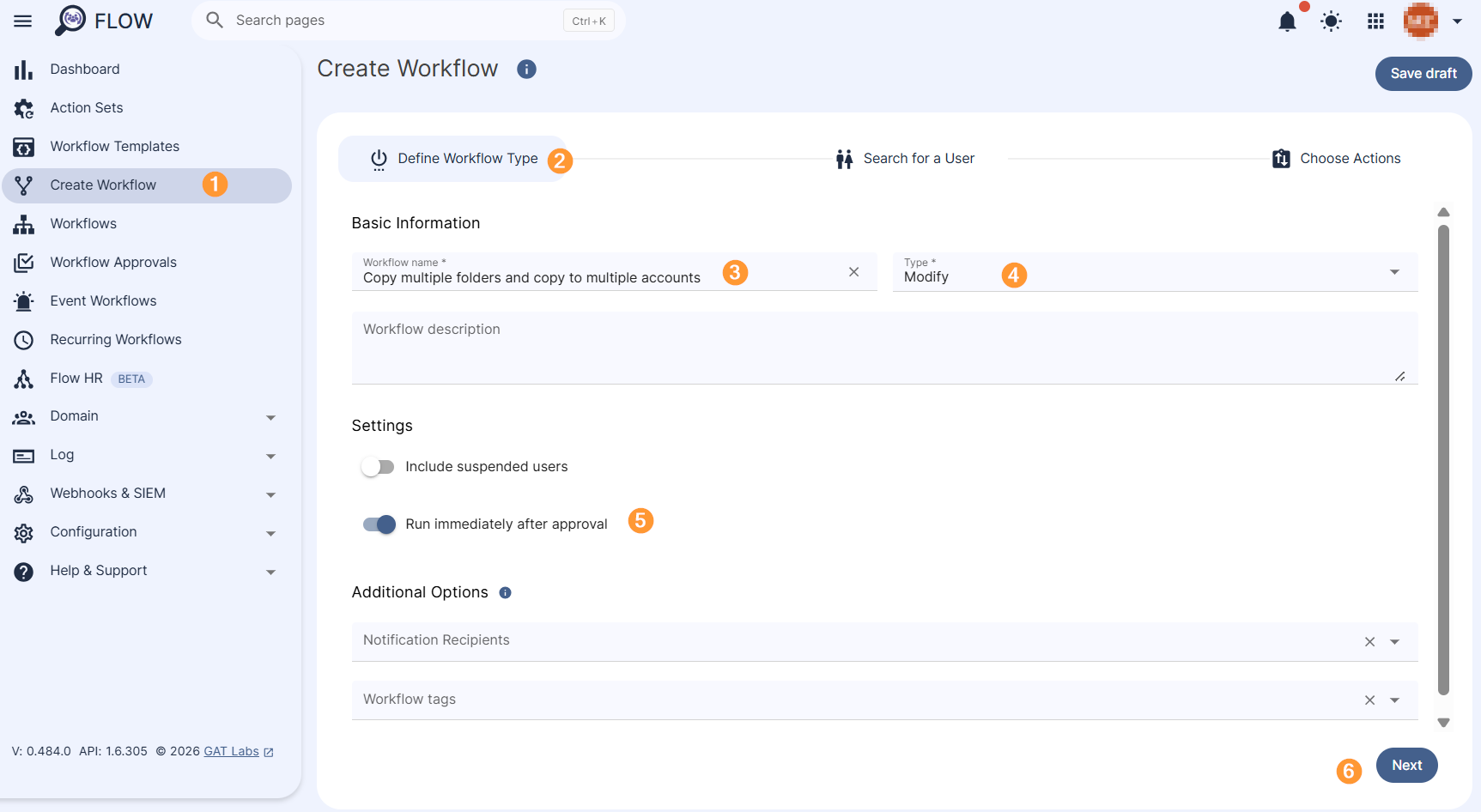
From the menu on the left click on Create workflow (1).
Define Workflow Type section will be displayed (2).
- Name – enter a name for the workflow (3)
- Type – select the workflow type
- Modify – edit existing accounts and copy folders (4)
- Onboarding – create new accounts and copy folders
- Run immediately after approval – pick up a date when the workflow to run (5)
- Next – click on the button to proceed (6)
Search For A User #
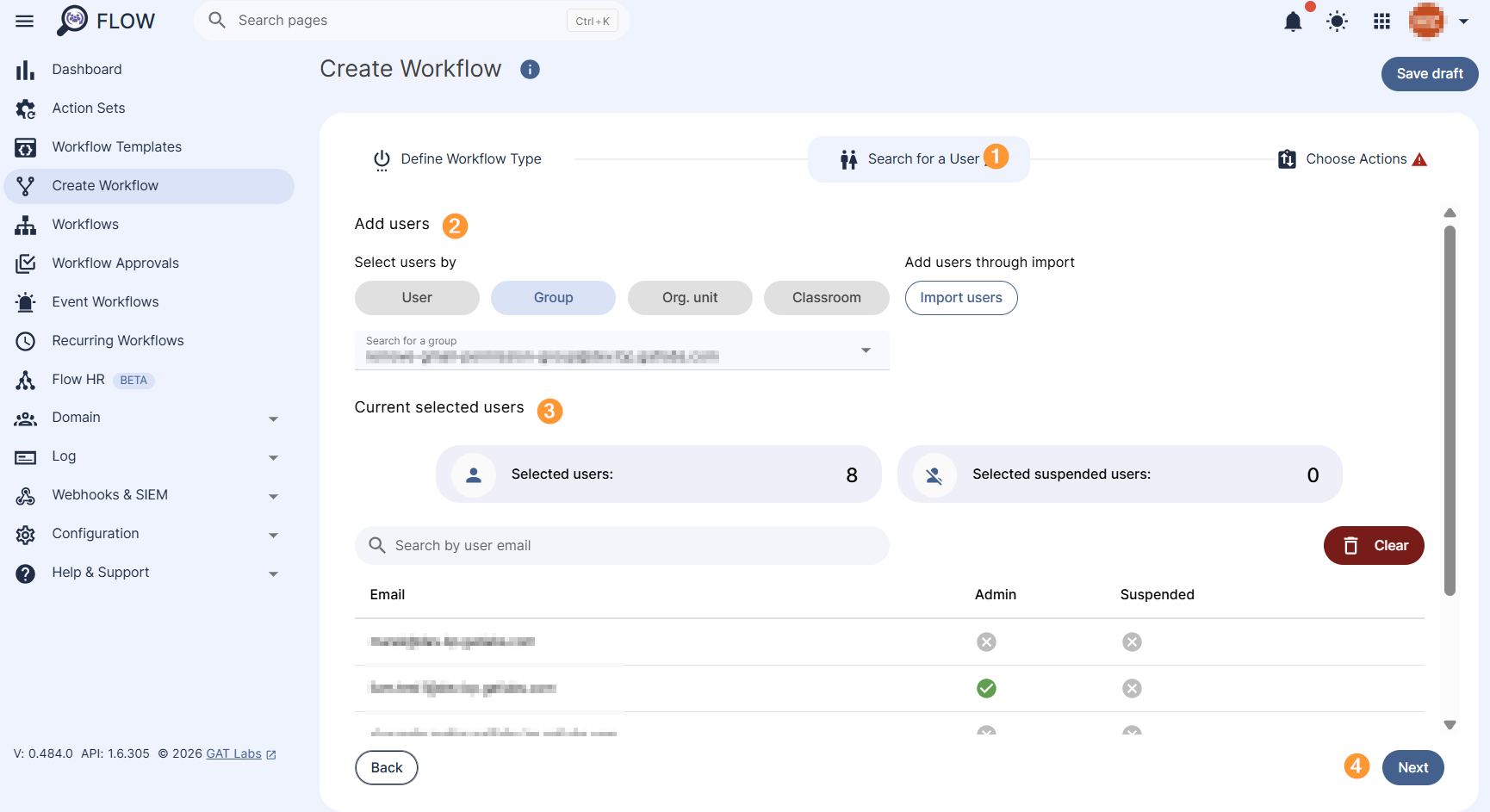
At this step, search for the users, groups, or OU and add them to the workflow (1-3)
- Search for a user – select individual users
- Search for a group – select a group of users
- Search for an OU – select Org. Unit of users
When the users are selected click on Next (4).
Choose Actions #
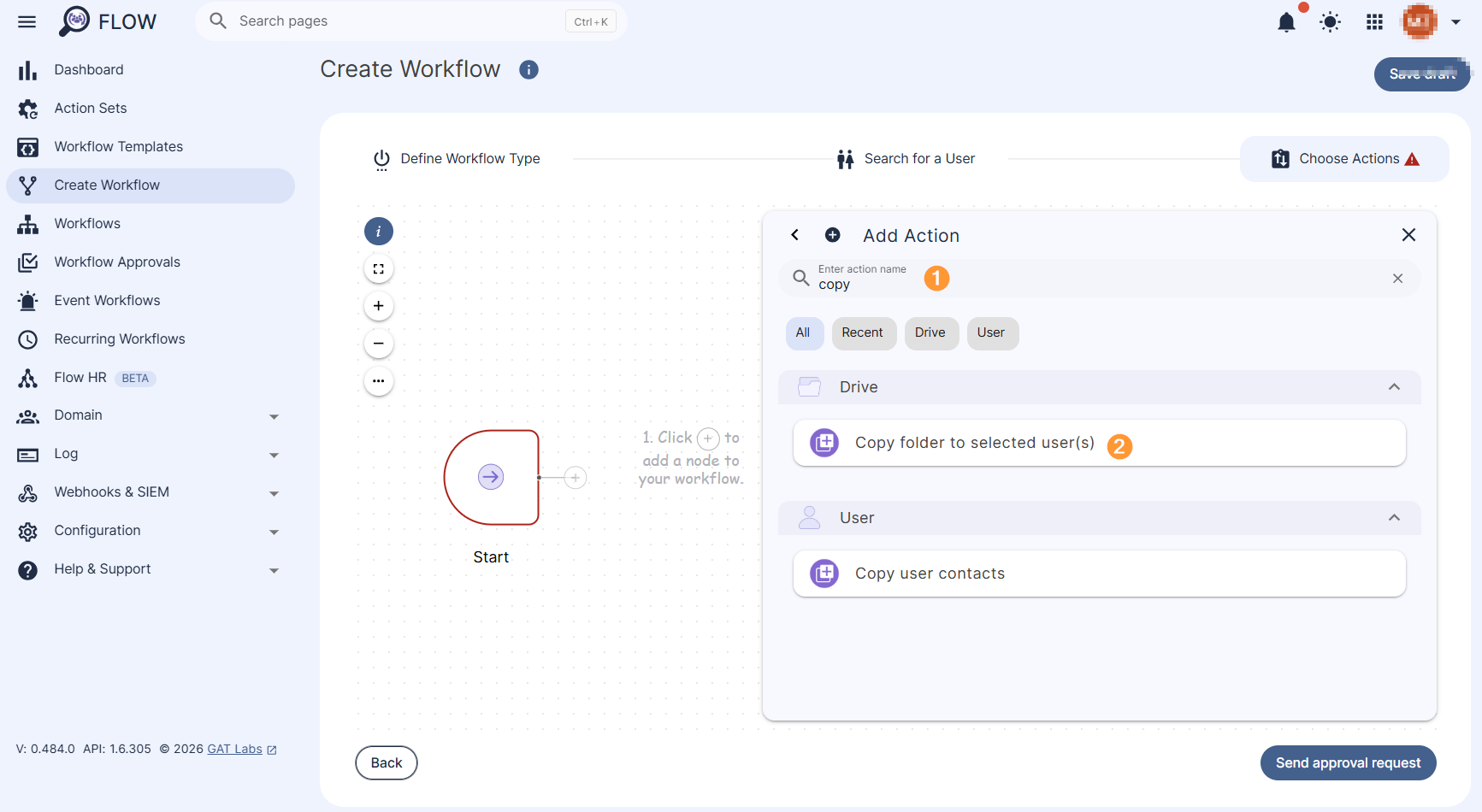
Under the Choose Actions section (1), click on the + button (2) and Add action (3). A pop-up menu with all the available actions will be displayed.
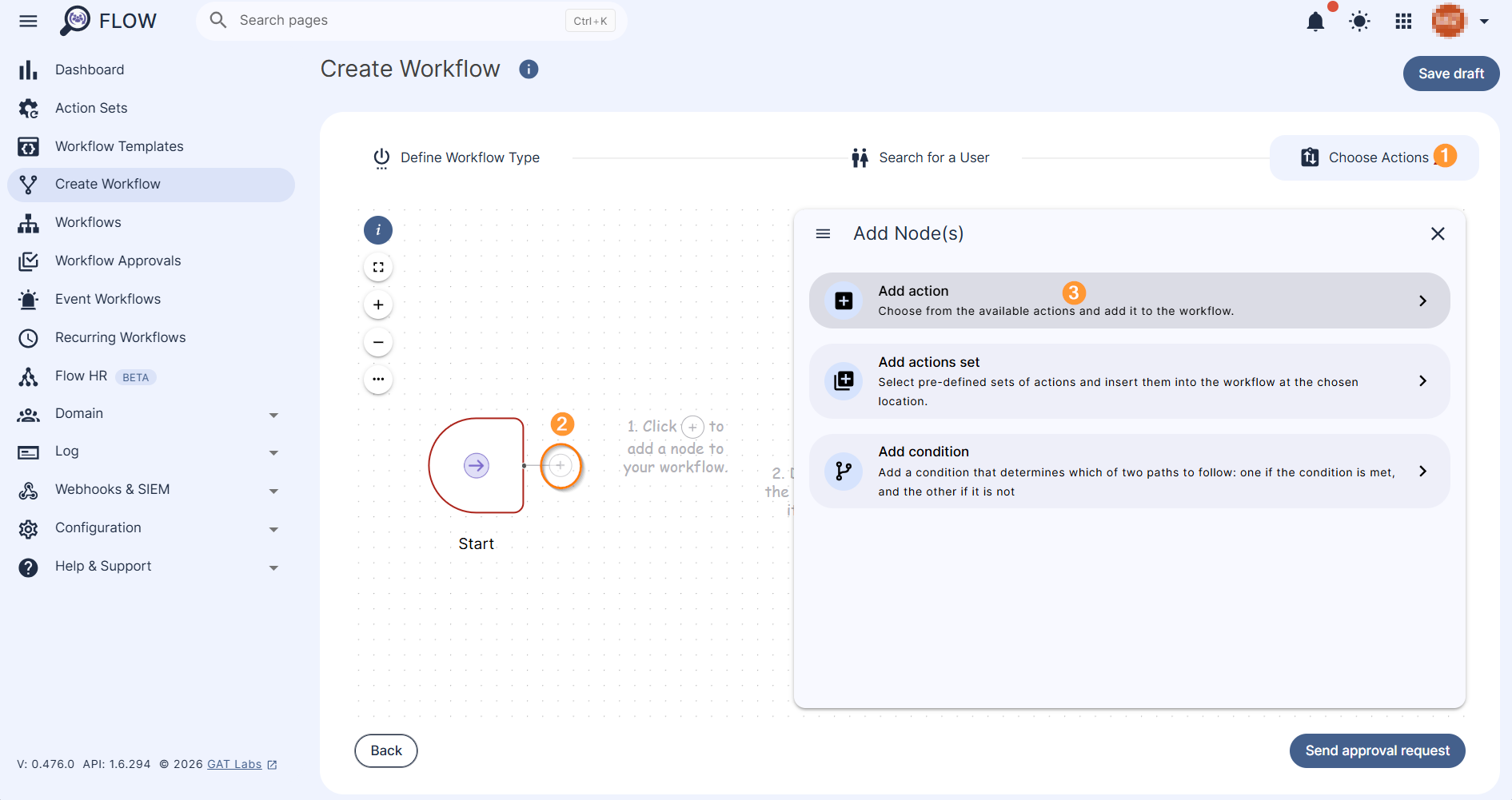
When selected a pop-up menu with different options will be displayed.
Search for or select the actions you want to take. In this case Copy folder to selected users.
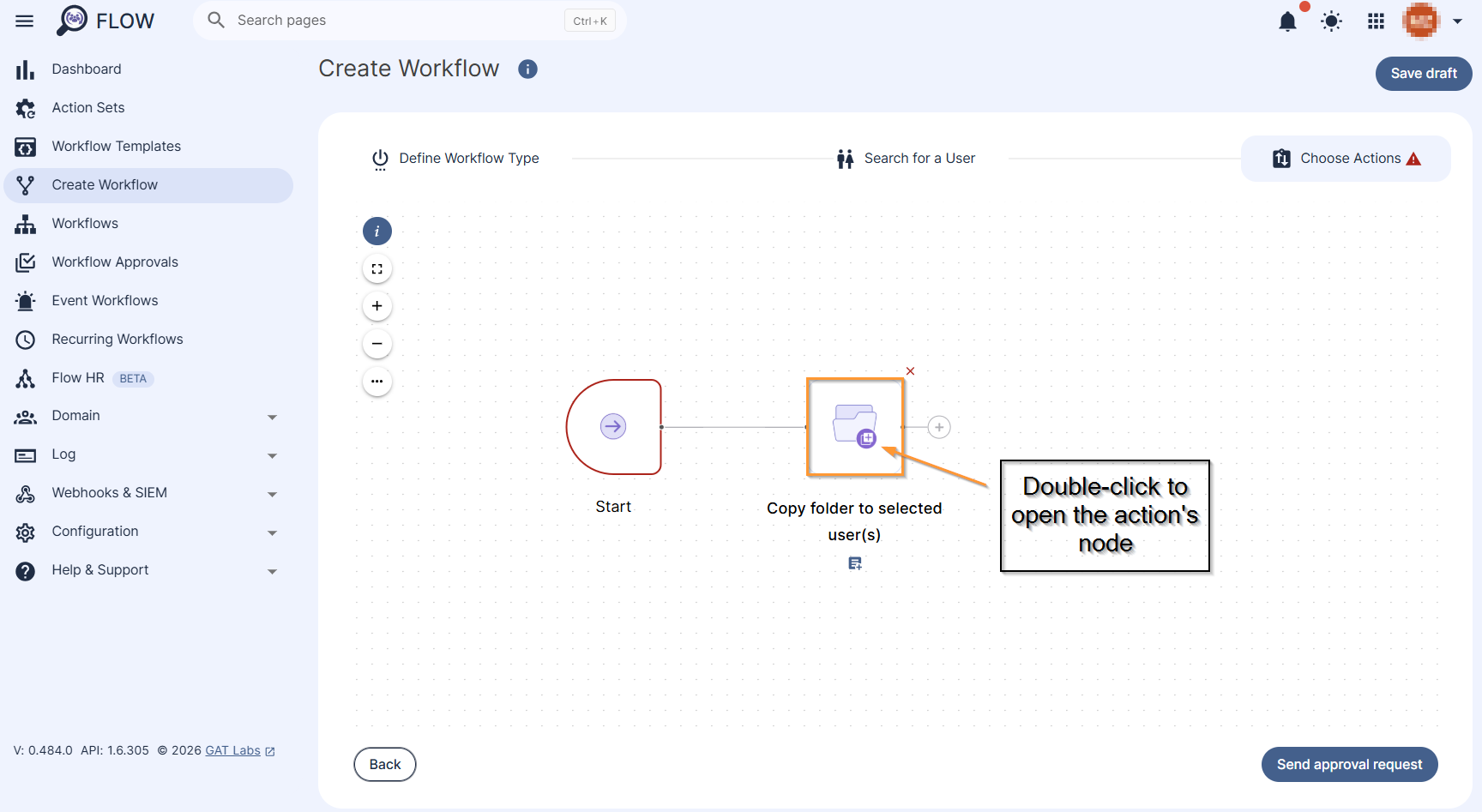
The selected action appears in the workflow. Double click on the action node to open the action’s configuration section.
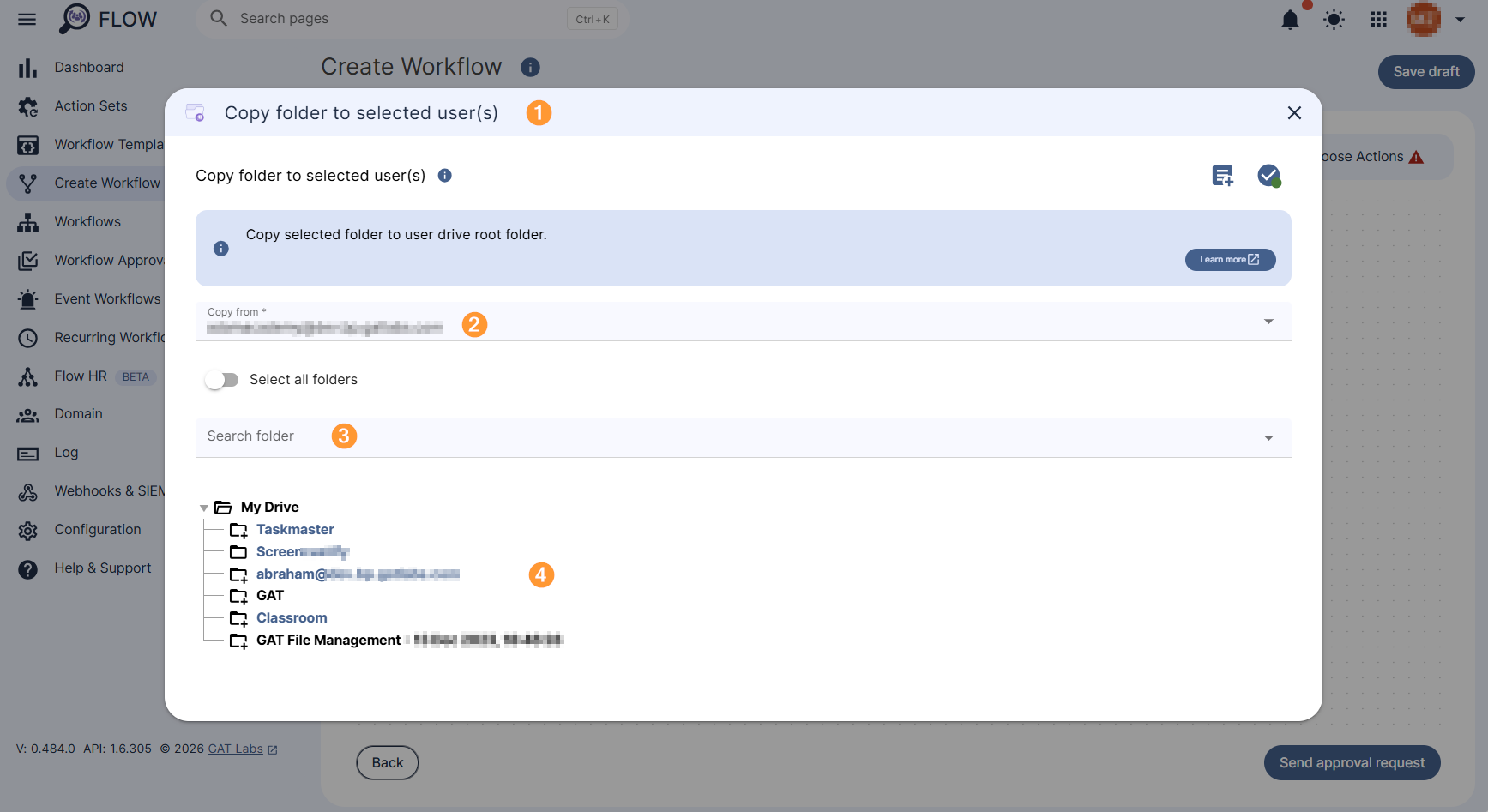
Configure the Copy folder to selected users action (1). Under the Copy from field (2), enter the email of the user, from whom you want to copy the folder. You can select them individually or copy the all using the ‘Select all folders’ option (3).
When the User is chosen select the folder from the User’s MyDrive by searching for it (3) or selecting from the user’s MyDrive Tree (4).
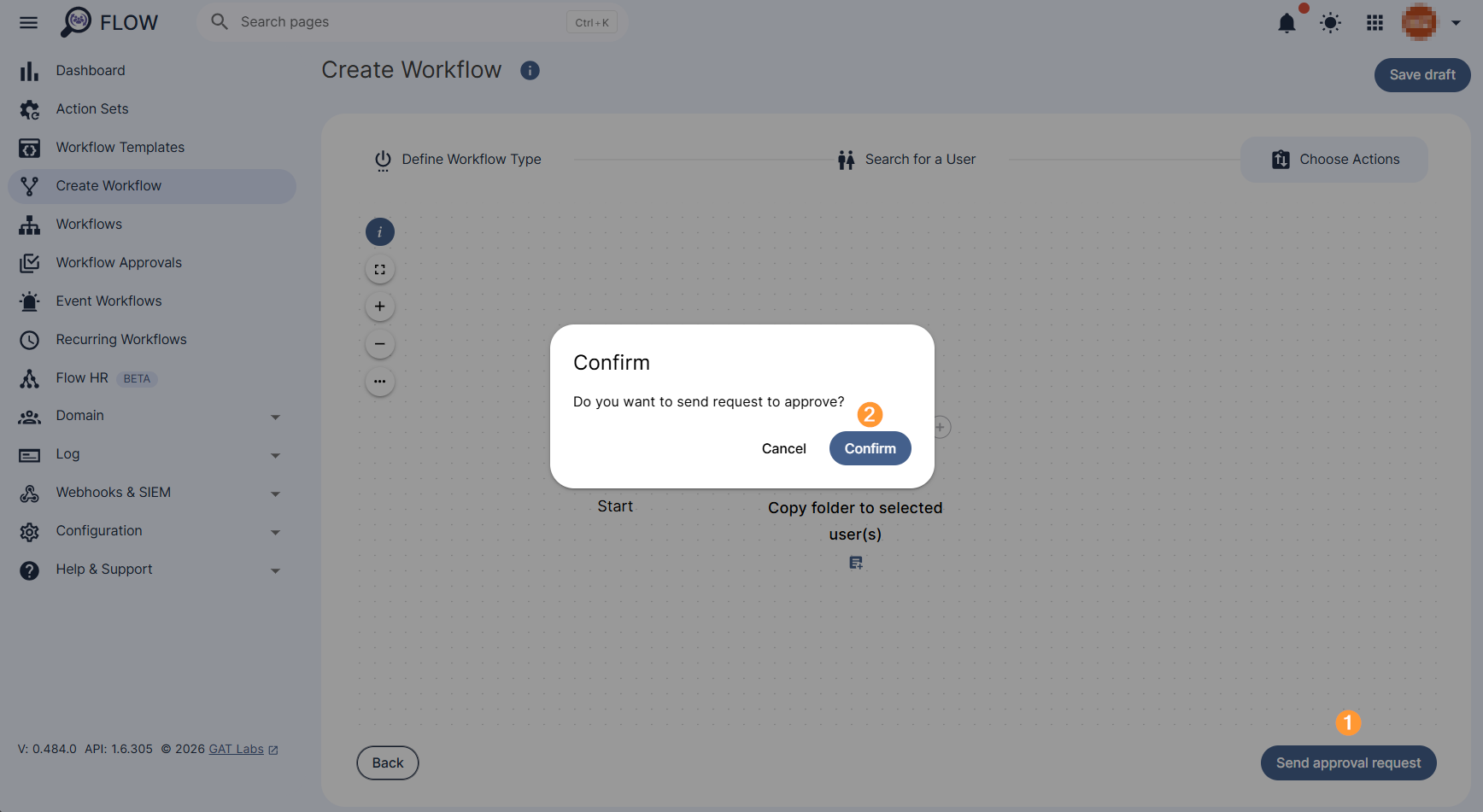
When all folders are selected, click anywhere outside the action note to close it and select Send Approval Request to the Security Officer for review.
After selecting Send Approval Request (1), a confirmation message will appear. Confirm to continue (2).
Security Officer Approval #
An email will be sent to the Security Officer. The Security officer will receive an email for the approval required.
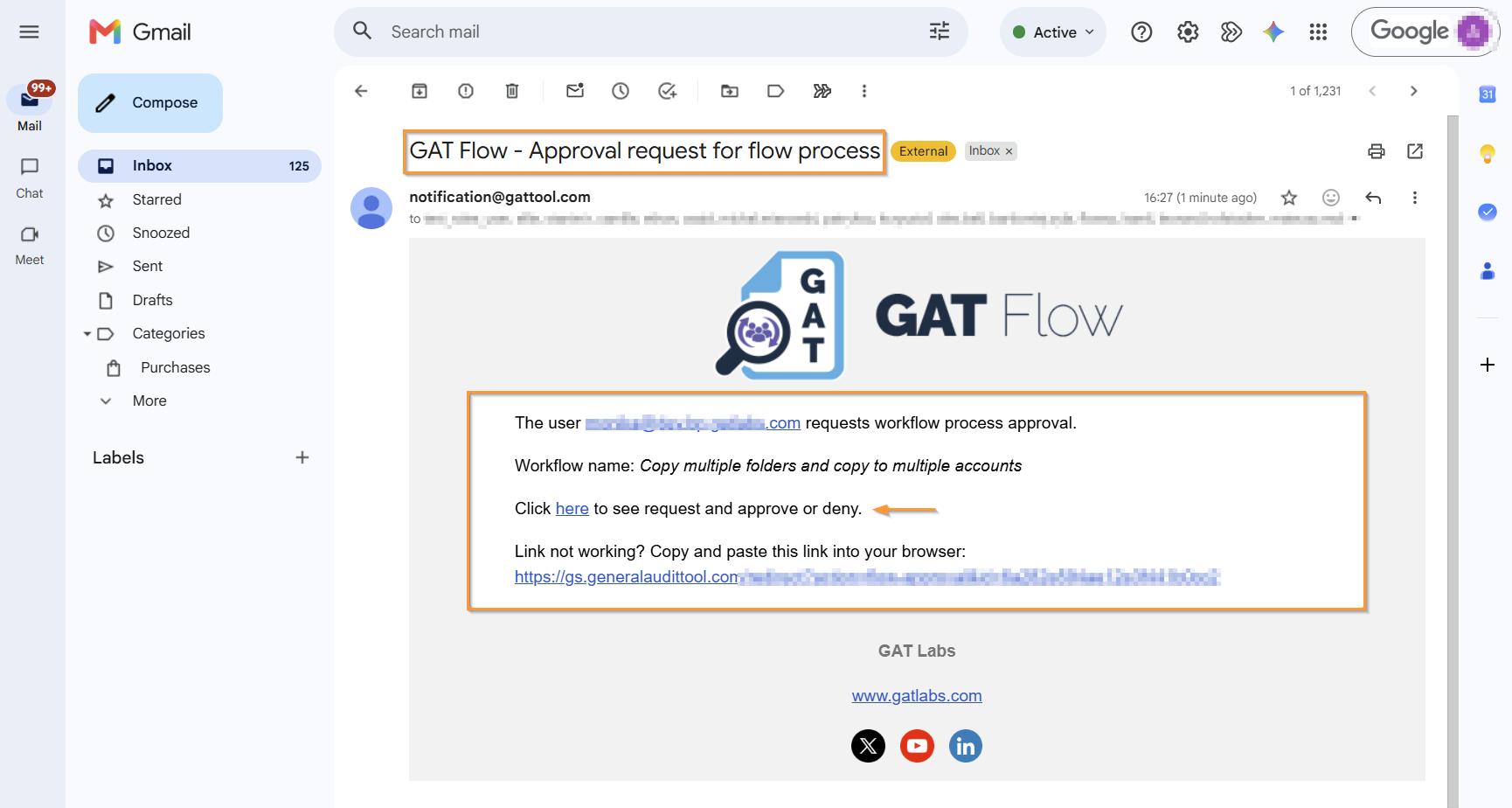
Note: If you have pre-approved Flow approved, the action will be set to run without approval required.
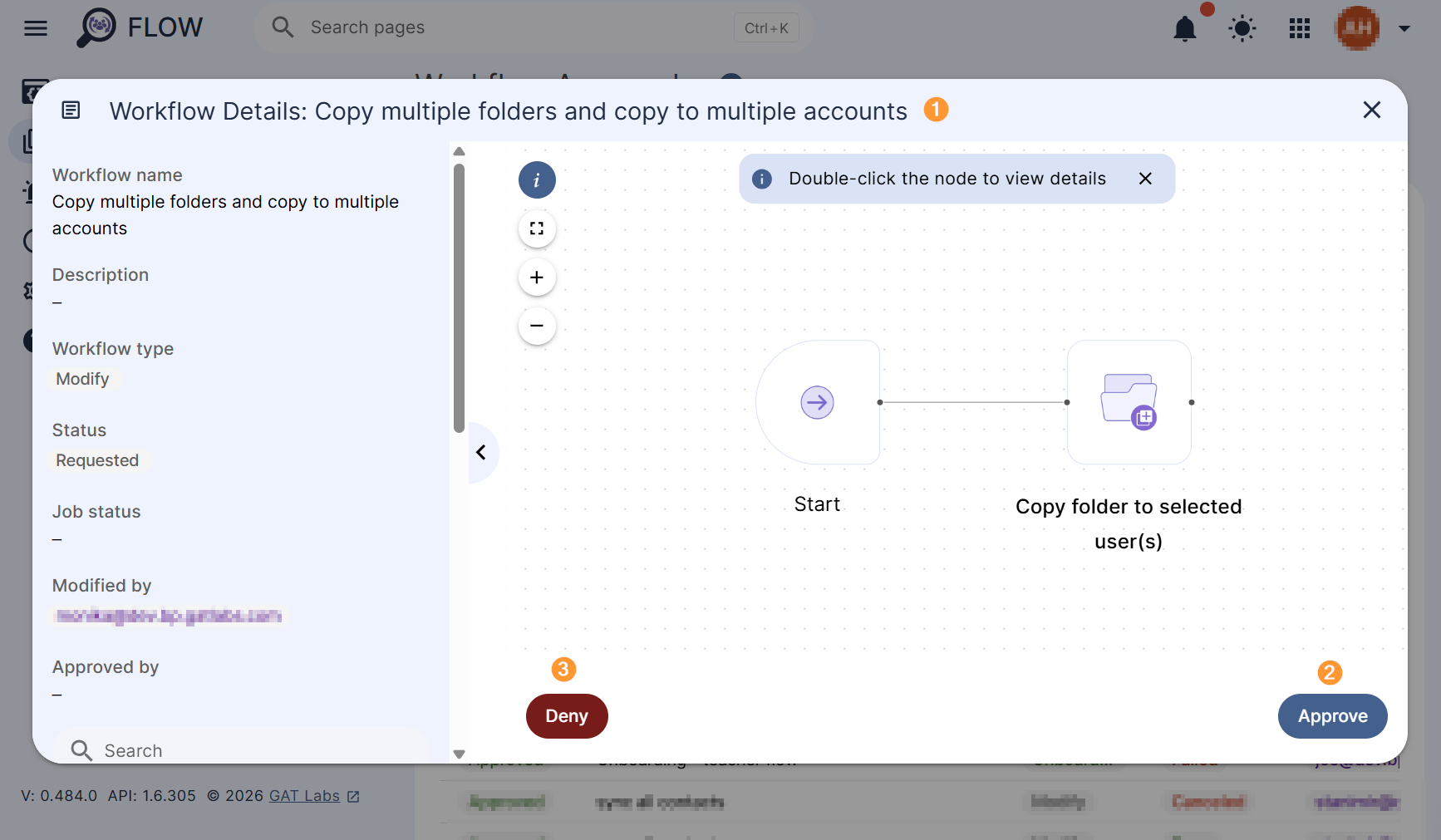
The Security Officer can view all the actions to be taken and approve the request.
Result #
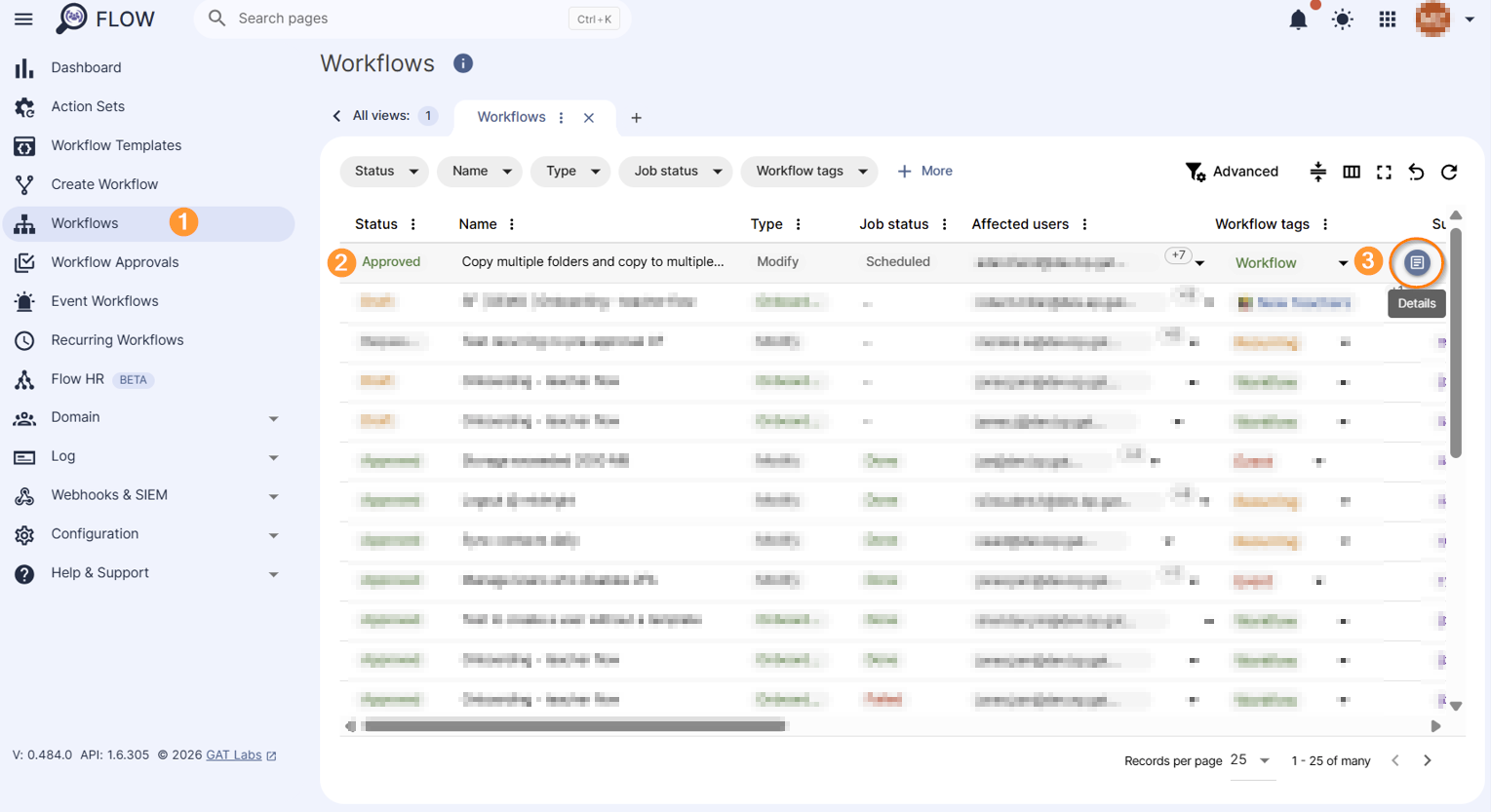
When the request is sent and approved the details can be seen in the Workflow tab.
Click on the “Details” icon for more details.
The selected Folders will be copied and added to all the users’ MyDrive.


