

Move or Copy Email Delegations in Bulk from Existing Delegates via GAT Flow #
Managing email delegations in a cloud environment has never been easier.
With GAT Flow, a Google Workspace domain administrator can configure a one-time workflow to manage existing email delegations en masse. It includes the functionality to move or copy email delegations in bulk from existing delegates.
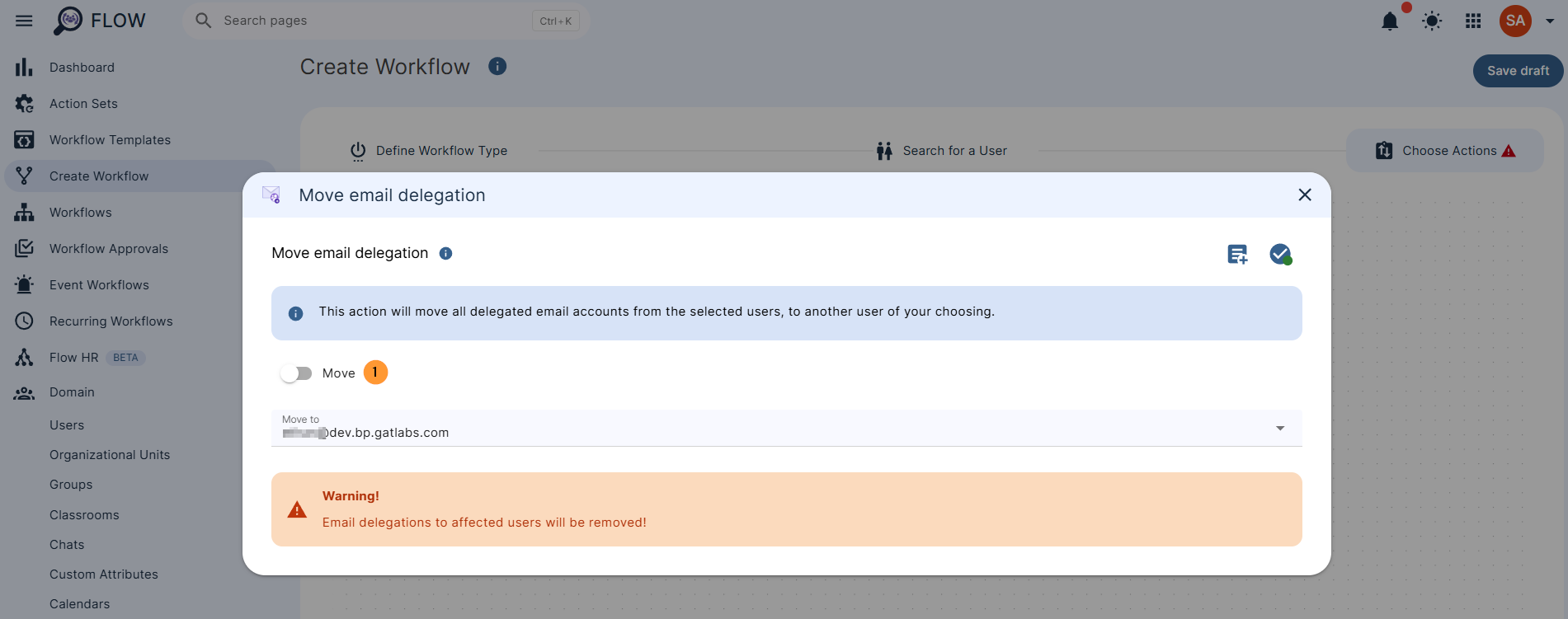
This function may be useful when, for example, the group manager has been changed, and therefore, all mailbox delegations must be transferred to the new manager. This can be achieved easily with the Move email delegation > Move option in GAT Flow. As a result of this action, the previous delegator is removed, and the new one is set up.
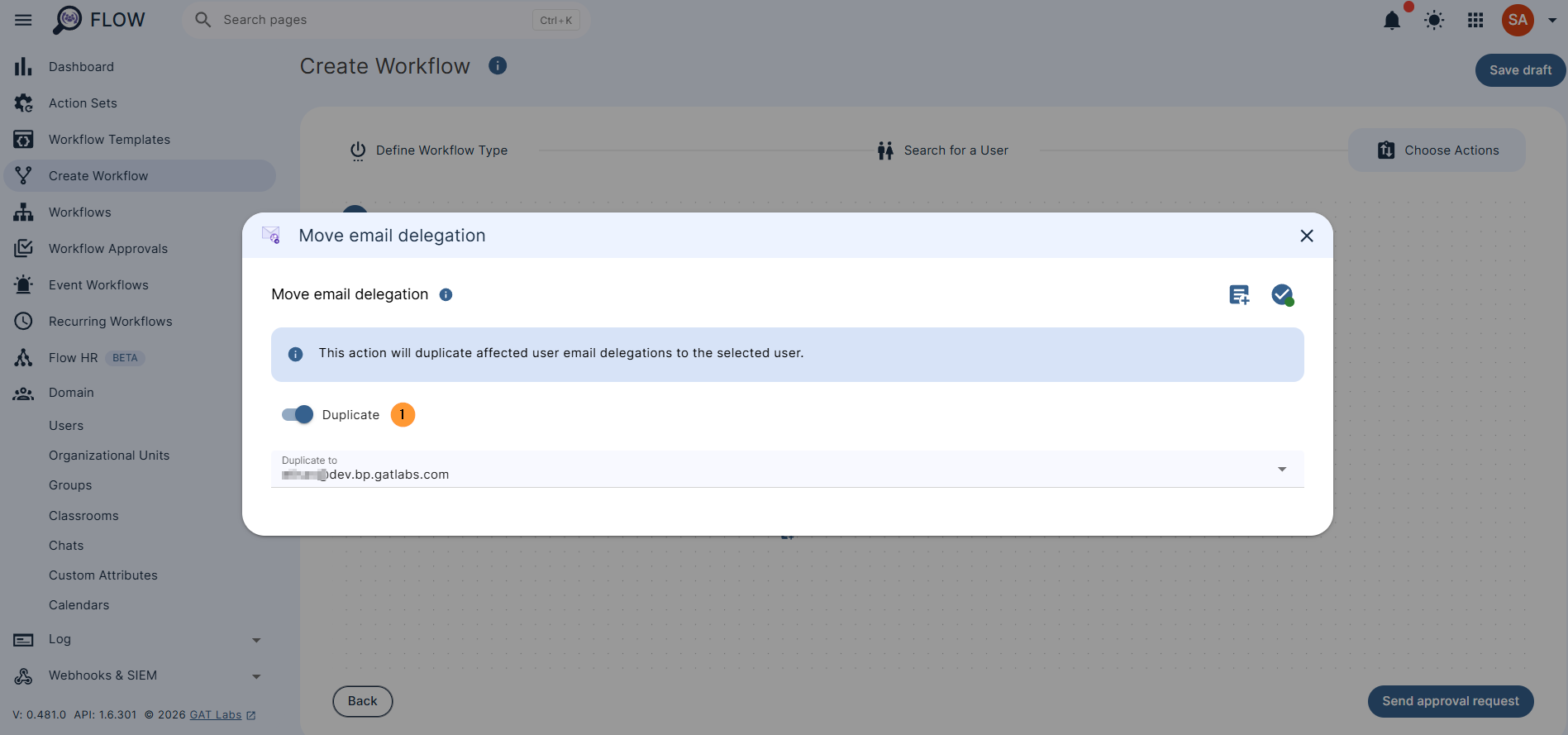
Another option is to keep the existing delegator and copy the delegation to the new user/manager using the Move email delegation > Duplicate option. This configuration preserves the existing delegate and adds an additional one.
Define workflow type #
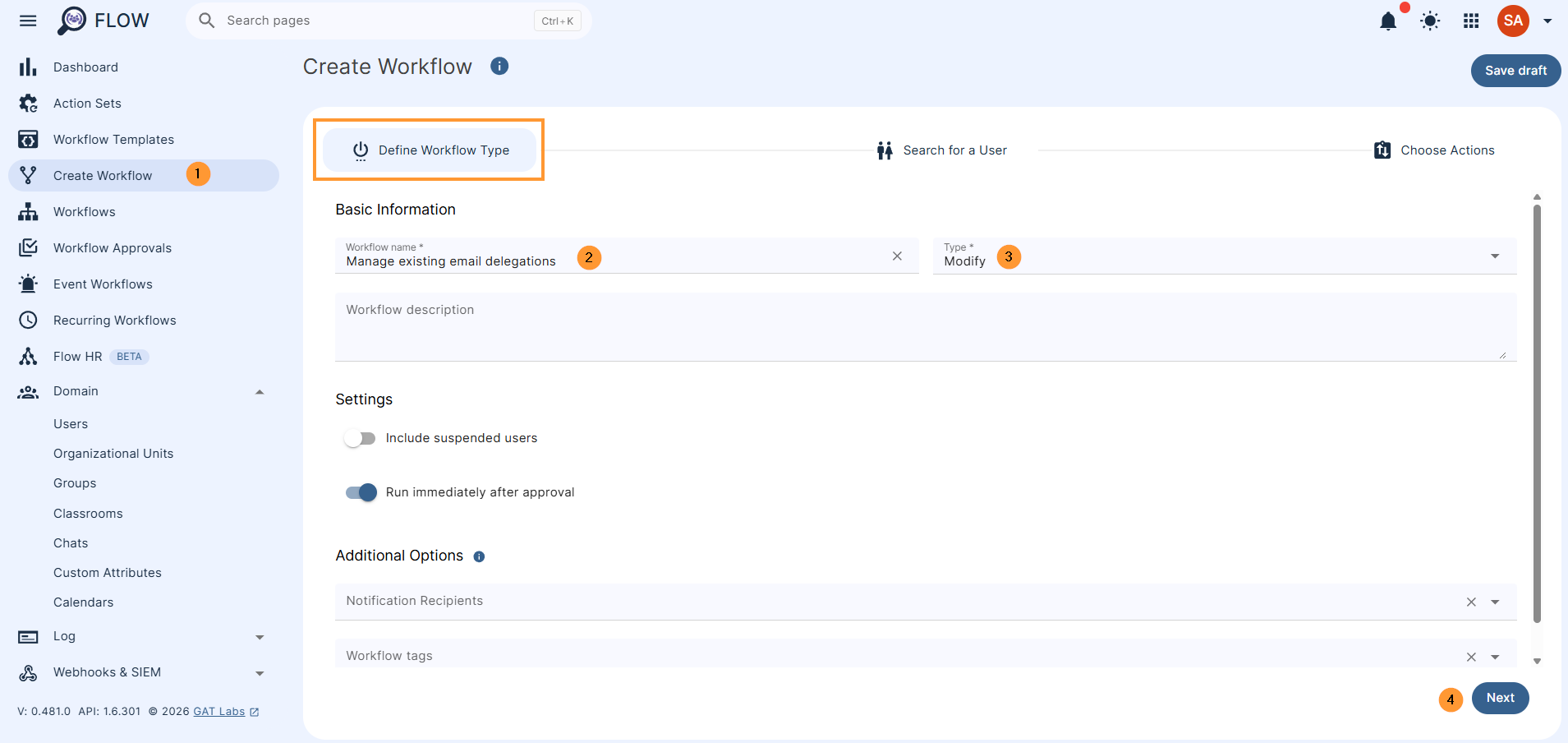
To move or copy email delegation from existing delegates to others, first, create a workflow by navigating to the GAT Flow > Create workflow (1) section.
Next, fill in the details as follows under the Define workflow type tab:
- Name – enter a name for the workflow (e.g., ‘Manage existing email delegations’) (2)
- Type – select the type of workflow you want to use (Modify or Offboarding) (3)
- Next – click to proceed (4)
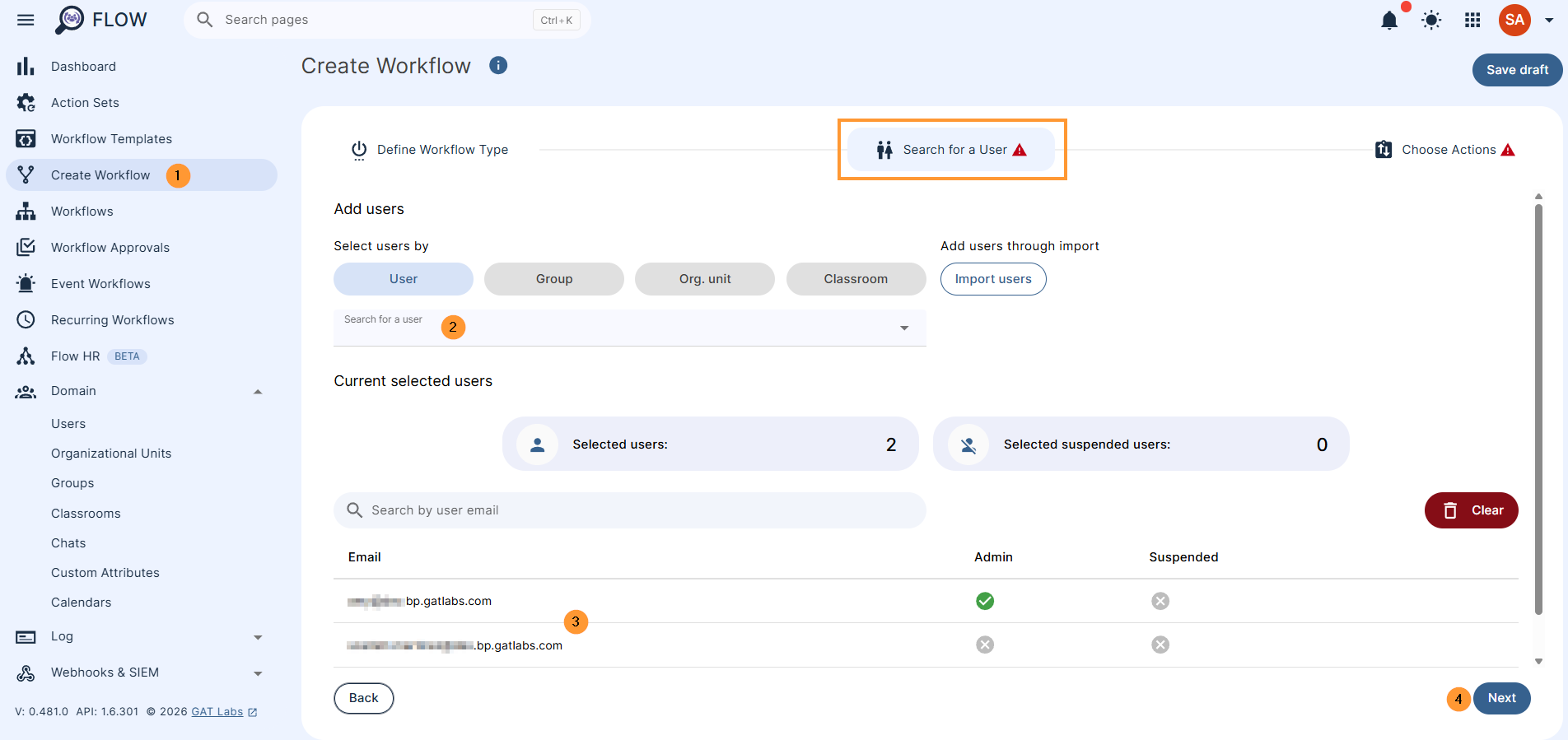
Select the Users #
Select the accounts you wish to manage their existing email delegation.
Search by user, group, or org. unit or import users.
When the users are selected, click on the Next button
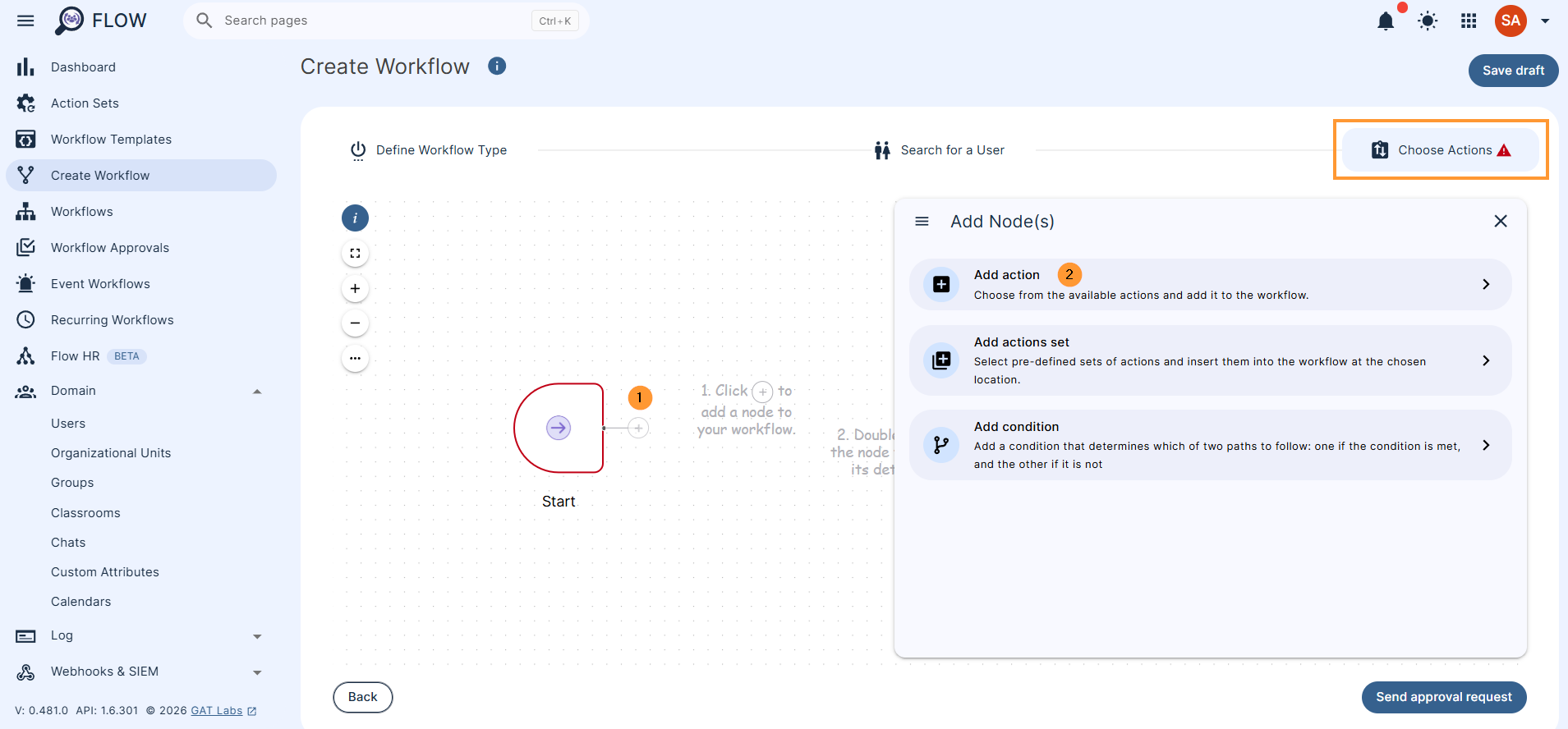
Choose Actions #
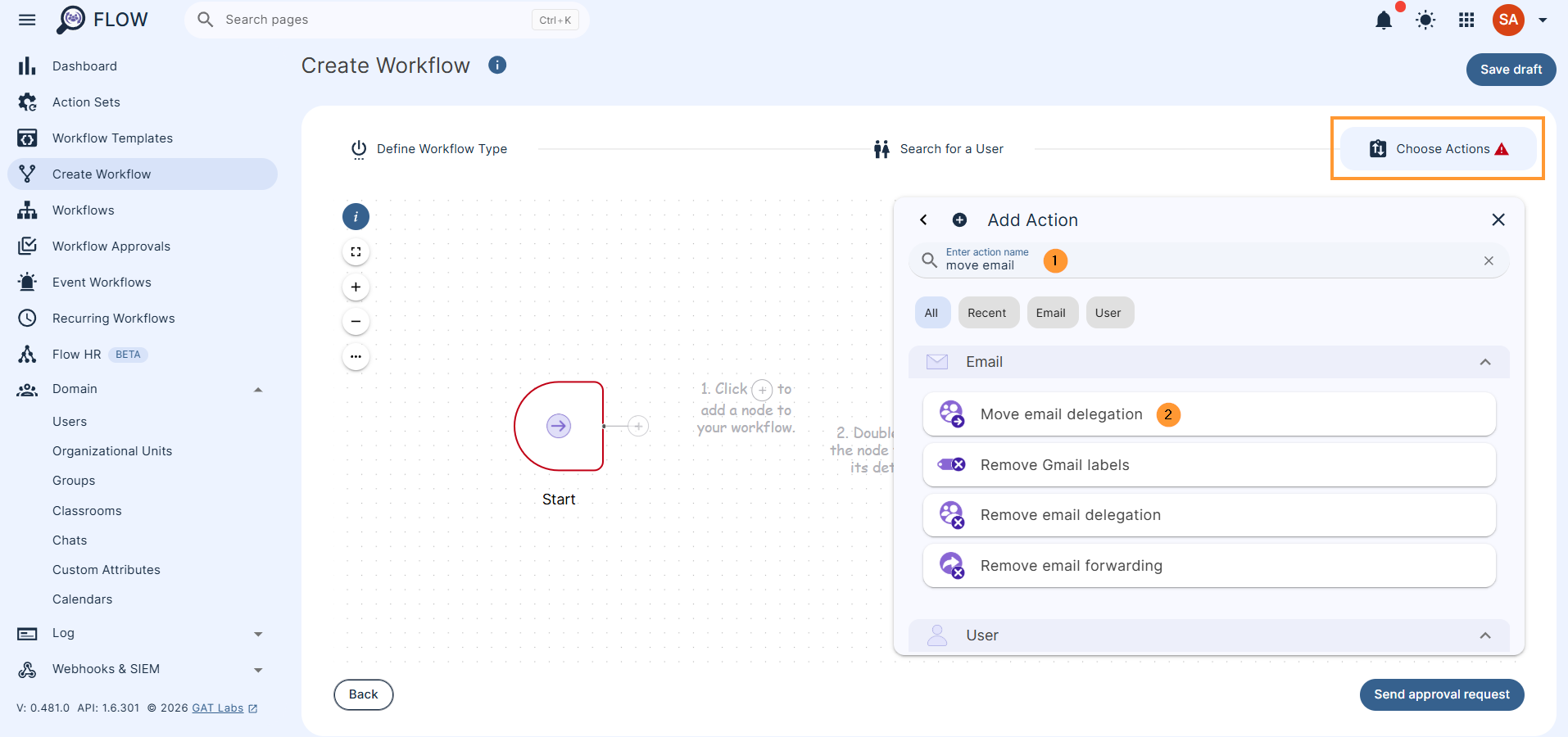
Then, under the Choose Actions section (1), click on the (+) button and search for the action (2).
You will see all the options available. Search and select the ‘Move email delegation‘ action below.
The selected action appears in the workflow: When the node of Move email delegation is shown, double-click to open
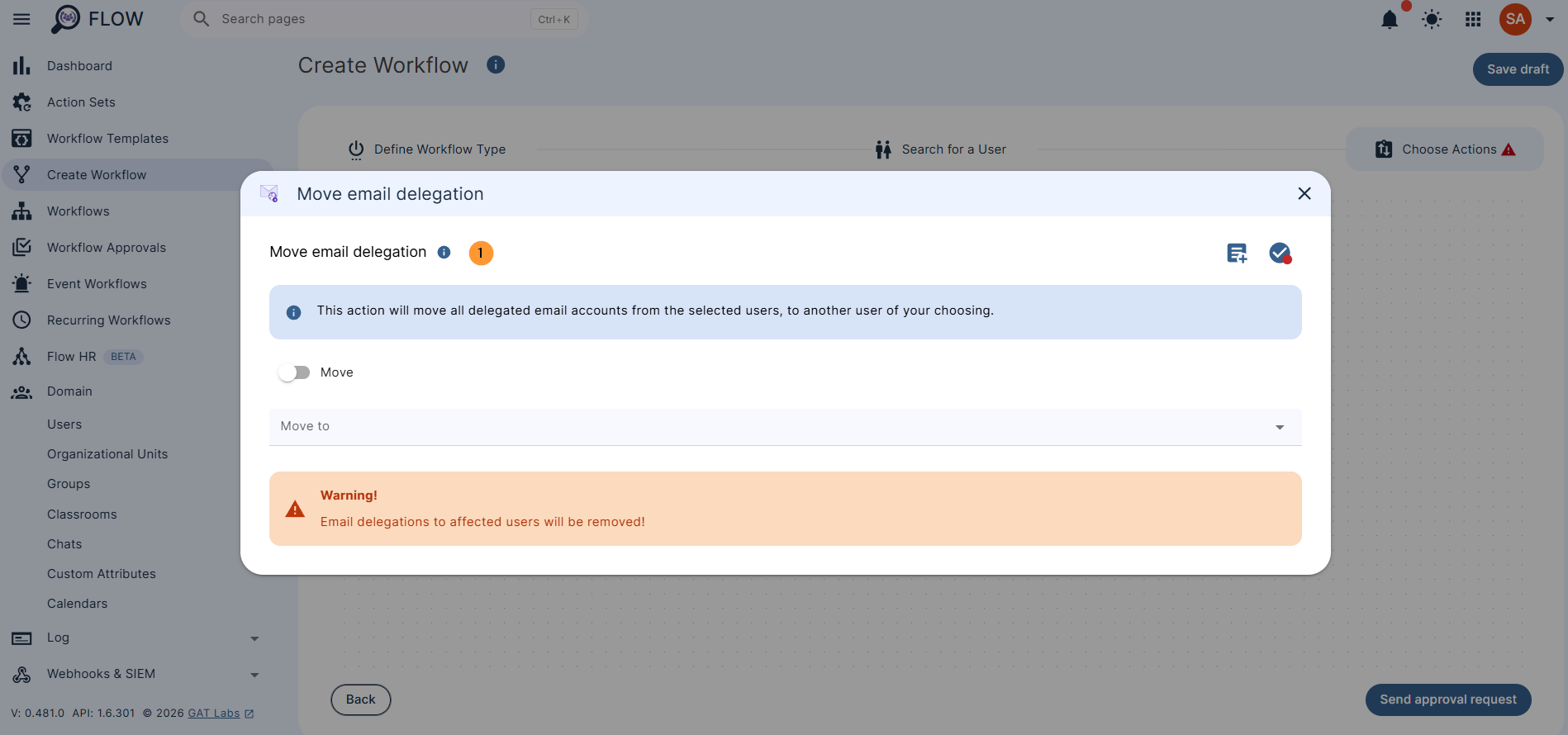
Move Delegation from one User to Another #
NOTE: Email delegations of the users selected for this workflow will be removed.
Copy Delegation from One User to Another #
Security officer approval #
When the action is selected, click on Send approval request, and the Security Officer will receive an email. After the officer’s approval, the job will run.
Note: If pre-approval is enabled, the action will be executed without needing approval.
Results #
As a result of the workflow, the Admin can copy email delegation or fully move it from one user to another.
Whether you need to seamlessly transition responsibilities with the Move option or expand access using the Duplicate feature, GAT Flow simplifies bulk mailbox management.
By automating this process, administrators can efficiently handle team restructures, management changes, or offboarding tasks in just a few clicks – eliminating the need for manual, one-by-one mailbox configuration.


