

With GAT Flow you can set up a workflow to automatically suspend or delete users from your G Suite environment
Ideal for temporary G Suite accounts in your Domain. #
Flow can be used to onboard user’s details on this page
Schedule #
If the accounts are temporary, the admin can schedule the workflow to happen on a future date.
- OffBoard users – delete them from your domain
- Modify – Suspend the users, if they need to be ‘reactivated’ at a later time.
Create workflow #
A new window will be opened.
Select Create workflow from the menu on left
In “Workflow type” add a name and pick the workflow type to Offboarding or Modify
- Modify – you can ‘suspend user’, that can be re-activated.
- Offboard – user will either be archived/suspended/deleted from your domain depending on the offboarding action chosen.
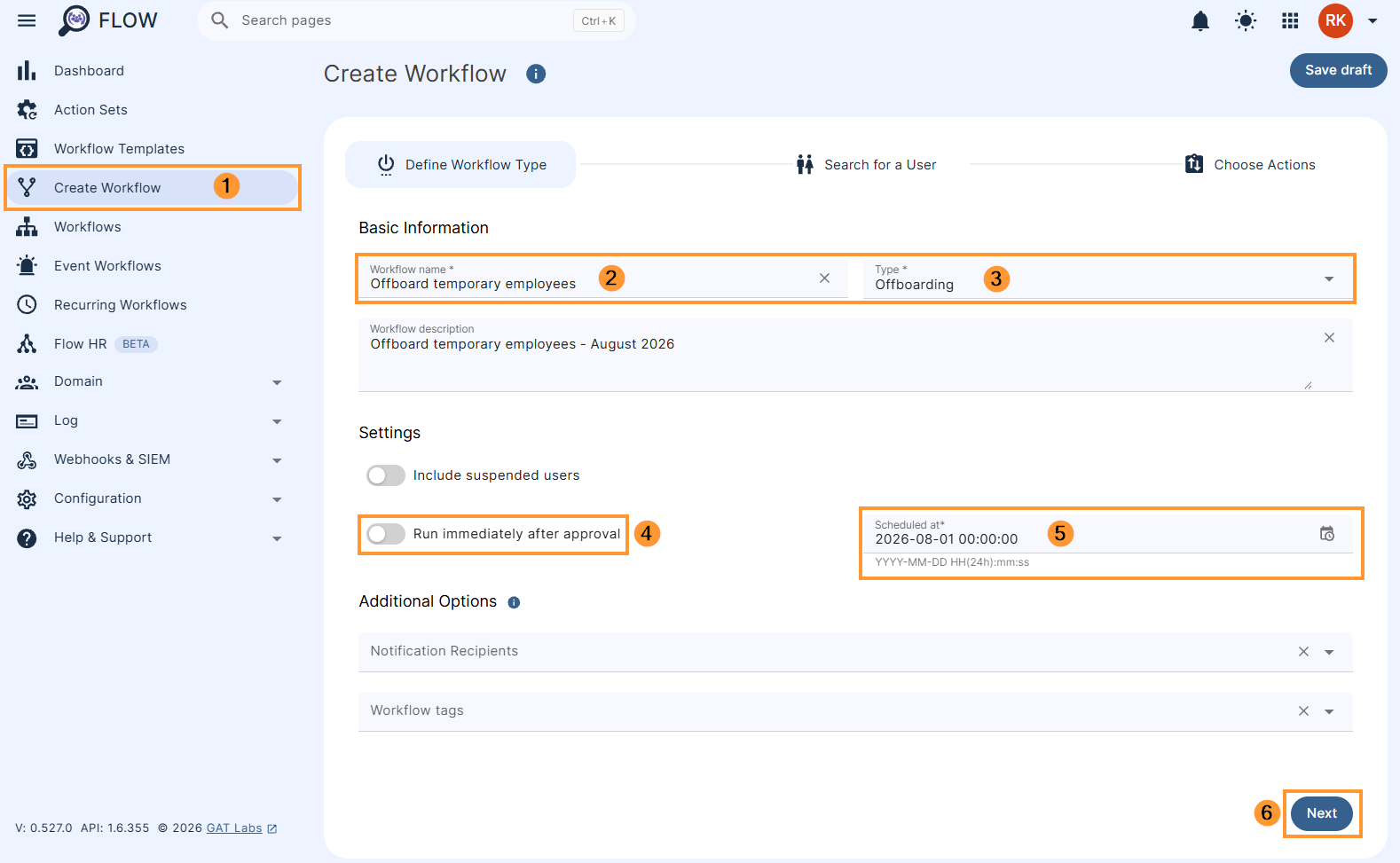
- Conditional workflow can be used – the workflow can be set to run based on different conditions met
- Run immediately after approval (4) (5) – click and select the time when the workflow is to be executed.
The Workflow can be set up to run in the selected future time
Click on the Next button to proceed
Search user #
In Search for a user pick the users that will be offboarded when the scheduled time comes in.
- Search for users, groups of users, or org. unit of users
- Import users – you can also import users via Google sheet
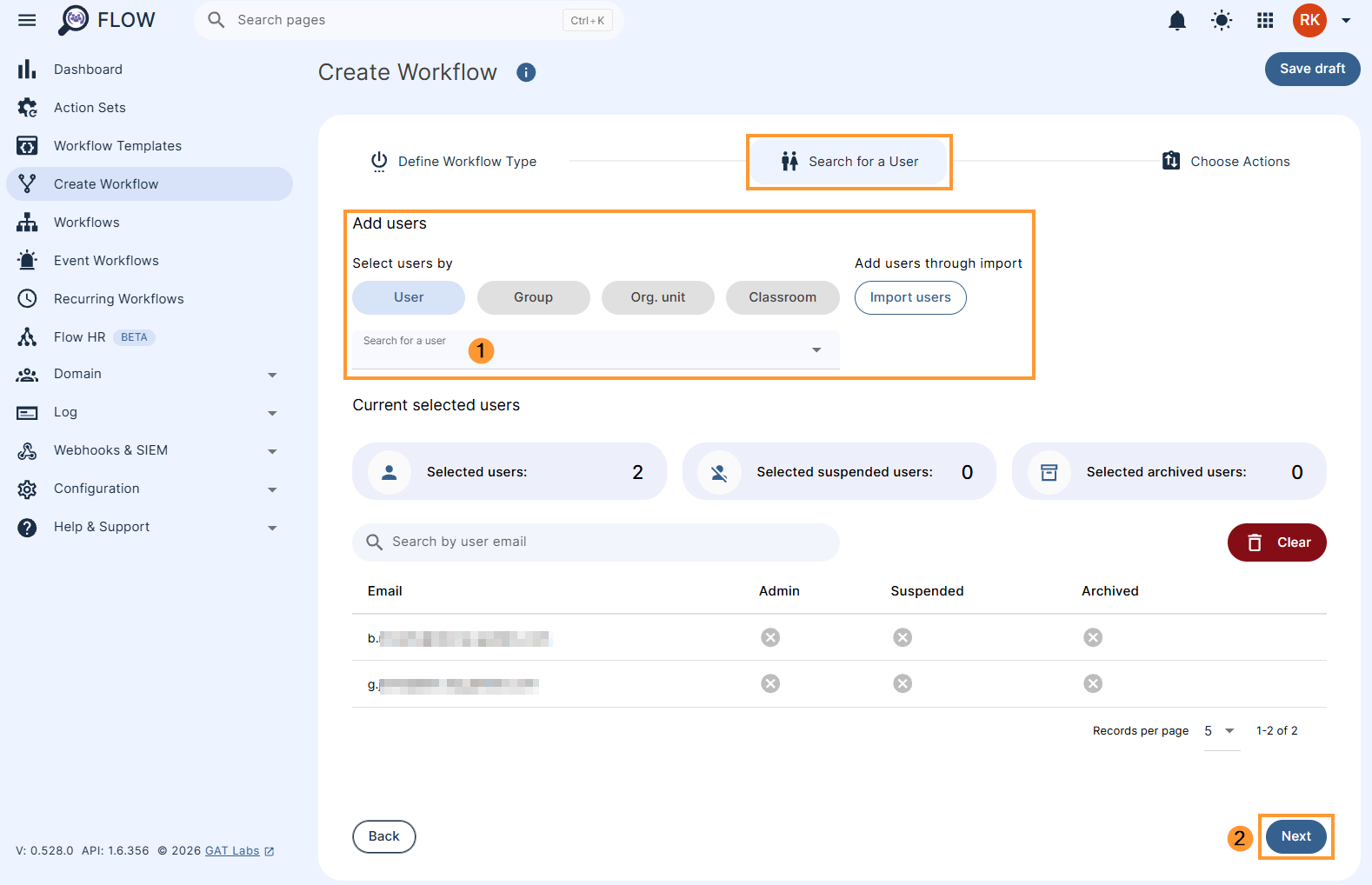
Click the “Next” button.
Choose actions #
On the actions page, click on the (+) button (1) and then click the Add action button (2). If you do have an action set already configured, you can choose the ‘Add actions set’ option.
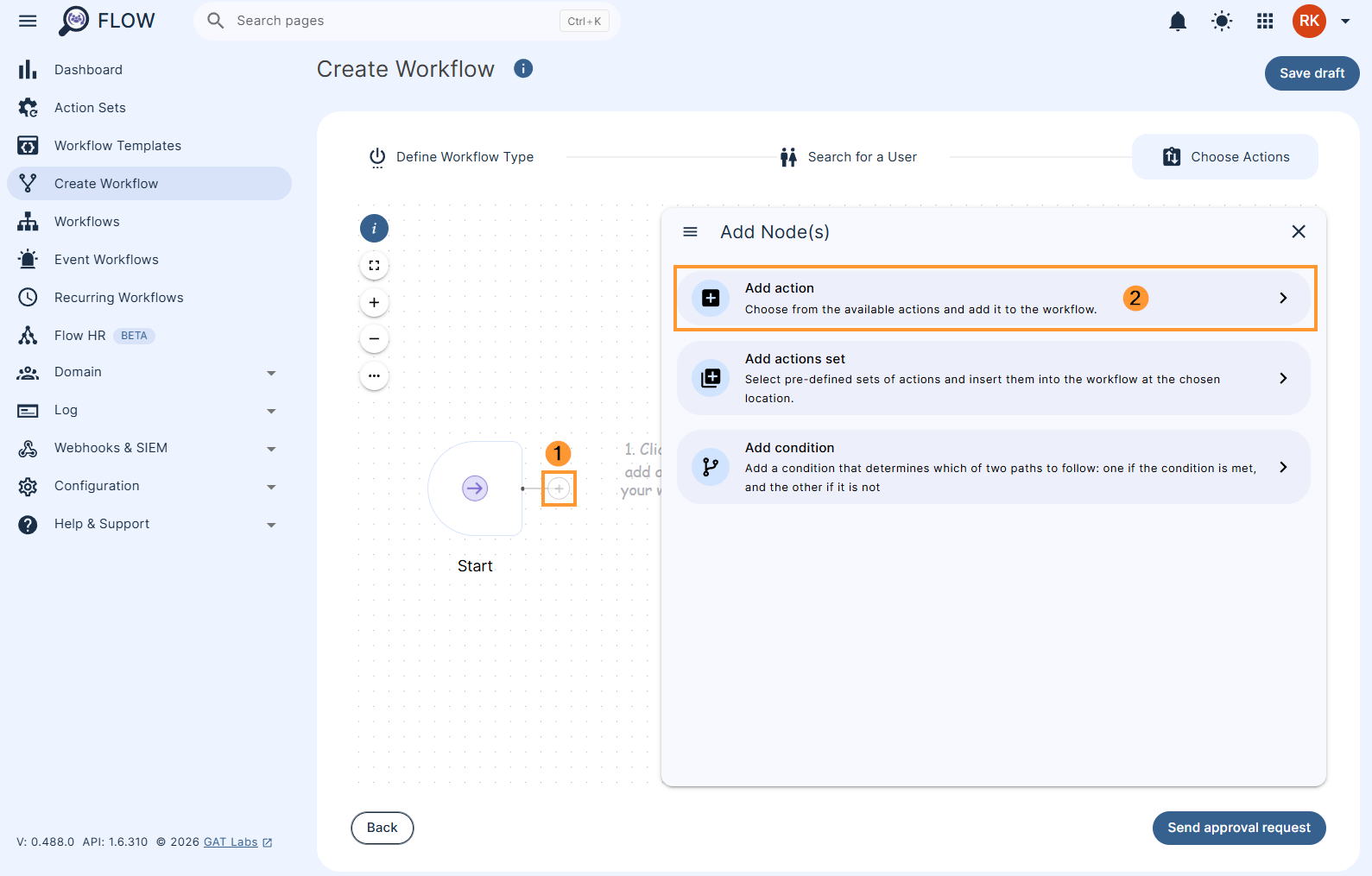
If the process hasn’t been set before (no action set created), please use Add action button and create the node.
Search for the action using the search field and select the action you want to take.
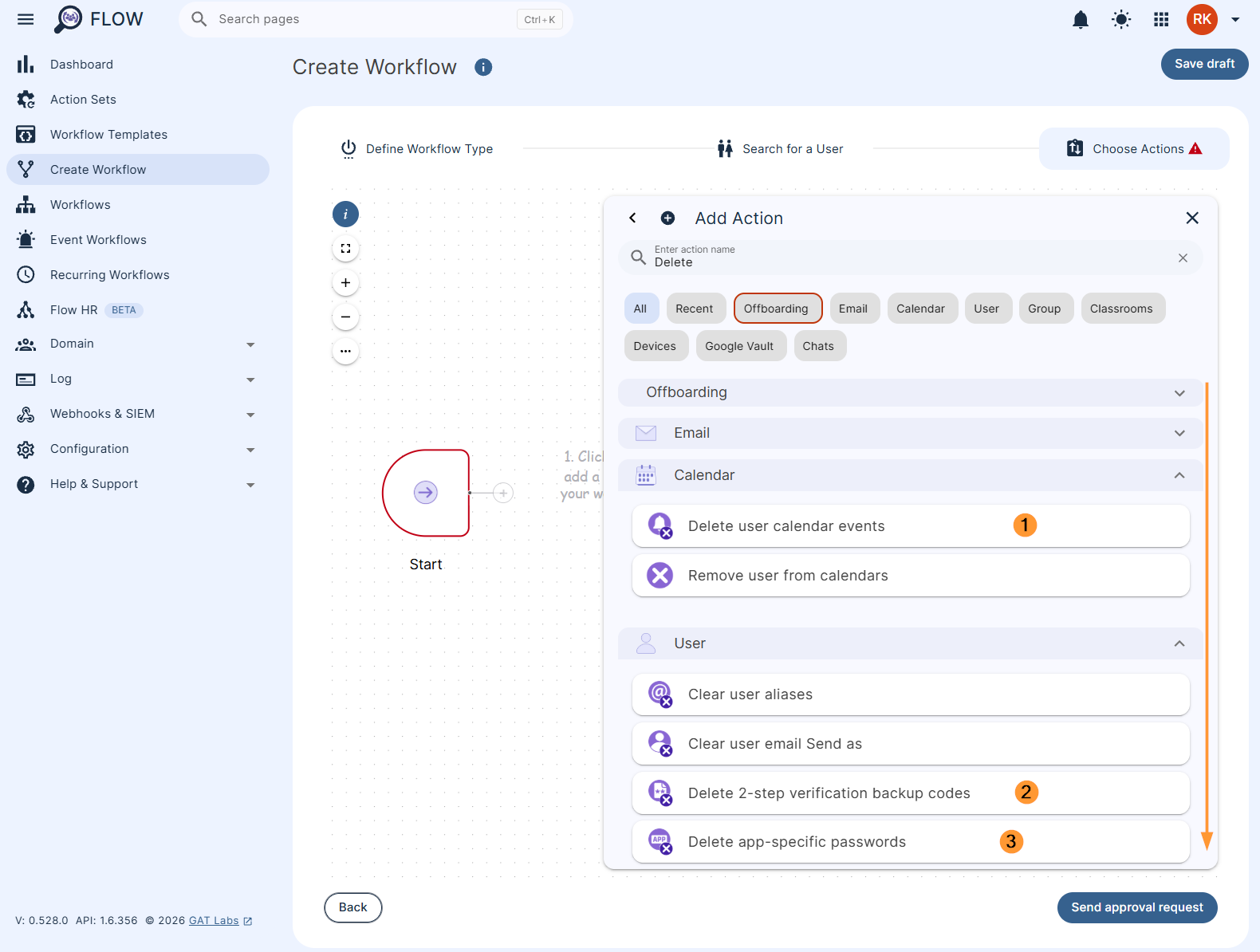
Once the actions are selected fill in the required details for each of them by double clicking on the action nodes.
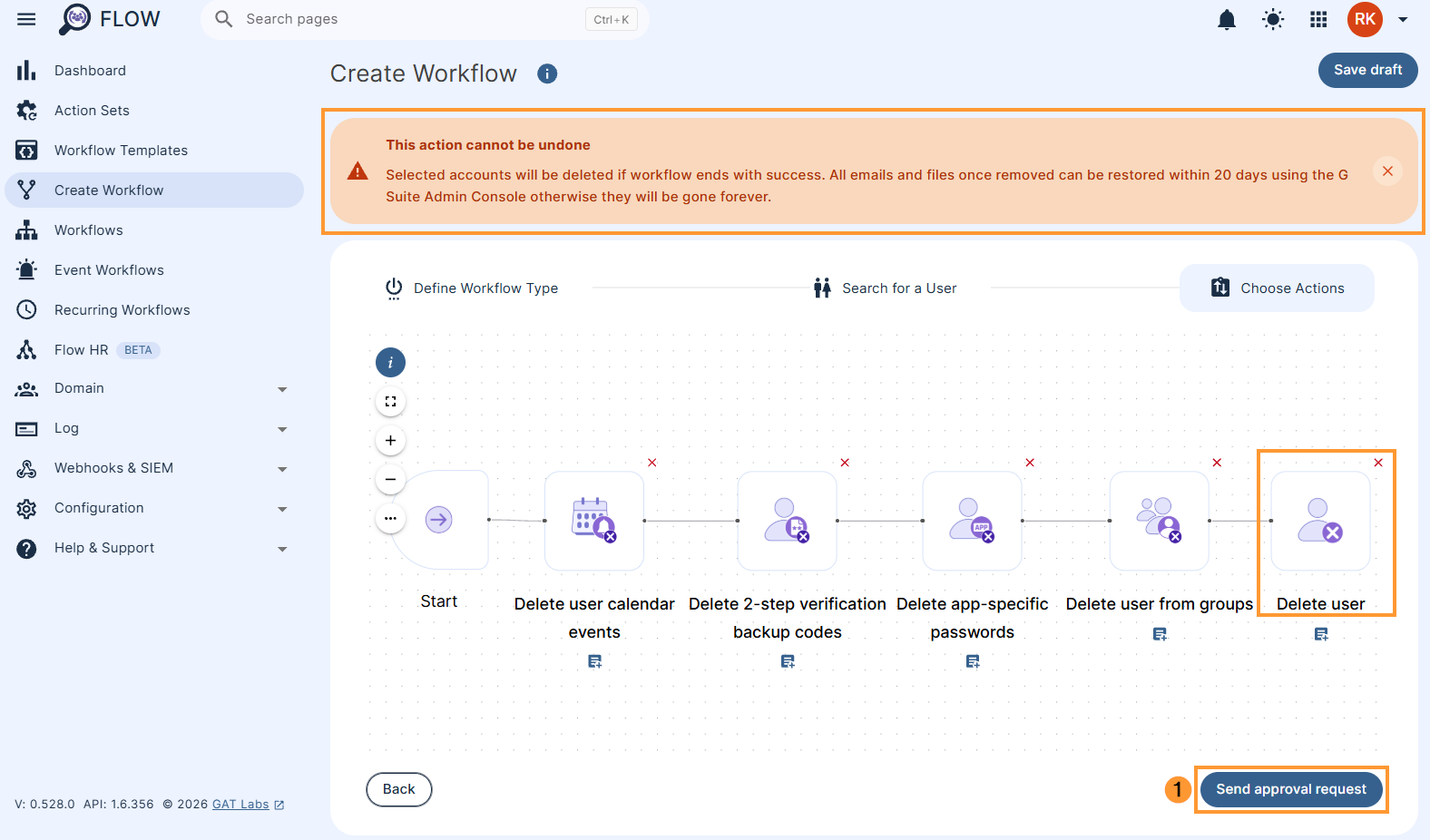
Lastly, we will need to add our final offboarding action. This can be either to Archive the user, Suspend the user or Delete the user. We will use Delete user for this example.
Click on Send approval request on the bottom right side.
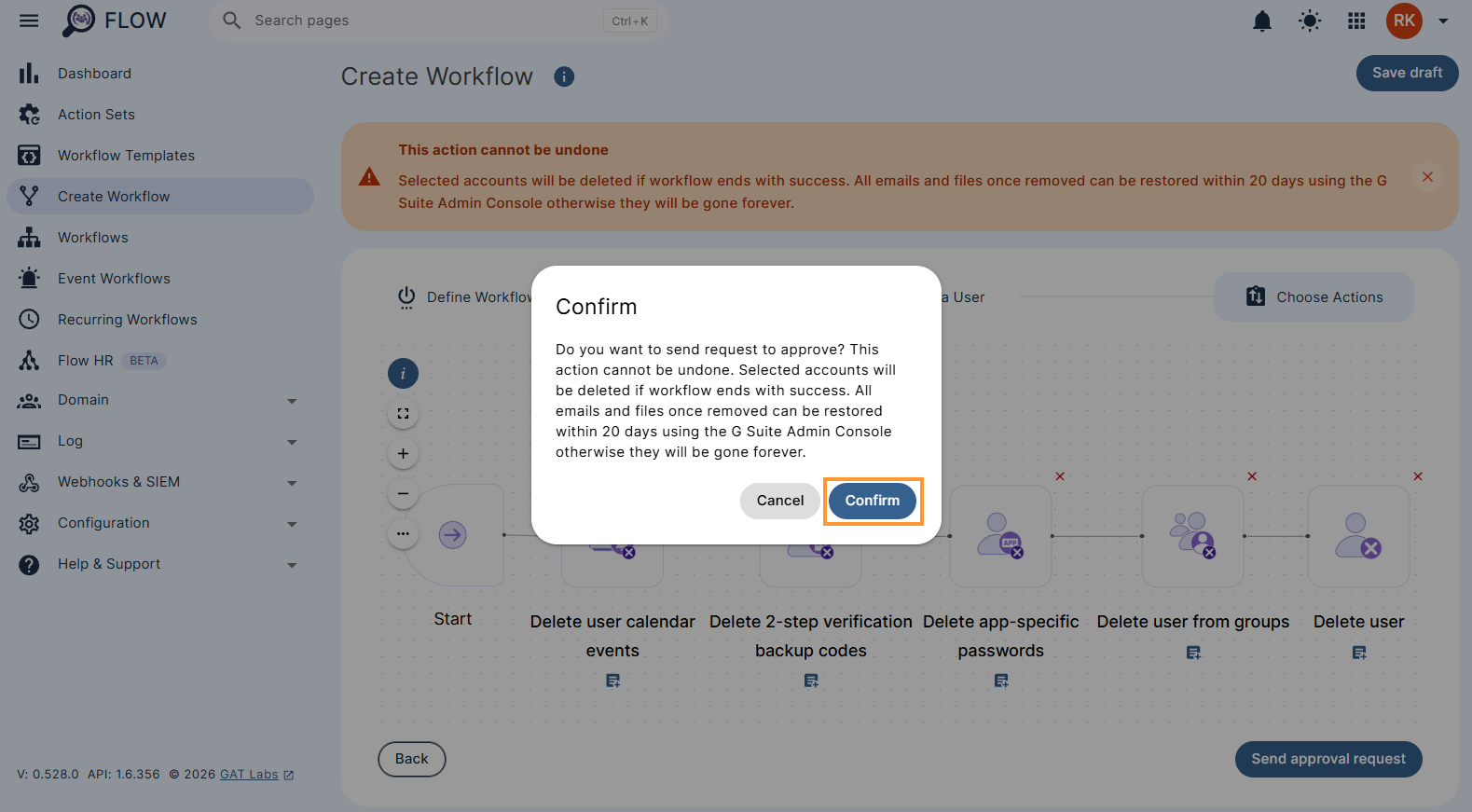
A pop-up confirmation message will be displayed.
Approval #
The request email will be sent to the Security officer for approval.
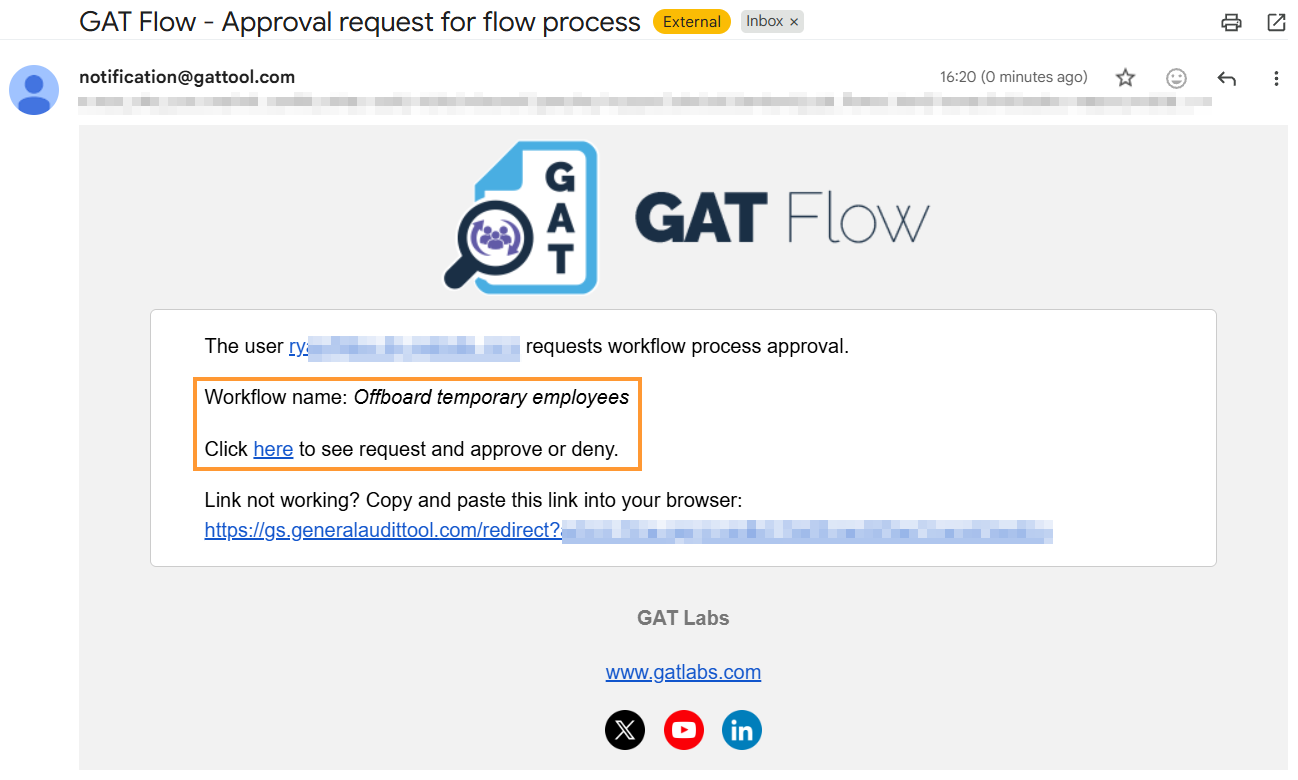
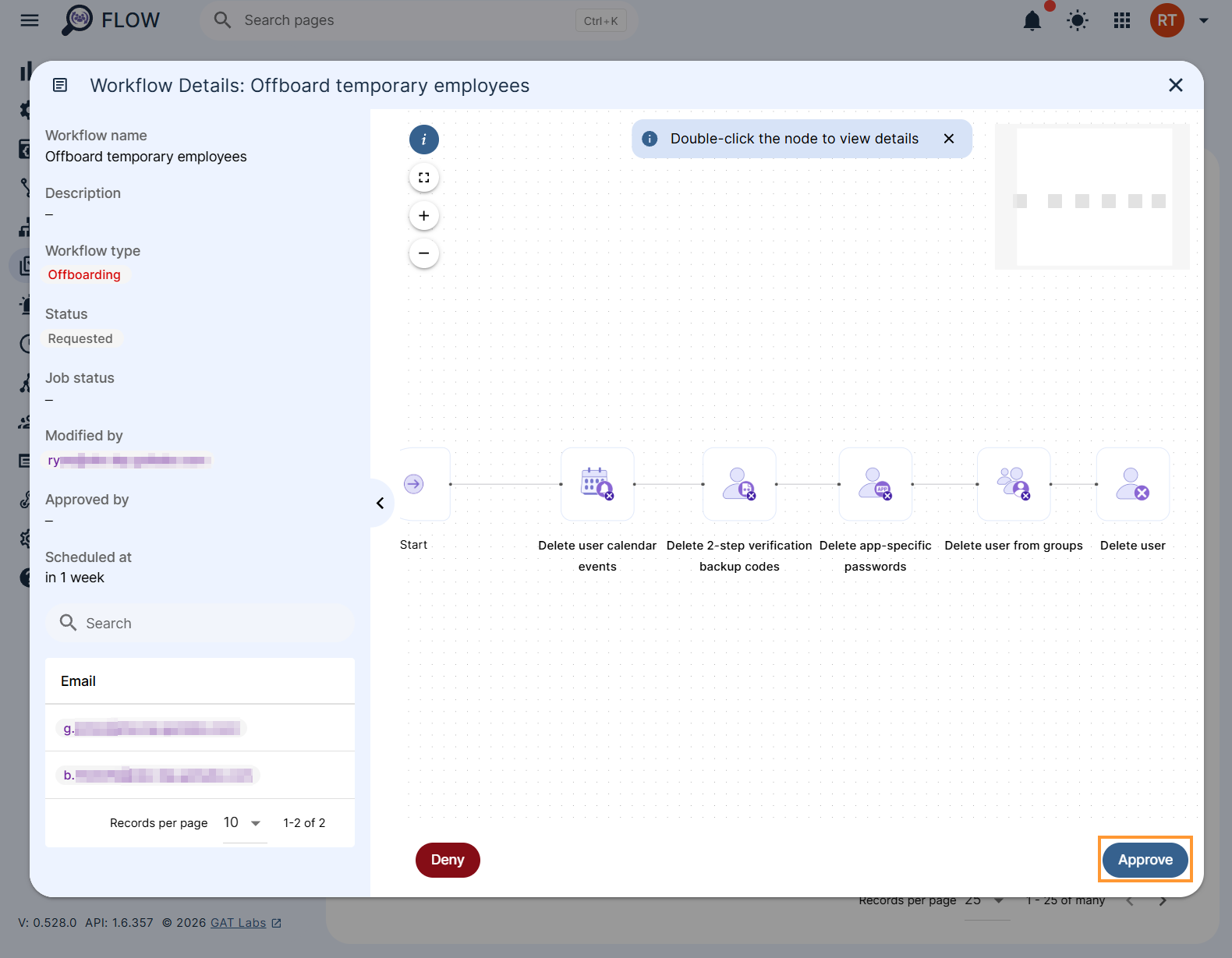
This will lead them to the Approval page, and under the “eye” icon, the request can be approved or denied
Result #
When approved, the result in Flow can be seen in Approval (for Security Officers) and Workflow tab for the Admins (non-security officers)
Click on the “page” icon on the right side for more details
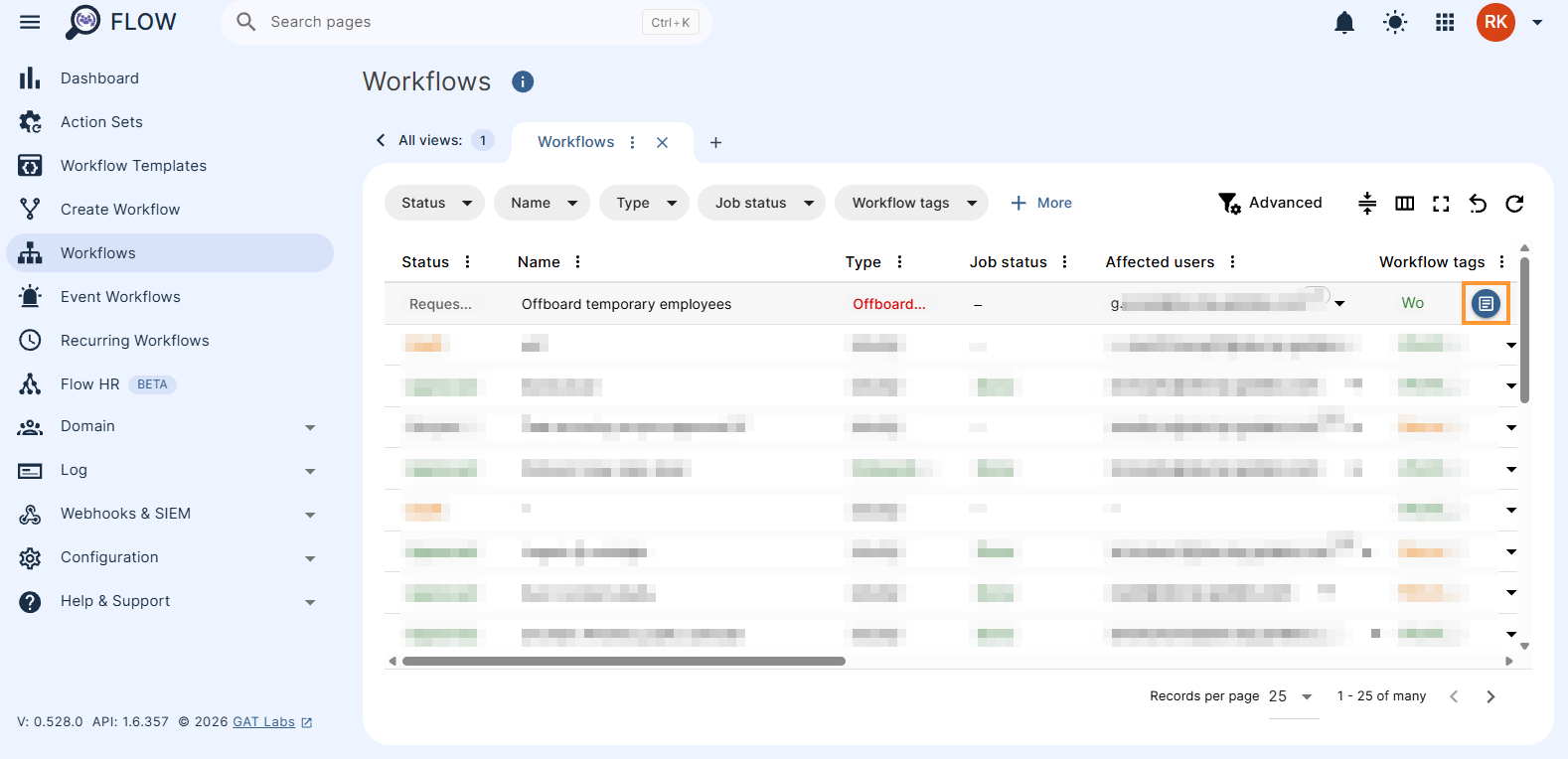
The job will be of Status equal Scheduled.
This means the Workflow is Scheduled to run on the selected time ( 1 August 2026 )
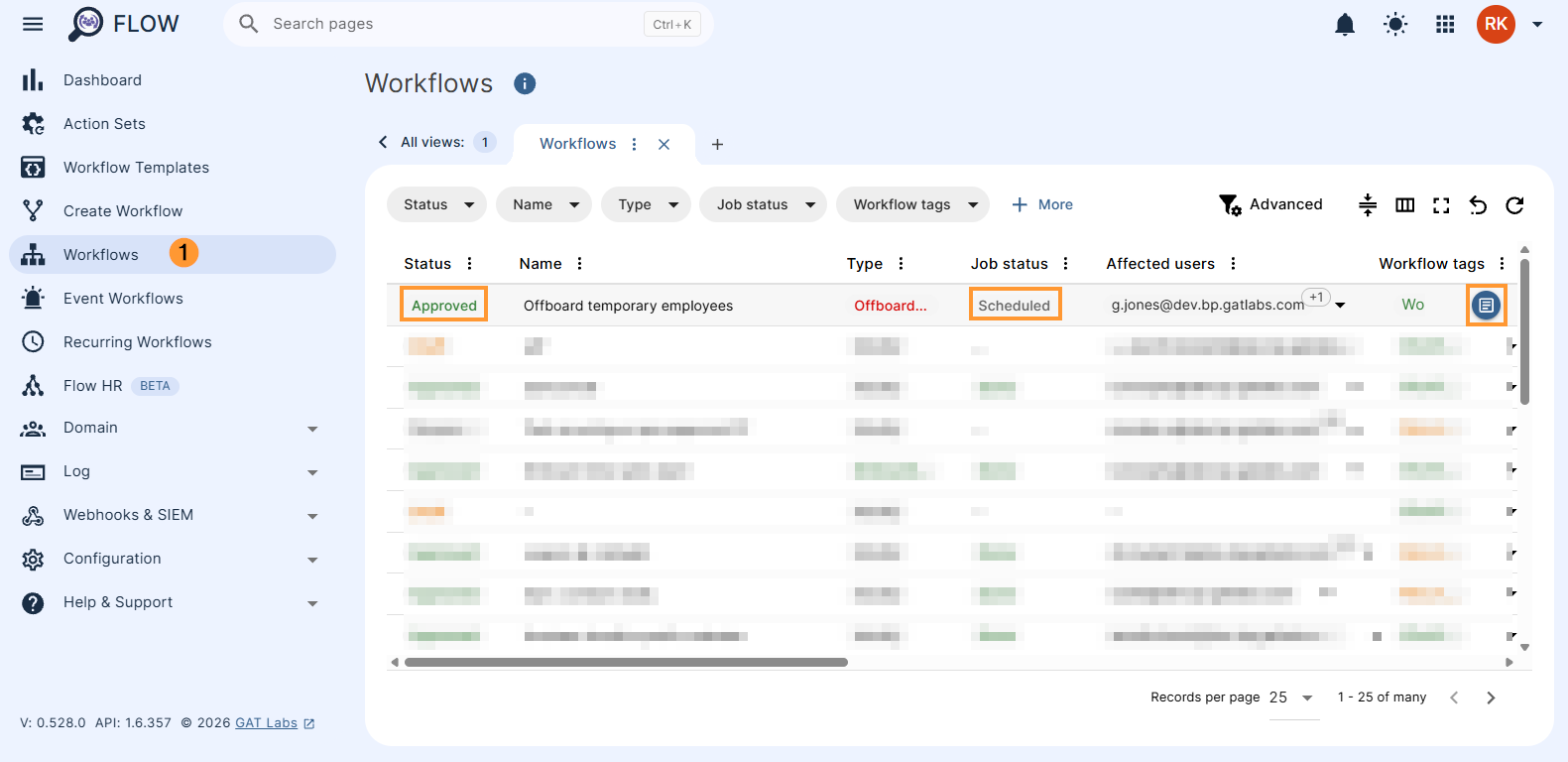
Note: The request can be scheduled and approved at any time before the scheduled time
The Workflow has been scheduled and approved.
When the scheduled time arrives (1 August 2026), the workflow will be executed and users deleted.


