

Delete user calendar events #
Video below
GAT Flow allows Google Workspace admins to wipe user calendars. It can also be used to onboard, offboard, and modify existing users. Many manual or automated actions can be taken.
Furthermore, this action can also be used during Offboarding or Modifying existing workflows.
Creating workflow #
When Flow is launched, click on Create workflow.
The action can also be done in Event and Recurring workflows.
Enter the details for the workflow.
- Name – enter a name for the workflow
- Description (optional)- enter a description for the workflow
- Type – select Modify
- Offboard can also be selected
- Conditional flow – enable if you want to create a conditional workflow
- Run immediately after approval – user, if you want to schedule the job to be run at a future time
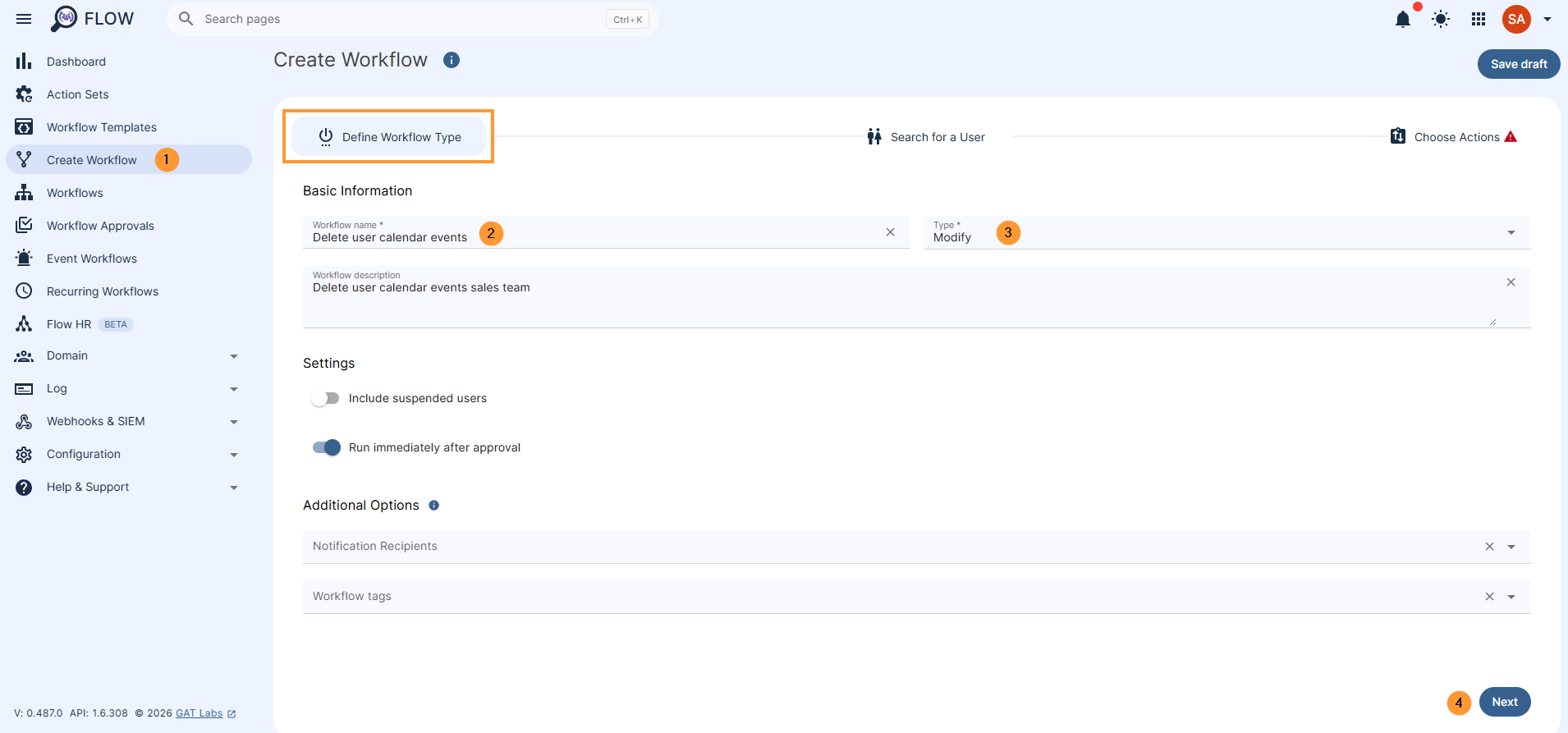
Then click Next to proceed.
Select users to wipe calendars for #
In the Search for a user tab, pick the users for whom you want to delete user calendar events (wipe calendars).
The users can be selected individually, as part of a Group, an org unit, or can be imported via a spreadsheet.
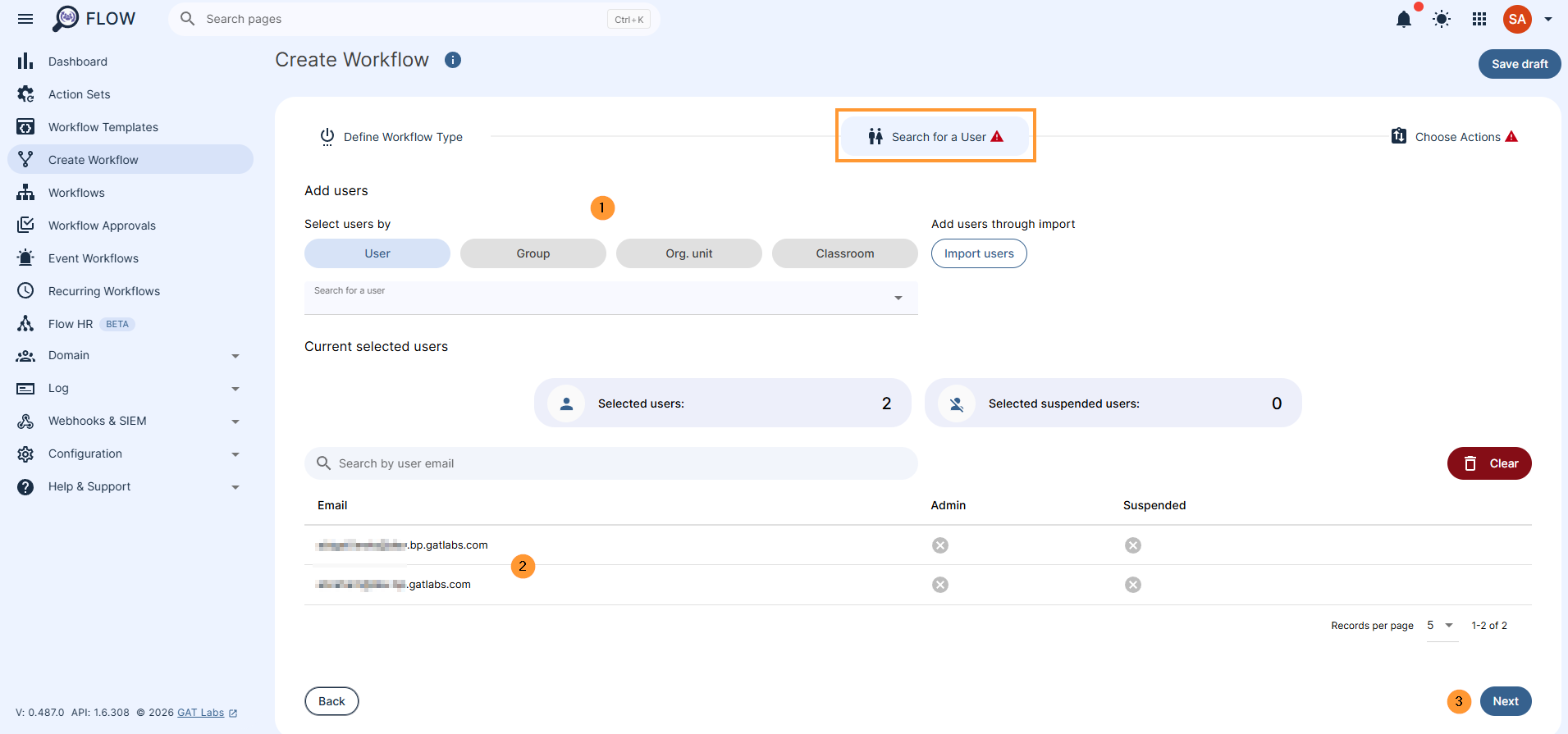
When the users are chosen and selected, click on Proceed to actions.
Add actions to delete user calendar events #
In the Choose actions, select the action from the list available.
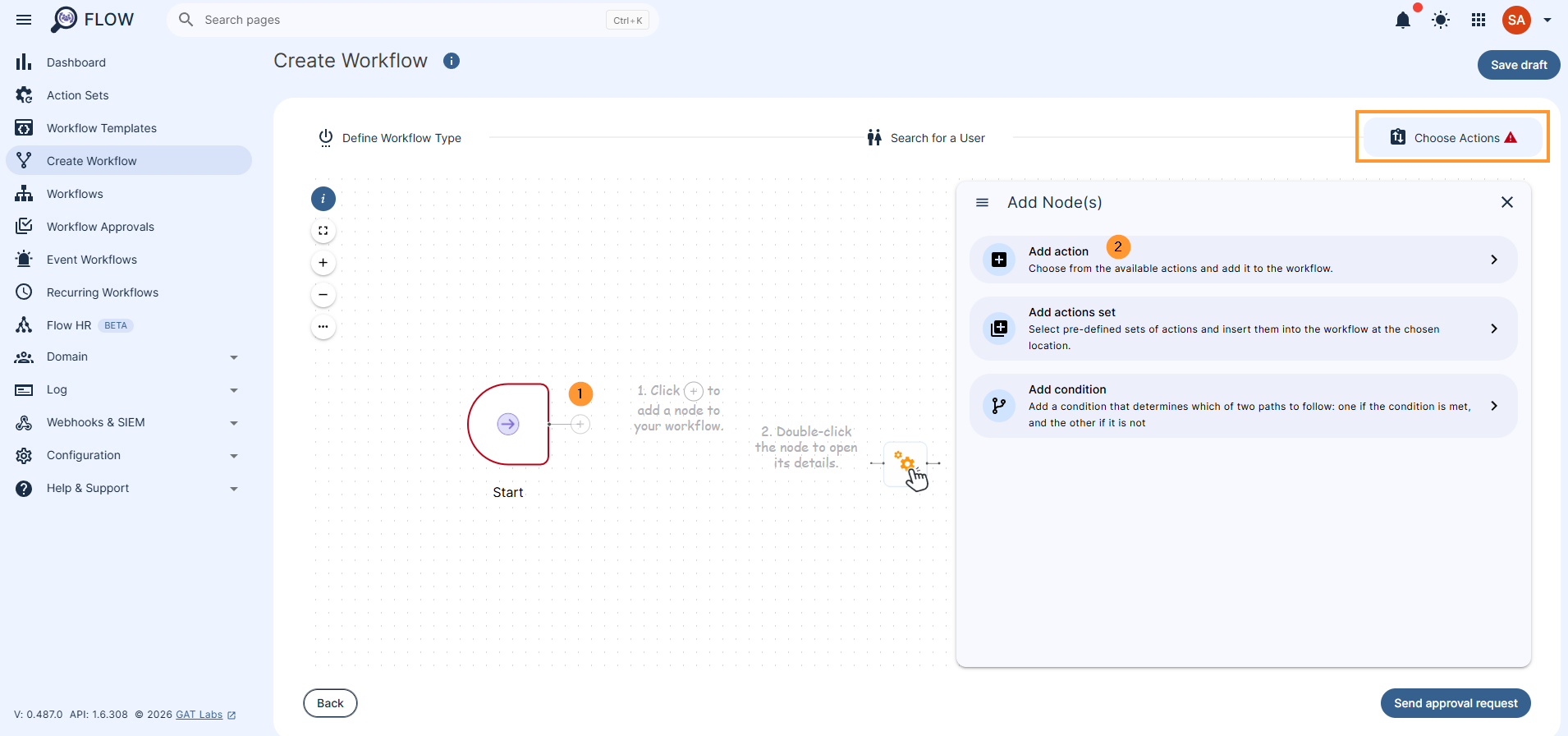
Click on the + Add button (2), from the pop-up menu search for and select Delete user calendar events (3)
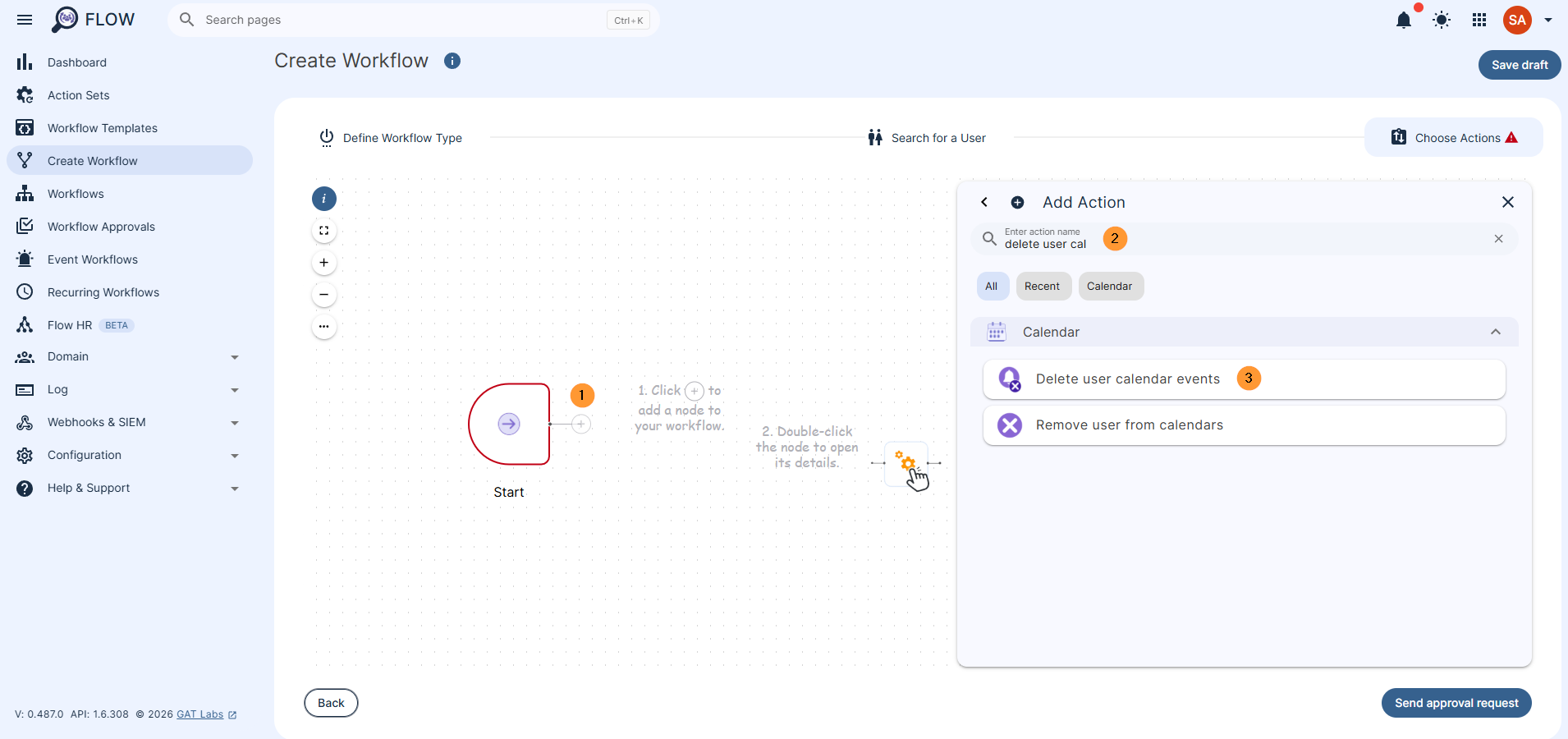
Action details: #
Note: Double-click to open the action, view its details
As a result, events shared with others will disappear from the guests’ calendars. They’ll become effectively canceled, and they’ll still appear in the calendar’s event summary sheet.
Additionally, for each event that the user has been invited to, the invitation will be declined, even if it was accepted before this action. In that case, the user will remain on the attendees’ lists.
This action will cancel all events in the user’s primary calendar.
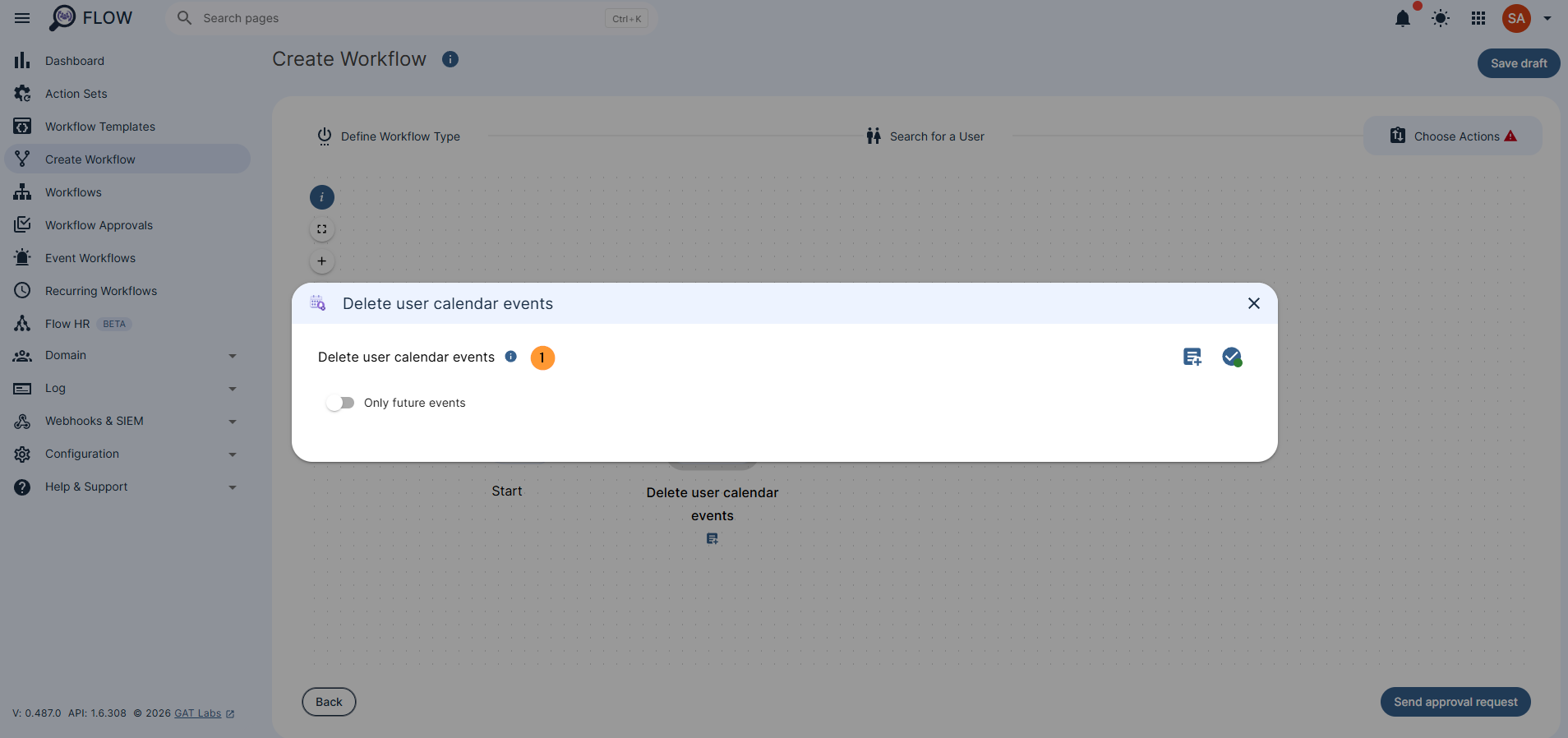
When ready, click on Send approval request.
Security Officer approval #
The Security officer will receive an email for approval.
Note: You can also use Flow pre-approval, where no request will be sent for approval. This will allow actions to be taken without the need for approval on every request.
The request will allow the officer to approve the request in Flow directly. When approved, the action will be set to run.
Result #
The result of the approved request can be seen in Workflow.
The Status will be shown as “requested” if the workflow hasn’t been approved. It will change to “approved” once confirmed by the Security officer, and the Job status will also change to “Done”.
Click on the eye icon to see details for the required job.
The result will show the calendars as being wiped, and calendar events deleted


