

Enforcing Shield Policies in the End-User Browsing Extension #
Use the Reload Configuration command to apply all rules and policies in a timely manner and keep them synchronized with the user’s browser extension.
When to Use the Command #
Typically, policies and rules configured in Shield take effect after about 10-15 minutes.
However, sometimes policies and rules set in Shield are not yet active.
This can happen due to extension synchronization issues or delays in enforcing their configuration on a user’s account.
To ensure their effectiveness, enforceability, and accountability, the Reload Configuration command helps ensure this. Specifically, if a rule or policy has been modified but has not yet taken effect on a user account, the command helps enforce it on that account by refreshing all currently set rules and policies on that user account.
Why Use the Command #
By defining a Reload Config command for end users, you can ensure that all policies and rulesets configured for a given account using Shield will be effective, efficient, and accountable.
Define Command #
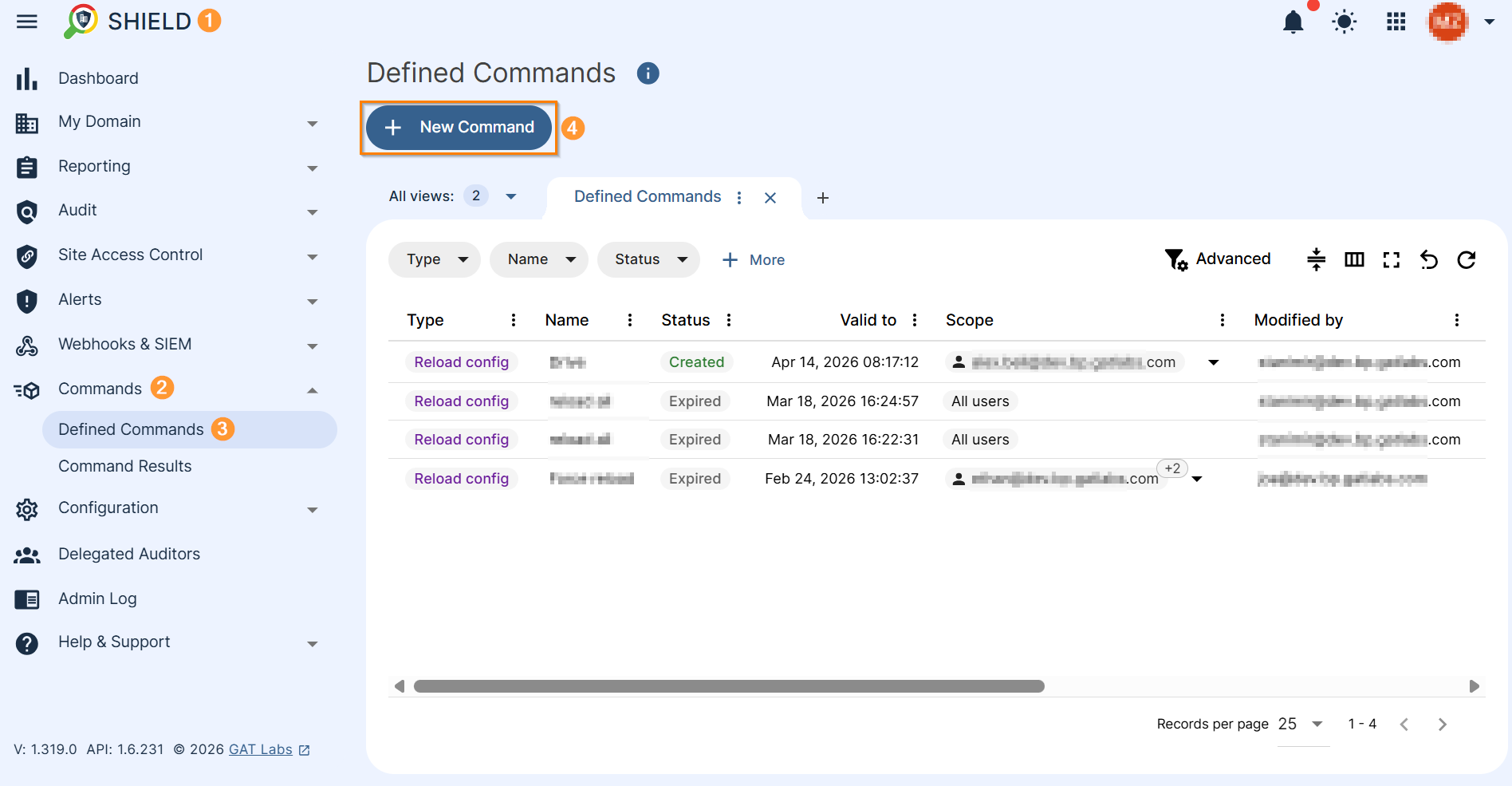
Navigate to GAT Shield (1) > Commands (2) > Defined Commands (3) section and click on “+ New Command” button (4) that allows to create a new command.
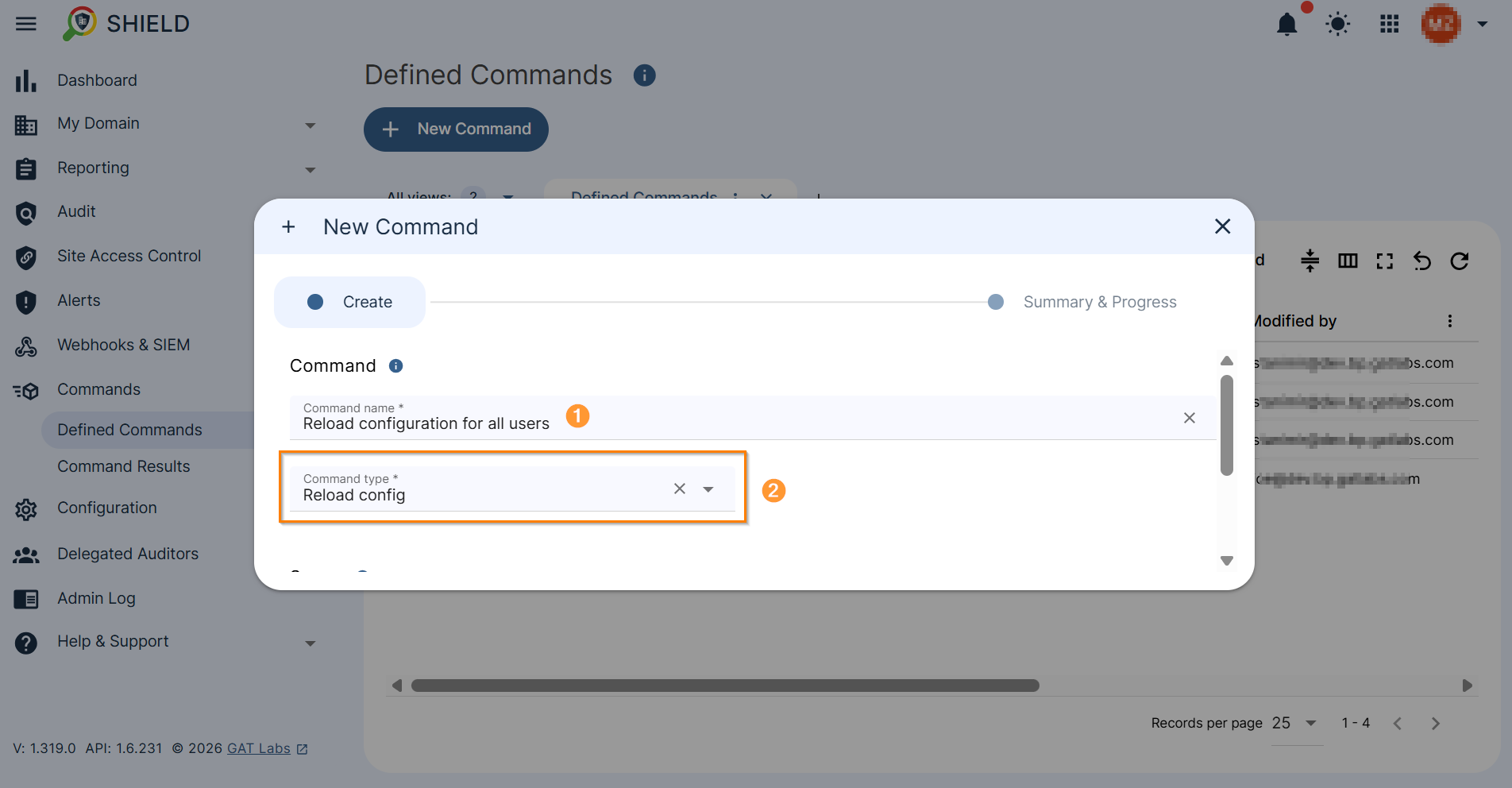
The “New Command” configuration window will appear, allowing you to enter a command name and select its type. Select the “Reload config” type from the drop-down menu.
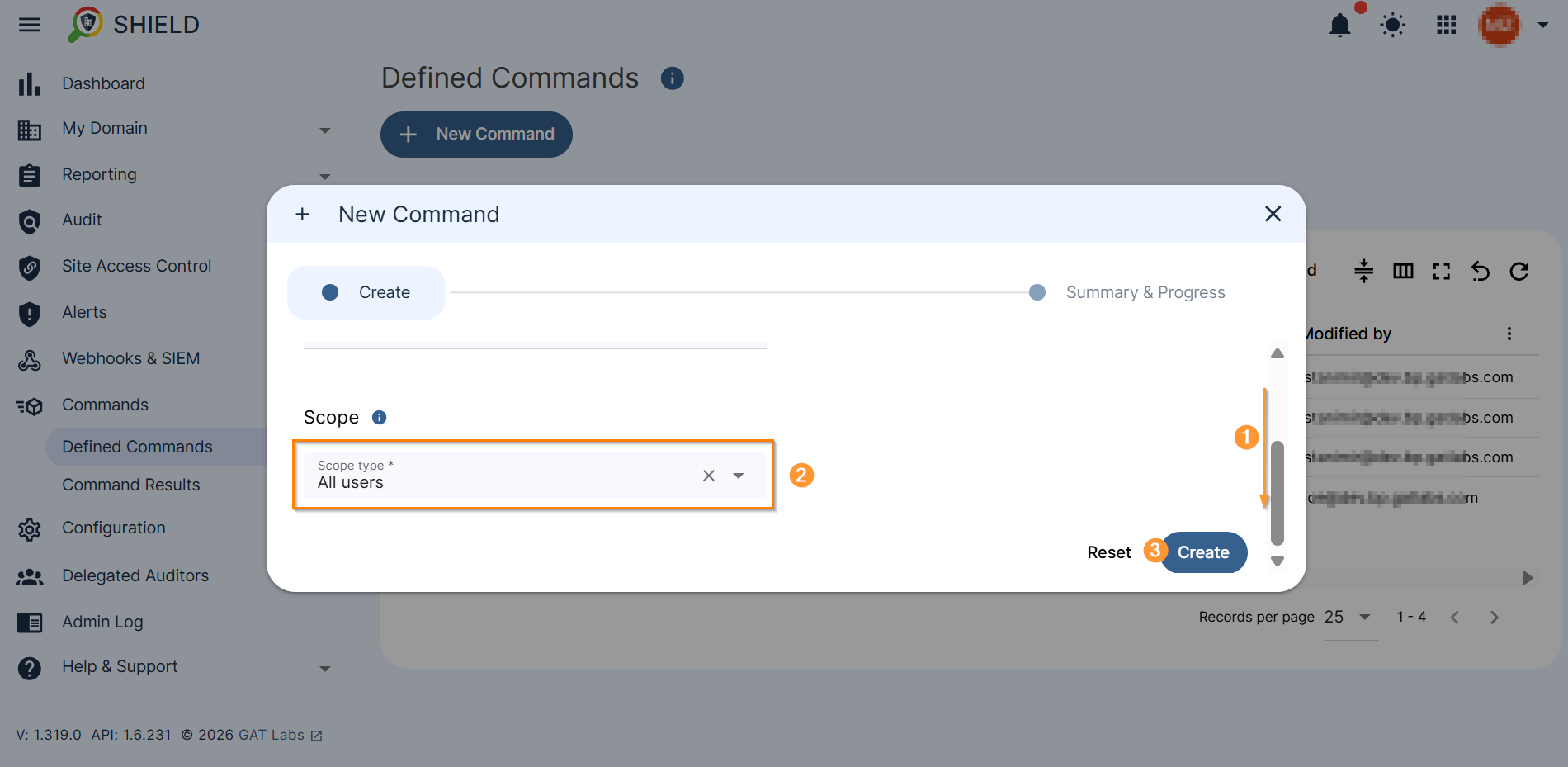
The “New Commands” configuration window offers more configuration options. To configure them, scroll down (1) to select the command Scope (2). You can create a command for a single “User” or on a larger scale by selecting “All Users.” Next, select Create command button (3).
Command Summary & Progress #
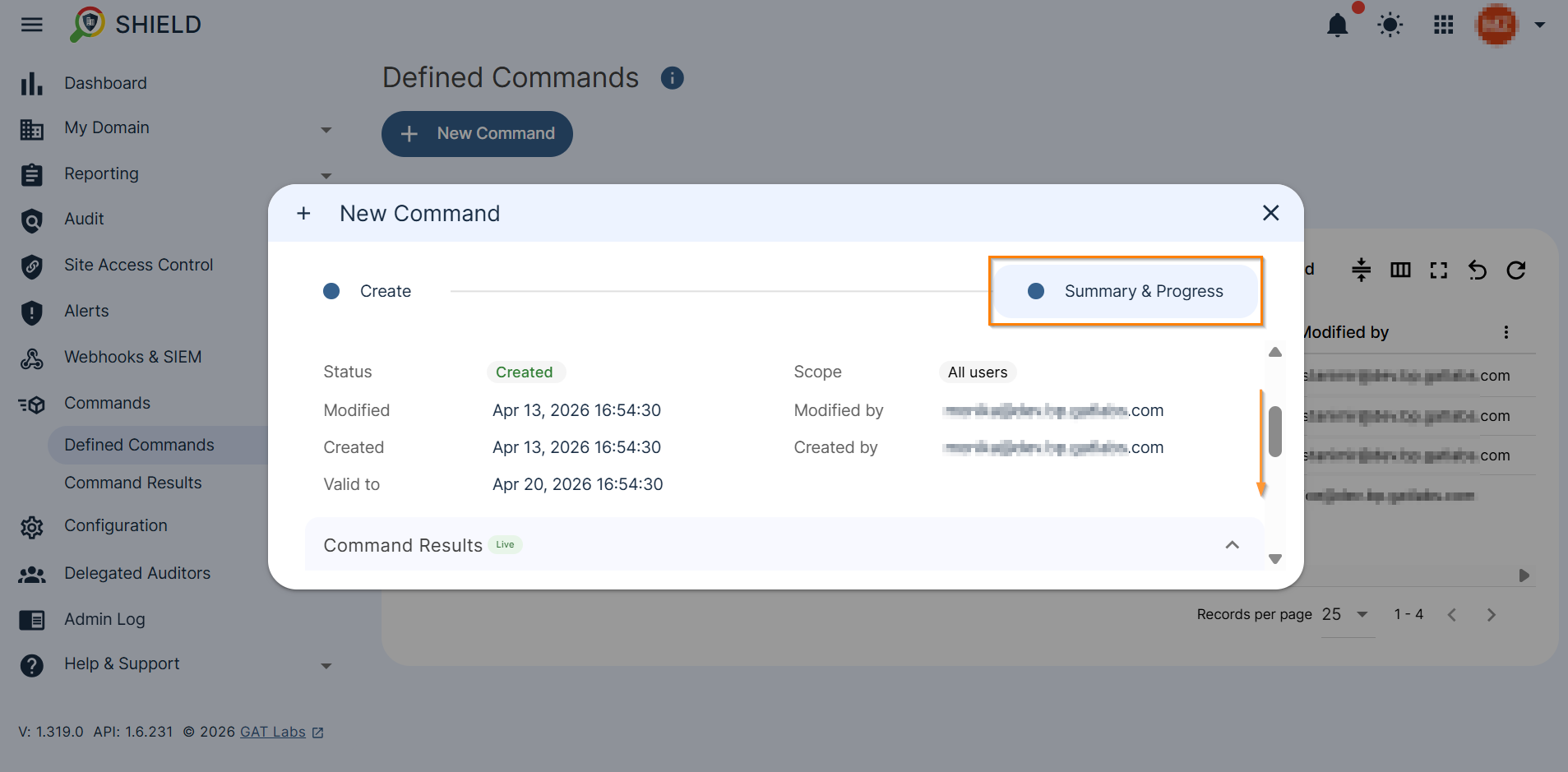
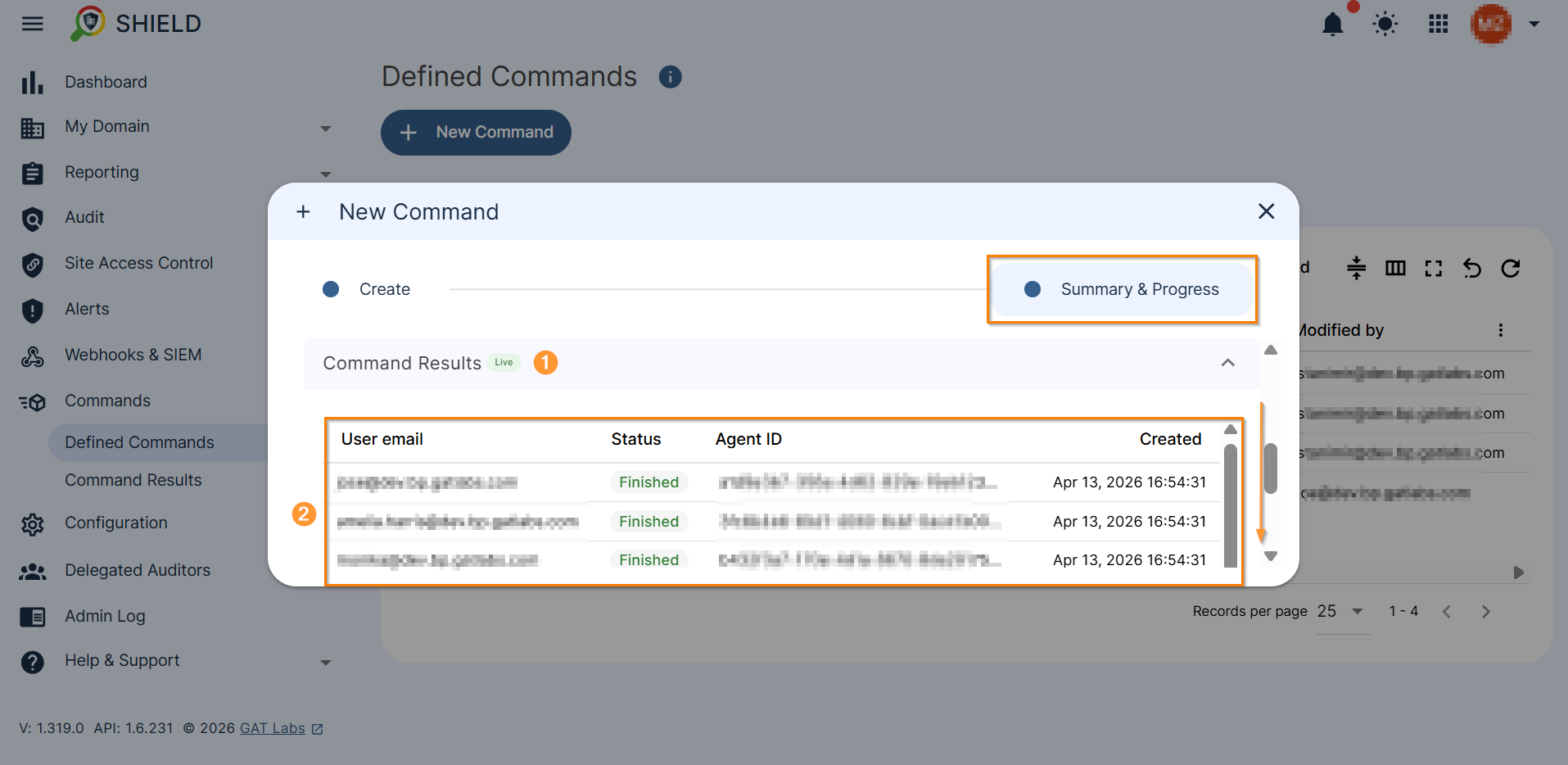
Once the command is created, you can review its Summary & Progress (1–2) directly in the configuration window.
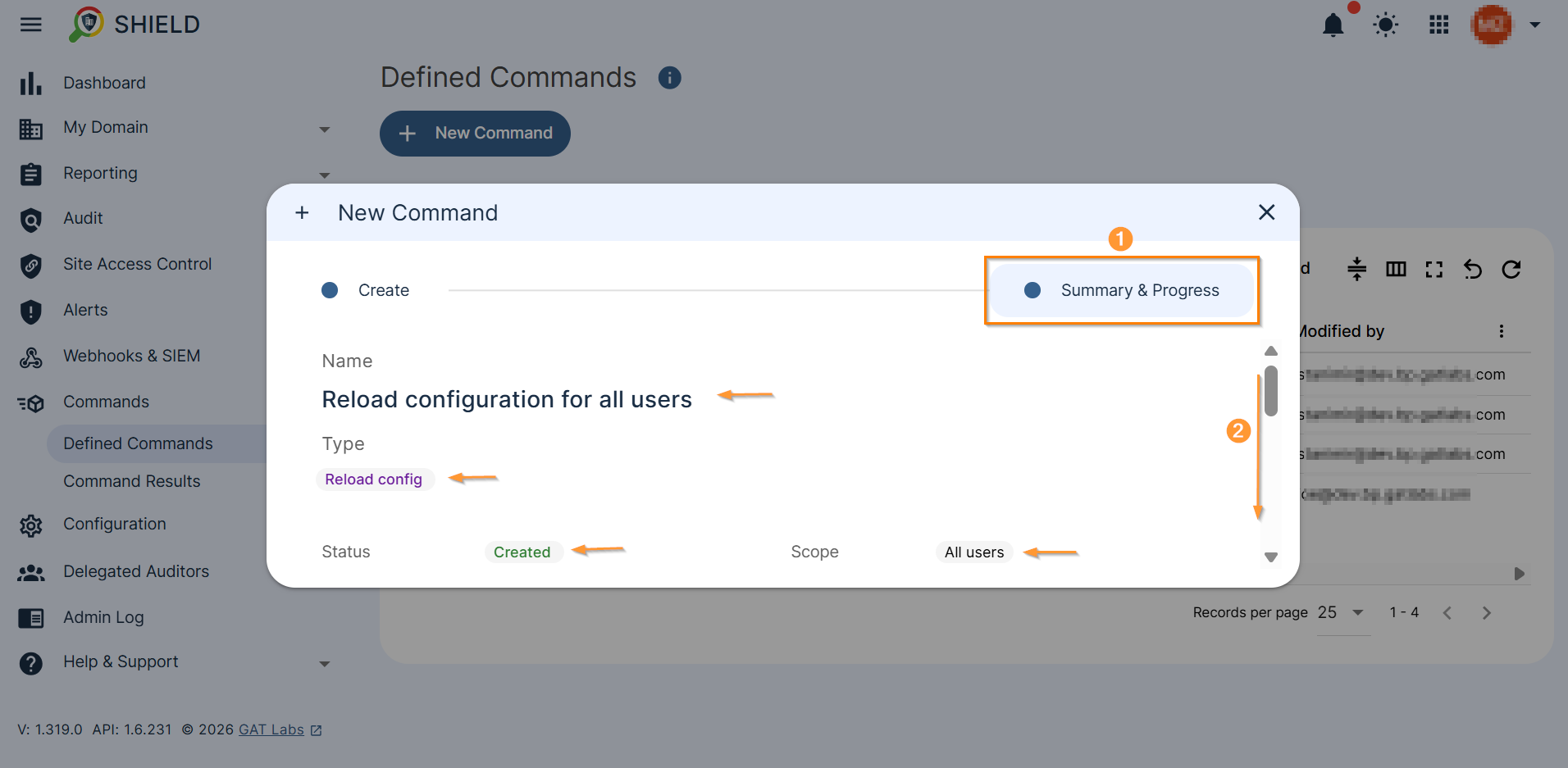
By scrolling down the Summary and Progress window, you can see the Status and Scope of the command, along with its timestamps and expiration date.
You can also view the email addresses of the Creator and Modifier.
The final section, Summary and Progress, lets you view live command results (1) and see which accounts the command ran on (2).
Results #
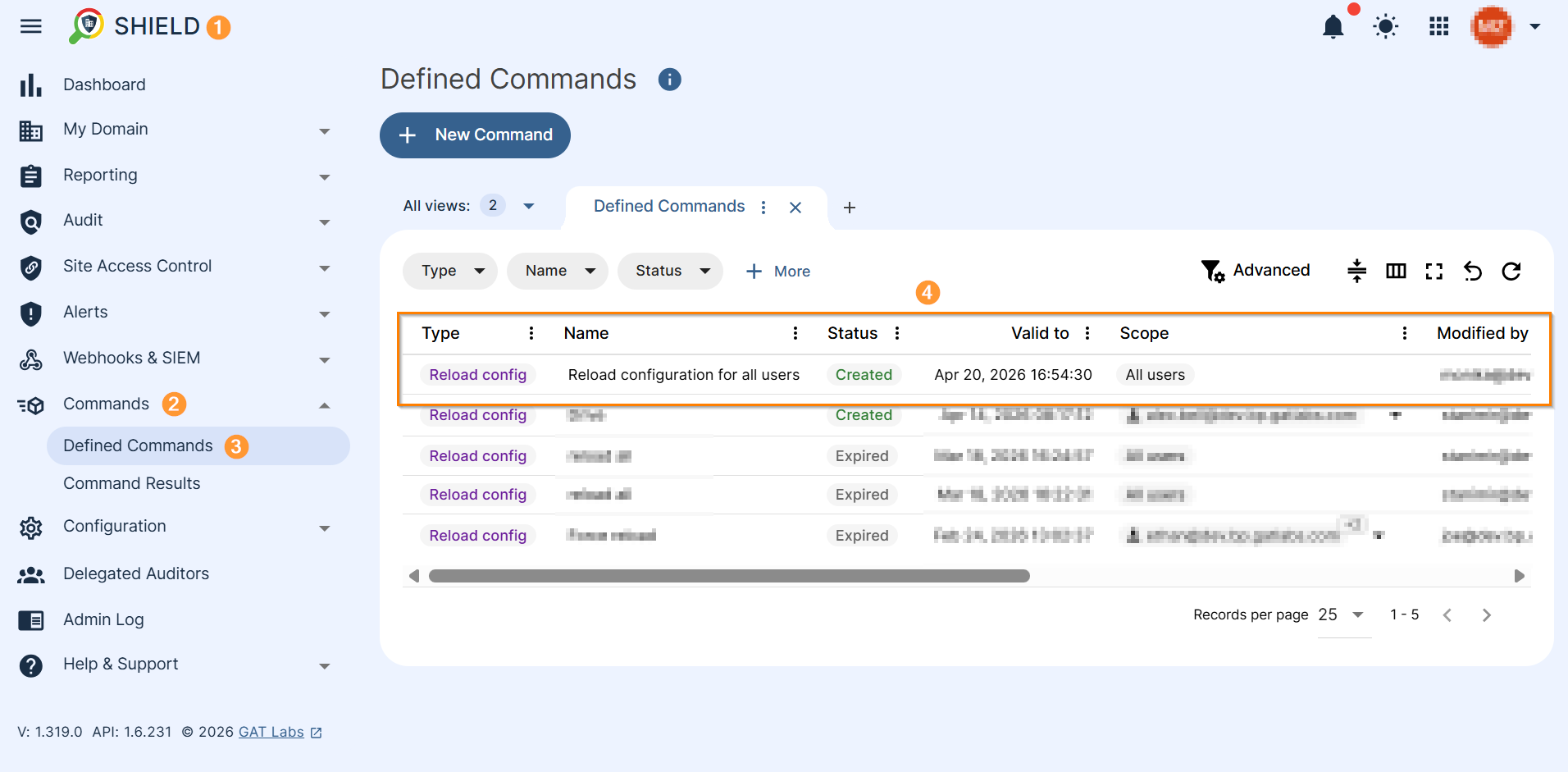
To review a defined command, go to Shield (1) > Commands (2) > Defined Commands (3), where you can see a table with all the forced commands (4). You can cancel a command, view its details, or review its results in this section by hovering over the right side of the command record.
Command Results #
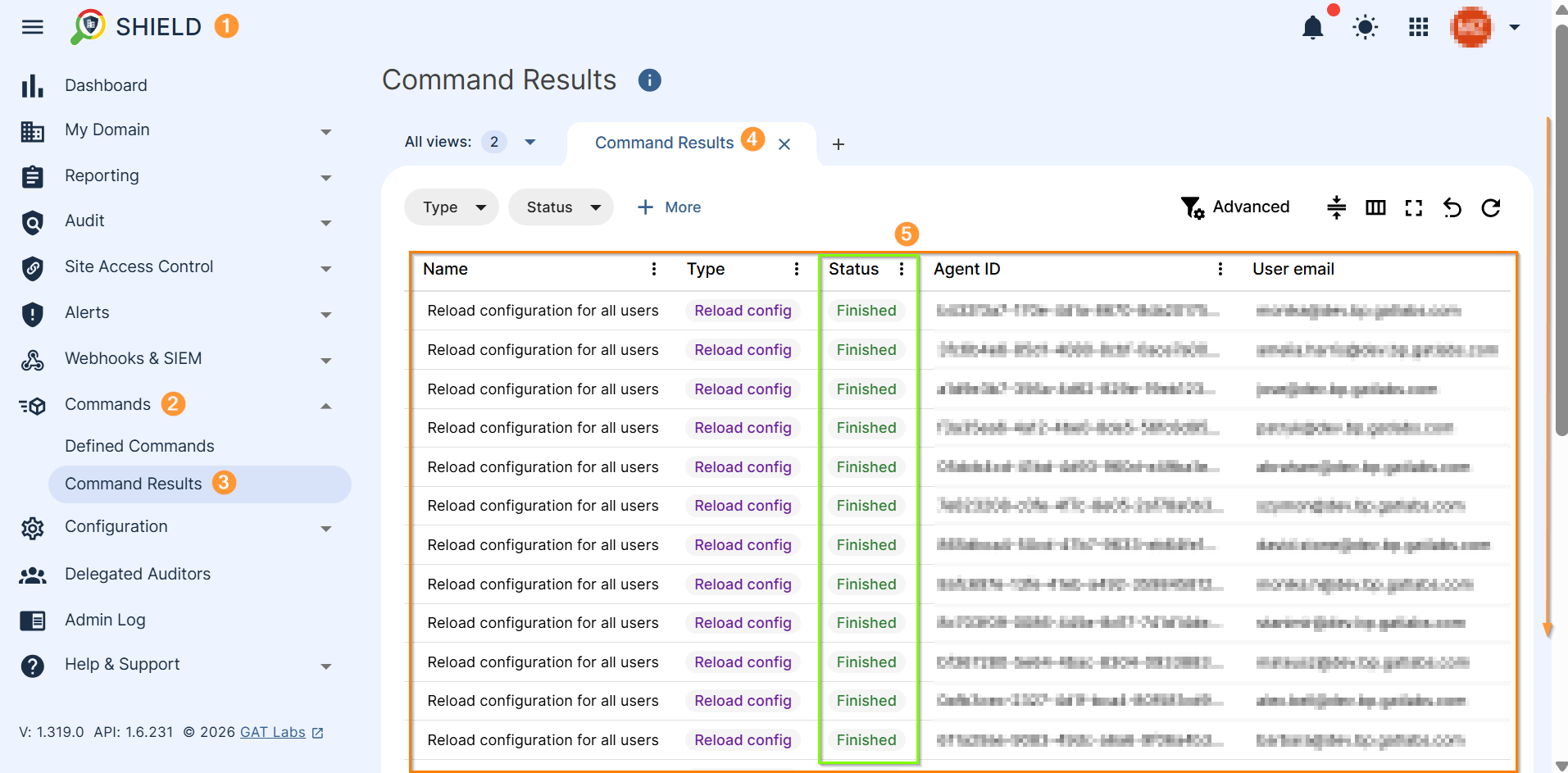
To review the commands’ results, navigate to Shield (1) > Commands (2) > Command results (3). You will find a table with the results of all commands created (4) and their status for each individual account (5).
Conclusion #
The Reload Configuration command in Shield ensures that policies and rules for a given user account are enforced without delay.
It eliminates gaps in the application process.
The command forces a refresh of the user’s browser extension configuration and synchronizes all applicable policies and rules.
FAQ #
Q: Is it good practice to run a command if you suspect a rule or policy hasn’t been activated or updated correctly?
A: Yes, it’s always a good practice if there are delays in activating rules and policies or after making modifications.
Q: What scope can you use to run a command?
A: You can select a single user to target a single account, or you can select all users in the scope to run the command on a larger scale.


