

Workflow Monitoring via the Flow Dashboard #
In a busy Google Workspace environment, visibility is the key to security and efficiency. As your organization scales, keeping track of every onboarding, offboarding, and modification workflow can become overwhelming.
We designed the Flow Dashboard to serve as your mission control. Instead of digging through logs to find the status of a specific task, the dashboard provides a high-level, real-time visual summary of your automation health.
Every chart and statistical table is fully interactive; clicking on any data point or status bar will lead you directly to the underlying data, showing you exactly where the information comes from and allowing for immediate deep-dive auditing.
By turning raw data into actionable insights, the dashboard ensures that your domain’s automation is not just running, but running optimally.
View Dashboard #
Navigate to Flow > Dashboard.
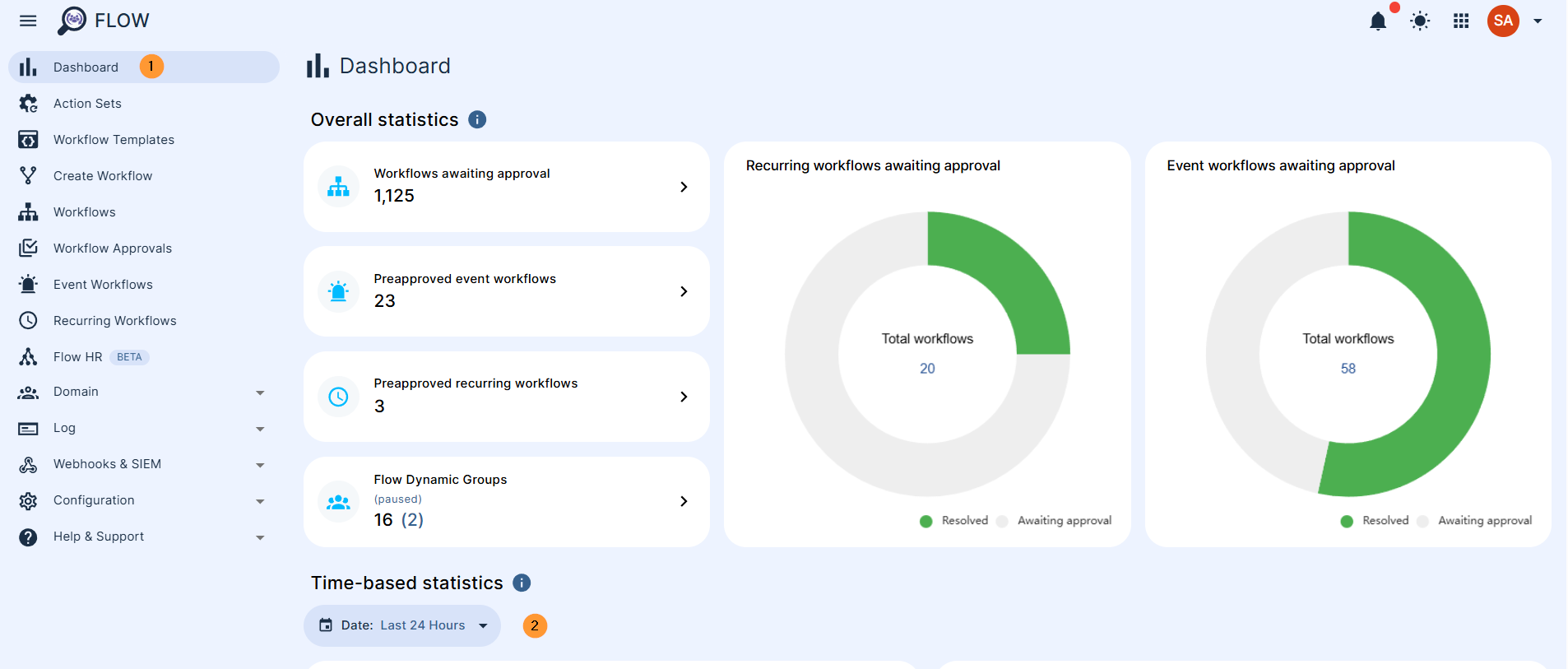
View different overall statistics. This section provides an overview of the overall statistics related to your domain:
- Workflows awaiting approvals
- Preapproval event workflows
- Preapproved recurring workflows
- Flow Dynamic groups
- Recurring workflows awaiting approval (total, resolved, or awaiting approval)
- Event workflows awaiting approval
You can click on each of the stats to see the actual workflows:
Time-based Statistics #
This section provides time-based statistics, enabling you to analyze trends and patterns across specific periods.
Select different time frames (2).
- Last 24 hours
- Last 7 days
- Last 14 days
- Last 28 days
- This month
- Previous month
- Customized time frame
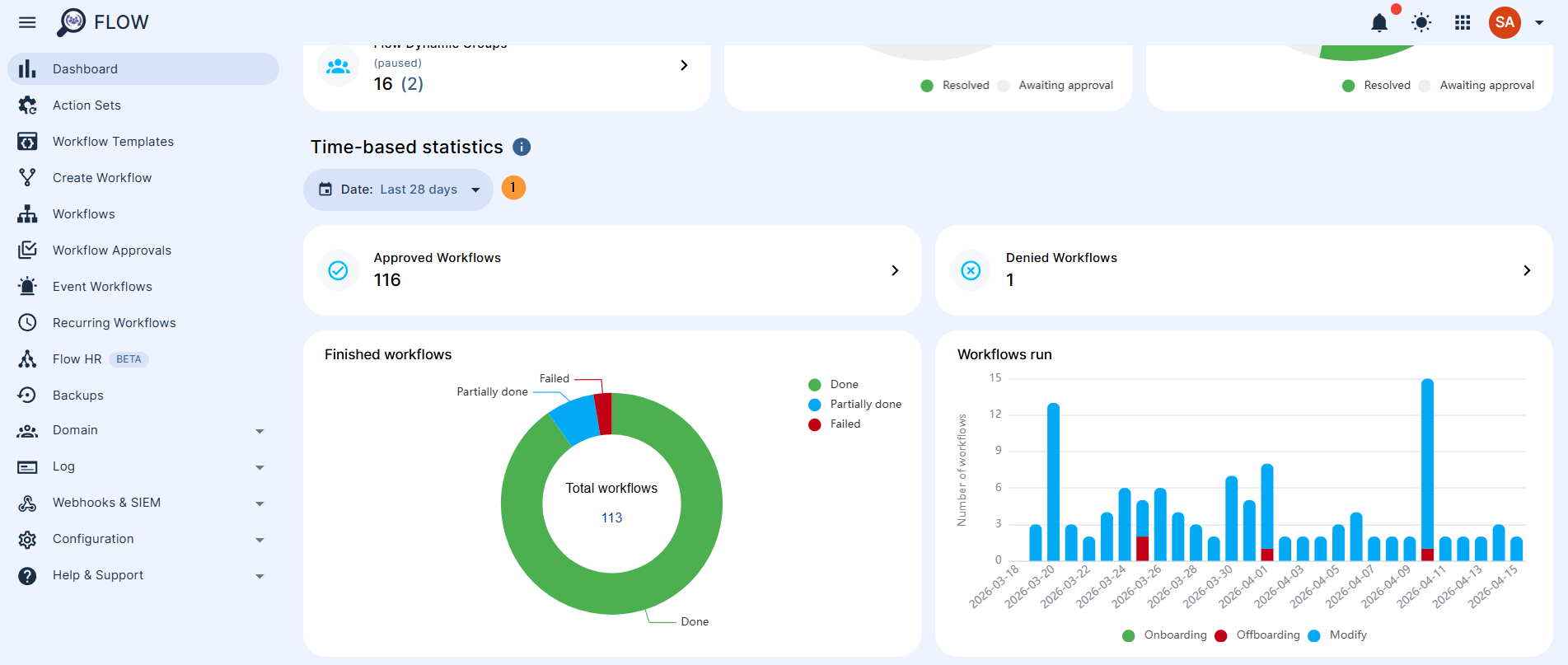
View also all the workflows completed for the selected time frame:
- Approved workflows
- Denied workflows
- Finished workflows
- Done
- Partially done
- Failed
- Workflows run – types of workflows
- Onboarding
- Offboarding
- Modify
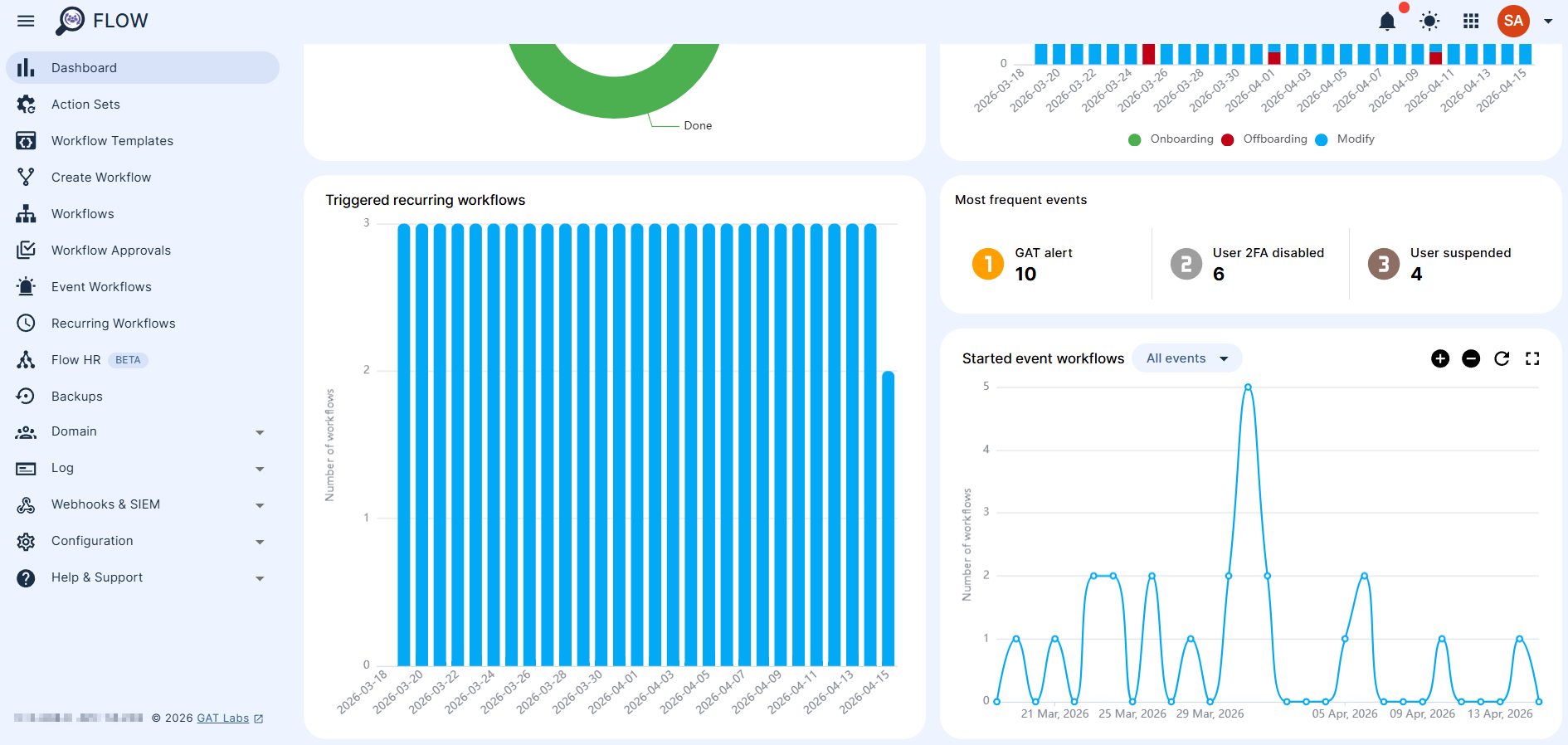
Time-based statistics will also show:
- Triggered recurring workflows, displayed by day
- List of the most frequent events
- Started event workflow: Select any event from the list:
- All events
- Add user to org. unit
- Remove user from org. unit
- Add user to group
- Remove user from group
- User created
- User suspended
- User manager change
- User title change
- User employee type change
- User cost center change
- User department change
- User 2FA disabled
- User 2FA enabled
- GAT alert
- Flow event
- Email subject
- Date reached
- Shield+ alert
- The chart will show stats for specific days within the selected time scope.
Conclusion #
The Flow Dashboard transforms complex workflow data into a clear, scannable interface.
By using time-based statistics and approval tracking, administrators can maintain a proactive approach to domain management.
Whether you are auditing your most frequent event triggers or ensuring that offboarding processes are finishing without error, this dashboard provides the transparency needed to manage a secure and agile Google Workspace.
Frequently Asked Questions #
Q: Can I troubleshoot failed workflows directly from the dashboard?
A: Yes. The dashboard is fully interactive. In the Time-based statistics section, simply click on the Failed or Partially Done status indicators. You will be redirected immediately to the specific workflow logs to identify and resolve the exact step that caused the issue.
Q: Is it possible to filter the dashboard for specific security events, such as 2FA changes?
A: Absolutely. Within the Started event workflows section, use “any specific event” from the dropdown menu to select specific triggers. This allows you to isolate and analyze high-priority patterns, such as 2FA modifications or Organizational Unit moves, over your selected time frame.


