

GAT Flow is a comprehensive tool that simplifies many processes for Google Workspace Admins. It also allows the Admins with a Google Archived User license to archive or unarchive Google Workspace users, groups, or organization units in bulk.
The action is available in the Offboarding and Modify workflows. It can be done as a simple workflow, event, or recurring workflow.
Step 1. Workflow Type #
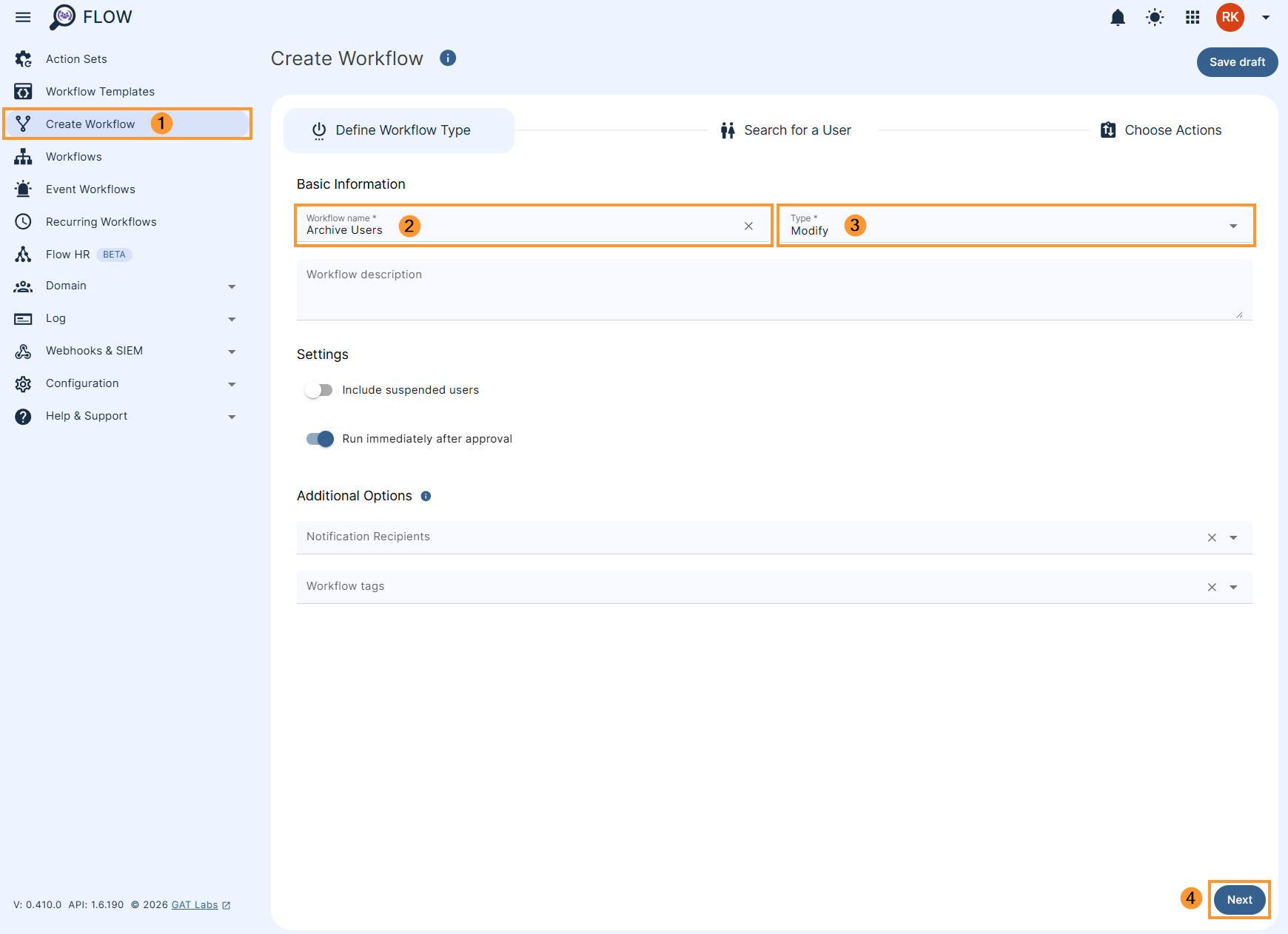
Navigate to GAT Flow > Create a workflow (1)
In the Workflow fill in the details. You can set it up also as an Event workflow or Recurring workflow.
- Name – enter the name of the workflow (2)
- Description – enter a description for the workflow (optional)
- Type – select what workflow type you would like to run
- Modify – modify existing users (3)
- Include suspended users – enable or disable to allow you to select users who are currently suspended:
- If enabled – you will be able to select even users who are suspended
- If disabled – you will be able to select only users who are active
- Run immediately after approval – provides an option to schedule the workflow to run in a selected future time (optional)
Later click Next (4) to proceed.
Step 2. Select users #
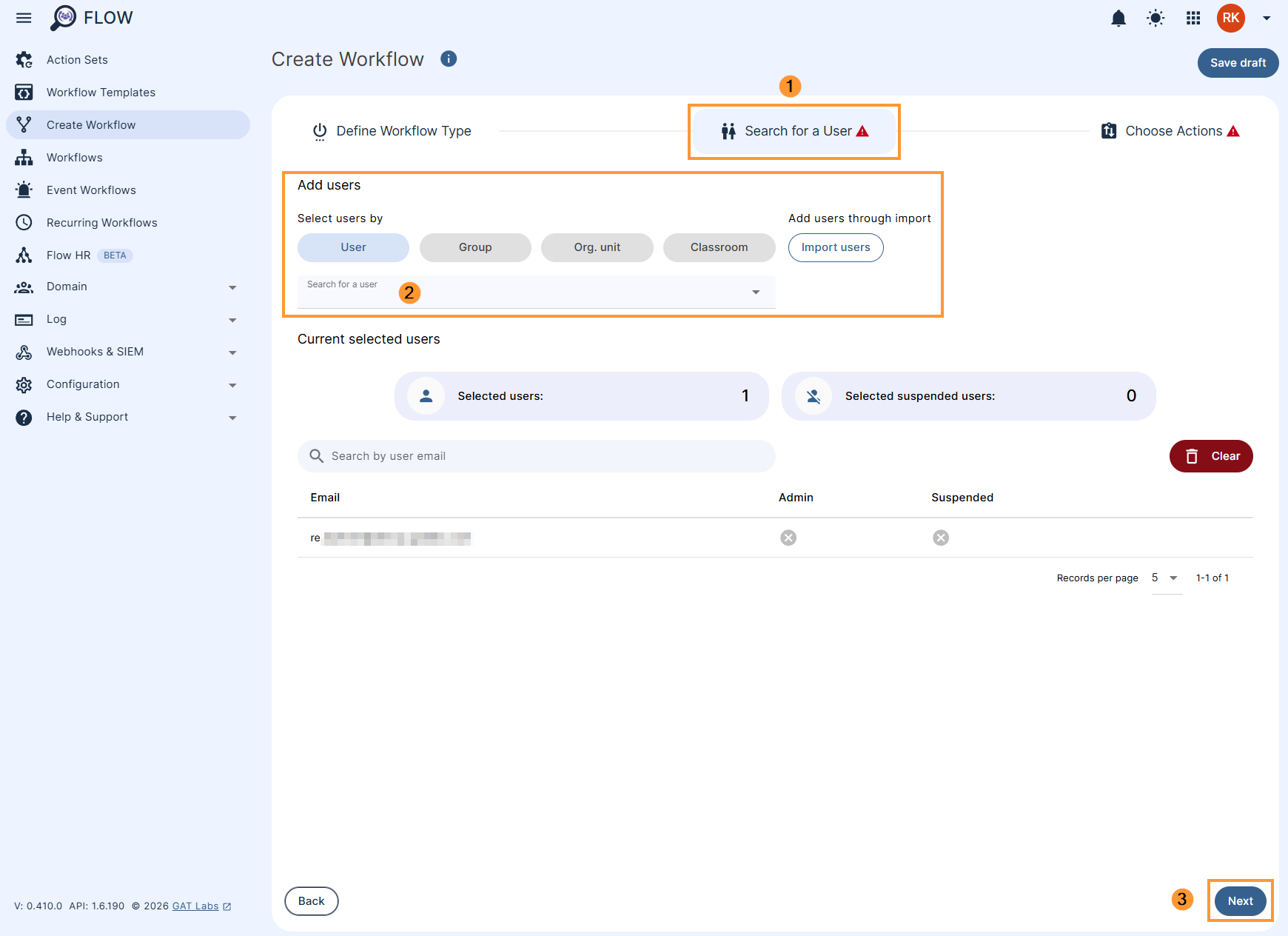
On the next screen, Search for a user (1) – select the users you want to archive or unarchive.
- Select users individually, as a group, org. unit, or import from a spreadsheet (2).
- Next (3) – select to proceed further after the users have been selected.
Step 3. Choose Actions #
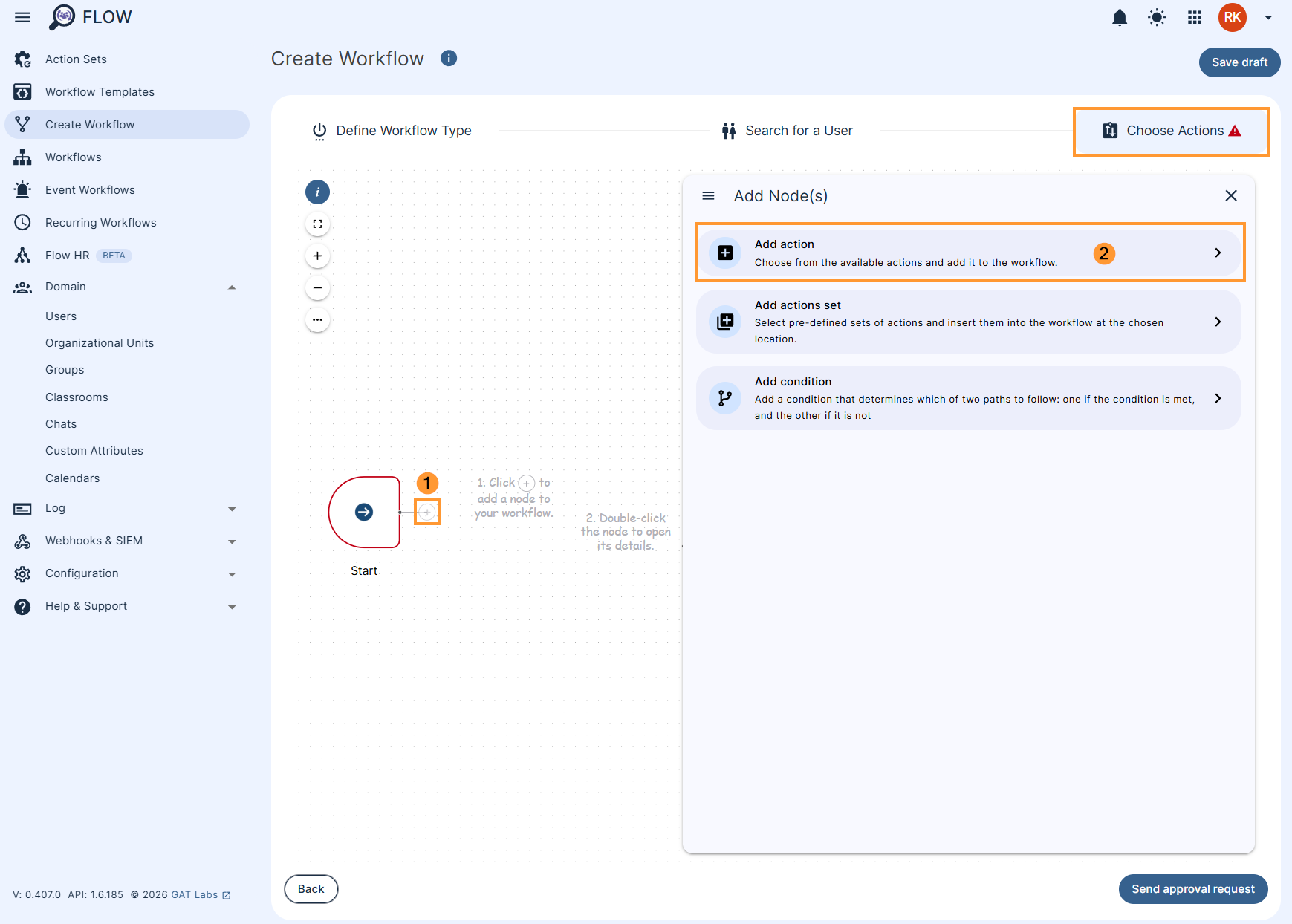
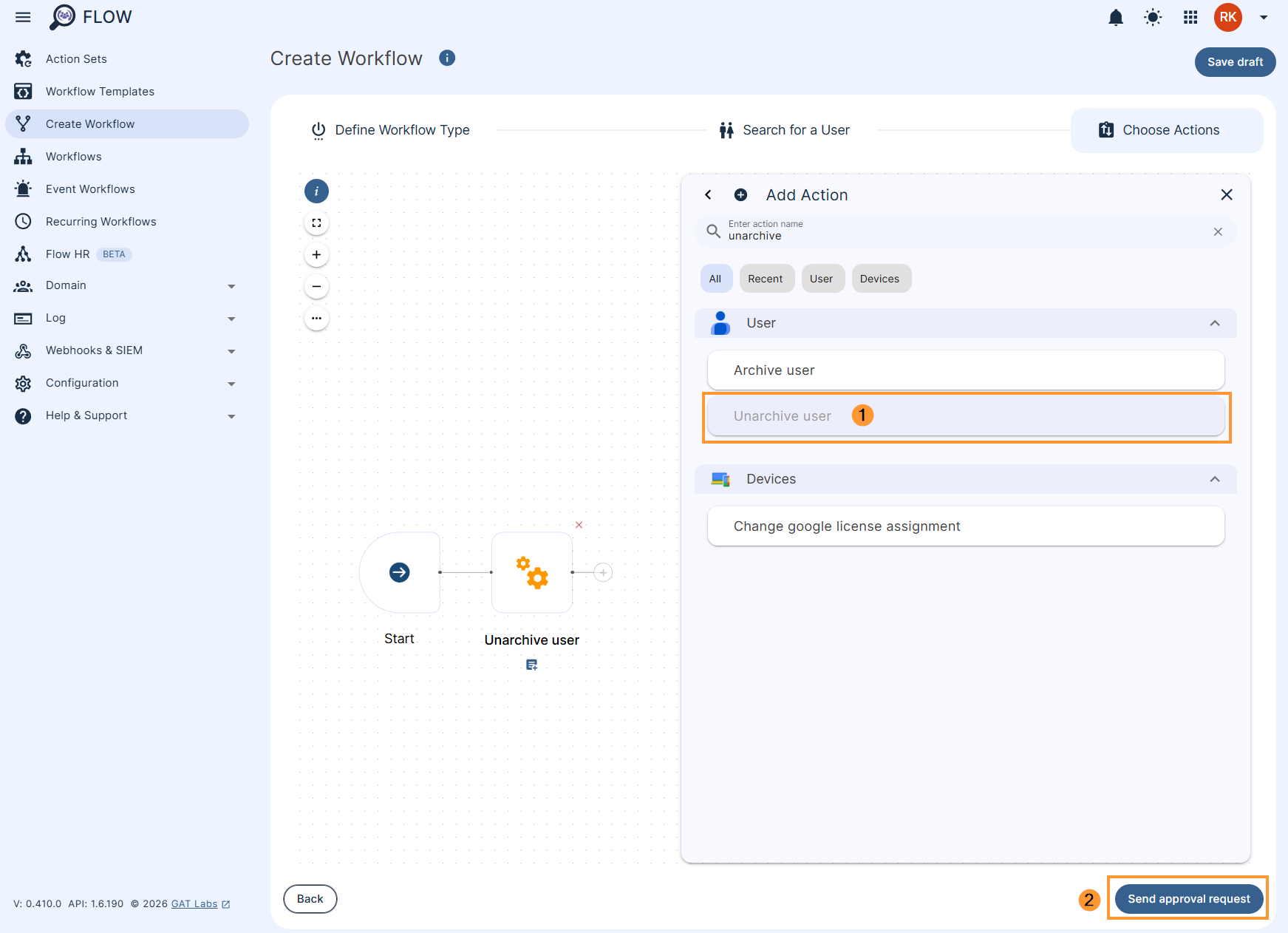
In the Choose actions click on the (+) button (1) and then click the Add action button (2)
Search for and select Archive user in the Add action section (1)
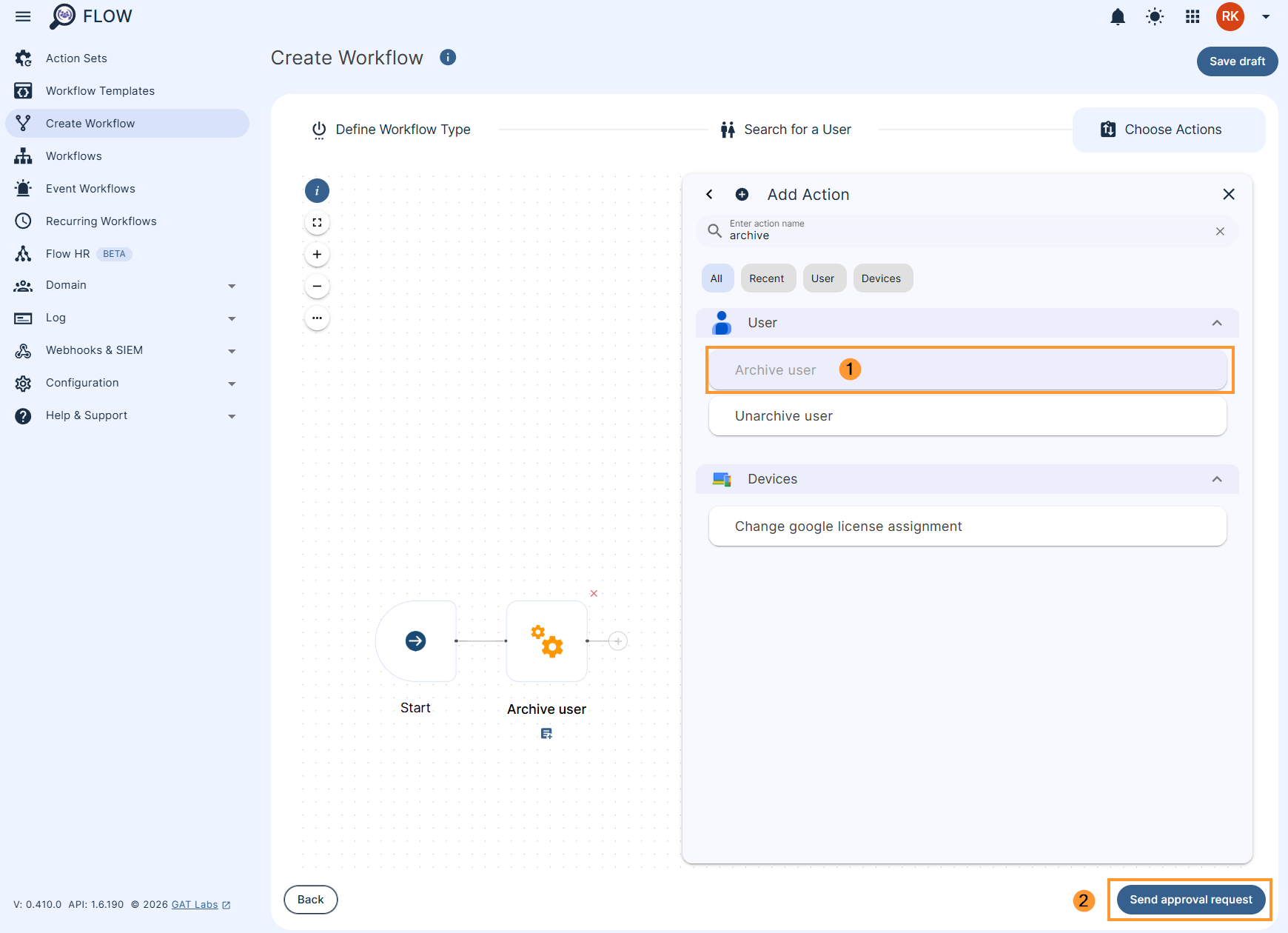
If you’re looking to unarchive users, instead choose to Unarchive user action (1).
Please Note: You need a ‘Google Workspace Archived User’ license to archive a user. (Google Product and SKU IDs)
When satisfied with the selected action, click on Send approval request (2).
Security officer approval #
The security officer will be notified via email to approve the request.
Note: You can have pre-approval enabled – where no approval email would be sent. Check here for more details.
Result #
When the request is approved – the selected Google workspace users will be archived or unarchived depending on the selected action.


