

What’s changing #
With GAT Flow, administrators can efficiently label any user’s email with a specific Gmail label.
Who’s impacted #
An administrator who has a comprehensive GAT Flow tool in their hands and can use it for a wider range of tasks, including marking messages in the user’s mailbox with appropriate Gmail labels.
Domain users whose emails can be appropriately marked by the domain administrator on their behalf.
Why it matters #
It helps the domain administrator gain better control over users’ Gmail labels, which allows them to organise, distribute, and prioritise tasks for users across the domain.
A specific set of emails can be identified and tagged appropriately in user collective accounts, allowing for better work allocation and greater transparency.
How to implement #
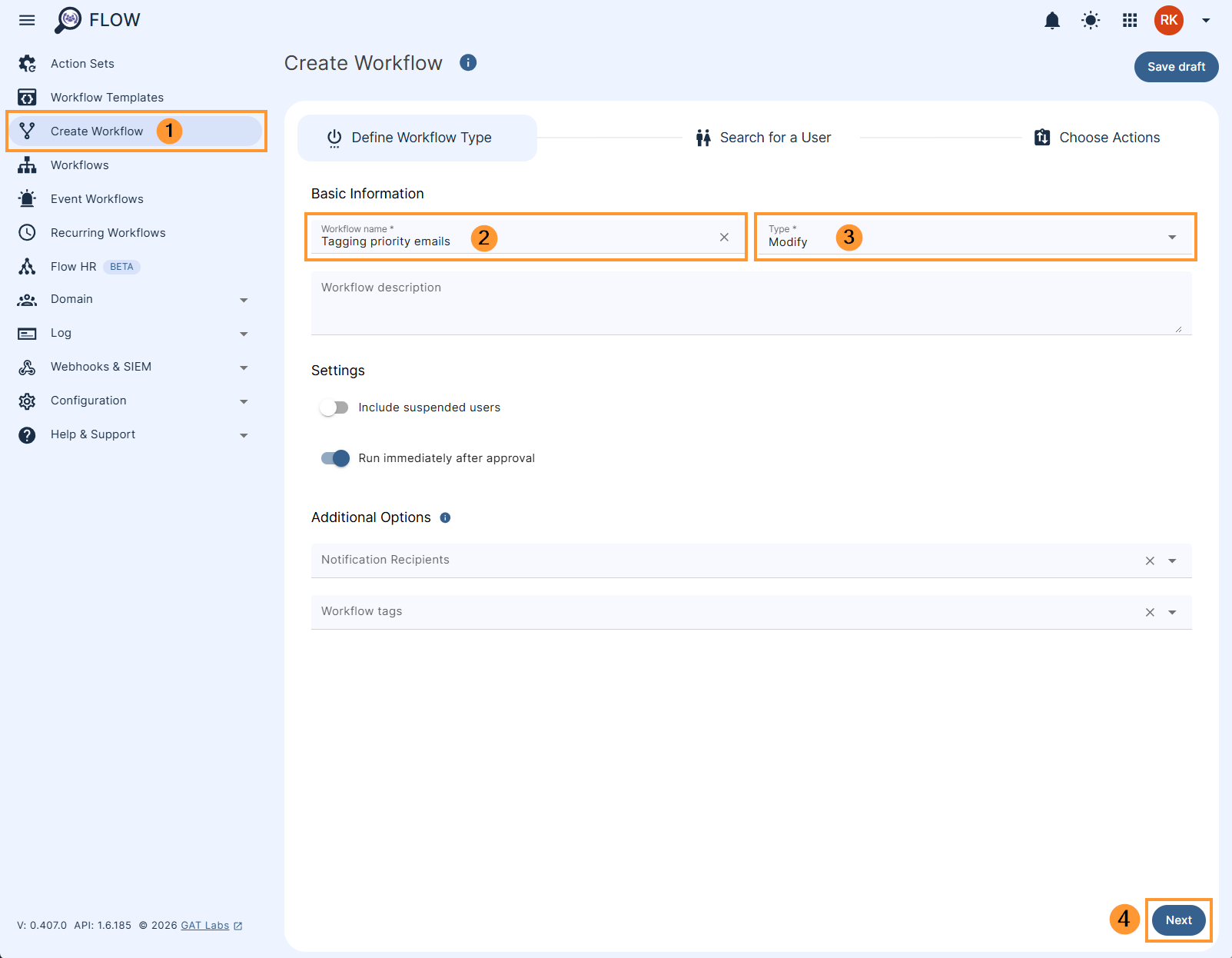
First, navigate to Flow > Create workflow (1).
Workflow type #
In the Workflow fill in the details for the workflow. You can set it up also as an Event workflow or Recurring workflow.
- Name – enter the name of the workflow (2)
- Description – enter a description for the workflow (optional)
- Type – select what workflow type you would like to run
- Modify – modify existing users (3)
- Include suspended users – enable or disable to allow you to select users who are currently suspended:
- If enabled – you will be able to select even users who are suspended
- If disabled – you will be able to select only users who are active
- Run immediately after approval – provides an option to schedule the workflow to run in a selected future time (optional)
Later click Next (4) to proceed.
Search for a user #
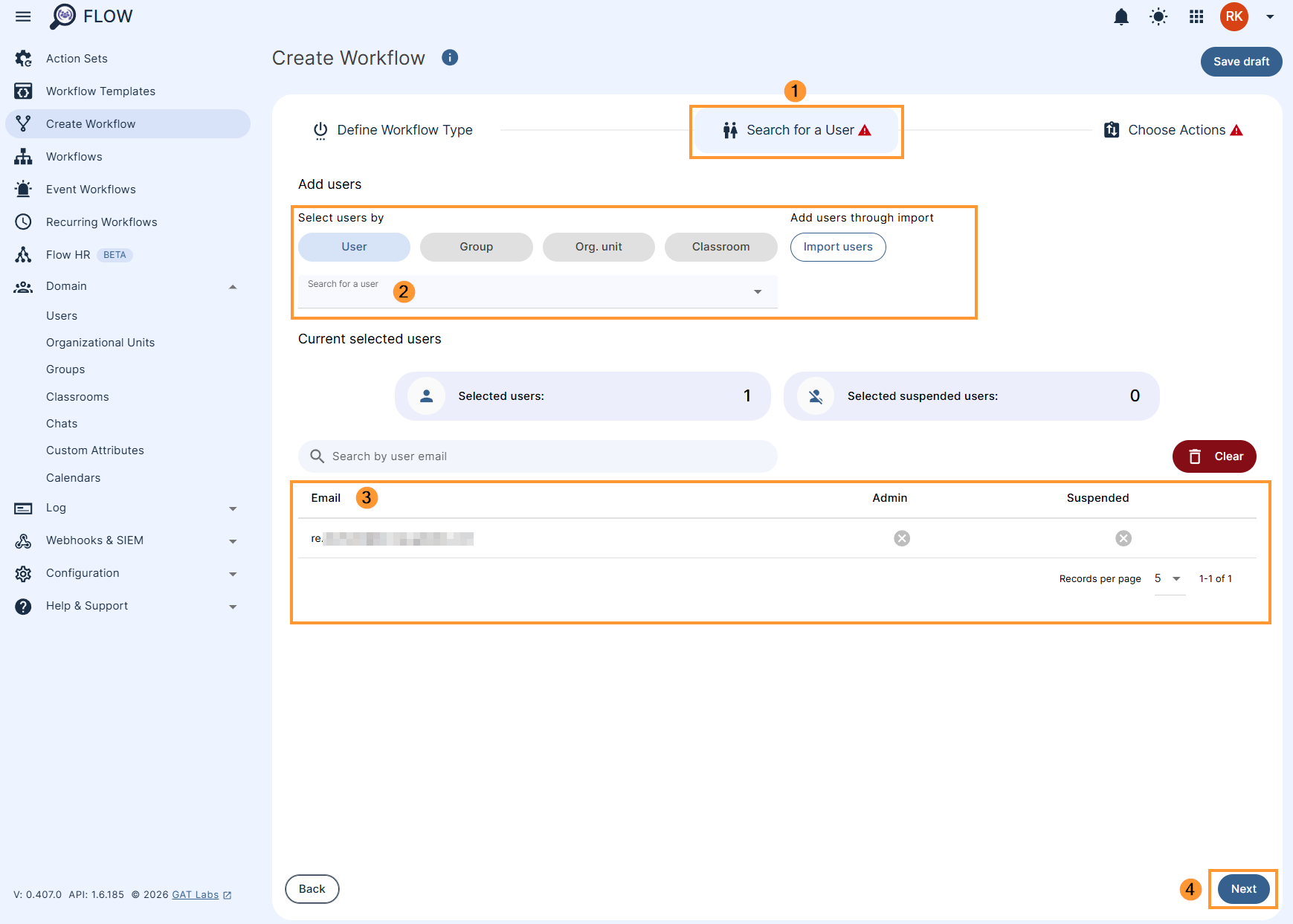
Select the users for whom you would like to apply Gmail labels (1) to. You can select a user, group of users, or org. unit of users (2-3), and even use the Import users option.
After selecting the users, click on the button Next (4).
Choose an action: Apply Gmail label #
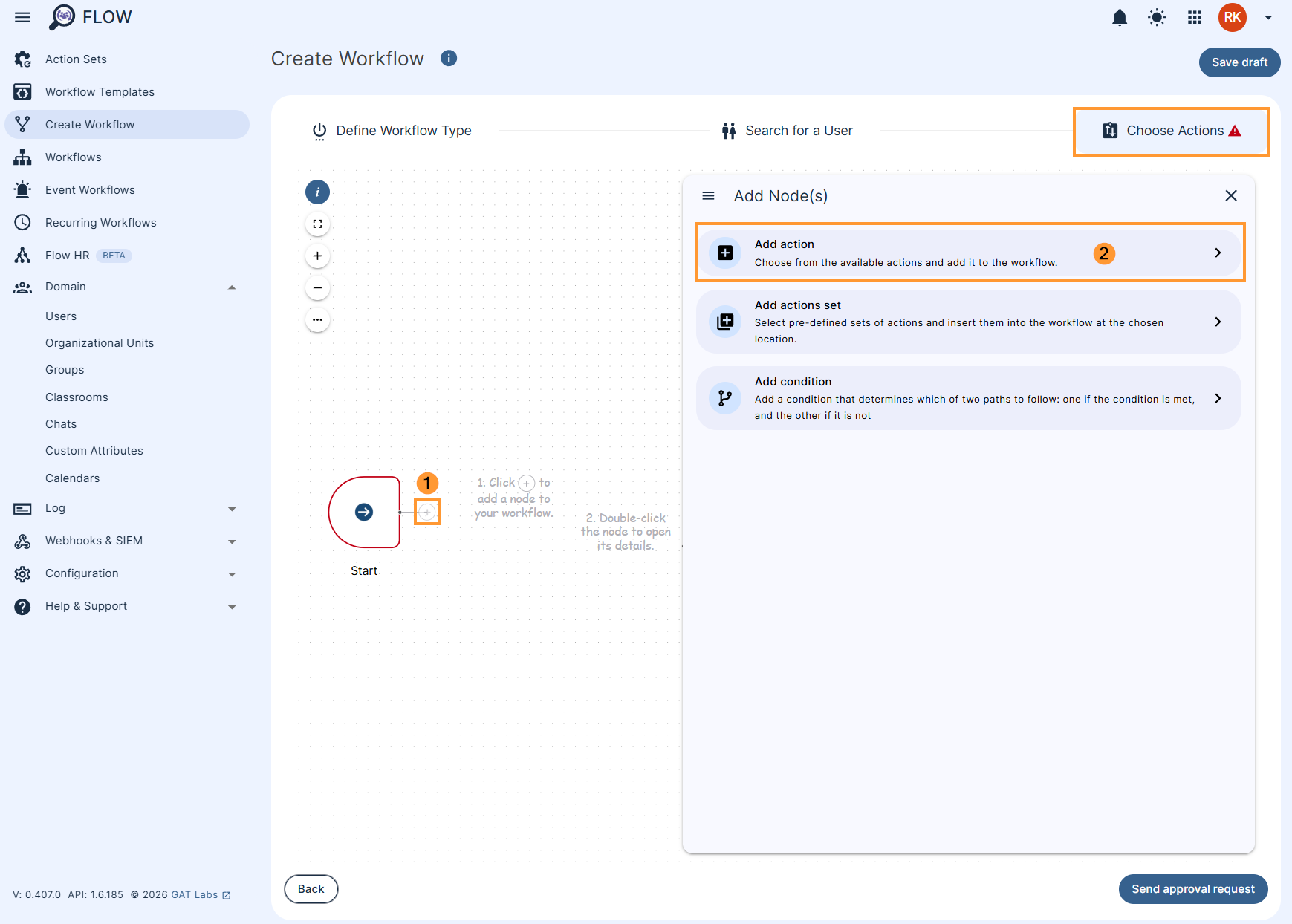
In the Choose actions click on the (+) button (1) and then click the Add action button (2)
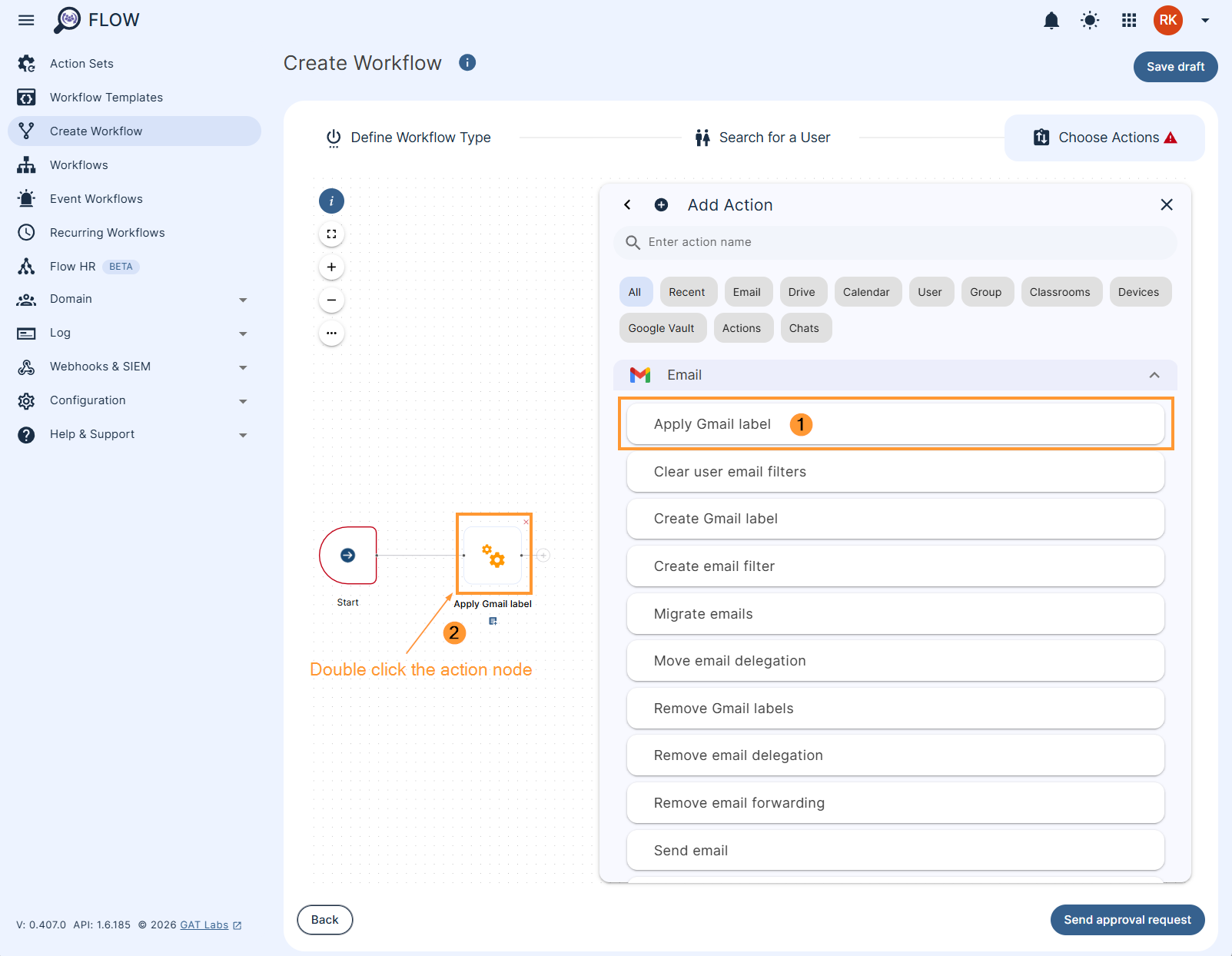
Afterwards, search and add the action Email > Apply Gmail label (1) then double click the Apply Gmail label action node (2).
Next, decide whether to apply a label for all or particular emails under the selected user(s) account(s).
Apply to all emails #
Apply Gmail label to All emails, make sure to select the ‘Apply to all emails’ (1) option, type the Label name (2) that will be applied to those emails that meet the criteria set up under the ‘Query‘ field (3) (optional). Optionally, you can also select the Include spam and trash (4). The changes you made to the action are automatically saved and you can now click outside of the ‘Apply Gmail label’ pop-up box or by clicking the ‘X’ in the top right of the pop-up.
Once ready, Send approval request (5) to the Security Officer.
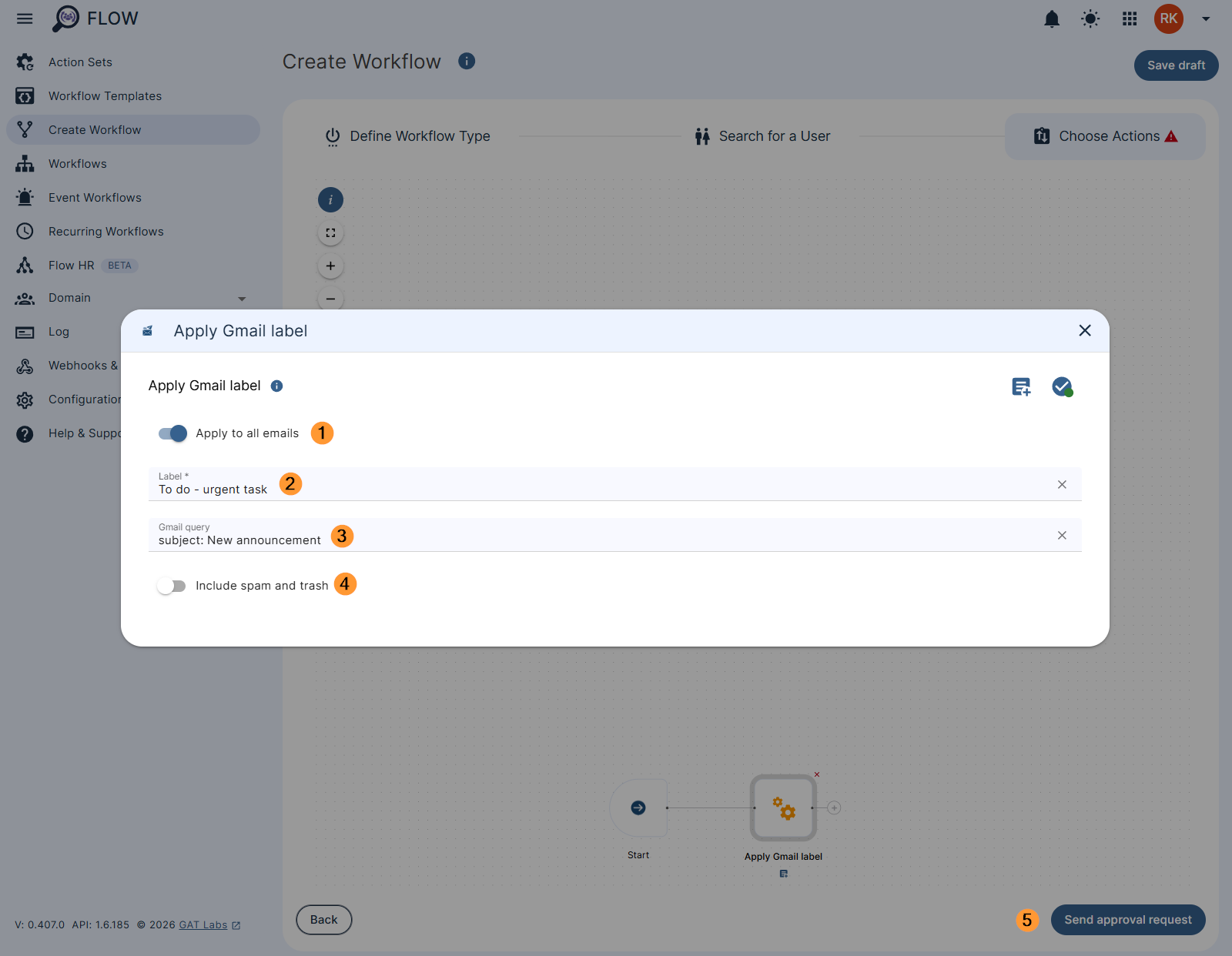
The system will apply the selected label to a specified number of emails—specifically, all emails that meet the condition set in the Query field.
To build up your own Query, refer to this document: Refine searches in Gmail
X Day back emails #
To extract only the most recent emails, use the ‘Days back’ configuration (1) and define the number of days (2) to be considered for the search.
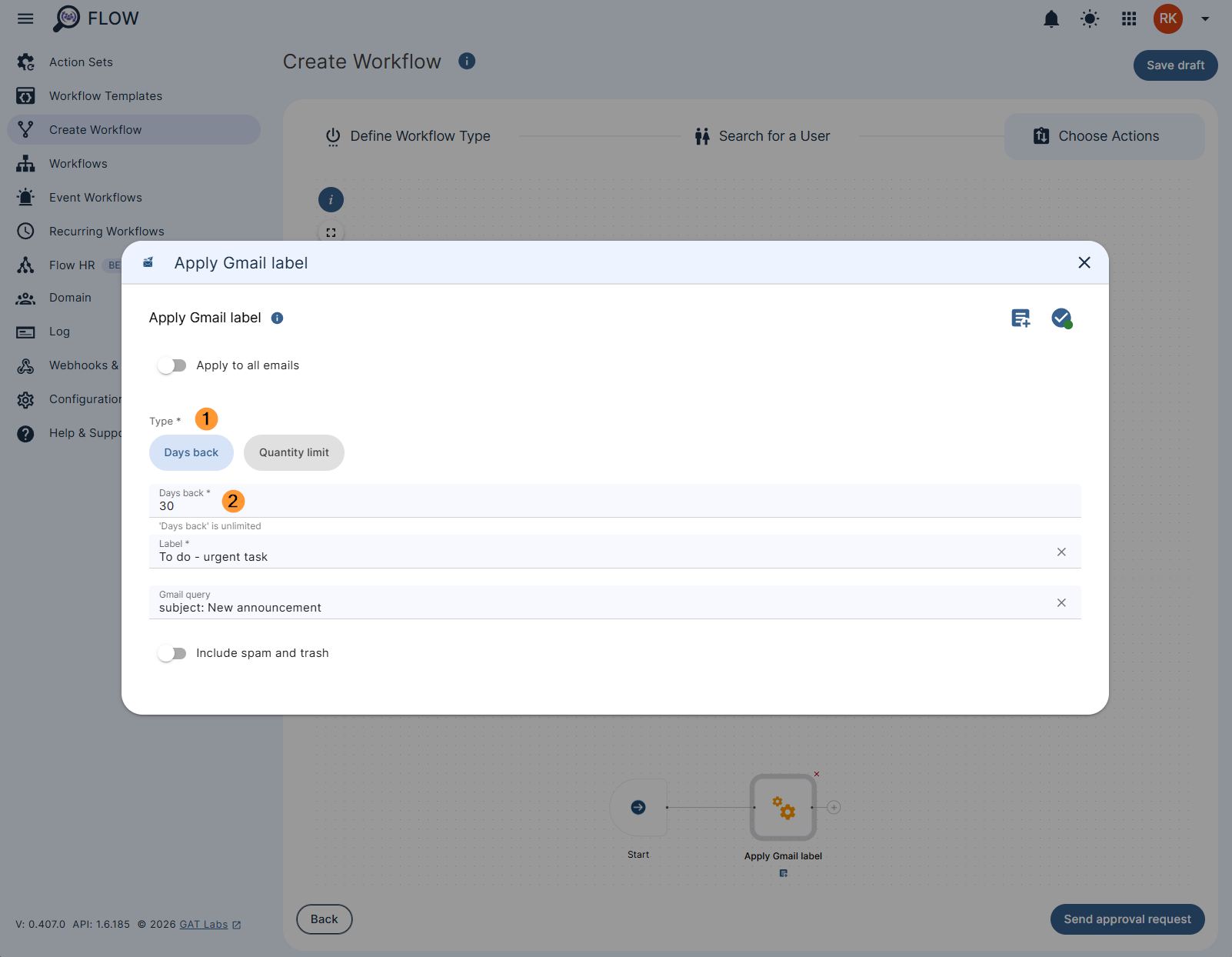
NOTE: “Days back” has a limit of 365 days (12 months) per user selected.
X Quantity of emails #
To limit the number of emails that you wish to label, use the ‘Quantity limit‘ option (1)in the action setup and define the number of emails (2) to be considered for the search.
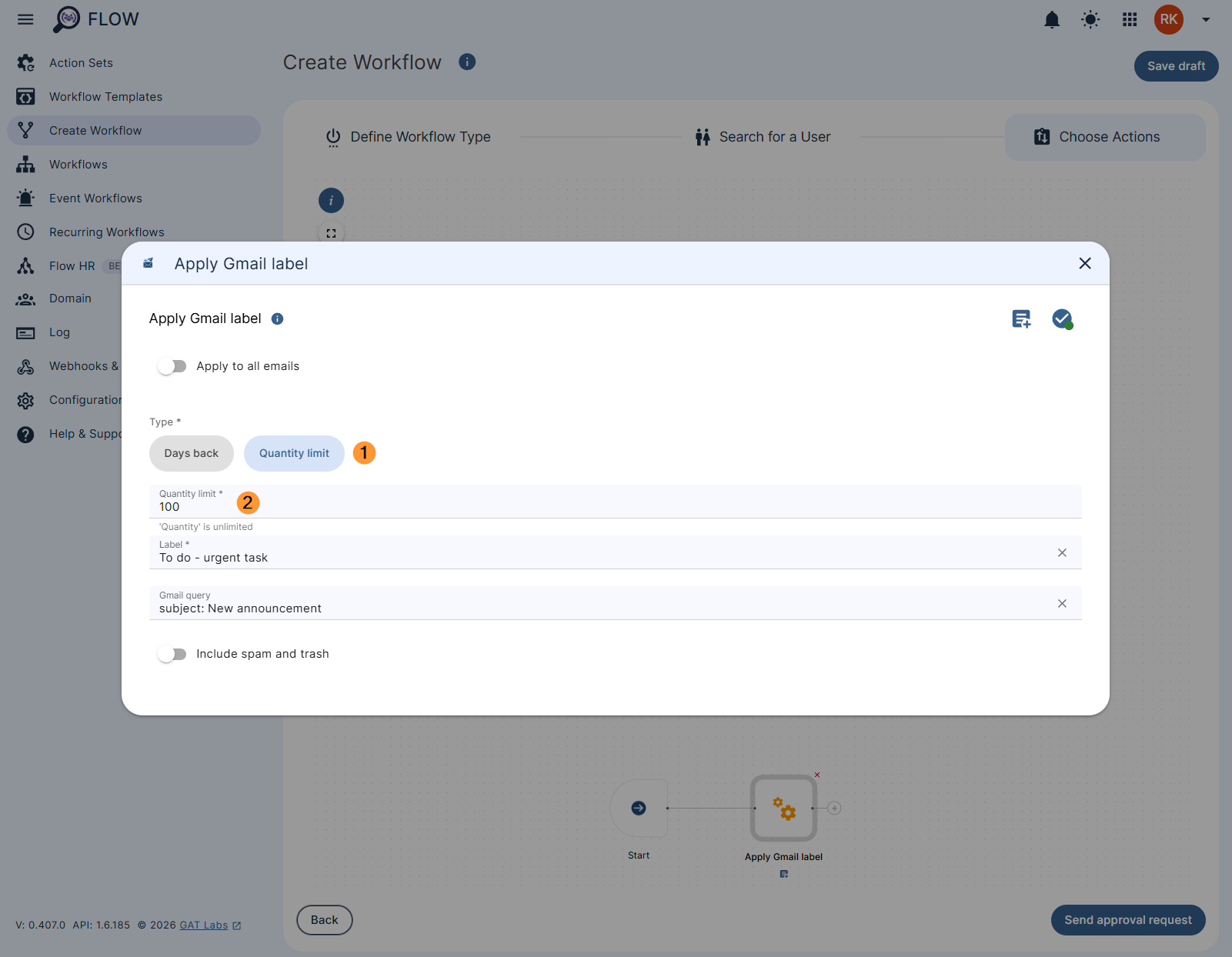
NOTE: Quantity limit is set to last 10,000 per user selected over any time frame.
Security Officer approval #
Note: If there is pre-approval enabled the workflow will be set to run right away, if not, a Security Officer must approve the request first to be executed.
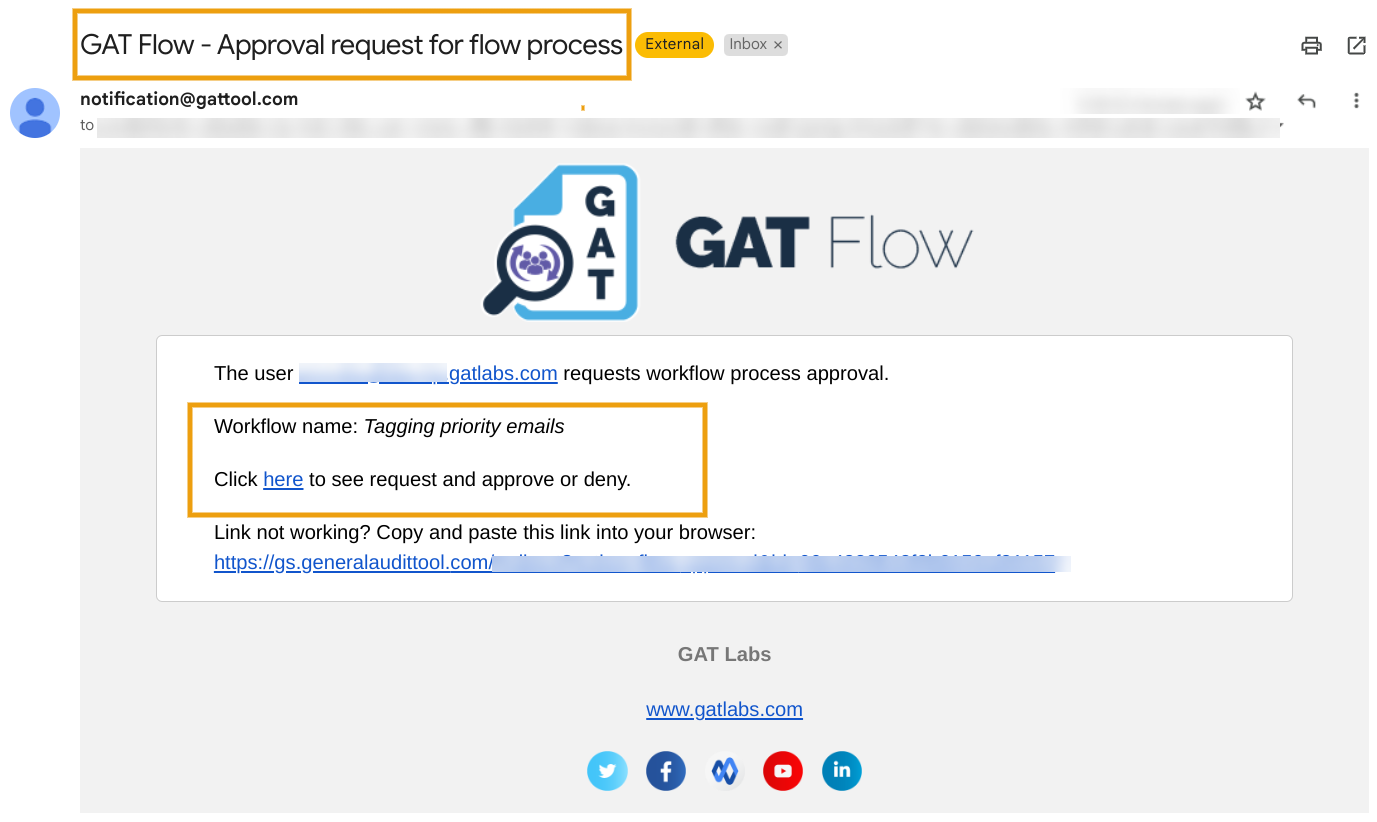
The Security Officer receives an email notification about the workflow and has to approve it. After that, the workflow will be set to run.
Results #
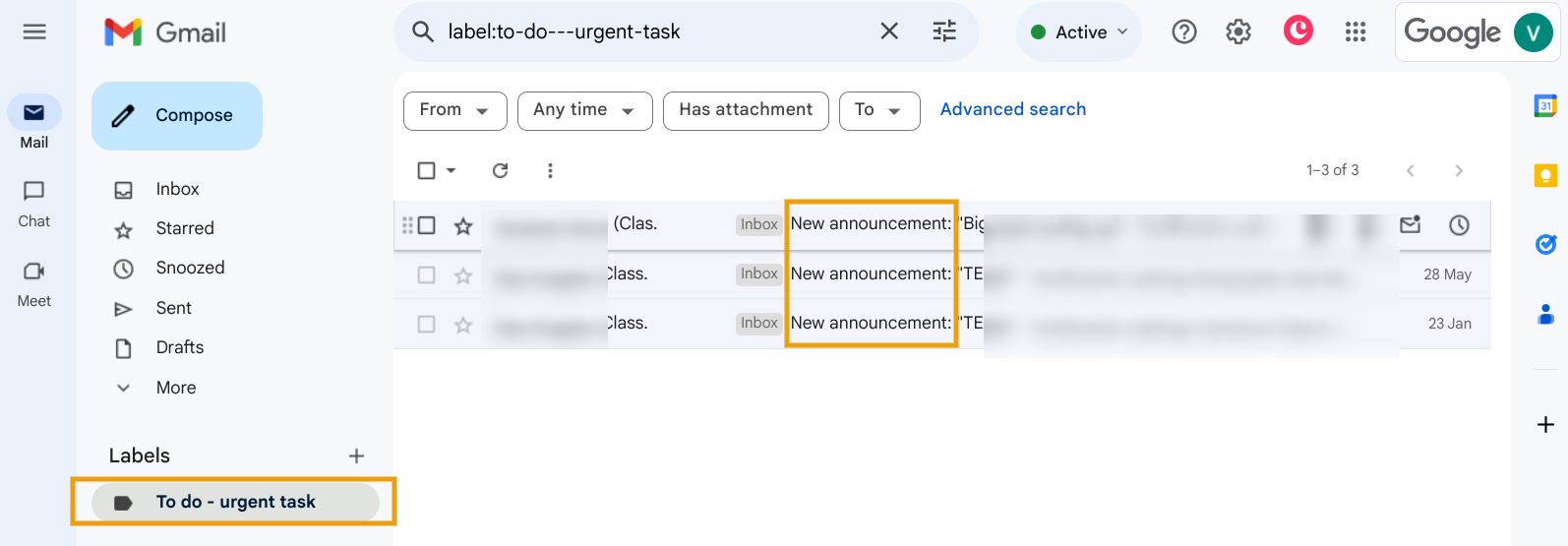
- The selected Gmail label will be applied based on your chosen criteria.
Availability #
The “Apply Gmail Label” feature is available to all GAT Flow users, including domain administrators and auditors with workflow creation permission.


