

GAT Flow allows admins to easily Suspend or Unsuspend the user in the domain.
It is a user management tool. It allows the Google Workspace Admins to onboard, offboard, and modify existing users. This can be done manually or via automated workflows. There are multiple different actions that can also be taken.
Launch GAT Flow #
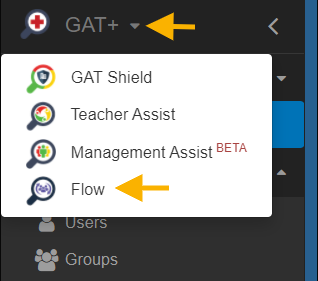
In GAT+ from the menu on the left, click the GAT+ icon and then Flow.
Create workflow #
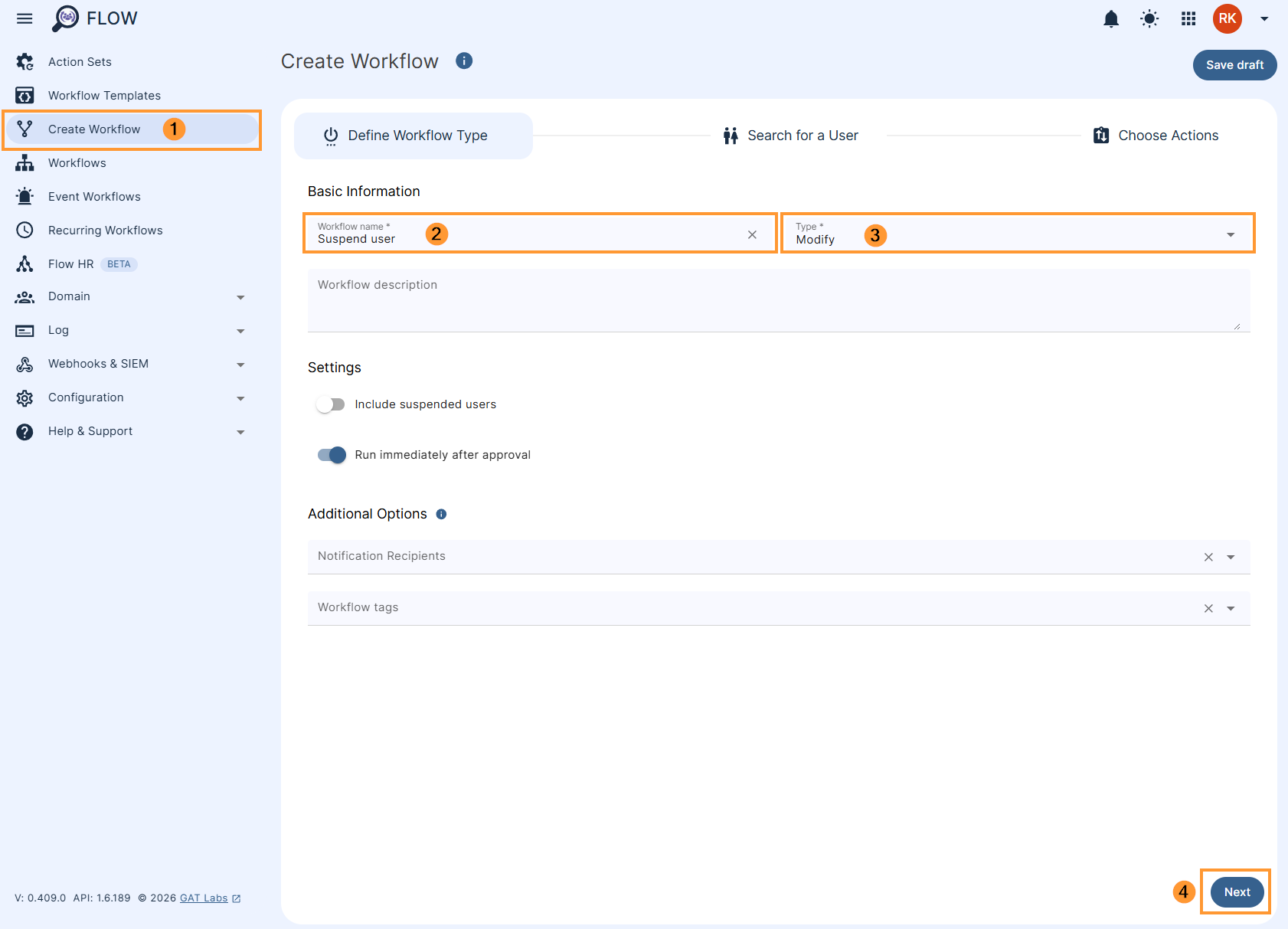
First, navigate to Flow > Create workflow (1).
Workflow type #
In the Workflow fill in the details. You can set it up also as an Event workflow or Recurring workflow.
- Name – enter the name of the workflow (2)
- Description – enter a description for the workflow (optional)
- Type – select what workflow type you would like to run
- Modify – modify existing users (3)
- Include suspended users – enable or disable to allow you to select users who are currently suspended:
- If enabled – you will be able to select even users who are suspended
- If disabled – you will be able to select only users who are active
- Run immediately after approval – provides an option to schedule the workflow to run in a selected future time (optional)
Later click Next (4) to proceed.
Search for a user #
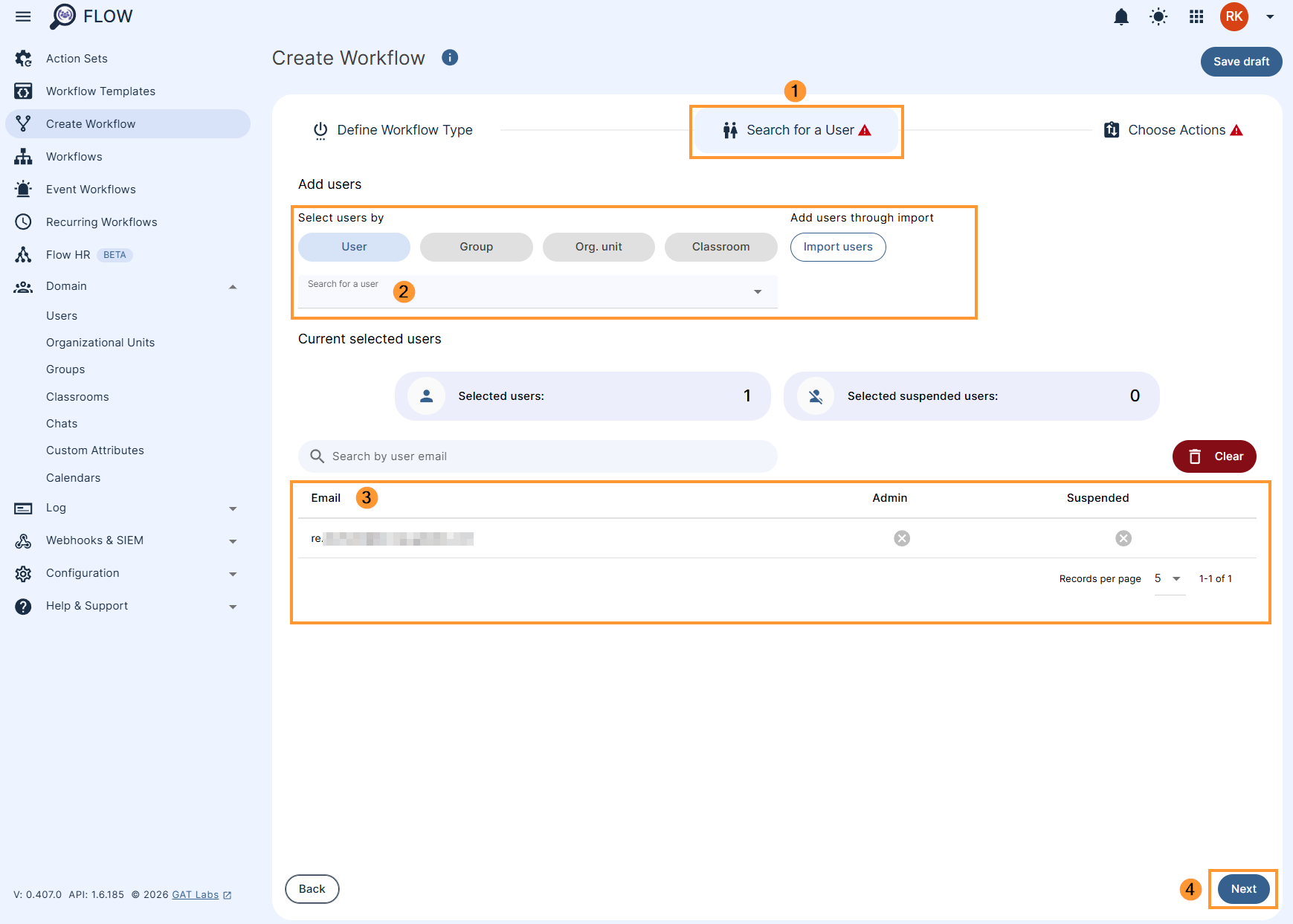
Select the users for whom you would like to remove Gmail labels (1) from. You can select a user, group of users, or org. unit of users (2-3), and even use the Import users option.
After selecting the users, click on the Next button (4).
Actions #
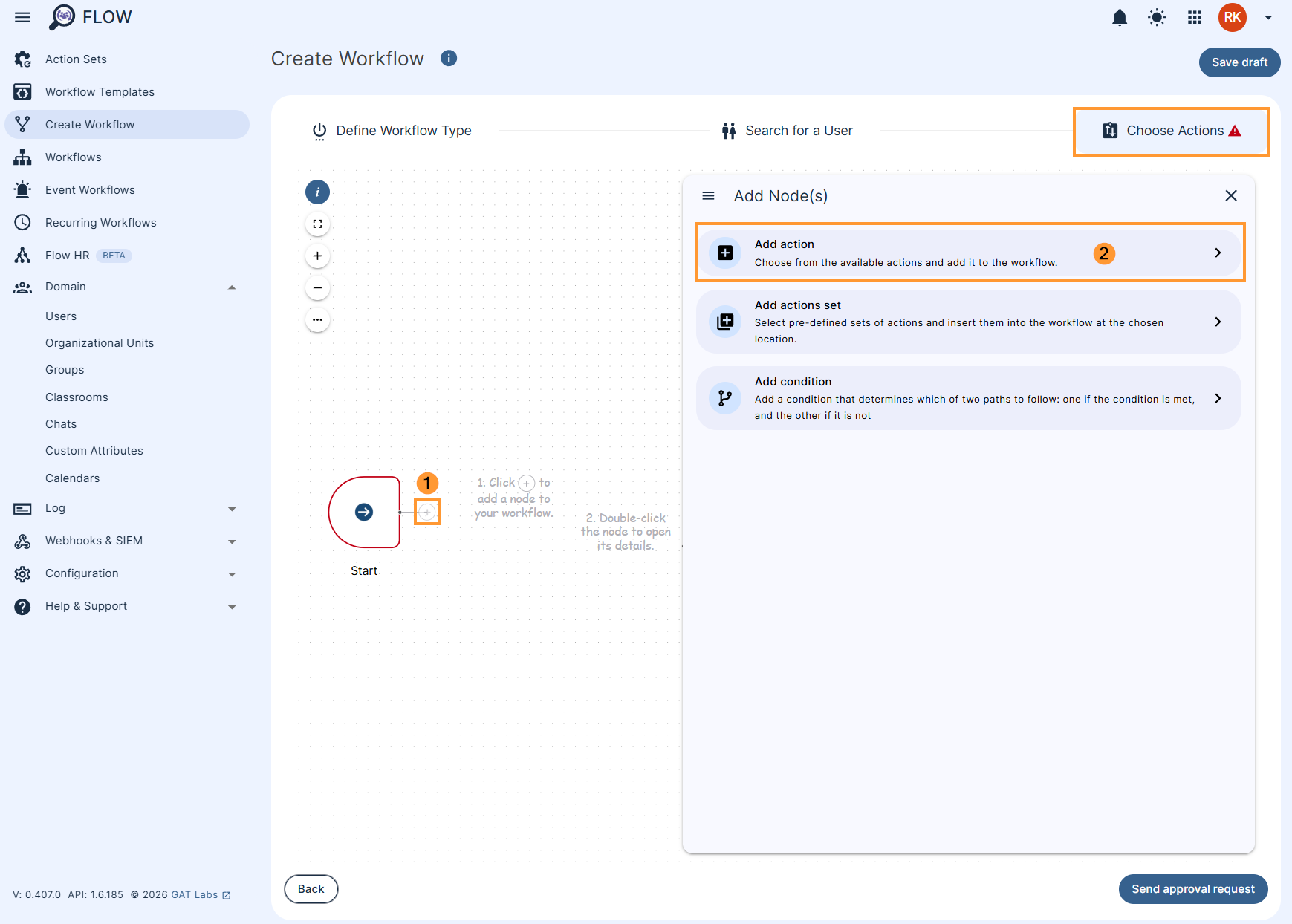
In the Choose actions click on the (+) button (1) and then click the Add action button (2)
Afterwards, search and add the action User > Suspend user.
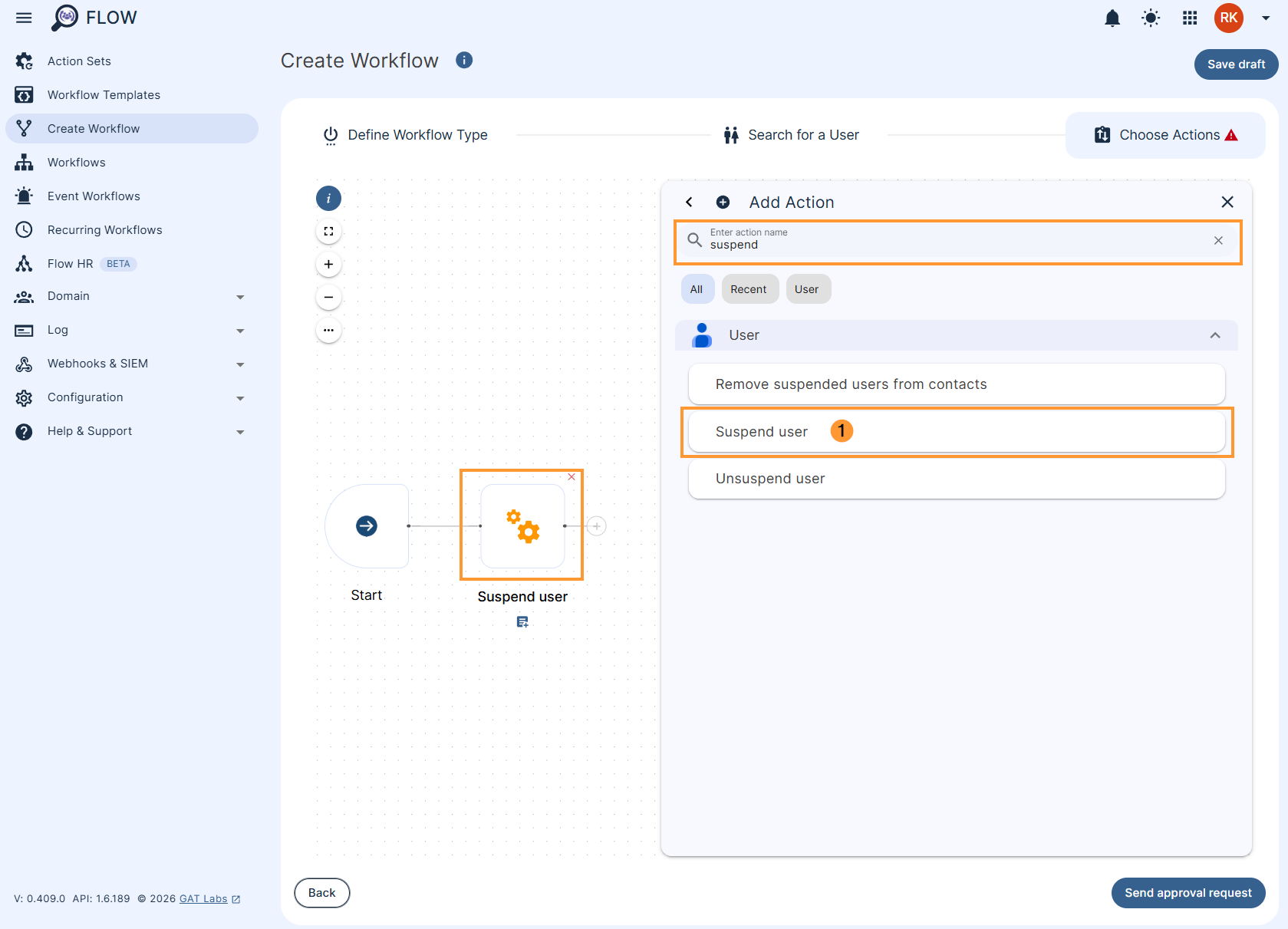
Once the action is selected, the option to Suspend user will be displayed. This action doesn’t need any additional configuration and is ready to go.
When ready click on Send approval request – under the menu on the left
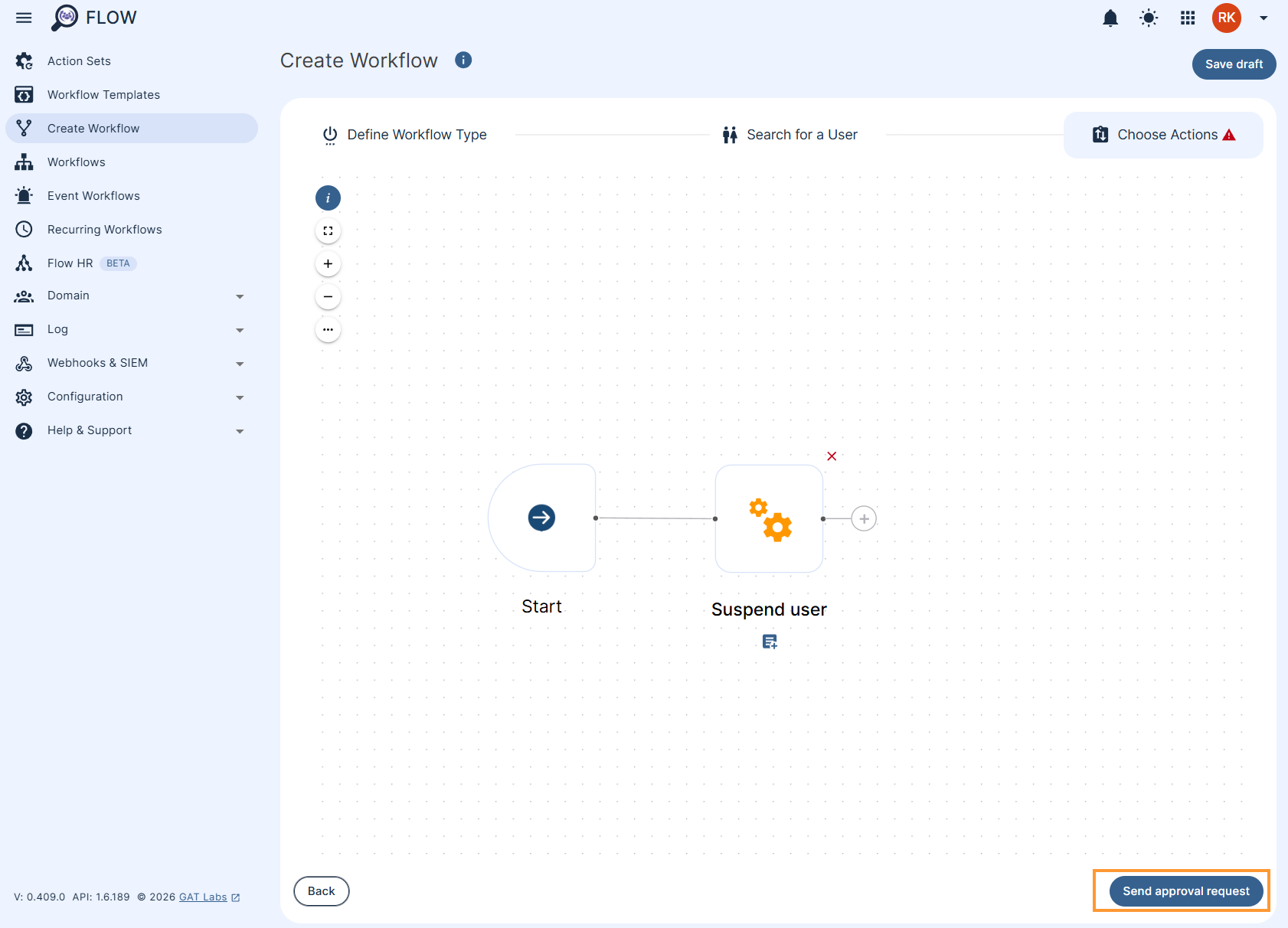
The workflow will be submitted for approval.
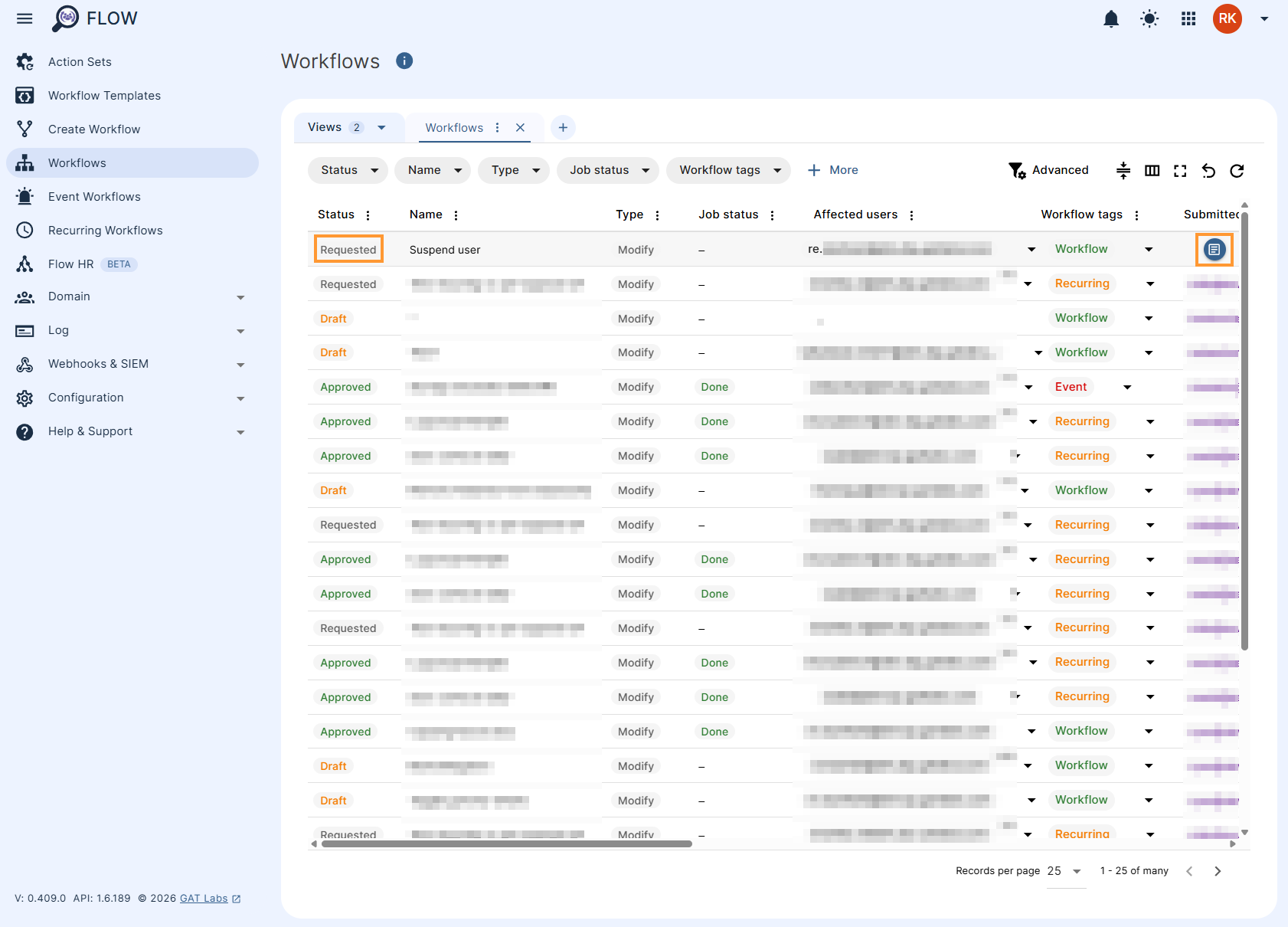
The workflow can be reviewed or edited if needed by clicking the ‘page icon’ on the right-hand side.
Security officer #
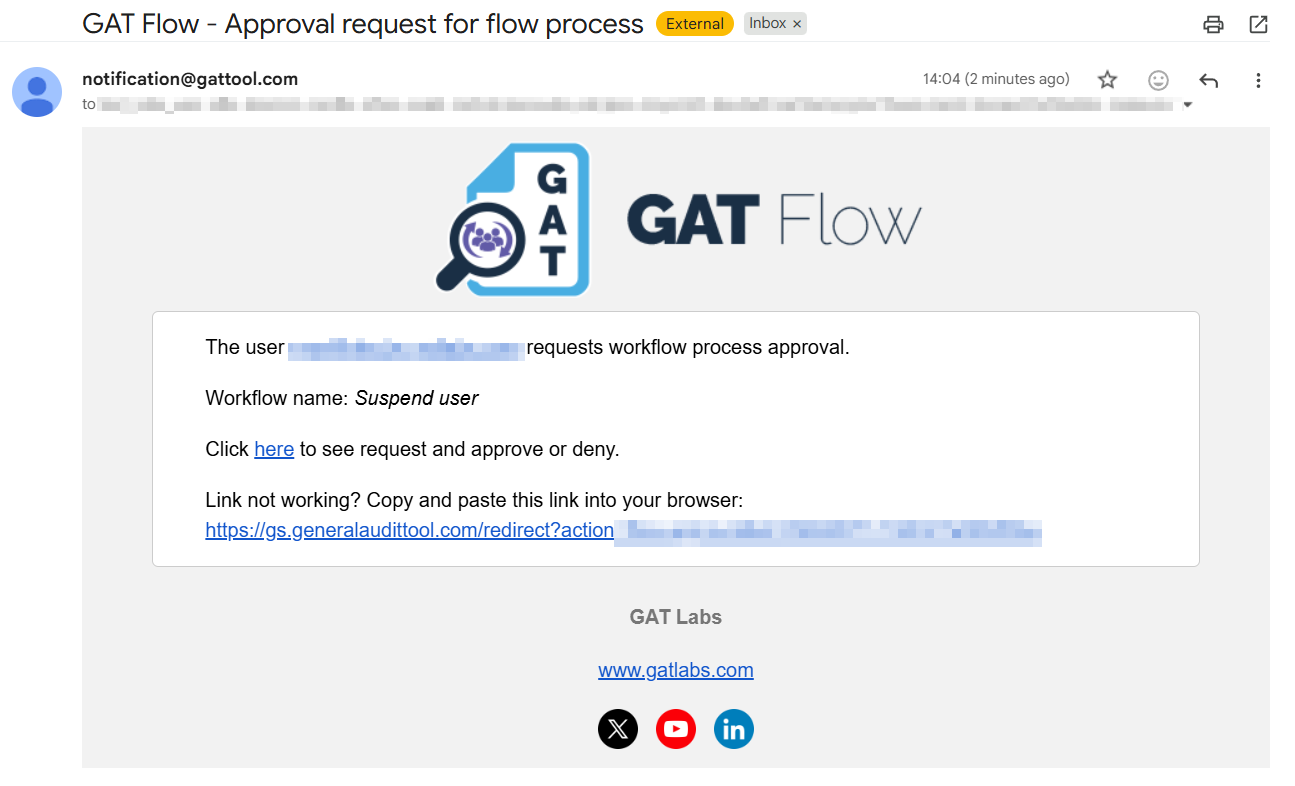
The Security officer will receive an email notification for approval.
Result #
When approved, the user would be Suspended or Unsuspended based on the actions chosen.


