

Many files leave your domain through the browser, bypassing standard Google Drive sharing controls. Whether it’s a spreadsheet being uploaded to a “free” PDF converter or sensitive data being pasted into an AI prompt, most Google Workspace admins have zero visibility into these browser-level interactions and can’t monitor file uploads to websites.
GAT Shield gives admins total visibility into this activity. With it, you can:
- See which users upload files outside of Google Workspace.
- Identify uploads to AI tools, web apps, and unknown sites.
- Investigate potential data exfiltration in seconds.
How it Works: “Intent vs. Completion.” #
Our system monitors website interactions in real-time. When a user selects a file to use on a website (via a file picker or “Upload” button), the Audit logs that this file was queued for action on that specific site.
Important Note: Because browsers prioritize privacy, they do not provide an API to confirm if a file transfer was 100% successful or if a form was actually submitted. Think of this as a record of “File Activity”. It shows that a file was handed over to the website’s interface, representing the intent to upload.
Navigating to the Audit #
To view, audit, and monitor file uploads, navigate to: GAT Shield > Audit > Uploads.
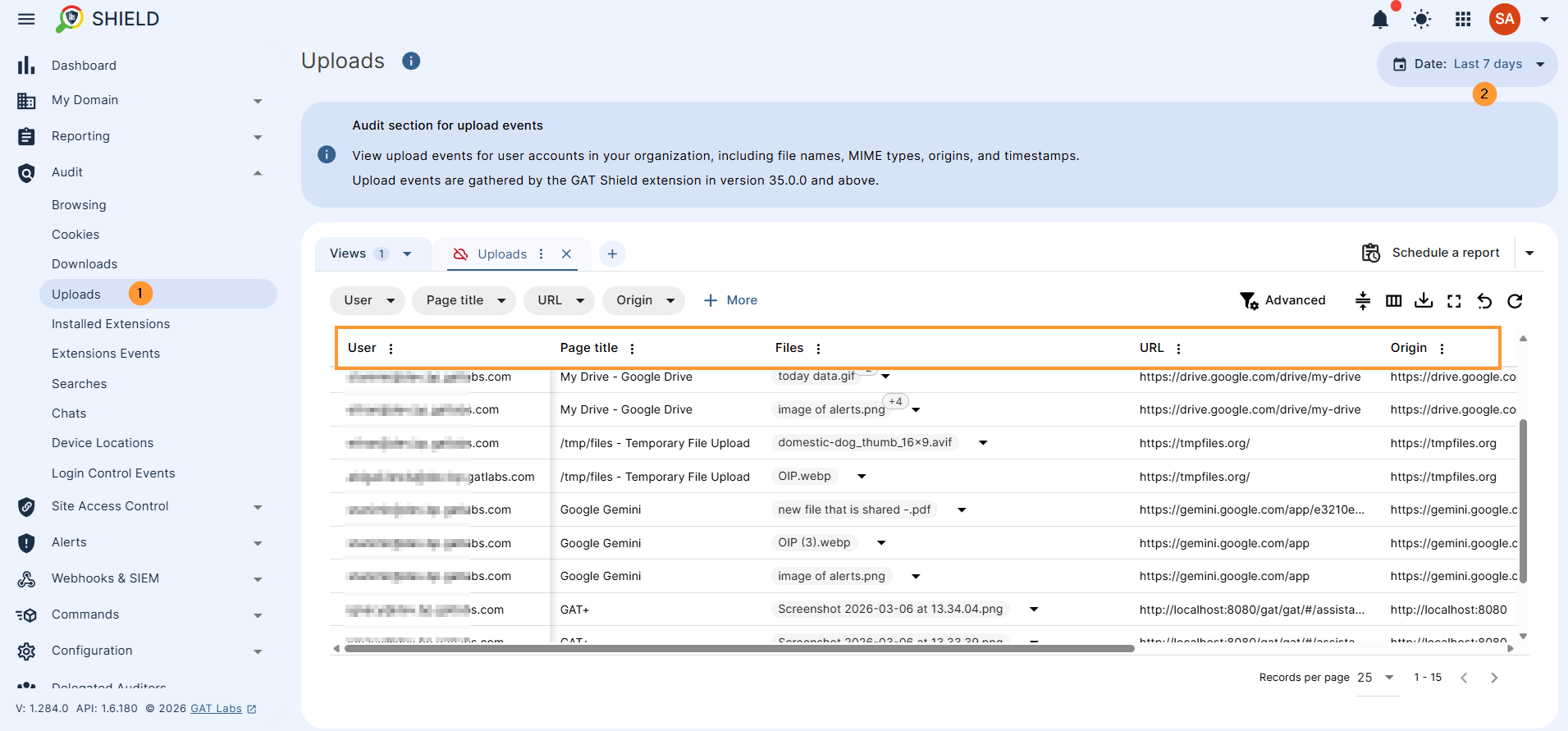
This audit allows you to view:
- User: The specific person who triggered the upload.
- Page Title: The name of the webpage where the activity happened (e.g., ChatGPT, SmallPDF, or Google Gemini).
- Files: The specific file name and type that the user selected.
- URL: The exact web address where the file activity was recorded.
Example Scenarios #
In the audit, you can clearly identify when a file is provided to platforms like SmallPDF for conversion or ChatGPT, Google Gemini, or Google Drive for analysis, giving you a transparent view of data movement across your organization.
Scheduled report #
The data from the uploads audit can be set up and run as a scheduled report. Thus allowing you to have a daily/weekly report sent as an email for all upload activities.
FAQ #
Q: Does a log entry confirm that a file was interacted with on a website?
A: Yes. GAT Shield successfully captures the moment a user selects a file via a site’s “Upload” button or file picker.
This provides admins with critical visibility into the user’s intent to share data with that site. While browsers prioritize privacy by not sharing the final “upload success” signal, this log confirms that a user handed over the file to the website’s interface for processing.
Q: Does the URL identify the web destination where the file activity occurred?
A: Yes. The URL and Page Title in the audit provide the exact “Origin” or web destination (such as chat.openai.com, smallpdf.com, or gemini.google.com) where the file activity took place.
To protect user privacy, browsers restrict access to local hard drive paths, so GAT Shield focuses on providing the most important information: which sensitive files are being moved to which external web services.


