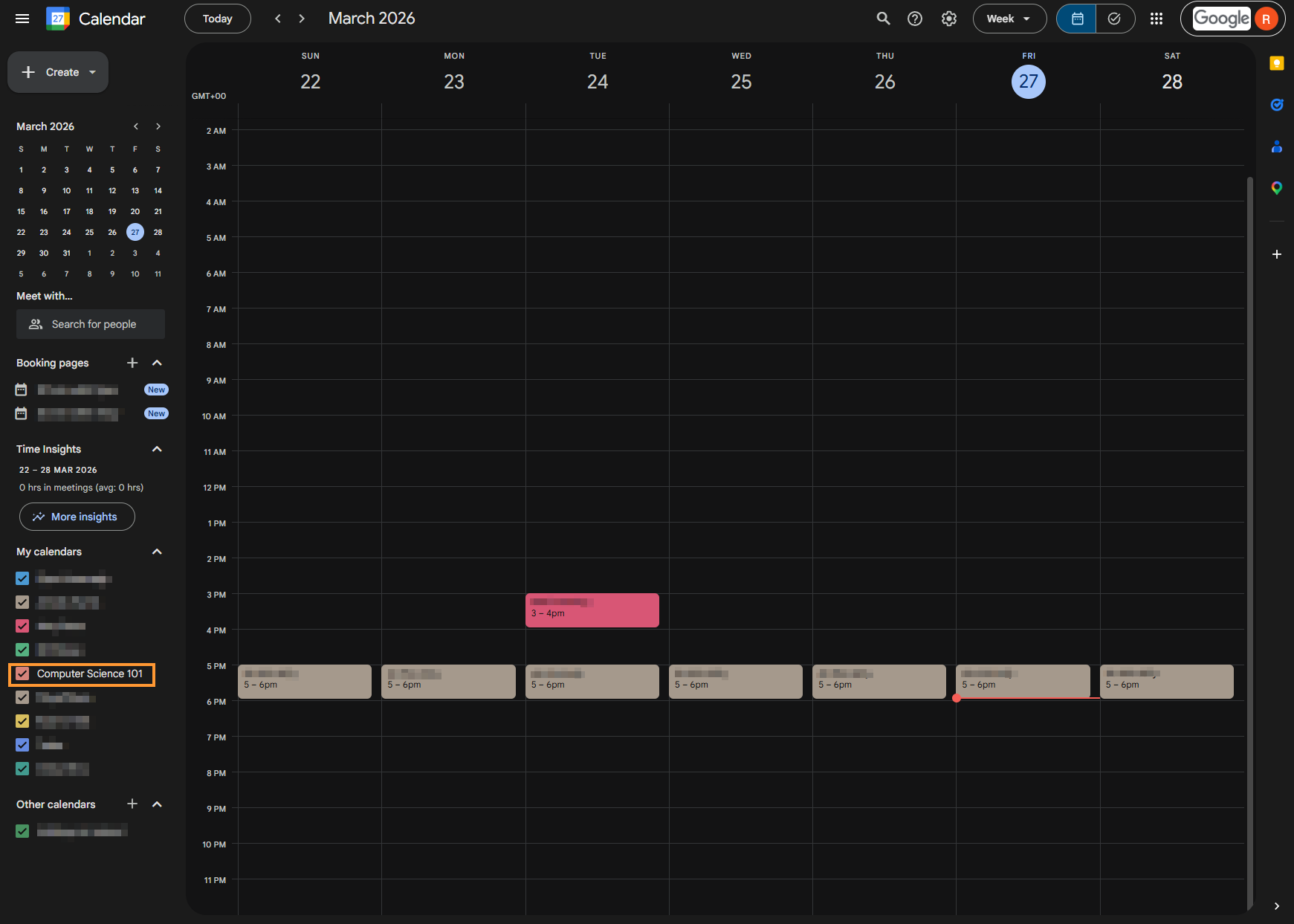
With GAT Flow you are now able to Bulk add Users’ permissions to selected Calendars!
Admins can enable users of their domain to have access rights such as Owner, Reader, Writer to selected calendars
Flow #
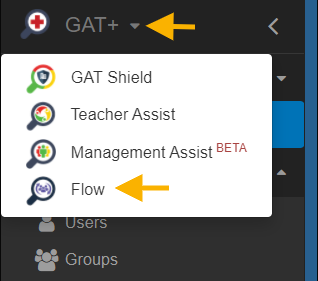
Navigate to GAT+ > Flow
Create workflow #
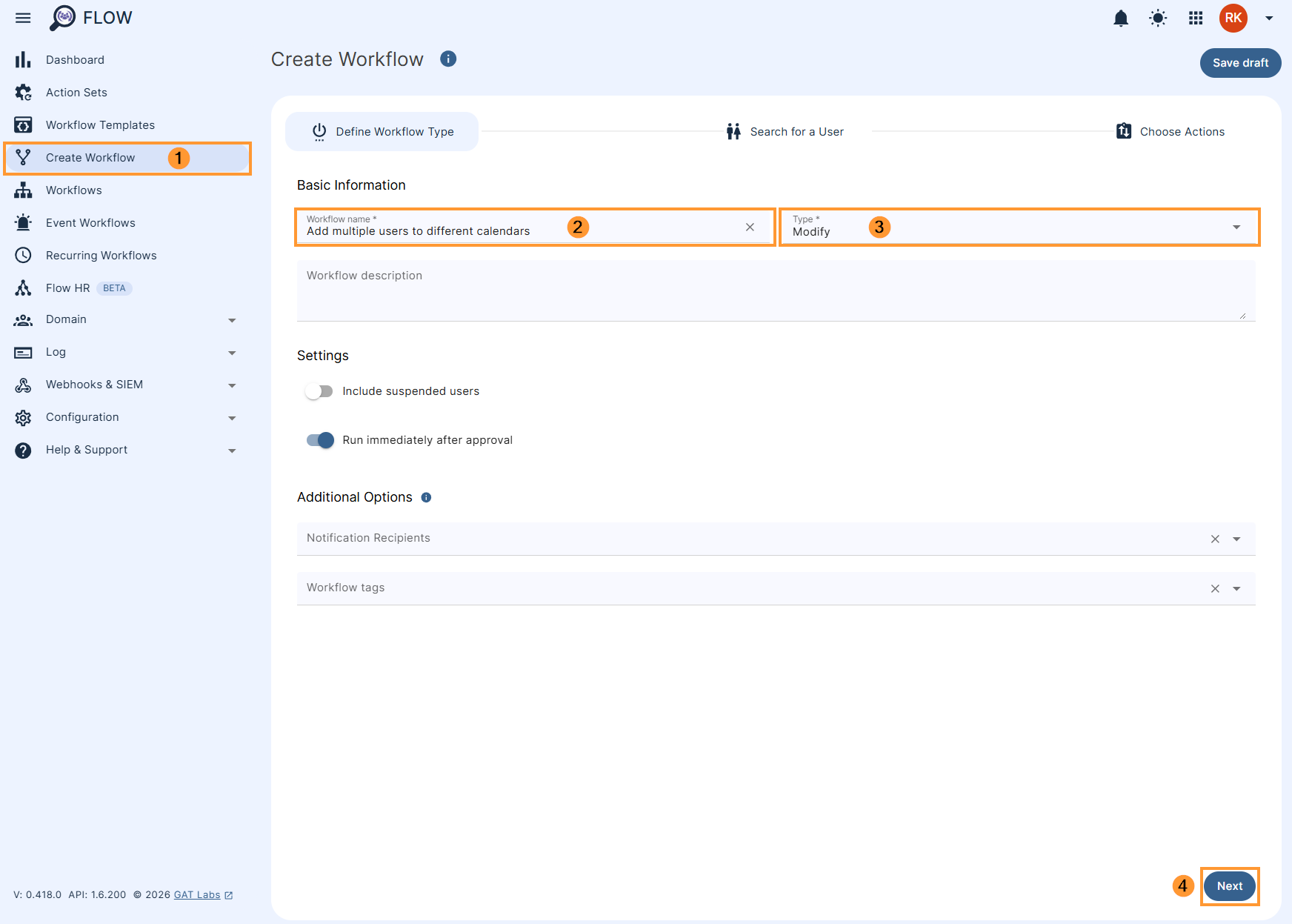
First, navigate to Flow > Create workflow (1).
Workflow type #
In the Workflow fill in the details. You can set it up also as an Event workflow or Recurring workflow.
- Name – enter the name of the workflow (2)
- Description – enter a description for the workflow (optional)
- Type – select what workflow type you would like to run
- Modify – modify existing users (3)
- Include suspended users – enable or disable to allow you to select users who are currently suspended:
- If enabled – you will be able to select even users who are suspended
- If disabled – you will be able to select only users who are active
- Run immediately after approval – provides an option to schedule the workflow to run in a selected future time (optional)
Later click Next (4) to proceed.
Search for a User #
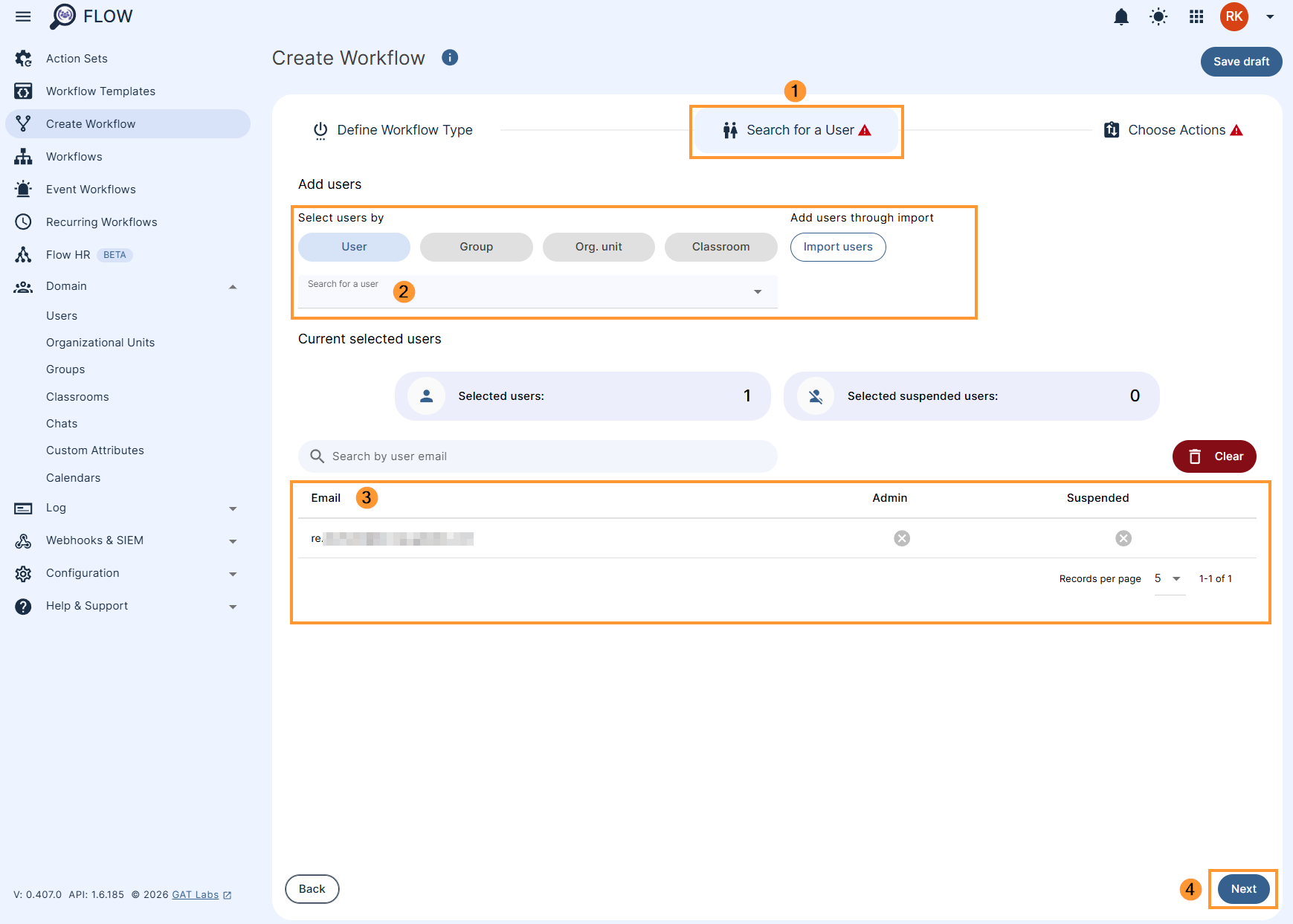
Search for the users and add them
- Search for a user – click and search for individual users
- Search for a group – click and search for a group of users
- Search for an OU – click and search for the OU of users
- Search for a classroom – click and search for a classroom of users
- Next – click to proceed further
Choose actions #
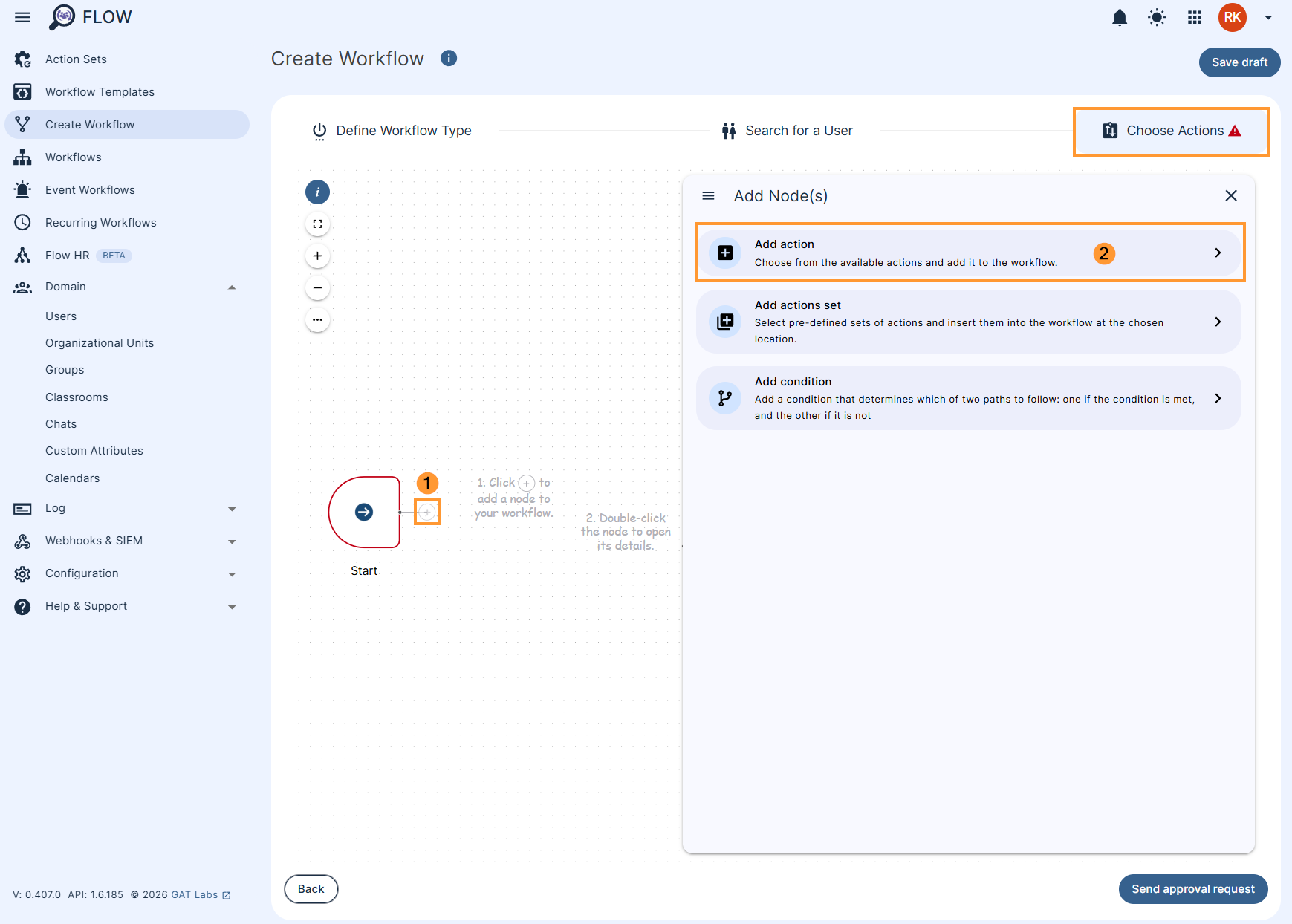
In the Choose actions click on the (+) button (1) and then click the Add action button (2)
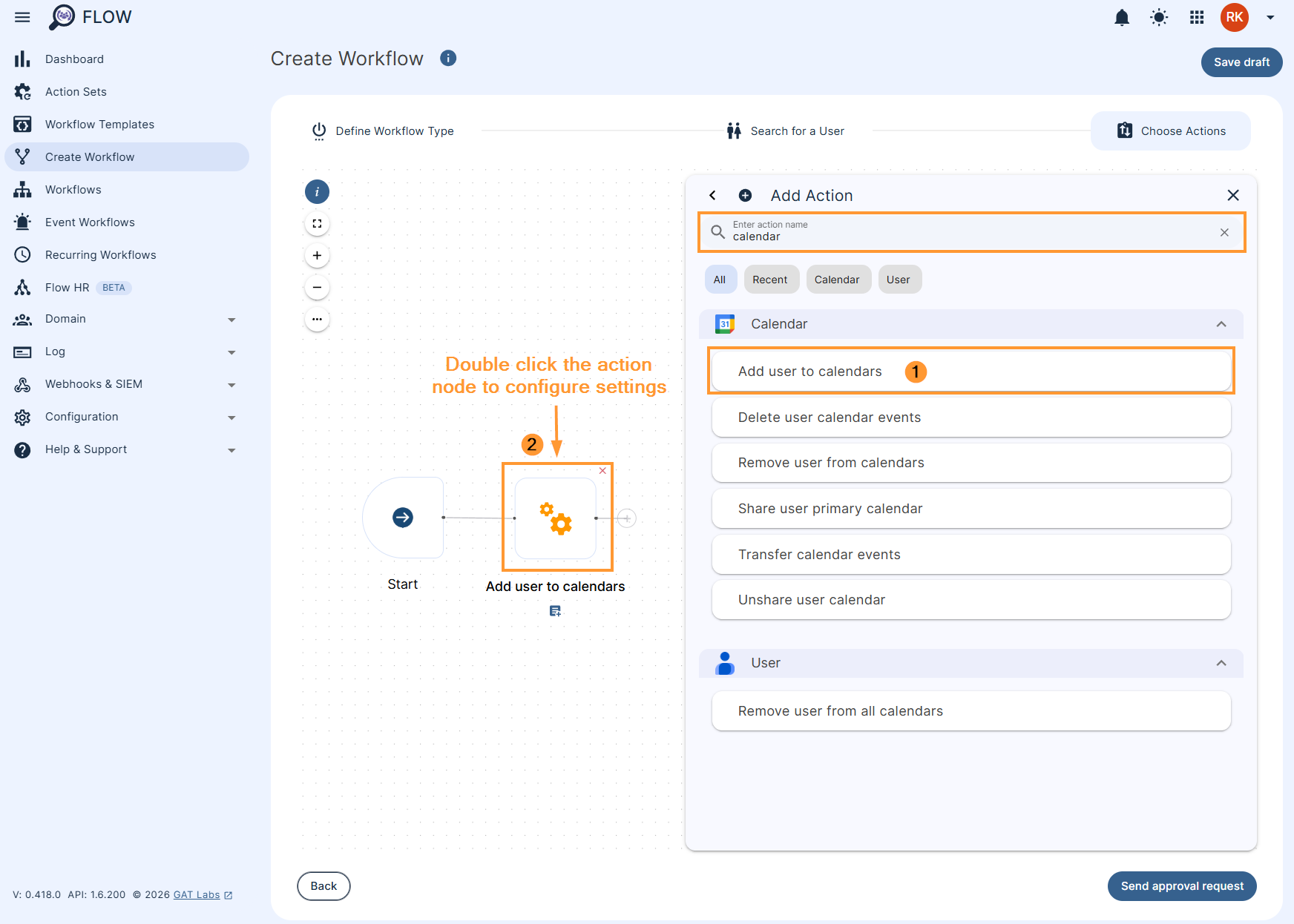
Search for the “Add user to calendars” (1) option it will be under the Calendars tab.
- Add to – enter the users from whose calendar you want to add users to
- You can also search and enter any calendar available
- Permission – select the type of permission to add
- Writer
- Owner
- Reader
- Free/busy reader
- Subscribe – subscribe to the selected calendars
- Enable or Disable the subscription
- Send invitation email – have an invitation email sent
- Enable or Disable the invitation.
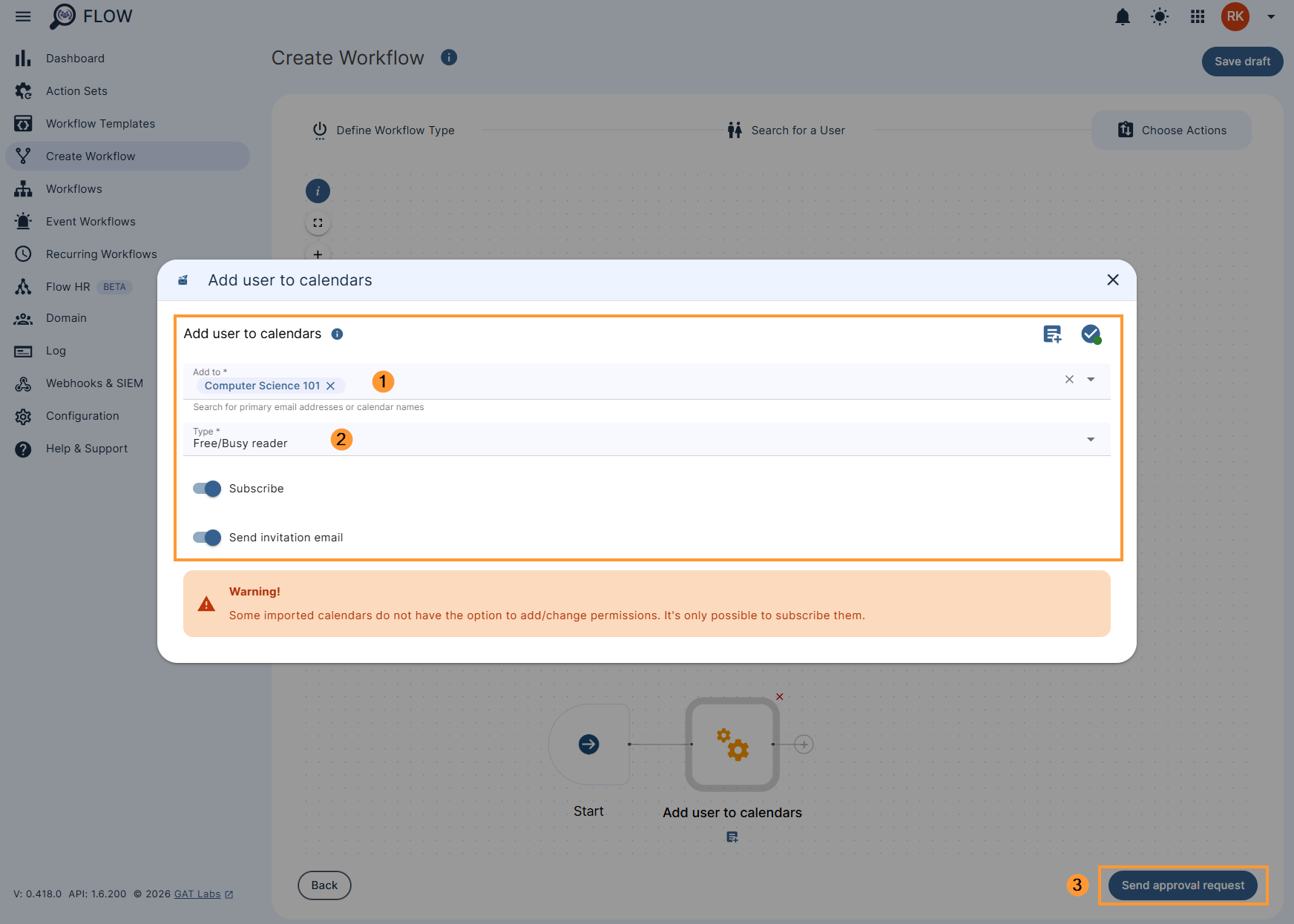
Send approval request – click to send the request to the security officer.
Note: The Admin can have pre-approved access, if enabled and used no approval email will be sent. Please check for more information
Security officer approval #
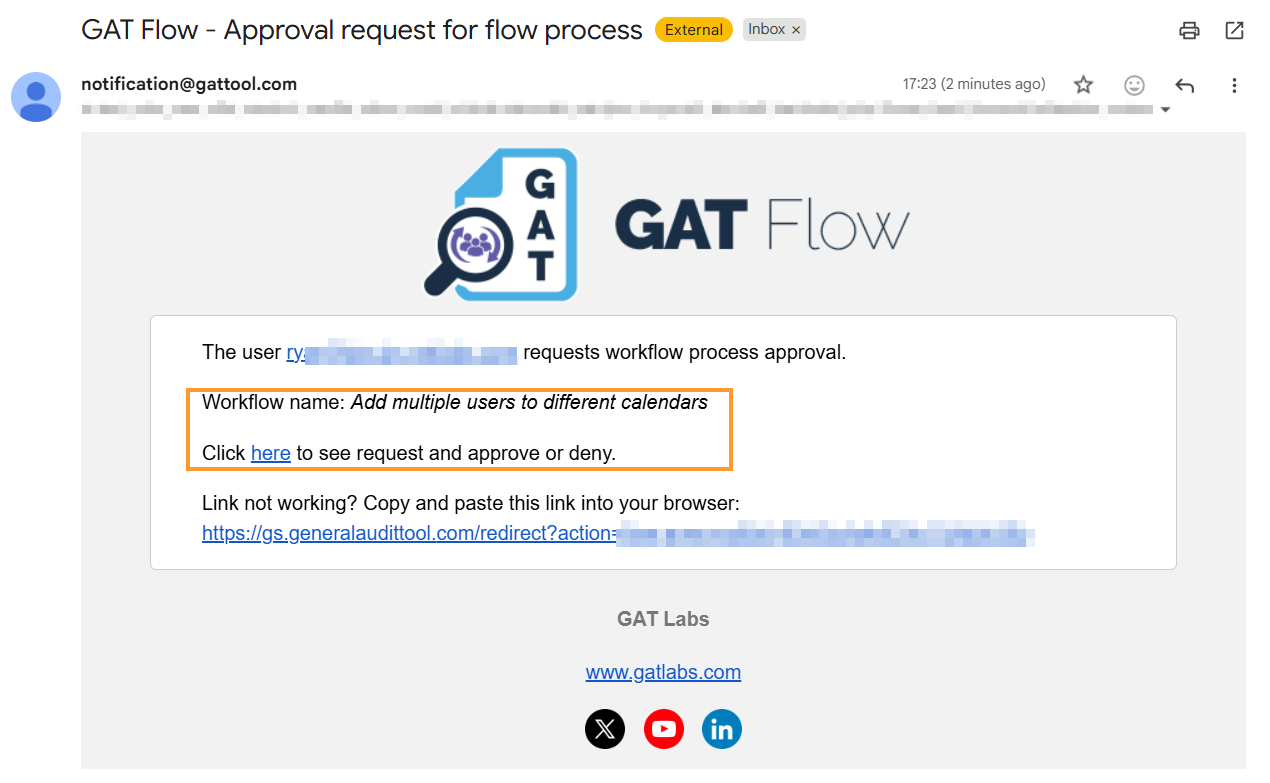
The Security officer will receive an email notification to approve the request.
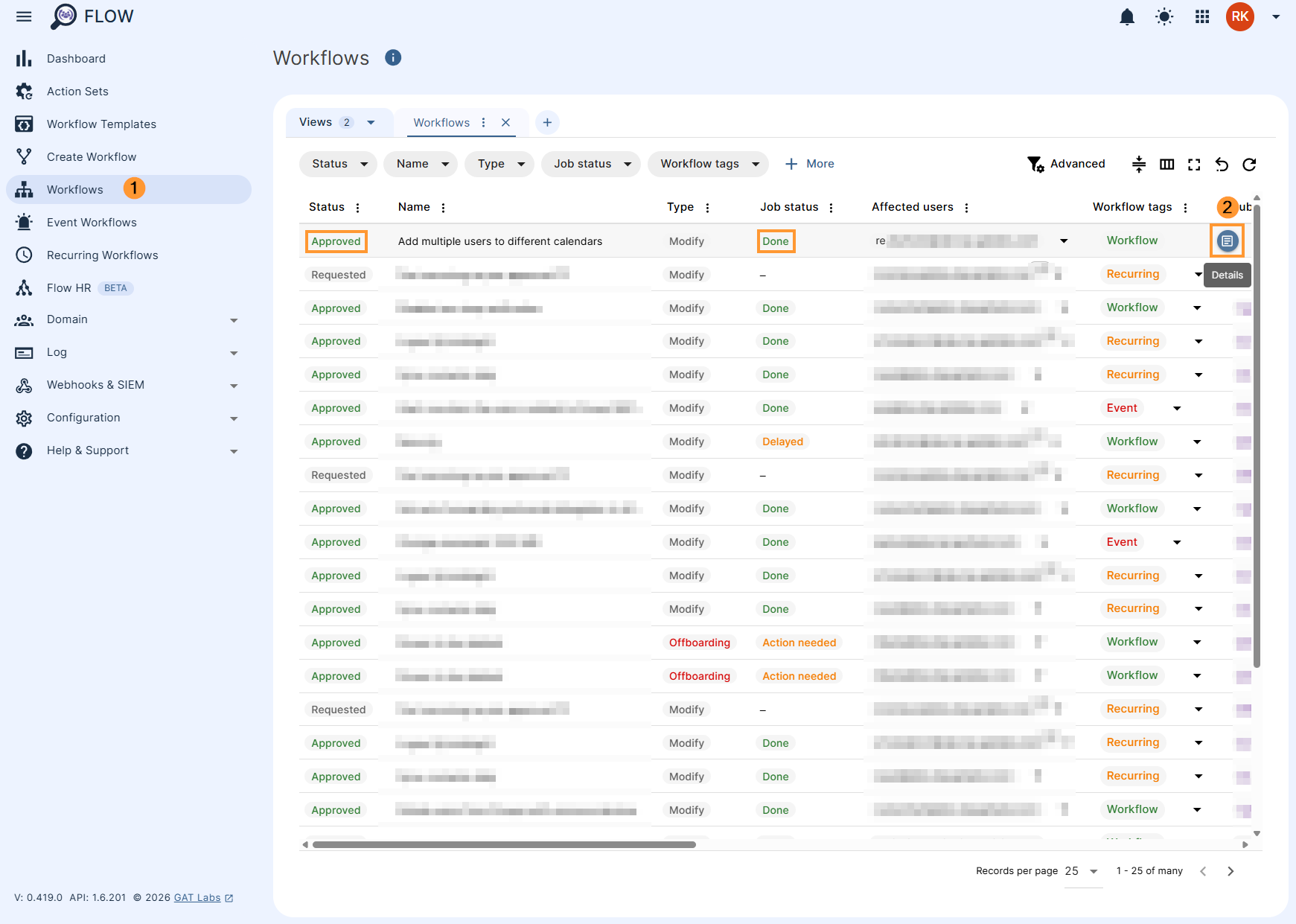
The details of the workflow can be seen by the Admin in the Workflow tab.
Result #
The users will be added to the selected calendars with different types of permissions such as Owner, Writer, Reader, and Free/busy reader.
The selected users will have the Calendars added to their calendar and subscribed
The Users picked in the “Search for a user” tab, will be added (subscribed) as readers to the chosen calendars