

Lock student screens for exams with Teacher Assist #
During online assessments, exams, or focused study sessions, maintaining student attention and preventing academic dishonesty is a top priority. The Lock Tab feature in Teacher Assist empowers educators to restrict student Chrome browser navigation in real time.
By locking a single active tab, a domain, or automatically pushing an exam URL while closing all unapproved tabs, teachers can instantly convert standard web browsers into secure, distraction-free testing environments. If a student attempts to open a new tab, navigate away, or close the assigned exam page, Teacher Assist automatically redirects them back to the required page within one second.
How to lock student screens for exams #
Log in to your Teacher account and navigate to the Google Apps button and launch GAT+

In Teacher Assist > click on Classrooms and start a classroom session.
Lock tab for all students #
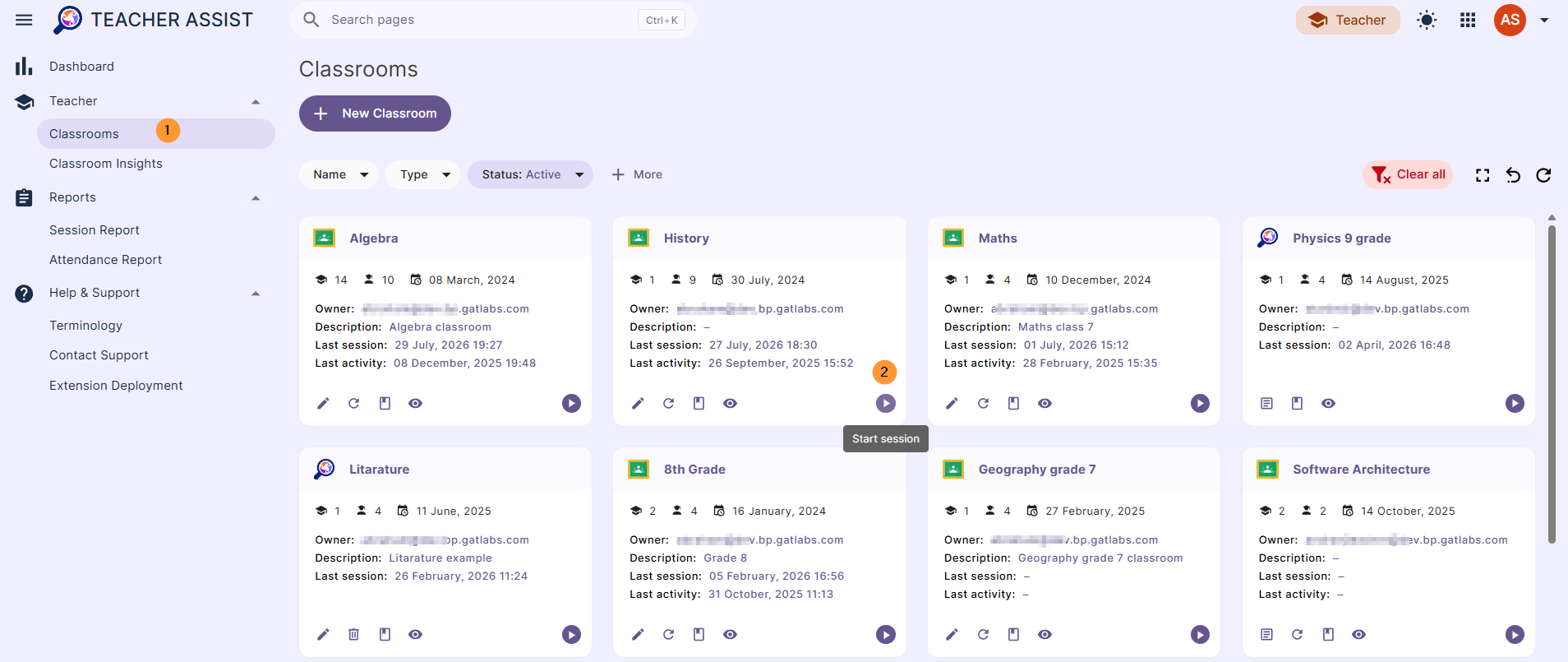
Once the classroom is live, a teacher can set a lock tab for all the students in the class.
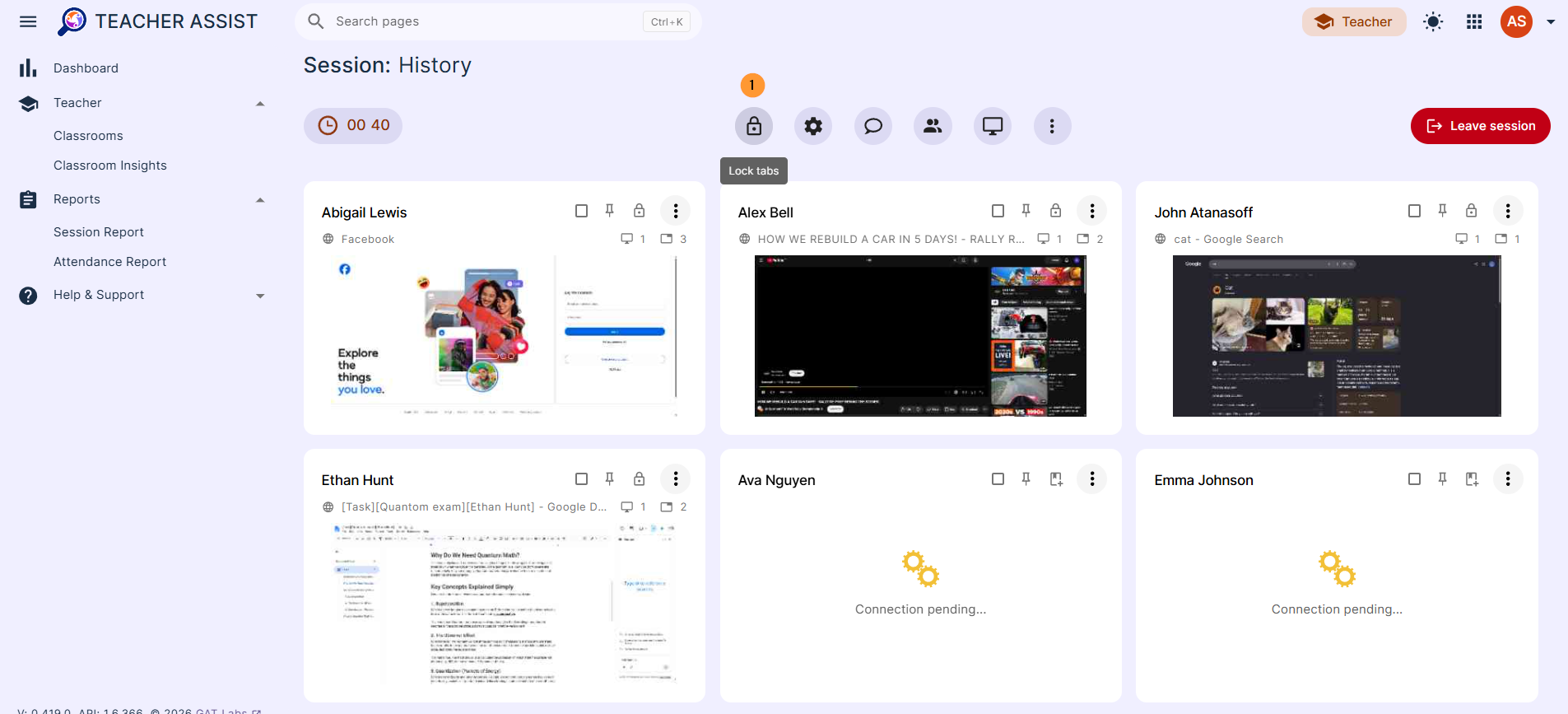
Click on the Lock tabs (lock button) at the top of the active students
The current tabs of all students will be locked.
- New tabs can be opened, but are automatically redirected to the locked tab.
- They can switch to other opened tabs but are automatically redirected to the locked tab.
Push the exam and lock it #
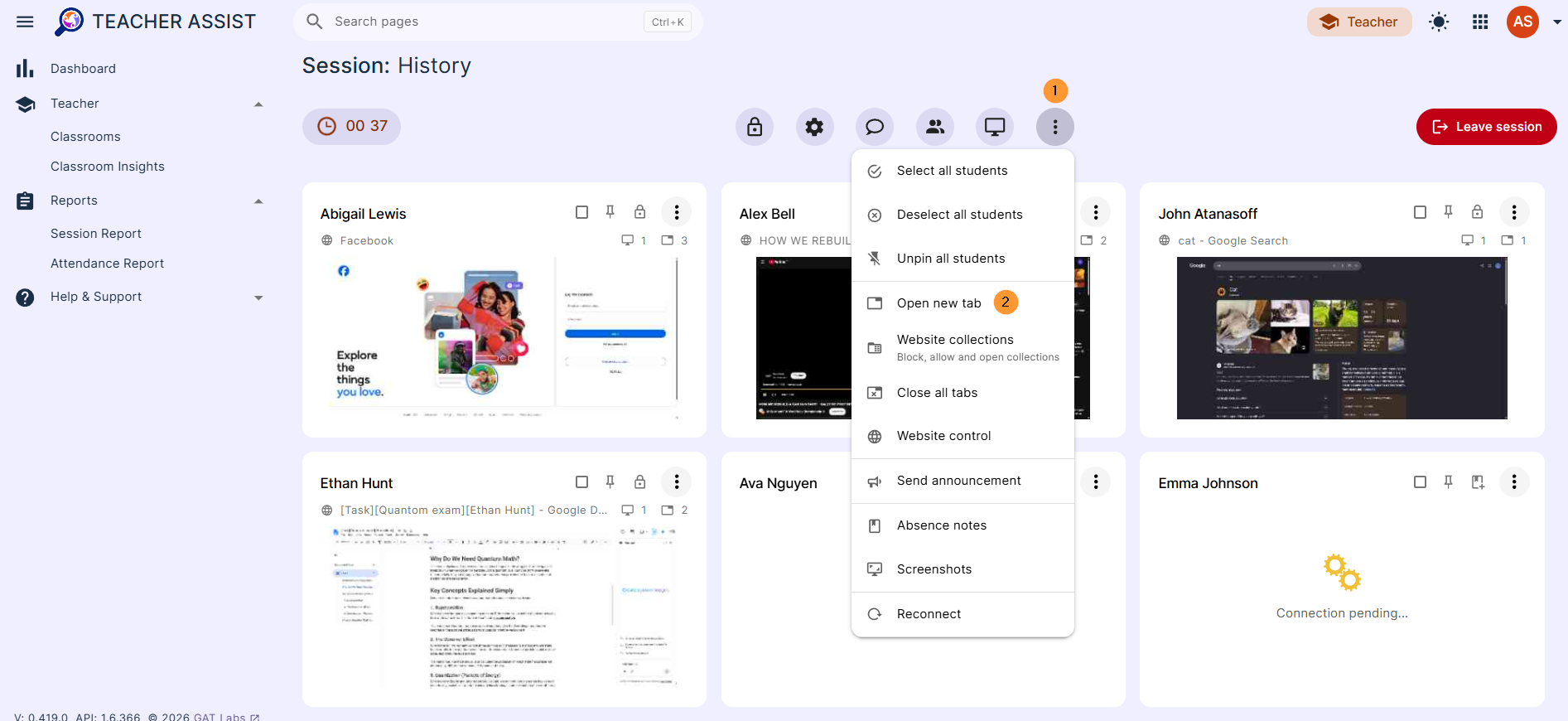
Click on the 3 dots and view global settings for the whole classroom.
Select and click on the Open new tab button.
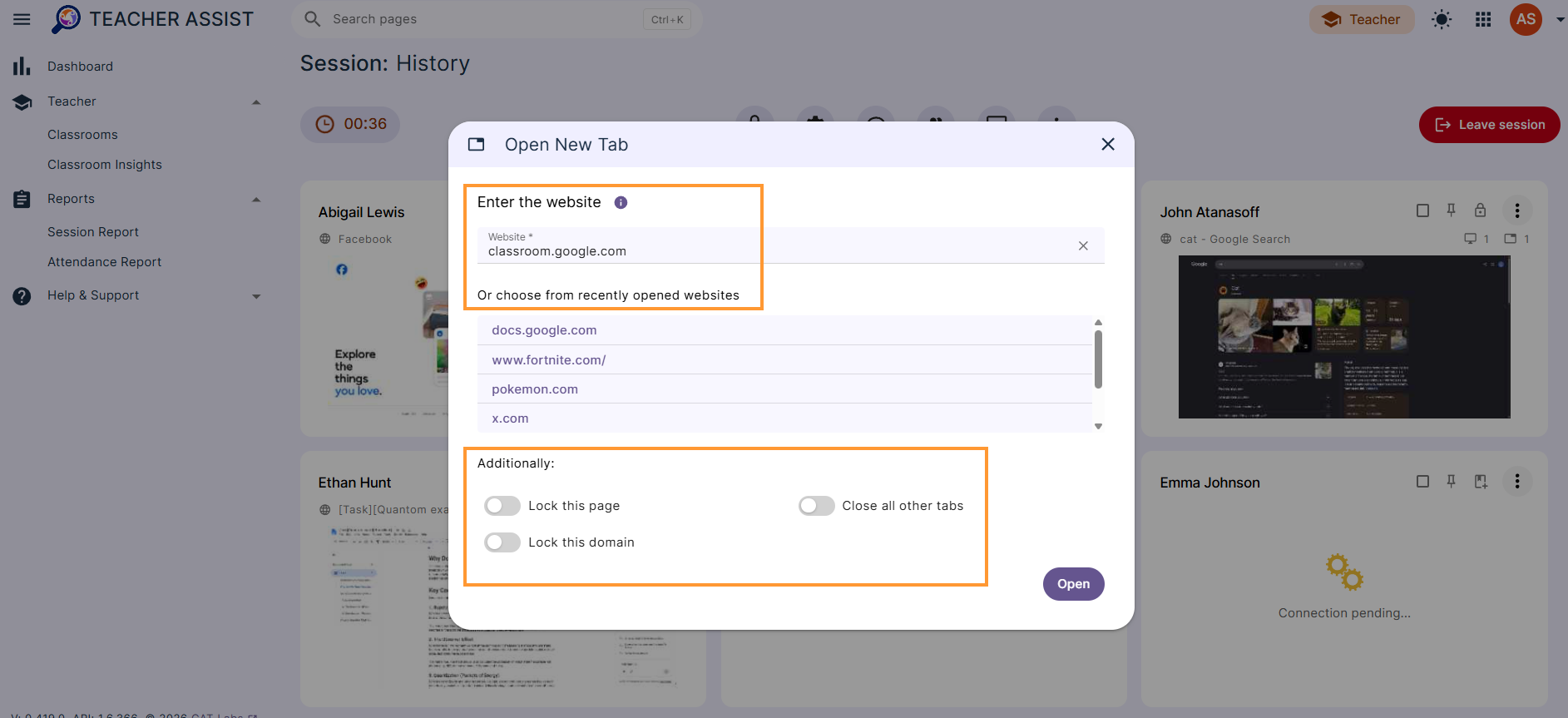
A pop-up window will be displayed.
- Enter the website – enter the website you want to open or choose from recently opened websites.
- Additionally, select any additional lock option
- Lock this page
- Lock this domain
- Close all other tabs
- Take those actions on the selected website.
The exam URL will be pushed to all students, and it will be locked.
The Students will be locked
- If they close the tab, it will be reopened automatically for them.
- If they click to open a new tab, they will then be automatically redirected to the locked tab.
- If they browse through other tabs, every 1 second they will be redirected back to the locked tab.

If the exam is already opened by students, you can use the “Distribute Current Page” feature to push the tab (exam) to all students.
Individual student Lock tab #
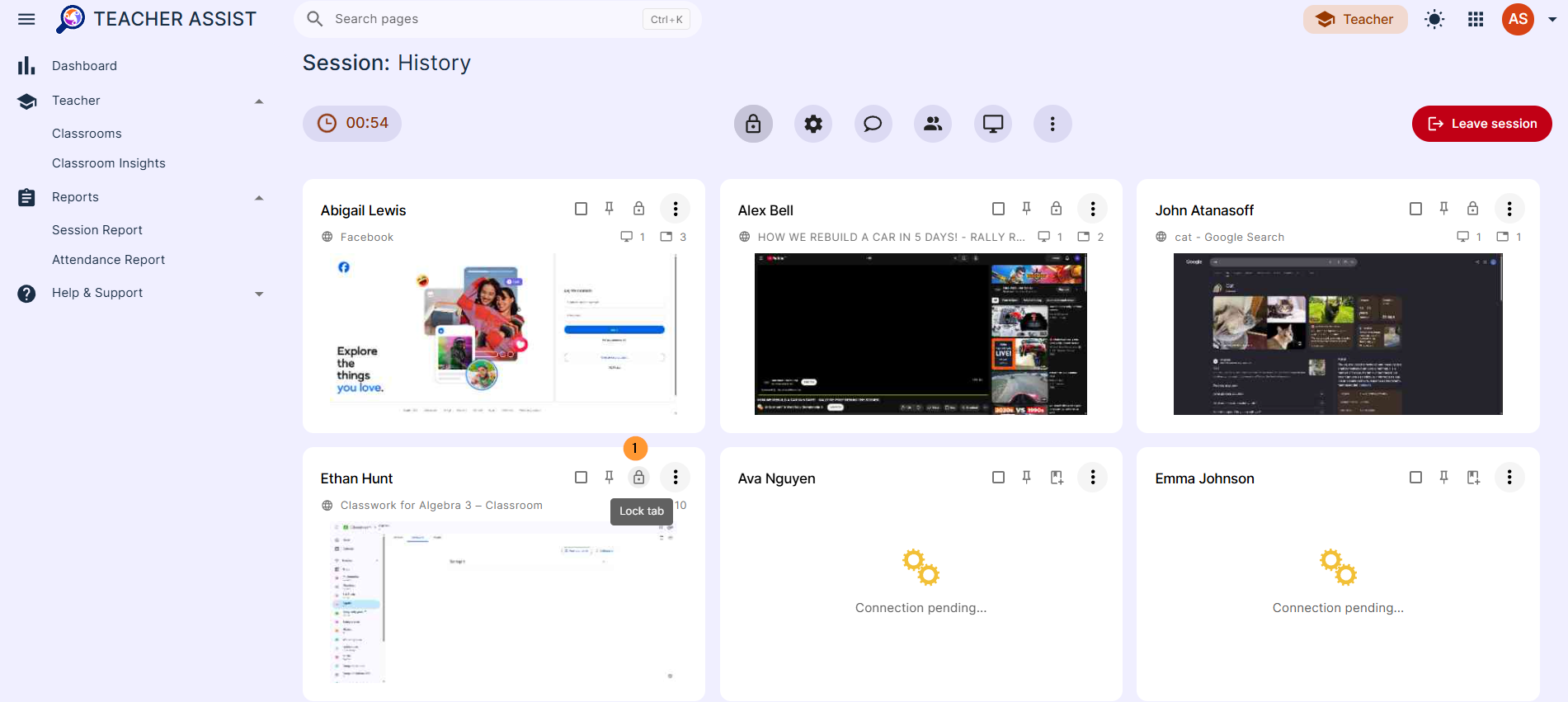
The Teacher can lock the tab of an individual student only.
Select a student and click on the “lock icon” button to lock the current tab for the student.
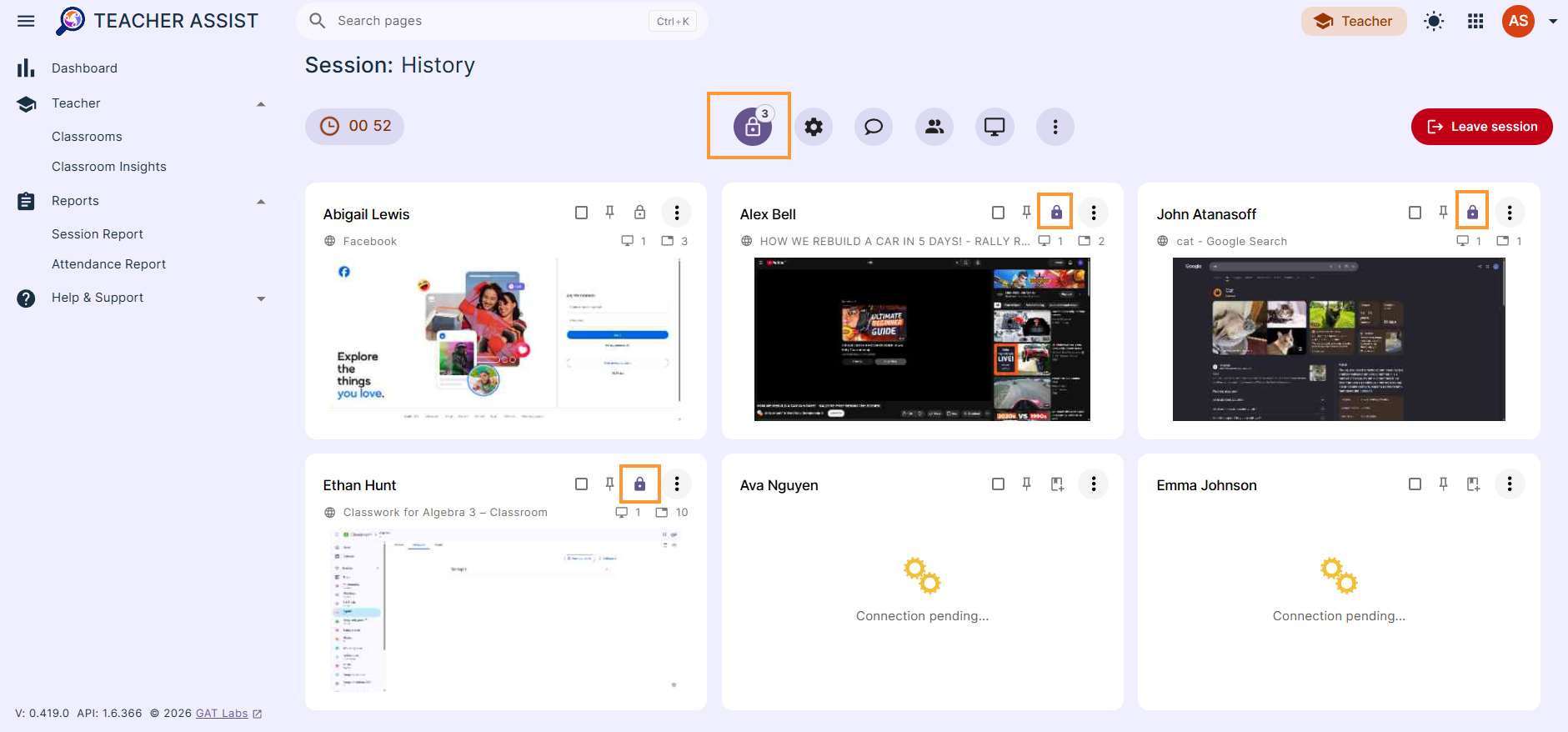
At the top of the classroom session view a lock icon and the number of currently locked students.
Each student will also have a small lock icon, noting that the tab is locked
Summary & Key Takeaways #
The Teacher Assist tab locking mechanism gives teachers full operational control over classroom browsing without requiring complex kiosk software setup. Key features to remember:
- Automated Redirection: Ensures non-compliant browser maneuvers (new tab creations, tab switching, tab closure) are corrected automatically within 1 second.
- Flexible Scope: Choose between broad global classroom enforcement or discrete individual student tab locking.
- Streamlined Exam Pushing: Using Open New Tab or Distribute Current Page ensures all students land on the identical test paper simultaneously.


