

GAT Flow allows administrators to configure an auto-reply for multiple domain users at once. This auto-reply is fully automated and can be customized to each user’s information individually using various variables available in the tool, as well as the duration of the auto-reply.
Create Workflow to Automate Out-of-Office Replies #
Navigate to Flow > Create workflow
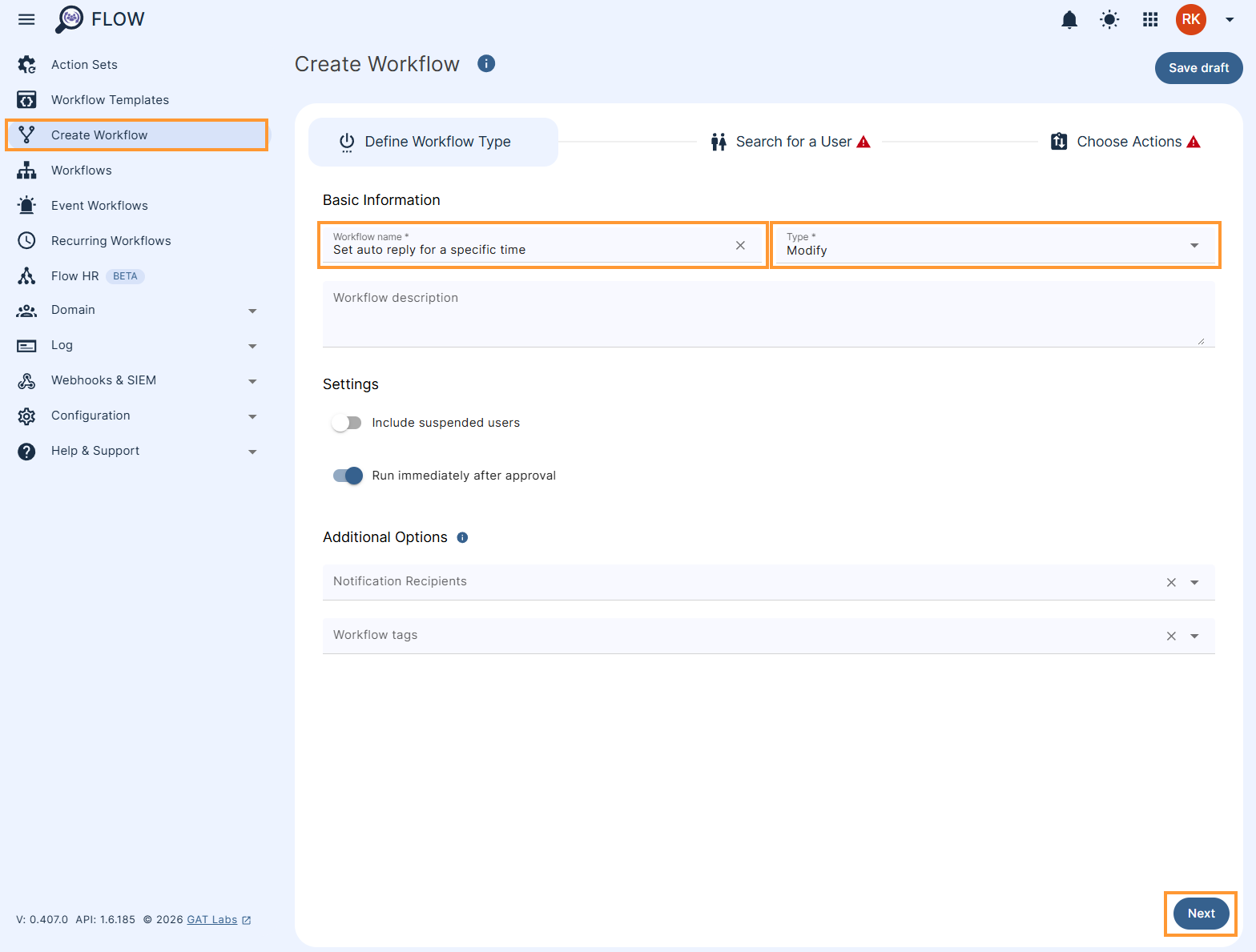
Under Workflow type, fill in the fields required.
- Workflow name – enter the name of the workflow
- Workflow description – explanation of what the workflow will do (optional)
- Modify – select workflow type – Onboarding or Modifying
- Next – click to proceed
Select the Users #
In Search for a user pick the user(s) you want to set up the Auto-reply message for.
Select one user or multiple user accounts you wish to set up their auto-reply. Search and add the users via Search for a user, group, org. unit, or classroom or import the users.
The chosen users will appear in the list below.
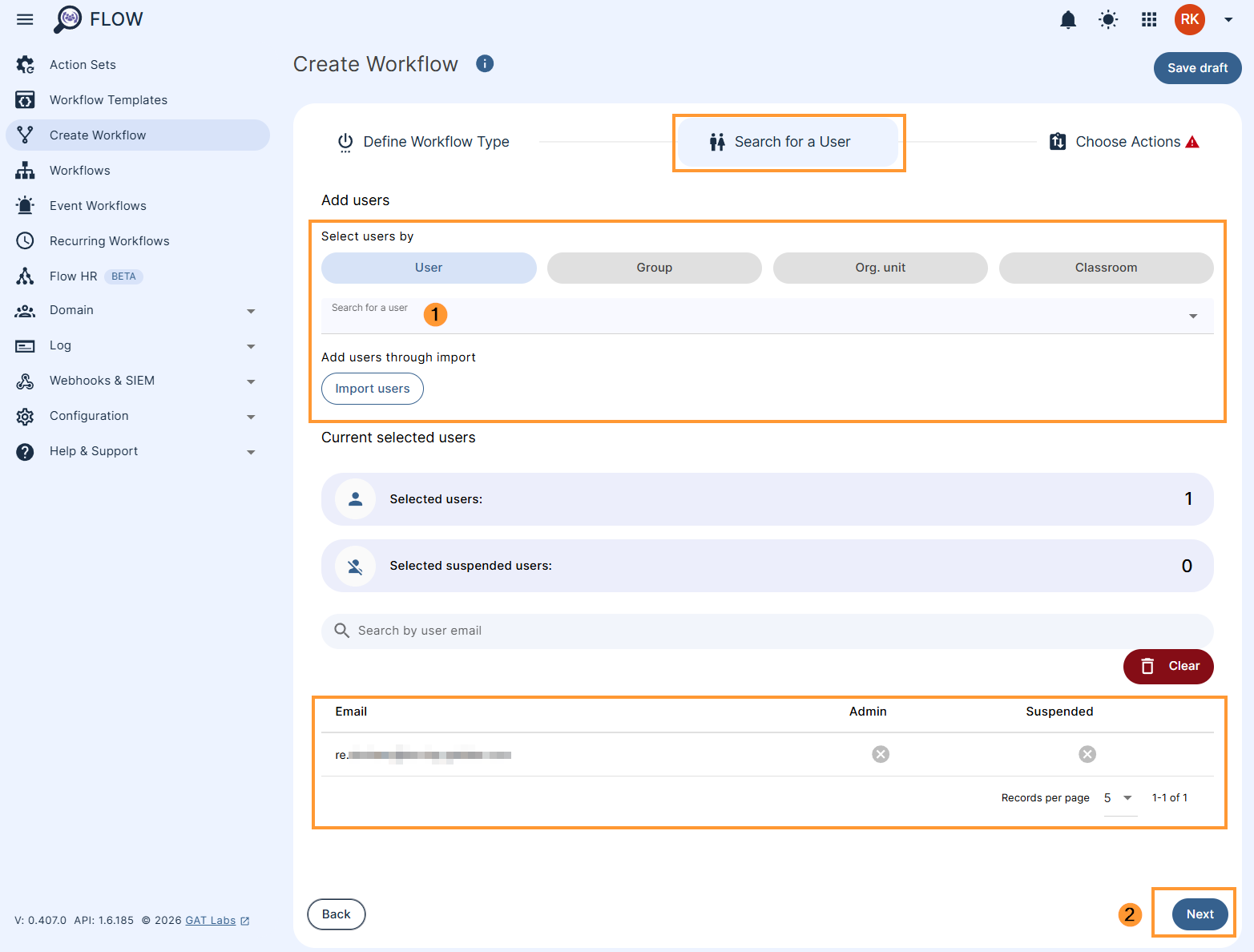
After selecting users’ emails, click Next.
Choose Actions #
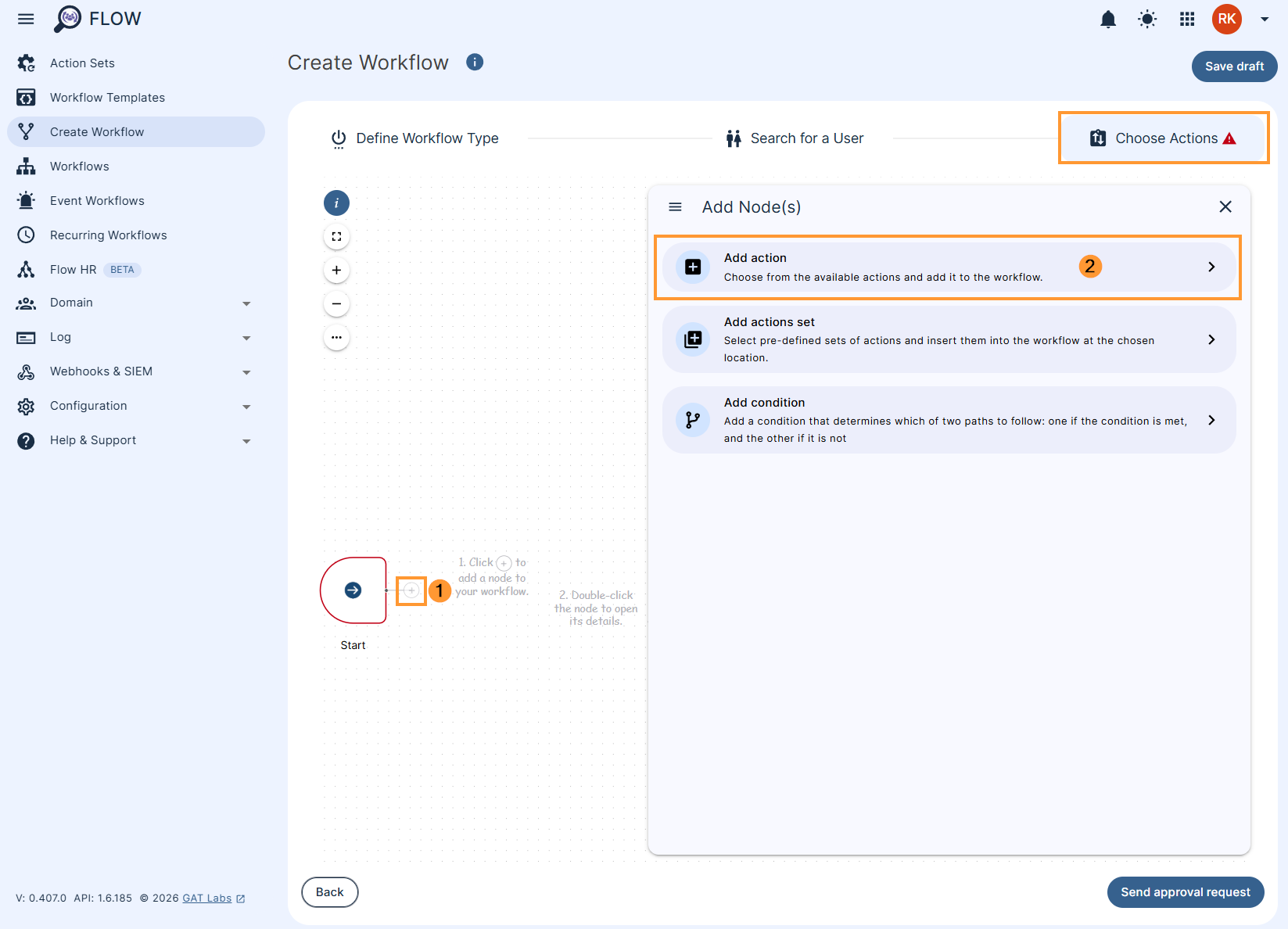
Then, under the Choose Actions section (1), click on the (+) button and click the ‘Add action’ option (2).
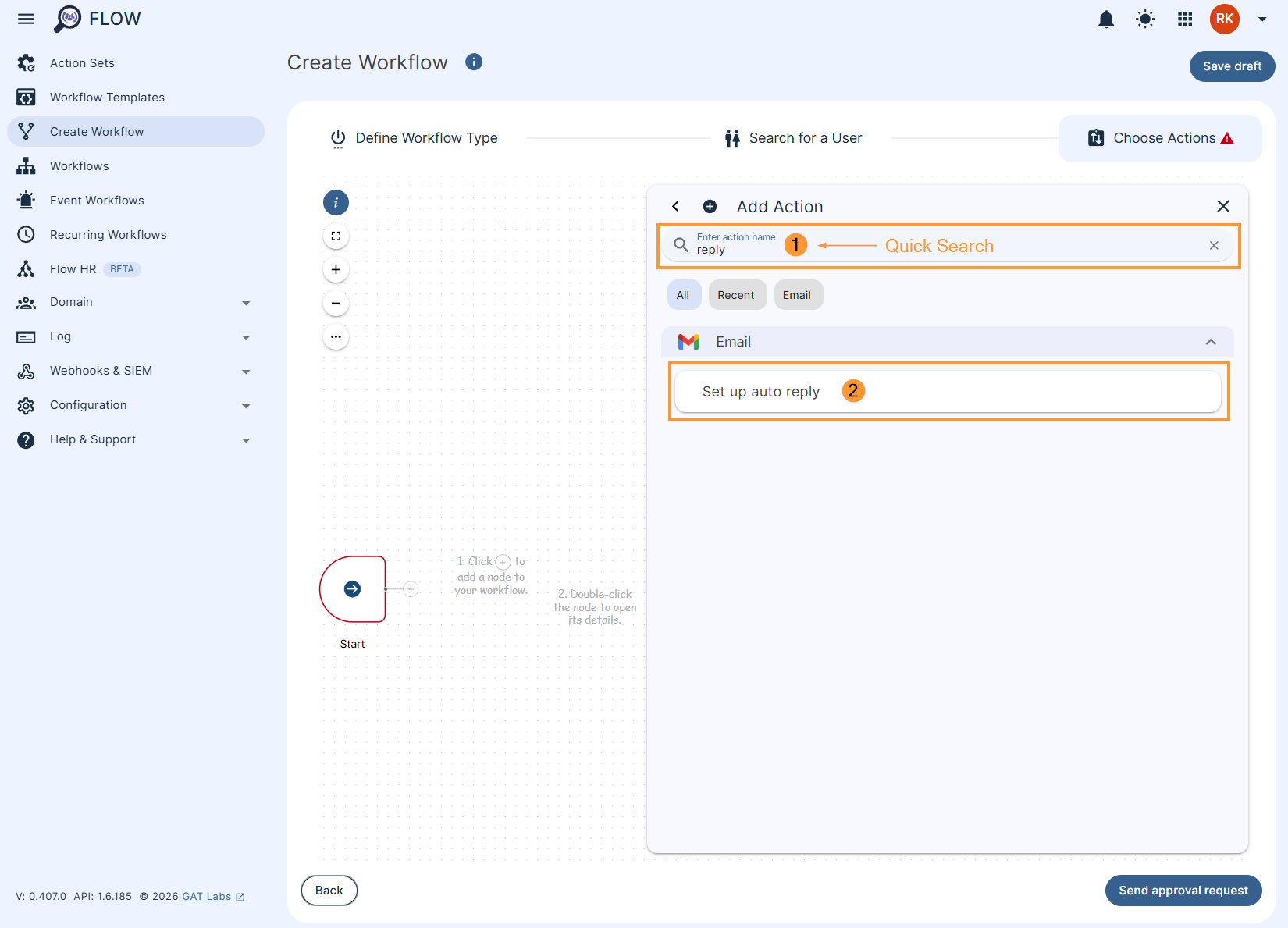
You will see all the options available. Search and select the ‘Set up auto reply‘ action below.
The selected action will appear in the workflow, double click the action node ‘Set up auto reply’ to adjust the details:
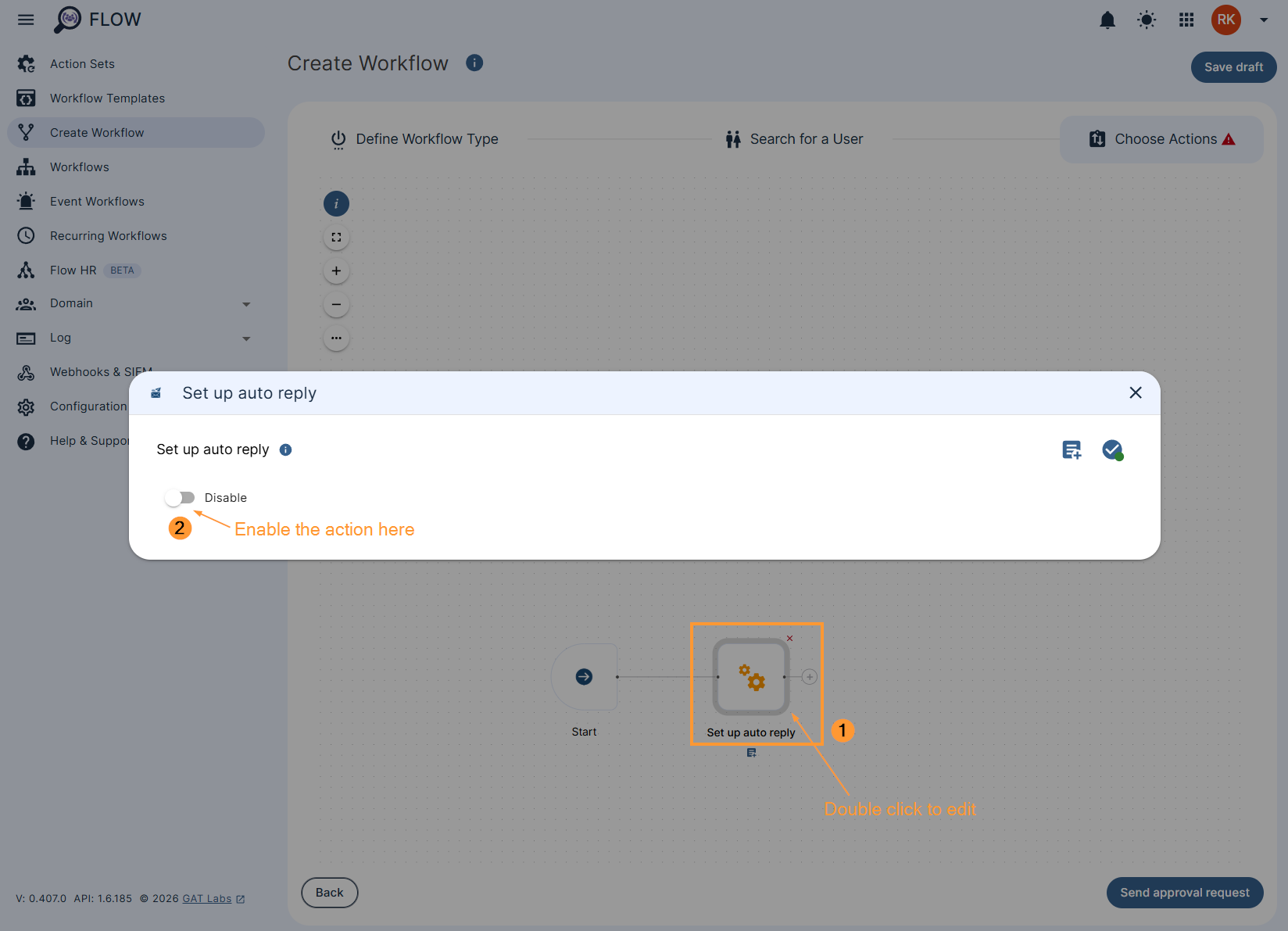
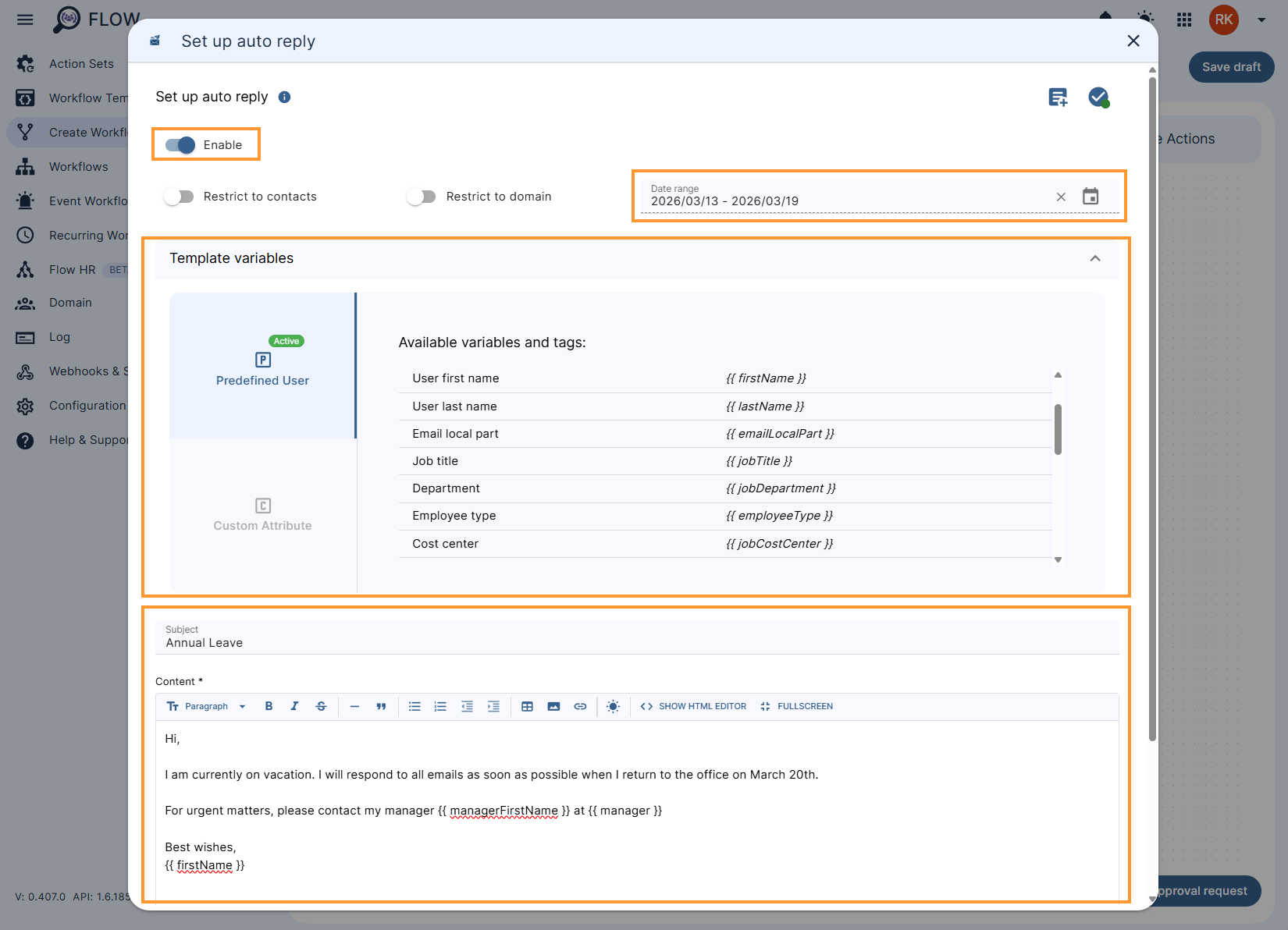
Fill in the required fields
- Enable – enable the auto-reply
- Restrict to contacts – restrict messages only to users under the contacts list of the chosen user
- Restrict to the domain – restrict messages only to users from the domain
- Subject – enter the subject for the email
- Content – enter content for the email
- Template Variables are available to be used
- {{ name }}, {{ email }}, {{ manager }} and so on.
- Template Variables are available to be used
- HTML Editor – you can switch and use an HTML editor too
The action details will automatically save and you can continue with the workflow by clicking outside of the ‘Set up auto reply’ pop-up box or close it by using the ‘X’ on the top right. Click on Send approval request to proceed.
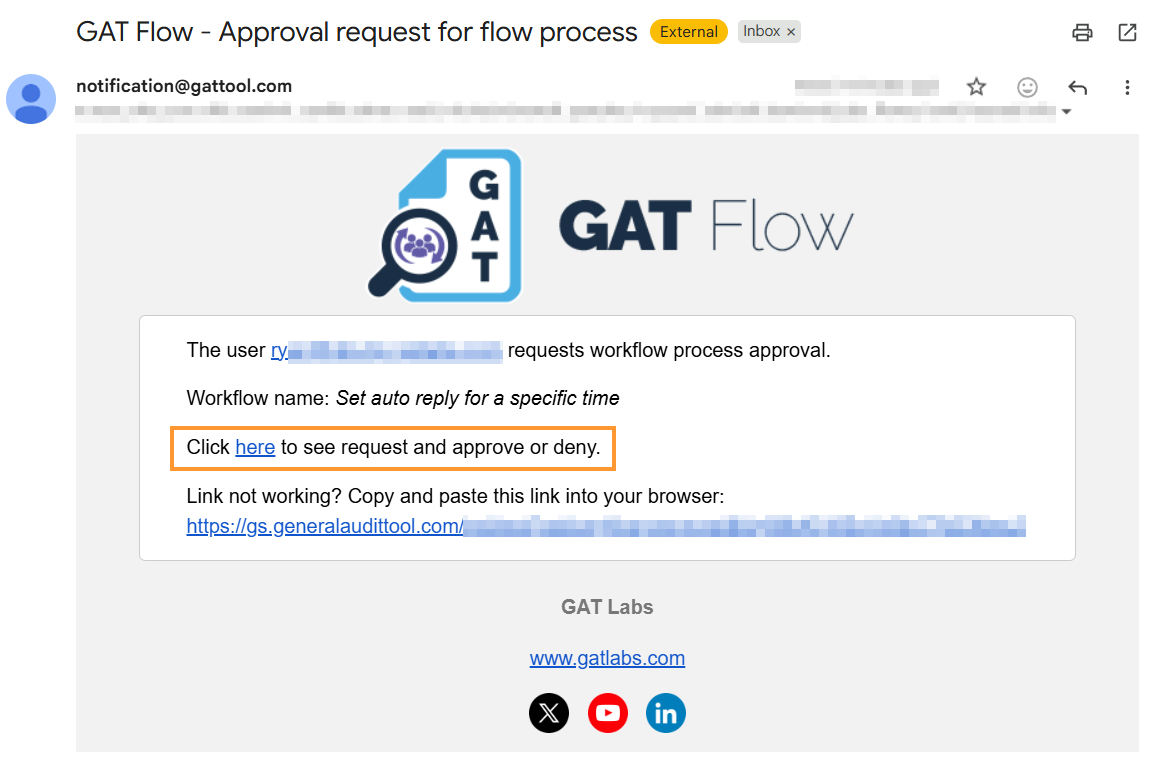
Result #
The workflow will be sent to the Security officer for Approval.
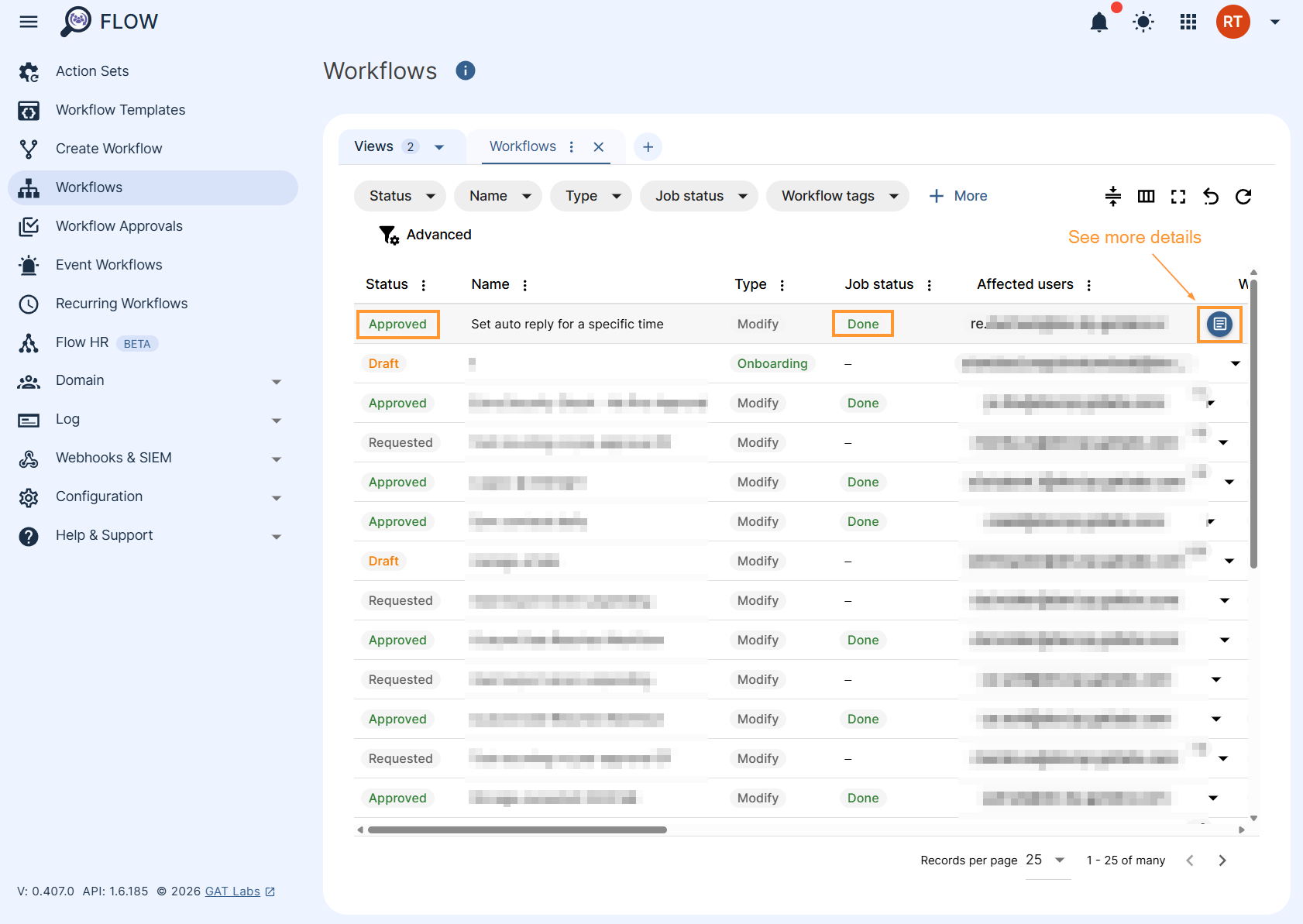
When the request is Approved, an Auto – Reply message will be set up and the workflow details can be seen under the Workflow tab:
The account(s) where Auto-reply is set up – will have this message appearing on the top of their Gmail (subject: Annual leave) during the time set up in Flow.

And in the Gmail settings under the General > Out-of-Office AutoReply:
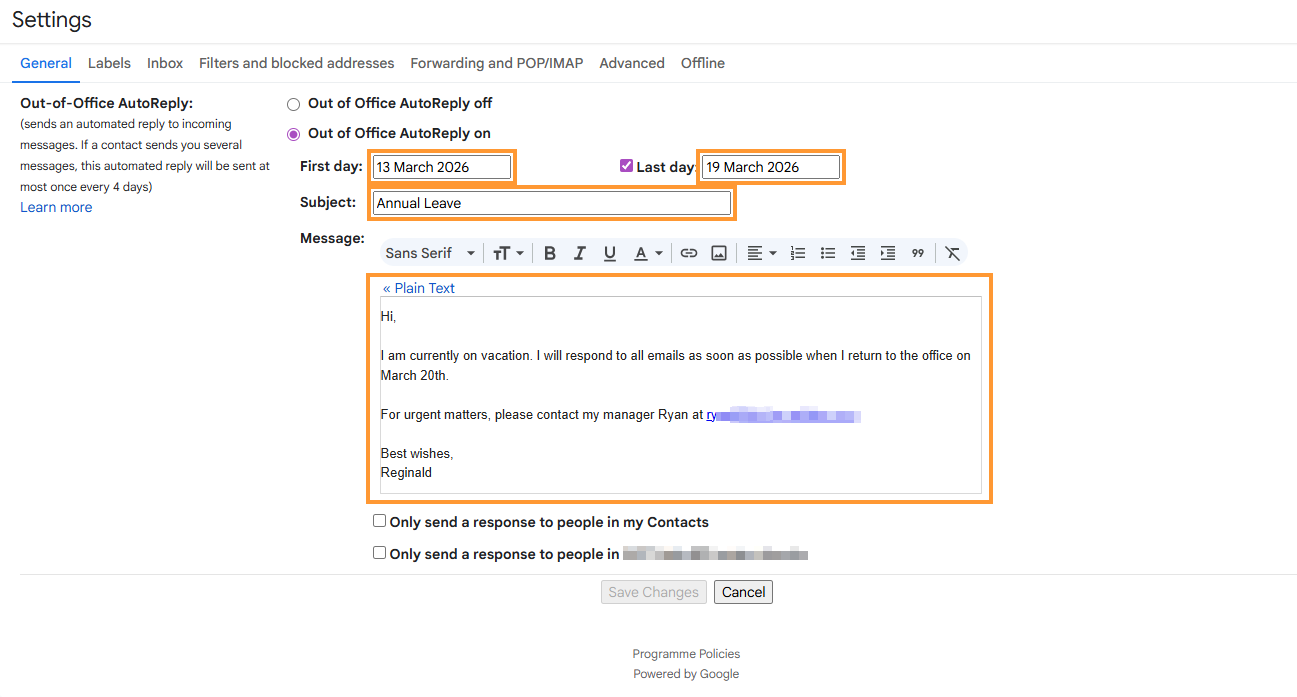
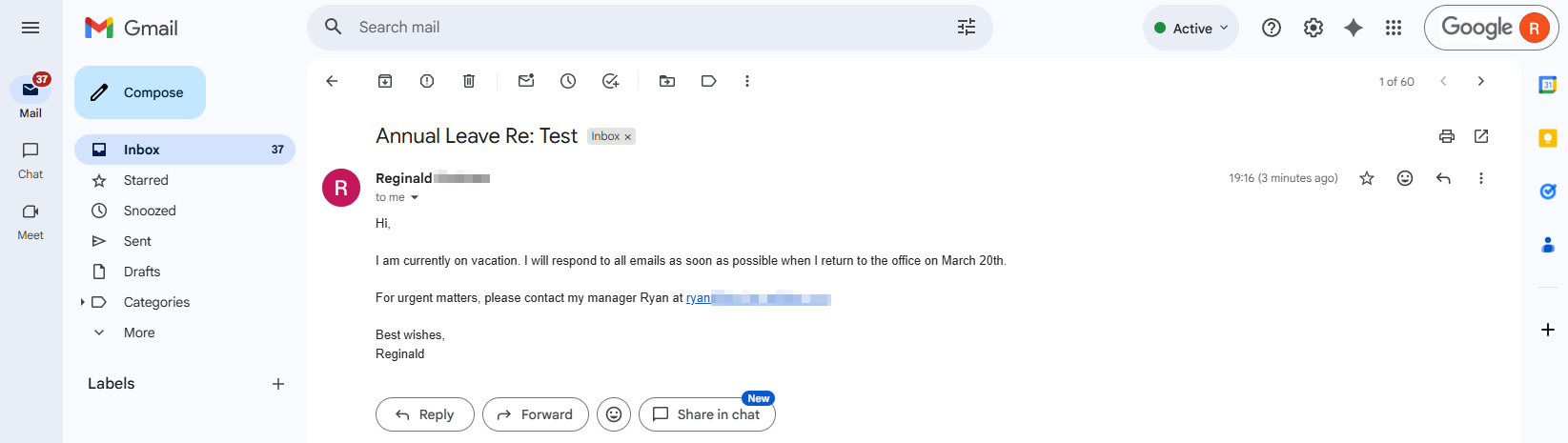
An auto-reply message will be sent in return to the Sender:

And the email itself will contain the content set up in Flow
Set up auto-reply directly from the Users module in GAT Flow #
As an Admin, navigate the Users module in GAT Flow, Search for the user in question, and click the Edit button to set up an auto-reply.
Next, go to the Email tab and its Auto-reply sub-tab where you can enable it and configure the message that is going to be sent.
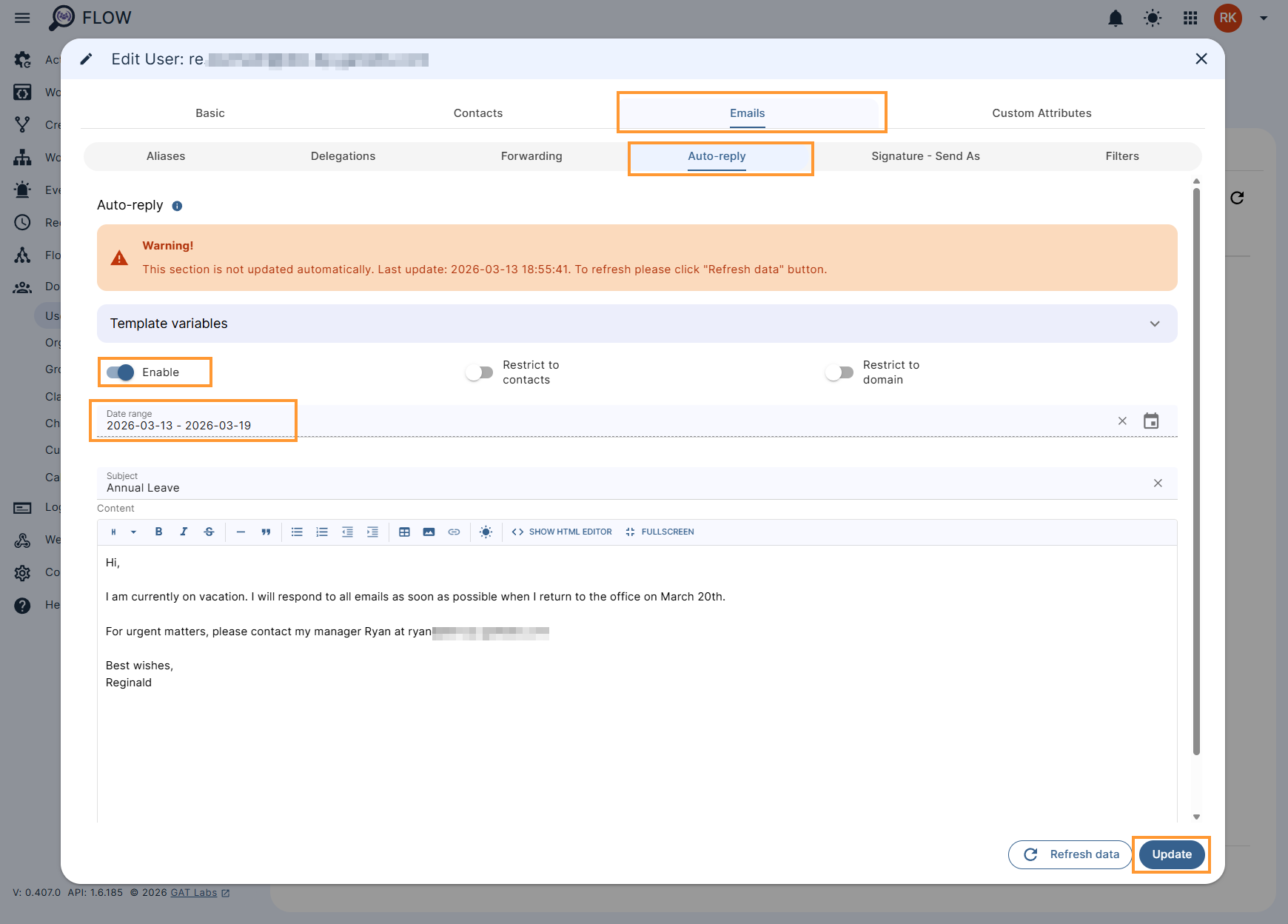
After setting everything up, Update the changes.
This feature set up under the Users module is directly available to Google Workspace Administrators and does not require the approval of a Security Officer.


