

Flow Overview #
Flow is a user management tool, it allows Google Admins to set up automated workflows for the onboarding, offboarding, and modification of the users in the domain.
Flow allows the Google Admins to:
- Onboard and create new users for the domain
- Modify existing users
- Offboard and either Archive, Delete or Suspend users from the domain
Important #
- The Offboarding action ‘Delete user’ will delete the user and the action cannot be undone. All emails and files once removed can be restored within 20 days using the Google Workspace Admin Console otherwise they will be gone forever.
How to offboard a user #
The steps below will show steps to offboard a user to the domain.
Launch GAT+ and navigate to Flow

From the menu on the left select Create workflow (1)
Note: The action can be done also with Event and Recurring workflows.
Select workflow type #
In Workflow type – fill in the details
- Name – enter a name for the workflow (2)
- Description – enter a description for the workflow to be taken
- Type – select Offboarding (3)
- Conditional flow – you can set up the action alongside conditional workflow
- Run immediately after approval – select if you want to pick a specific time for when the workflow to occur
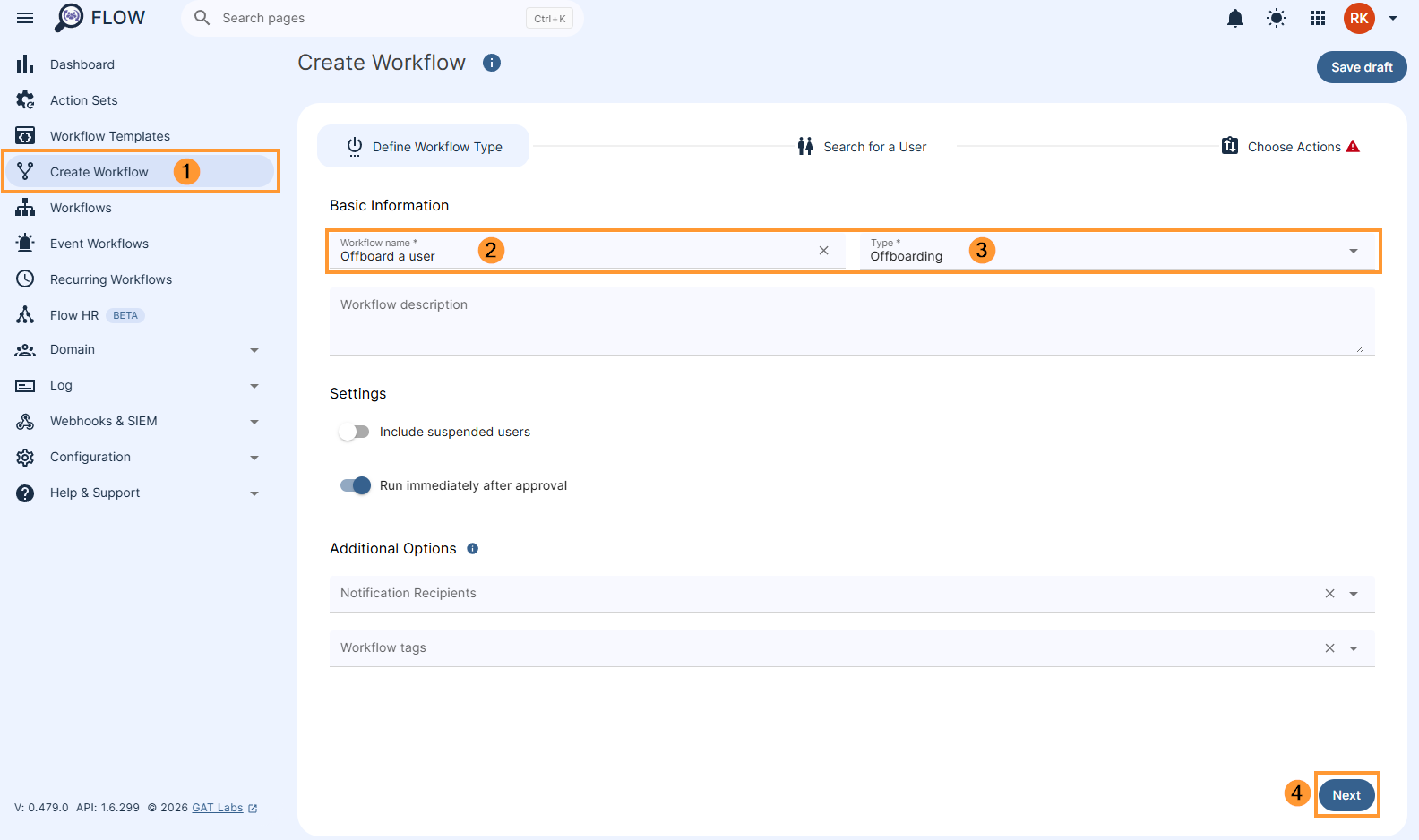
Click on the Next button (4).
Pick users #
Under Search for a user – select the users who will be deleted
- Select one or a few users
- Group of users
- Org. Unit of users
- Import users via Google spreadsheet
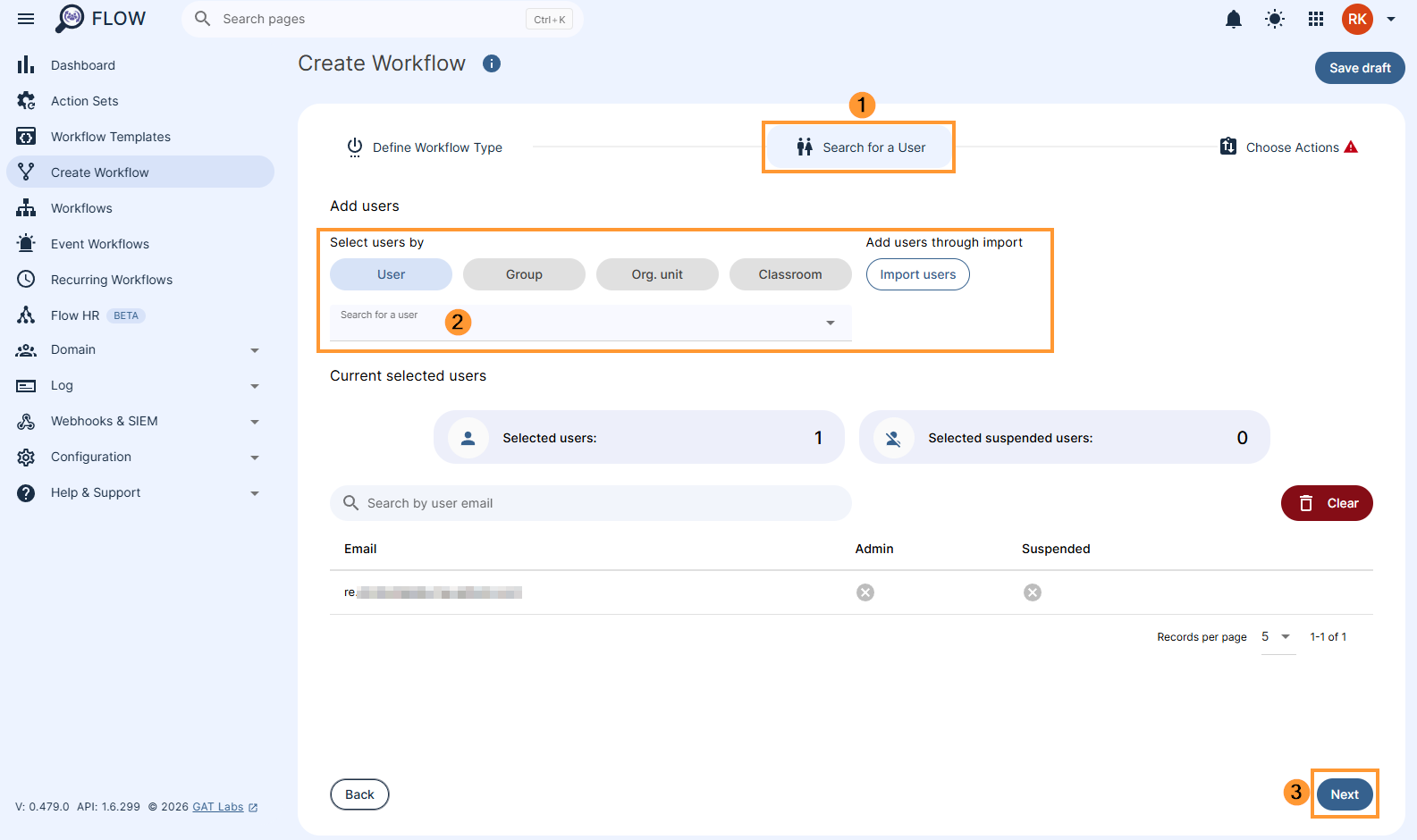
Click on Next button
Choose actions #
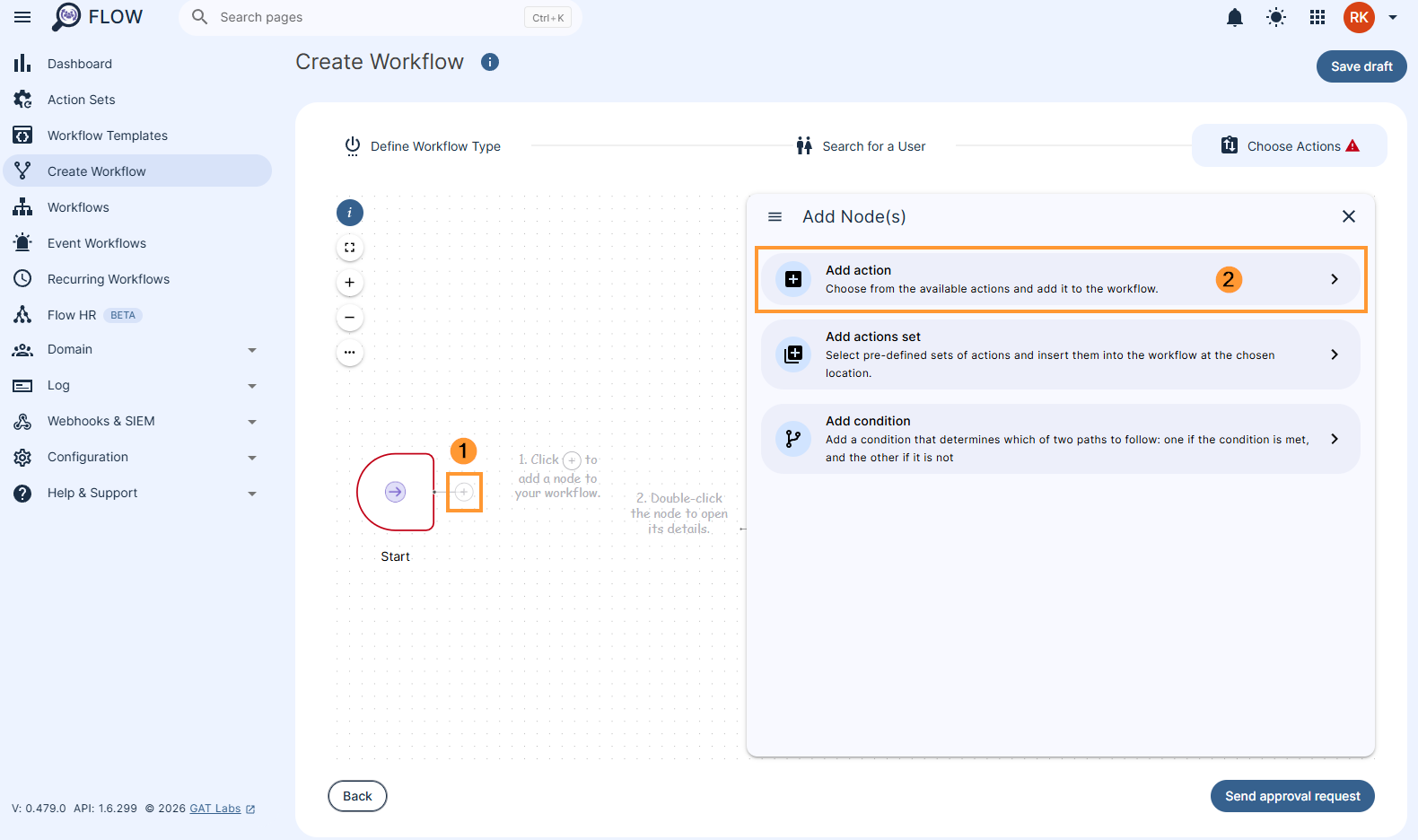
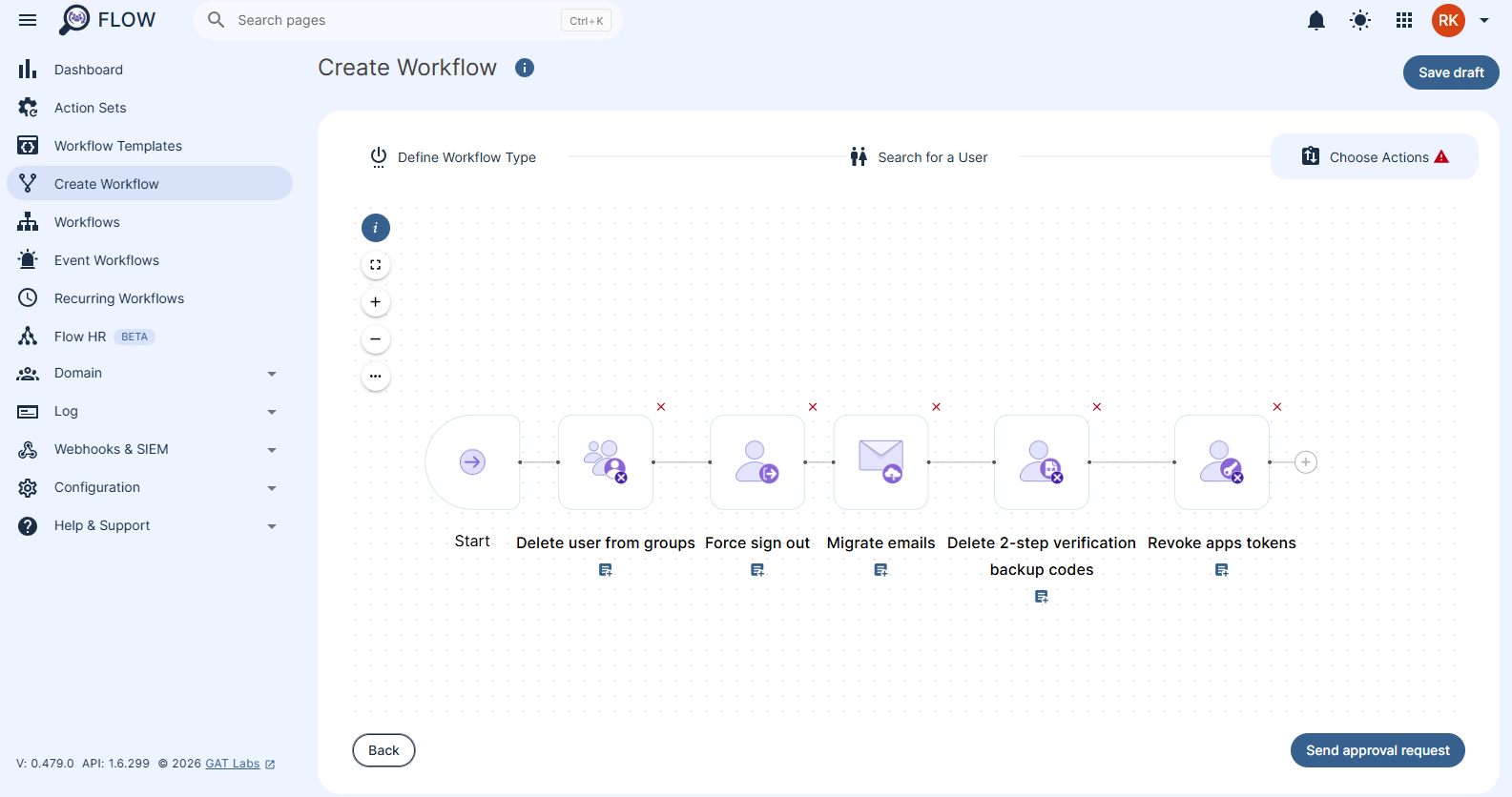
In the Choose actions click on the (+) button (1) and then click the Add action button (2)
Search for the action using the search field and select the action you want to take.
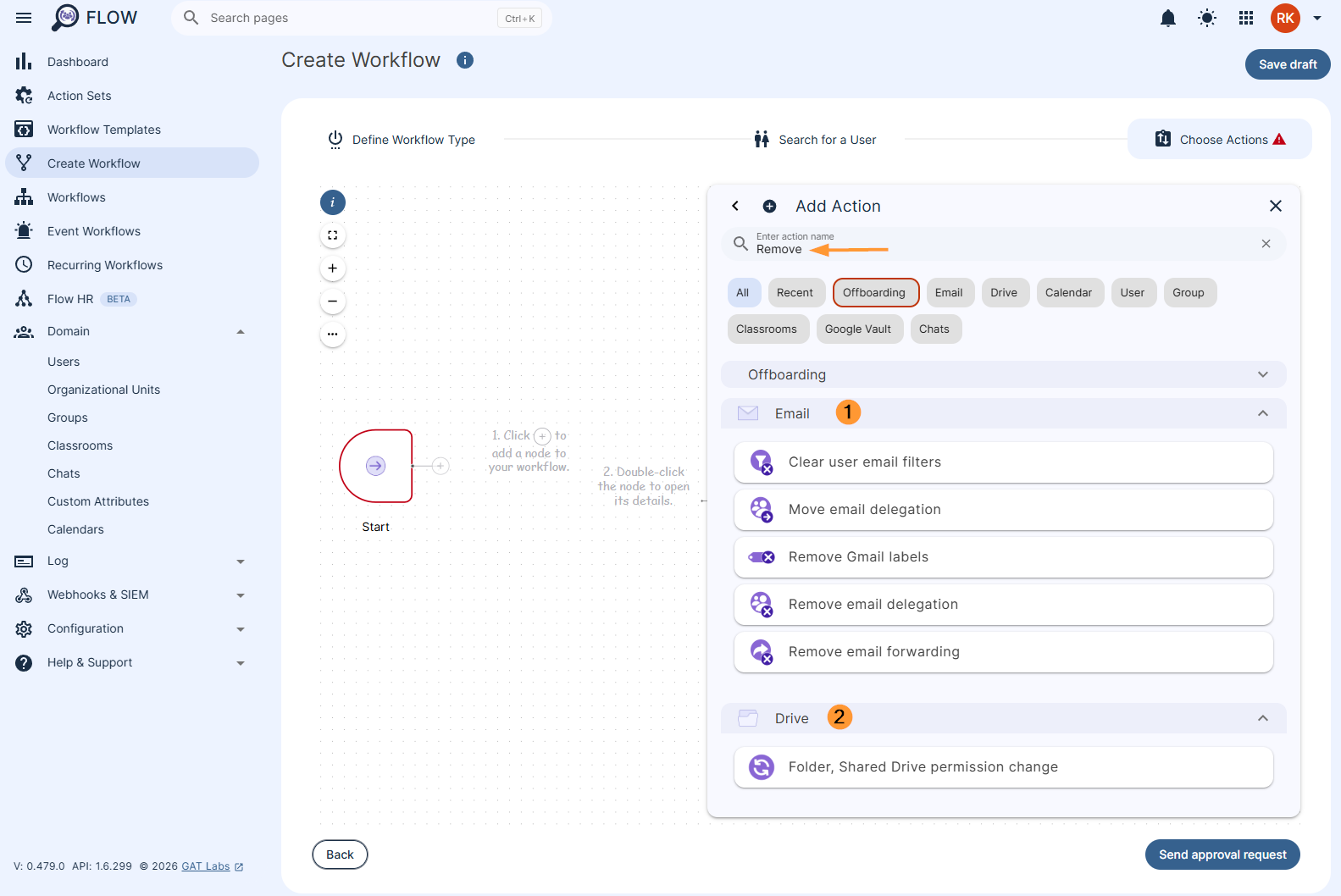
As example:
- Delete user from all groups
- Force sign out
- Migrate emails
- Delete 2-step verification backup codes
- Revoke app tokens
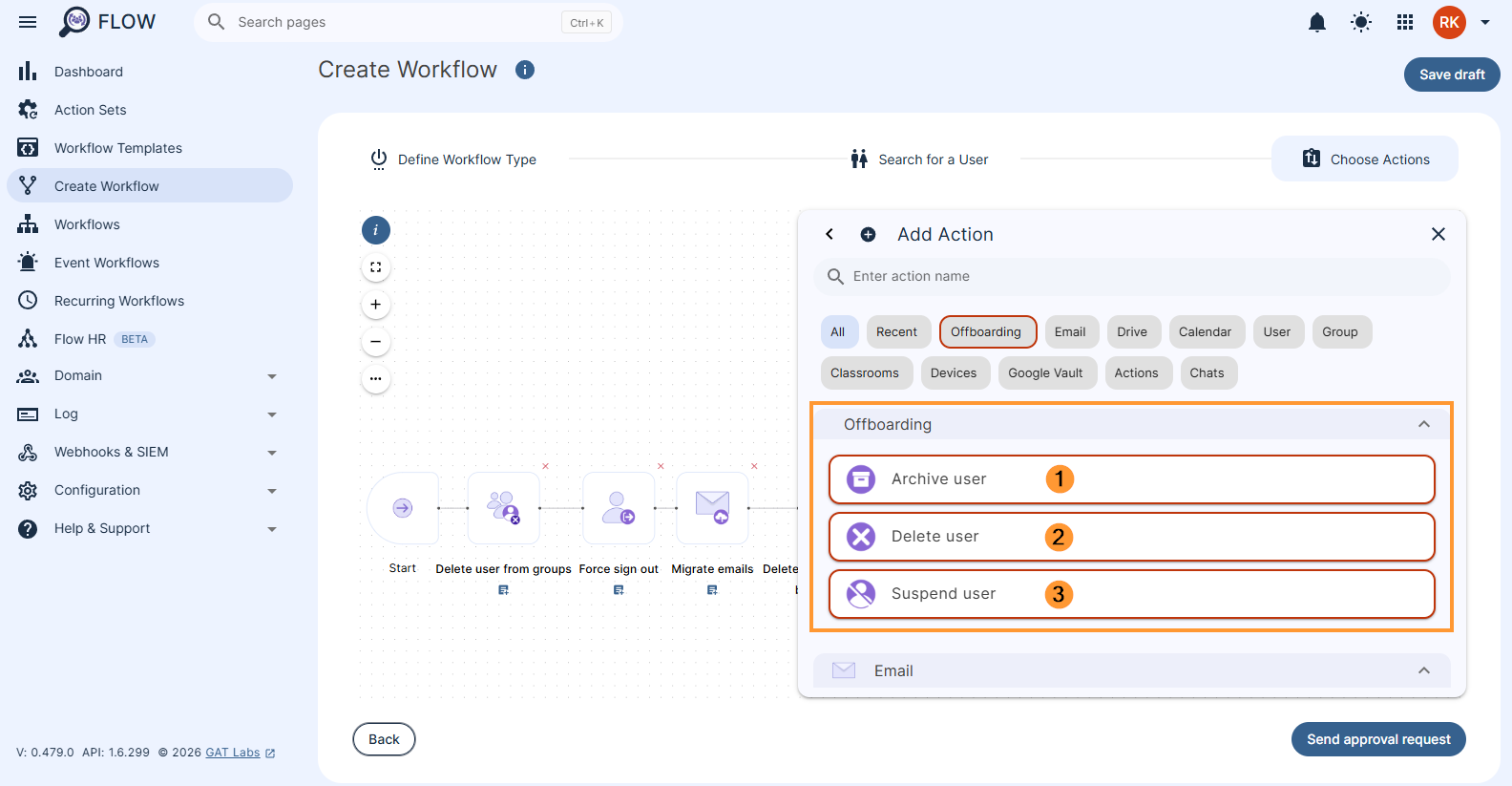
You must now choose the offboarding action. This can either be to Archive the user (1), Delete the user (2) or Suspend the user (3).
Once you are happy with the selected actions to be taken you can click the ‘Send approval request’
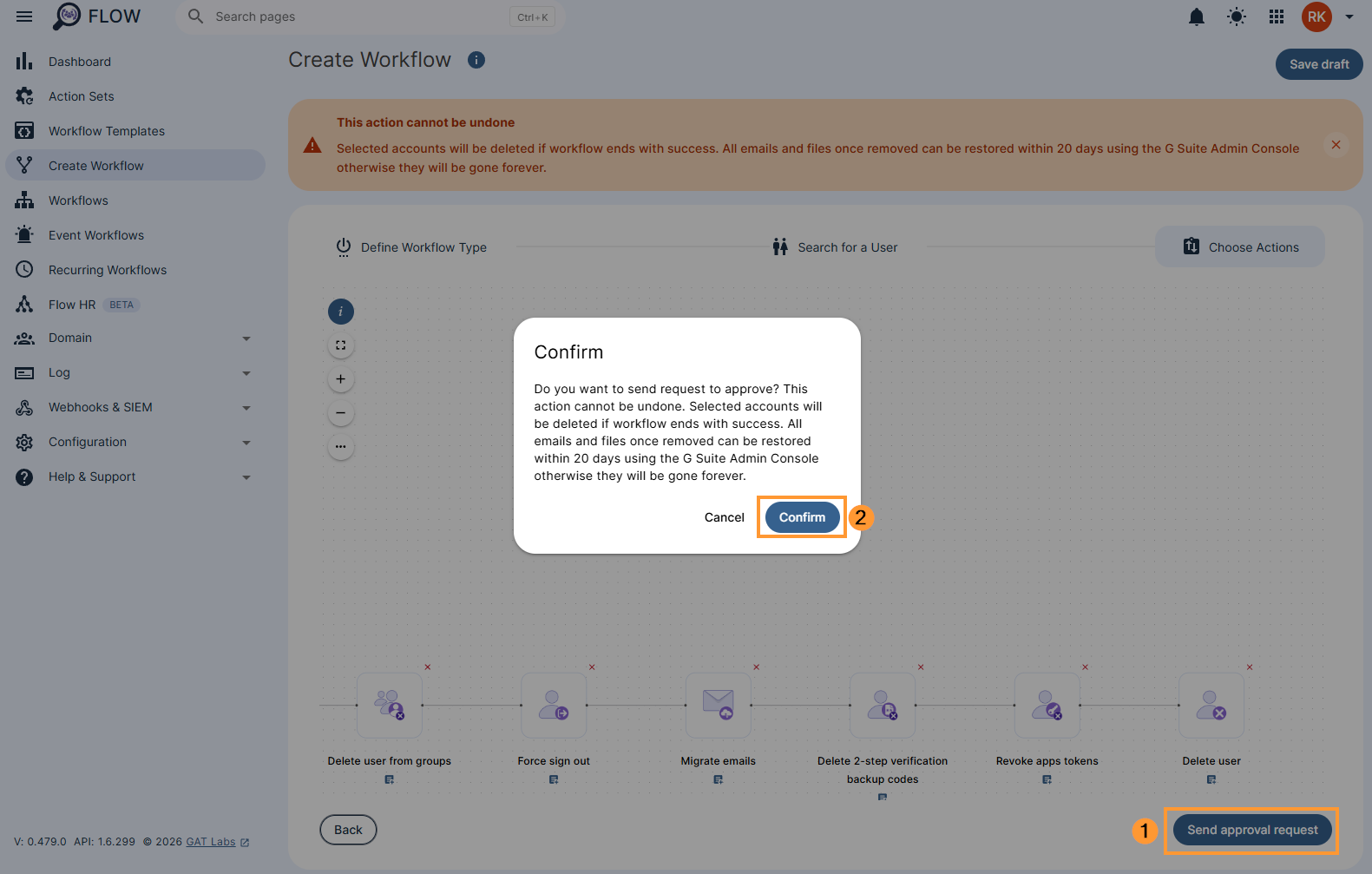
The request will be sent to the Security officer.
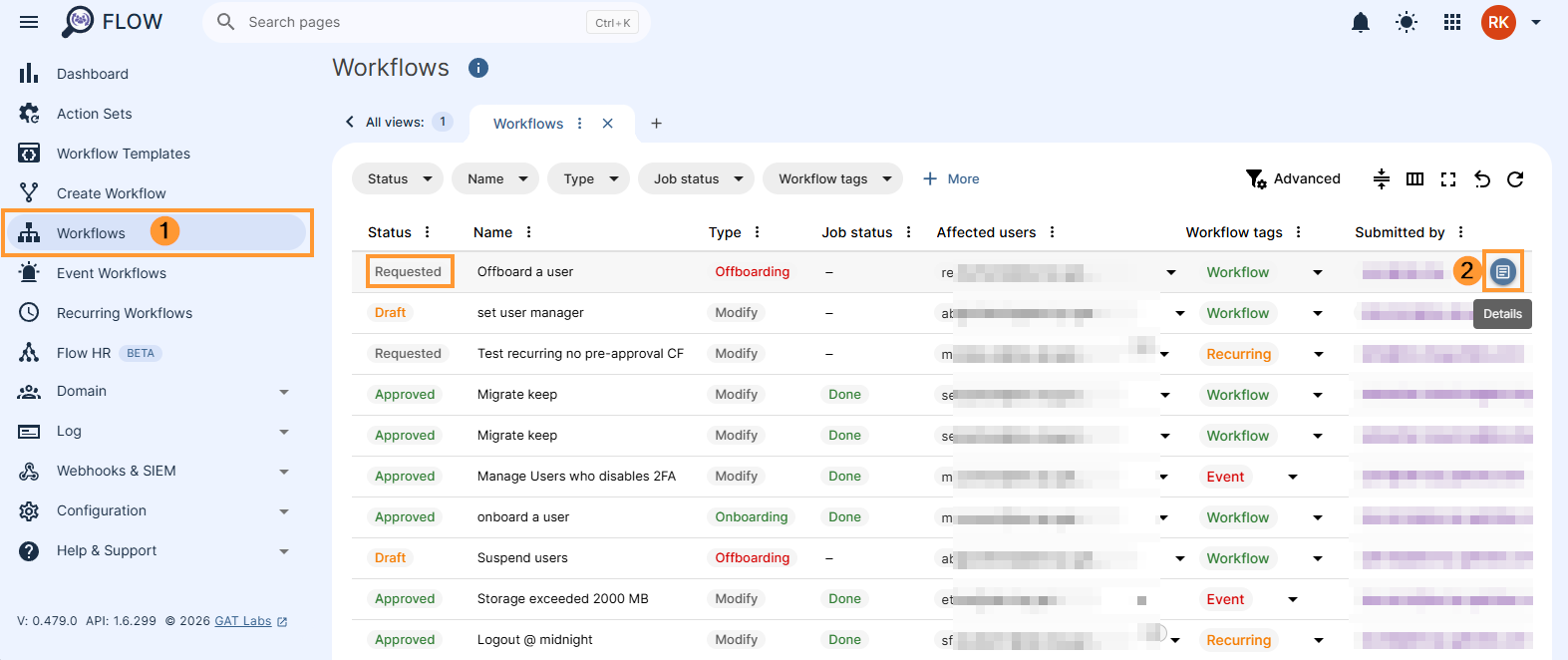
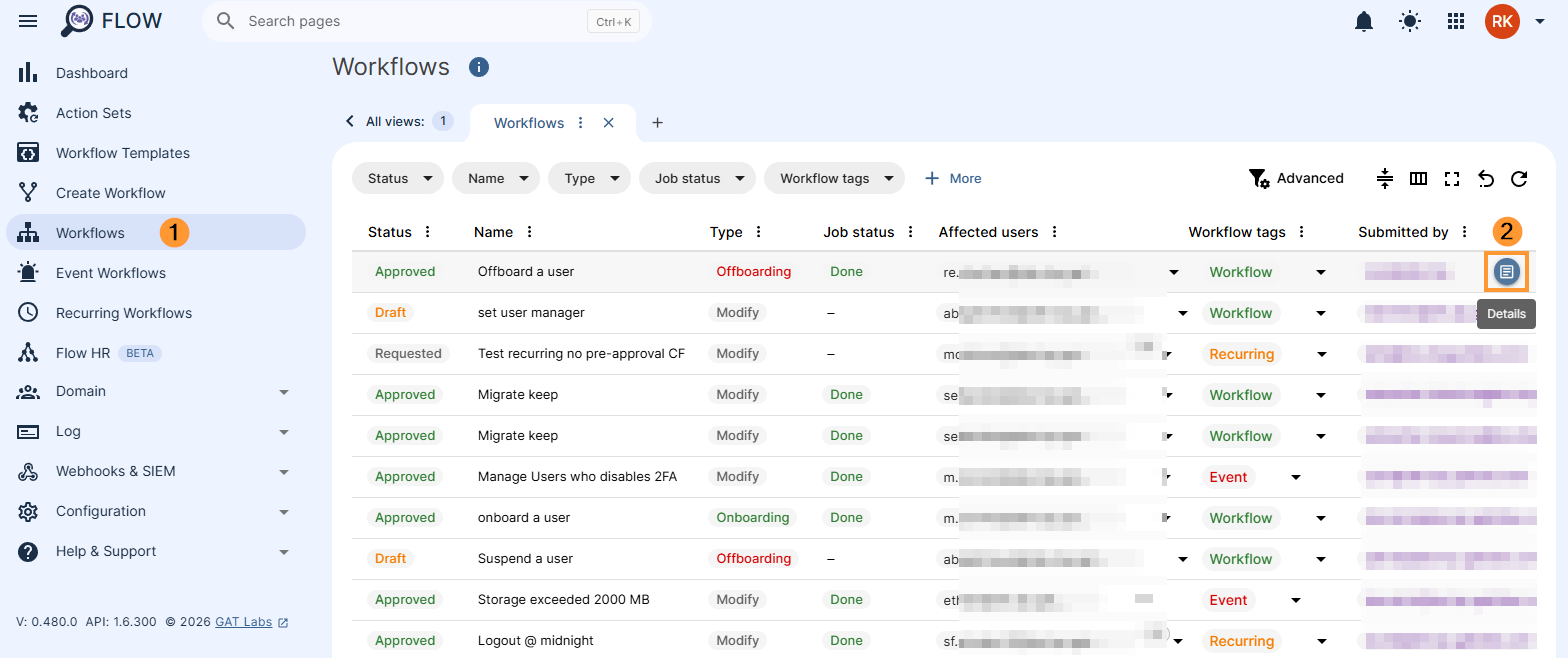
The workflow results page will be loaded. Click on the Page icon to view details.
Security Officer #
The Security officer will receive an email notification with the request to be approved.
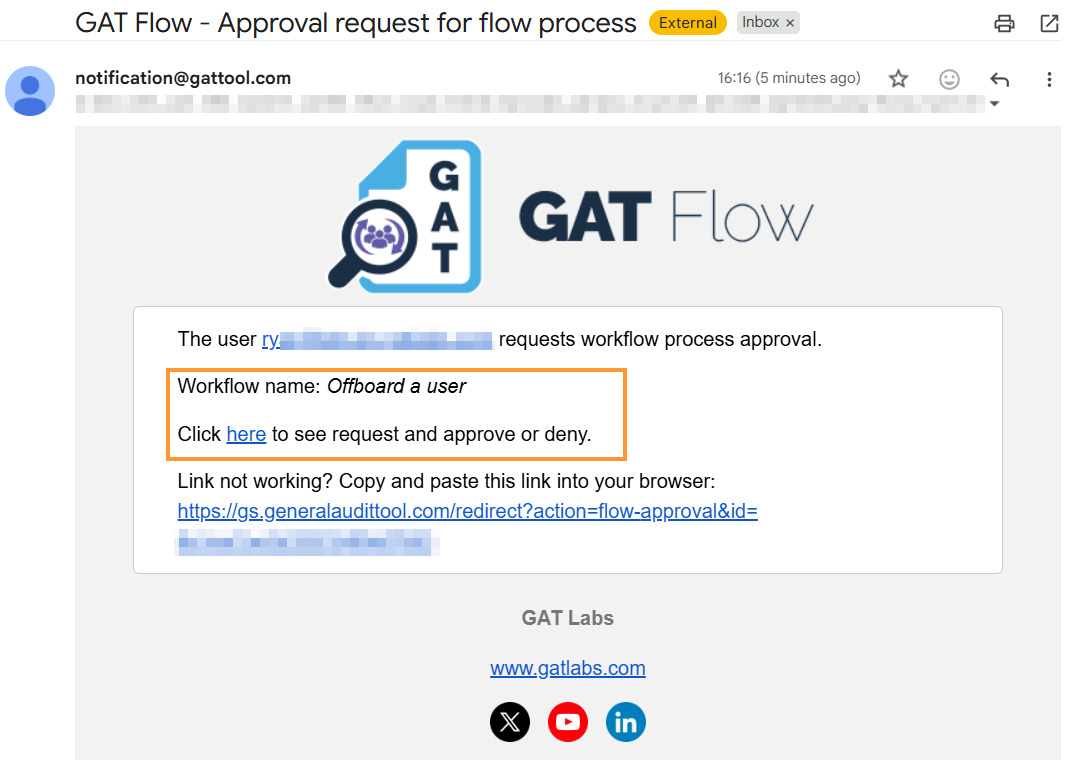
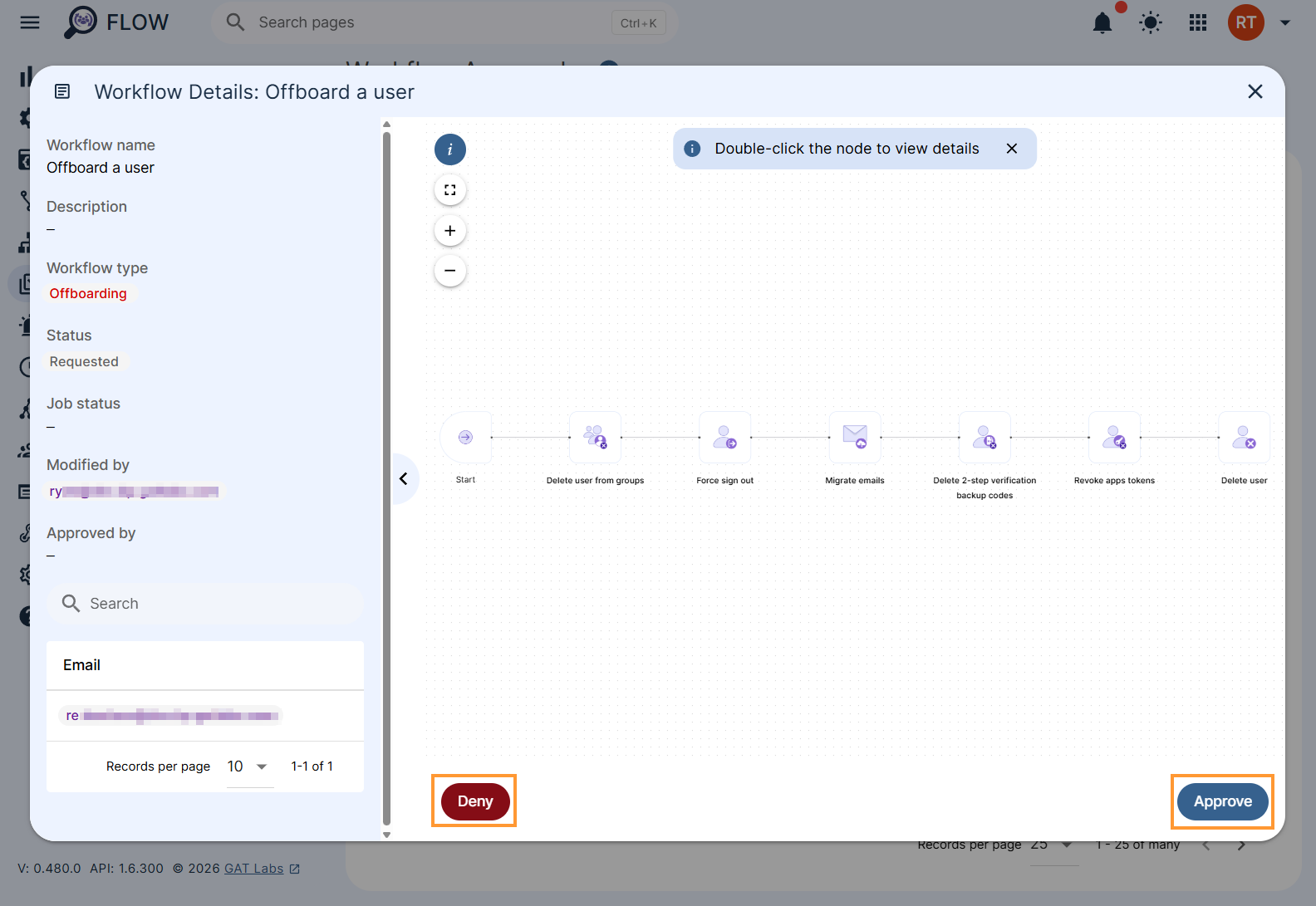
The Security officer will be navigated to the Workflow Approvals > Details page (page icon)
Select Approve to approve the request.
Result #
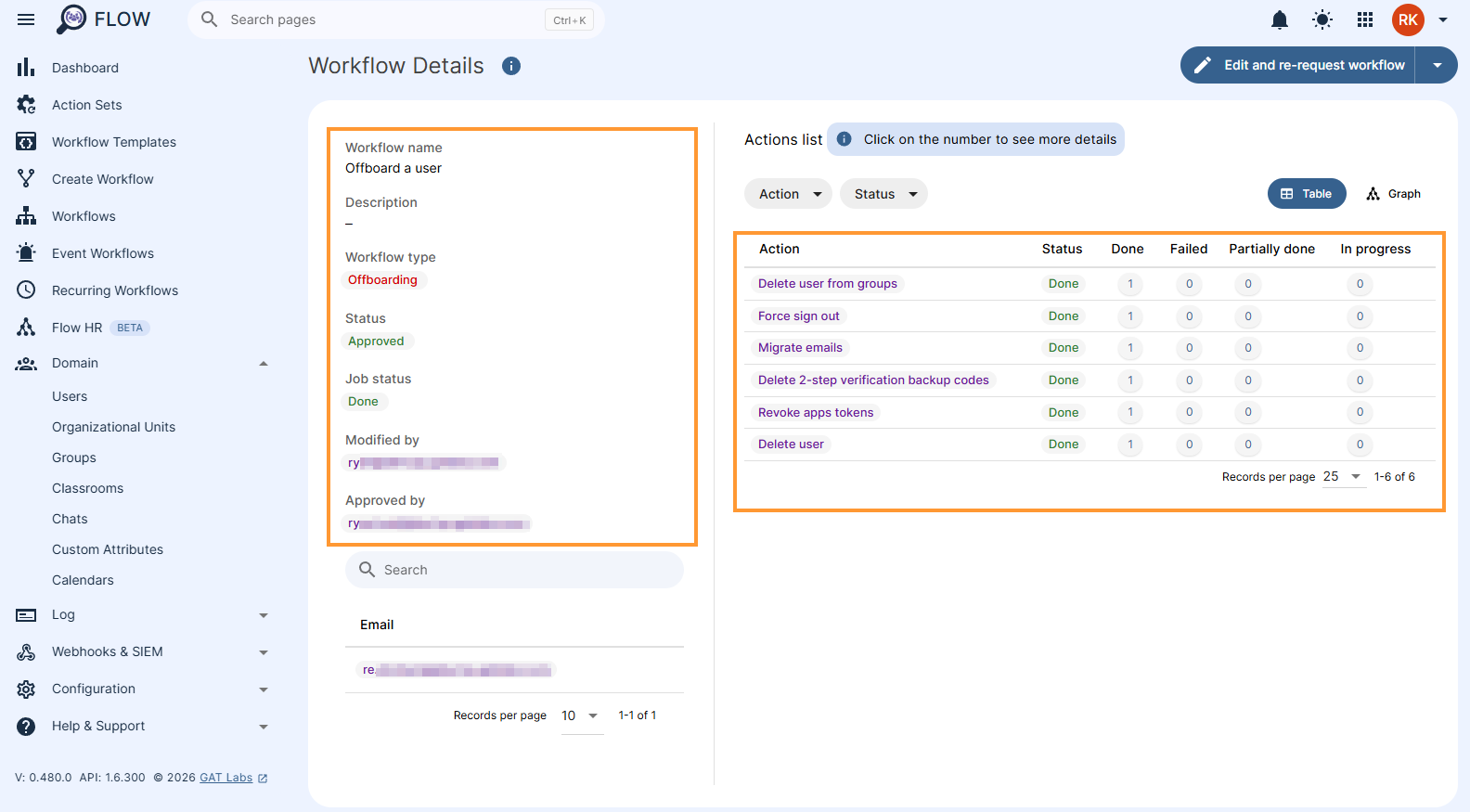
The account will be deleted from your domain, alongside the below actions.
- Delete user from all groups
- Force sign out
- Migrate emails
- Delete 2-step verification backup codes
- Revoke app tokens
- Delete user – deletion of the user
IMPORTANT: This action cannot be undone. Selected accounts will be deleted. All emails and files once removed can be restored within 20 days using the Google Workspace Admin Console otherwise they will be gone forever. Are you sure you want to proceed?
The Admin can check the result in Flow > Workflows > Details (page icon)
The detailed view will be present under the “page icon” to show all the actions taken on the user.
Video how-to #
You can check the how-to video below


