

GAT Flow allows admins to copy contacts from one user, to another user, group or OU.
NOTE: This feature requires you to have a Security Officer, you can learn how to enable a Security Officer here.
Launch GAT Flow #
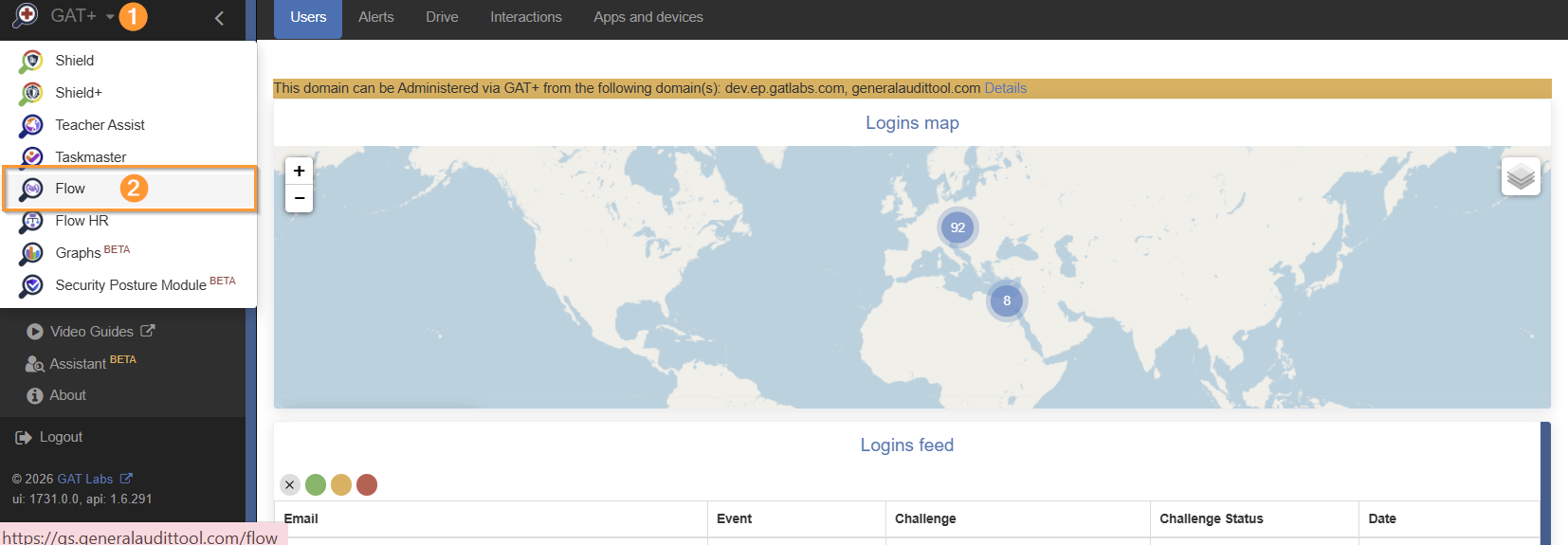
Navigate to GAT+ (1) > Flow (2)
Create Workflow #
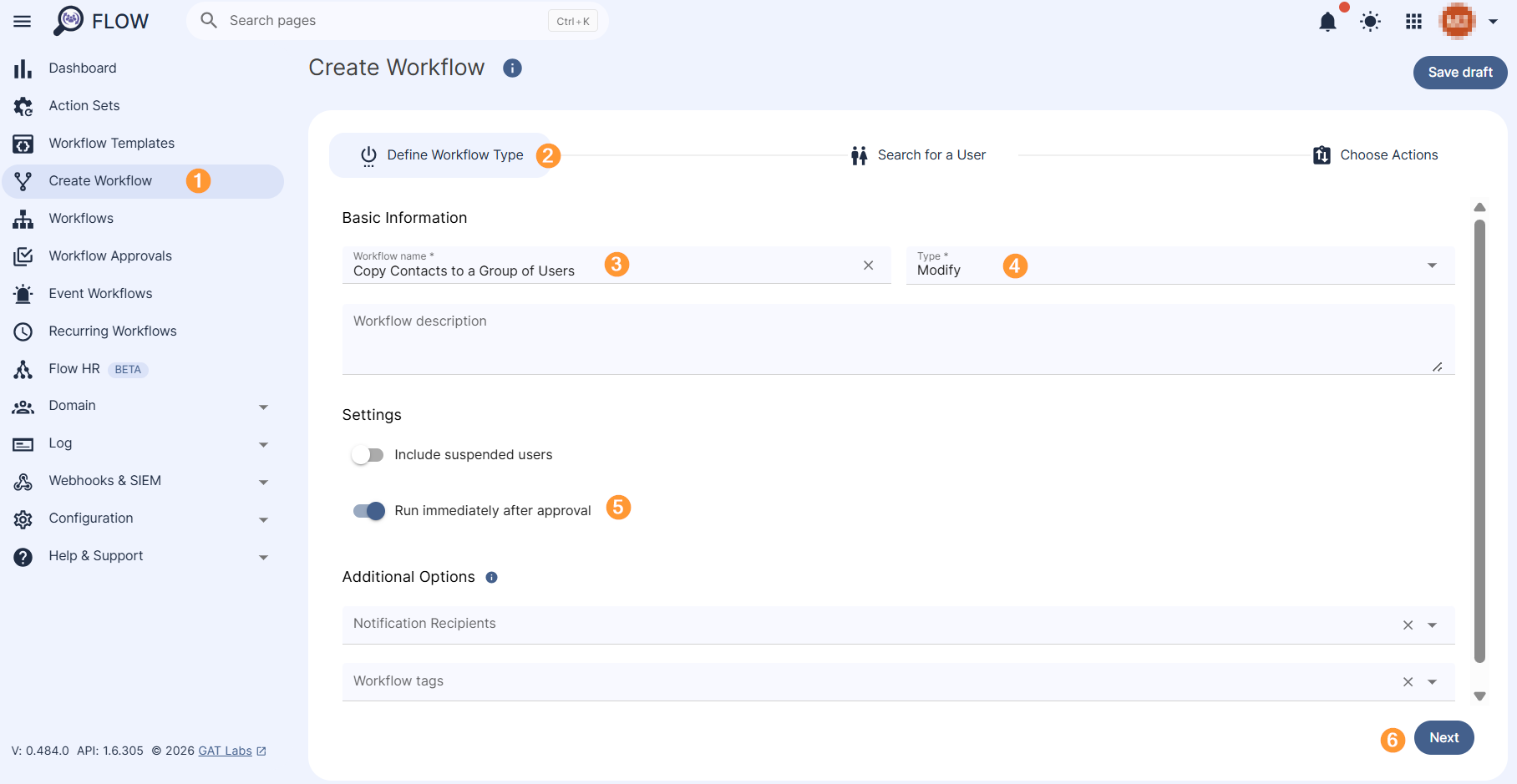
Navigate to Create workflow (1) section.
Under Define Workflow Type (2) fill in the below details:
- Name – enter a name for the workflow (3)
- Type – select the workflow type (3)
- Onboard – onboard and add new users to the domain
- Modify – modify and update existing users of the domain
- Description – a description of the workflow can be added
- Run immediately after approval (5)
- Next – click on the button to proceed (6)
Search for a User #
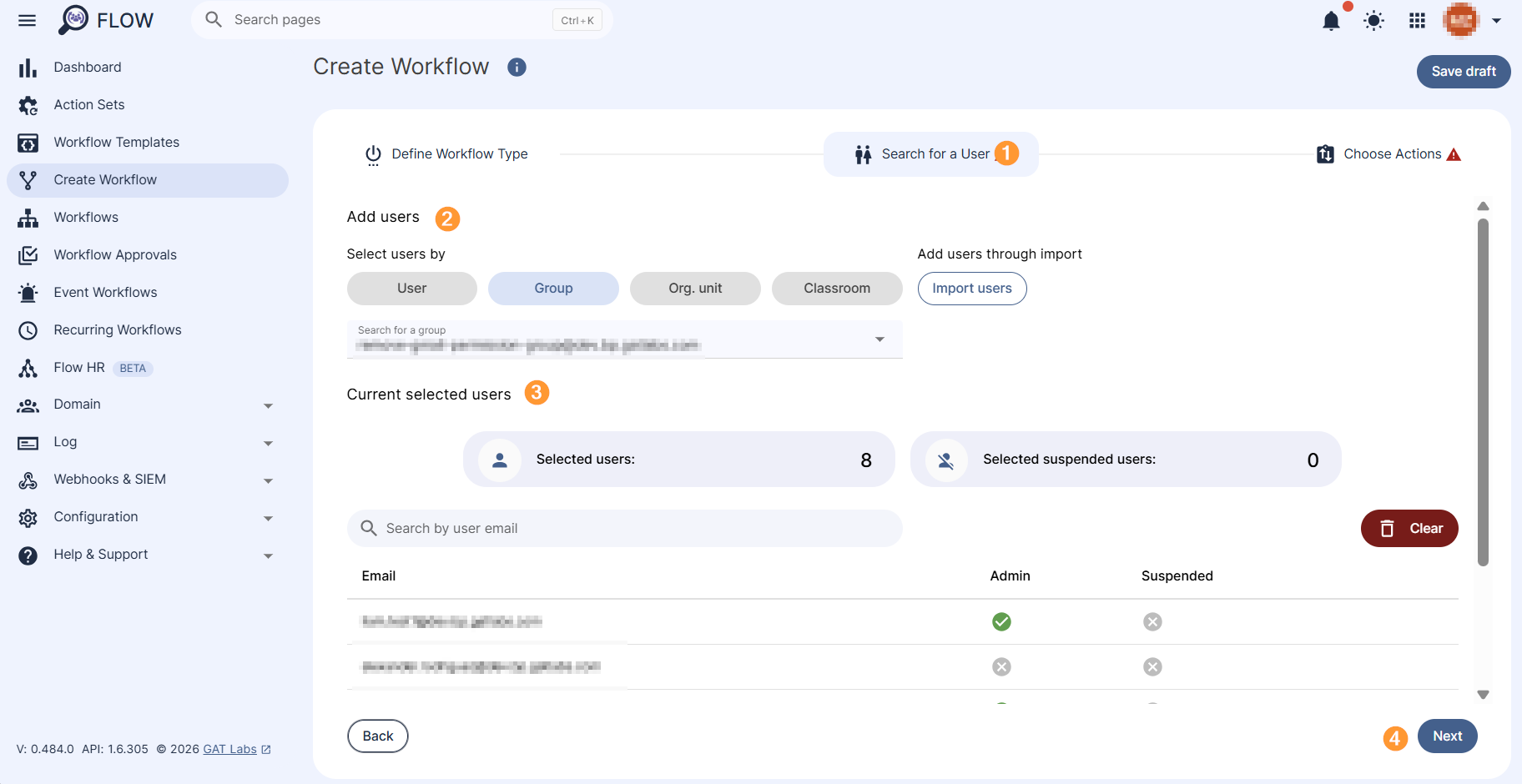
In Search for a User(s) section, select the user(s) to whom you want to copy the contacts (1).
- Search for a user
- Search for a group
- Search for an OU
Search by users individually, group of users, org. unit of users and even import users via Google Sheets (2-3)
Click on the Next button (4) to proceed further.
Choose Actions #
Once your users are selected a confirmation screen will display the users you will be copying the contacts to, if you wish, you can manually remove any given user by clicking the ‘x’ at the end of the selected user. If you are happy to proceed click ‘Proceed to actions’
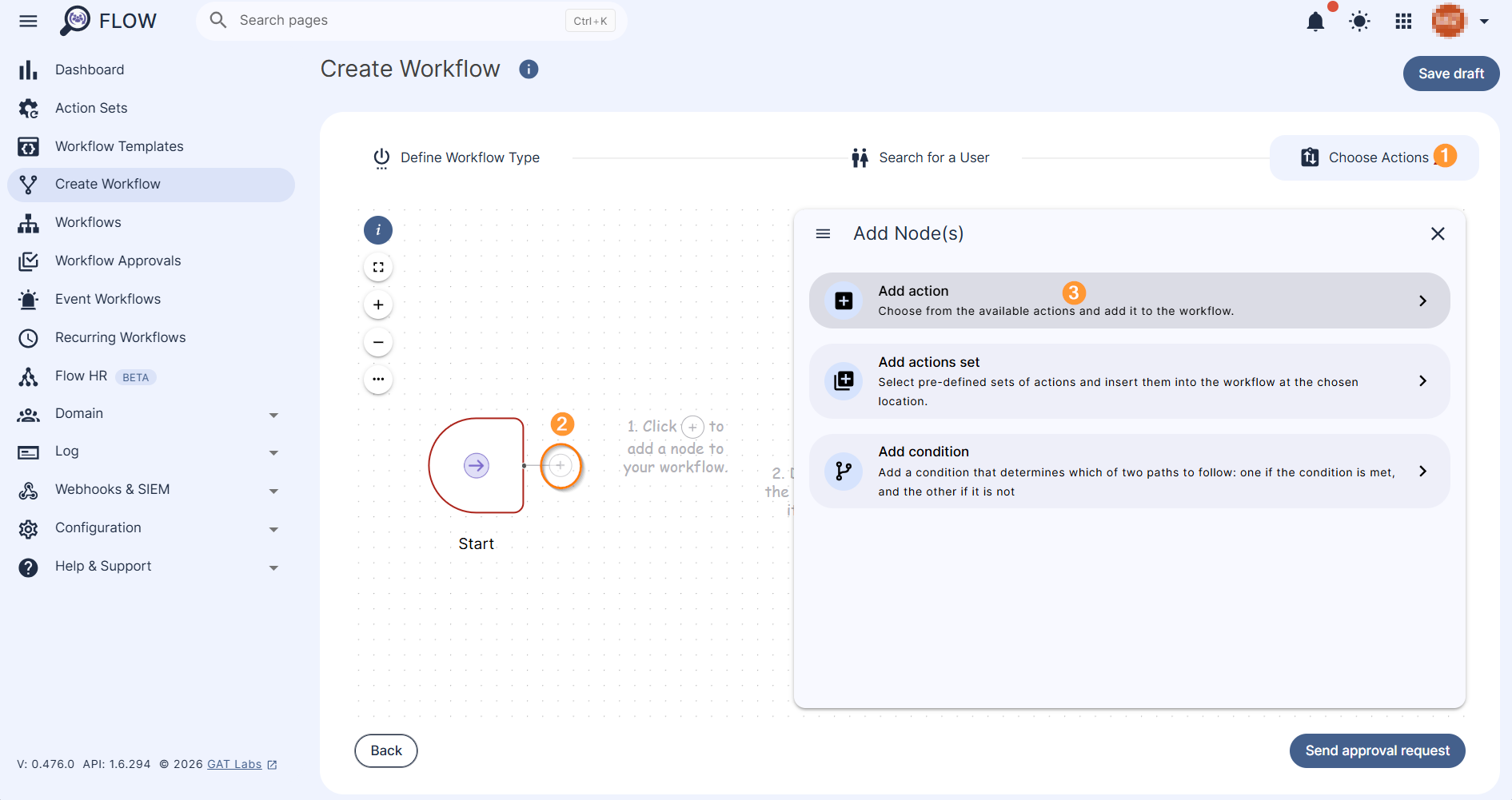
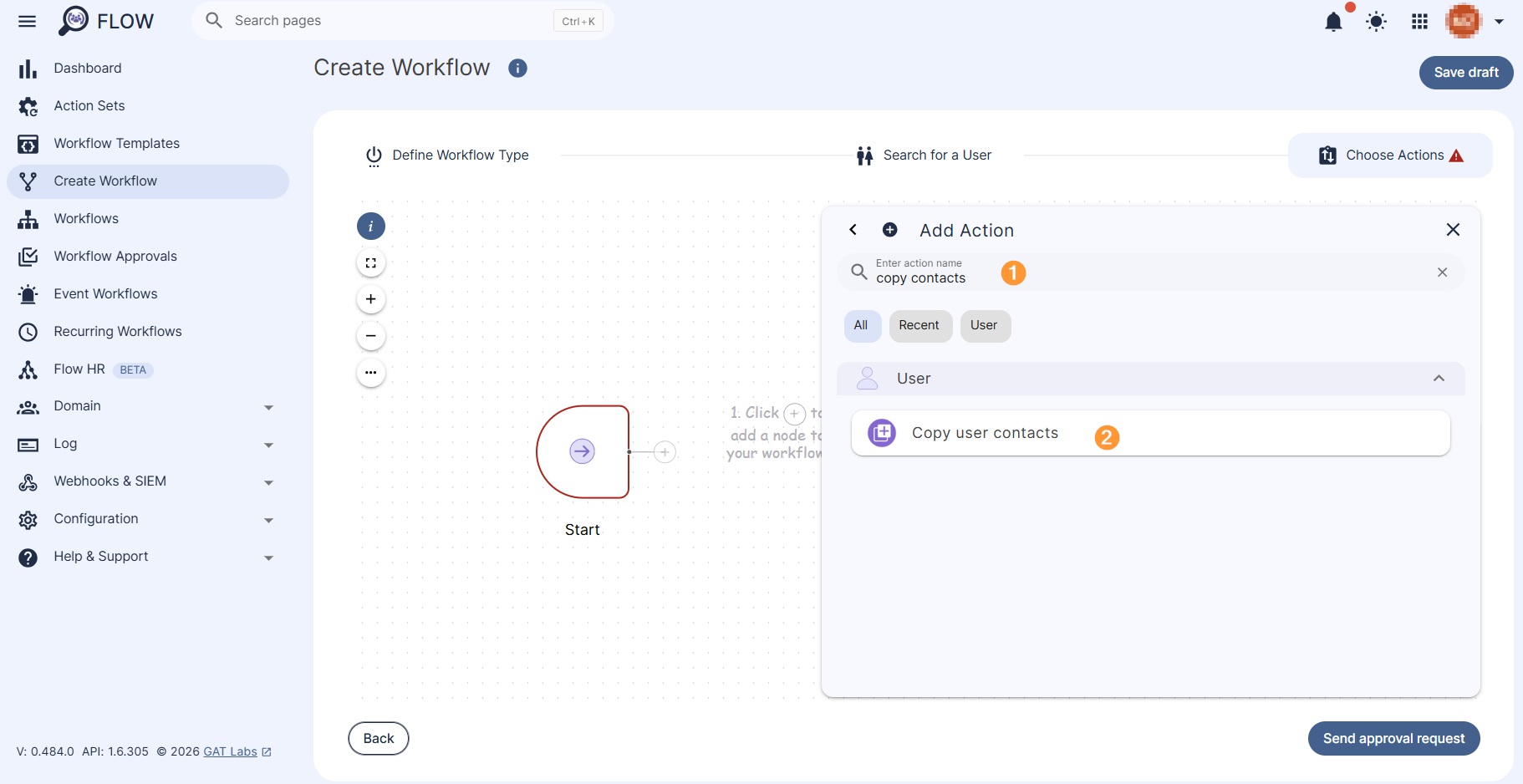
Under the Choose Actions section (1), click on the + button (2) and Add action (3). A pop-up menu with all the available actions will be displayed.
Search (1) and select the Copy user contacts action (2) from the available list.
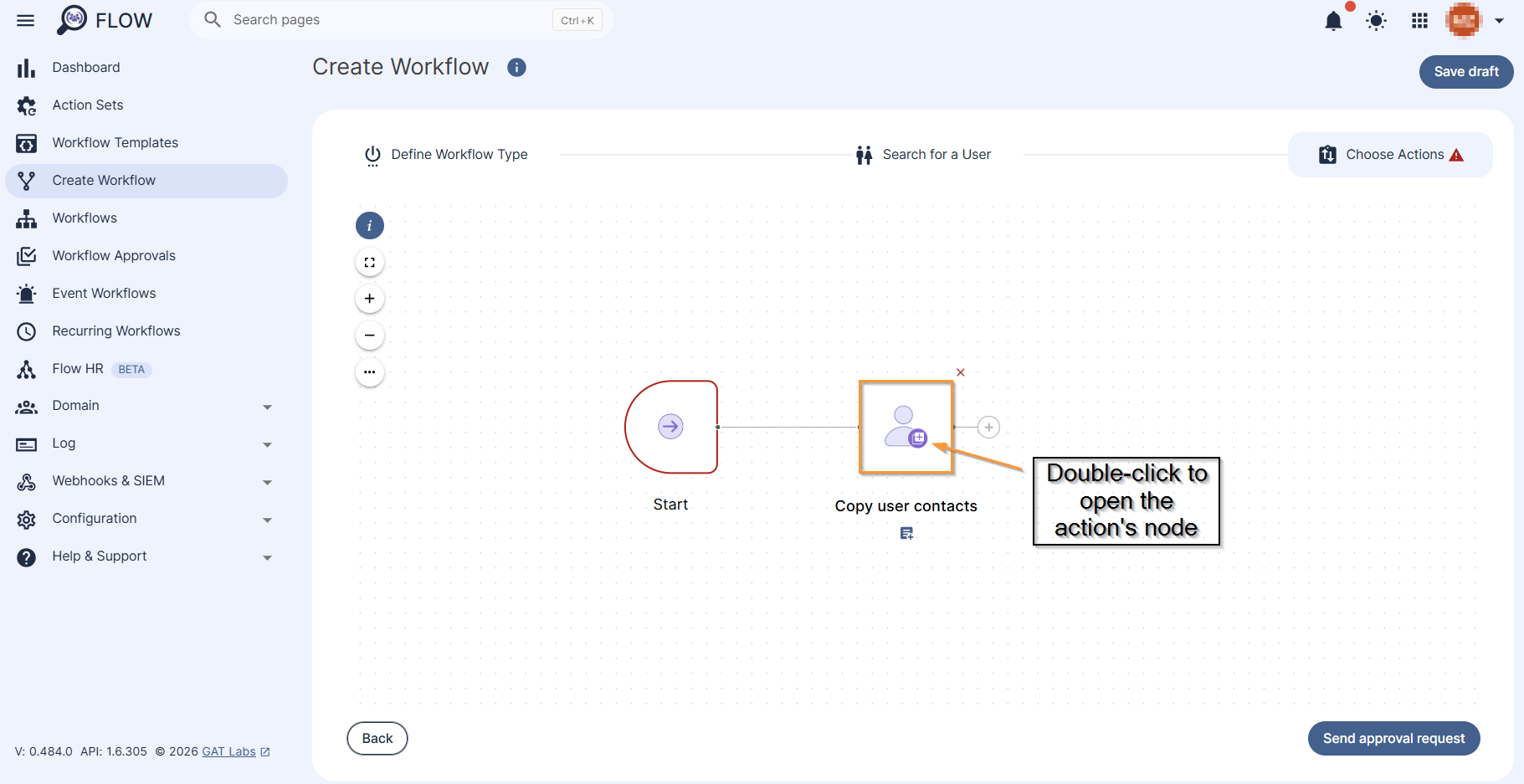
The Copy user contacts action will be added to the workflow node section. Double click on the action node to open the action’s configuration section.
Select user to copy contacts from #
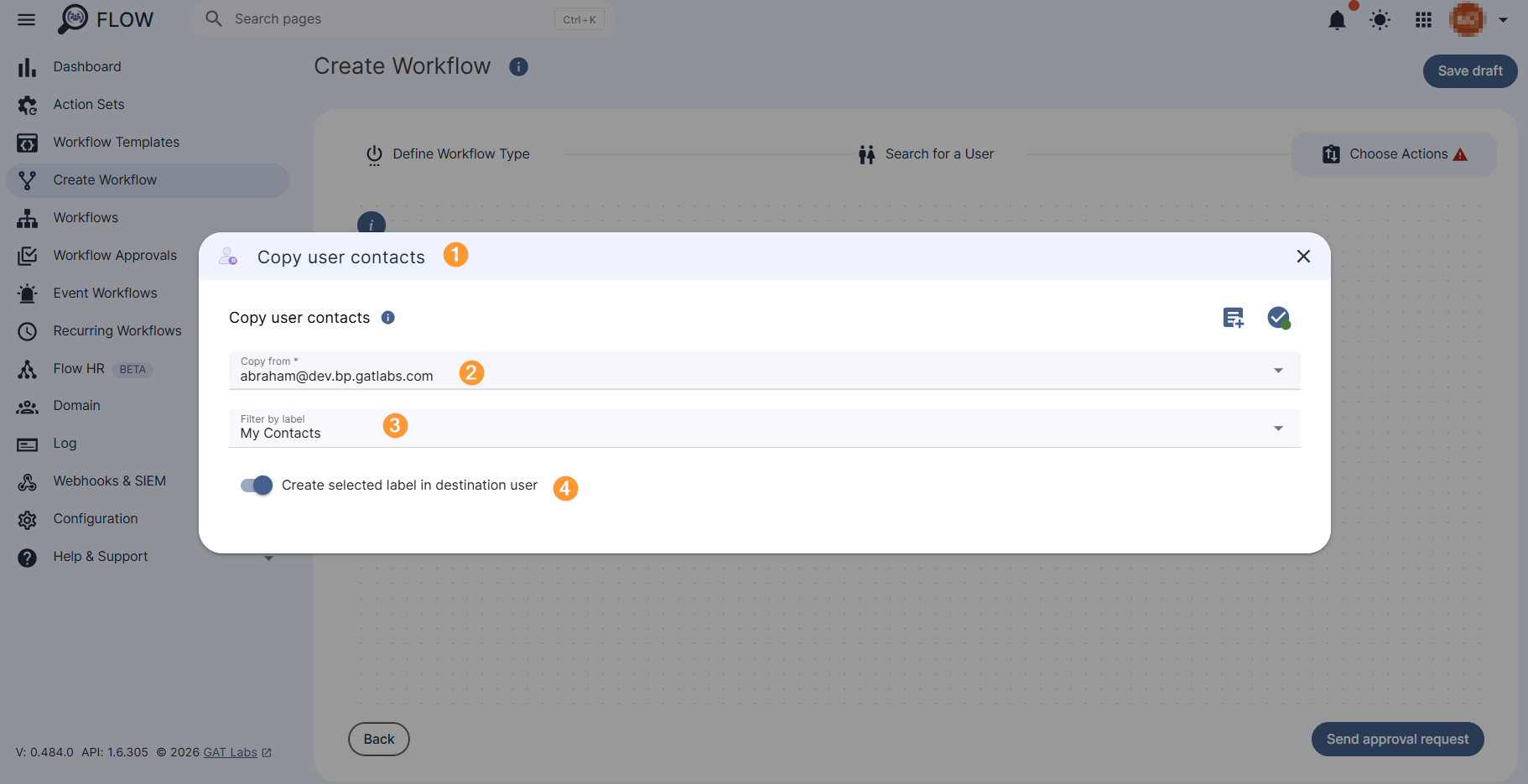
In the Copy user contacts action’s configuration section (1), search for the user from whom you want to copy contacts (2).
You can also filter user’s contacts by label (3). If you want to copy all the contacts from this user, leave this field blank.
Select “Create selected label in destination user” option (4) if applicable.
NOTE: Copy contacts from a selected user action does not check if the contacts already exist for the target user, therefore it may create duplicates.
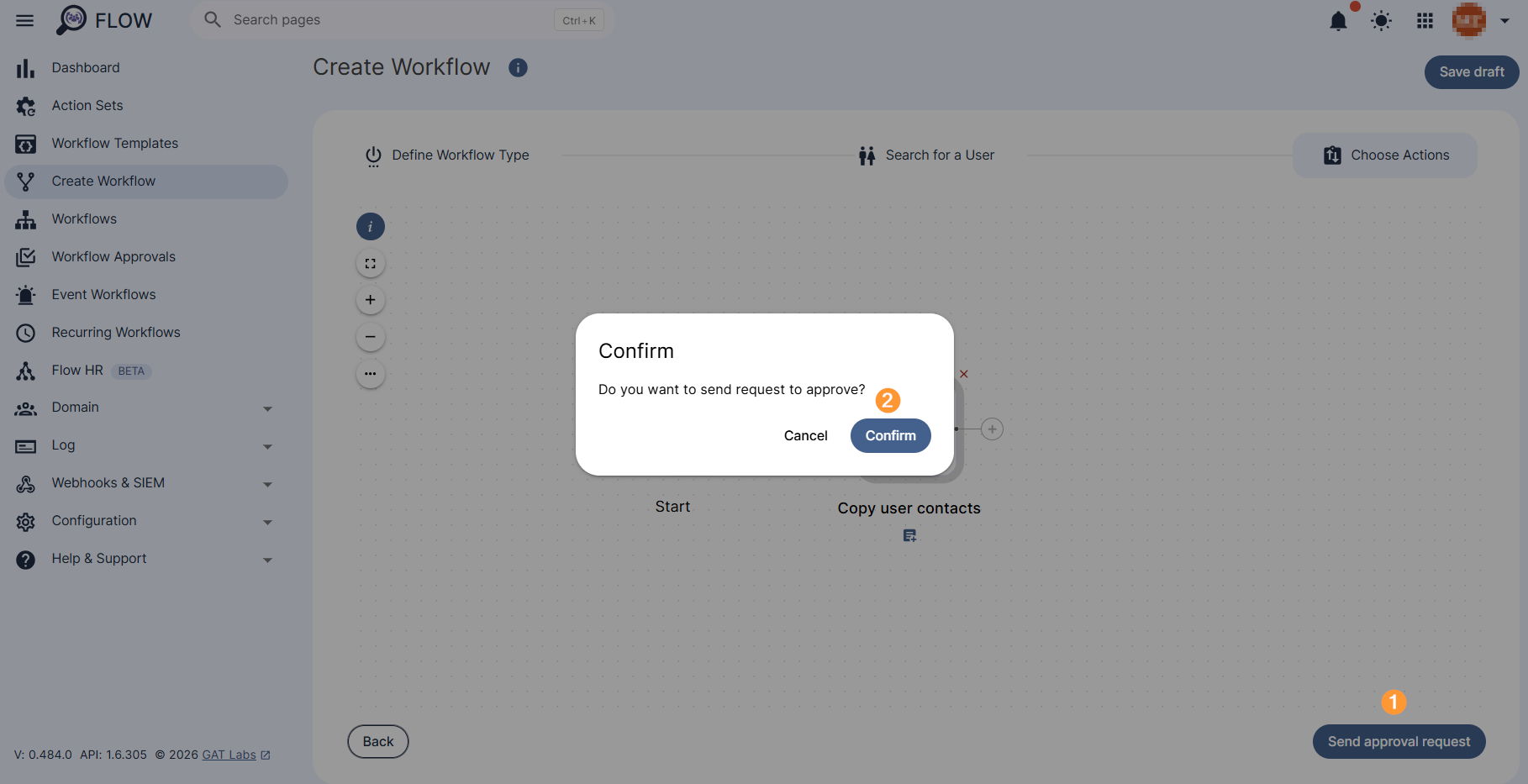
Once finished, click anywhere outside the action node to close it and select Send Approval Request to the Security Officer for review.
After selecting Send Approval Request (1), a confirmation message will appear. Confirm to continue (2).
The workflow will be submitted for approval to the Security Officer.
Security Officer Approval #
Your request will be sent to your Security Officer, once approved the contacts will be visible after refreshing the session.
The Security Officer will receive an email notification for verification.
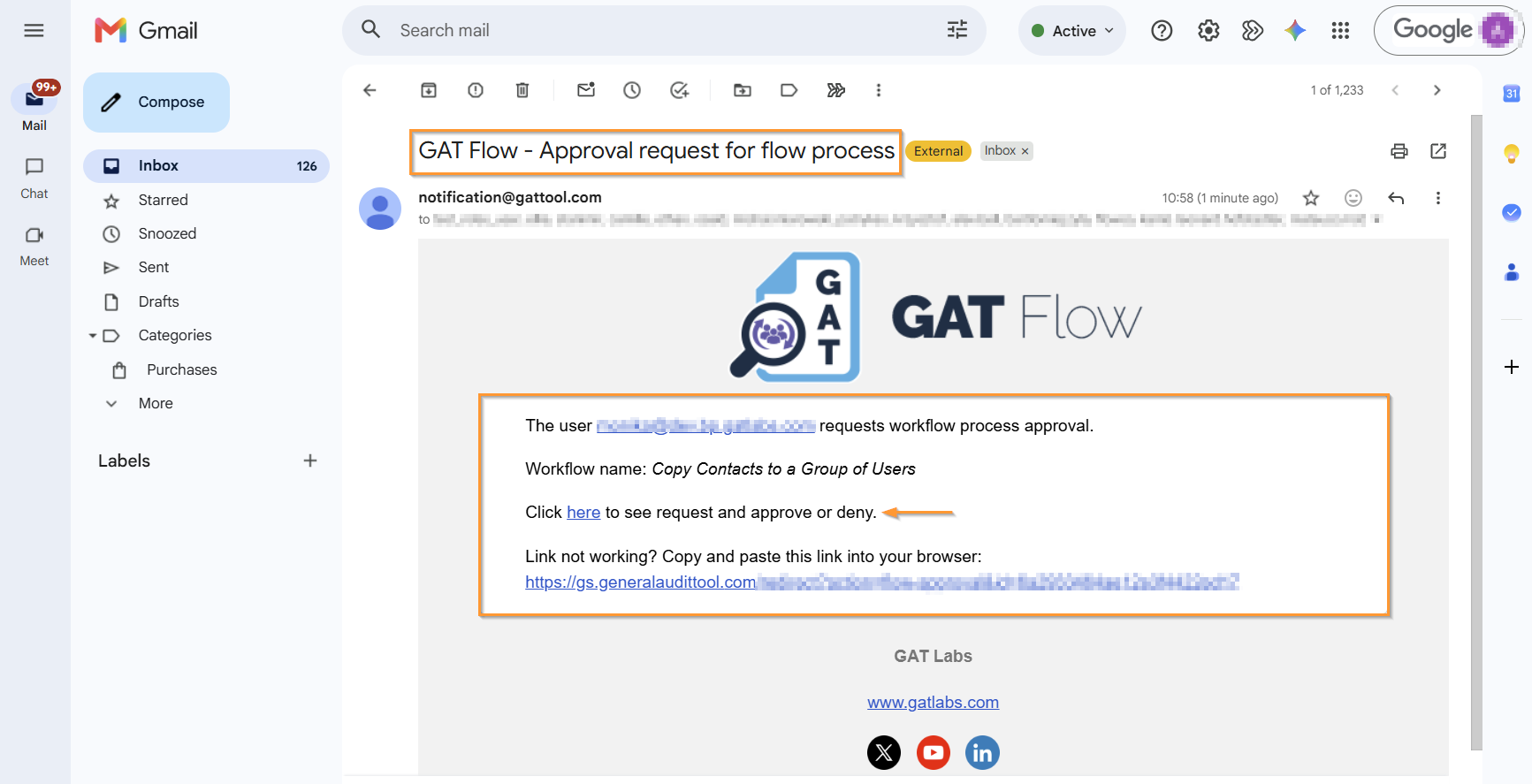
After clicking the link in the email, they will be redirected to the approval section of the relevant workflow in Flow (1), where they can review the request and approve (2) or deny it (3).
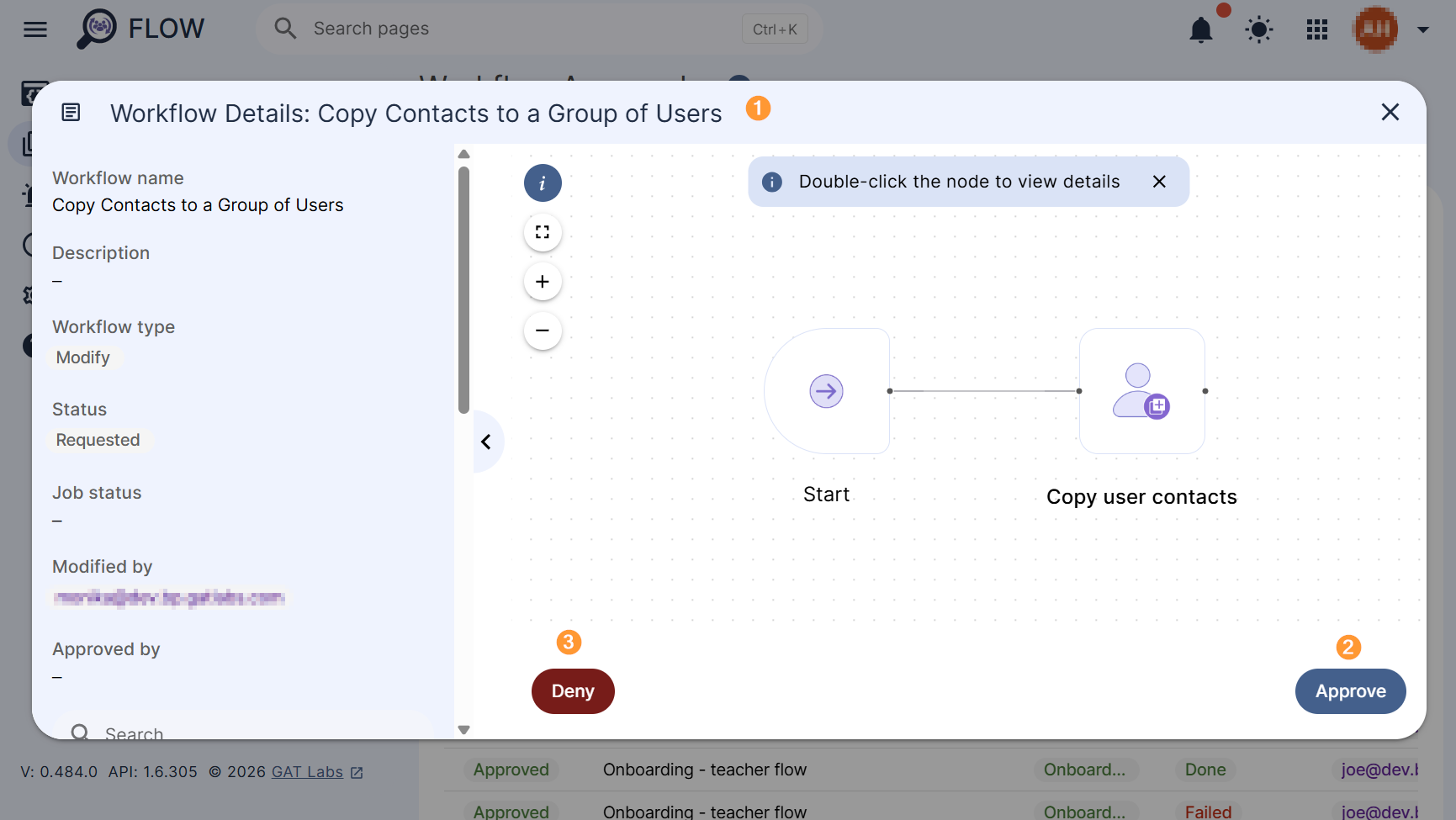
When approved, the action will take effect and all contacts will be copied to the selected users.
Note: If pre-approval is enabled no Security Officer approval will be needed.
Results #
The status of the request can be viewed in details under Workflow (1 -2). The Details (3) icon on the right side of the workflow record allows to view it in detail.
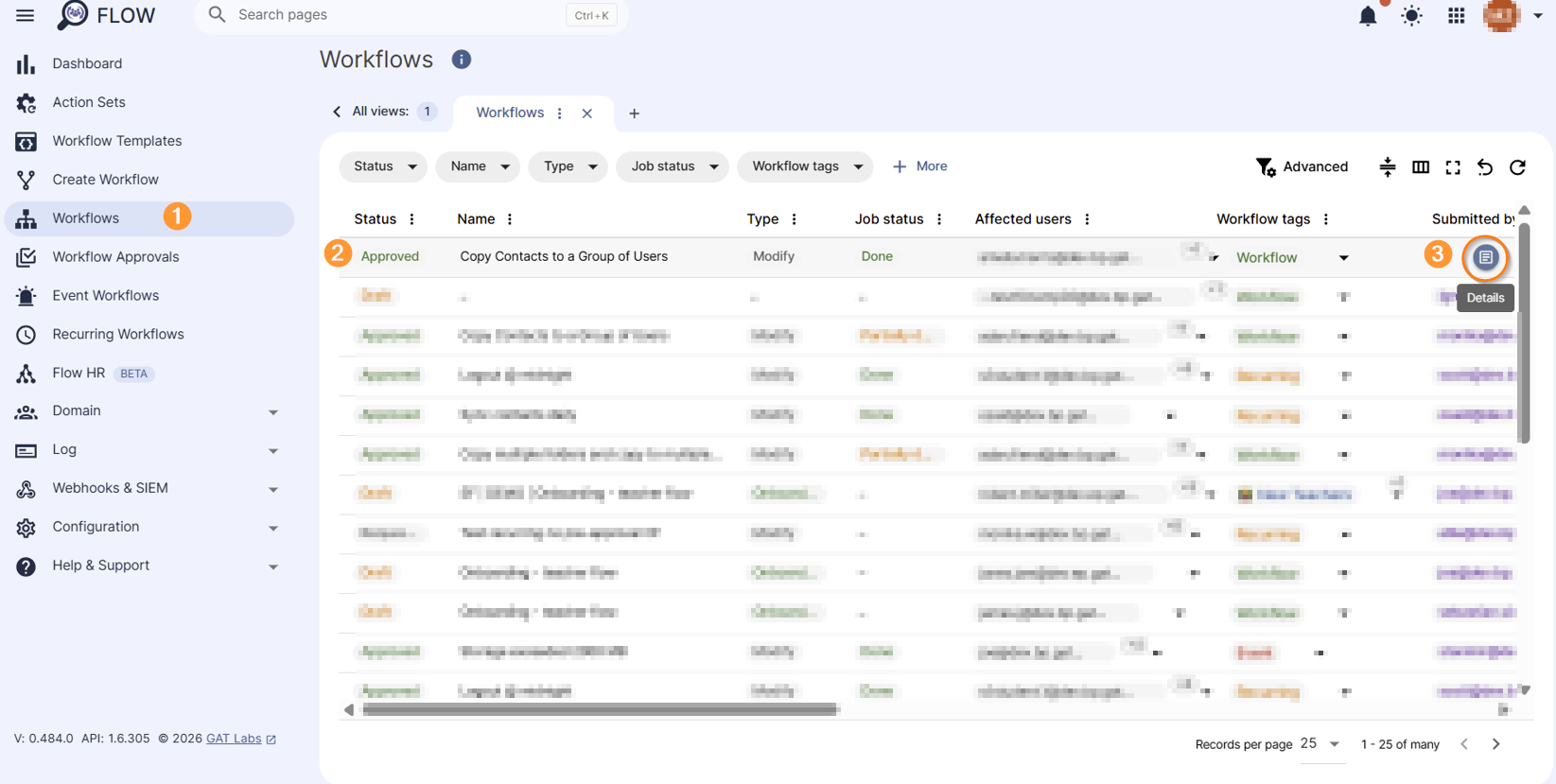
When the workflow completes successfully, the selected user’s contacts are copied to the contact lists of the users selected for the workflow.


