

In today’s digital classroom, the Google Chrome browser is the primary gateway to learning, but it can also expose students to severe online risks. From distracting gaming sites to dangerous viral trends and explicit content, keeping students safe online requires a robust, proactive defense that doesn’t drag down your IT department’s time.
GAT Shield addresses this challenge through its powerful Site Access Control feature. Implemented as a lightweight Chrome extension, it serves as an intelligent web filter that instantly restricts access to inappropriate online content, blocking millions of harmful websites.
Instead of forcing administrators to manually compile and update massive blacklists, GAT Shield utilizes predefined categories as examples:
- Violence,
- Brutality,
- Hate Speech,
- Harmful Behavior,
- Pornography,
- Obscenity,
- Drugs and
- Psychoactive Substances,
- Dating,
- Gambling,
- Contraband,
- Cryptojack,
- Phishing.
These curated categories cover millions of domains across high-risk areas like self-harm, violence, adult content, and illegal substances. Best of all, these lists are automatically updated every week on the backend, giving your school a true “set-it-and-forget-it” Shield to preserve instructional focus and maintain federal safety compliance.
Set up a Rule to Block Websites #
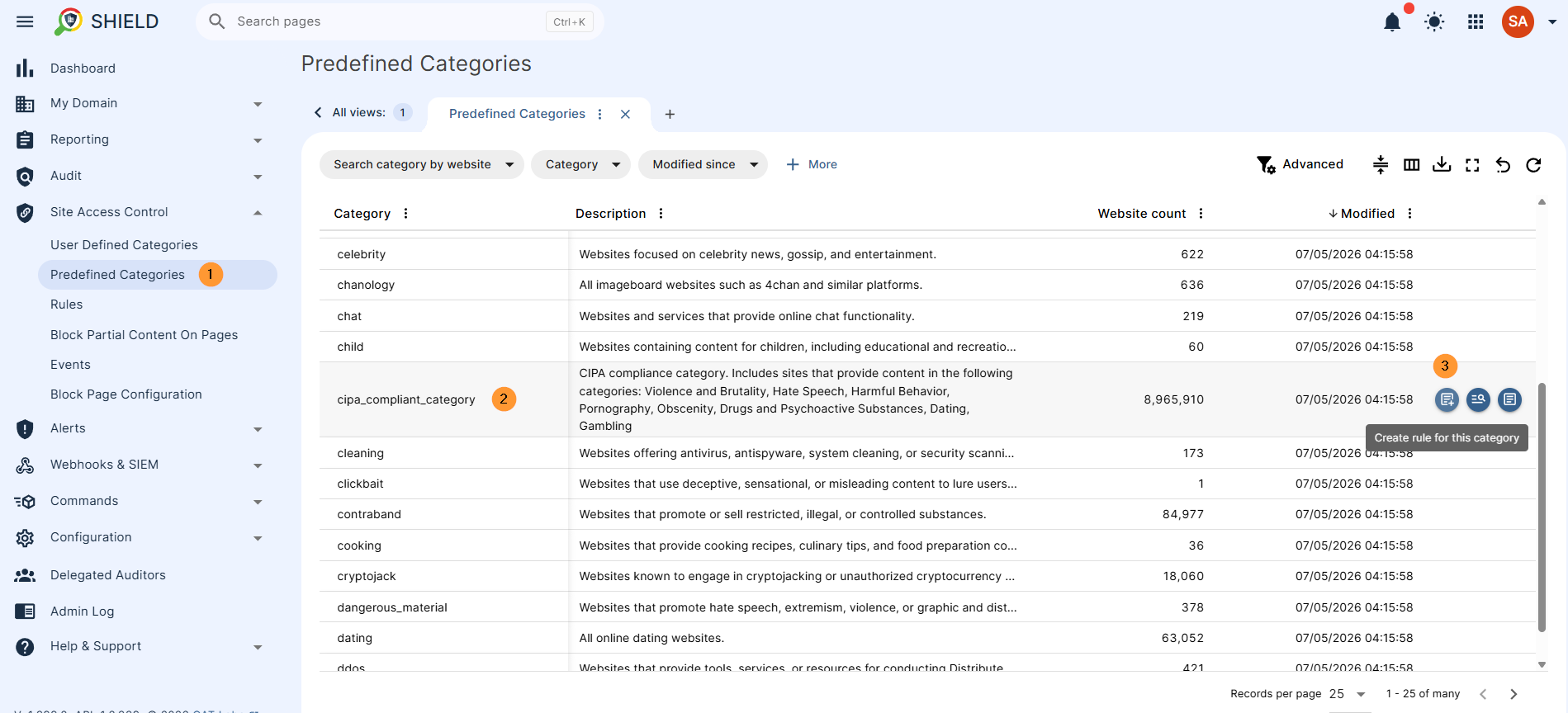
Navigate to GAT Shield > Site Access Control > Predefined categories.
Those are predefined categories of sites that cover thousands or millions of sites.
Select any category and “create rule for this category”.
Hover over the needed category and click the + button (Create a rule for this category).
Sites Covered #
The category covers millions of websites. In this case, “cipa_compliant_category” includes sites that provide content in the following categories: Violence and Brutality, Hate Speech, Harmful Behavior, Pornography, Obscenity, Drugs and Psychoactive Substances, Dating, and Gambling.
Predefined Category Auto Update #
The predefined categories cannot be edited; they are automatically updated weekly. You cannot add or remove sites from them. If you need to add or remove sites, simply create a new category containing the sites you want to allow or block.
Activate the Rule #
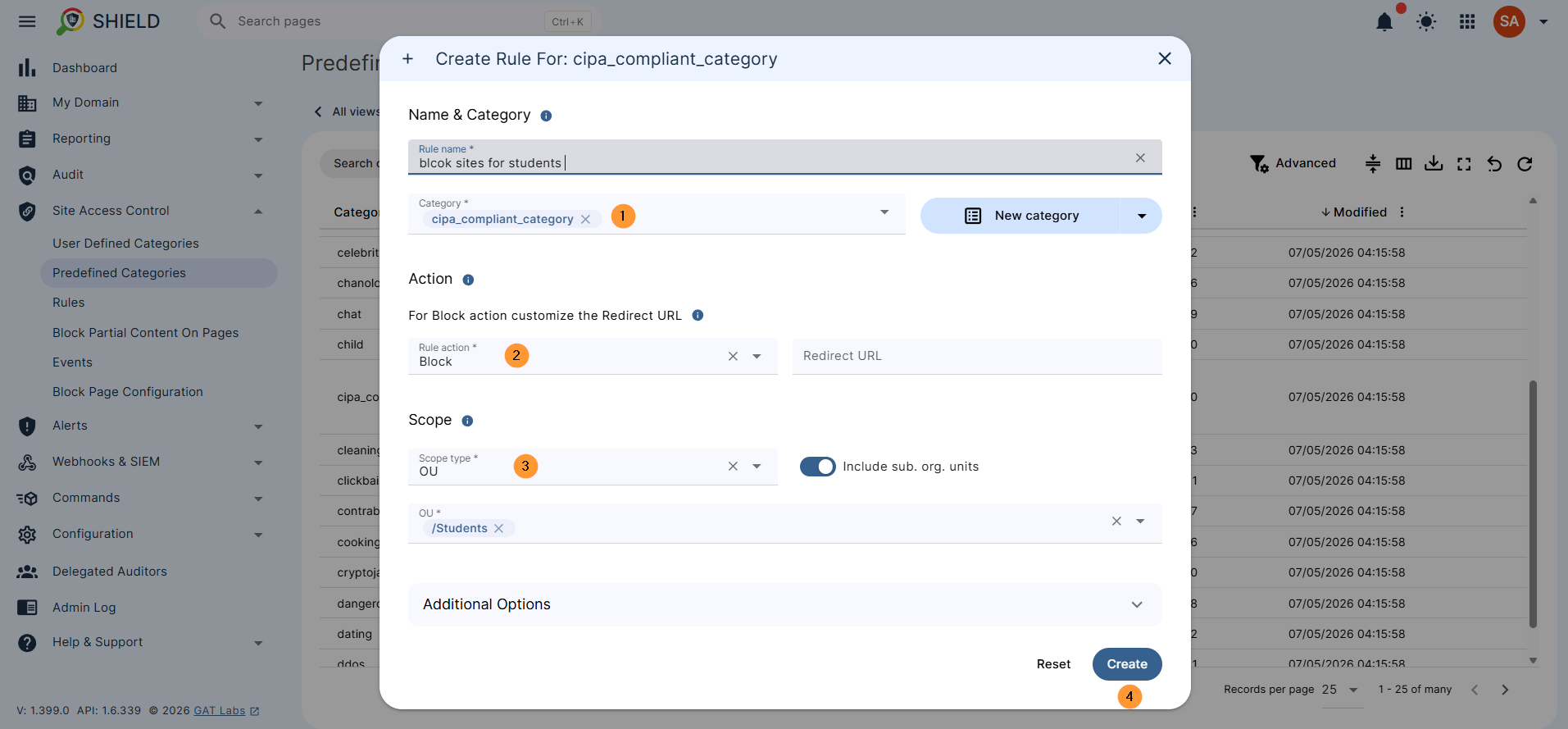
Fill in the details for the rule:
- Name – Enter the name for the rule.
- Category – the selected one will be there; add additional categories if needed.
- Rule action – Block.
- Scope – Select the users you want to block.
- Create – Click to create the rule.
Result #
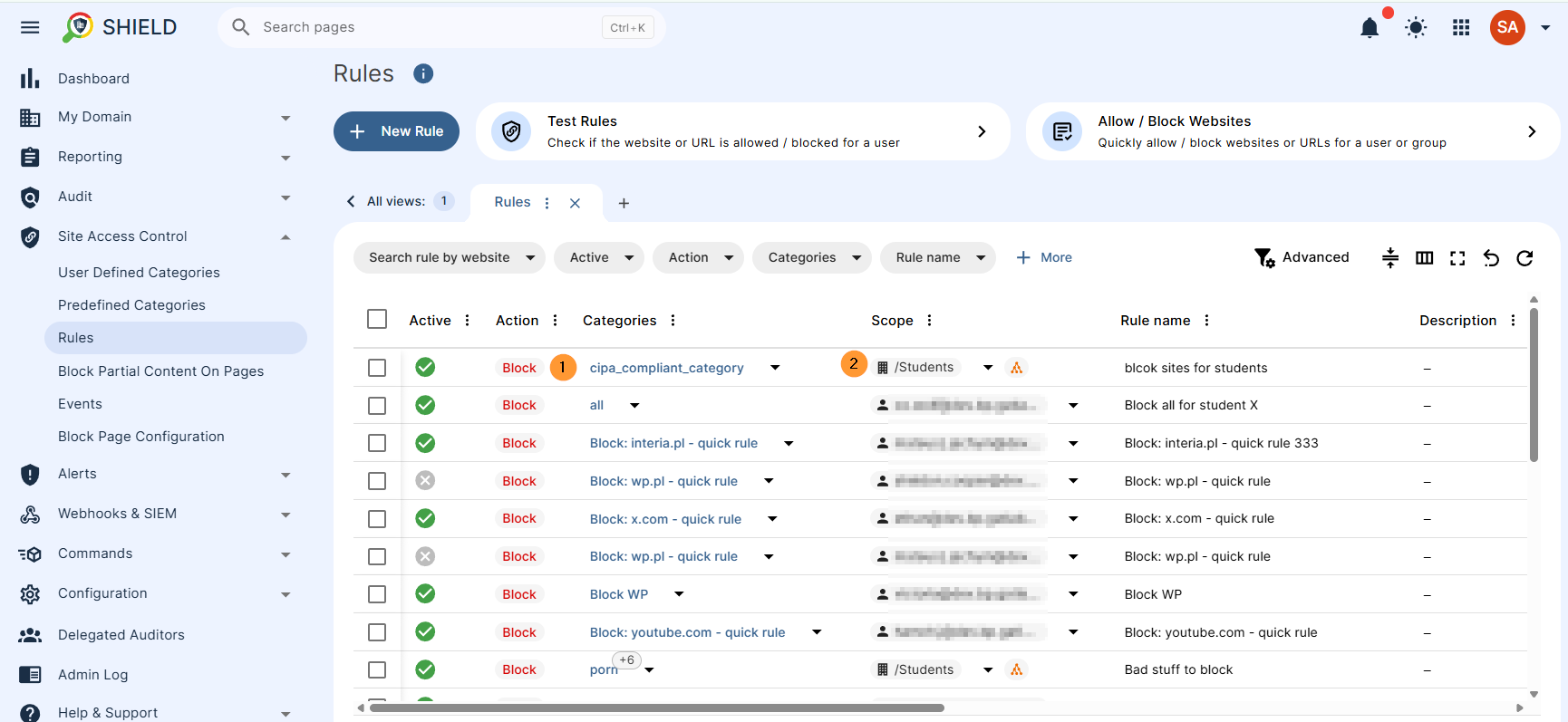
The Site Access Control rule will be created, and the sites in the category will be blocked for all students in scope.
In Shield > Site Access Control > Rules, view the category created.
Result for Students #
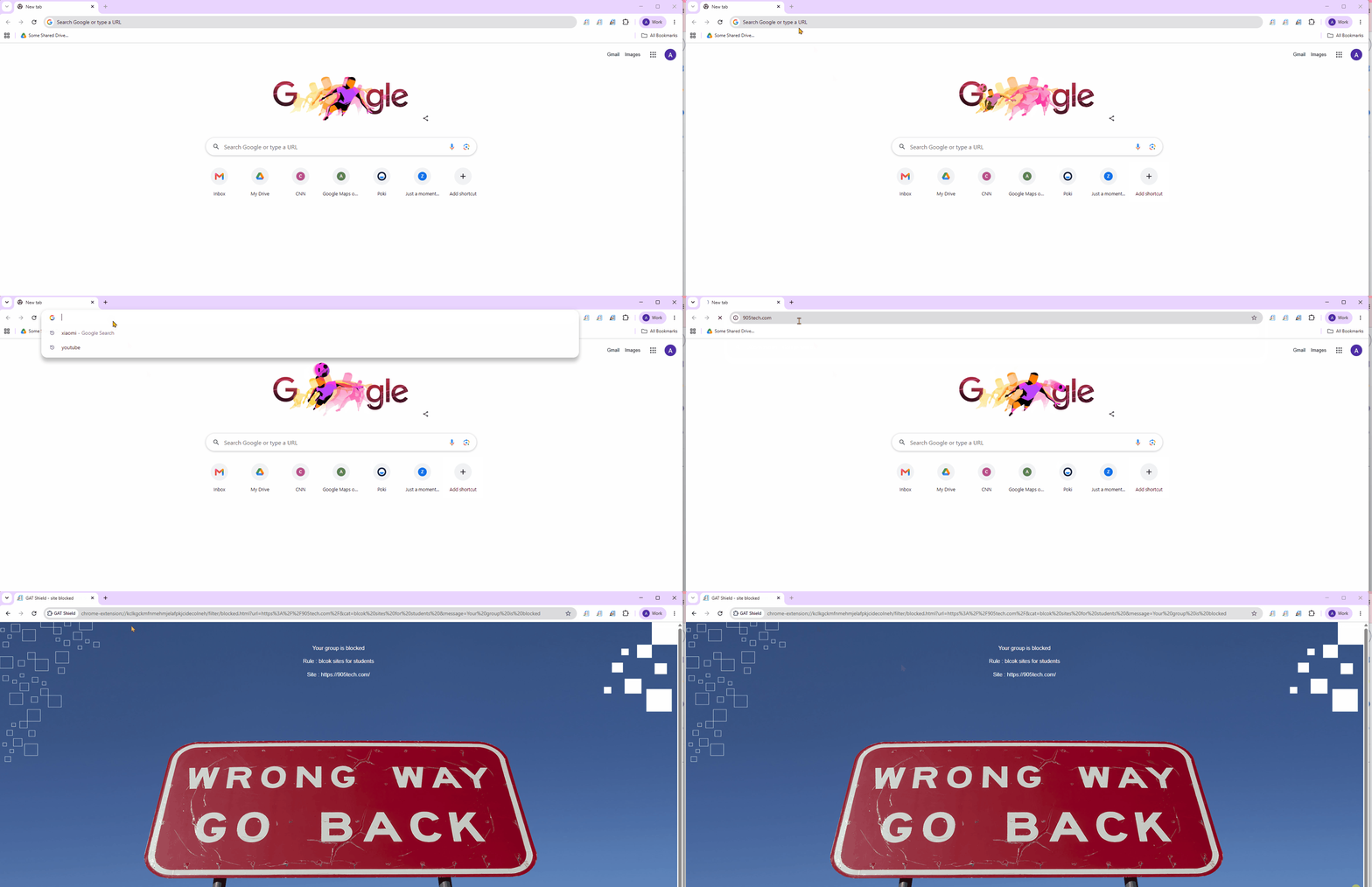
GAT Shield will block students from visiting the sites listed in the category (Violence and Brutality, Hate Speech, Harmful Behavior, Pornography, Obscenity, Drugs and Psychoactive Substances, Dating, Gambling)
When the student opens any site included in the CIPA category, the pages will be blocked as follows.
Conclusion #
By deploying Predefined Categories within GAT Shield’s Site Access Control, educational institutions gain an instant, zero-maintenance defense against inappropriate online content.
This approach offers distinct advantages for protecting students and managing school infrastructure:
- Effortless Regulatory Compliance: Utilizing comprehensive, predefined content filters – such as the CIPA-compliant category – ensures your domain automatically satisfies federal safety guidelines and student data protection standards.
- Proactive Protection Against Online Risks: Broad tracking of highly sensitive areas (such as harmful behaviors, weapons, and self-harm trends) creates an immediate shield for vulnerable students, blocking dangerous trends before they can spread through the student body.
- Elimination of Administrative Overhead: Because GAT Shield automatically updates these millions of dynamic URLs weekly, IT administrators no longer need to spend time manually building, editing, or maintaining massive website blacklists.
Ultimately, this automated web-filtering system gives schools a seamless, “set-it-and-forget-it” method to preserve instructional focus and keep student browsing safe, legal, and secure.


