

GAT Flow addresses the lack of criteria for categorization by allowing the Google Workspace Admins to create their own custom attributes for their users.
Many companies and schools may have certain criteria for categorizing employees, managers, teachers, and students.
Google Admin Console has many options to allow an admin to input user data so that it can be manipulated in certain ways.
However, Google Admin Console data fields are set in stone, and many of these categories fall short of what is required when an Admin wants to enter a specific characteristic that might only be relevant to their organization.
Below, we explain how to solve this problem using GAT Flow.
How to use the custom attributes in the signature #
One use case for the users’ custom attributes might be in setting the user’s signature.
If you would like to add specific information to the users’ signature, for example, their location, you can add it to the signature if that data has been entered in the Users section of GAT Flow.
Step 1. #
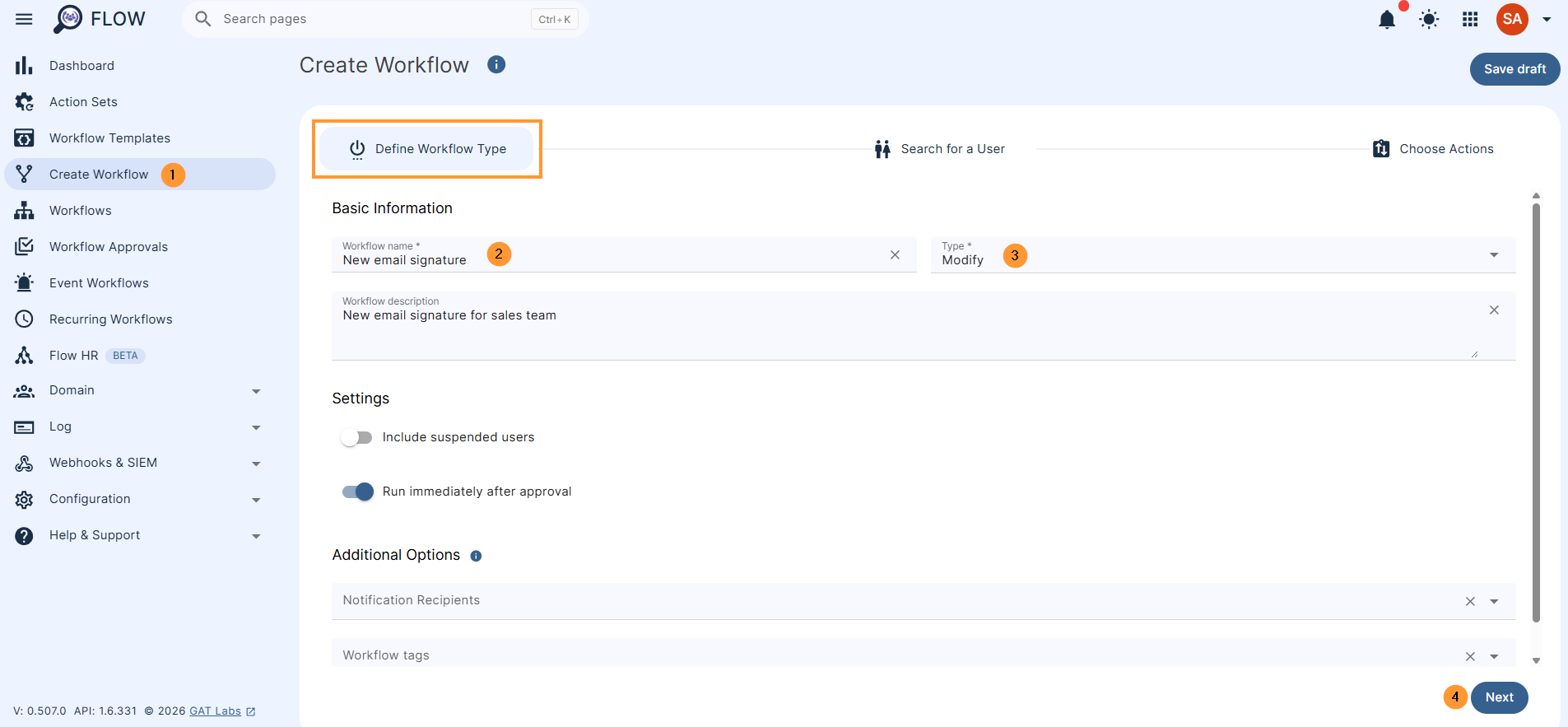
Navigate to Flow > Create workflow > Define the workflow type
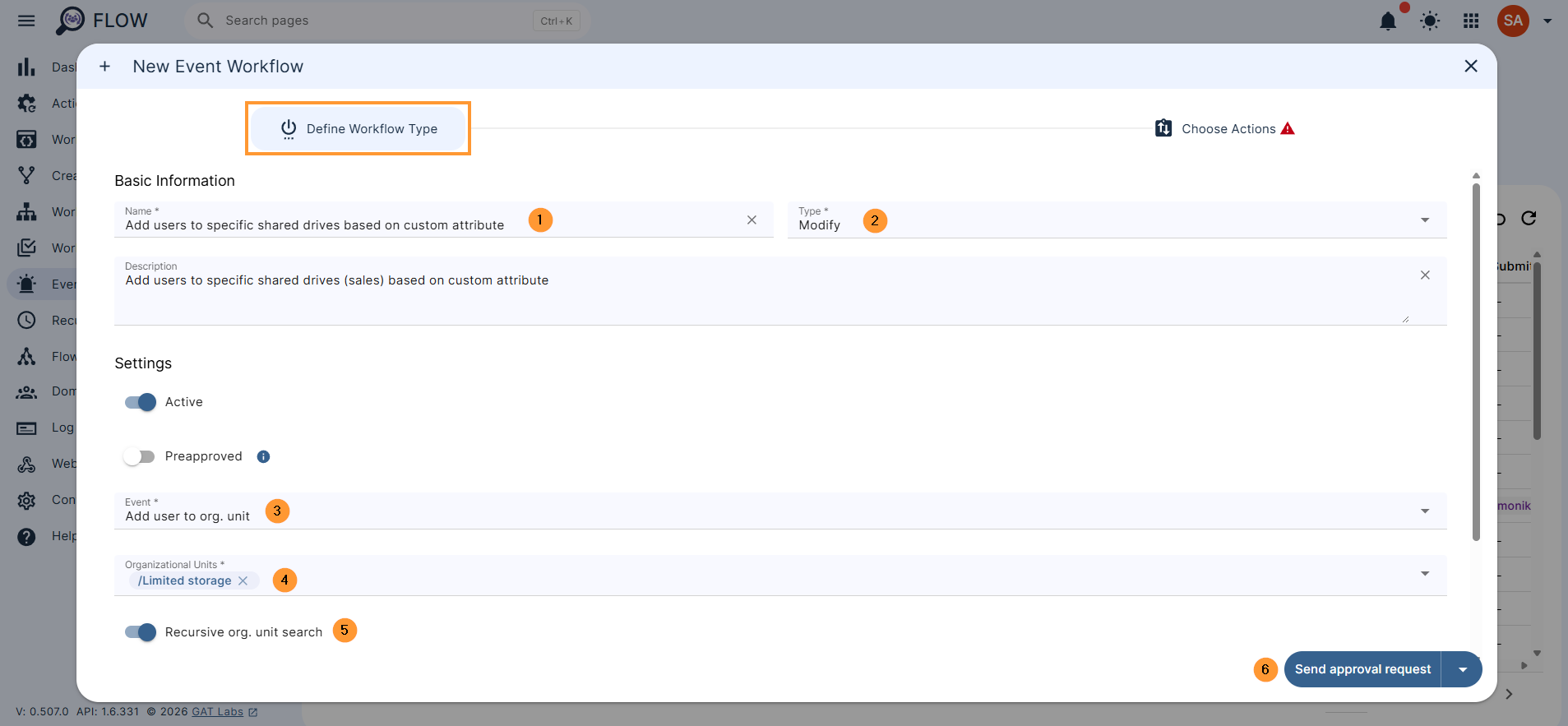
Fill in the details
- Name – enter the name for the workflow
- Type – select Modify
- Next – click to proceed
Step 2. #
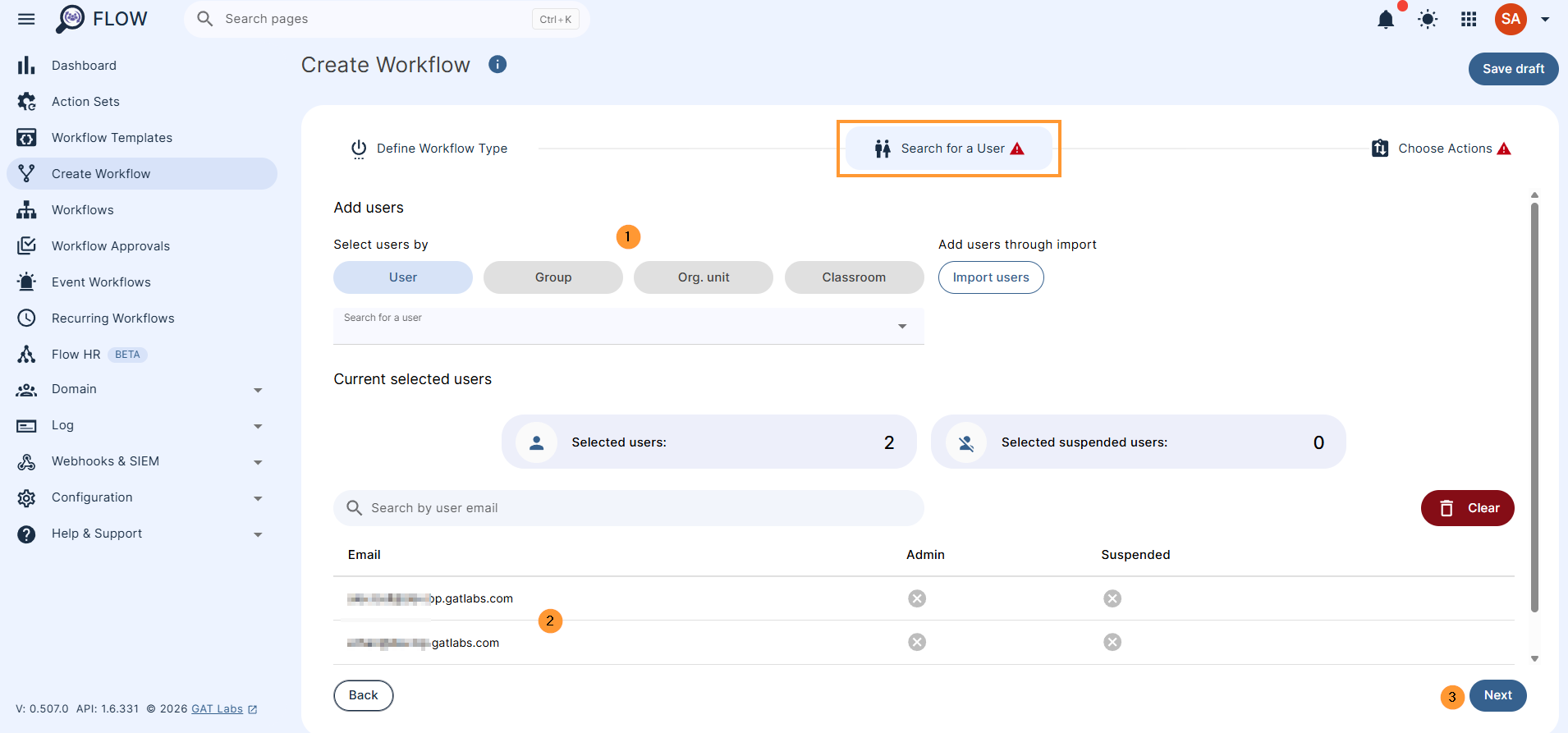
On the Search for user screen, select the users you want the workflow to run on, and click Next
Step 3. #
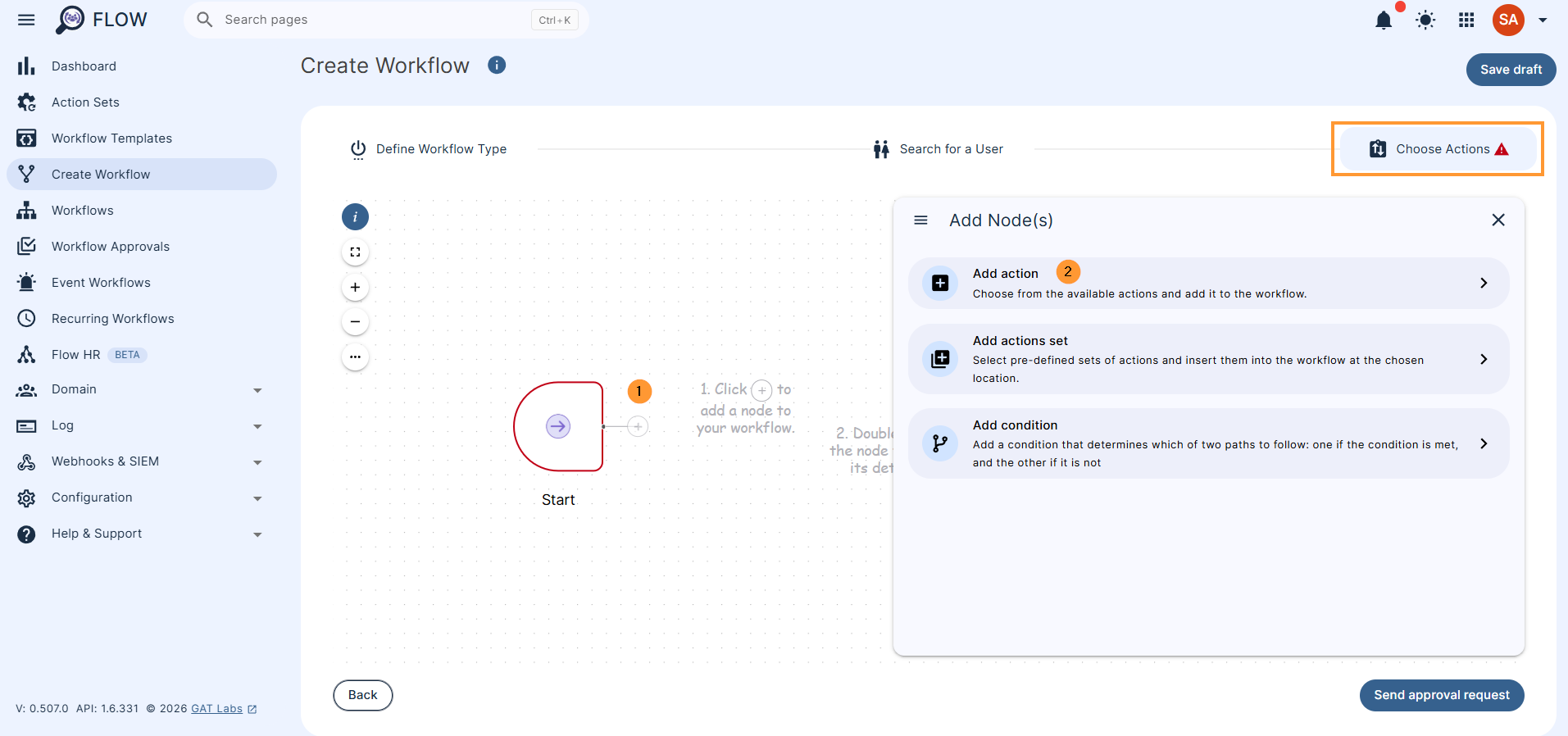
On the Choose actions screen, click on the + button and Add action
Step 4. #
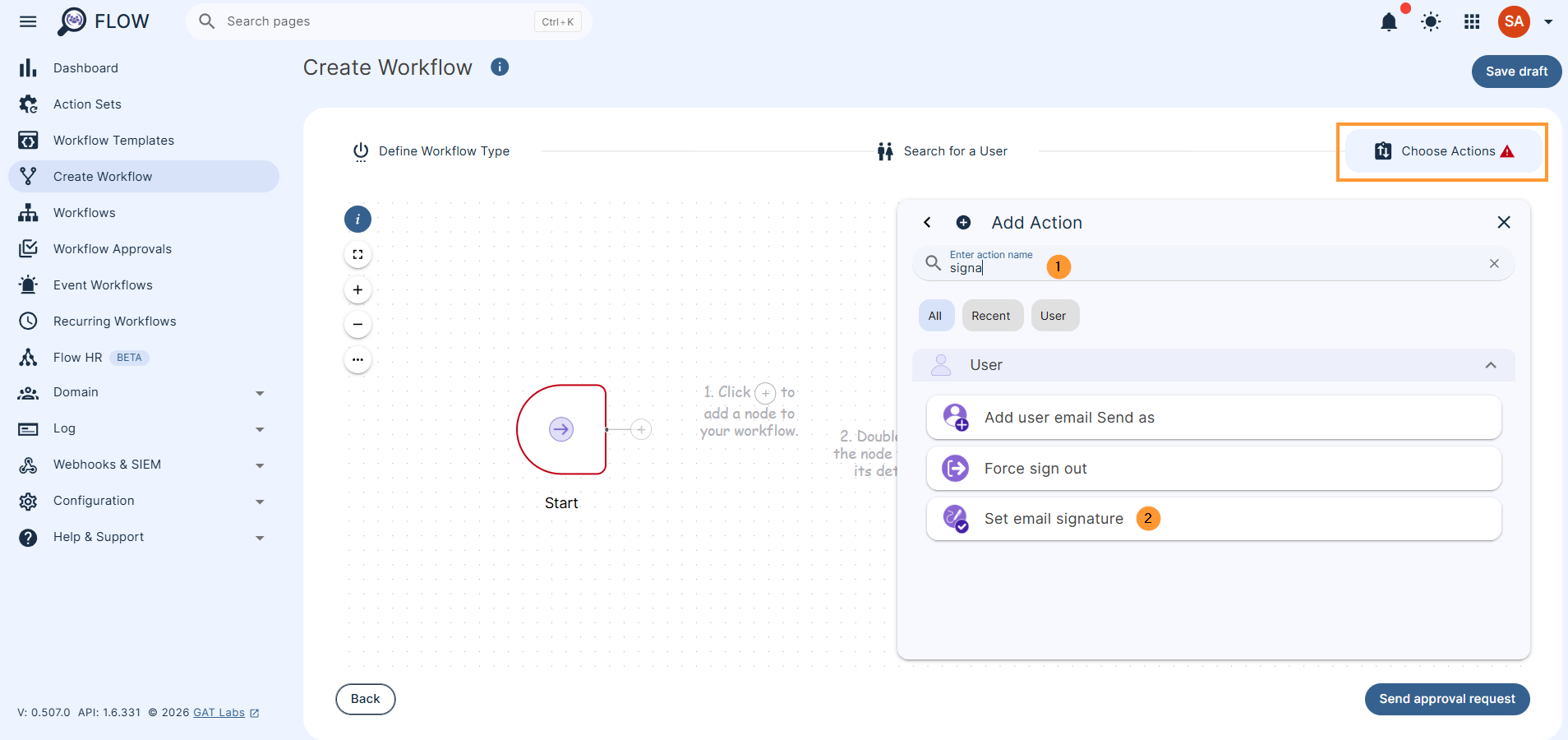
Search for and select Set email signature
Step 5. #
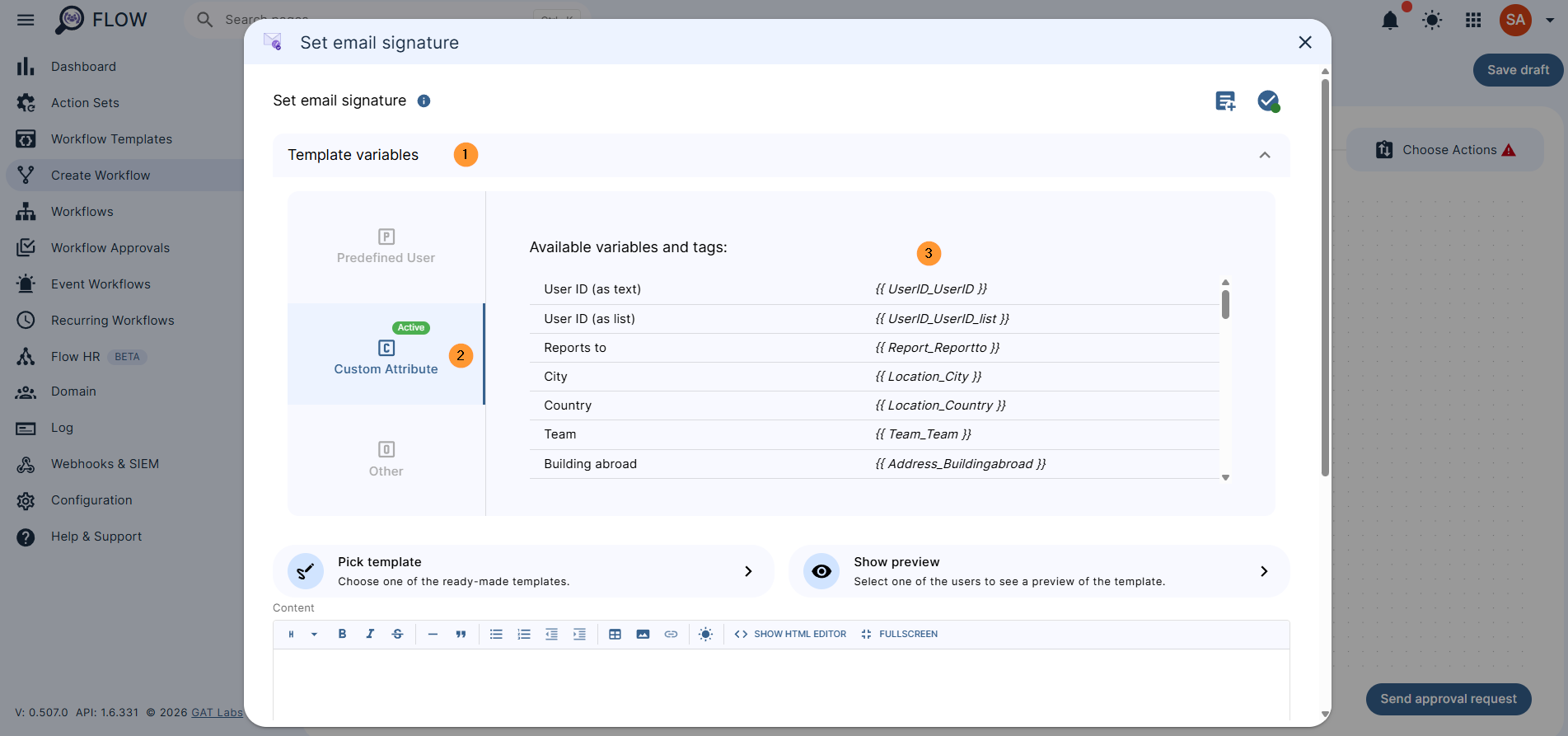
Double-click on the action itself and fill in the details
Click on the Template variables, then select Custom attributes
Step 6. #
Select any of the custom attributes to create the signature for the selected users.
When you are finished editing the signature, click Send approval request to finish.
Conditional Workflows with Custom Attributes #
You can also use these custom attributes in a conditional workflow.
For example:
Create Event workflow (automated workflow triggered automatically based on an event occurring)
Navigate to Flow > Event workflow > Create new event workflow.
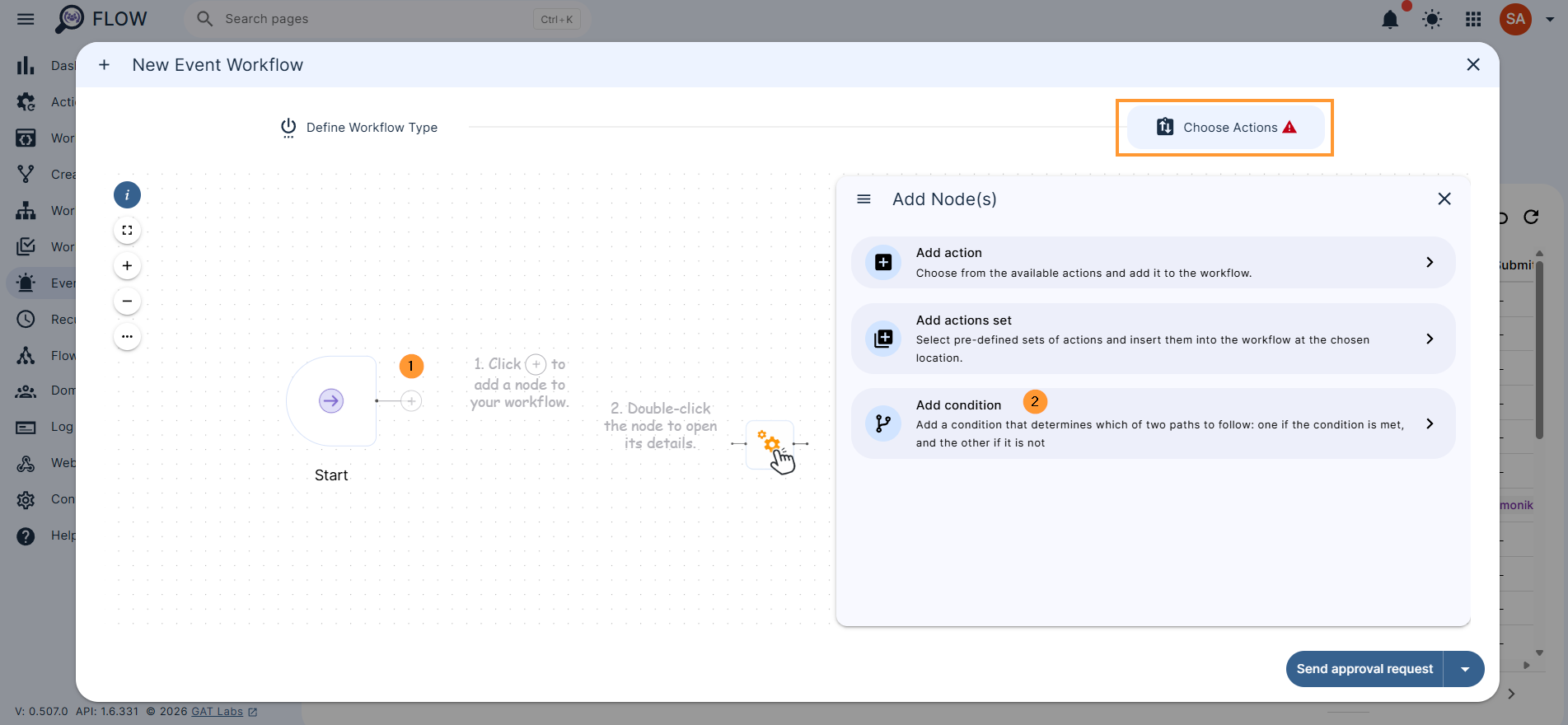
In Choose actions, select the Add condition option.
Click on the + button, then Add condition
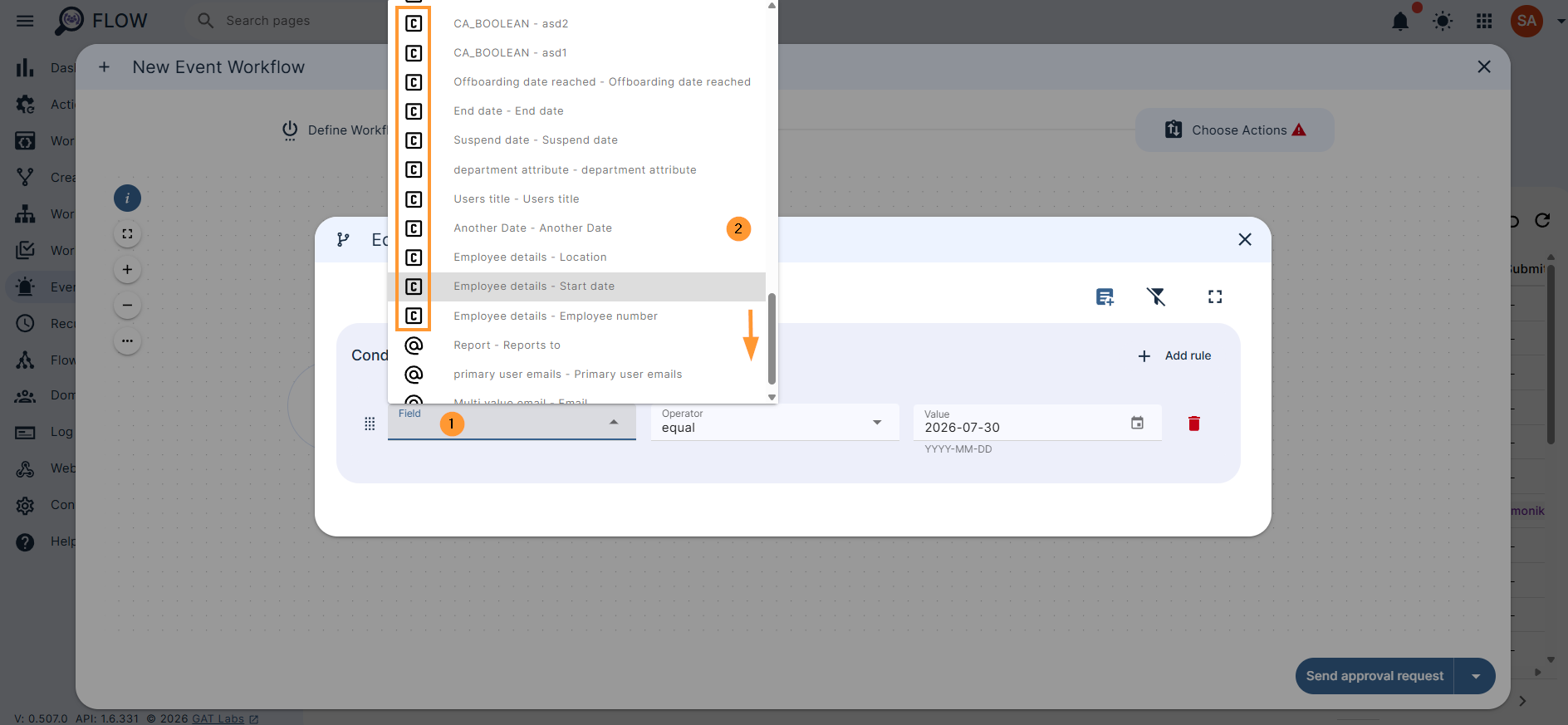
The condition option can use a custom attribute.
Double-click on the Condition; this will open the condition option. In it, scroll down to search and select any custom attribute you want.
Any option with ( C ) means it is a Custom attribute
Conclusion #
The custom attributes feature in GAT Flow solves a critical limitation of the native Google Admin Console by allowing administrators to break free from rigid, “set-in-stone” user data fields. By enabling the creation of organization-specific metadata, it transforms how users are managed and categorized.
The two primary takeaways from this guide demonstrate its practical value:
- Dynamic Personalization at Scale: Admins can inject these tailored attributes directly into automated email signatures, ensuring department-specific or location-specific details are kept uniform across the organization without manual configuration.
- Intelligent Automation: By leveraging custom fields inside conditional and event-driven workflows, admins can build highly specific automation triggers (marked with a
( C )indicator) that simply aren’t possible using Google’s default data points alone.
Ultimately, this functionality gives Google Workspace admins the granular flexibility needed to handle complex corporate or educational structures, paving the way for hyper-customized bulk user management and workflow automation.


