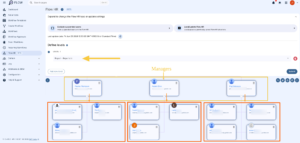
Getting Teams Together #
In the workplace, it is handy to cc a group so everyone on your team can receive a message quickly and know you didn’t forget anyone.
Keeping team structures up to date is a challenge faced by many organizations. As managers join, leave, or change roles, ensuring that team groups accurately reflect reporting lines can quickly become a time-consuming administrative task. Manual updates often lead to outdated memberships, missed communications, and increased workload for IT and HR teams.
Keeping Teams Together #
GAT Labs provides a streamlined approach to solving this problem by automatically creating and maintaining manager-based team groups. By linking group membership to organizational data, your workplace can ensure that each manager’s team group remains accurate and up to date as reporting structures evolve, reducing administrative overhead while improving collaboration and communication.
Using GAT Flow dynamic groups and a recurring workflow, you can automatically create these groups once and keep them up to date going forward; just set it and forget it.
Step 1 . See who the Managers Are #
First of all, let’s find out who all the managers are. The best way to get this list is to go to Flow > Domain > Groups > New Group. Then go to the Flow Dynamic Groups sub-menu in the modal that appears and set the filter below:
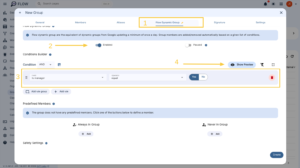
The ‘Show Preview’ button will display a list of all designated managers.
Now we need some new Custom attributes.
Step 2. Create the Attribute #
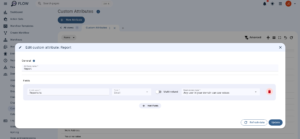
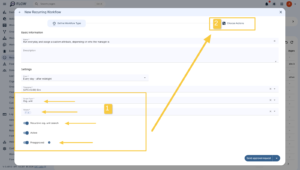
In Flow > Domain > Custom Attributes, we can set up a new one. Set it up like below:
Step 3. Create the Recurring Workflow #
Next, open a new tab in GAT Flow, go to the Recurring Workflows section, and create a ‘New Recurring Workflow‘.
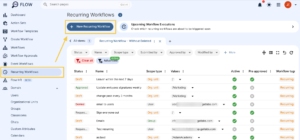
What we need to do is set a recurring workflow that runs on everyone every day, checks who their manager is, and assigns them a relevant custom attribute.
The recurring workflow setup to run daily on everyone can be seen below:
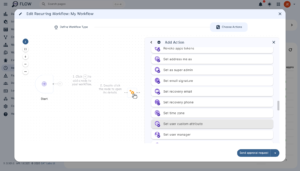
Double click the icon to configure the action and add the ‘Report – Reports to‘ Attribute that we created earlier.
Expand the Template variables’ section and click ‘Manager’ to copy the variable to your clipboard. You can paste the variable into the ‘Value‘ field so that it reads {{ manager }} like the screenshot below.
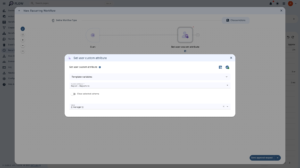
Once finished, click ‘Send approval request‘, and have the Security Officer approve that workflow.
This will be updated daily for new staff or for staff who change managers internally.
Now everyone has a custom attribute, depending on who their manager is. Flow Dynamic groups can be set up for users with a specific custom attribute, so we’re almost done!
Step 4. Create the Group for Each Manager #
In the tab where you had the list of managers, change the criteria so that the group detects the ‘Reports to‘ field, then enter the first manager’s email address.
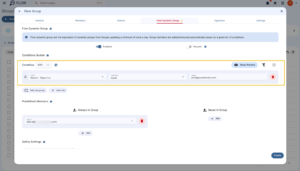
Configure the other necessary group settings, such as the group email address and who should always or never be in this group regardless of whether they meet the criteria, then select Create when you are ready. Repeat this step for the managers that you would like to have a group like this.
Note: Flow dynamic groups have no member limit, unlike some Google group variations, so add as many members as you like!
Note: For maintenance you may need to create a new dynamic group for new managers that are brought on board.
Bonus Benefits #
Once everyone has this attribute set, you can also use it in Flow HR to get a cohesive map of who manages which team and the number of users who report to each manager in the Flow HR section, if you filter by the ‘Reports to’ custom attribute. So this custom attribute configuration has a couple of use cases.