

- Why Export GAT Shield Alerts to an External SIEM?
- Practical Benefits of Exporting Your Alerts
- How it Works: The Setup Overview
- Use of Webhooks & SIEM in GAT Shield
- Result for Webhooks & SIEM
- Webhook and SINK logs in GAT Shield
- Webhook and Sink Triggers
- Conclusion
- Frequently Asked Questions (FAQ):
- Related Posts
Why Export GAT Shield Alerts to an External SIEM? #
Managing security across fragmented tools often creates data silos where critical patterns get missed. GAT Shield’s SIEM and Webhook Integration solves this by allowing Google Workspace admins to automatically extract and stream real-time alert rules to external audit resources and security system tools, such as Splunk, ElasticSearch, or a Generic Webhook receiver.
Prerequisite:
The SIEM and Webhook export integration is an advanced capability that requires GAT Shield+ under the Sentinel Plan. Please ensure your domain subscription includes the Sentinel tier before configuring your external sinks.
Practical Benefits of Exporting Your Alerts #
- Export Data Beyond GAT Shield: Automatically stream real-time alert rule data out of GAT Shield directly into your organization’s external audit receivers or security stack.
- Enable Cross-System Correlation: Match Google Workspace events alongside your broader infrastructure logs on a single dashboard. For example, if GAT Shield exports a “Mass File Download” alert, analysts can immediately cross-reference it with firewall logins or other SaaS activity on the same screen.
- Turn Isolated Alerts into Actionable Intelligence: Moving alerts to a central external service helps security teams stop chasing individual notifications in a vacuum and start performing comprehensive incident response.
- Detect Threats at the Browser: Catch suspicious behavior right at the edge of your userspace by monitoring the activity in the browser.
-
Elevate Proactive Security with ActiveID: Bring a new level of detection and awareness to your security environment by enabling ActiveID in Shield+.
-
Optimize SIEM Costs: Triage and preprocess suspicious events, reducing costs on your SIEM.
By bridging the gap between GAT Shield and your external security stack, you transform isolated notifications into actionable intelligence.
How it Works: The Setup Overview #
Navigate to GAT Shield > Webhooks & SIEM.
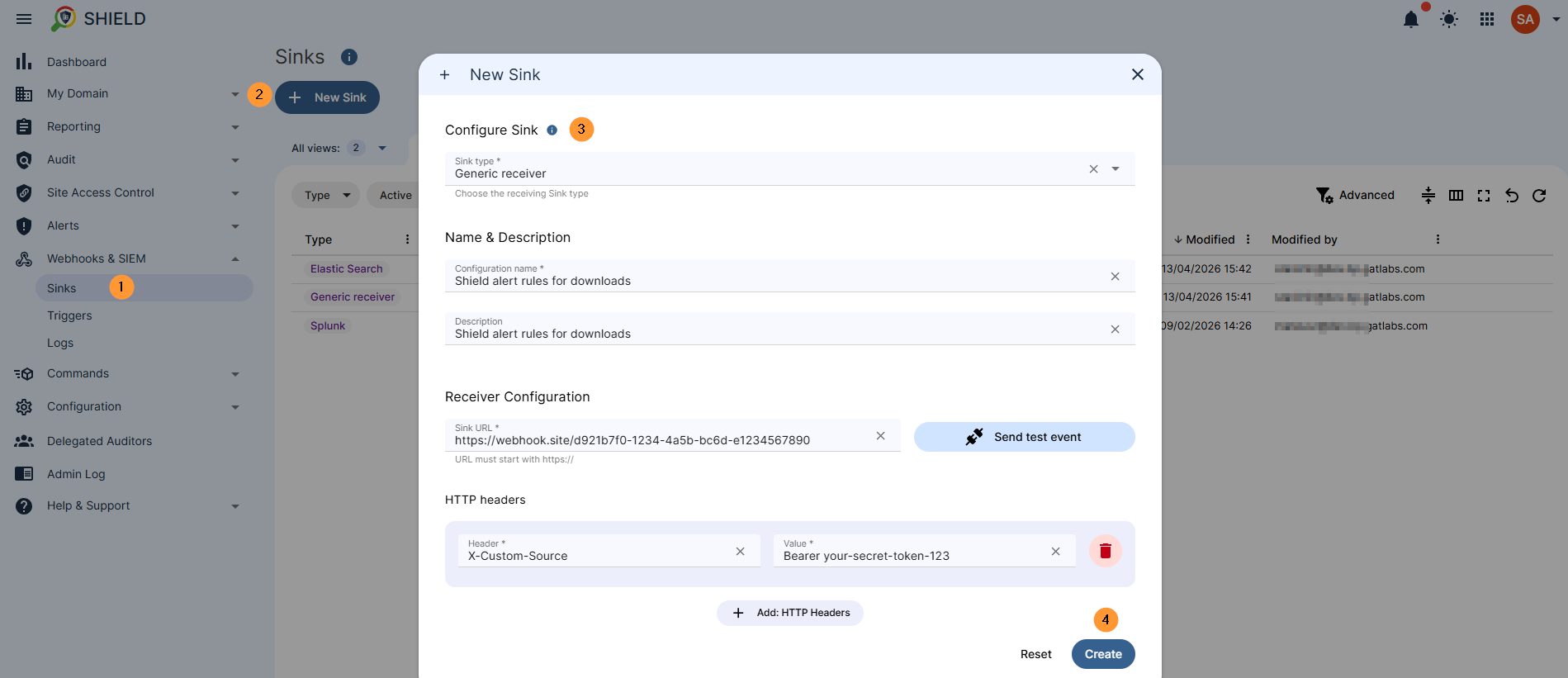
Click Sinks > + New Sink and fill in the required info to create the sink.
Type – select the type needed:
- Elastic search
- Splunk
- Generic receiver
Set up Generic Receiver #
Enable or disable the sink, as in the example below, for the Generic receiver.
- Sink type – Generic receiver
- Name & description
- Name – Enter name
- Description – Enter description
- Receiver configuration
- Sink URL – Enter the Sink URL – send test event to test
- HTTP headers
- Header – Enter header
- Value – Enter value
- Click Create the sink.
Set up Elastic Search #
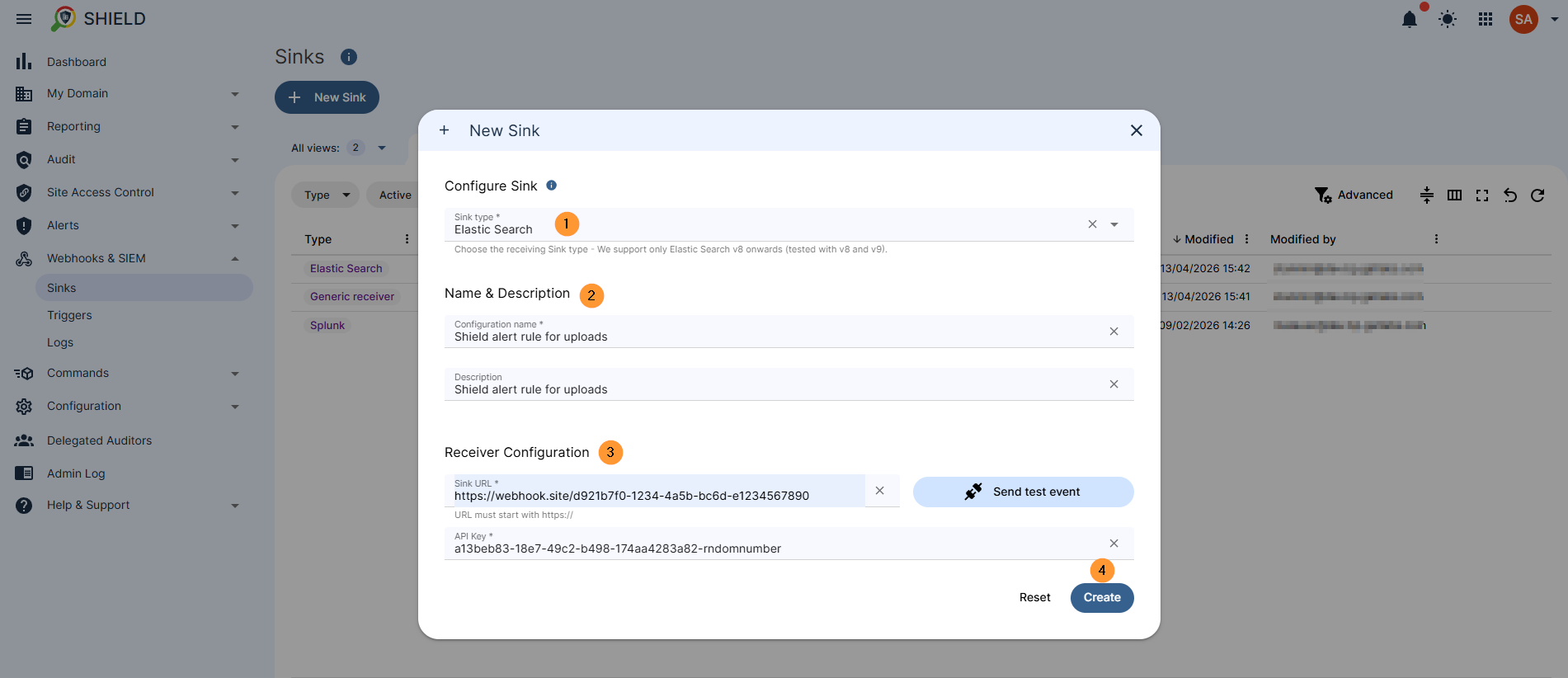
Fill in the details for Elastic Search:
- Sink type – Elastic Search
- Name & description
- Name – Enter name
- Description – Enter description
- Reciever configuration
- Sink URL – Enter the Sink URL; additionally, you can send a test event
- API Key – Enter the API key
- Click Create the sink.
Set up Splunk #
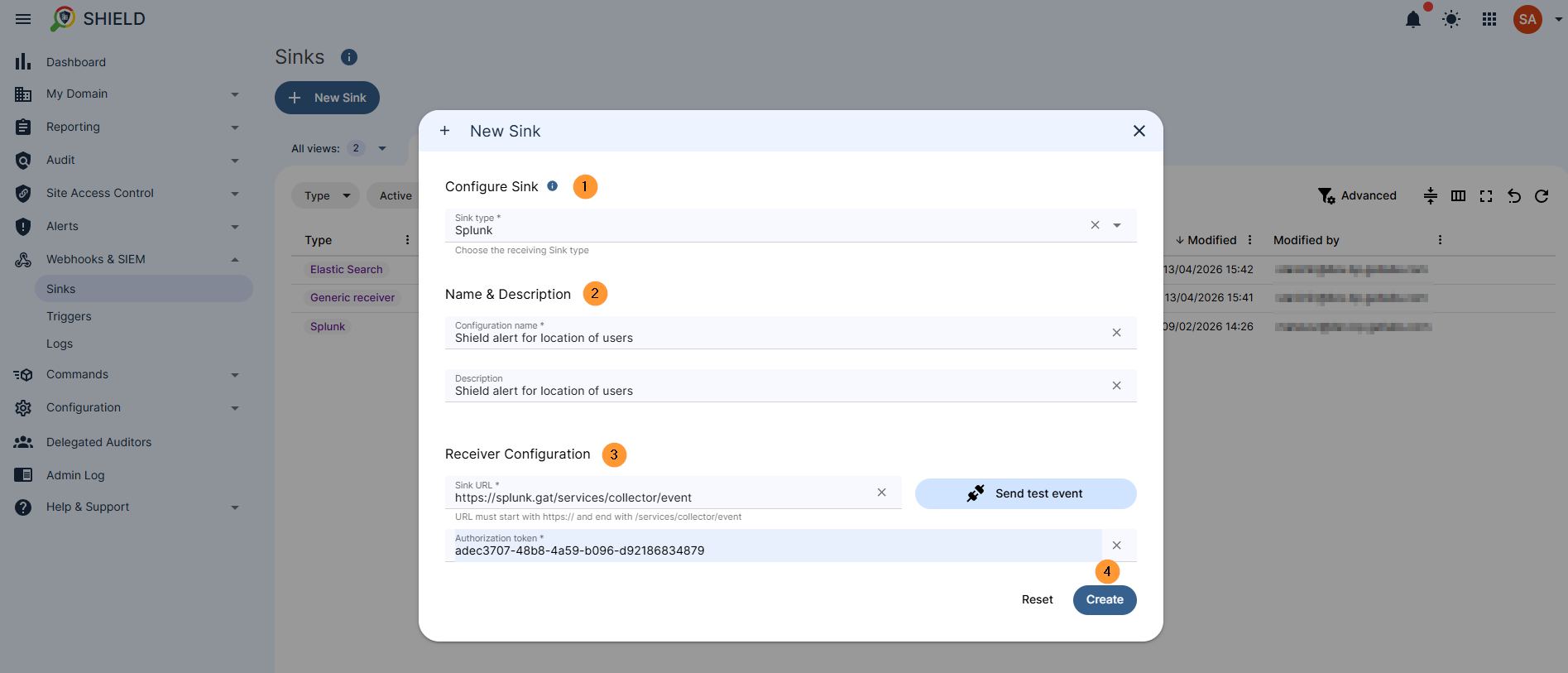
Fill in the details for Splunk:
- Sink type – Splunk
- Name & description
- Name – Enter name
- Description – Enter description
- Reciever configuration
- Sink URL – Enter the Sink URL; additionally, you can send a test event
- Authorization token – Enter an authorization token
- Click Create the sink.
Use of Webhooks & SIEM in GAT Shield #
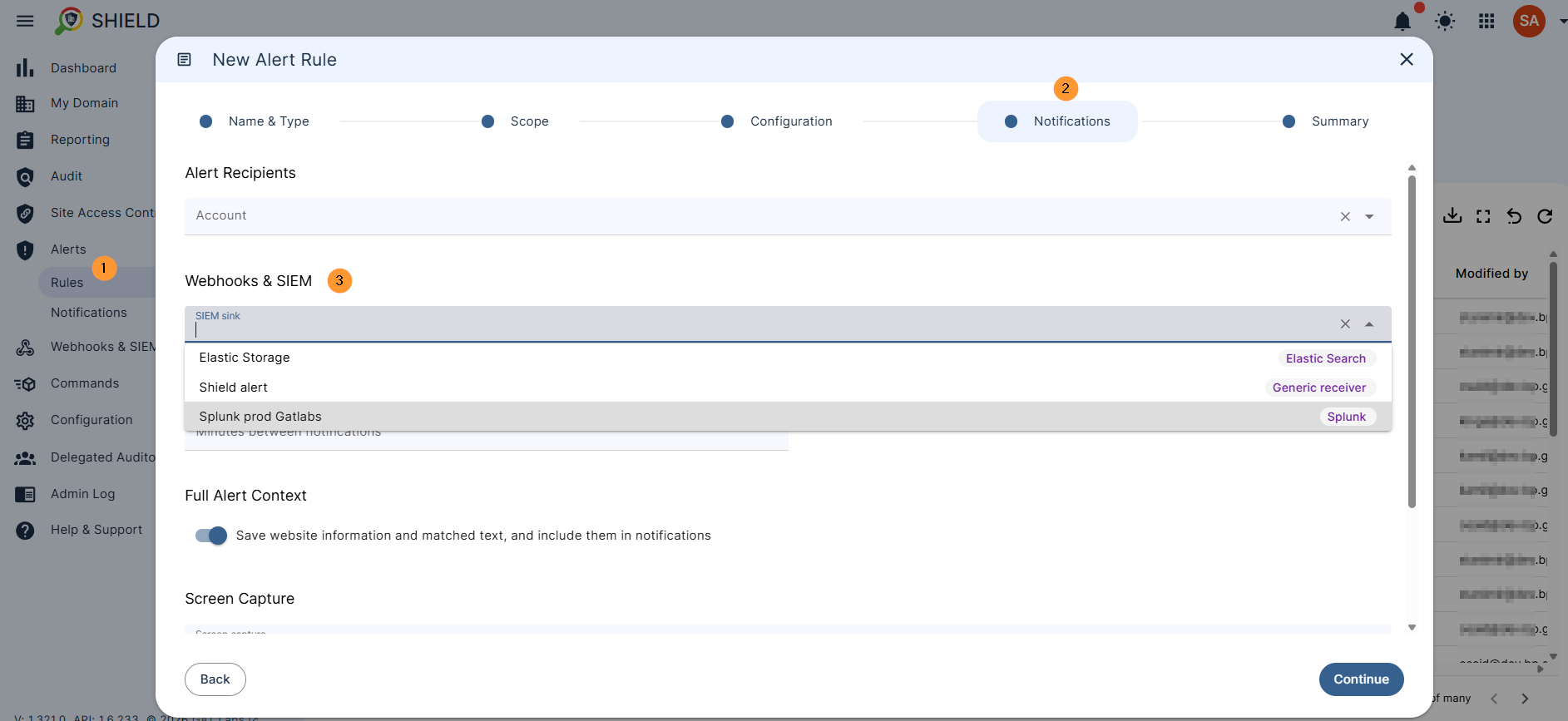
The webhooks created can be used in GAT Shield > Alert rules.
Navigate to Shield > Alerts > Rules > Create rule.
When creating the rule, you will see the Notification section, where you can select Webhooks and SIEM.
Result for Webhooks & SIEM #
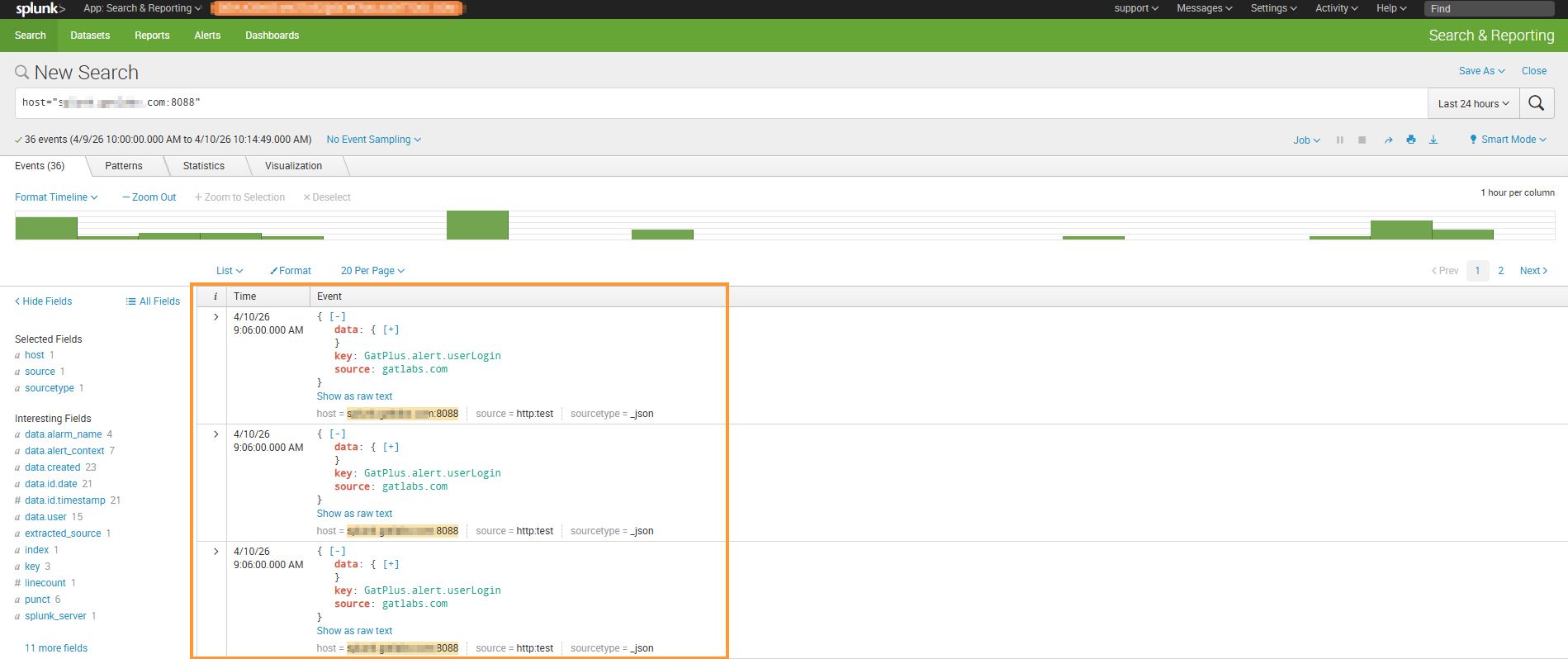
The result of the Alerts triggered will be displayed in the external service, such as Elasticsearch, Generic receiver, or Splunk.
Below is an example for Splunk:
Webhook and SINK logs in GAT Shield #
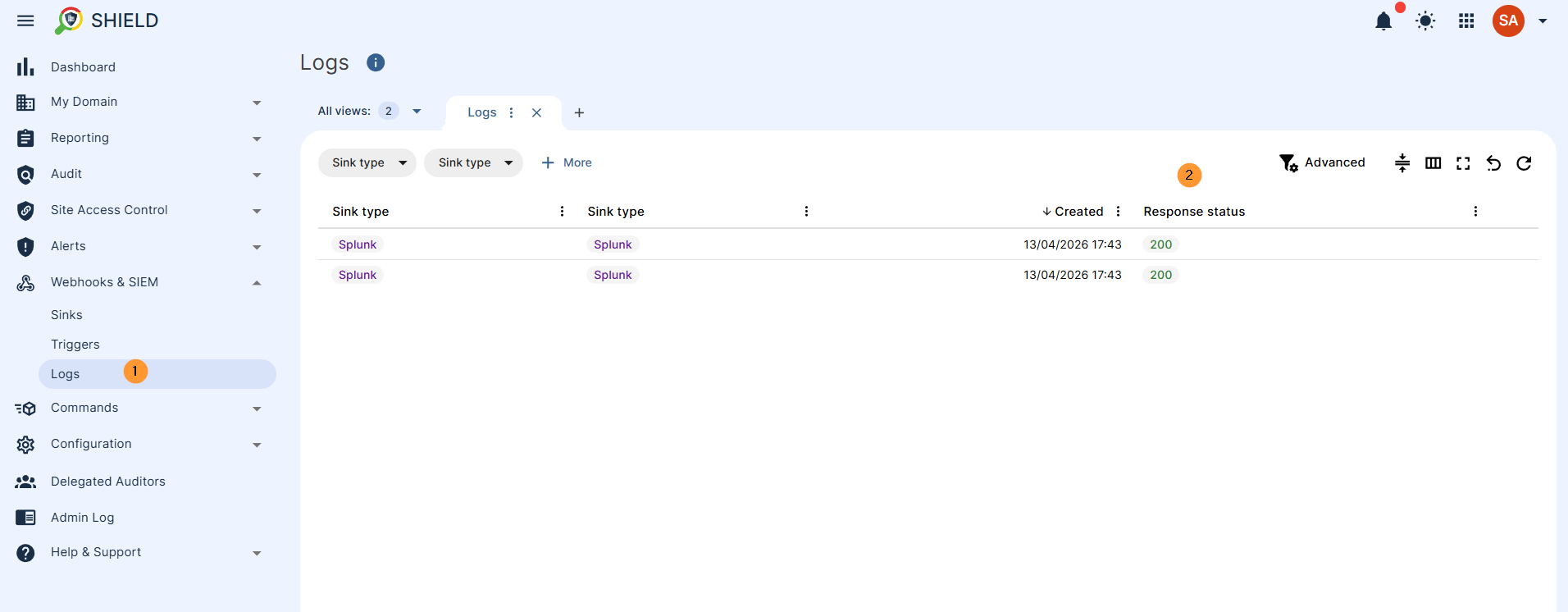
There will be logs in GAT Shield confirming that the alert triggered was successfully “synced” to the external source.
The logs can be seen in GAT+.
Navigate to Shield > Webhooks & SIEM > Logs. You will see logs of the SIEM alerts that were triggered. View logs of actions that happen, including response status, etc.
Webhook and Sink Triggers #
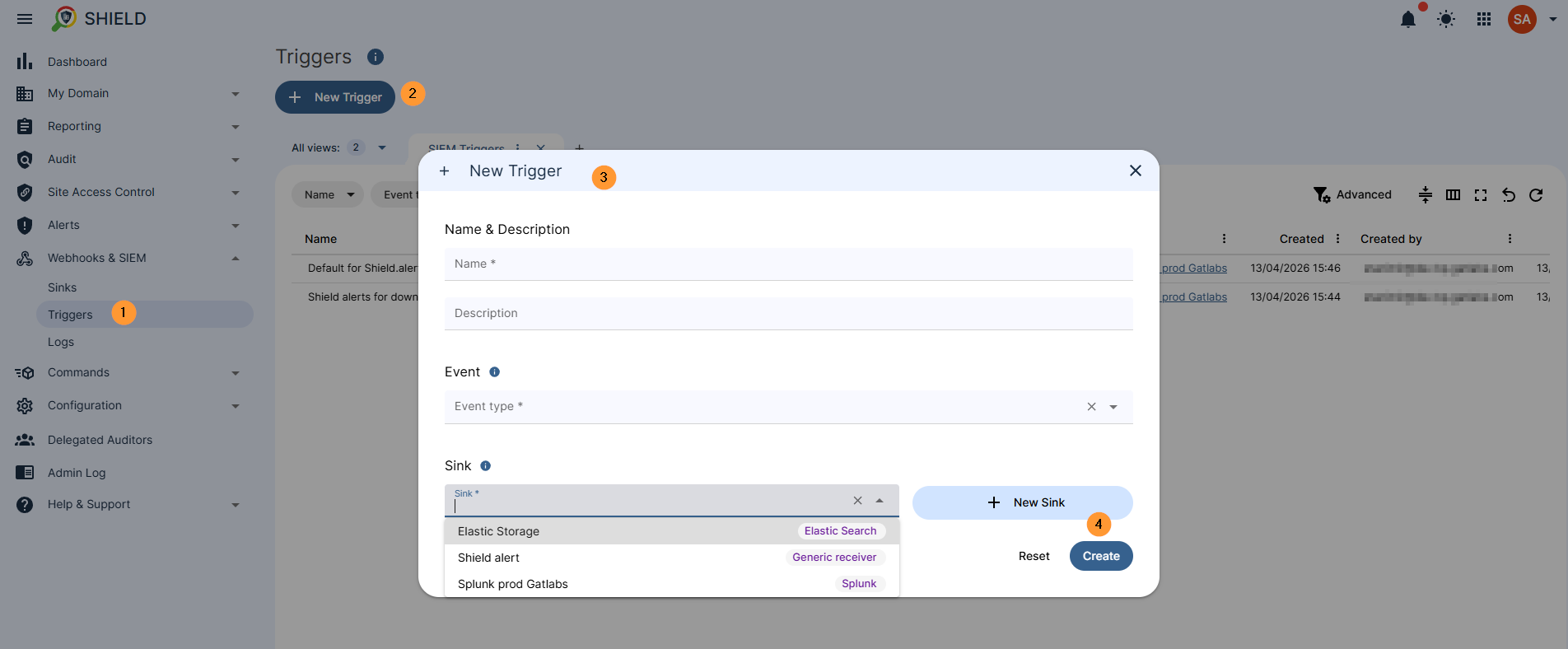
The webhooks created can be used in GAT+ Alert rules.
Navigate to Shield > Webhooks & SIEM > Triggers > + New trigger.
Fill in the details to add a trigger.
Conclusion #
In today’s complex enterprise landscape, security is only as strong as your ability to see the full picture.
By integrating GAT Shield with your SIEM or Webhook receiver, you effectively bridge the gap between Google Workspace and your broader security infrastructure.
This transition from managing fragmented, isolated dashboards to a centralized “Single Pane of Glass” ensures that your team no longer works in a vacuum.
By automating the flow of alerts into tools like Splunk or ElasticSearch, you empower your analysts to move beyond simple monitoring.
Instead of chasing individual notifications, they can now perform high-level correlation – turning “Mass File Download” alerts into comprehensive incident response stories. Ultimately, this feature transforms GAT+ from a standalone tool into a critical, connected component of your organization’s proactive security posture.
Frequently Asked Questions (FAQ): #
Q: What prerequisites are required for GAT Shield alert rules to capture user events?
A: GAT Shield operates as a Google Chrome browser extension. For alert rules (such as Downloads, Visits, or Locations) to trigger, the GAT Shield extension must be deployed and active on end-user devices where users are logged into their Chrome browser and synced with their accounts.
Q: If I have already created a Sink, does it automatically start receiving all GAT Shield alerts?
A: No. Creating the Sink only defines the destination. To start receiving data, you must perform the second phase: Connecting the Alert. You must navigate to Shield > Alerts > Rules, edit or create a rule, and specifically select your newly created Sink in the Notification section. Data will only flow to your external SIEM once an alert rule is explicitly mapped to that Sink.
Q: Can I apply GAT Shield alert rules selectively to specific users or groups?
A: Yes. When configuring an Alert Rule in GAT Shield, you can scope the rule to apply to specific users, Organizational Units (OUs), or Google Groups, rather than enforcing it across the entire domain.
Q: Does streaming alerts to an external SIEM disable GAT Shield’s native end-user actions?
A: No. External SIEM streaming works alongside GAT Shield’s local enforcement actions. When an alert rule triggers, GAT Shield can still perform its configured end-user actions (such as showing a warning message, closing the tab, or redirecting the user) while simultaneously forwarding the event payload to your external SIEM receiver.
Q: How can I confirm that GAT Shield and my external SIEM have successfully established a connection before waiting for a real alert to trigger?
A: You can use the “Send test event” feature located in the Receiver configuration section during Sink setup (for Generic, Splunk, or ElasticSearch). After sending the test event, navigate to Shield > Webhooks & SIEM > Logs in GAT+ to verify the HTTP response status. This ensures the connection is functional and your Authorization Tokens or API Keys are valid before putting the rule into production.


