

- How to Install Teacher Assist
- Shield prerequisite
- Install the extension
- 1. Open Google Admin Console -> Chrome Browser -> Apps & Extensions
- 2. Select the desired Organizational Unit
- 3. Click on '+' button and select option 'Add the Chrome App or extension by id'
- 4. Select 'From a custom URL' and fill in the Extension ID and URL
- 5. "Select 'Force install' for the 'Installation policy' option.
- 6. Fill in 'Policy for extensions'
- 7. Click 'Save' in the top right corner.
- View extension ID and URL
- Allow Teacher Assist Extension through Firewall
- Result
- Recommended Admin settings
- Frequently Asked Questions
How to Install Teacher Assist #
Teacher Assist is a classroom management tool developed by GAT Labs for Google Workspace for Education environments. Built to work alongside Google Classroom, it provides educators with real-time visibility into students’ Chrome browser activities during active class sessions.
Shield prerequisite #
GAT Shield is a prerequisite extension that must be installed alongside Teacher Assist.
Teacher Assist is a Chrome extension that the Super Admin of the domain must install via the Google Admin console.
Below, we will cover how to deploy the Teacher Assist extension to your users.
Important: Teacher Assist can be installed only for specific Organizational Units, such as the Students OU
Install the extension #
1. Open Google Admin Console -> Chrome Browser -> Apps & Extensions #
You can also click here to open that page.
2. Select the desired Organizational Unit #

3. Click on ‘+’ button and select option ‘Add the Chrome App or extension by id’ #

4. Select ‘From a custom URL’ and fill in the Extension ID and URL #
Copy values for the extension that you are installing – from Teacher Assist!
When the ID and URLs are added, click on the “Save” button
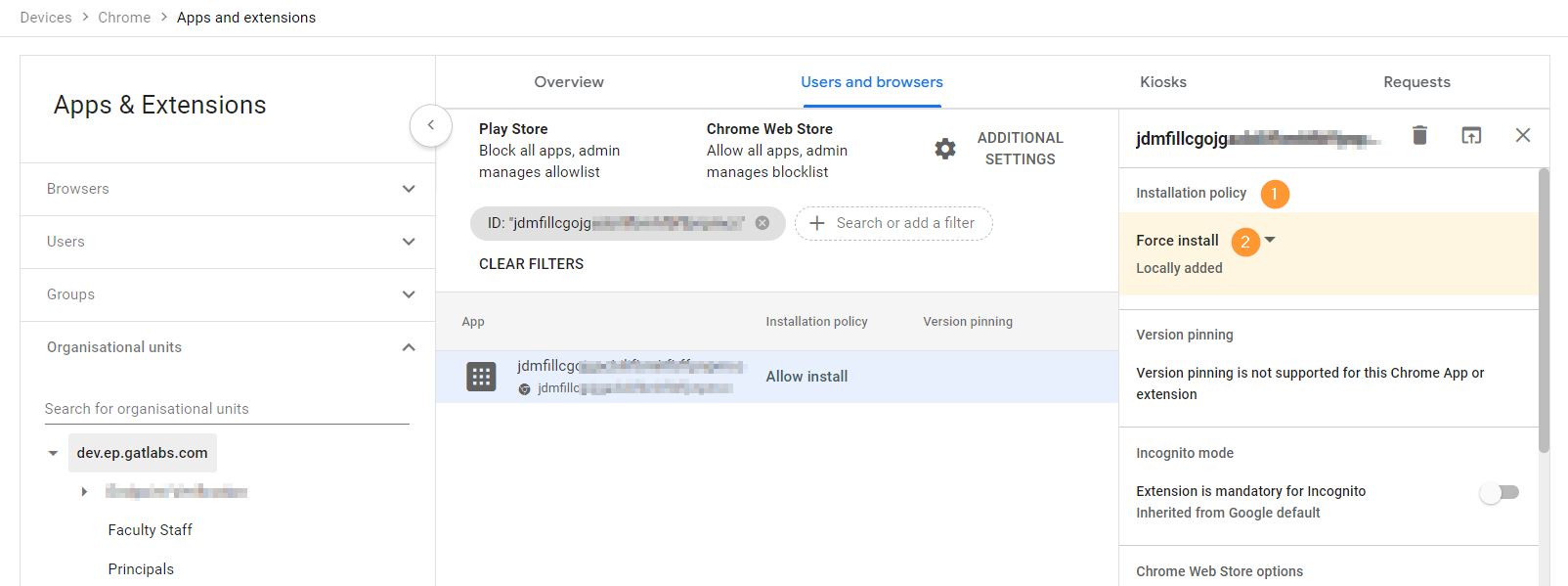
5. “Select ‘Force install’ for the ‘Installation policy’ option. #
When the Extension is saved, select the ‘Force install’ policy to force installation in the browser. You may also tweak other settings for your needs.
6. Fill in ‘Policy for extensions’ #
Copy the values for the extension that you are installing, in this case, Teacher Assist

7. Click ‘Save’ in the top right corner. #
View extension ID and URL #
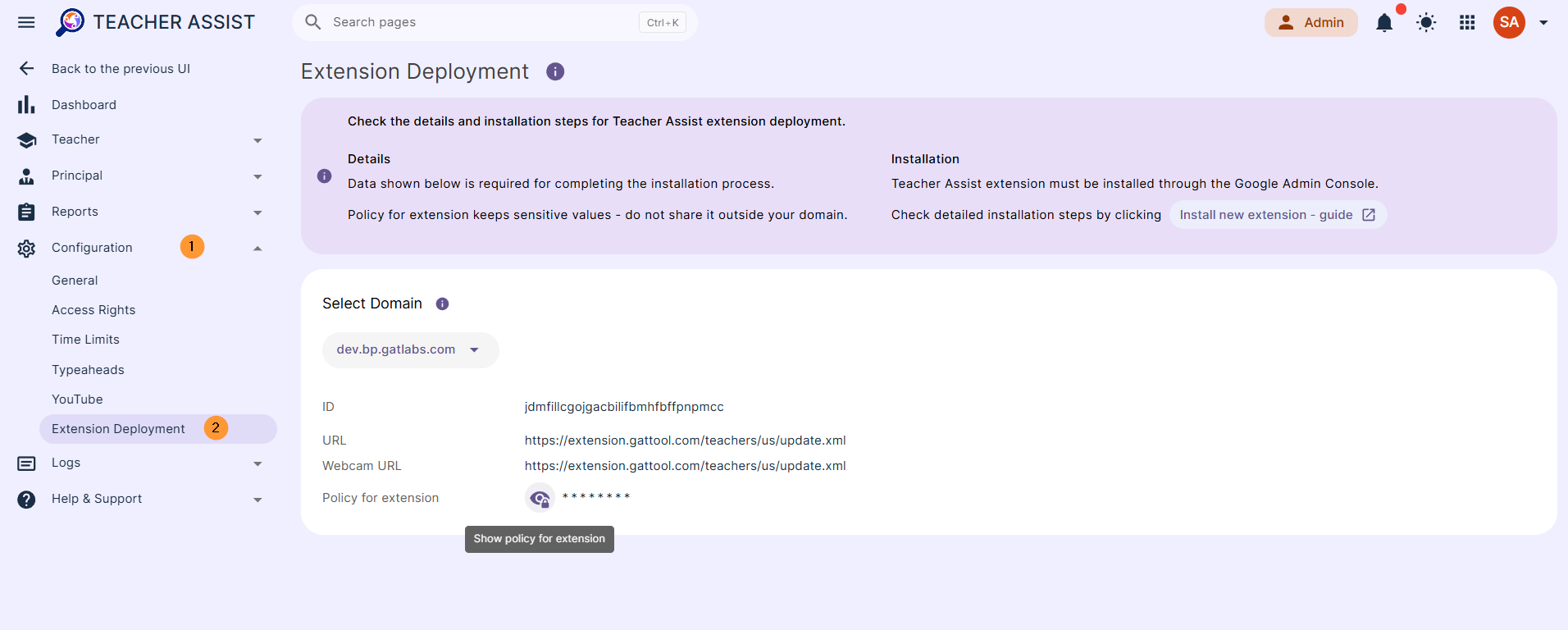
To access and view the Extension ID and URL, navigate to Teacher Assist > Configuration > Extension deployment
Copy the ID, URL, and Policy for an extension from here and use them above.
Allow Teacher Assist Extension through Firewall #
Note: Depending on your firewall setup, there might be restrictions that do not allow traffic to Teacher Assist.
Please check your Firewall settings and allow the following URLs:
To install the extension, you need to whitelist the following domain: https://extension.gattool.com
Additionally, you need to whitelist domains based on region.
For US (Global) domains (no prefix) – US (default) region
- wss://shield.generalaudittool.com
- wss://wsrelay.shield.us.gattools.com
- wss://us-wsrelay.generalaudittool.com
- stun:turn.generalaudittool.com:3478
- turn:turn.generalaudittool.com:3478
- stun:stun.l.google.com:19302
- stun:stun1.l.google.com:19302
- stun:stun2.l.google.com:19302
- stun:stun3.l.google.com:19302
- stun:stun4.l.google.com:19302
For EU domains (eu- prefix) – EU region
- wss://eu-shield.generalaudittool.com
- stun:turn.generalaudittool.com:3478
- turn:turn.generalaudittool.com:3478
- stun:stun.l.google.com:19302
- stun:stun1.l.google.com:19302
- stun:stun2.l.google.com:19302
- stun:stun3.l.google.com:19302
- stun:stun4.l.google.com:19302
For UK domains (uk- prefix) – UK region
- wss://uk-shield.generalaudittool.com
- stun:turn.generalaudittool.com:3478
- turn:turn.generalaudittool.com:3478
- stun:stun.l.google.com:19302
- stun:stun1.l.google.com:19302
- stun:stun2.l.google.com:19302
- stun:stun3.l.google.com:19302
- stun:stun4.l.google.com:19302
Result #
When the Teacher Assist extension is deployed, the end-users must be logged into a Google Chrome browser with School/Domain accounts.
The extension will appear under their Chrome extensions list.
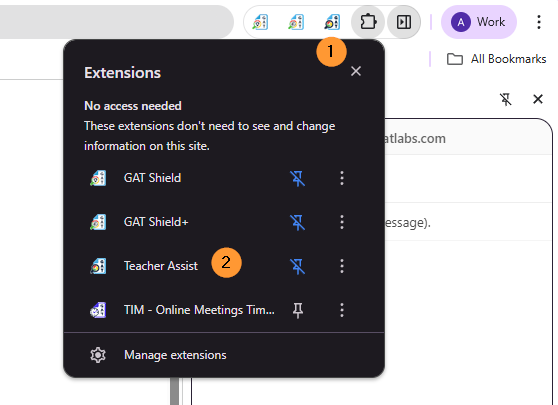
Finally, the Students’ activity will be displayed for the Teachers to see in the Google Classroom sessions
Recommended Admin settings #
We recommend enabling settings in the Google Admin console for the domain to prevent Users (students) from interfering with the Teacher Assist extension and any extensions.
Enable these settings in Devices > Chrome > Settings > Users & browsers settings
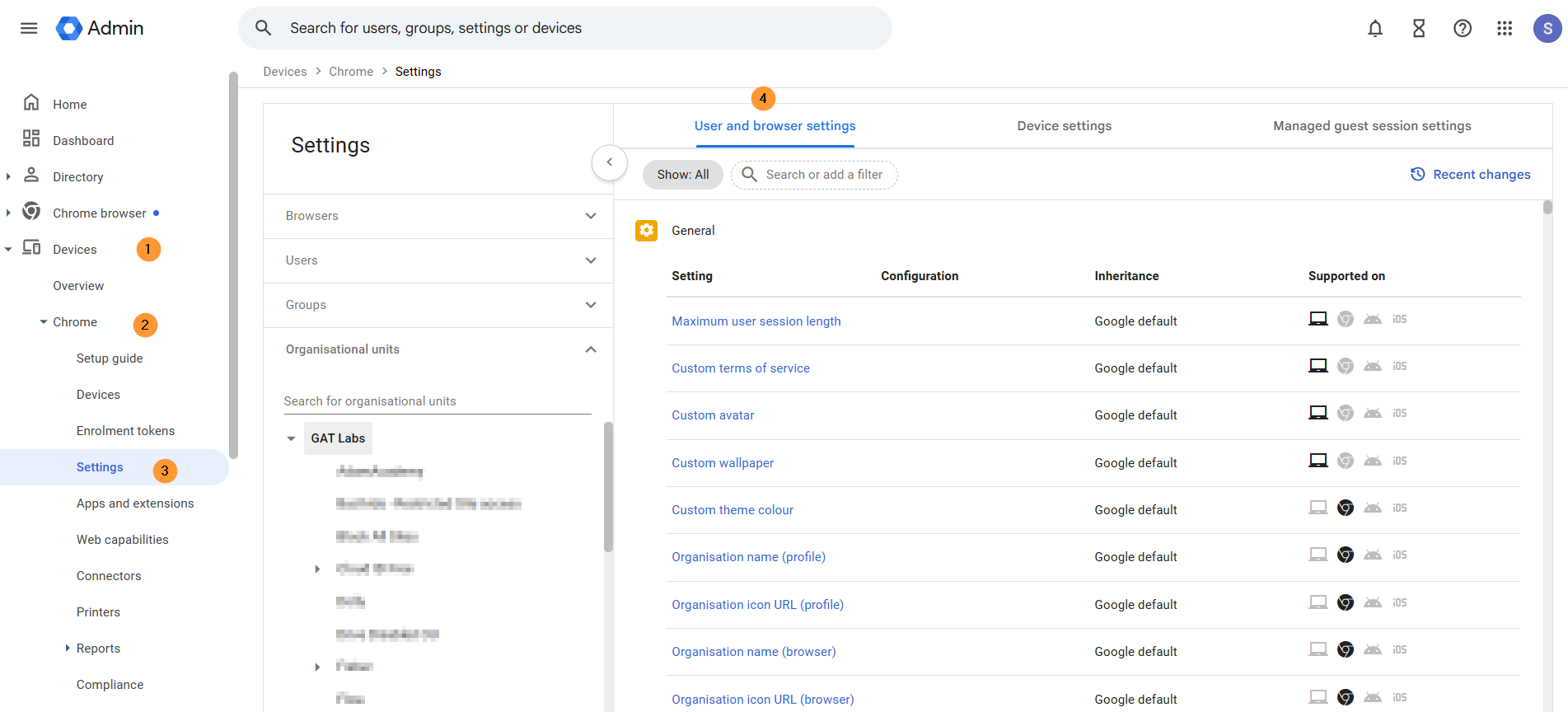
Some of these settings are mandatory.
Apps and extensions #
On the above-selected page, scroll down and navigate to the Apps and Extensions area, find the Task Manager settings, and switch it to Block users from ending processes with the Chrome Task Manager.
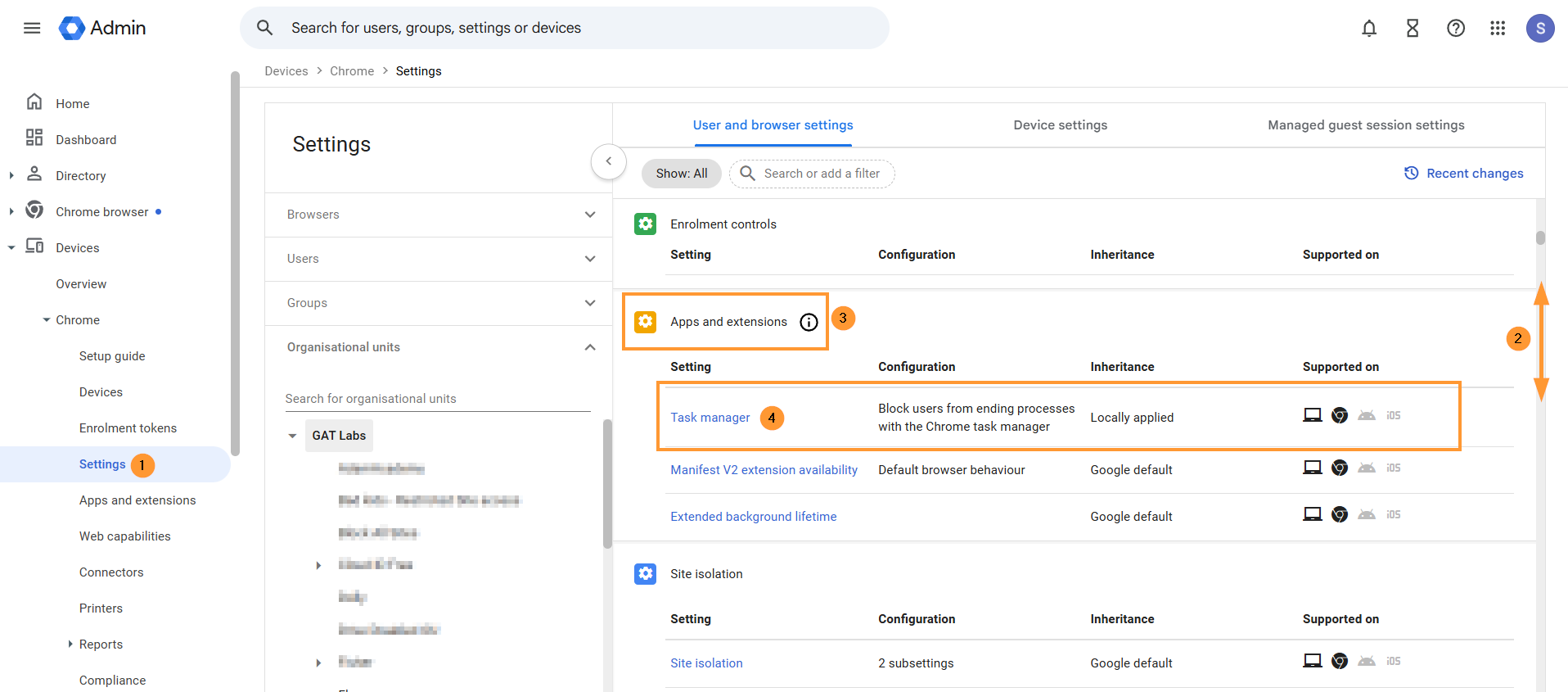
Description: Task Manager can be used to tamper with the Chrome browser’s normal operations.
User experience #
The following settings are highly recommended for schools using enrolled Chromebooks.
These settings prevent students from bypassing the network firewall and installing Android apps like VPNs and other web browsers on their Chromebooks.
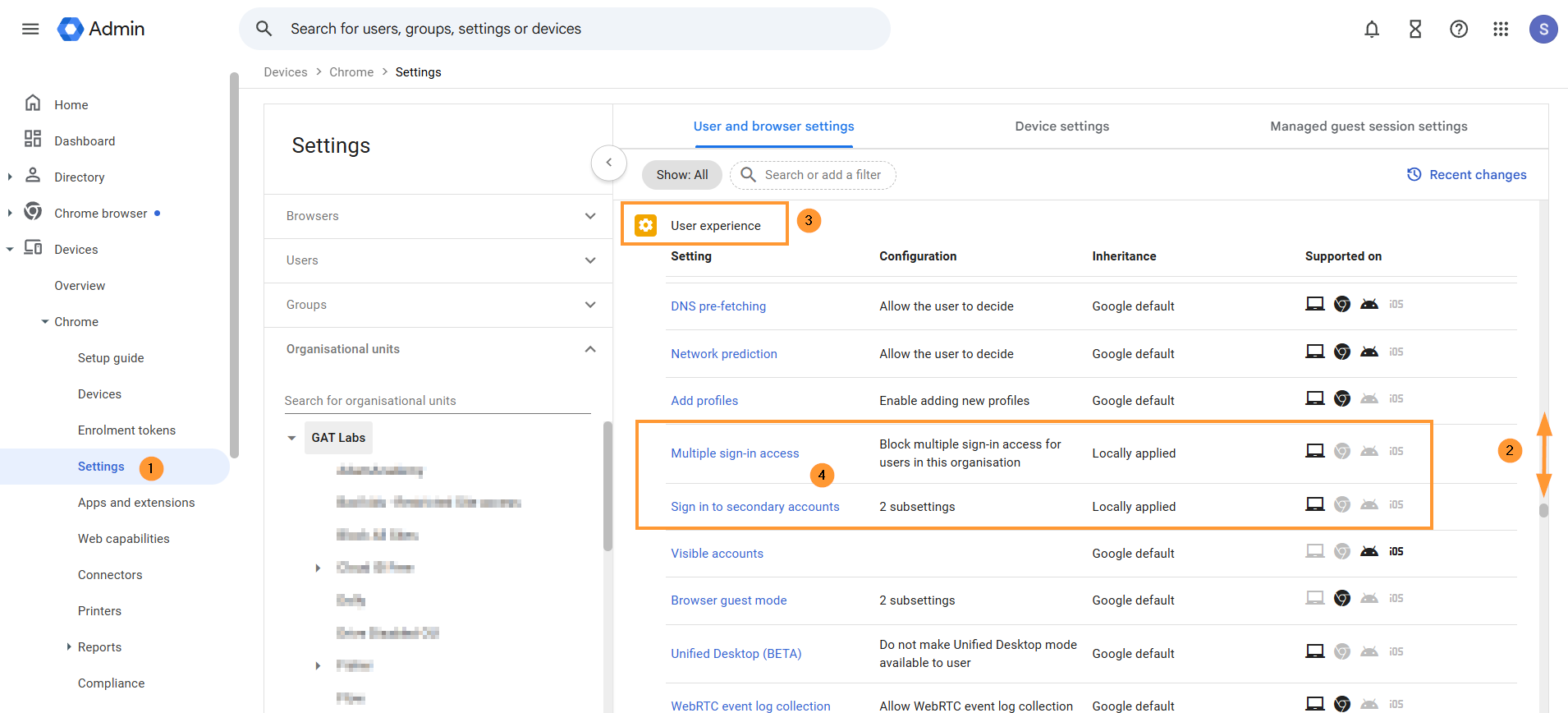
- Multiple Sign-in access – Block multiple sign-in access for users in this organization
- Sign in to secondary accounts – Block users from signing in to or out of secondary Google accounts
On the same page, scroll down to User Experience > Multiple sign-in access and Sign in to secondary accounts
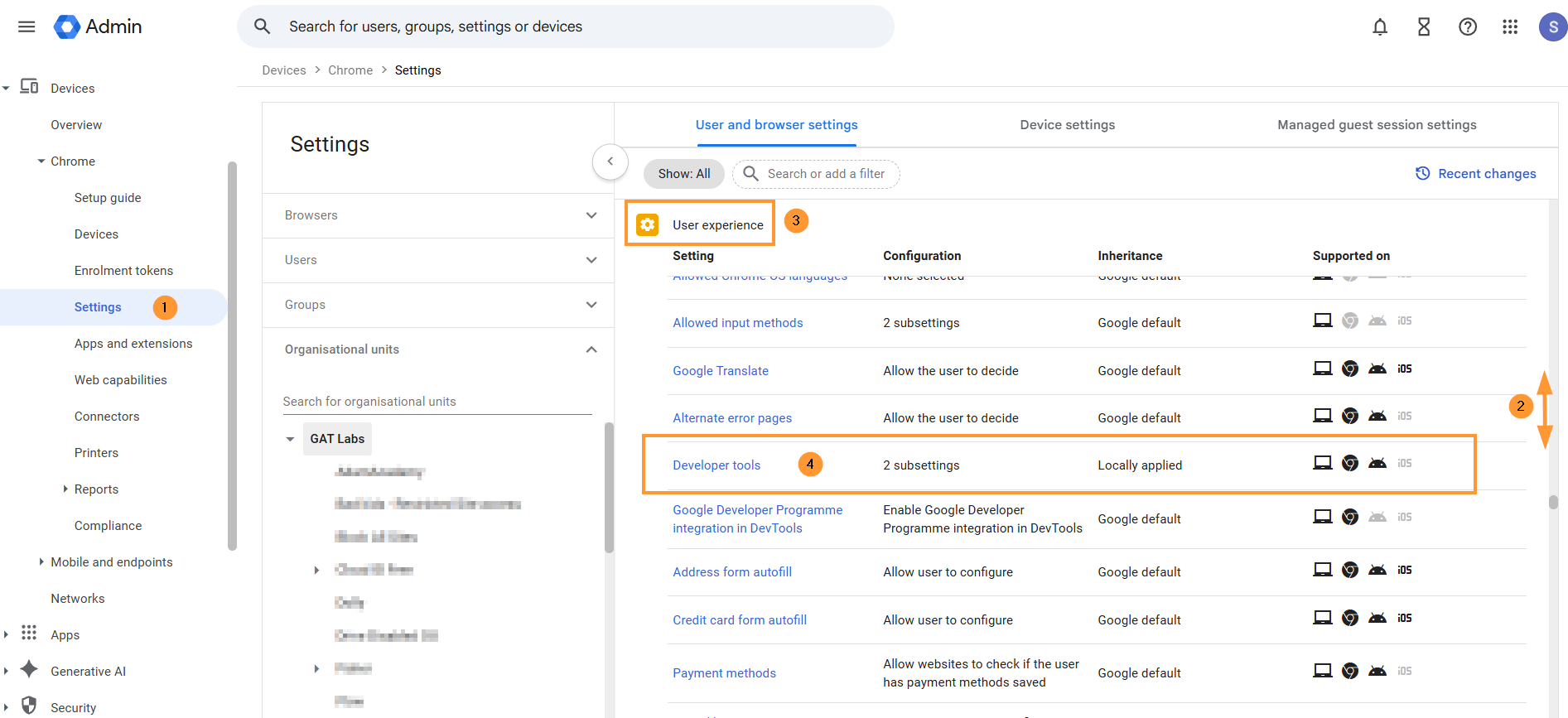
Scroll up on the same page to User Experience> Developer tools.
In “Configuration“, set the option to “Not Allow”.
- Developer tools availability – never allow use of built-in developer tools
- Extensions page developer mode – Do not allow use of developer tools on the extensions page
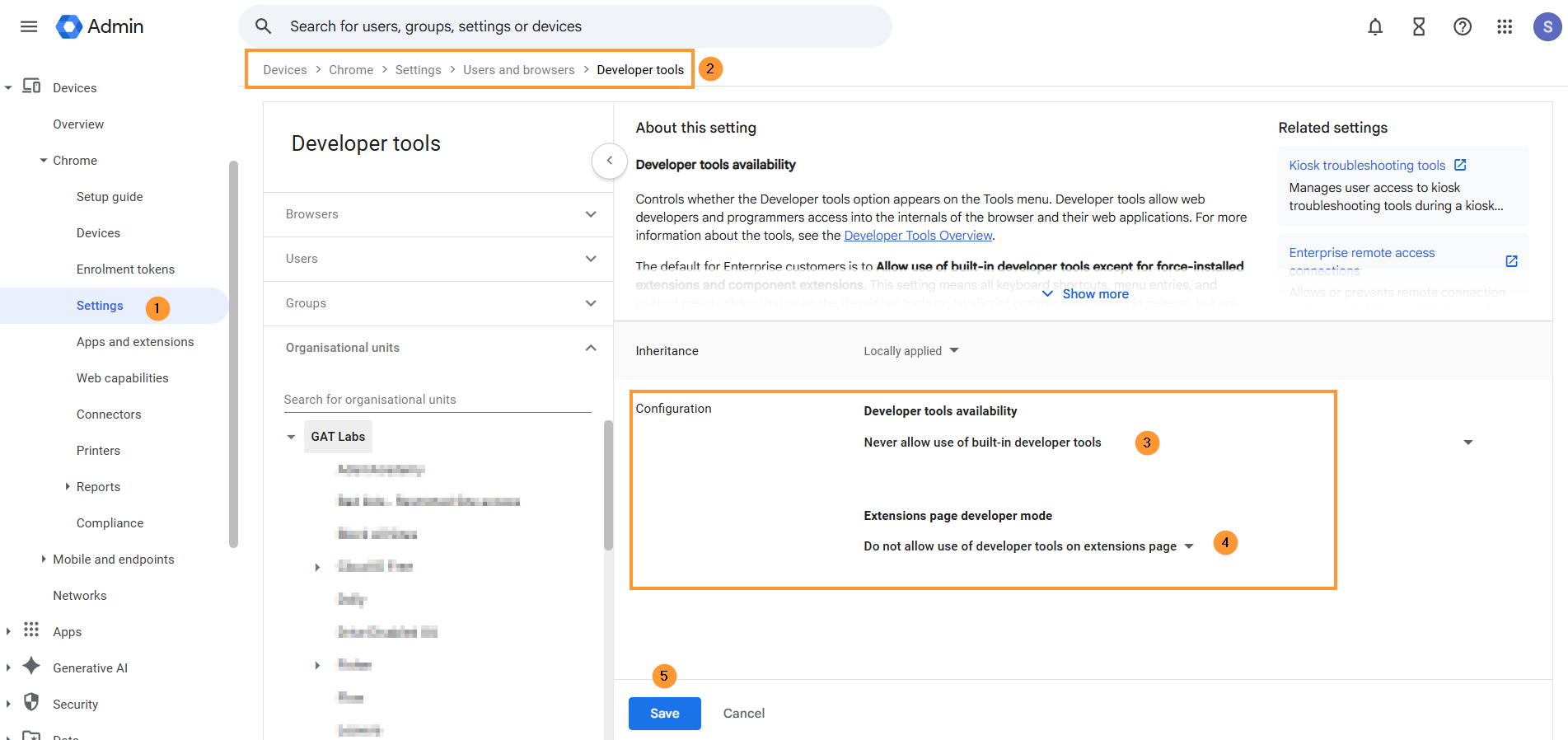
Description: Developer tools can be used to disable extensions. Google also recommends disabling these tools in most cases. This can be disabled for Student OUs only.
Security #
The following three options are recommended for schools with enrolled Chromebooks. These settings prevent students from bypassing or tampering with the GAT Shield and Teacher Assist extension
Scroll to the Security tab
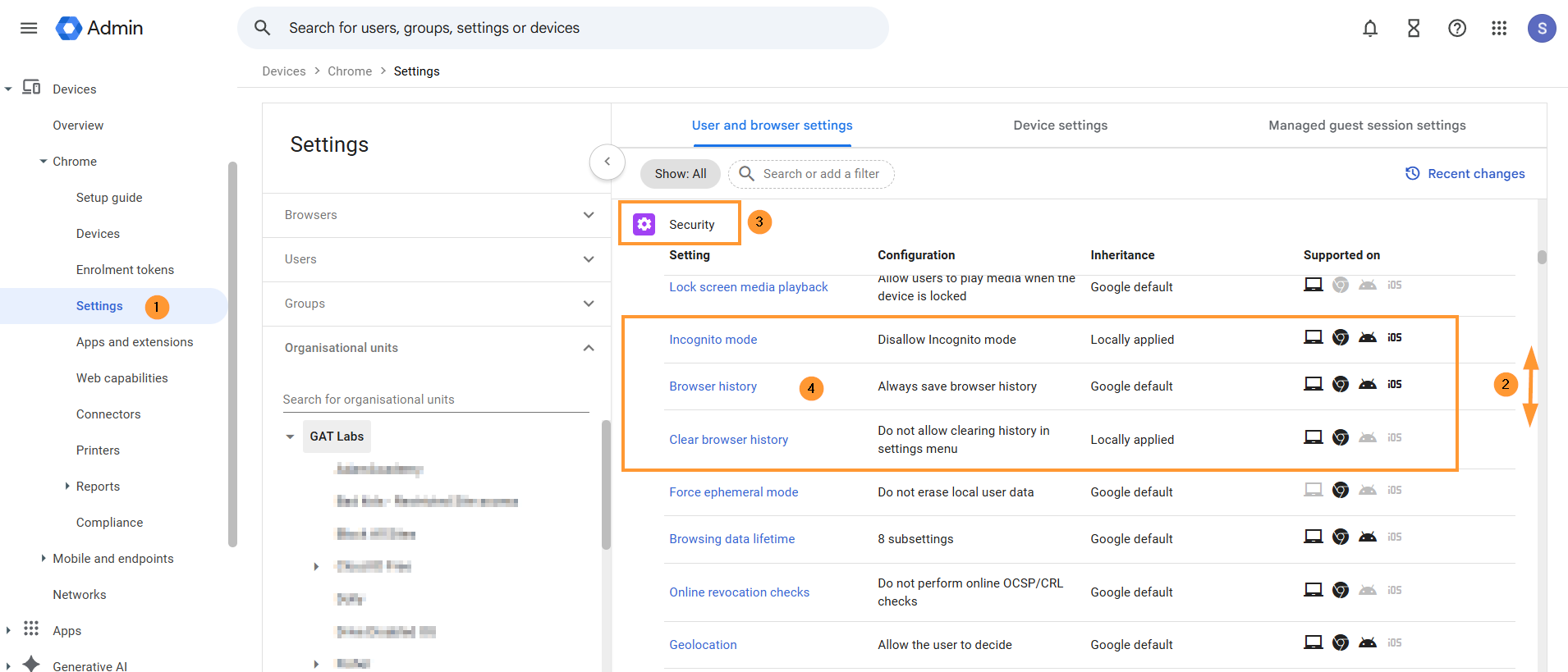
Find and apply the settings
- Incognito Mode – Disallow Incognito mode.
- Description: In incognito mode, the extensions do not work
- Browser history – Always save browser history.
- Description: Saving browser history is recommended so that when incidents occur, there is an audit trail that staff members can investigate
- Clear Browser History – Do not allow clearing history in the settings menu.
- Description: The ability to clear browser history on the Chrome Browser may allow users to tamper with GAT Shield Browser reporting features.
Content #
Scroll down further to the Content tab
- Screenshot – set it to Allow users to take screenshots and video recordings
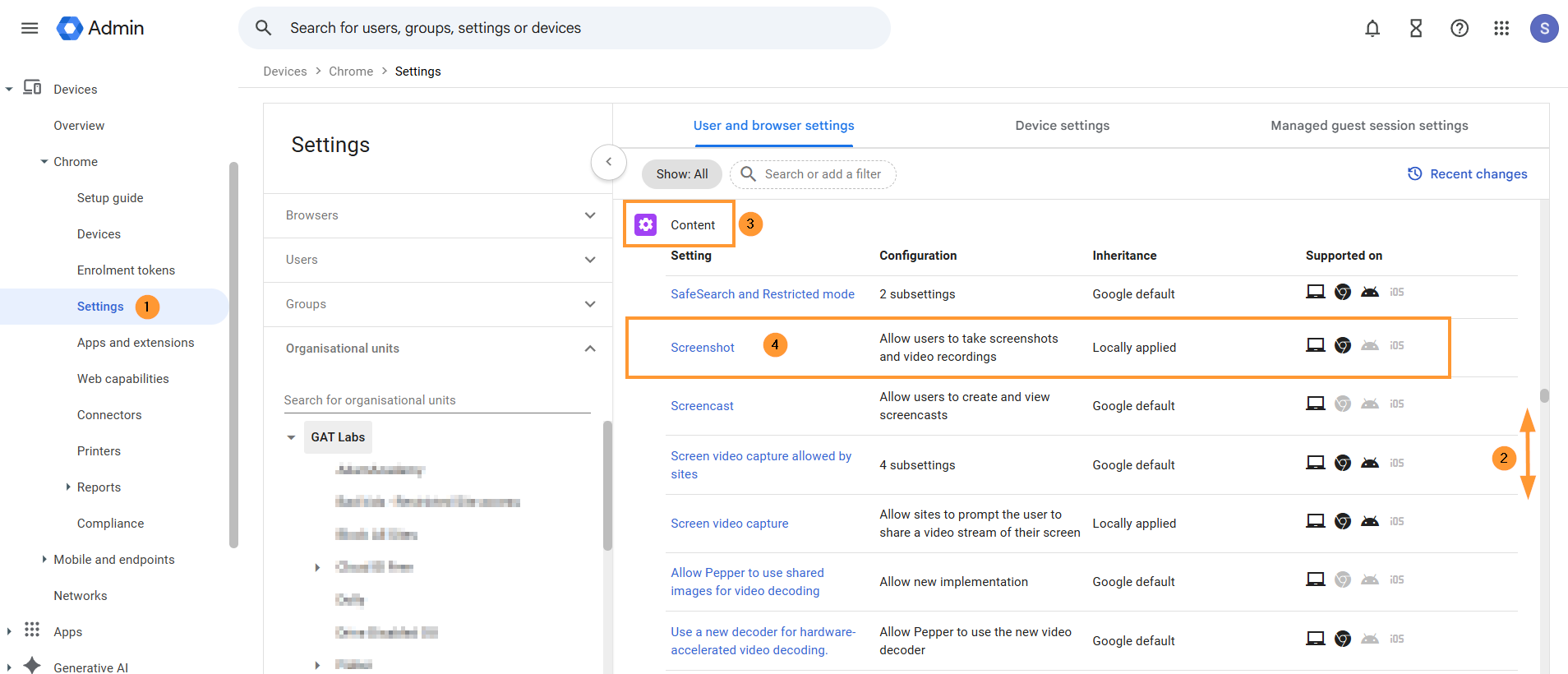
Description: Disabling screenshots will cause problems with the GAT Shield Alerting functionality.
Save settings #
When all the settings are adjusted and set up, click on the blue Save button on the bottom left.
Configure Device Settings #
We recommend that these options be configured on your domain for your Chrome devices. Not all are mandatory.
From the Google Admin console, navigate to Devices > Chrome > Settings > Device settings
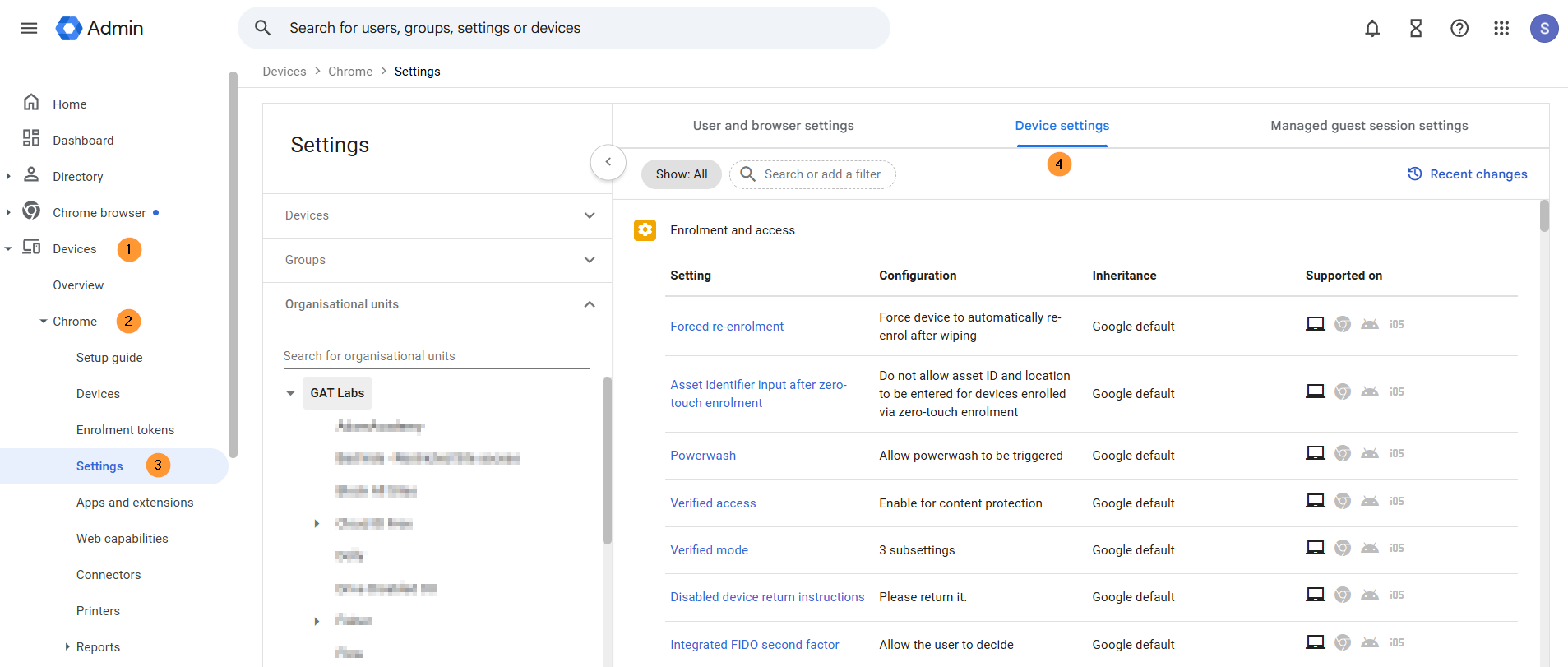
In the left sidebar, select the Organizational Unit that contains your Chromebooks, then configure the following policies to match these values..
Enrollment and access #
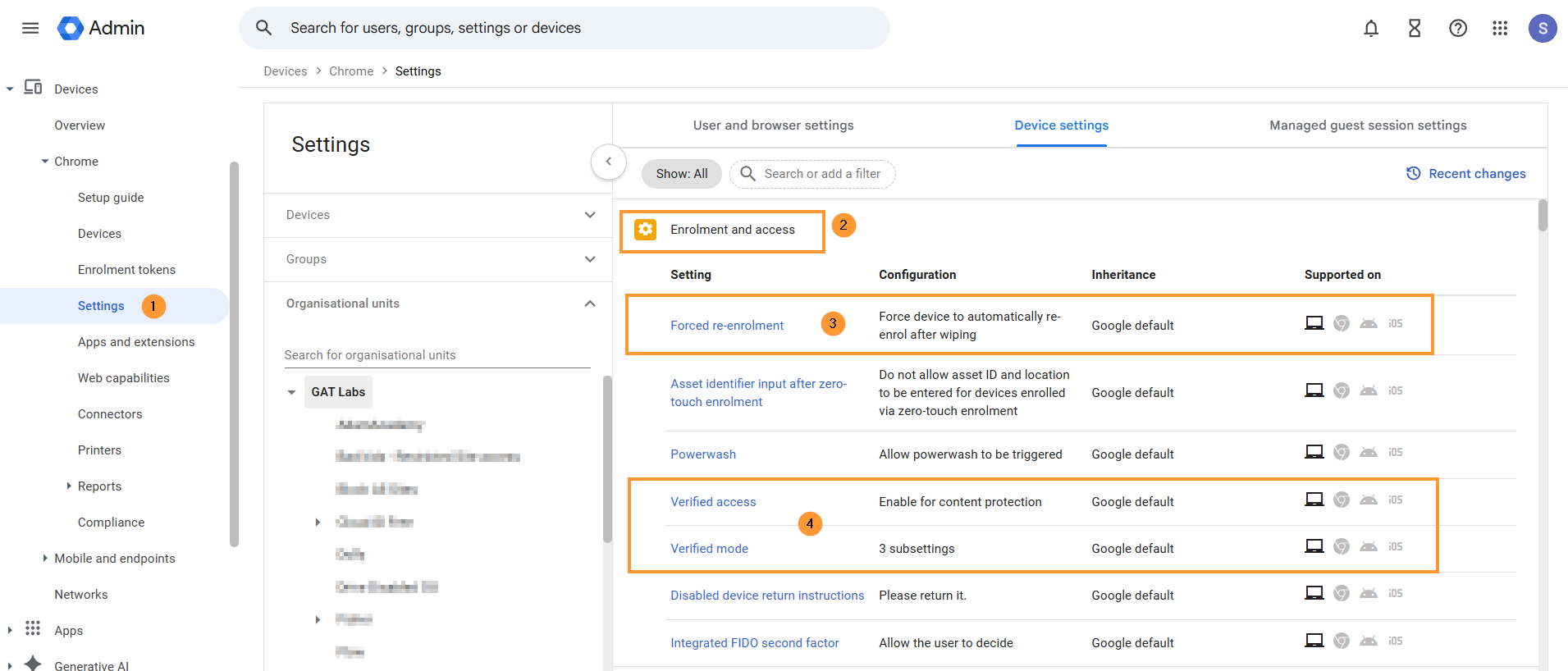
In the Enrollment and access setting, configure the settings
- Forced re-enrolment – Force device to automatically re-enroll after wiping
- Verified access – Enable for content protection
- Verified mode – Set to require verified mode boot for verified access
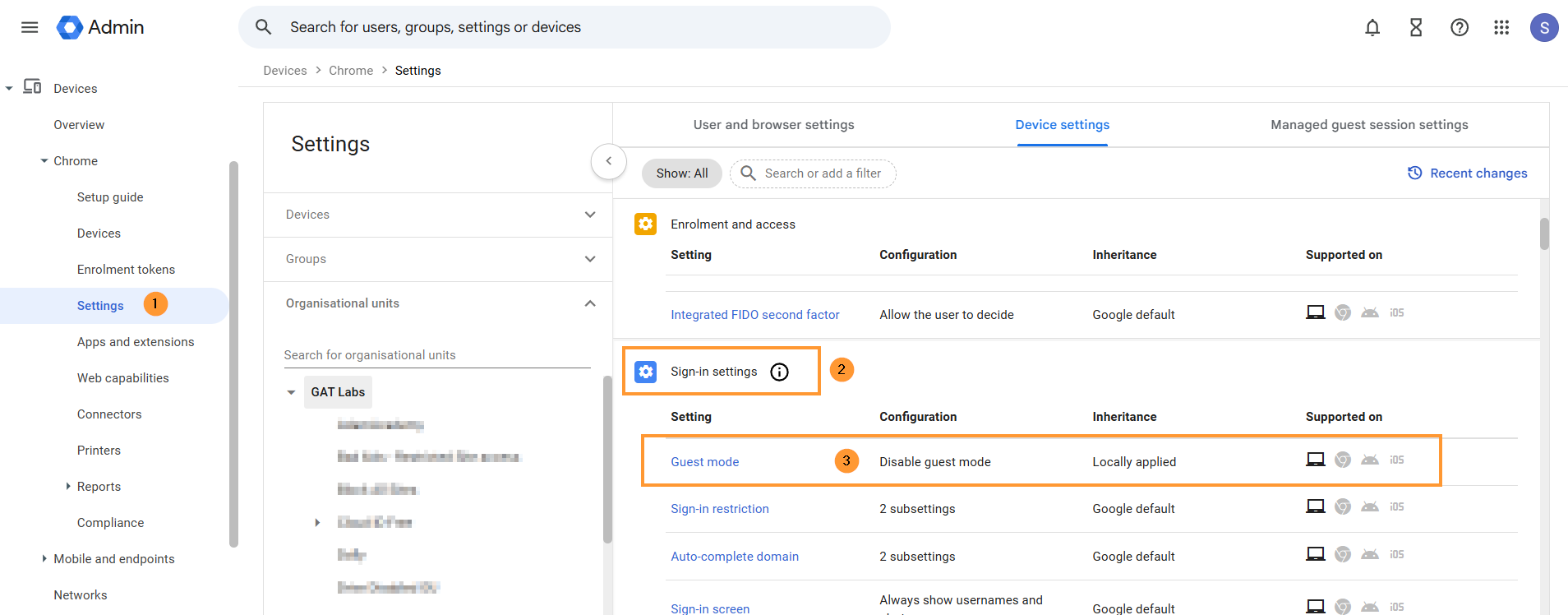
Sign-in settings #
On the same page, scroll down to Sign-in settings
- Guest mode – Disable guest mode
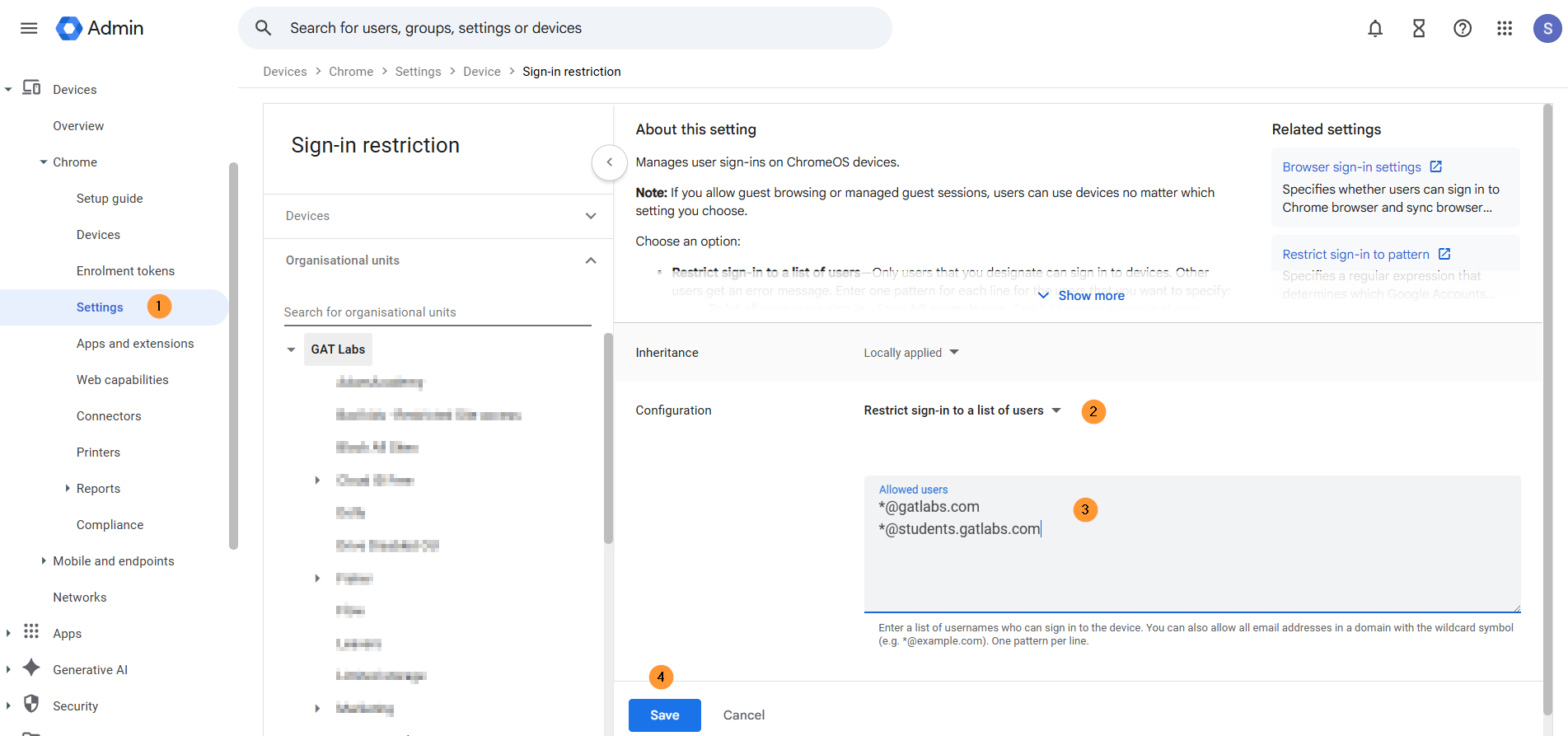
- Sign-in restrictions – Restrict sign-in to a list of users
- Add an allowed list – you must enter your domain
Teacher Assist is deployed to all students, but only ChromeOS devices are seen #
It could be a case where Teacher Assist is deployed domain-wide to all users, and yet the data is only shown on ChromeOS devices. You can check this setting.
Adjust the settings for Chrome management for signed-in users
Navigate to Devices > Chrome > Settings > Users and browsers settings > Chrome management for signed-in users
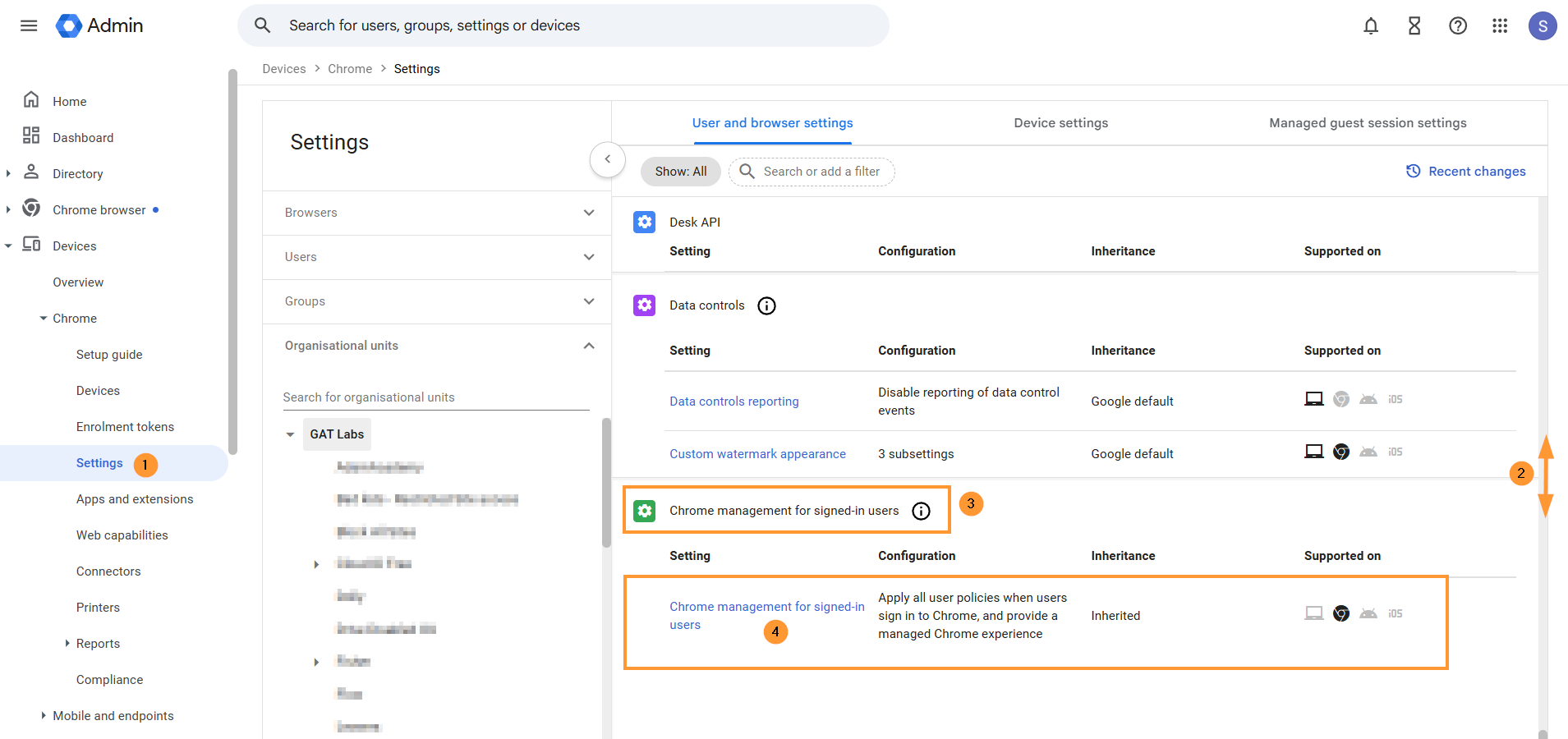
Set it up to: Apply all user policies when users sign in to Chrome, and provide a managed Chrome experience.
Google’s management and configuration for Chrome activity #
Referring to: Manage user profiles on Chrome browser, and View and configure apps and extensions
When the Teacher Assist extension is installed, every student who logs into their Chrome Browser with their School credentials will have the extension automatically synchronized.
The Chrome user cannot override this setting.
Frequently Asked Questions #
Do I need GAT Shield to use Teacher Assist?
Yes. GAT Shield is a prerequisite for Teacher Assist and must be installed before deploying the Teacher Assist extension.
How do I install the Teacher Assist Chrome extension?
The extension must be deployed by a Google Workspace Super Admin through the Google Admin console under Chrome > Apps & Extensions. We recommend using the Force install policy for the appropriate Organizational Unit.
Can I install Teacher Assist only for students?
Yes. Teacher Assist can be deployed to specific Organizational Units, such as a Students OU, rather than your entire Google Workspace domain.
Why isn’t Teacher Assist showing student activity?
Verify that the extension is force-installed, students are signed into Chrome using their school-managed Google accounts, required firewall URLs are whitelisted, and Chrome management for signed-in users is enabled.
Which devices are supported by Teacher Assist?
Teacher Assist works with managed Google Chrome browsers. For the full classroom management experience and recommended security settings, schools should use managed ChromeOS devices or managed Chrome browsers.
Why are only ChromeOS devices appearing in Teacher Assist?
This usually occurs when Chrome management for signed-in users is not configured correctly. Enable Apply all user policies when users sign in to Chrome in the Google Admin console to allow managed Chrome browsers to report activity.
What Google Admin settings are recommended for Teacher Assist?
GAT Labs recommends blocking Incognito mode, preventing users from clearing browser history, disabling Developer Tools for student Organizational Units, restricting guest access, and force-installing the Teacher Assist extension to help prevent students from bypassing classroom monitoring.


