

Standard operating system screen locks rely on fixed, static timers that often interrupt active work or leave unattended laptops exposed for too long. ActiveID Inactivity Lock solves this by enforcing dynamic, browser-level security directly inside Chrome.
By tracking real-time user engagement, Shield+ detects when a device is truly unattended. Once the set inactivity period expires, Shield+ locks browsing activity and requires a quick Passkey verification before the user can resume work, protecting sensitive corporate web apps without closing active tabs or disrupting the user’s workspace.
Below is the guide to configuring Inactivity Lock rules, setting up notification triggers, and managing the end-user verification experience.
ActiveID Check #
If ActiveID detects unusual typing behavior, an administrator can configure the response to require passkey verification. This helps reduce false positives: instead of immediately treating the activity as unauthorized, the user can prove they are really present.
Inactivity Lock #
If the user has been inactive for a configured number of minutes, Shield+ locks browsing and asks for passkey verification before the user can continue.
Admins can manually create inactivity lock rules for a set list of users.
Navigate to Shield+ > Security configuration > ActiveID > Inactivity lock
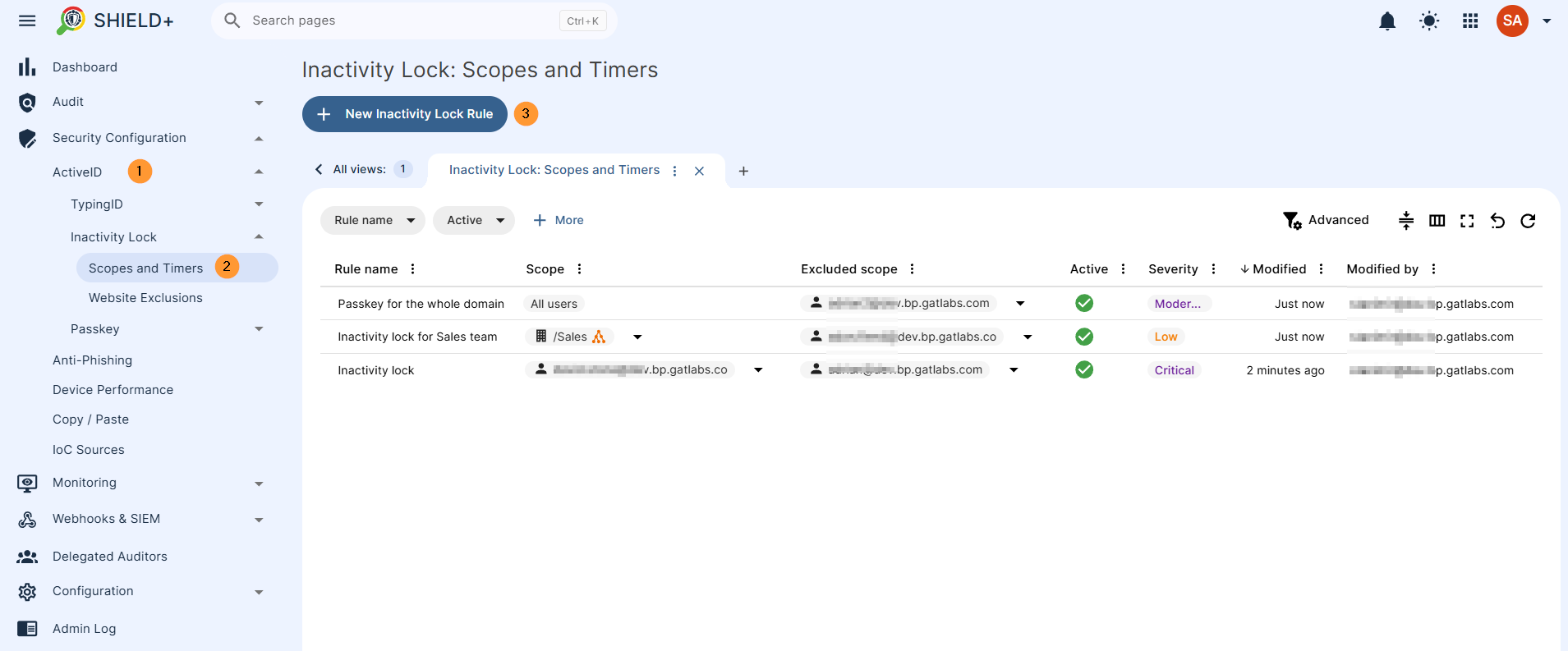
In the setup rule, fill in the details.
- Name – enter a name for the rule
- Default severity – When the Alert Rule is triggered, a notification is created. The severity of the notification is decided by the software and indicates its level of importance. The values are Low, Moderate, High, and Critical. “Alert Level Threshold” is the “notification threshold”. If you set the default severity to “Low,” it means that “all alerts with severity level Low and higher will be sent”.
Configuration – set up the period (in minutes) – Triggers an inactivity lock in the browser after a set period of user inactivity, such as 30 minutes away from the device. Unlike fixed schedules, it adapts to real behavior and activates only when the laptop is truly unattended.
- Defines the time period (in minutes) of screen inactivity before the inactivity lock is applied
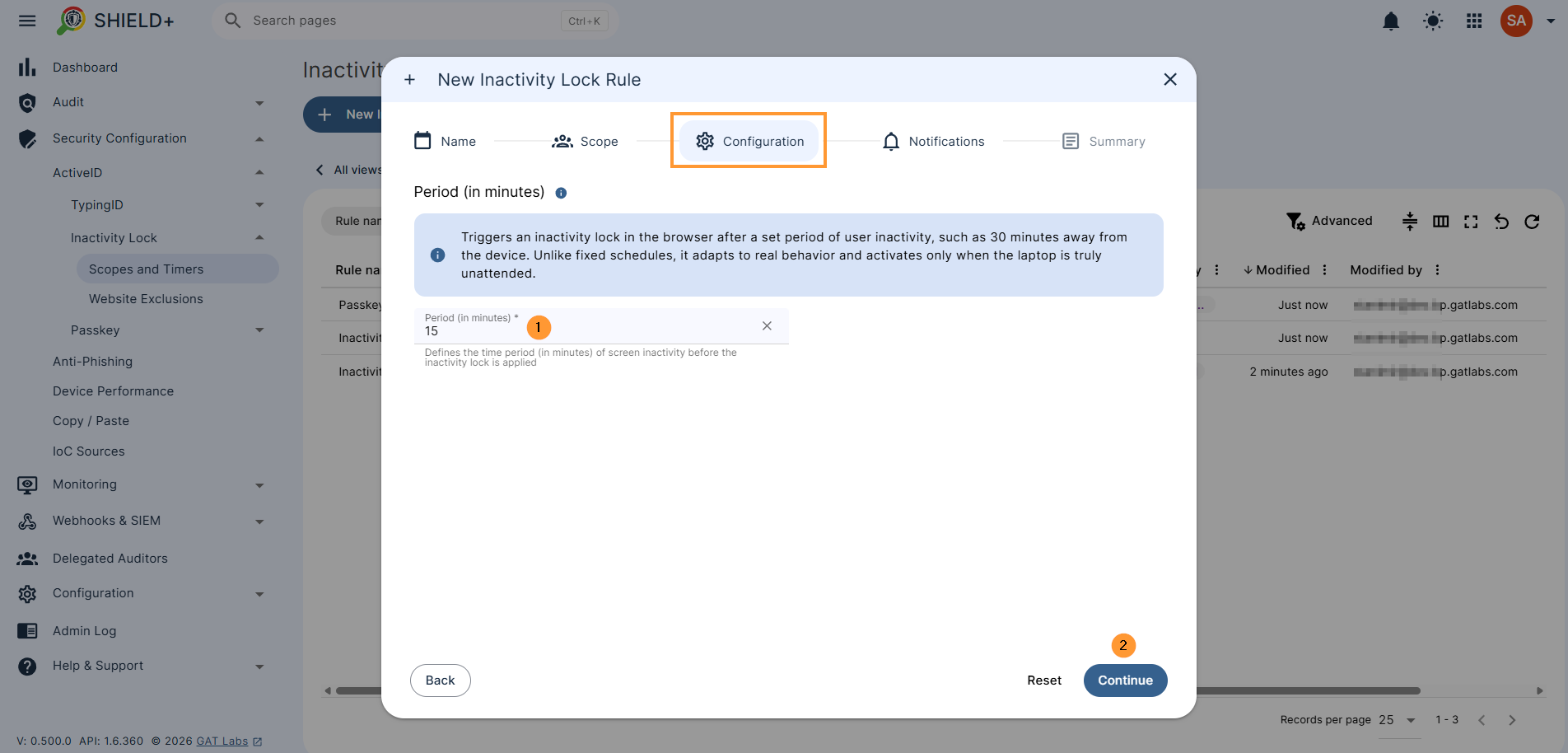
- Notifications – fill in the details for recipients of notifications
- Summary – view the rule set up
Result for end user #
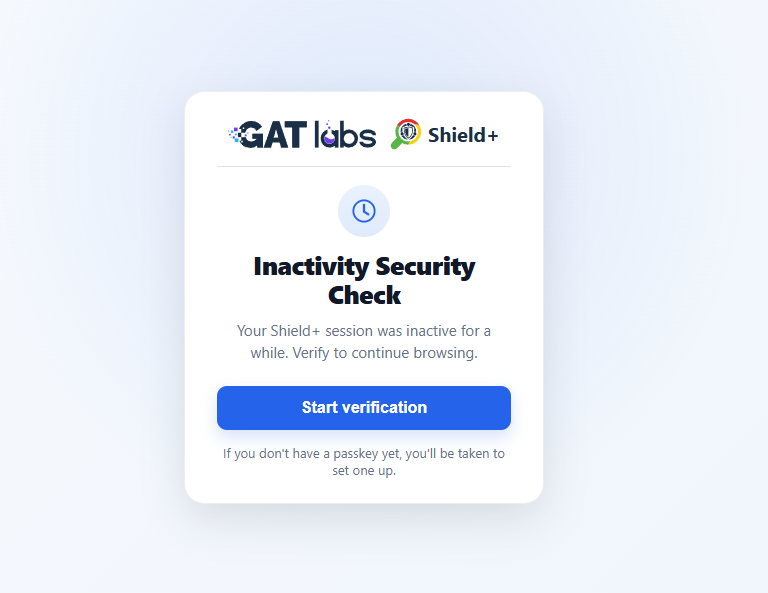
When the inactivity lock is set up and the time expires, the user will be locked out, and it would need to enter a passkey to log in again.
Shield+ Inactivity security check will be shown for the user
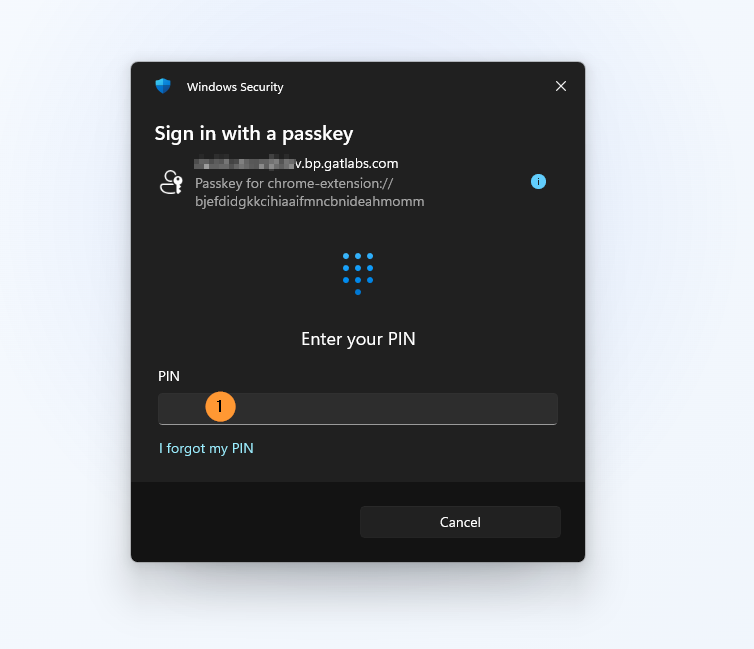
The passcode must be entered, and the user will be logged in again.
All the pages and tabs the user had while it was logged out will be reloaded to the previous state.
Conclusion #
Implementing Inactivity Lock rules allows Google Admins to enforce a reliable, zero-trust perimeter right at the browser level. By shifting from static OS timers to real-time inactivity checks, this feature provides:
- Adaptive Security: Automatically locks browsing when a user steps away from their keyboard, mitigating the risk of unauthorized physical access to open web sessions.
- Frictionless Recovery: Users simply complete a fast Passkey check (using device PIN, biometrics, or phone) to restore all open tabs and pages exactly as they left them.
- Flexible Administration: Custom inactivity windows and notification settings ensure sensitive teams remain protected without overburdening general users.


