

In the GAT Flow, Google Workspace admins can simply import users’ email addresses to create workflows. Which can then be used to take single or bulk actions to Onboard (create), Offboard (delete), or Modify (update) users in Google Workspace.
Importing Emails #
If you have a list of users’ emails in a spreadsheet, that list can be imported directly with GAT Flow.
To do this, create a workflow, and set it up as either ‘Onboarding’, ‘Modify’ or ‘Offboarding’.
Give the workflow a name, and click ‘Next’ to continue.
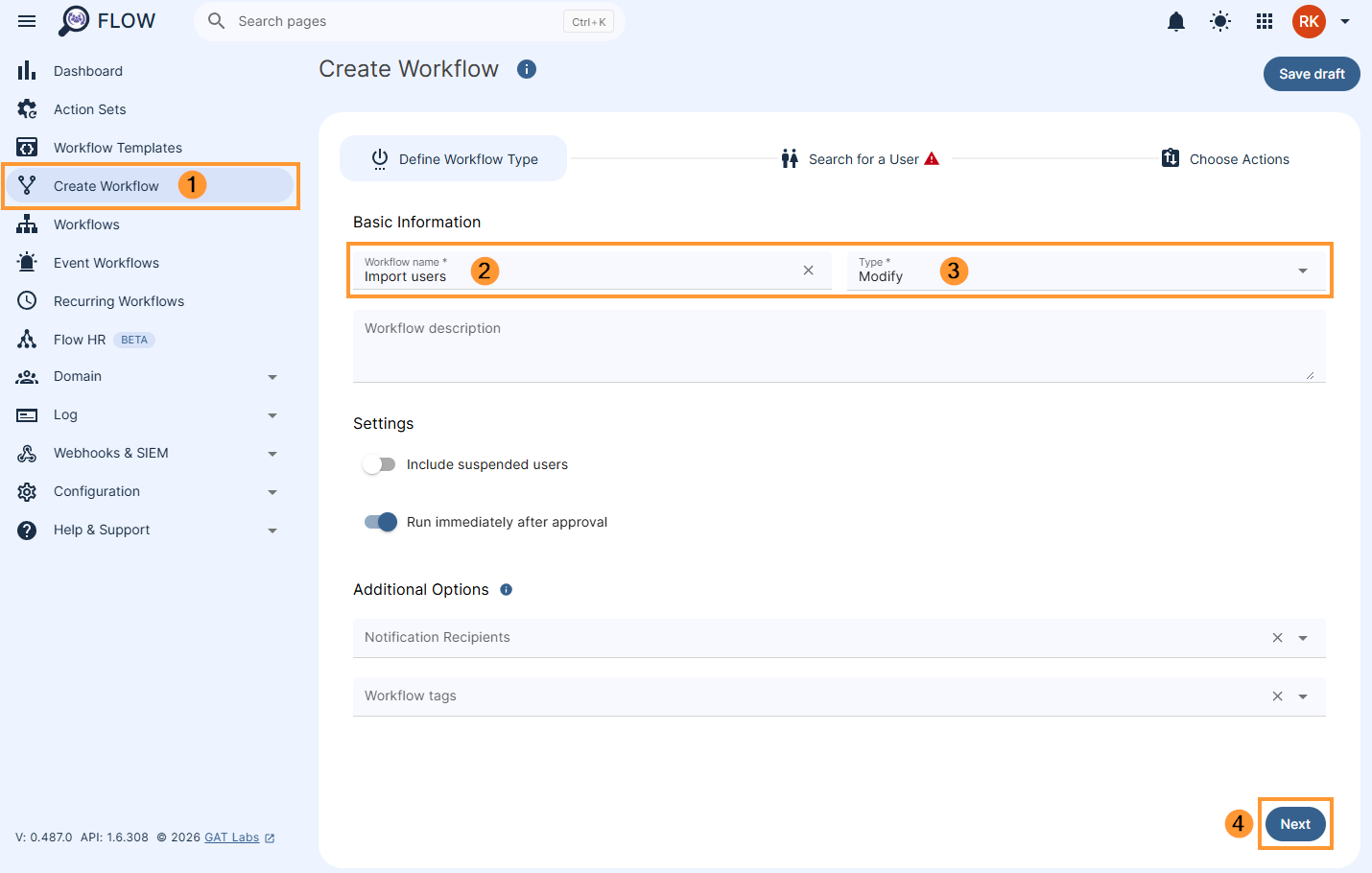
In the Add users section, you will see the option to ‘Import users’. Click this button and a dialogue box will open.
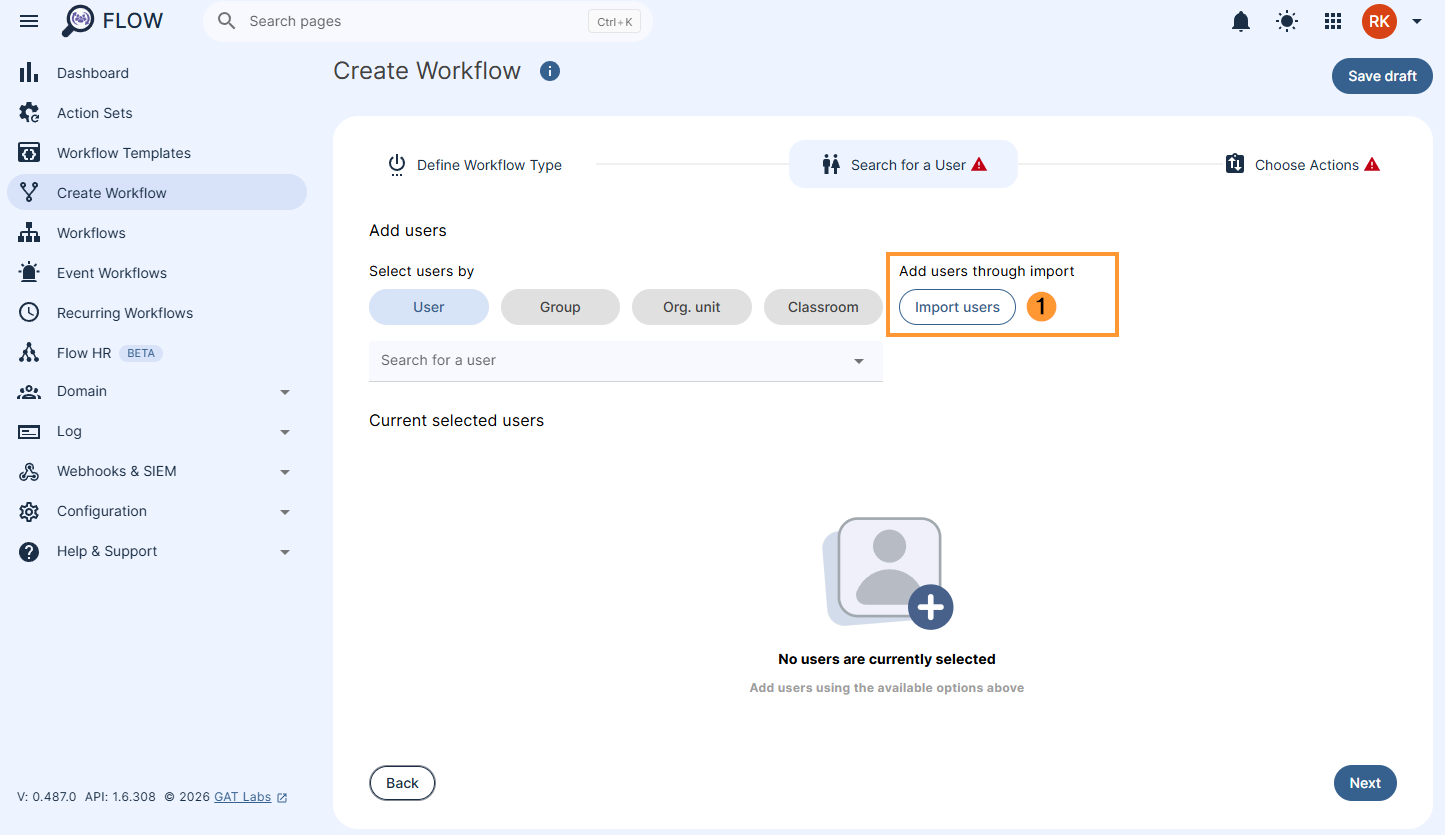
Click the ‘Create New Spreadsheet’ option to create a template to add the users you would like to import. If you already have a spreadsheet, you can search for it and import it to GAT Flow using the ‘Select Existing Spreadsheet’.
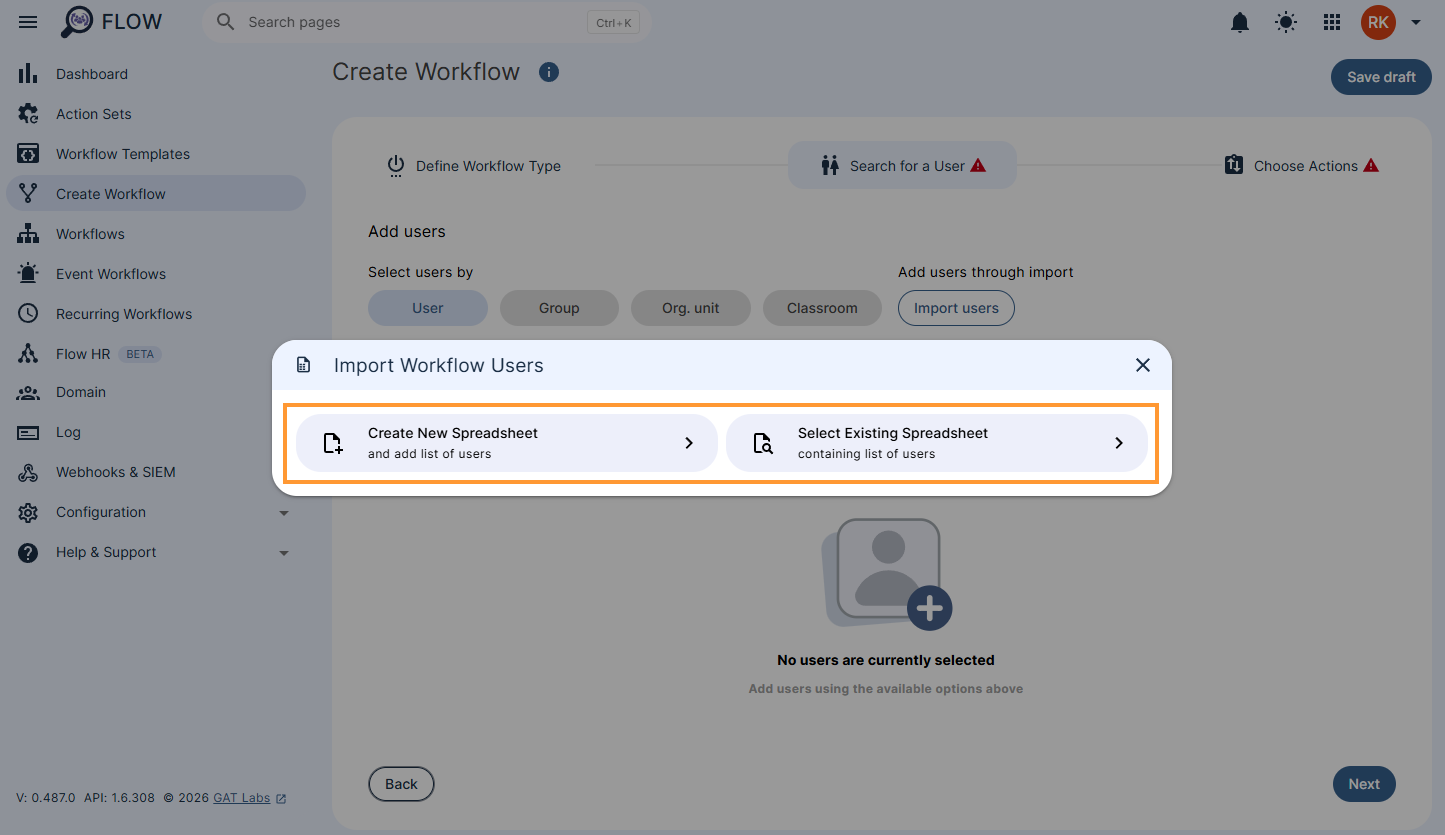
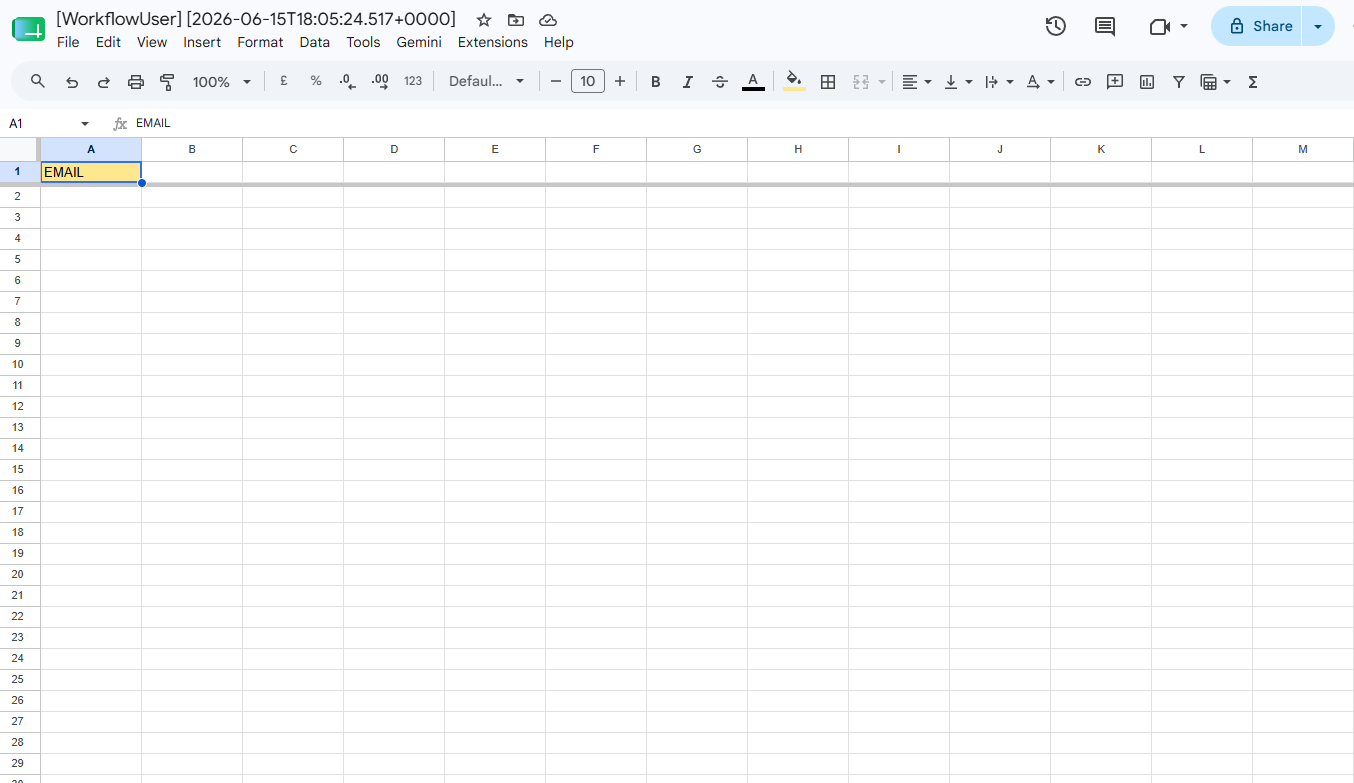
A new template will be created with the title [WorkflowUser] and the current date. Depending on the type of workflow chosen (onboarding, modify, offboarding) the template may have additional fields to enter.
Click the ‘Add to spreadsheet’ button to open this template and edit the spreadsheet.
The template will open in a new tab. You can paste the list of email addresses underneath the Email column.
When you have finished, you can close the spreadsheet tab and click the ‘Submit’ button in the GAT Flow tab.
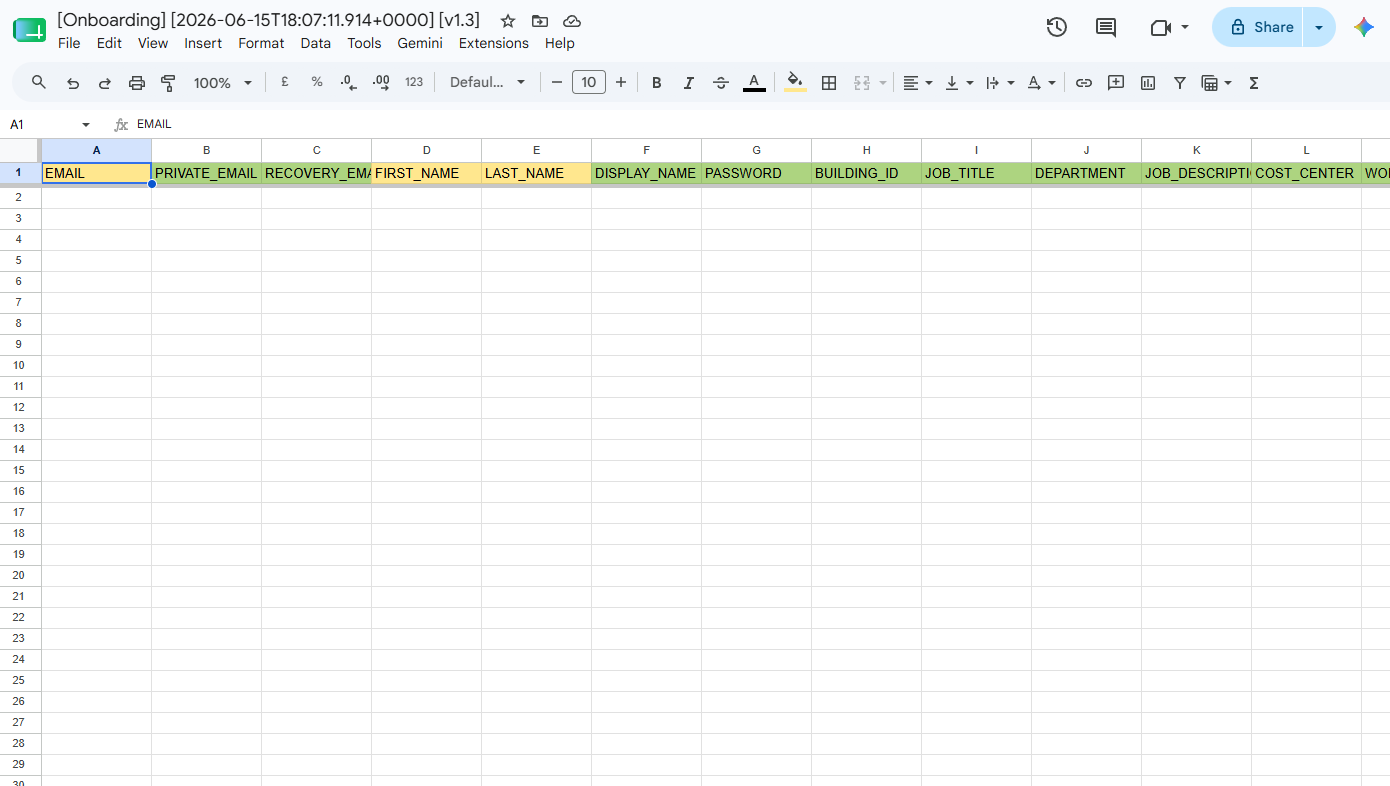
If you chose an onboarding workflow, your spreadsheet will have more fields to enter as shown below.
NOTE: Yellow headers are mandatory fields, Green headers are optional.
The list of email addresses will then get populated from the spreadsheet.
NOTE: For Modify and Offboarding workflows, the user’s listed under the Email column must already be users created in your domain.
If you want more information regarding onboarding by importing users’ emails from a spreadsheet, you can check out this article for more info.


