

Traditional two-factor authentication only verifies a user’s identity at the moment of login, leaving active sessions unprotected if a device is left unattended or accessed by someone else. ActiveID TypingID addresses this vulnerability by providing continuous behavioral biometric verification directly inside the Chrome browser.
By evaluating typing dynamics in real time, specifically cadence and timing characteristics rather than the actual characters typed, Shield+ constantly verifies that the person behind the keyboard matches the account owner’s profile. If typing behavior drops below your configured confidence threshold, Shield+ automatically enforces security responses, such as locking the screen behind a Passkey challenge or clearing browser cookies to sign the user out of active web applications.
Below is the guide to setting up TypingID alert rules, managing Passkey credentials and violation actions, and auditing typing pattern data across your domain.
Create a TypingID rule #
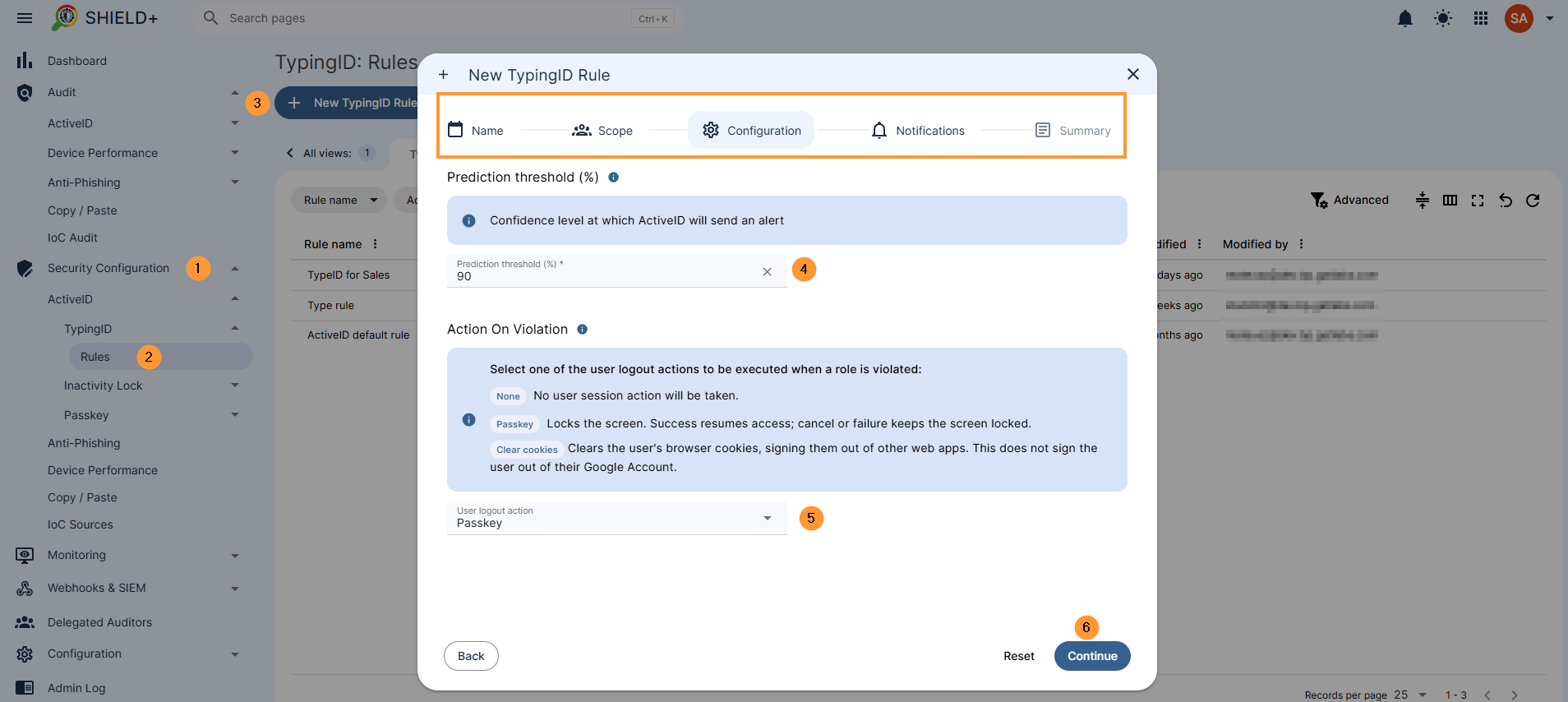
Navigate to Shield+ > Security configuration> ActiveID > TypingID > Rules > + New TypingID rule
- Name – enter the name for the rule
- Default severity – select severity for the rule
- Unspecified
- Low
- Moderate
- High
- Critical
- Default severity – select severity for the rule
- Scope – pick and select the scope for the alert
- Pick user, group, or Org. Unit of users
- Excluded scope – Specify users, groups, or OUs that should be excluded from the scope of the defined rule.
- Add: excluded scope
- Excluded scope – Specify users, groups, or OUs that should be excluded from the scope of the defined rule.
- Pick user, group, or Org. Unit of users
- Configuration – Confidence level at which ActiveID will send an alert.
- Enter the prediction threshold (%) – add percentile
- Action on violation – Select one of the user logout actions to be executed when a role is violated:
- None – No user session action will be taken.
- Passkey -Locks the screen. Success resumes access; cancel or failure keeps the screen locked.
- Clear cookies – Clears the user’s browser cookies, signing them out of other web apps. This does not sign the user out of their Google Account.
- Notifications – fill in the details
- Alert recipients – enter alert recipients
- Webhooks & SIEM – select option
- Elastic Search
- Generic receiver
- Splunk
- Webcam capture – select option
- Do not send
- Send in the notification email
- Send in the notification email and save to the rule creator’s Drive
- Send in the notification email, save to the rule creator’s Drive, and share with other alert recipients
- Screen capture – select option
- Do not send
- Send in the notification email
- Send in the notification email and save to the rule creator’s Drive
- Send in the notification email, save to the rule creator’s Drive, and share with other alert recipients
- Attach website name – enable or disable the option
- Summary – view all the options that are selected
Passkey – Credential management #
View and manage “Passkey” credentials registered by users for identity verification challenges. Admins can see which users have registered credentials, how many credentials they have, and when they were last used. Revoking credentials for a user forces that user to register a Passkey again on their next verification prompt.
Passkey adds an extra identity check inside the Shield+ browser extension. It is used when the organization wants to make sure the person using the browser is still the correct user.
How it works for the end-user.
- The user is asked to set up a passkey.
- They can create it on this device, with a phone, or with a hardware security key.
- When Shield+ needs confirmation, the browser opens a security check screen.
- The user verifies with their passkey, device PIN, fingerprint, face unlock, phone, or security key.
- After successful verification, Shield+ returns the user to the page they were using.
Shield+ does not store the user’s password or biometric data. The device keeps the private part of the passkey. GAT/Shield+ stores the registered credential information needed to check that future passkey responses are valid.
As an action on a violation, if Passkey is selected, the screen will be locked. Success resumes access; cancel or failure keeps the screen locked.
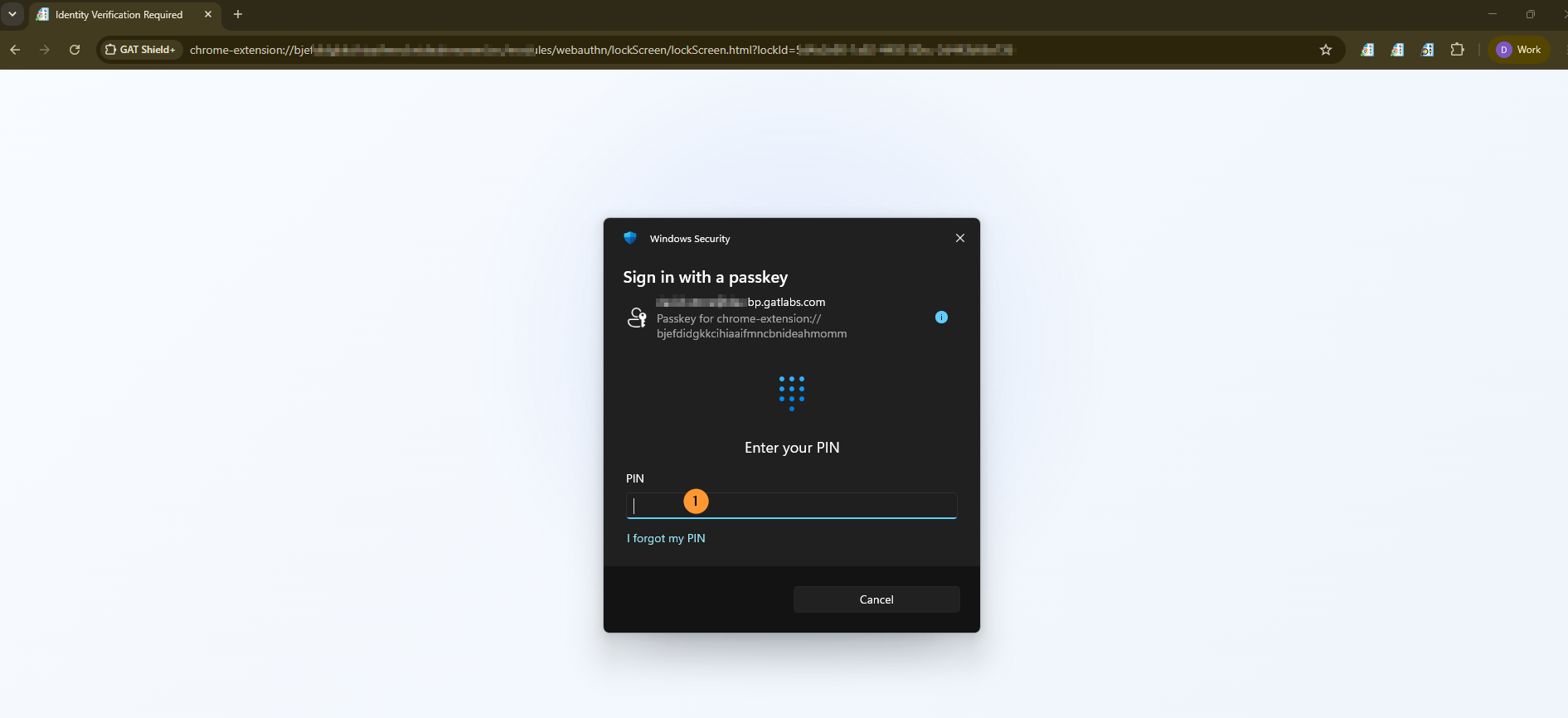
The end user will have a pop-up window where they need to set up and use the passkey to log in.
When Passkey Is Used #
Passkey can be required in two main situations:
- Inactivity Lock
If the user has been inactive for a configured number of minutes, Shield+ locks browsing and asks for passkey verification before the user can continue.
- ActiveID Check
If ActiveID detects unusual typing behavior, an administrator can configure the response to require passkey verification. This helps reduce false positives: instead of immediately treating the activity as unauthorized, the user can prove they are really present.
There is also an administrator-forced security check path in the extension, but the main user-facing configuration is Inactivity Lock and ActiveID Passkey action.
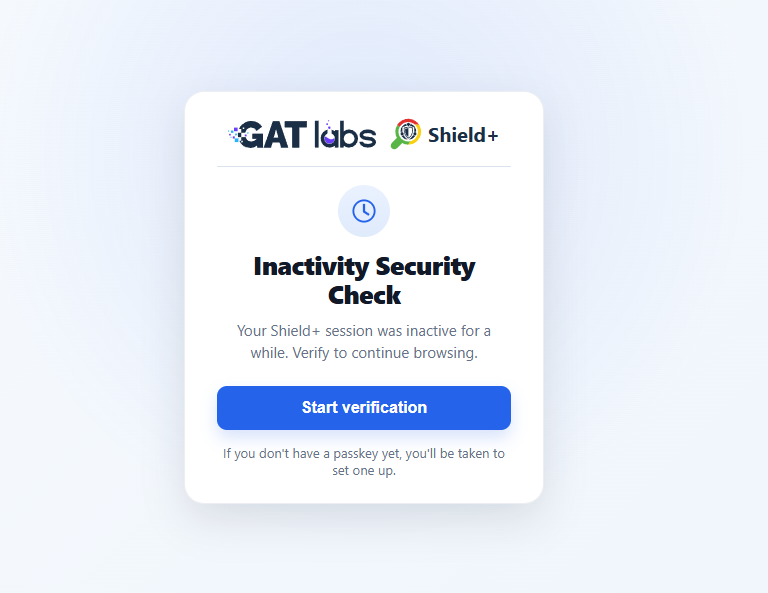
The user needs to click on the Start verification button.
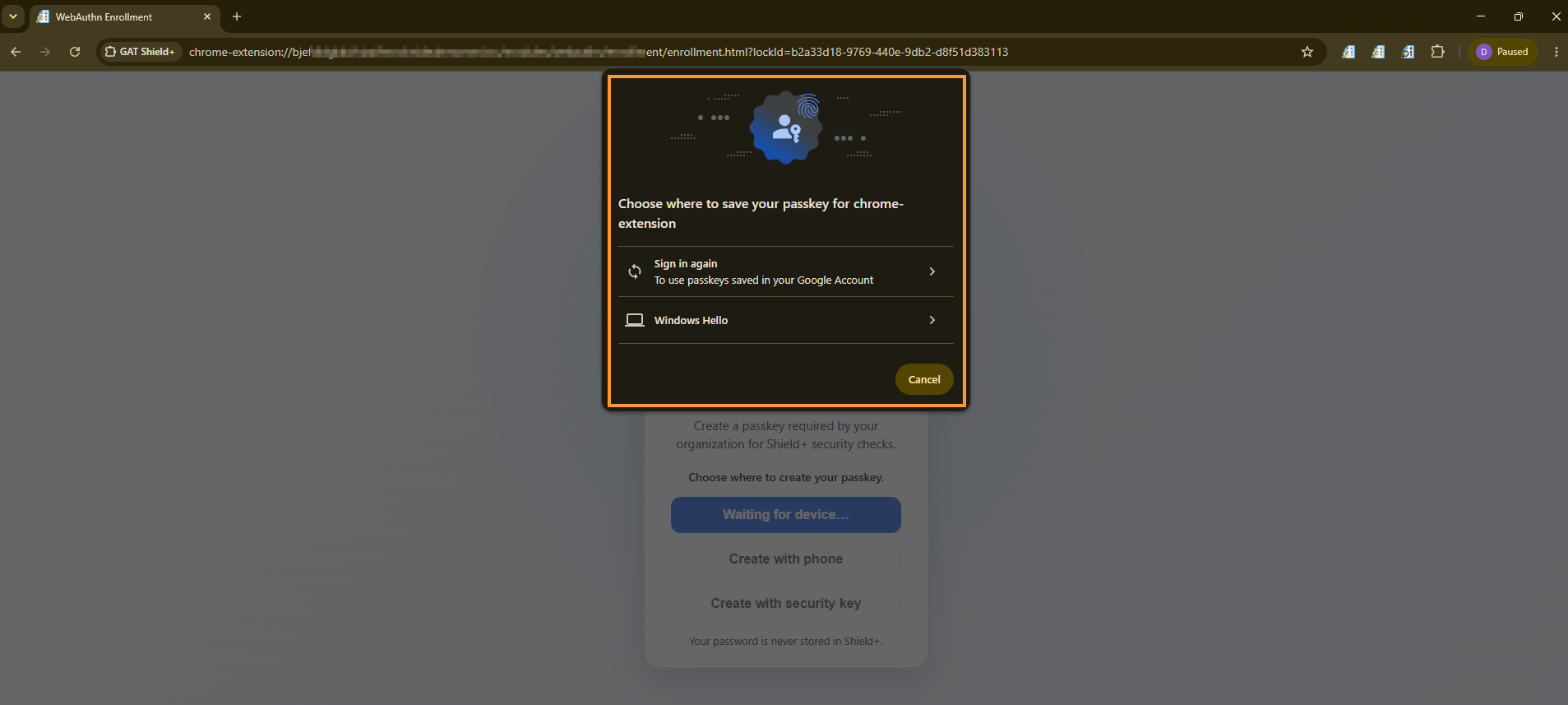
There will be 3 options avaliable.
- Create on this device
- Create with phone
- Create with security key
Create on this device #
The user must create and save the password as below.
- Can use passkey saved in user’s Google account
- Windows Hello
Create with phone #
This will generate a barcode that can be scanned with a phone and used to log in.
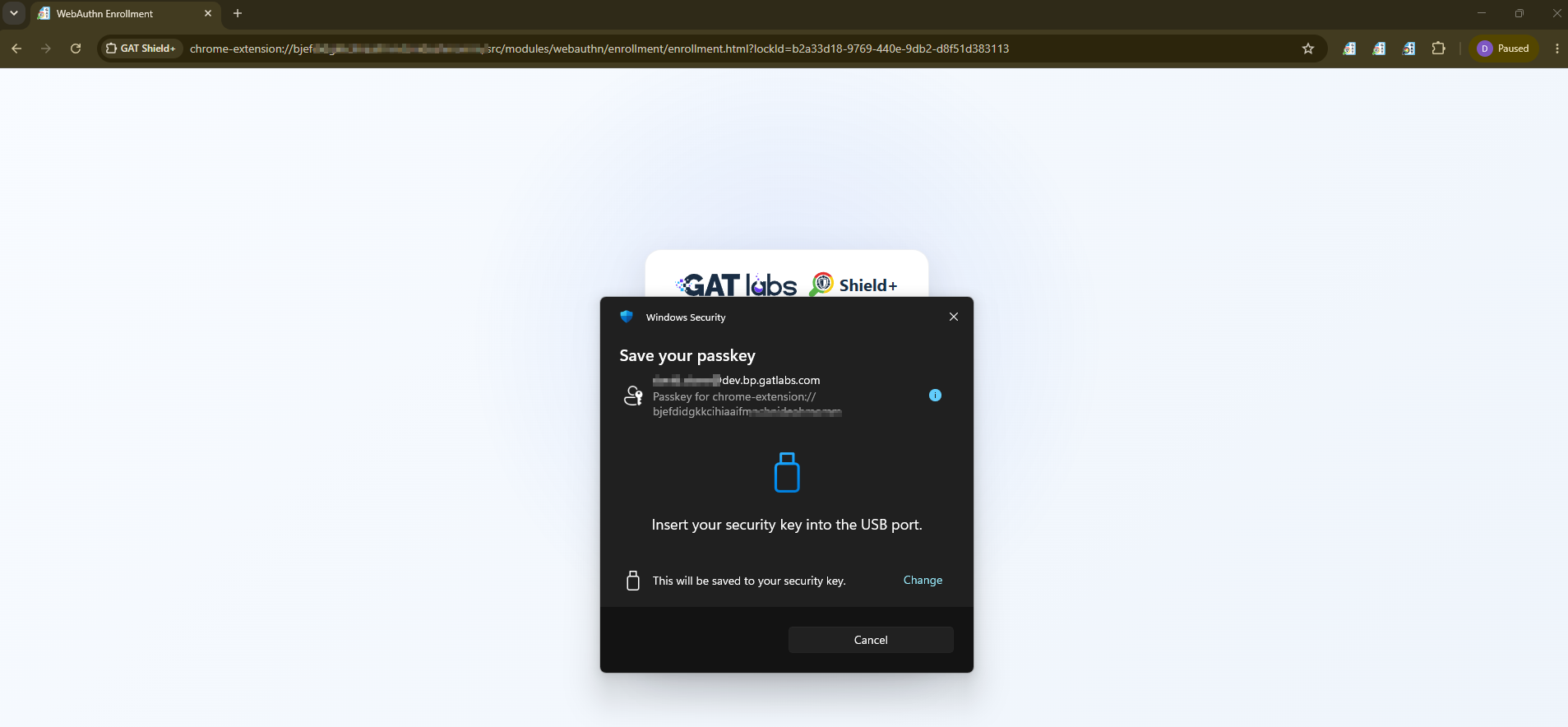
Create with security key #
The user must insert a USB and create it as a security code.
Use passkey to log in #
When the passkey is created. The end-users must use the passkey when the account is logged out by ActiveID checks or by the inactivity lock rule.
Clear cookies #
Clears the user’s browser cookies, signing them out of other web apps. This does not sign the user out of their Google Account.
Audit TypingID alerts #
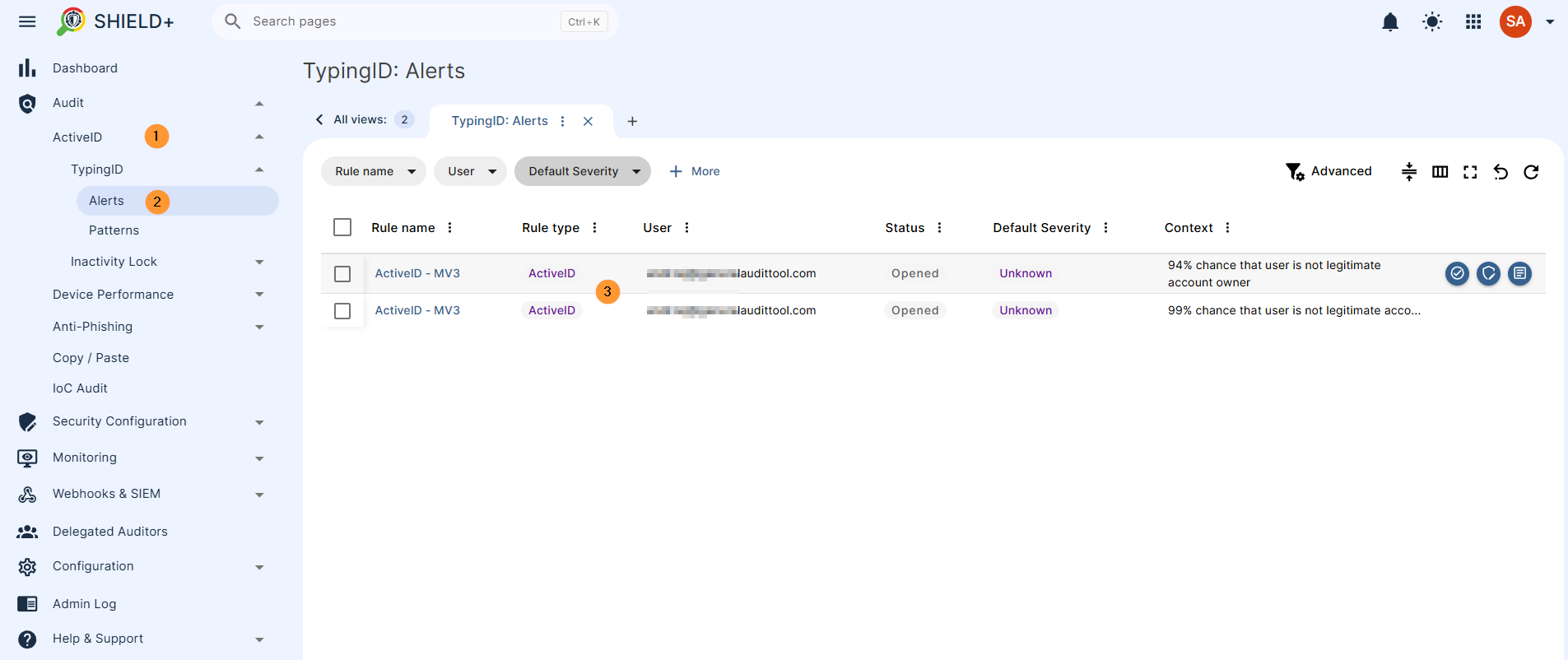
Navigate to Audit > ActiveID > TypingID > Alerts.
You will see all the alerts that are triggered by the TypingID rules set up above.
View all the details for the alert, such as who triggered the alert and its context.
Audit TypingID patterns #
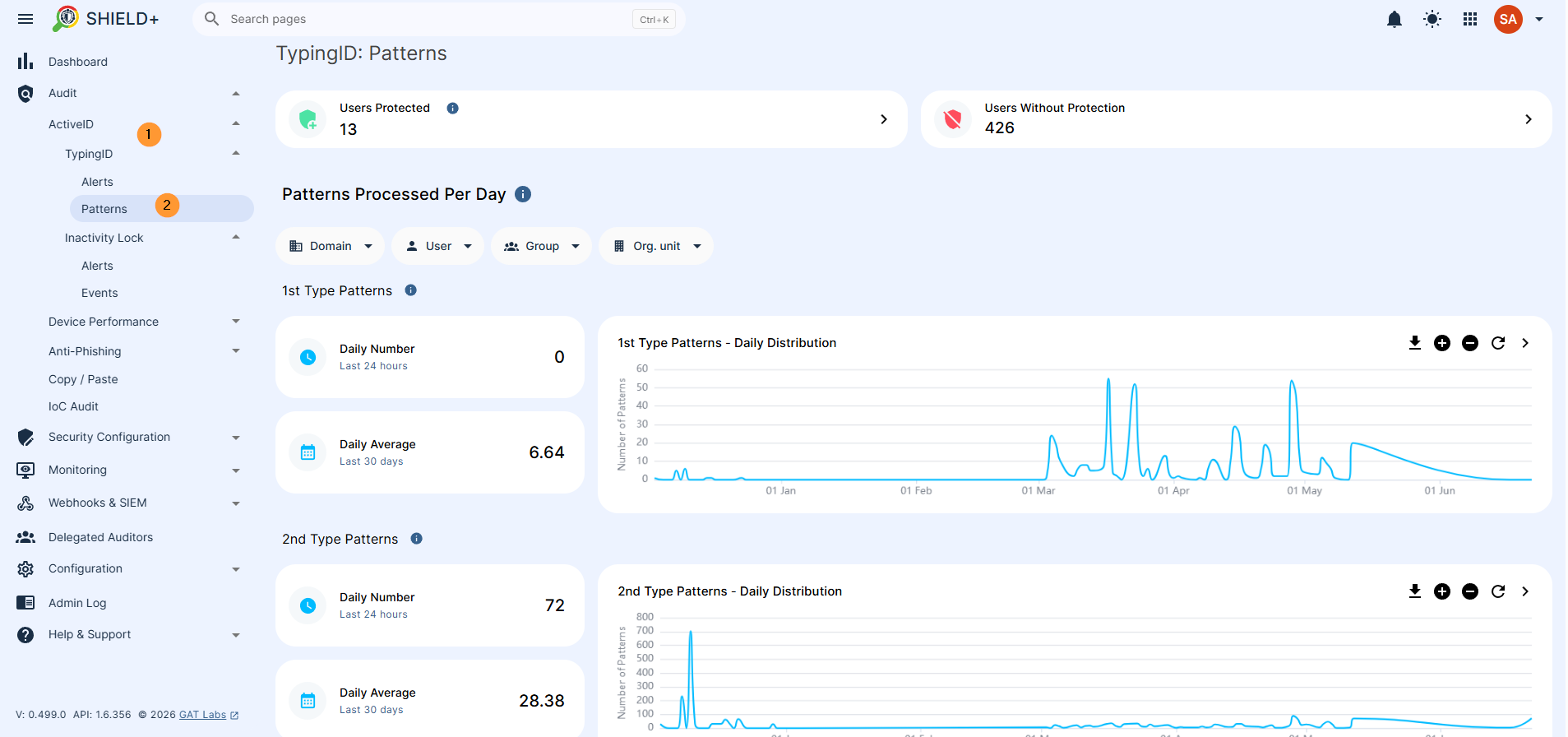
The raw typing patterns collected from users and processed by the AI models. This view lets admins monitor how actively patterns are being generated per user, which directly reflects how well each user’s identity model is trained.
- We collect 2 types of typing patterns. In this section, we present how many typing patterns were verified by our system daily.
- 1st Type Patterns – Full Typing Pattern – A detailed profile pattern of your typing style based on 100–150 keystrokes.
- View daily numbers – for the last 24 hrs
- View daily average – for the last 30 days
- 2nd Type Patterns – Key-Pair Pattern – A quick profile pattern built from the timing of letter pairs (like “TH” or “AE”)
- View daily numbers – for the last 24 hrs
- View daily average – for the last 30 days
Navigate to Audit > ActiveID > TypingID > Patterns
Scope #
Admin can select a scope of users and see the stats for the first and second type patterns.
The scope can be User, Group, OU, or domain-wide.
Users protected #
A successfully built model means that the user is being actively protected. AI model checks if the text generated by the user matches the user’s previous typing behaviour.
Conclusion: Why ActiveID & TypingID Rules Matter for Admins #
The ActiveID TypingID feature provides continuous, AI-driven behavioral verification to ensure the user behind the keyboard is always the authorized account owner. By evaluating typing dynamics—without recording actual words—admins can automatically detect unauthorized access attempts and take immediate, policy-driven action.
Key Benefits
- Continuous Behavioral Verification: Leverages AI models trained on two distinct typing pattern types (Full Typing Patterns of 100–150 keystrokes and rapid Key-Pair Patterns like “TH” or “AE”) to verify account owners in real time based on their unique typing habits.
- Automated & Flexible Incident Enforcement: Configure custom prediction thresholds and automatically enforce violation actions, either triggering a Passkey screen lock challenge (verifiable via local device, phone, or USB security key) or clearing browser cookies to sign the user out of active web apps.
- Comprehensive Incident & Pattern Auditing: Admins gain full visibility into triggered TypingID alerts with optional context (webcam captures, screenshots, and URLs), alongside detailed pattern metrics across individual users, groups, or organizational units to monitor model training and protection status.


