

Managing employee communication groups and department email lists shouldn’t require waiting on IT ticket queues or navigating complex admin portals.
With Flow HR, HR teams have a user-friendly hub to build, update, and organize company Google Groups in real time.
Whether you’re setting up a communication channel for new hires, setting up dynamic lists based on department roles, or managing access permissions for existing teams, this guide shows you how to handle everyday group management right within your HR workflow.
How to Manage Google Groups in Flow HR #
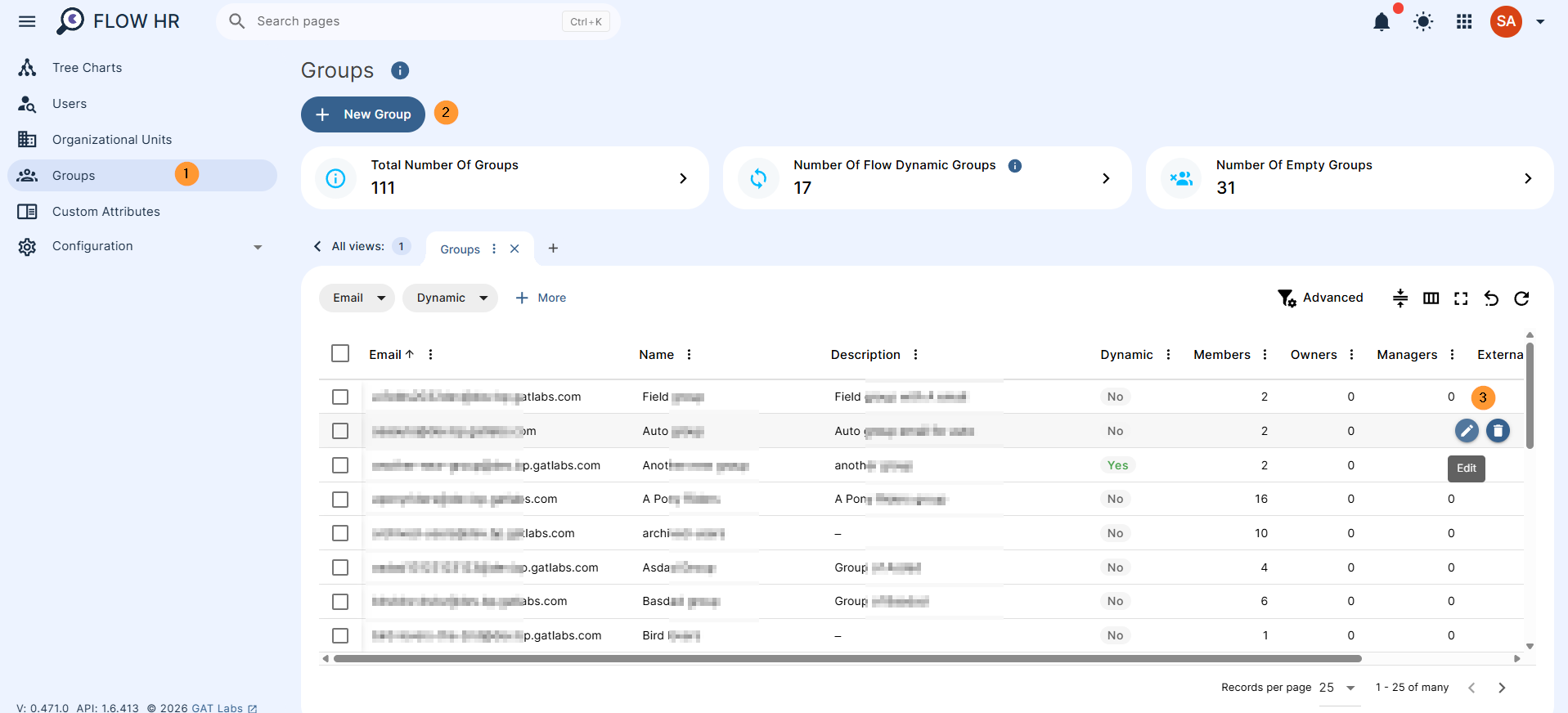
Navigate to Flow HR > Groups.
Admins can click “+ new group” to create a new group and add all necessary details.
Search for any Google group, hover over Update, or delete the Group.
Create a Group #
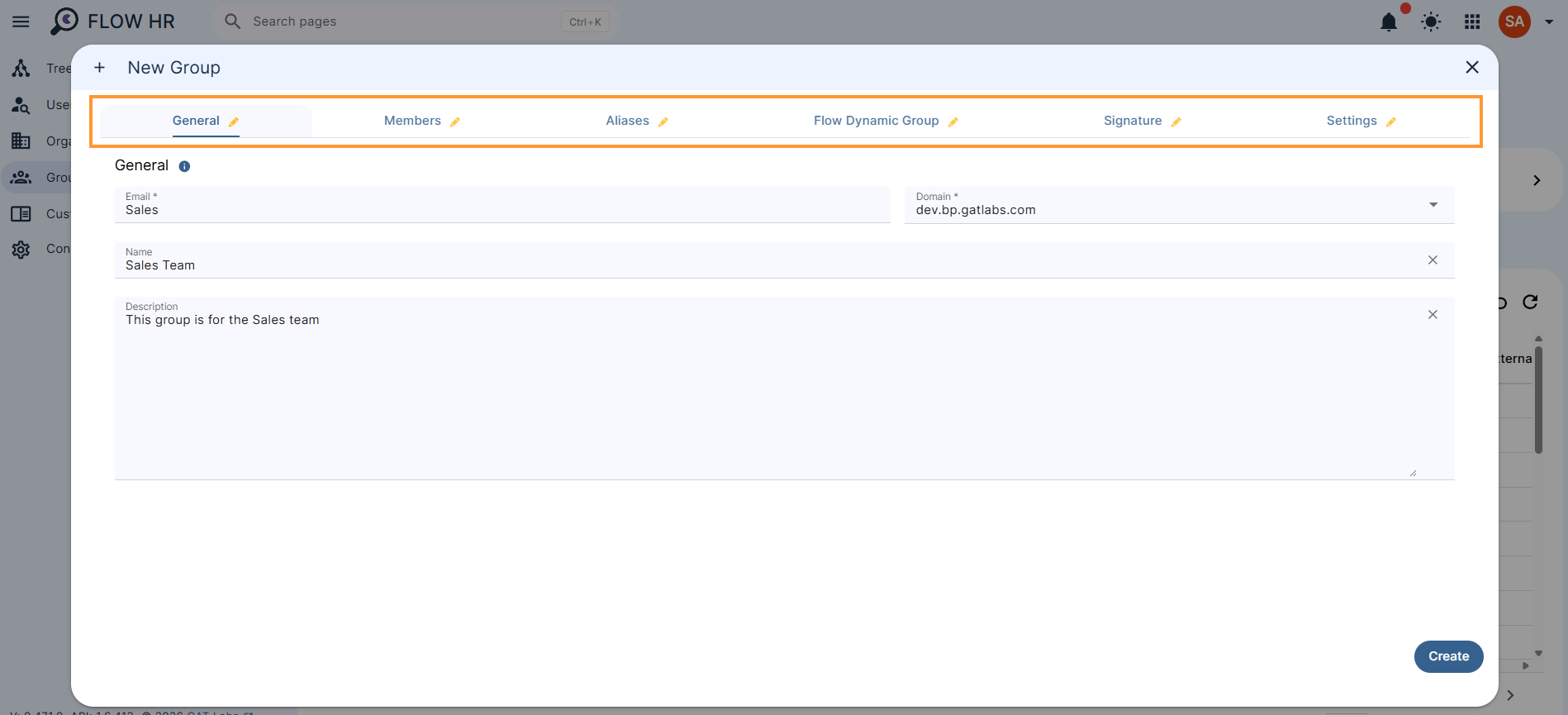
Click on the New Group button to create a new group.
Fill in all the details:
- General – The tab presents basic information about the group.
- Members – This tab lets you view the group’s current members, add new members, and modify existing ones. For Flow Dynamic Groups, only a view of the current members list is available.
- Aliases – In this tab, you can view and modify the group’s alias list.
- Flow Dynamic Group – Flow dynamic groups are the equivalent of Google dynamic groups and update at least once a day. Group members are added/removed automatically based on a given list of conditions.
- Signature – This tab lets you manage the group signature.
- Settings – Select and change any group settings
Flow HR’s Dynamic Groups #
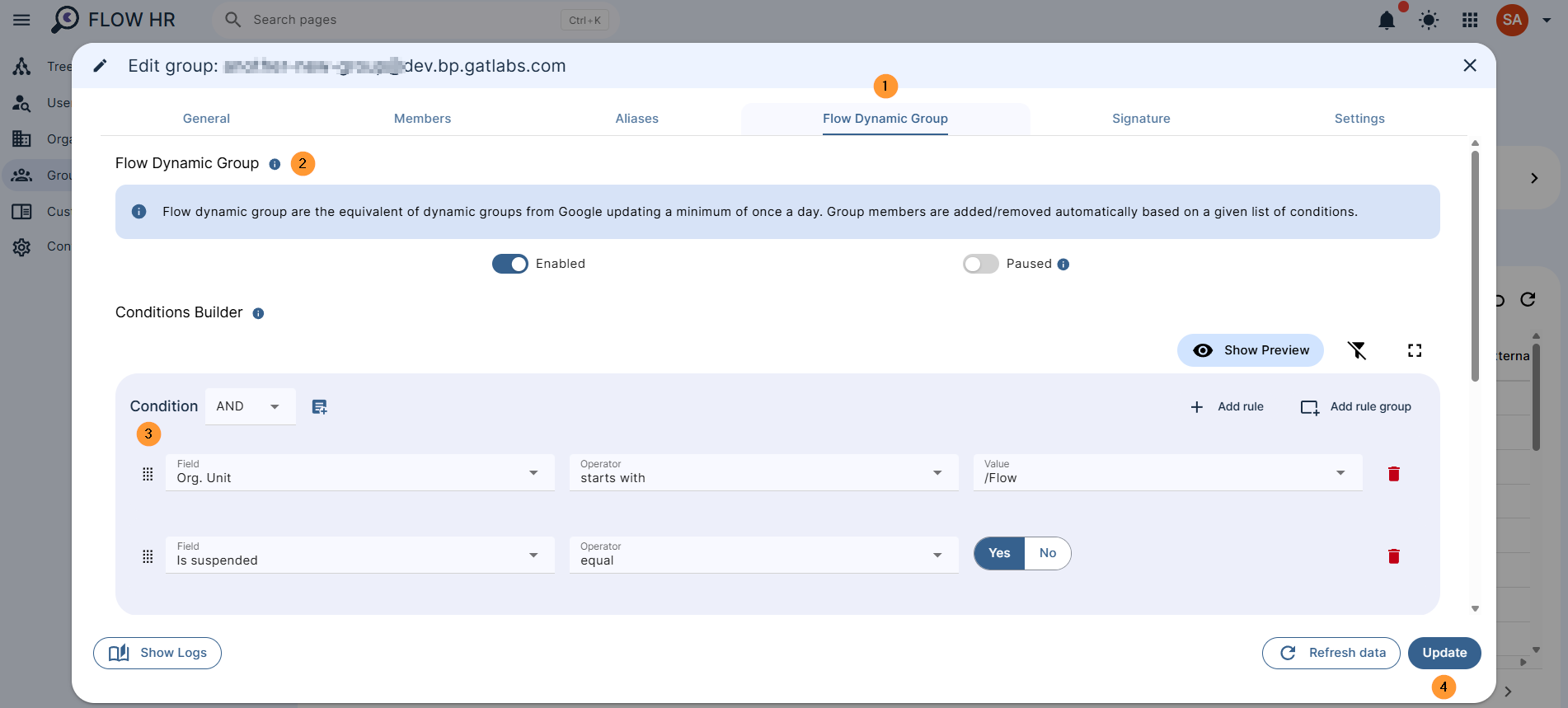
Flow dynamic groups are the equivalent of Google dynamic groups and update at least once a day. Group members are added/removed automatically based on a given list of conditions.
General Group Settings #
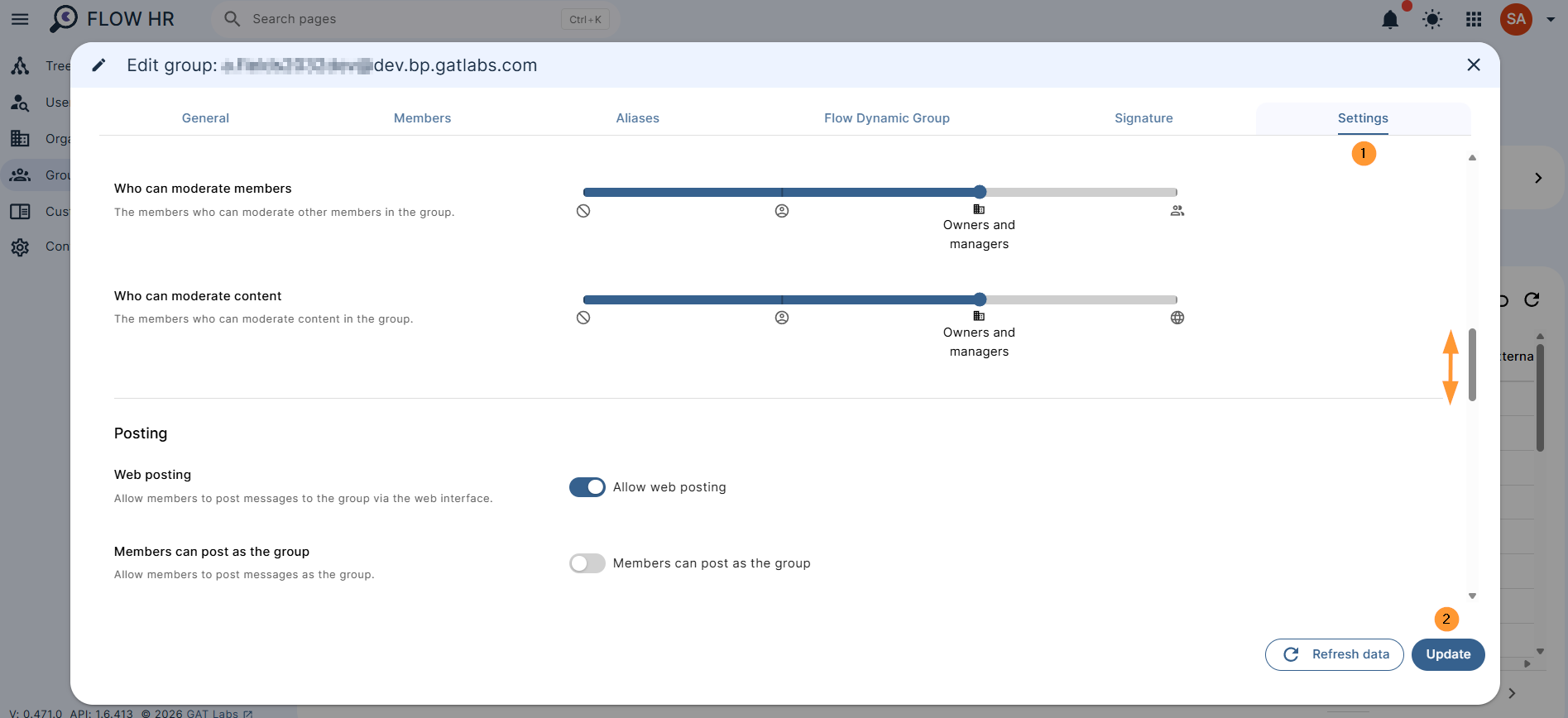
Admins can update any group setting.
- Archive only: Makes the group archive-only; prevents new messages from being posted.
- Global address list: Includes the group in the global address list.
- Favorite replies: Shows favorite replies at the top of the conversation.
- Custom roles: Allows custom roles to be merged when applying group settings.
- Archive messages: Allows messages in the group to be archived (required for Collaborative Inbox).
- Collaborative inbox: Allows members to use the collaborative inbox feature (requires Archive Messages).
- Message deny notification: Sends a notification when a message is denied.
- Custom footer: Includes a custom footer in group emails.
- Primary language: The primary language of the group (Select any language).
- Spam moderation level: The level of moderation applied to spam messages
- Message moderation level: The level of moderation applied to messages sent to the group
- Who can moderate members: Specifies who can moderate other members
- Who can moderate content: Specifies who can moderate content in the group
- Web posting: Allows members to post messages via the web interface.
- Members can post as the group: Allows members to post messages using the group identity.
- Who can post message: Specifies who can post messages to the group
- Reply settings: Specifies the default recipient for replies to group messages
- External members: Allows members from outside the organization to join the group.
- Who can join: Specifies who can join the group.
- Who can leave group: Specifies who can leave the group
- Who can assist content: Specifies who can assist with content moderation
- Who can view conversations: Specifies who can view group conversations
- Who can view membership: Specifies who can view the group membership list
- Who can discover group: Specifies who can search for and find the group
- Who can contact owner: Specifies which members can contact the group owner.
Conclusion #
By taking control of your company’s communication channels, Flow HR helps you keep teams connected without extra administrative friction.
Managing membership lists, automated dynamic groups, and group settings directly ensures smooth onboarding, accurate team updates, and clean organizational governance.


