

Shield Home: Parent Visibility for Student Online Activity #
Shield Home is an extension of GAT Shield designed to give parents and guardians visibility into their child’s online activity on school-managed accounts.
By connecting school domain accounts with parent or guardian emails, or synchronizing with Google Guardians, administrators can give parents code-authenticated access to view their child’s browsing activity.
Through Shield Home, parents and guardians can view information such as websites visited, time spent browsing, YouTube activity, downloaded files, searches, and device location reported by the student’s Chrome browser.
Configure Parents and Guardians #
First, navigate to GAT Shield > Configuration > Shield Home > Parents and Guardians
Configuration section for the Parents and Guardians
This module allows you to set up parent access for user accounts in your domain.
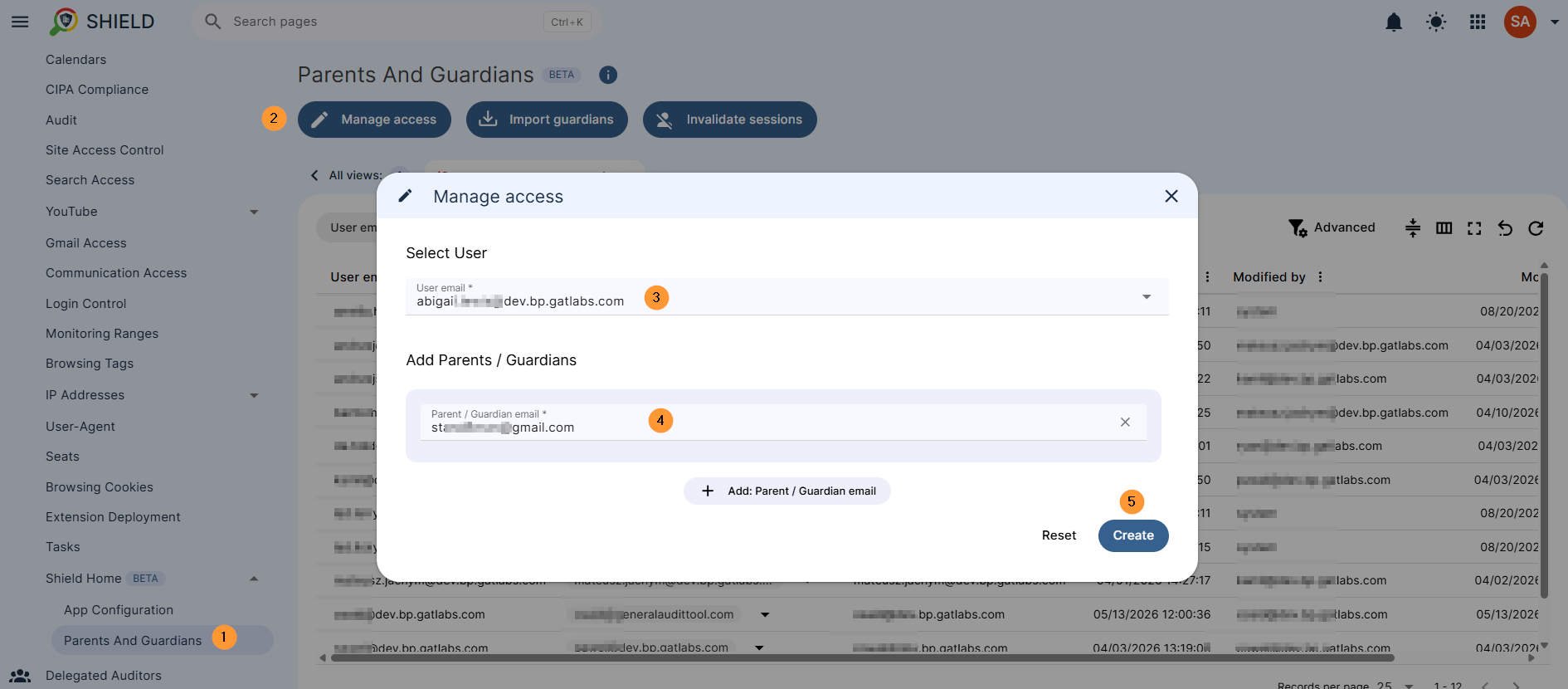
Next, click on Manage Access to add Parent and Student.
- Select user – enter the student’s email; it must be a domain user account.
- Add Parents / Guardians – enter the Parent/Guardian email; it could be any email account, such as a personal Gmail.com account.
- Add additional parents to the same student account
- Create – click to create the Parent and Student access
Additional options #
- Import guardians – Confirming this action will import Google Guardians and create access for them.
- The synchronization process will run every 24 hours to keep the access up to date with Google Guardians. You can always turn it off in the ‘App Configuration’ section.
- Invalidate sessions – Confirming this action will invalidate all active sessions. Users will need to log in again after closing their browsers. This helps to apply the new access settings.
Once the Parents and Guardians are set up, they can log in to view their kids’ or students’ browsing activity.
App configuration #
The configuration settings allow the following.
General
- Enabled – enable or disable the Shield Home
- School name – enter the name of the school displayed in the Shield Home App
- School logo – select and import the school logo displayed on the Shield Home login page
Access
- Synchronize with Google Guardians – The synchronization process runs every 24 hours to keep access up to date with Google Guardians.
- Parents can access at – The URL that parents use to log in to Shield Home.
Parent/Guardian Access #
The Admin can provide the URL to access the app to the Guardians and Parents.
The URL that parents use to log in to Shield Home.
The Admin will provide the URL to access the tool to the Guardians
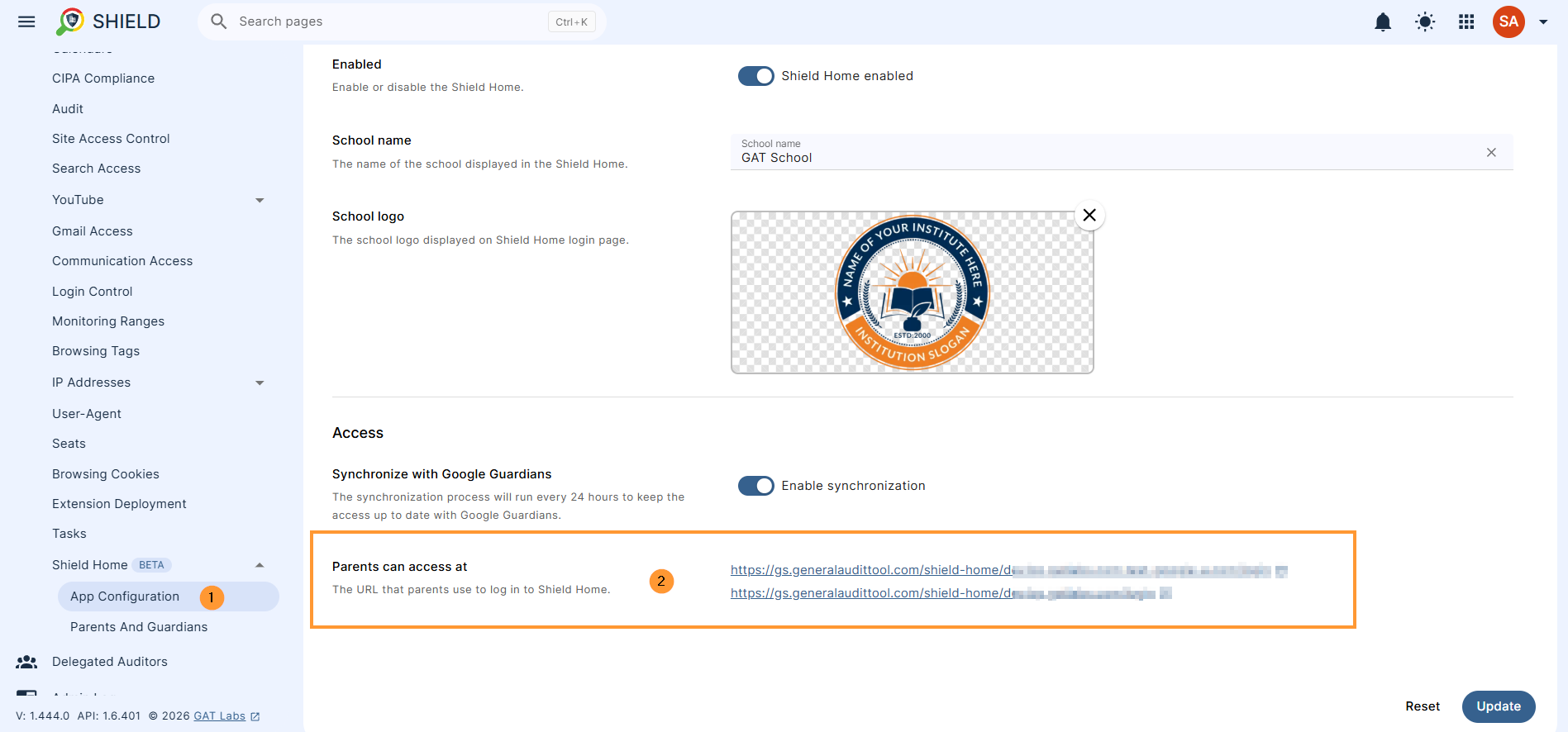
Each domain will have its own link to access the tool.
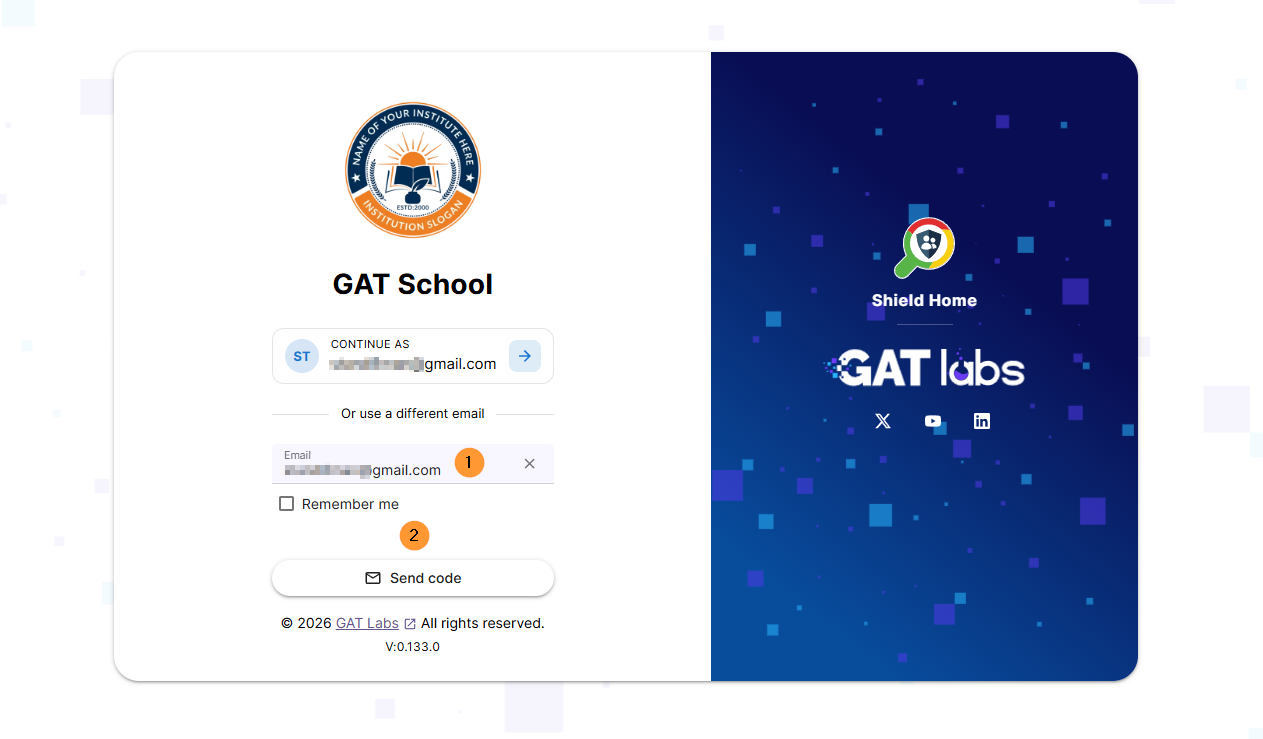
When the page is opened, the Guardian can add their email address and click on “send code“.
An email will be sent to the Guardian email.
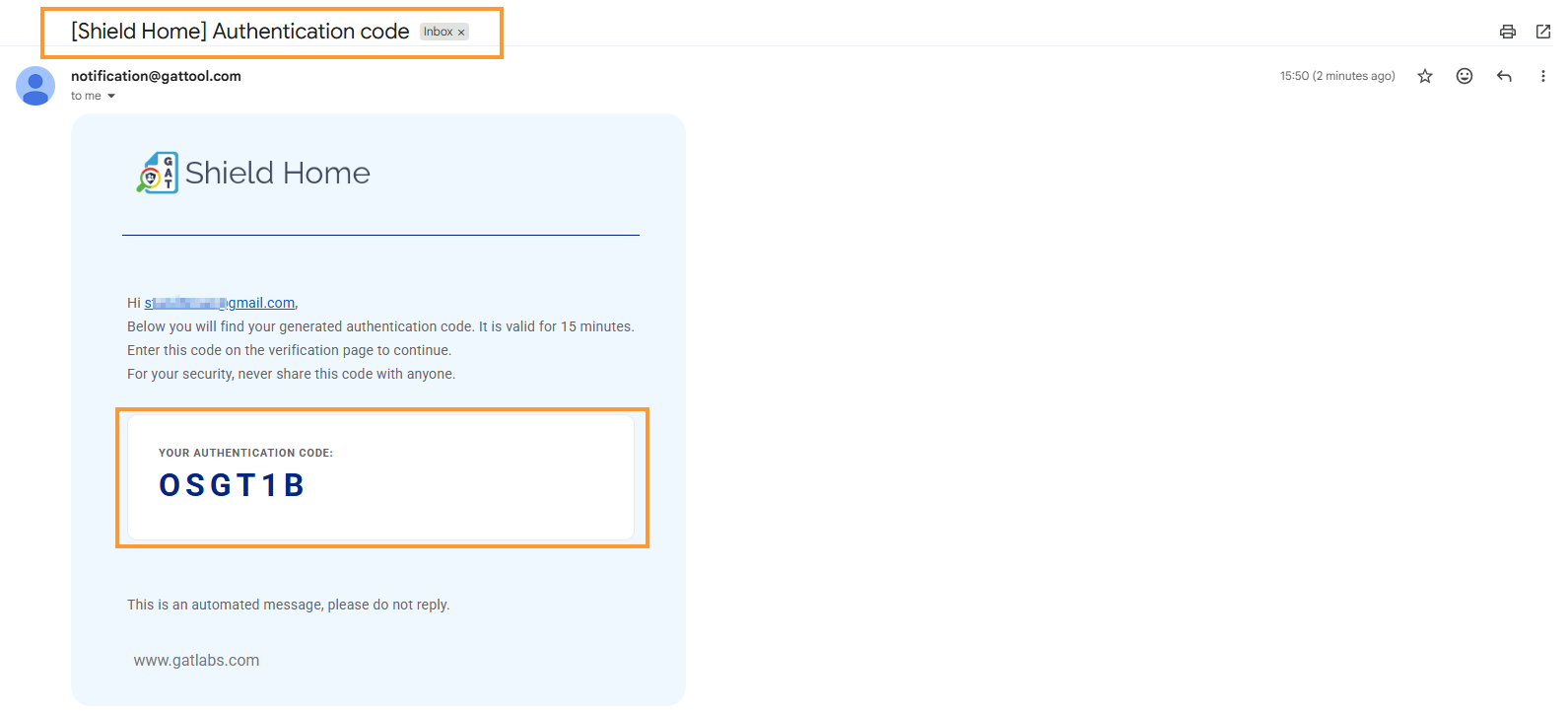
The code must then be entered to log in.
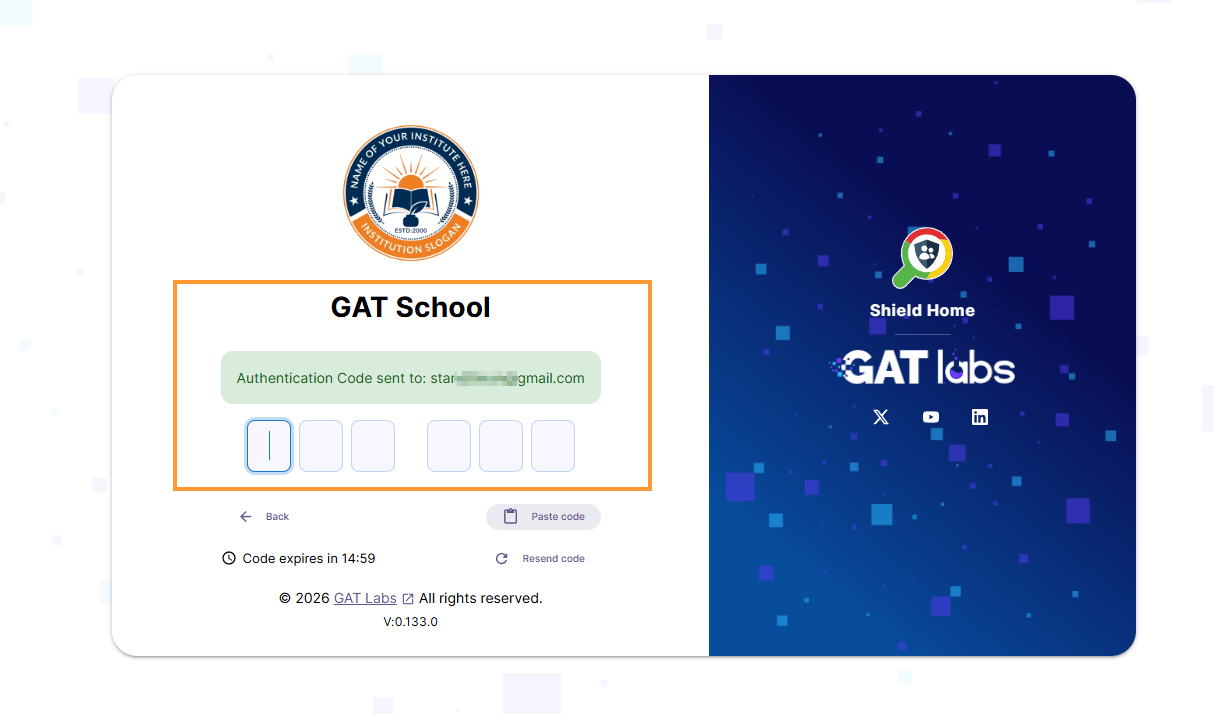
Once the one-time authentication code is entered, the Guardian will be logged in to Shield Home.
Shield Home #
When the Guardian logs in, they can view the browsing activities of the Student.
There will be different types of audits that the Guardian can see for the student’s browsing activity.
Dashboard #
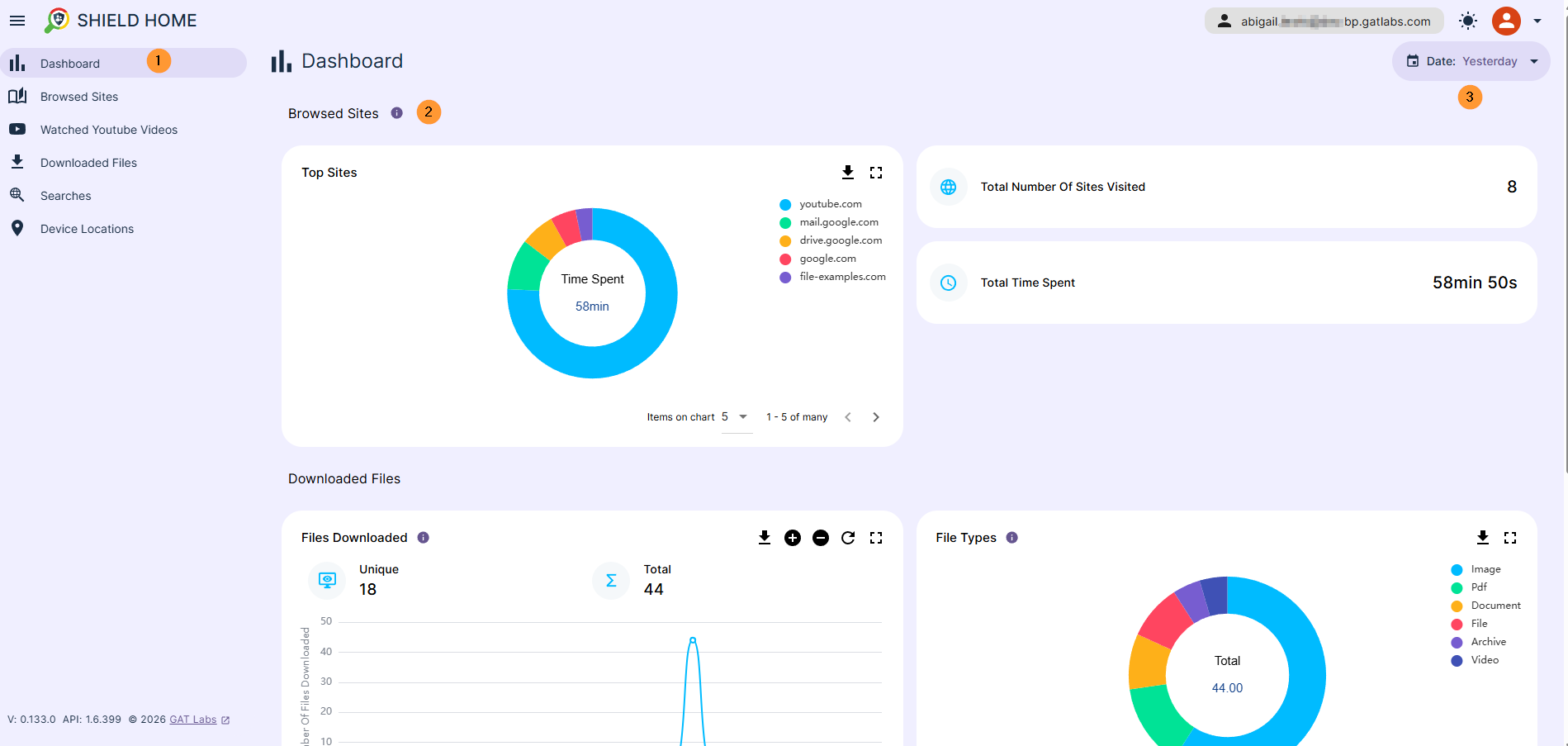
The Dashboard has the overall browsing activity of the student.
- Browsing sites – Top sites your child visited and the time spent on each.
- View the total number of sites visited
- Total time spent – overall browsing time spent by the student
- Downloaded files – The graph shows the number of files downloaded by the user over time.
- File types – The chart shows the distribution of files downloaded by users under the type criterion.
- Searches – Most frequent search terms across the search engines your child used, sized by frequency.
All this data can be filtered by time frame. The data can also be downloaded in JPEG, PNG, or CSV formats.
- Today
- Yesterday
- Last 24 hours
- Last 7 days
- Last 14 days
- Last 28 days
- This month
- Previous month
- Custom – select custom time frame
Browsed sites #
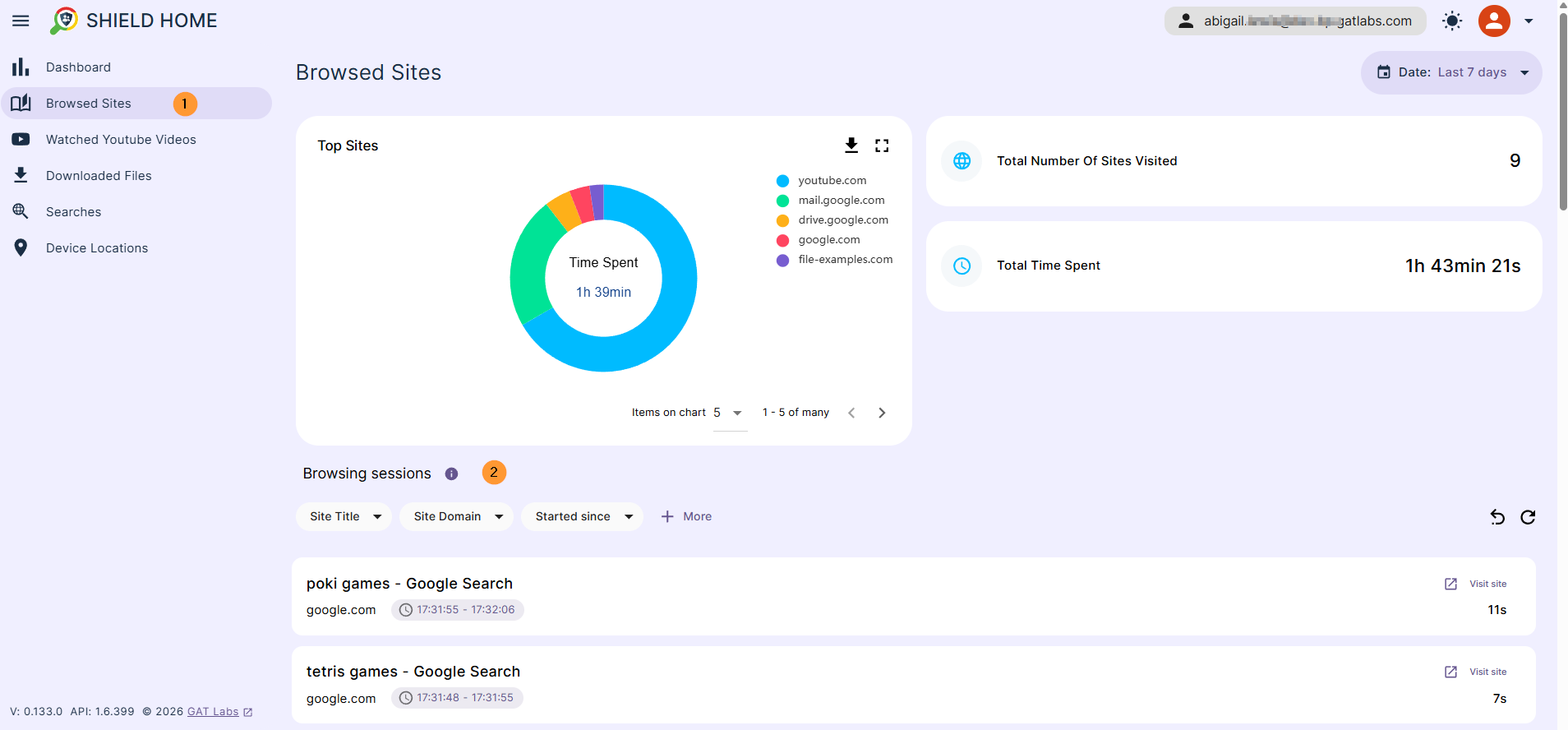
The browsed sites will show more details.
- Top sites – list of sites visited during the selected time frame
- Total Number of Sites Visited – during the selected time frame
- Total time spent – during the selected time frame
- Browsing sessions – Individual browsing sessions with the visited site, duration, and exact start/end times. Use the icon on each card to open the visited site in a new tab. Times are within the selected time frame
Watched YouTube videos #
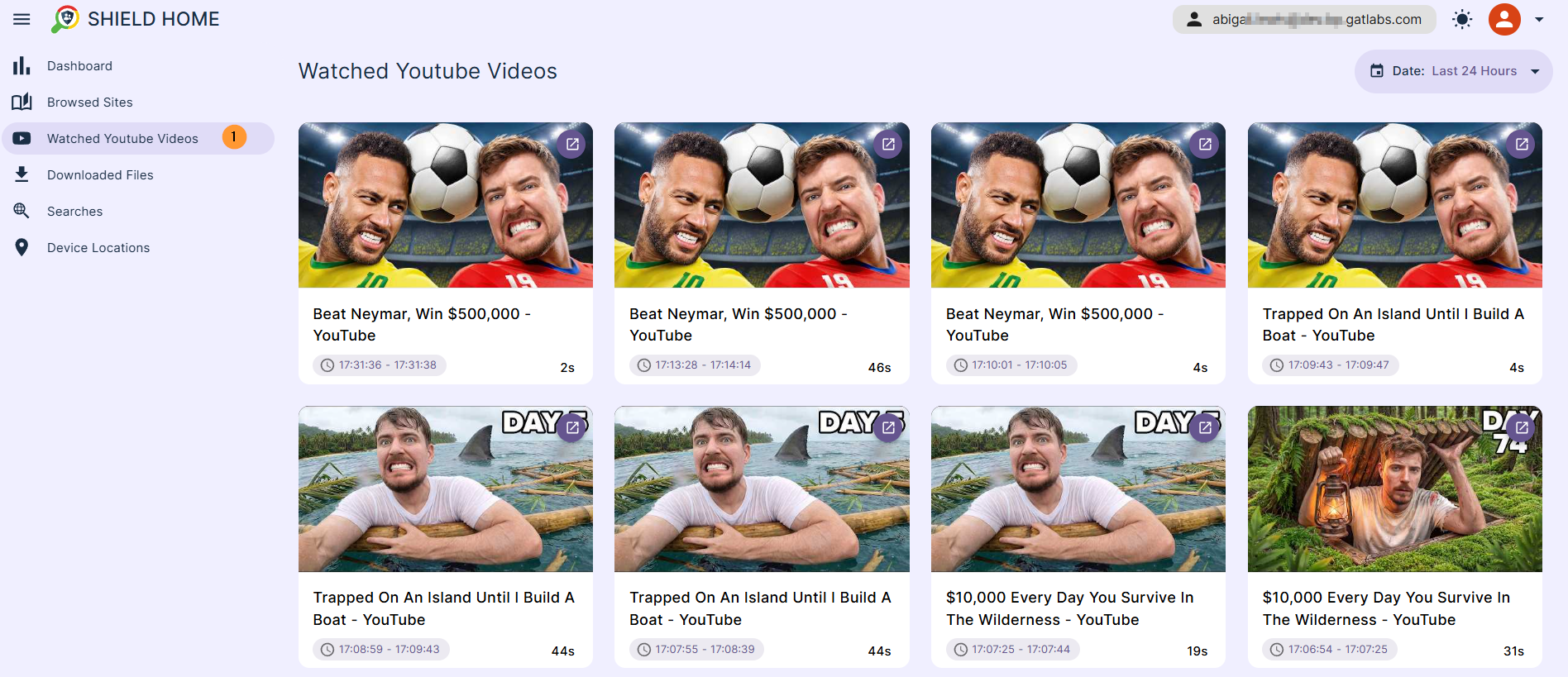
This audit will show all the videos, links, and the time they spent watching each video.
The Guardian can click and open the video in their browser.
View the exact time when the student watched the video and how long.
- Select the time frame for the videos,
- In the last 24 hours,
- In the last 7 days
- Etc
Downloaded files #
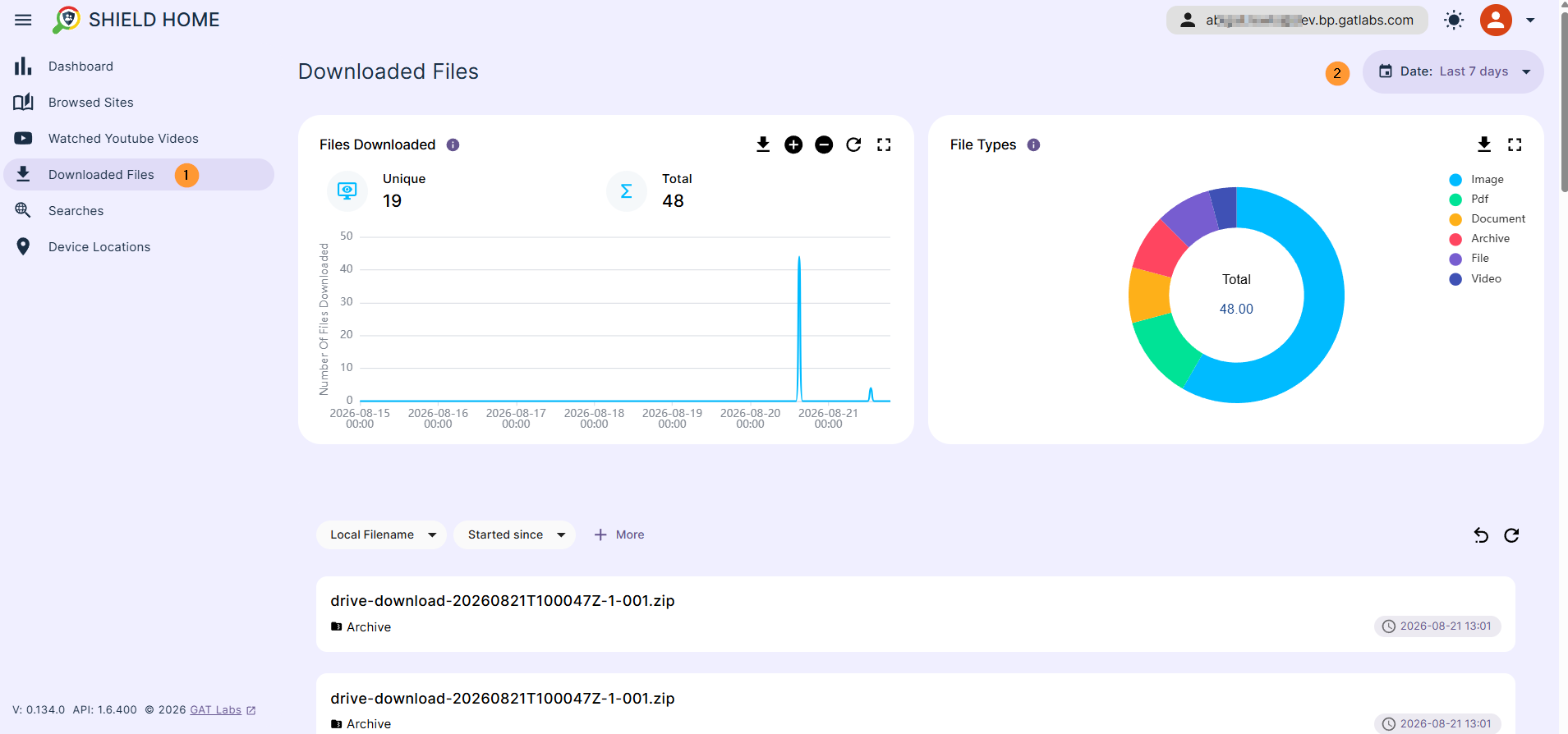
This will be the downloaded files view. The data can be downloaded as PNG, JPEG, and CSV
- Files Downloaded – The graph shows the number of files downloaded by the user over time.
- File Types – The chart shows the distribution of files downloaded by the user under the type criterion.
- List of all downloaded files – search by the title of the downloaded file, filter by local filename, started since (search for relative date), and URL
Searches #
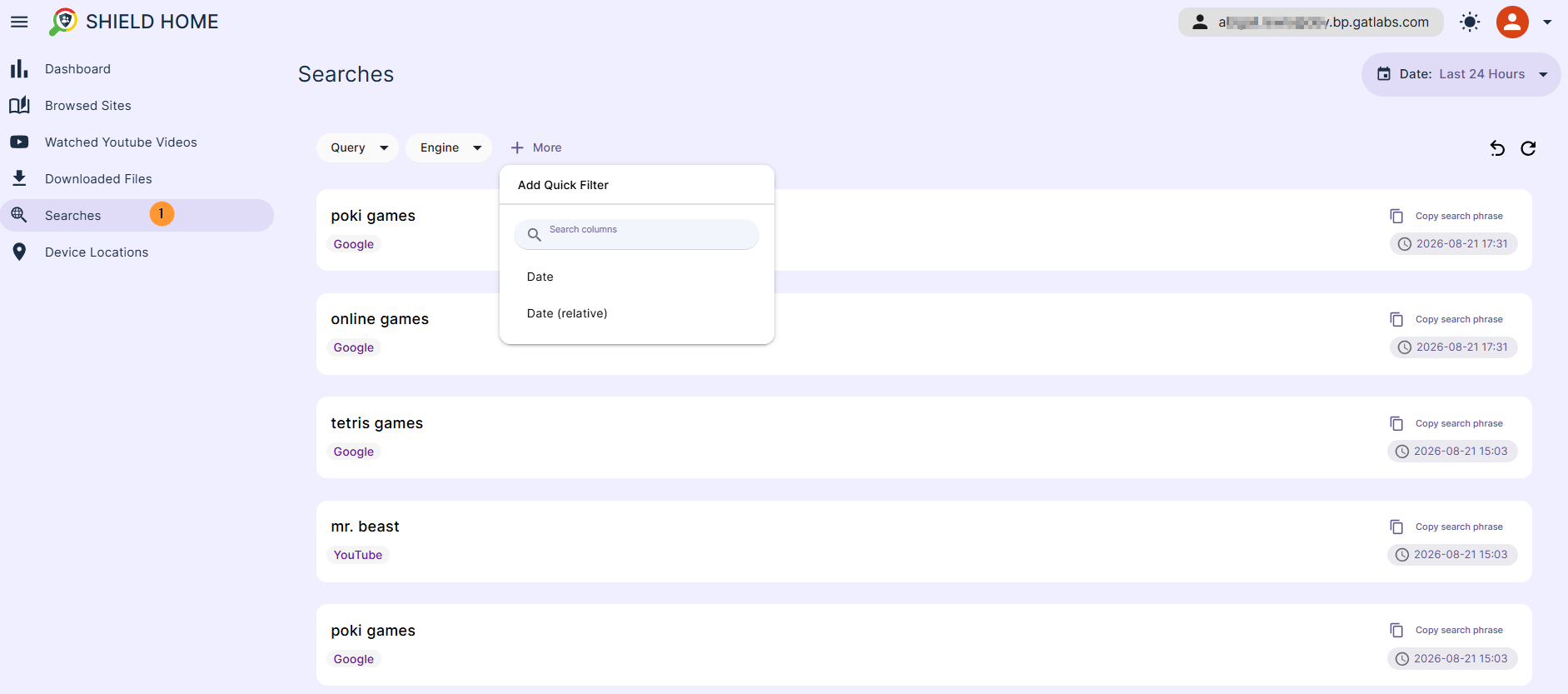
The searches will show all the searches the student does.
Filters can be applied. Search for the query, the search engine the student used, and the date frames.
Device location #
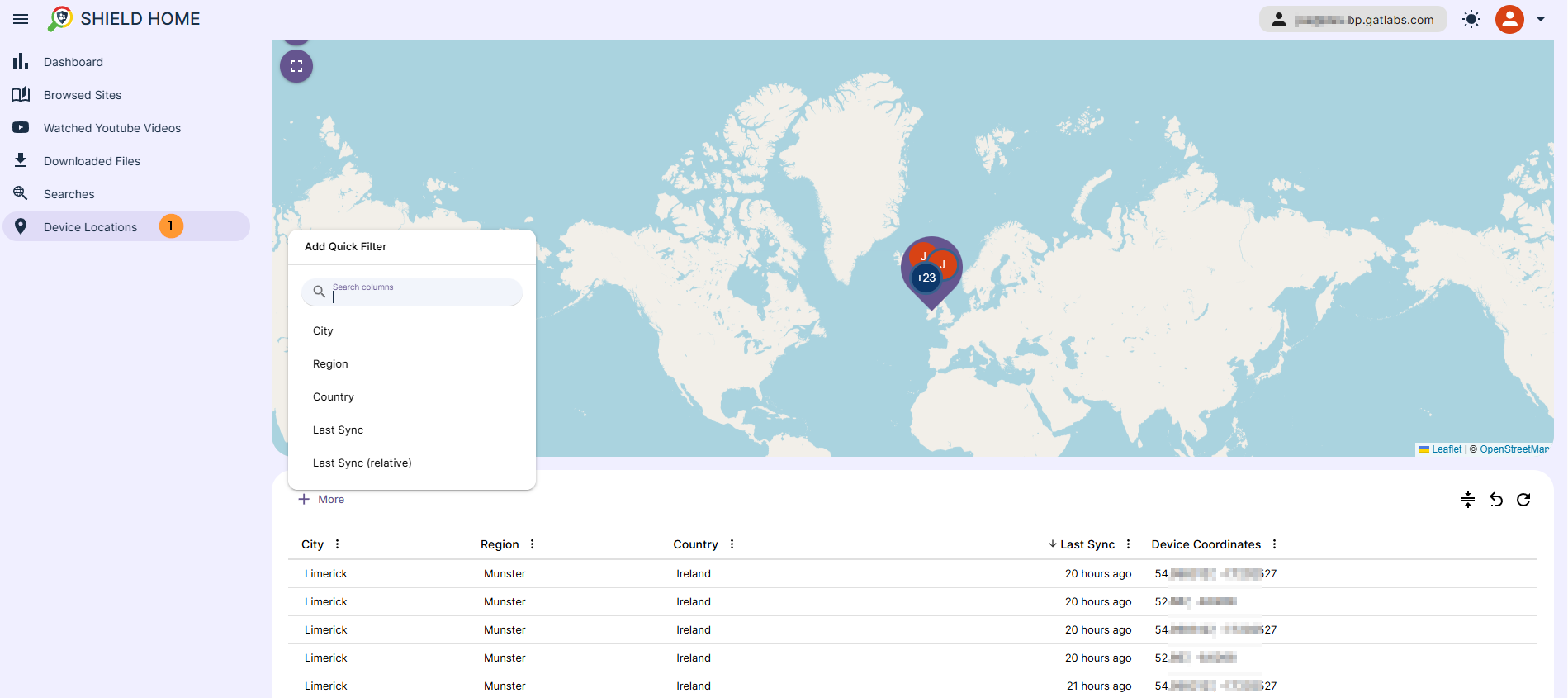
The device location will show the student and their location on the map. The Guardian can zoom in to see the exact location reported by the student’s Chrome browser.
Additional filters can be applied.
Conclusion #
Shield Home gives parents and guardians access to their child’s online activity on school-managed accounts, including browsing activity, YouTube history, downloaded files, searches, and device location reported by the Chrome browser.
By configuring parent access directly or synchronizing with Google Guardians, administrators can provide families with a dedicated view of student online activity while managing access from GAT Shield.
FAQ #
- Q1: How do parents log in to Shield Home?
- Admins provide parents with a dedicated Shield Home portal URL. Parents open the page, enter their registered email address, and click “send code.” They then receive a one-time authentication code via email to log in; no complex passwords required.
- Q2: Does a parent need a domain email address to access Shield Home?
- No. While the student must use a valid domain user account, the parent or guardian can use any valid email address, including personal accounts like Gmail.
- Q3: How does Shield Home keep parent access up to date?
- Admins can manually assign parents to students or enable “Synchronize with Google Guardians,” which automatically imports access rights and updates parent-student links every 24 hours
- Q4: What student activity can parents view in Shield Home?
- Parents and guardians can view student browsing activity, websites visited, time spent browsing, watched YouTube videos, downloaded files, searches, and device location reported by the student’s Chrome browser.


