

Phishing attacks evolve faster than central email filters and domain blacklists can keep up. While traditional inbox security stops malicious links before delivery, employees often encounter deceptive links elsewhere, such as personal webmail, instant messaging apps, external documents, or direct browsing.
Shield+ acts as an edge defense layer right inside the user’s Chrome browser. By evaluating page context, URL structures, and credential forms locally and in real time, Shield+ can issue user warning banners or enforce read-only restrictions before an employee submits corporate credentials to a fake page. Additionally, Google Admins maintain custom domain policies, instantly enforcing hard blocks on known malicious sites or whitelisting trusted partner platforms to avoid unnecessary security alerts.
Below is the guide to creating anti-phishing rules, handling detector responses, reviewing security alerts, and managing domain lists.
Define and create anti-phishing rules #
Navigate to Shield+ > Security configuration > Anti-Phishing > Rules > New anti-phishing rule
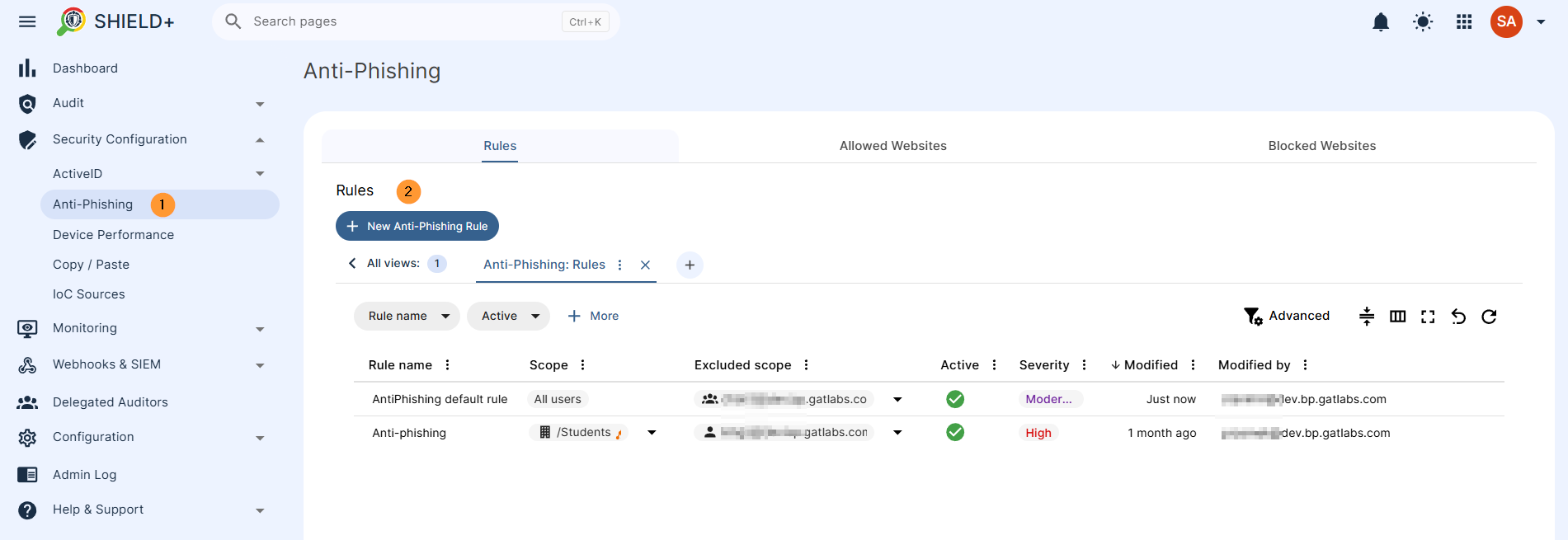
Click on New anti-phishing rule to create a rule.
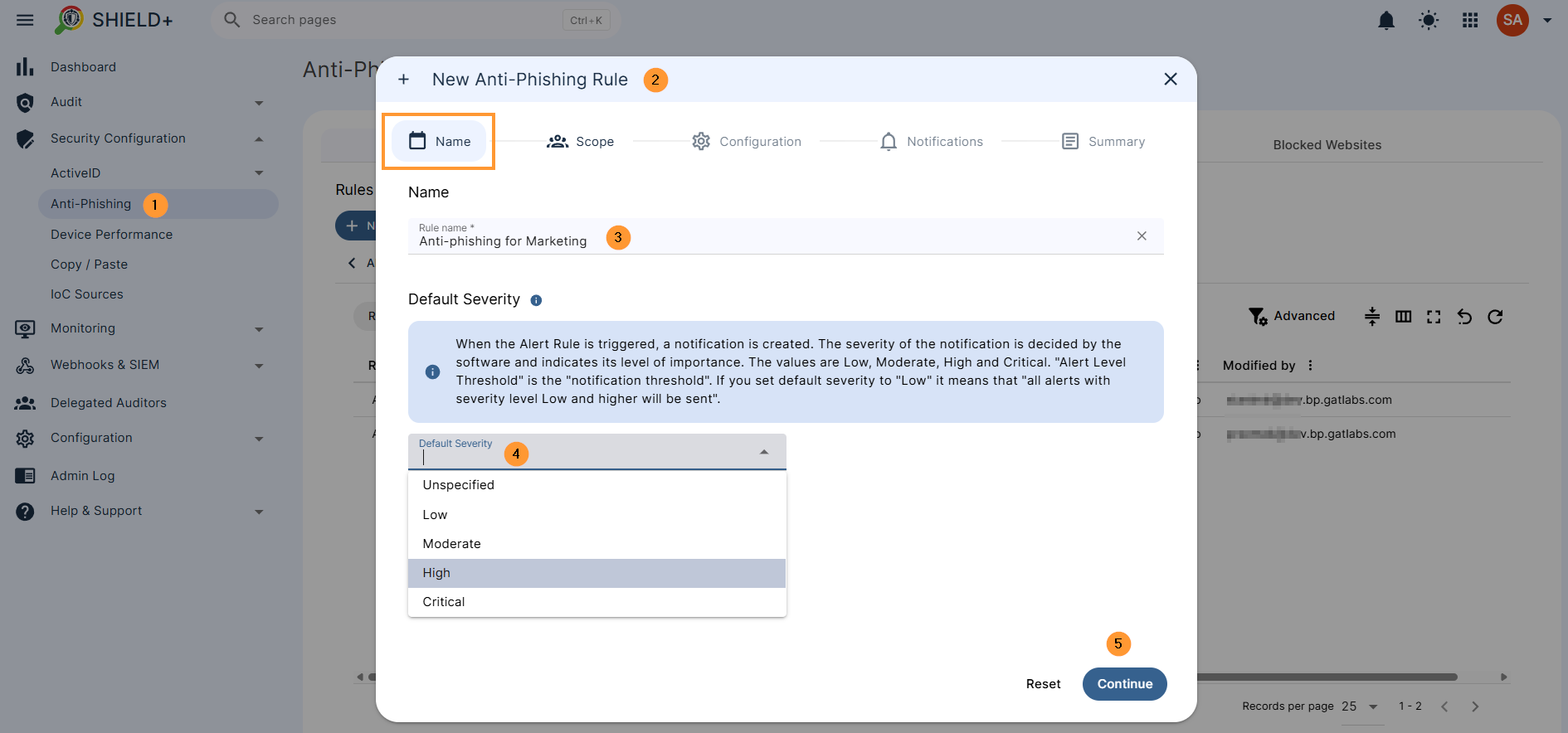
- Name – enter the name for the rule
- Default severity – When the Alert Rule is triggered, a notification is created. The severity of the notification is decided by the software and indicates its level of importance.
- The values are Low, Moderate, High, and Critical. “Alert Level Threshold” is the “notification threshold”.
- If you set the default severity to “Low,” it means that “all alerts with severity level Low and higher will be sent”.
- Unspecified
- Low
- Moderate
- High
- Critical
- Default severity – When the Alert Rule is triggered, a notification is created. The severity of the notification is decided by the software and indicates its level of importance.
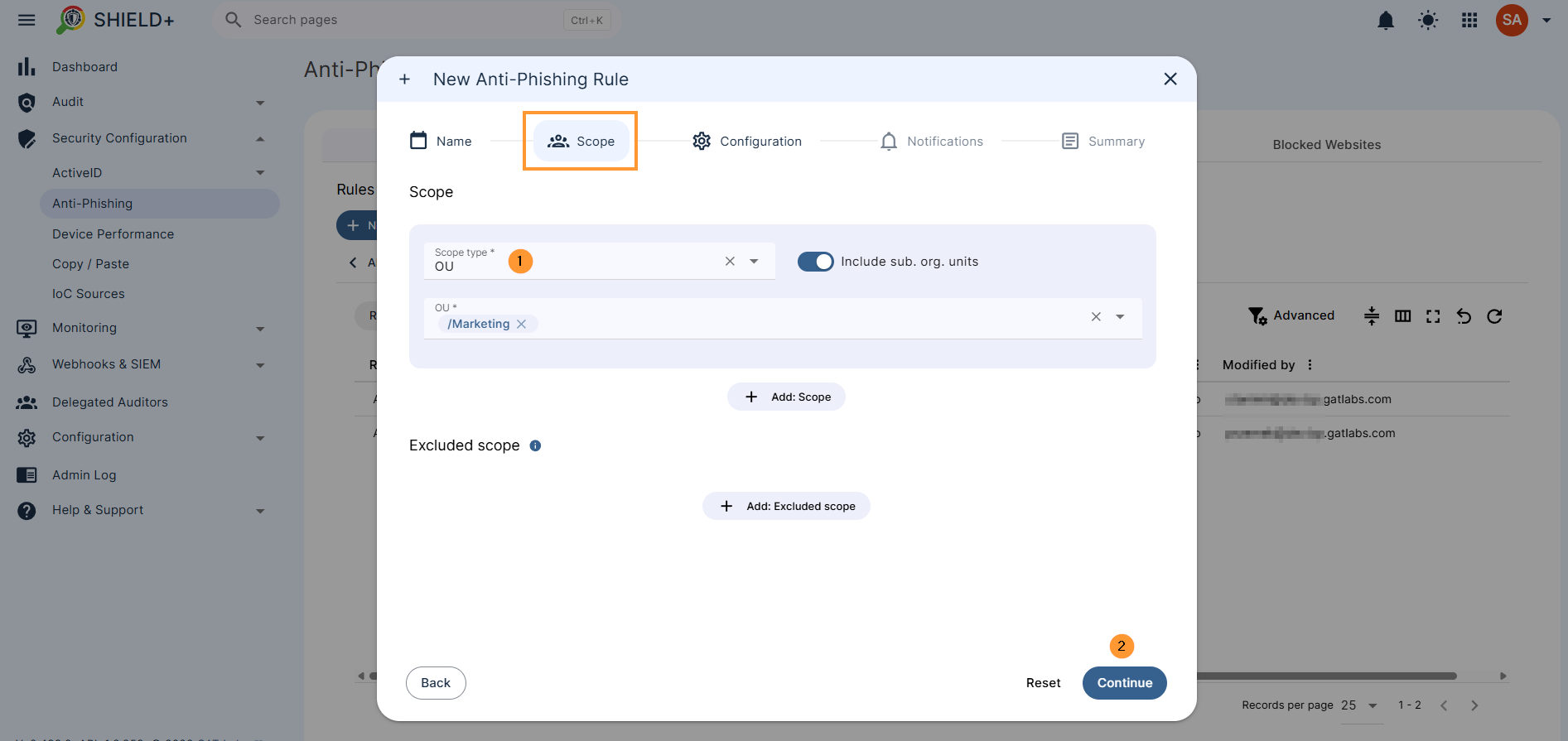
- Scope – pick and select the scope for the alert
- Pick a user, group, or Org. Unit of users
- Excluded scope – Specify users, groups, or OUs that should be excluded from the scope of the defined rule.
- Add: excluded scope
- Excluded scope – Specify users, groups, or OUs that should be excluded from the scope of the defined rule.
- Pick a user, group, or Org. Unit of users
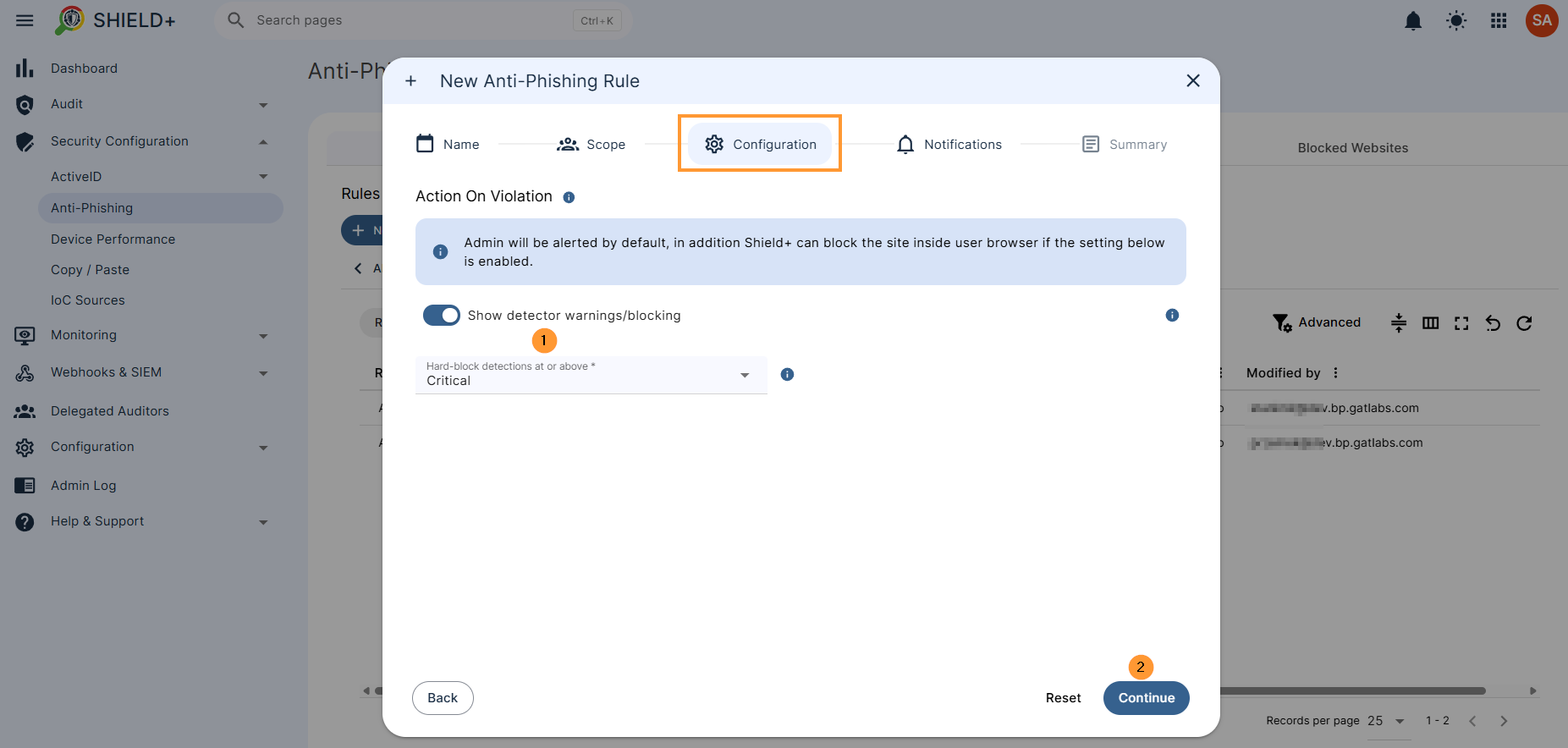
- Configuration – Admin will be alerted by default; in addition, Shield+ can block the site inside the user’s browser if the setting below is enabled.
- Show detector warnings/blocking – When enabled, detector results can interrupt the user in the browser.
- Warning results show a user-visible warning that can be overridden.
- Detector block results become hard blocks only at or above the configured hard-block threshold; below that threshold, they behave as overridable warnings. Administrator-blocked websites are always blocked.
- Show detector warnings/blocking – When enabled, detector results can interrupt the user in the browser.
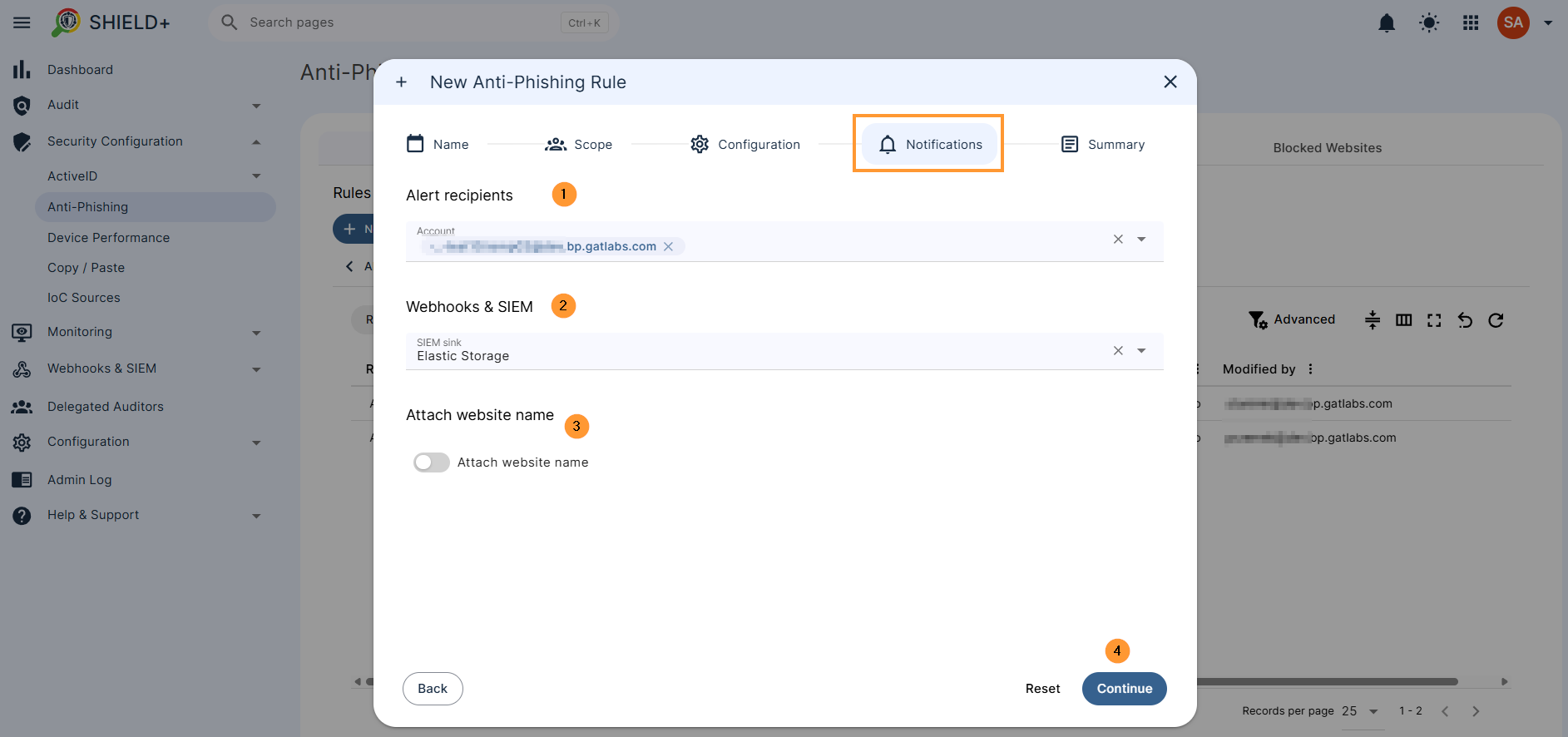
- Notifications – fill in the details of who to notify when an anti-phishing alert is triggered
- Alert recipients – enter recipients who will be notified if an alert is triggered
- Webhook & SIEM – enter SIEM details if you have set up
- Attach website name – Attach the website name to the notification
- Toggle on/off the attachment
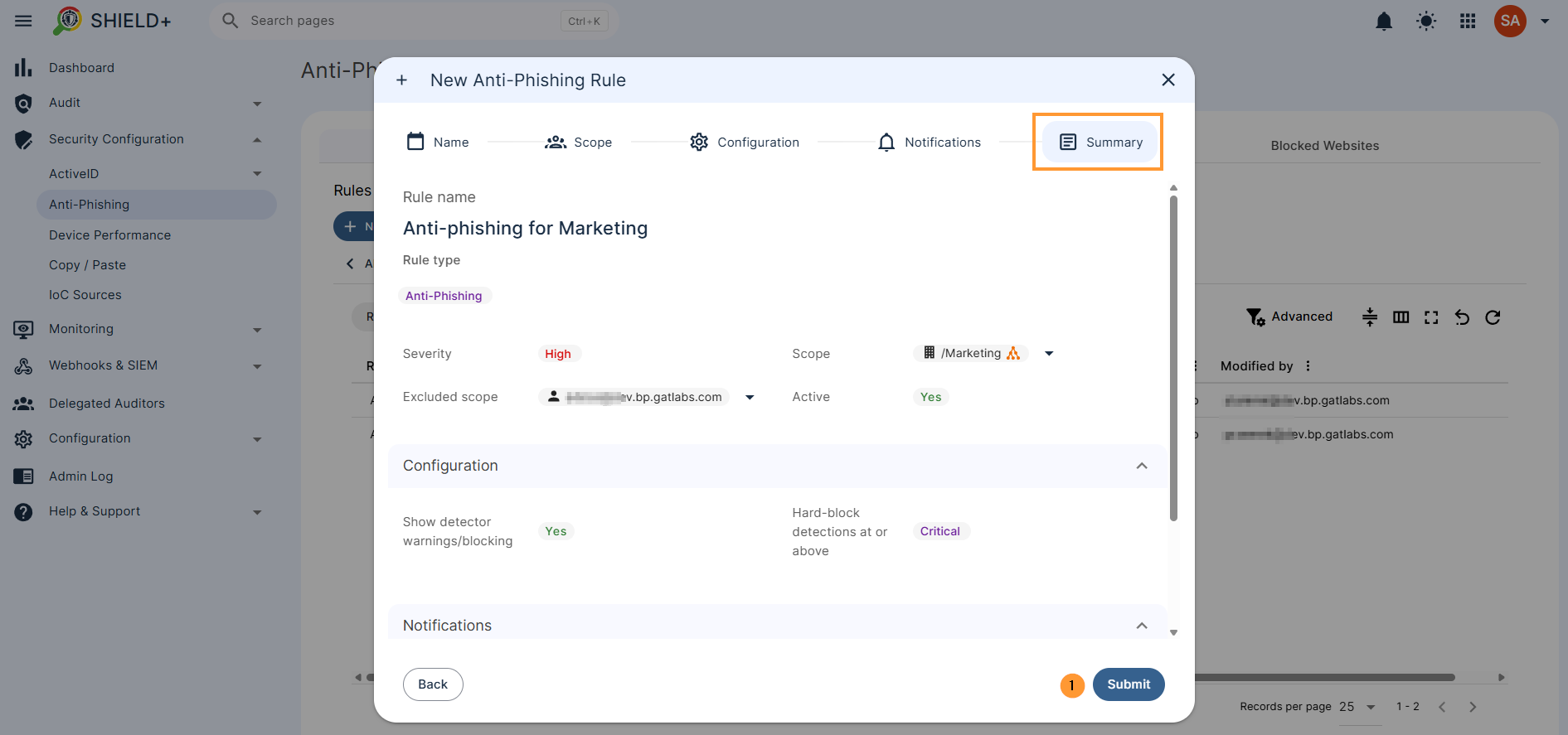
Summary – view the details of the anti-phishing and submit the rule.
Click on Submit
End-user result #
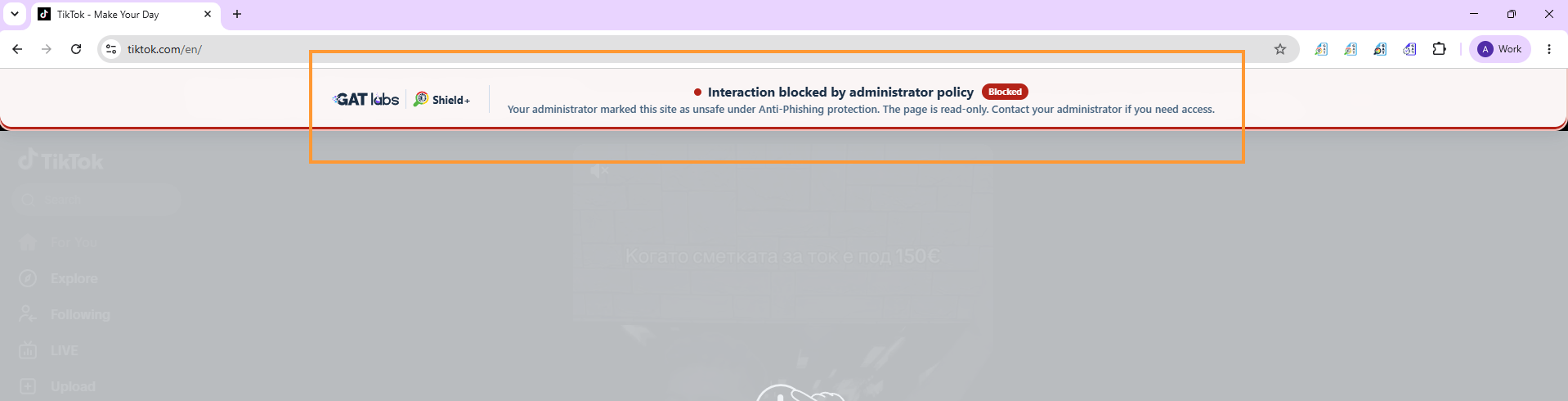
As a result of the anti-phishing alert, the end users will see a warning message on the webpage.
- Interaction blocked by administrator policy
- Your administrator marked this site as unsafe under Anti-Phishing protection. The page is read-only. Contact your administrator if you need access.
Anti-Phishing Alerts #
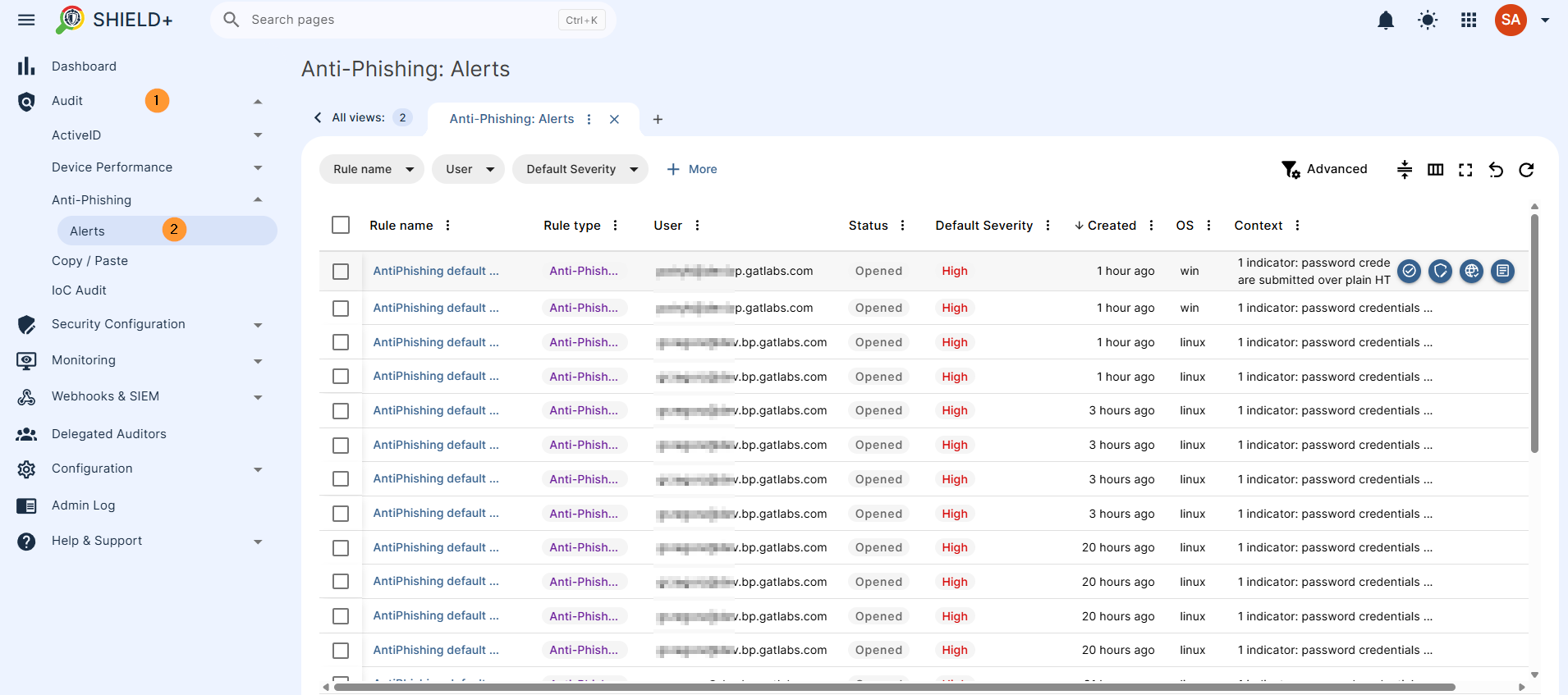
A paginated table of alerts generated by Anti-Phishing activity. Admins can review which user and URL were involved, when the event happened, which rule or policy applied, and the current alert status.
This view is used to inspect Anti-Phishing outcomes such as blocked access or warning/override events when browser enforcement is enabled. Admins can review alert details, update severity or status, acknowledge alerts, and decide whether to add a domain to the Allowed Websites or Blocked Websites.
Navigate to Shield+ > Audit > Anti-Phishing > Alerts
Blocked websites #
As part of the anti-phishing, the Admins can manually add sites that they know are phishing and actively block them for the domain users.
Navigate to Shield+ > Security Configuration > Anti-phising > Blocked websites
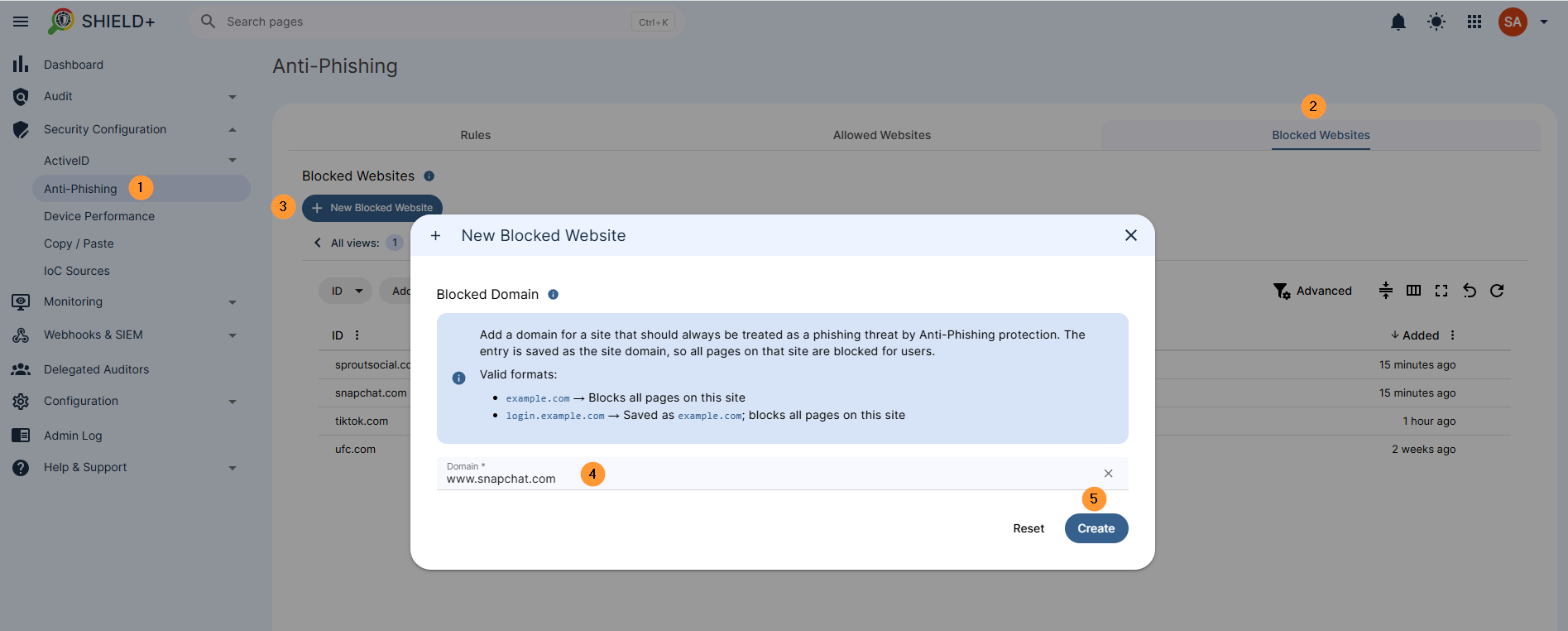
Click on New blocked websites, enter the domain name, and click Create
The domain website will be blocked for the domain users.
Allowed websites #
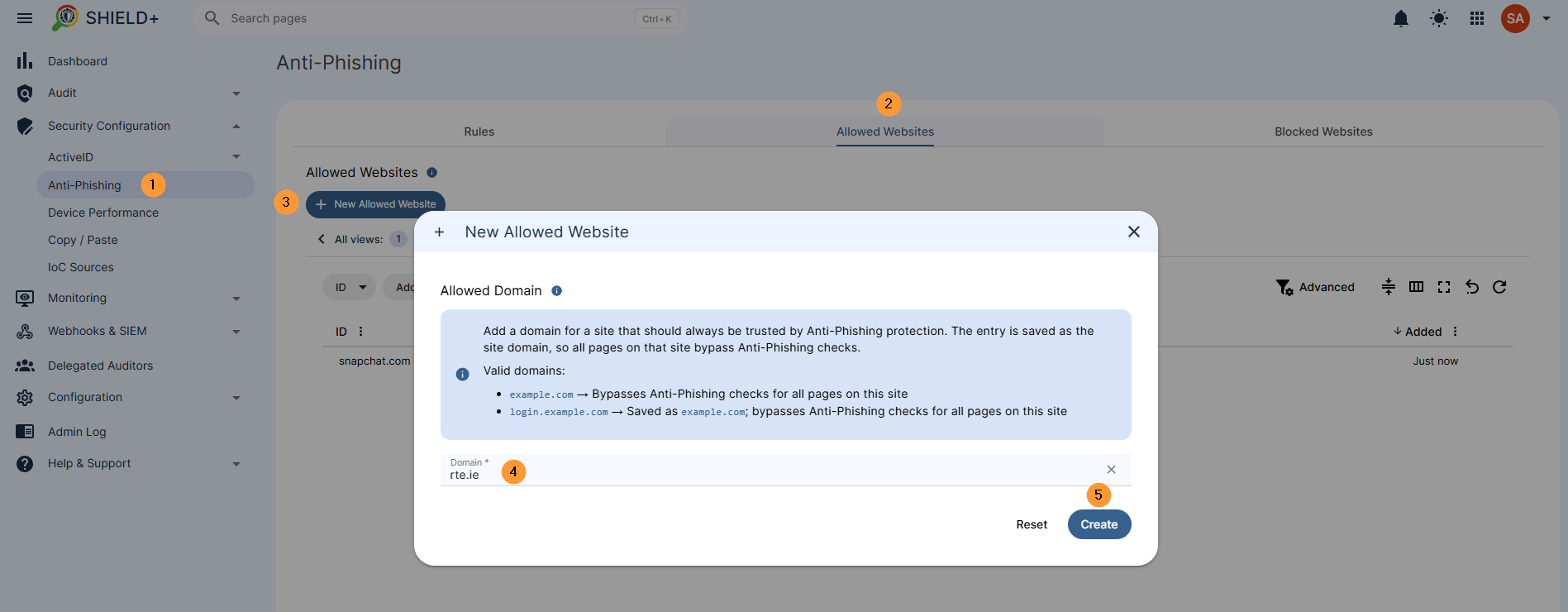
Similar to Blocksites, the Admins can also add sites and create an allowlist of sites.
The allowed sites will take precedence, and even if they are found by the system as phishing sites, they will be allowed and not blocked for the domain users.
The allowed websites will bypass unnecessary security alerts.
Conclusion #
Standard email security filters stop malicious links at the inbox, but they fall short when users click through via personal webmail, chat applications, or external documents. By positioning Anti-Phishing protection directly inside the browser, Shield+ closes the gap between inbox safety and real-world web browsing.
This feature gives Super Admins three major advantages:
- In-Browser Threat Neutralization: Instead of relying solely on static, centralized domain blacklists, Shield+ evaluates sites locally in real time. It interrupts credential harvesting attempts on deceptive pages before an employee can ever enter their Google Workspace credentials.
- Proactive & Flexible Policy Control: Admins have complete control over user friction. With custom rules, you can decide whether to issue soft, overridable warnings for moderate risks or hard blocks for high-confidence threats. Instant access to Allowed and Blocked lists ensures partner platforms are trusted while dangerous domains are permanently shut down across the domain.
- Actionable Intelligence: Detailed audit logs give security teams full visibility into every phishing encounter, recording the exact user, timestamp, target URL, and rule applied. This turns isolated browser alerts into immediate, domain-wide threat intelligence that can be piped straight into your SIEM.
Ultimately, Shield+ transforms Chrome into an active security perimeter, ensuring that even if a phishing link sneaks past initial defenses, the attack stops dead at the endpoint.


