

In high-compliance operations like call centers, financial trading desks, and managed services, administrators need real-time visibility into active browser sessions to assist users, audit workflows, and enforce security standards, all without taking full administrative control of the device.
With Shield+, Google Admins can observe live Chrome browser activity, perform instant incident triage, and take real-time remote actions such as opening, closing, pulling, or switching focus on specific tabs. Additionally, admins can set up Monitoring Groups to delegate these supervisory oversight powers to team managers or supervisors (“Auditors”) over their direct reports (“Targets”) without granting them domain-wide Super-Admin permissions.
Below is the guide to setting up Live Browser Monitoring and configuring Monitoring Groups.
Live Browser Monitoring #
It allows an Admin to monitor the browsers of one or more Users. (Note: the user’s browser will indicate that it is being actively monitored.)
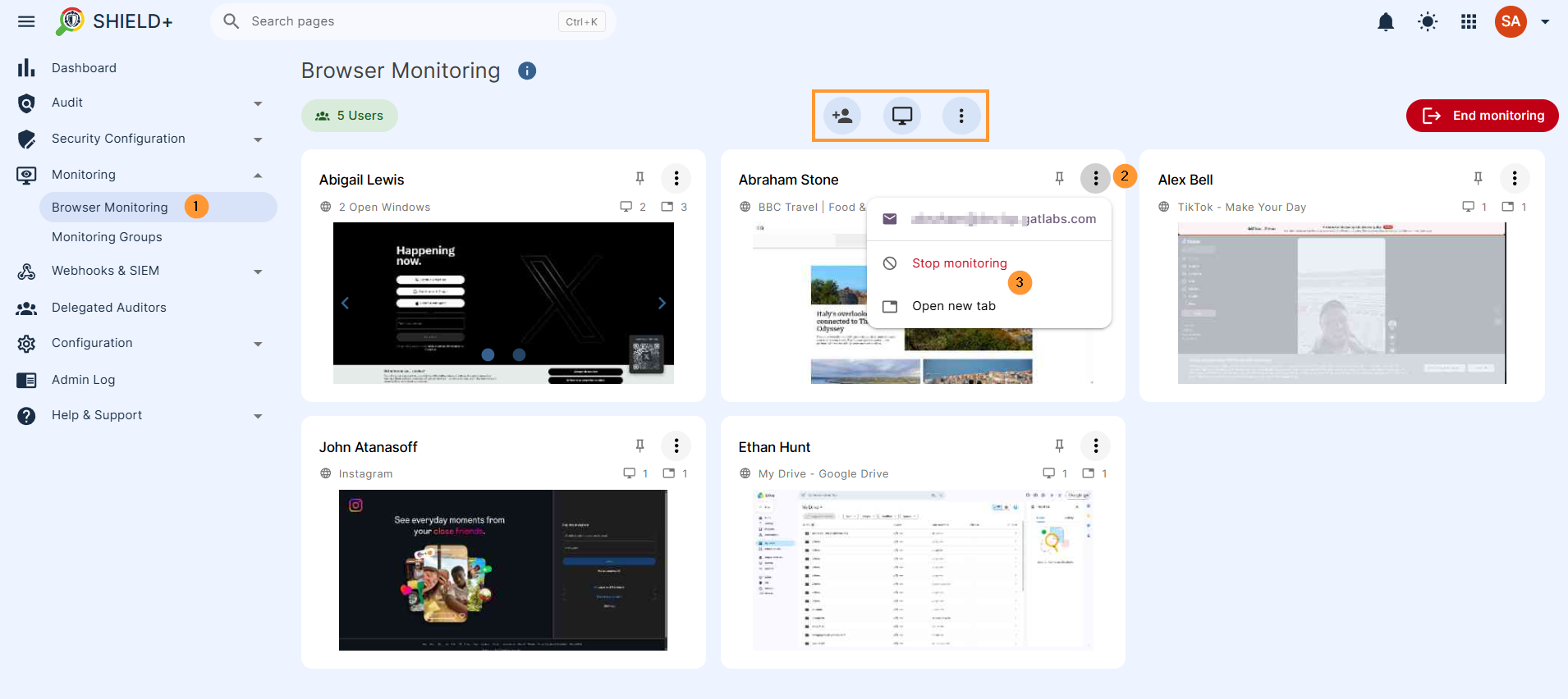
Navigate to Shield > Monitoring > Browser monitoring
Scope: select which users to view live browsing activity.
Browser monitoring allows Admins to view in real-time the Chrome browser activity of users.
Admins can take actions #
Admins can take actions on the user’s Chrome browser
- Live view of the browser activity
- Open tab for the user
- Close tab for the user
- Open a tab from the user’s browser
- Switch and focus the user on a page
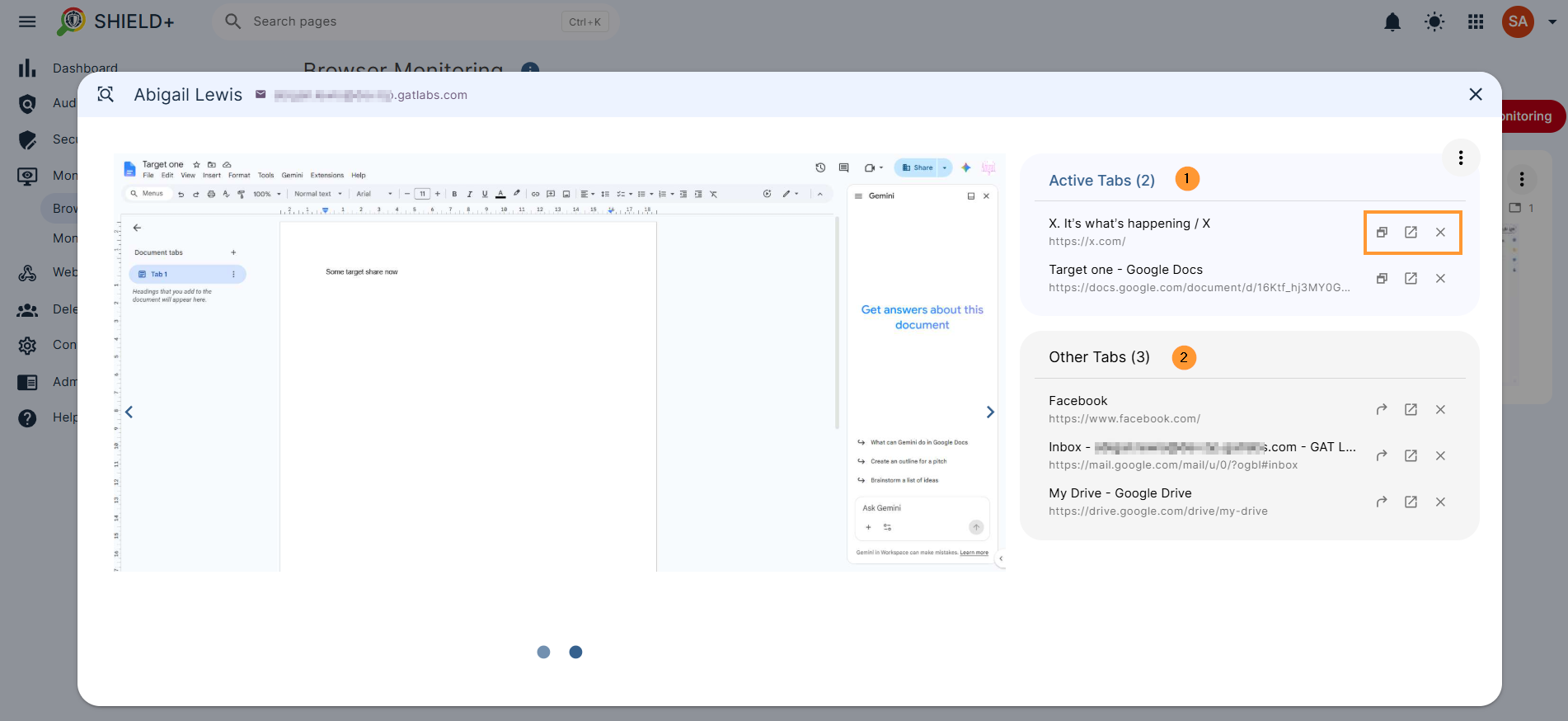
Double-click on any user’s screen and view all the active tabs the user has.
On the right side, take action to close or open (pull) a tab on your screen or switch and focus the user on the page.
Monitoring groups #
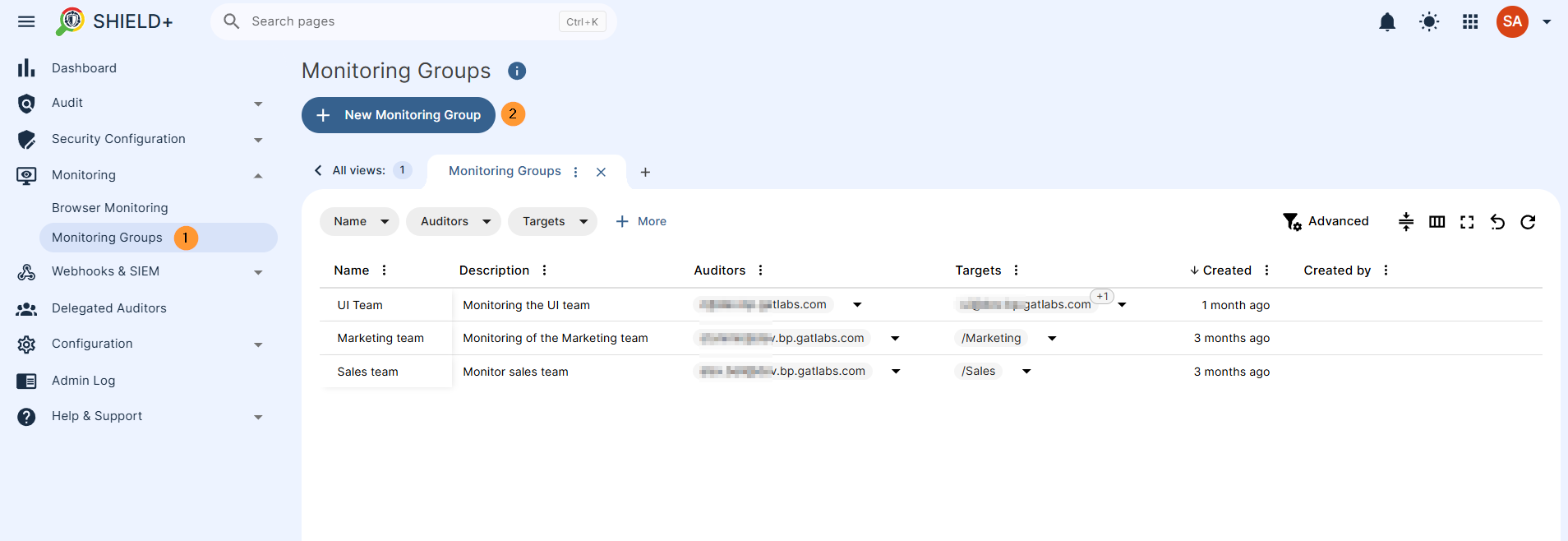
The monitoring groups allow an Admin to delegate browser monitoring powers to Supervisors or Managers for the browsers of one or more Users. (Note: the user’s browser will indicate that it is being actively monitored.)
Navigate to Shield+ > Monitoring > Monitoring groups
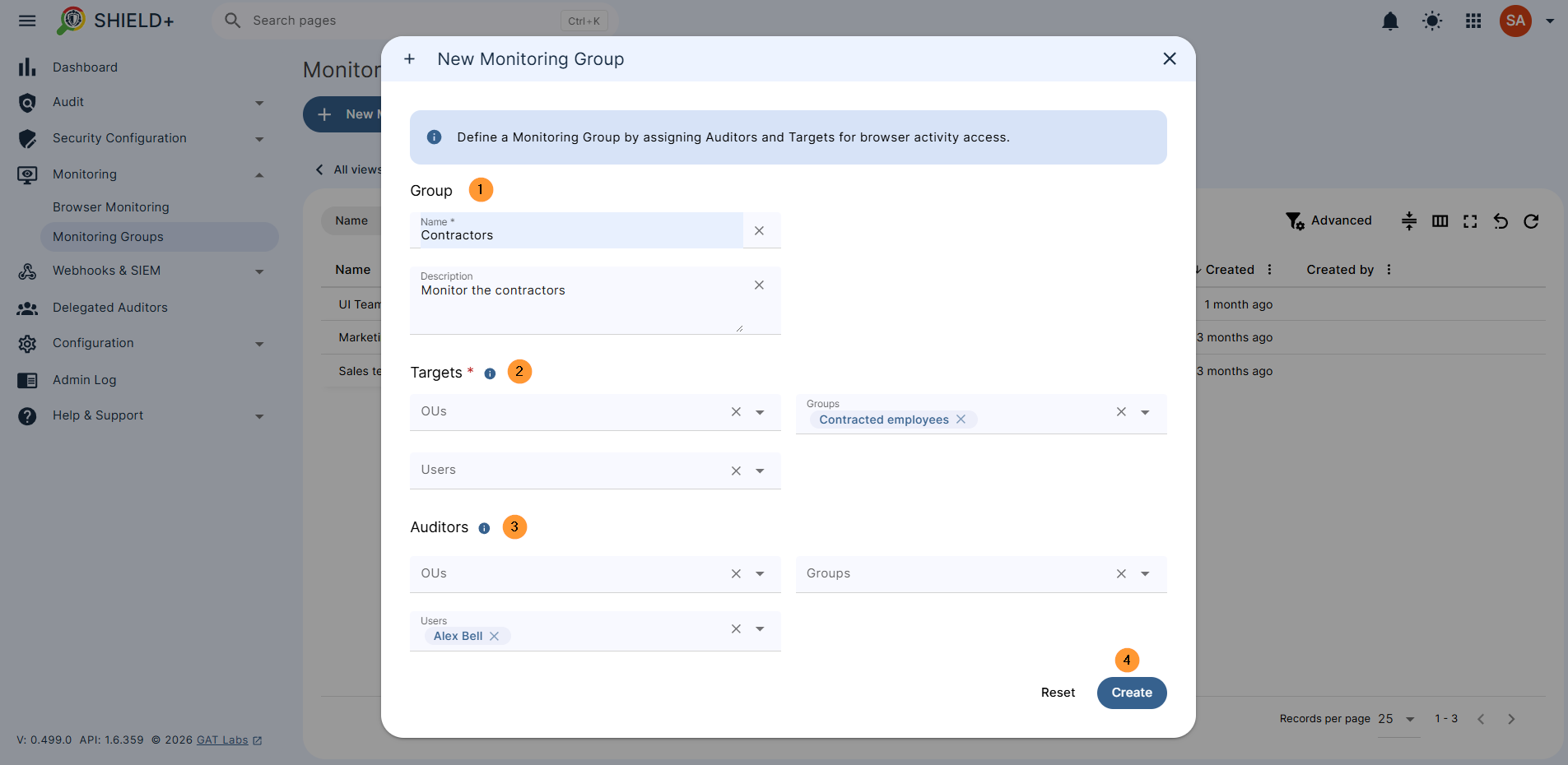
In the New monitoring group, fill in the details.
- Group – name the group and add a description
- Target – enter the users whose browsers are capable of being monitored by the Auditors listed above.
- Select OUs, Users, or Groups of users.
- Auditors – enter the Managers or monitors who can view other users’ browsers.
- Select OUs, Users, or Groups of users.
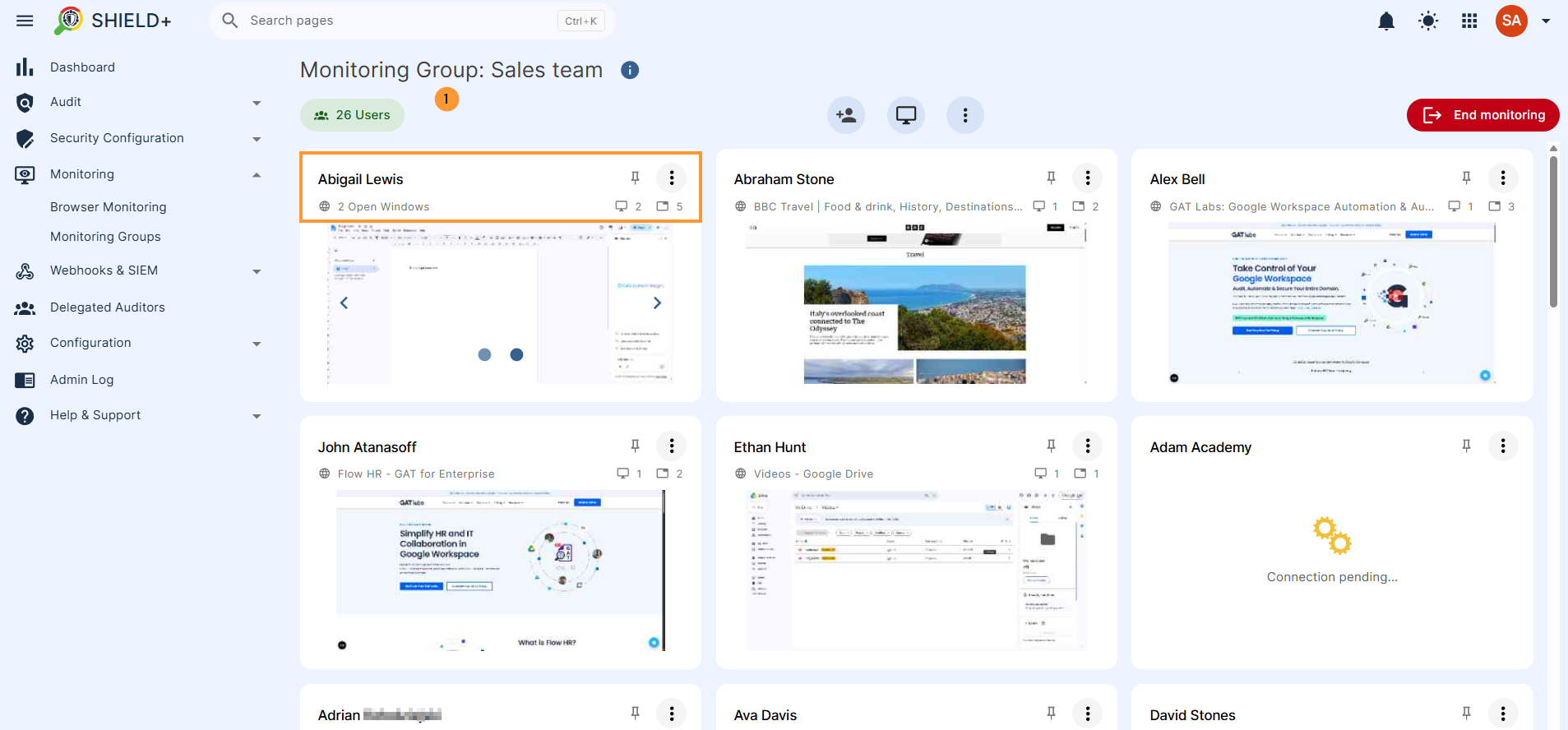
The Auditor user can then use the Shield+ tool and real-time monitor the Targets, for example, the Sales team or Contractors team.
View the Open tabs and windows users have in real time, and take actions to open or close tabs for users.
Conclusion: Why Live Browser Monitoring & Monitoring Groups Matter for Google Admins #
Live Browser Monitoring and Monitoring Groups turn Chrome into a real-time operational and security management hub. By providing direct session visibility and granular delegation controls, admins can enforce operational standards and respond to incidents instantly, without granting unnecessary Super-Admin privileges across the organization.
Key Benefits #
- Real-Time Active Intervention: Admins can view live tabs and actively take browser actions on behalf of the user, such as closing unauthorized or malicious tabs, opening new tabs, or focusing the user’s browser on a specific URL during high-compliance workflows or security triages.
- Safe Delegation without Super-Admin Access: By setting up Monitoring Groups, admins can designate team leads or managers as “Auditors” over specific “Targets” (e.g., call centers, sales teams, or contractors). Managers get the exact oversight tools they need to guide direct reports without risking domain-wide administrative exposure.
- Transparent & Controlled Oversight: Users always receive a visible browser indicator when live monitoring is active, ensuring clear compliance boundaries while giving supervisors immediate visibility into active open tabs and windows.


