

How to install Shield+ #
In this document, we will cover the steps to install the GAT Shield+ extension.
It is an audit, reporting, and security Chrome extension for your Google Workspace environment.
Before you begin, make sure you’ve completed the prerequisite below.
Shield Requirement #
GAT Shield is a prerequisite extension that must be installed alongside GAT Shield+
Shield Plus is a Chrome extension that the Super Admin of the domain must install via the Google Admin console.
Below, we will cover how to deploy the Shield+ extension to your Google Workspace users.
Important: Shield Plus can be installed only for specific Organization Units.
Step 1. Open Chrome Apps and Extensions #
First, navigate to the Google Admin console.
In the Admin console, from the menu on the left, click on Devices > Chrome > Apps and extensions.
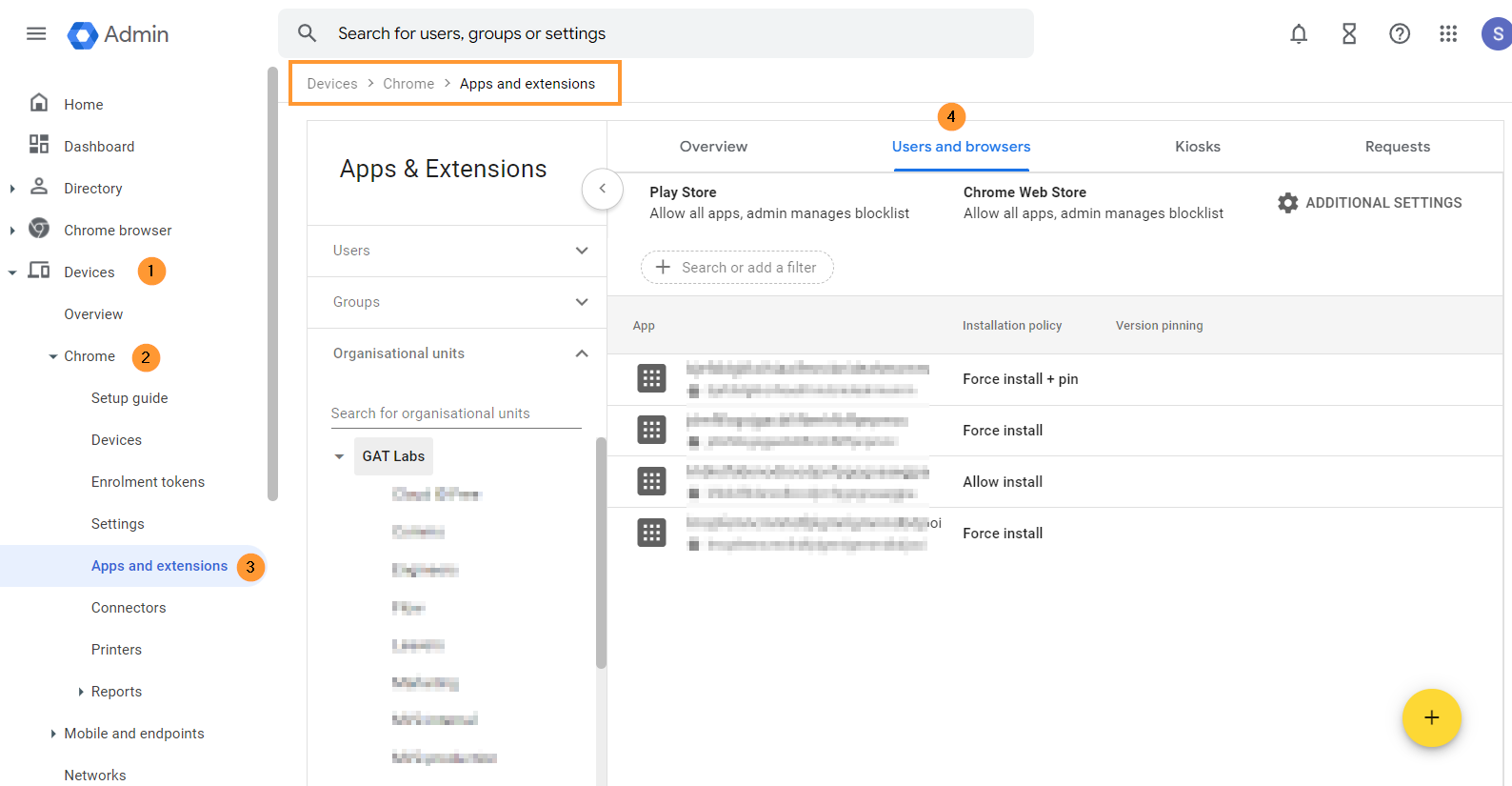
From the top menu, select Users and browsers.
A new page will be displayed with all the Chrome extensions deployed to the domain.
Step 2. Add the GAT Shield+ Extension #
To install the GAT Shield extension, choose the root Org Unit (1) or a sub-OU where you want to deploy Shield Plus (2).
On the bottom right side, click on the Yellow (+) button.

From the options shown, select Add the Chrome app or extension by ID (3).
Step 3. Enter the Extension Details #
Then, you will see a pop-up window. Select the From a custom URL option (1).
You can find the ID, URL, Webcam URL, and Policy for an extension in Shield under Help – Extensions deployment.
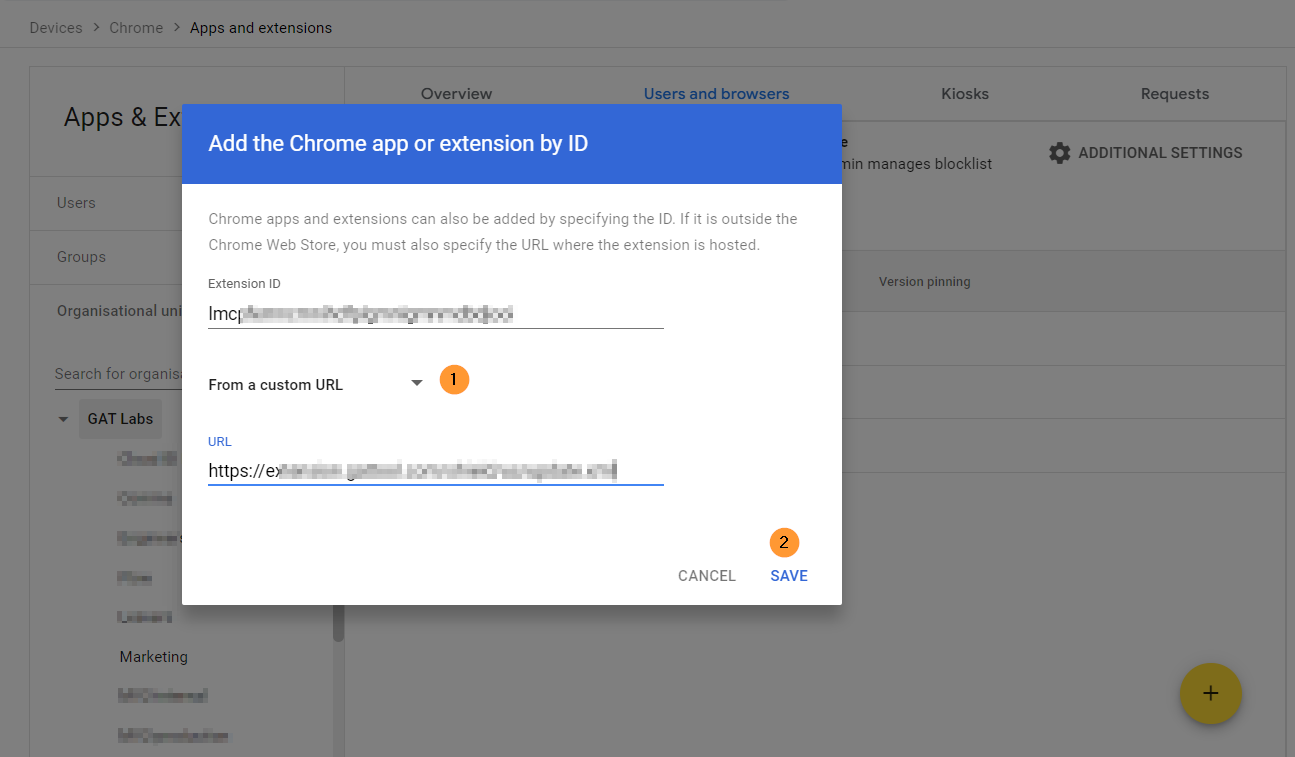
Click Save.
Step 4. Configure the Installation Policy #
Click on the newly installed extension. You will see a pop-up window on the side.
In the Installation policy, click and select Force install.

Scroll to the bottom of the page in the same window to find the Policy for extensions.

Access security key #
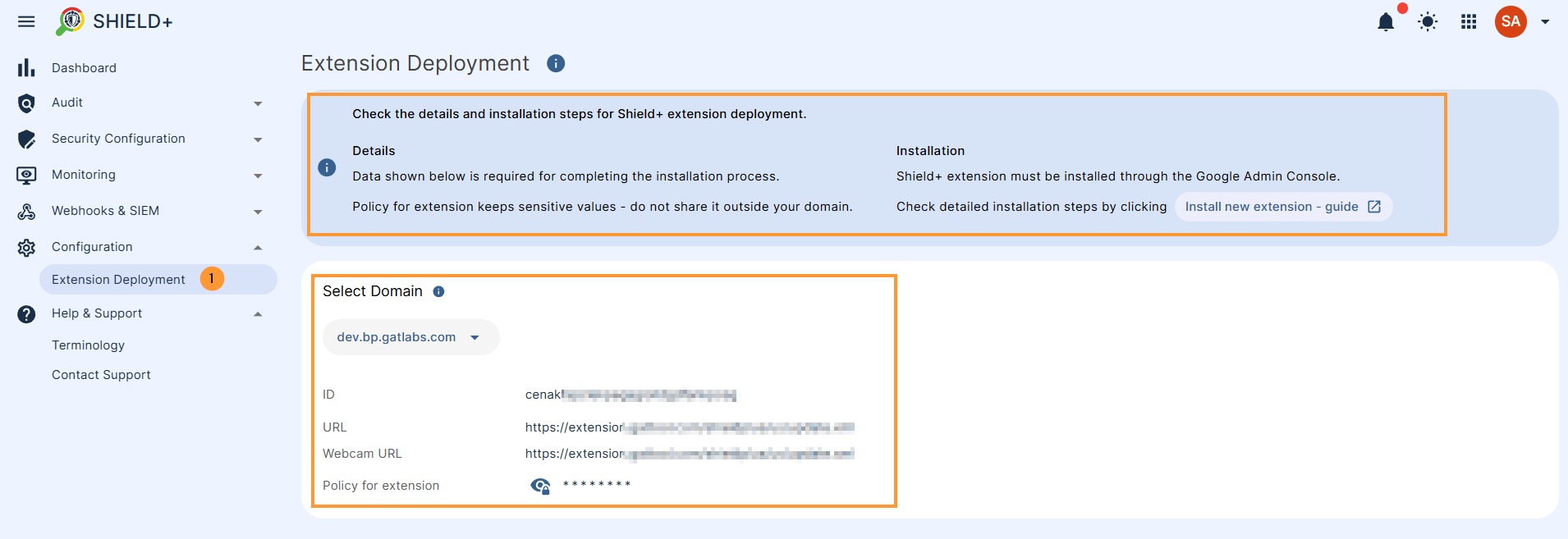
To access and view the Security Key, navigate to GAT Shield Plus > Configuration > Extension deployment.
Under the Permissions and URL access field, click Allow all permissions (2).

After making all the changes, click the Save button on the top right.
Step 5. Copy the Extension ID and Policy #
To access and view the Extension ID and URL, navigate to GAT Shield+ > Configuration > Extension deployment.
Copy the ID, URL, Webcam URL, and Policy for an extension from here and use them in the Google Admin Console
Result #
When the Shield+ extension is deployed, the end users must be logged into the Google Chrome browser with their domain accounts.
The extension will appear under their Google extensions.
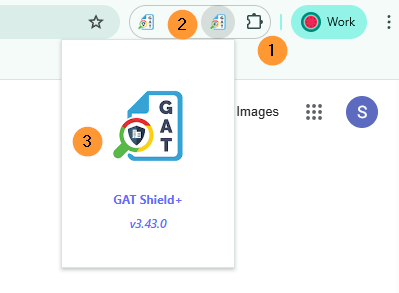
The browsing activity will then be reported to the GAT Shield console for the Admins to manage.


