

GAT Shield is a comprehensive security extension that lets you control and manage end users’ online activity. With website access control, Google Workspace domain administrators can easily block or allow access to any URL based on their internal policies and needs. Now, you can also block or allow a primary domain and its subdomains by setting a single rule.
Create a Custom Category #
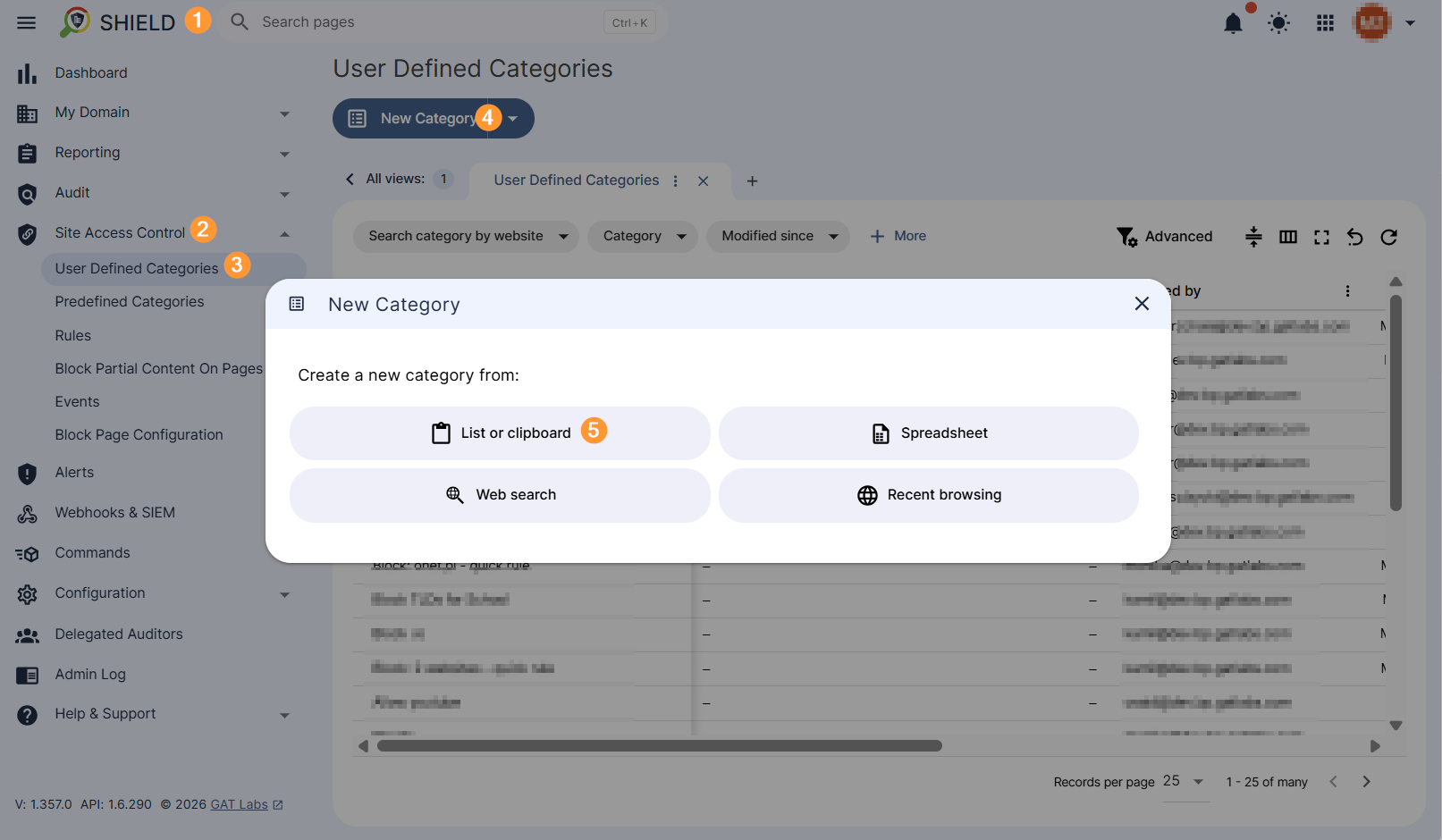
To a custom category that targets a specific primary domain, navigate to GAT Shield (1) > Site Access Control (2) > User Defined Categories (3) > New Category (4) > List or clipboard (5).
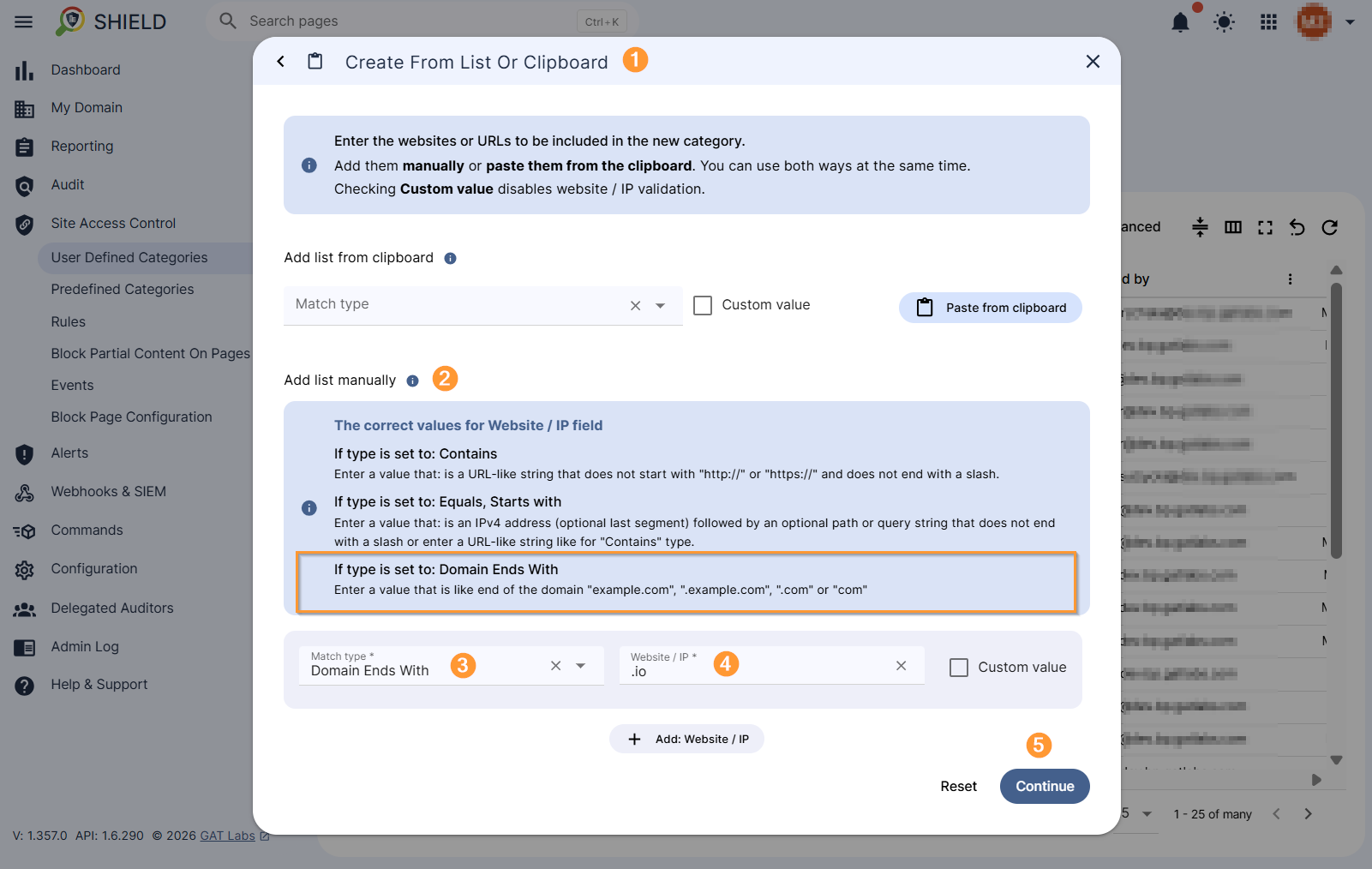
In the new Create From List or Clipboard (1) window, begin configuring your rule in the “Add list manually” (2) section.
Select the “Domain ends with” (3) match type. Enter the domain you want to be completely unavailable (4), e.g., .io.
Next, click on Continue (5) to save the settings.
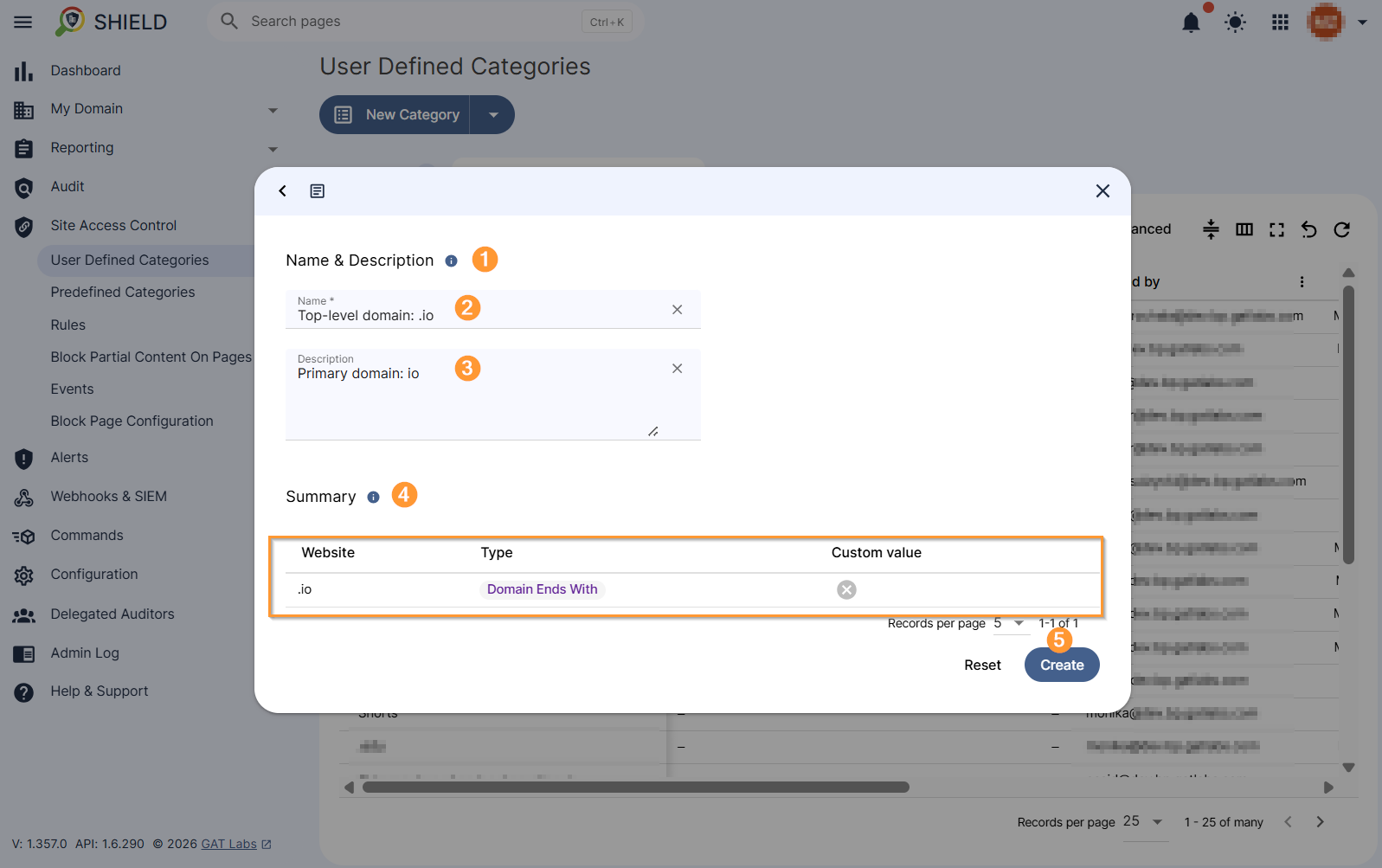
In the new window, fill in the category details under the Name & Description (1) section. Type category Name (2) and Description (optional) (3). Verify your settings under the Summary(4) section and select Create (5) to complete the process.
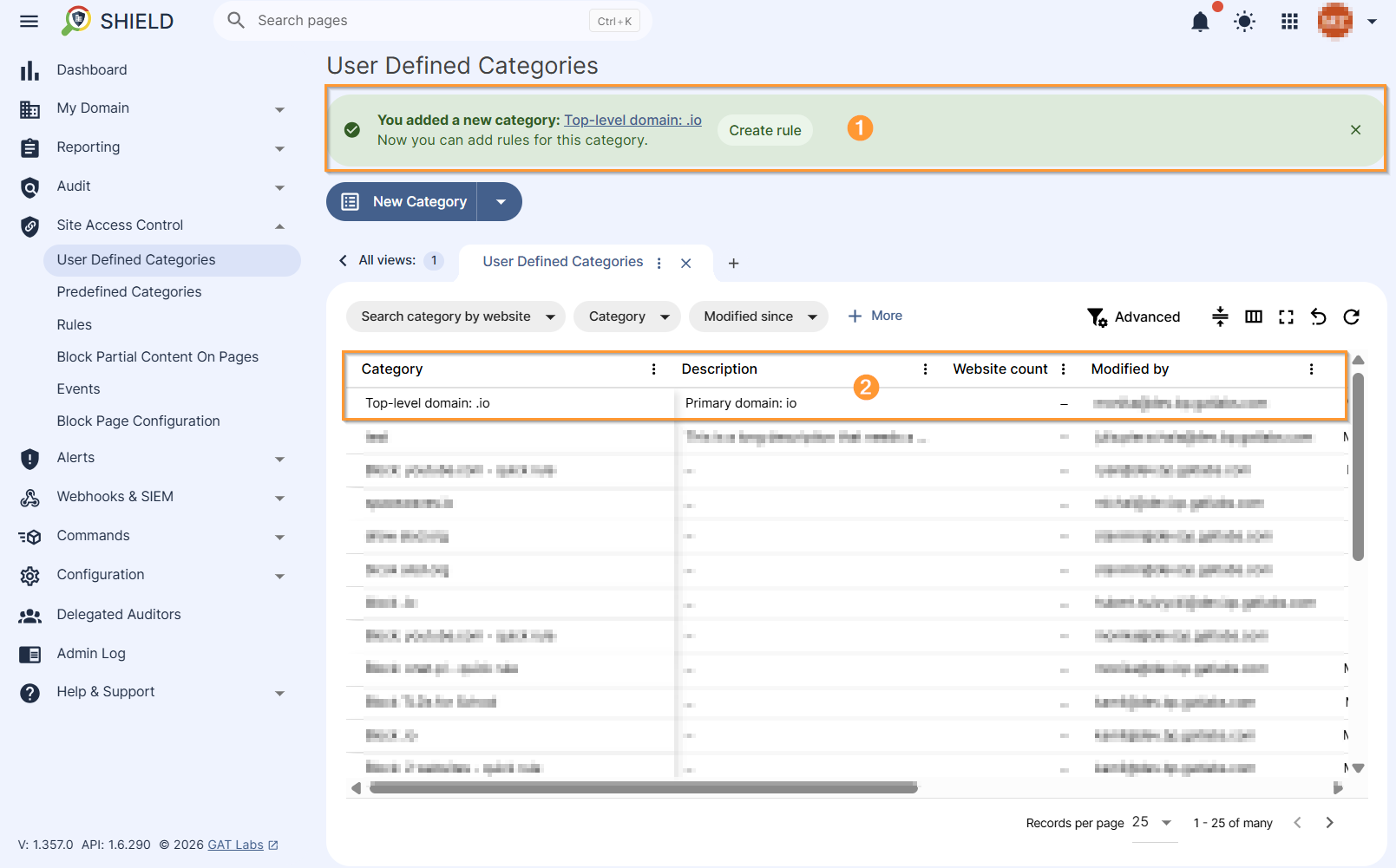
You created your custom category. See the notification in the top banner (1) and the newly created list in the table (2).
Create Blocking Rule #
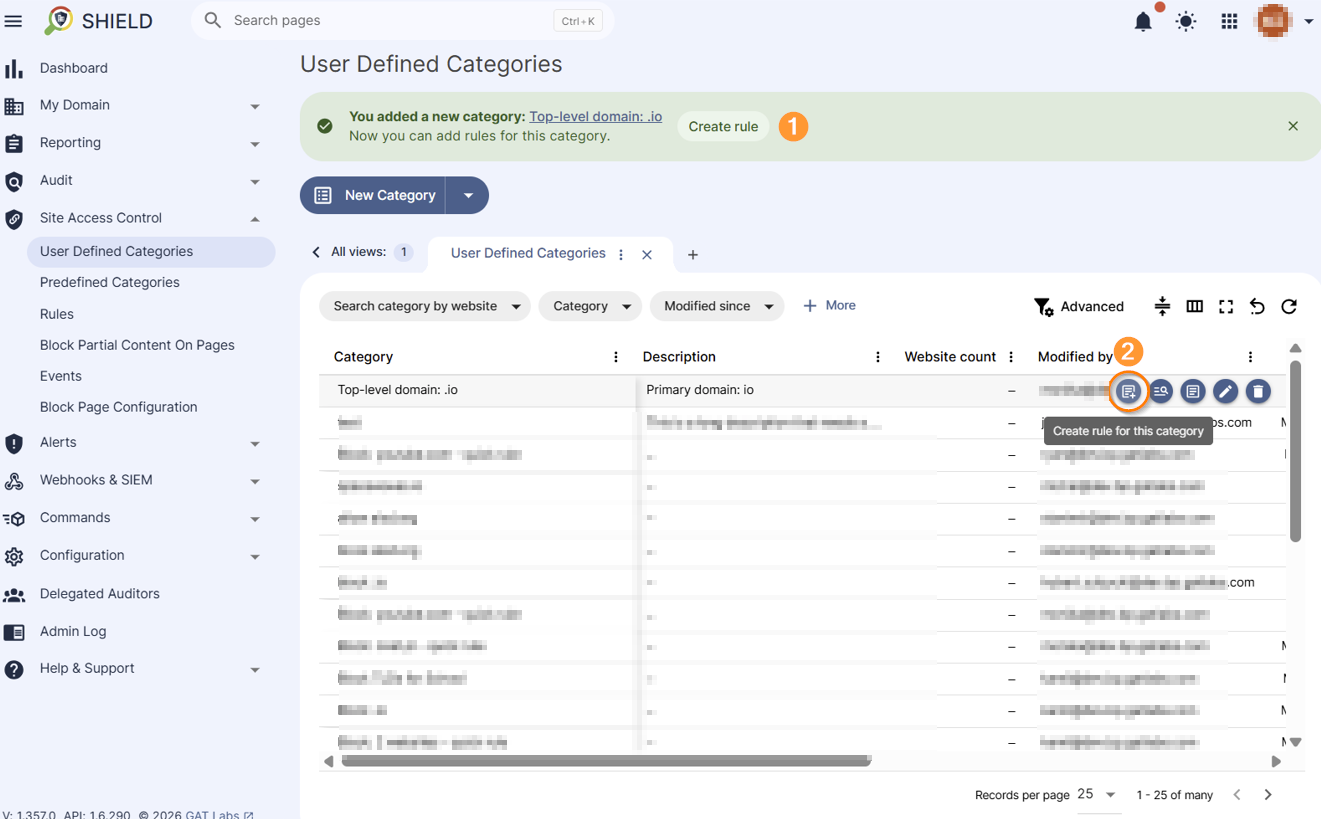
Click the Create Rule button (1) in the top banner, which indicates the newly created category. Alternatively, locate the entry in the table, move the cursor to the right side of the record, where additional options are displayed, and select the “Create rule for this category” option (2).
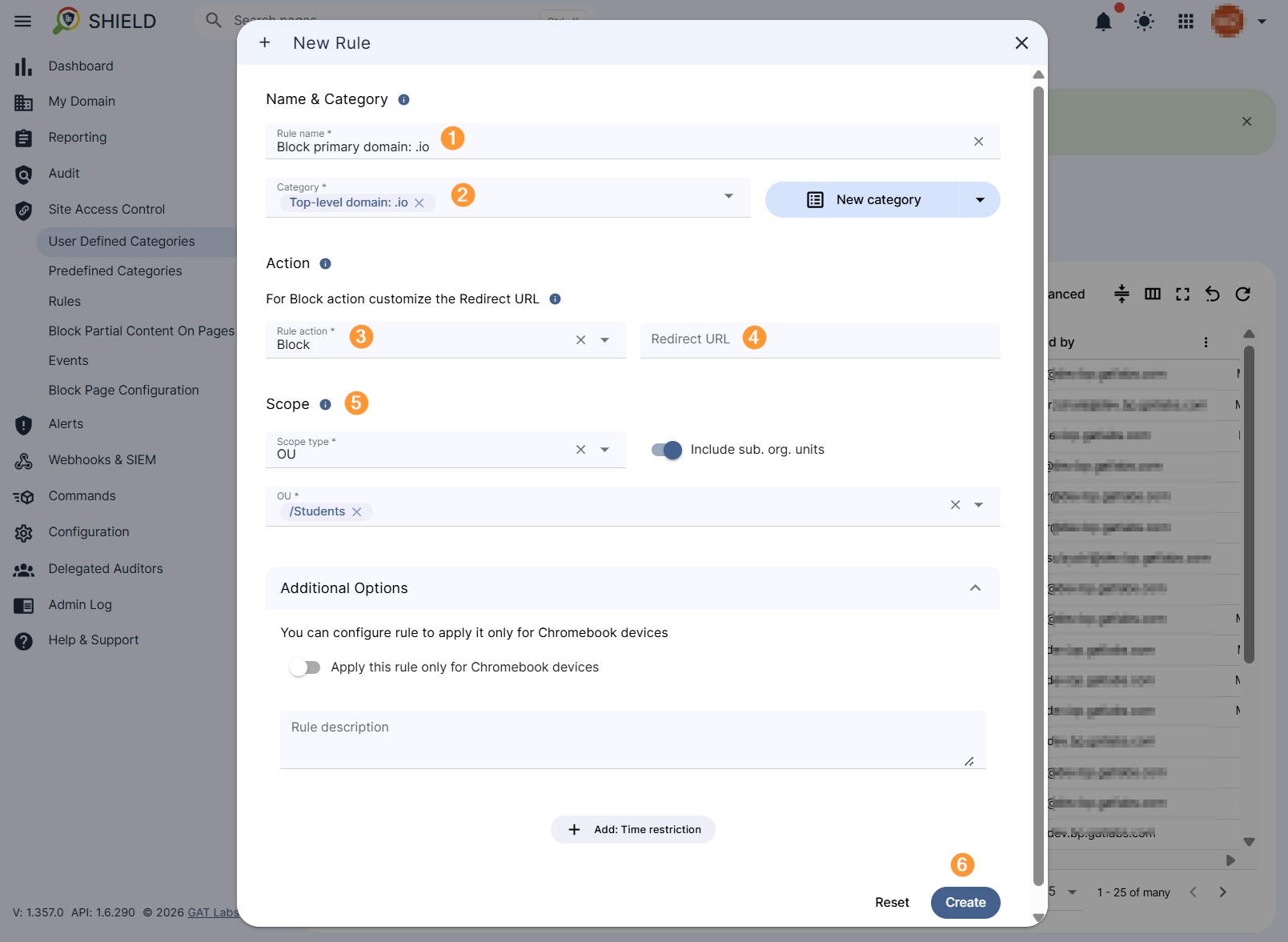
The rule creation window will appear, where you can enter a rule name (1), view the rule category (2), select the action to block (3), and fill in the “Redirect URL” field (4) if necessary (optional). Then, select the Scope (5) for which this rule will apply. Then, create (6) the rule.
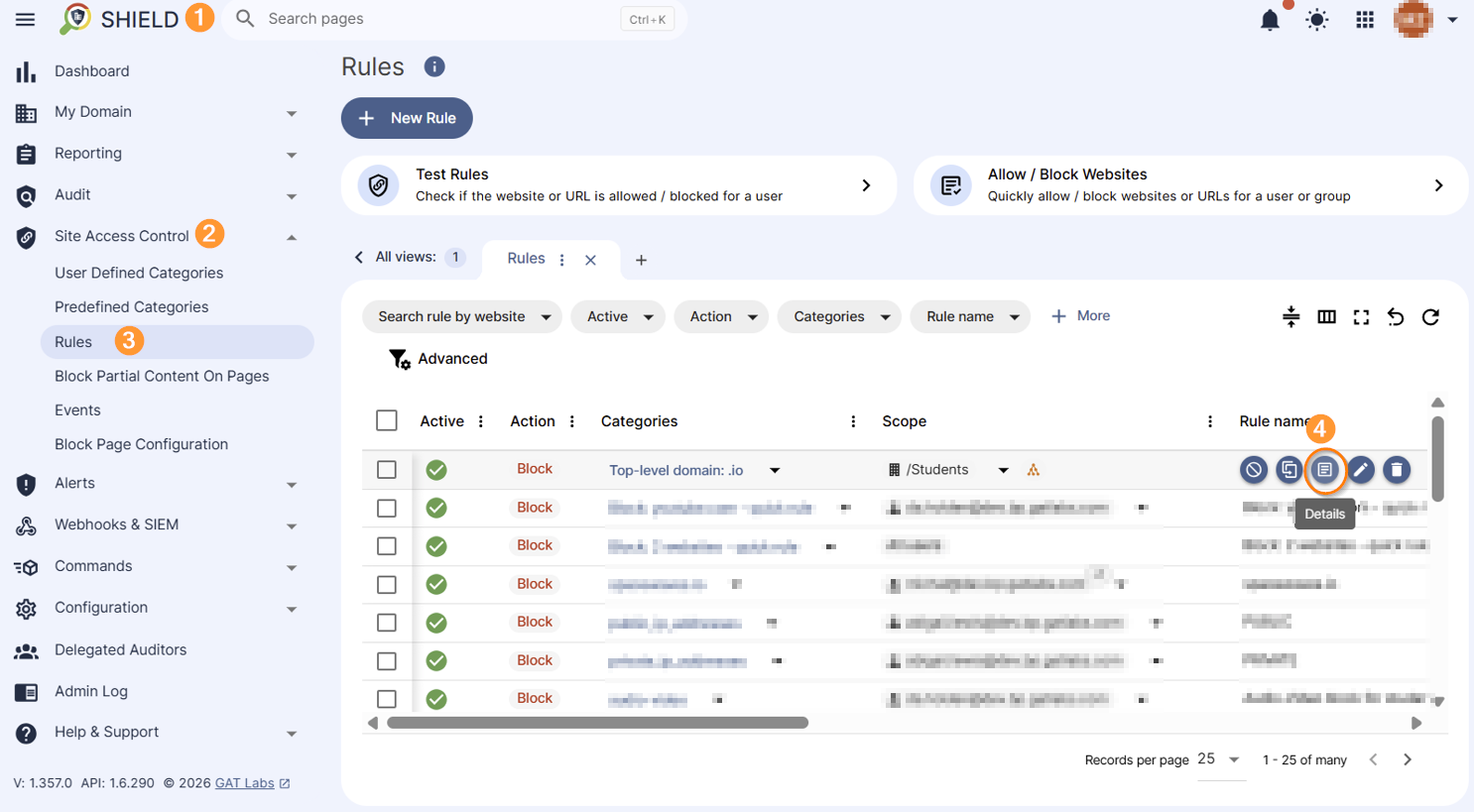
The rule is created, and you can view its record in GAT Shield (1) > Site Access Control (2) > Rules (3) section, under the record Details (4) button when hovering over the right side of the rule record.
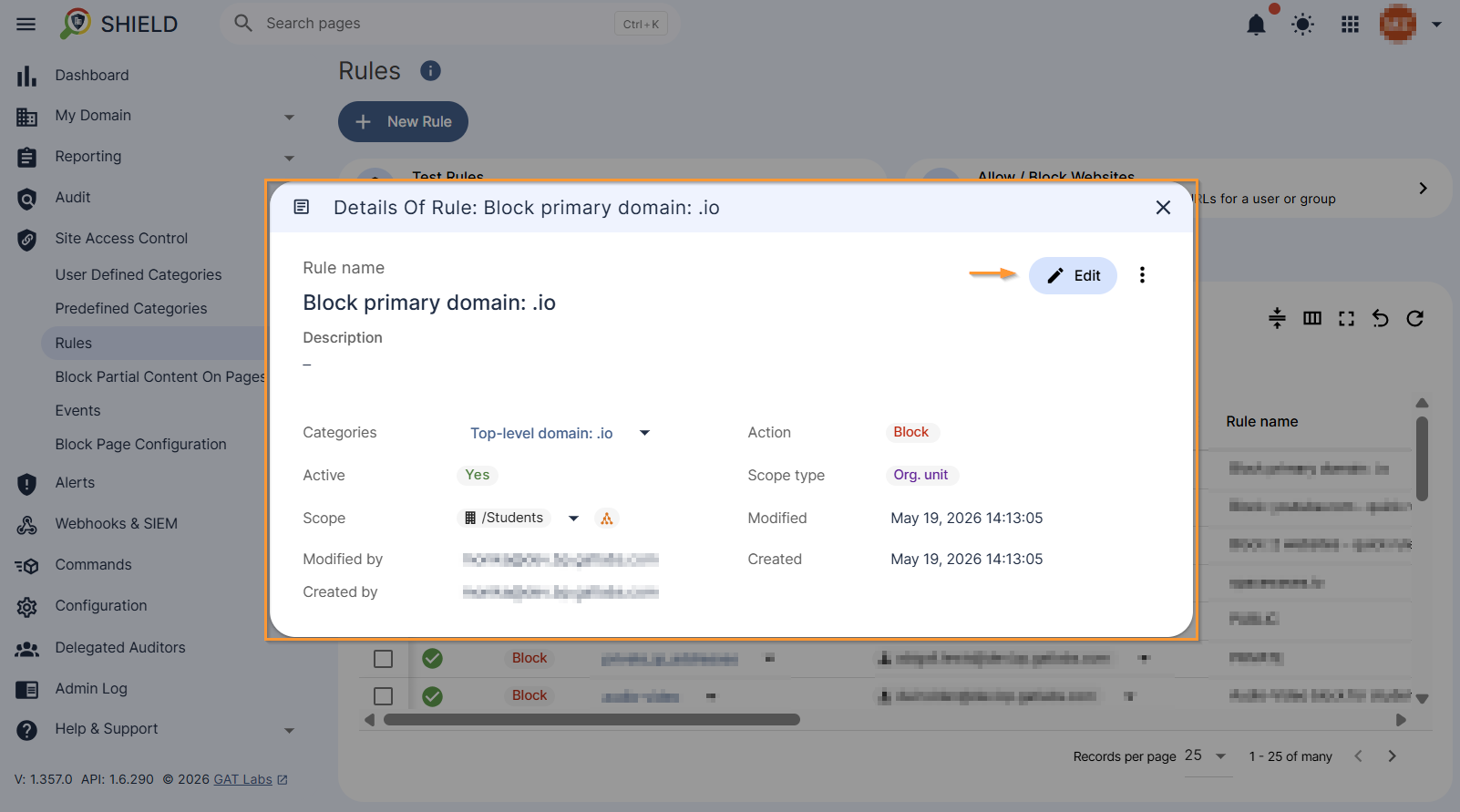
The Rule summary is displayed, and can be edited if needed:
Results #
Primary domain blocking page:

Subdomain blocking page:

Related Posts #
- Block Websites with Site Access Control in GAT Shield
- How to Block All Websites and Allow Specific URLs for Users in Google Chrome with GAT Shield
- Block websites visit with Alert rules
FAQ #
Q: Can I block the top-level domain and its subdomains?
A: Yes, create a category with the match type “Domain Ends With” and configure a blocking rule based on that category.
Q: Can I allow access to a domain from the top down if ALL category blocking is enabled?
A: Yes, you can create a category with a match type of “Domain ends with” and configure an allow rule based on that category. The Allow rule takes precedence over the Block All rule.


