

Managing human capital across a Google Workspace domain usually forces HR teams to wade through rigid technical admin consoles or static, outdated spreadsheets. GAT Flow’s HR module with Tree Charts bridges the gap between organizational management and IT execution.
By turning complex domain data into an interactive visual map, HR professionals gain direct control over their workforce structure without needing complex technical know-how. Whether you are conducting regional audits, restructuring entire departments, or handling continuous employee lifecycles, Tree Charts give HR a real-time, visual command center to move, update, and manage staff instantly.
Key HR Capabilities in Tree Charts #
Managing a Google Workspace environment through traditional text lists can be slow and error-prone. GAT Flow’s Tree Charts replace dense directory tables with a dynamic, visual map of your entire domain structure.
Instead of toggling through multiple admin menus, you get a single-screen global overview of every Organizational Unit (OU), reporting line, department, and custom user grouping. From this high-level view, admins can immediately drill down into specific nodes to execute full-lifecycle user actions:
- Drag-and-Drop Department Transfers: Instantly reassign employees between Organizational Units (OUs), departments, or regions by simply dragging their node to a new team.
- Visual Workforce Auditing: Pivot your organizational view dynamically to view your domain by Department, Cost Center, Manager, Location, or Custom Metadata rather than flat text lists.
- Automated Lifecycles: Trigger automated background workflows in GAT Flow, such as migrating user data, updating email signatures, assigning group permissions, applying Gmail labels, and much more, the moment a user is moved or modified.
- Direct Employee Record Edits: Perform immediate updates to employee profiles, email settings, custom attributes, and group memberships directly from the visual map.
How to Use Flow HR’s Tree Charts #
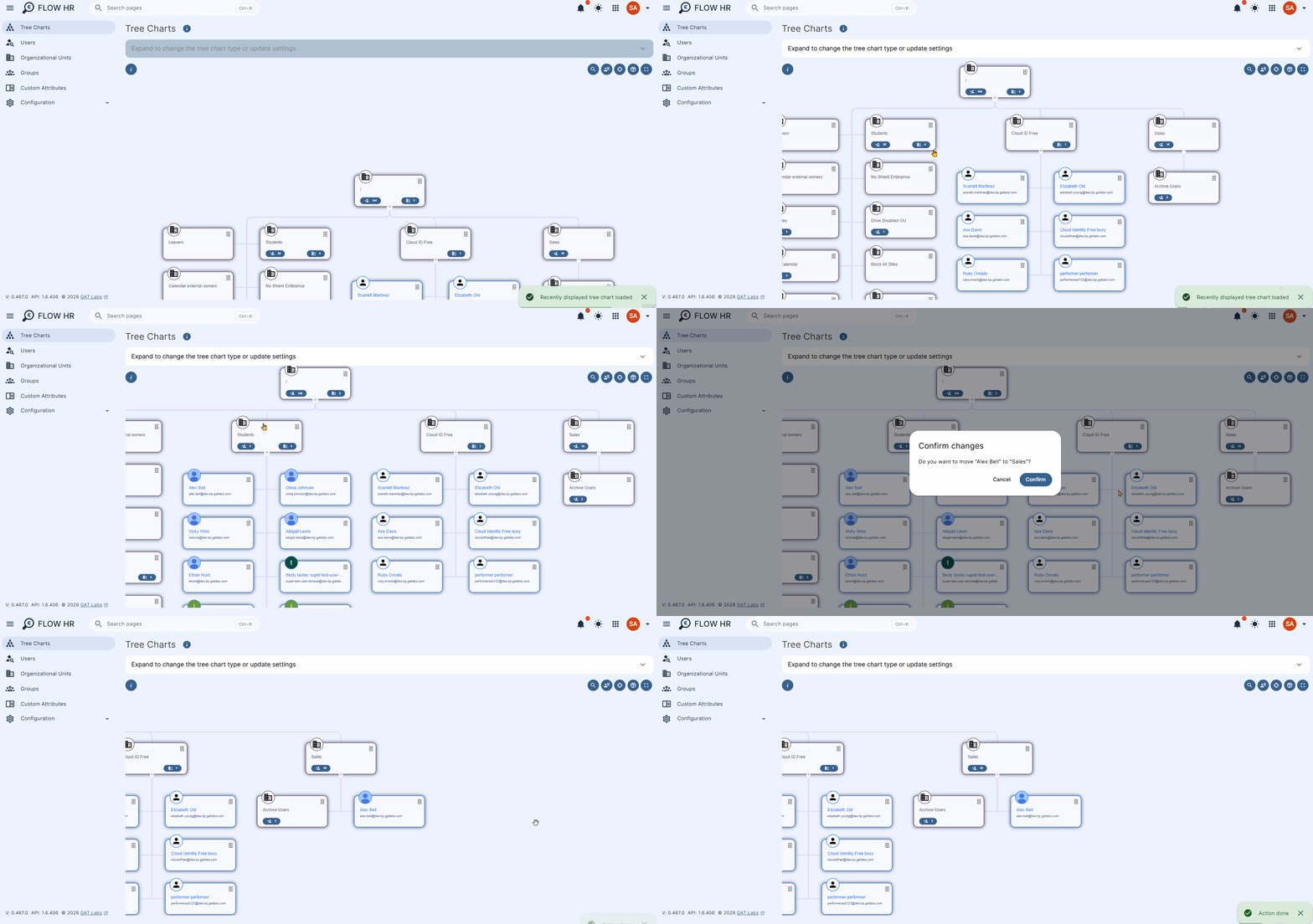
Navigate to Flow HR > Tree Charts > Zoom in or out and search for a user.
Select the user and drag and drop it to another org. unit with ease.
View and Manage a User #
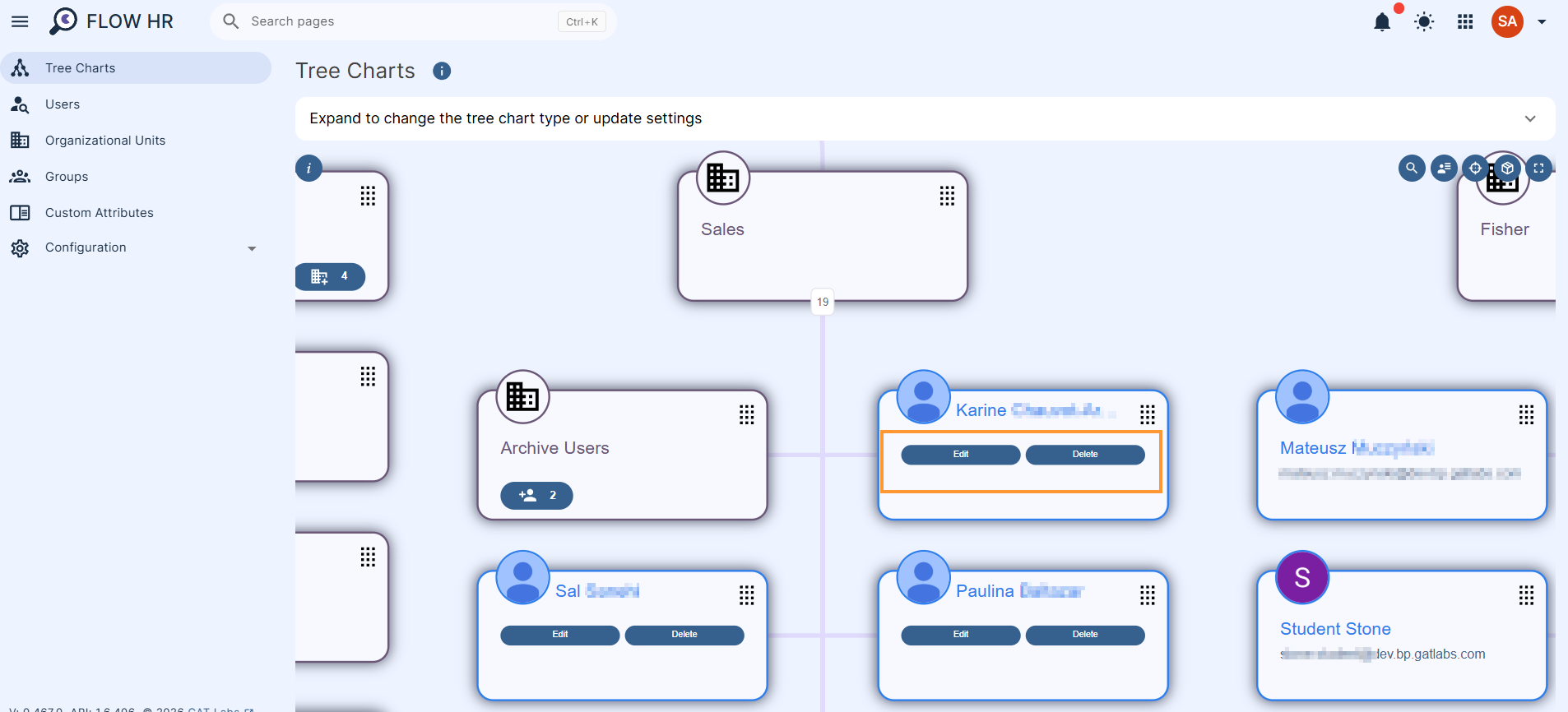
To manage individual user accounts in GAT Flow’s Tree Charts, locate and click on a specific user node to reveal the action options:
- View: Click the user count on any Organizational Unit node to expand and reveal all underlying members.
- Edit: Select a user to modify their profile, reset passwords, update email settings/signatures, assign groups or contacts, and manage custom attributes before saving.
- Delete: Click the user’s name, select the delete option, and confirm the pop-up prompt to permanently remove the account.
View and Manage the Org. Units #
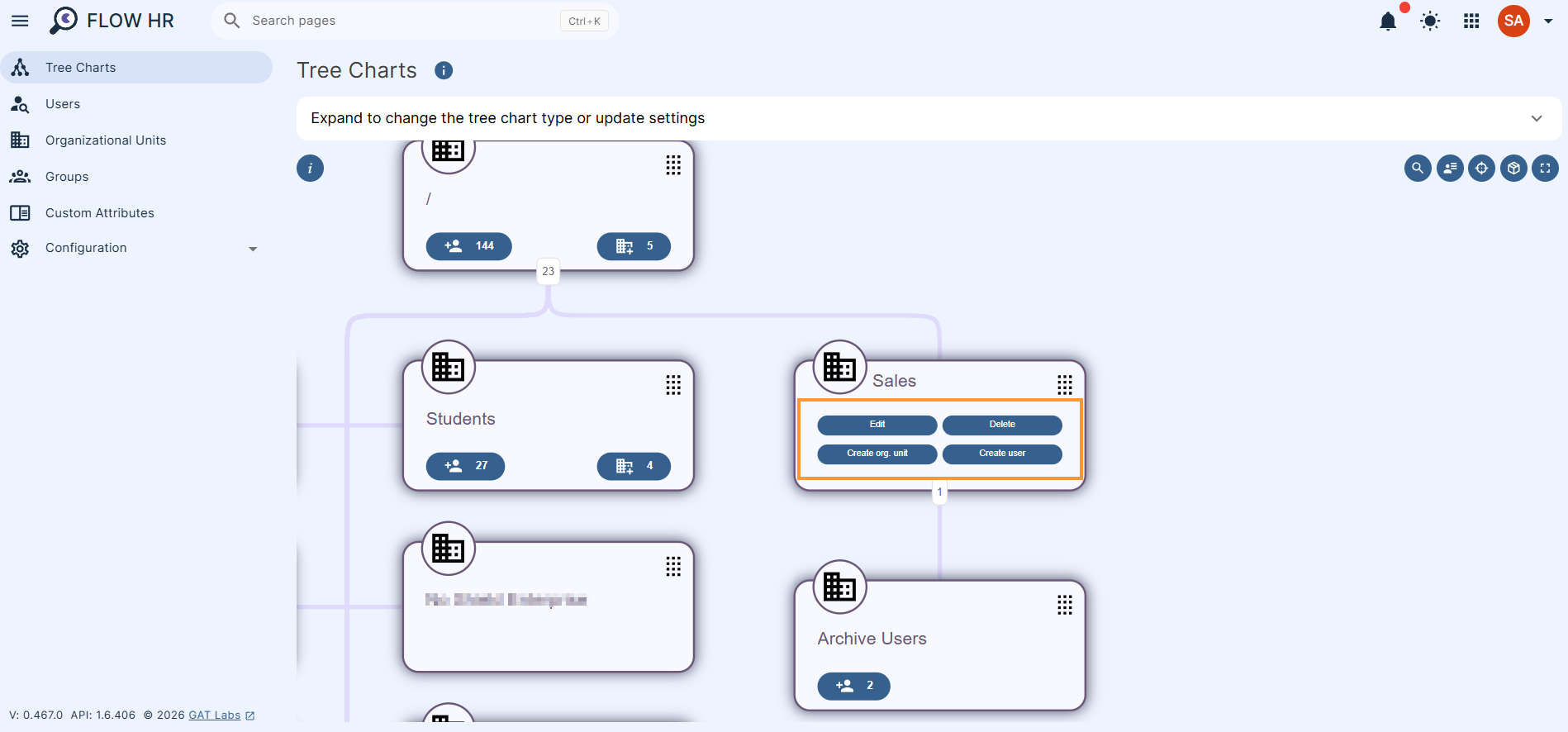
Click on the organization unit to edit, delete, or create an org. unit, and create a user.
- Edit – Allows admins to update the org unit.
- General – Update the name, parent path, or description
- Members – View the existing members of the org. unit.
- Move other users to the selected OU
- Display users from the sub. ous
- Save – Apply and save the changes
- Delete – Delete the Org. Unit.
- Create org. unit – Allows the Google Admin to create a new org. Unit and add it to any parent OU, alongside adding users to the org. unit
- Create user – Allows creation and onboarding of a brand new account to the domain.
- Along with the creation, any data can be assigned to the account as below
- General info – In this tab, you can edit general user information such as password, email, first name, last name, and many more.
- Groups – Find the groups in which the selected user is a member. You will also see the role they play in each group.
- Contacts – Add contacts to the account
- Email details – Add aliases, delegations, forwarding, auto-reply, signature, filters
- Custom attributes – In this tab, you can modify custom attribute values for the selected user.
- Along with the creation, any data can be assigned to the account as below
Move Users to a Different Org. Units #
The Admins can easily move users from one org. unit to another just by drag-dropping the account to a different OU.
Display Options #
In the top-right corner, there are display options.
You can zoom the chart in or out.
- Search – Search for a user by entering their email. Other nodes can be found by providing a path starting with /
- Domain info – view domain info data, number of active, archived, suspended users, etc
- Centers button – Centers and resets the tree chart at the tree root
- Change – changes the tree chart display style
- Full Display – displays a tree chart in fullscreen mode
Change the Graph Type #
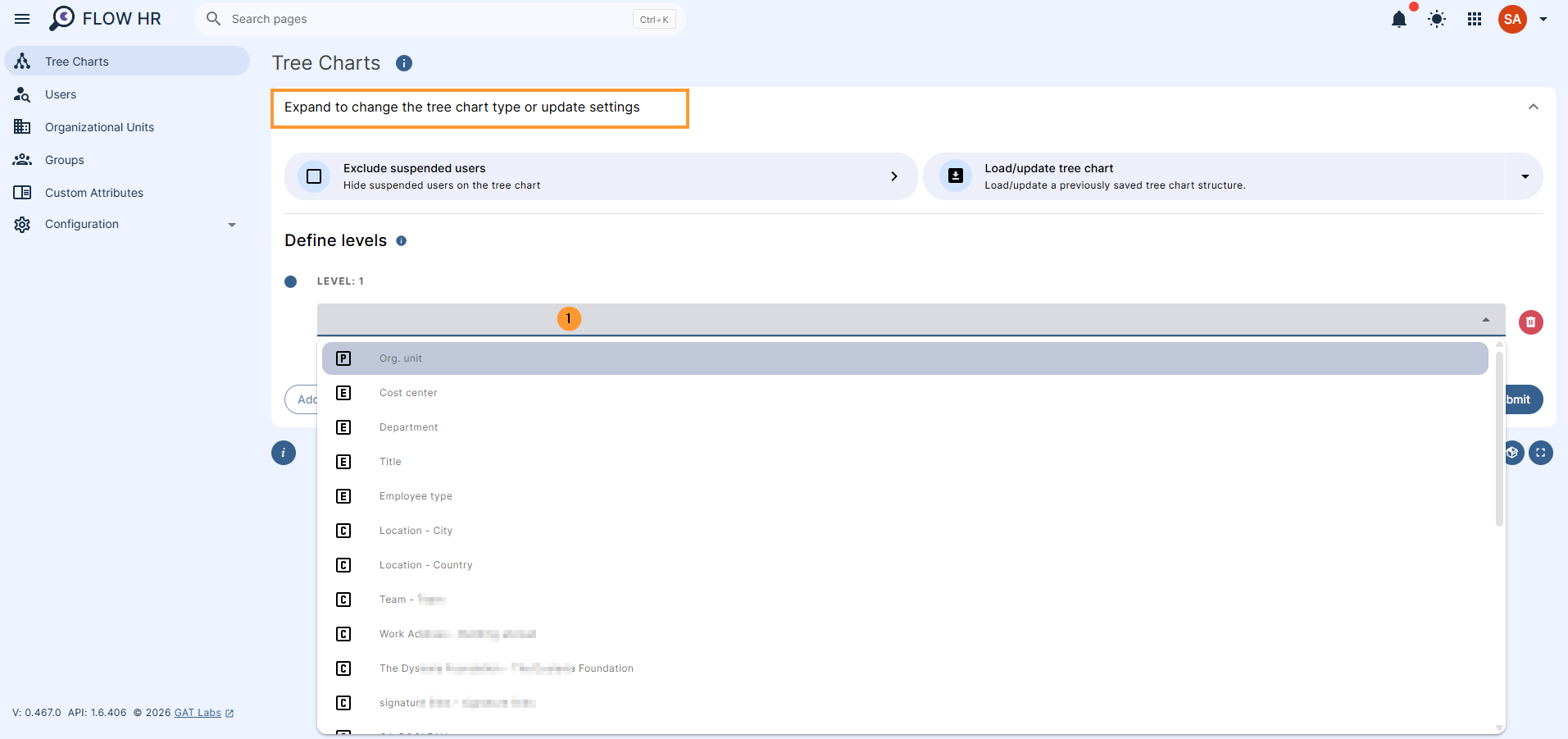
Expand to change the graph type or to search for a specific node
This allows Admins or Delegated Auditors to select Flow charts based on different types of data.
For example:
- Predefined – by default is by organizational units.
- Employee information – this allows you to filter users in a chart view by the Department, Cost center, Title, and Employee type
- Custom attribute – Filter the chart based on a custom attribute
Define Tree Structure Levels #
This editor allows you to define a custom tree structure. The tree relies on the custom attribute of the email type or automatically defined hierarchies within the org. units, so you can only select these fields at the first level. If you select a custom attribute of type string/text for the first level, you will not be able to select a custom attribute of type email or org. unit in subsequent levels.
Additional Features #
- Hide suspended users – click to hide suspended users from the tree chart
- Load/update tree chart – load or update a previously saved tree chart structure
Custom Attribute Example: Filtering & Organizing Users by Location #
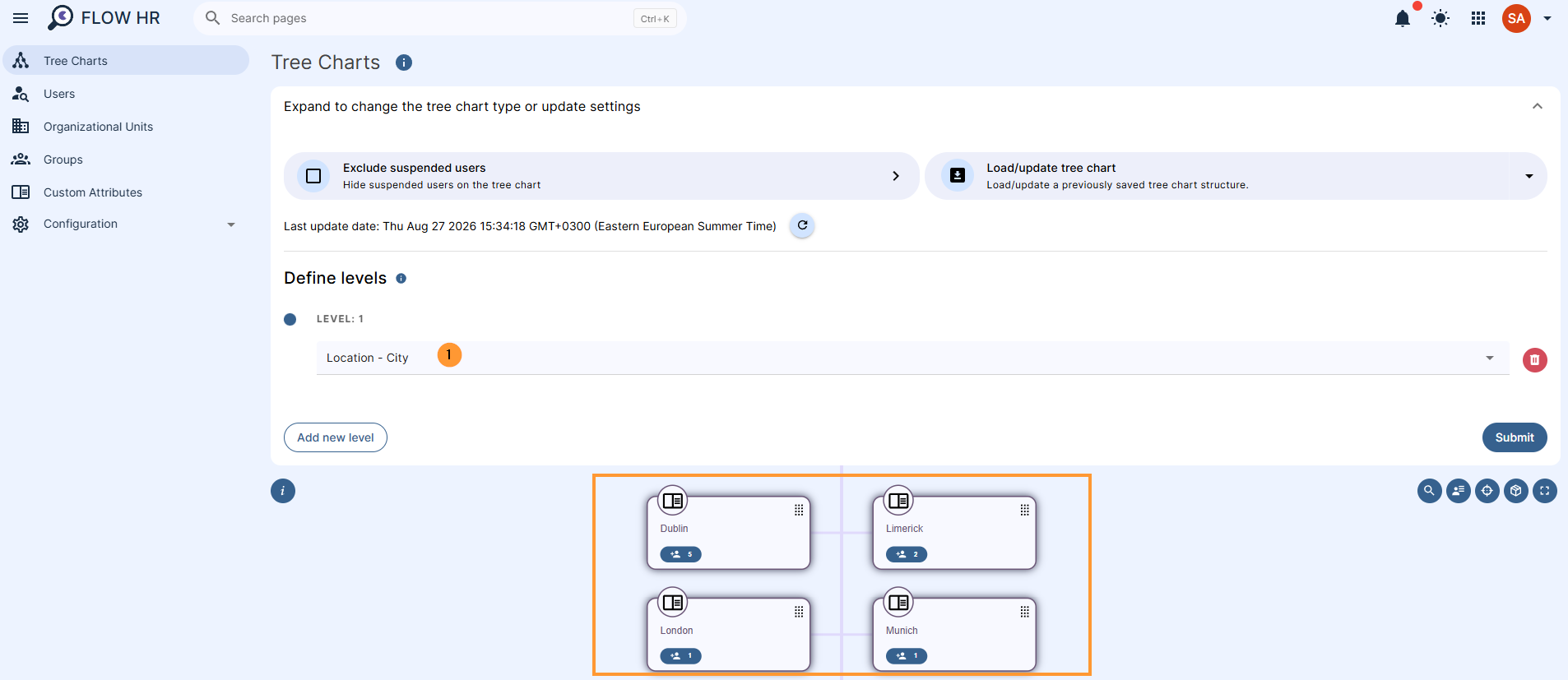
You can build a custom hierarchy based on user locations (such as city or office site) to visually group and manage accounts across different regions.
- Create & Assign the Attribute – Create a custom attribute called Location (City or Country) in GAT Flow and populate it for your users (e.g., Dublin, London, Ireland, New York, Tokyo, United Kingdom, or USA, etc).
- Configure the Tree Chart Structure
- Open Display Options in the top right corner.
- Access Define Levels and set the first level to your custom attribute: Location.
- Click on Submit and load the updated chart.
- Manage Users by Region: The Tree Chart will dynamically group your entire domain by city instead of standard Org Units. From this view, you can:
- Audit regional teams: Instantly view all users assigned to a specific office location.
- Bulk manage & reassign: Drag and drop a user node from London to New York to update their location metadata and trigger any location-specific workflows automatically.
Overview #
By transforming dense domain data into dynamic visual structures, GAT Flow’s Tree Charts turn tedious directory management into a seamless, visual workflow.
Whether you are remapping entire departments, running targeted audits, or automating routine profile updates, the tool provides complete oversight and effortless control over your organization’s Google Workspace environment.
Frequently Asked Questions #
1. How does Flow HR benefit non-technical HR managers?
It replaces technical admin menus and flat lists with an intuitive visual chart. HR can visually execute transfers, edits, and structural changes without submitting routine support tickets to IT.
2. What happens when I drag and drop a user to a new location or OU?
The user’s directory location is instantly updated, and GAT Flow can automatically trigger preset onboarding/offboarding workflows behind the scenes, such as updating signatures, reassigning group permissions, or transferring calendars, plus any action you can set up in GAT Flow.
3. Can I build a chart based on reporting lines or managers?
Yes. By using the Graph Type or Define Levels tools, you can structure your tree around reporting managers, custom attributes, department types, or cost centers.


