

Managing employee accounts doesn’t have to mean filing tickets with IT every time someone changes their phone number, needs an out-of-office message, or takes a leave of absence.
Flow HR puts full user lifecycle management directly into the hands of HR teams.
From seamless first-day onboarding and daily profile updates to account suspensions and offboarding, you can manage user details, Google Workspace email settings, and security permissions all from one intuitive dashboard.
How to Manage Users #
Navigate to Flow HR > Users
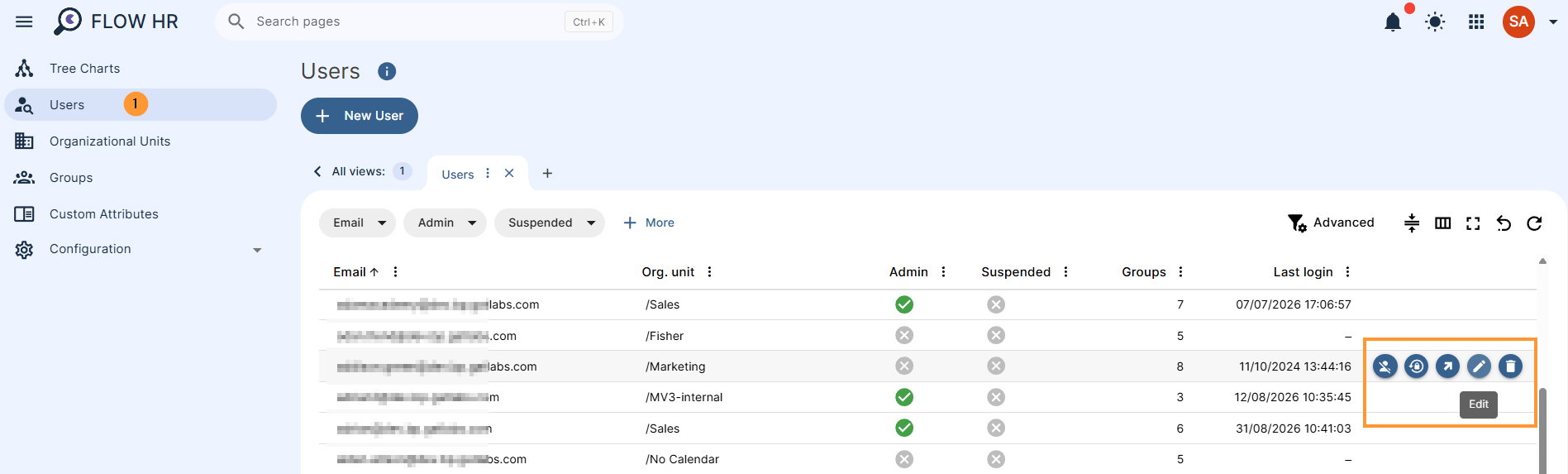
Admins can search for any user, hover over them, and take an action easily.
- Suspend user
- Change password
- Extract email addresses
- Edit – Edit everything about the user
- Delete – Delete the user
Edit User #
In Edit User, the Admin or Flow HR Person can update everything for the user.
- General – In this tab, you can edit general user information such as password, email, first name, last name, and more.
- Groups – You will find here the groups in which the selected user is a member. You will also learn what role they play in them.
- Contacts – Update the contacts of the user
- Phones – Add or remove phone numbers
- Addresses – Add or remove addresses
- Relations – Add or remove relations
- External IDs
- Emails – Update the emails of the users
- Aliases – Add or remove aliases
- Delegations – Add or remove delegations
- Forwarding – In this section, you can choose to forward the message to another email address. You can save multiple email addresses for forwarding messages, but only one can be used for auto-forwarding. To forward messages to multiple recipients, create a group with them and then use the group email.
- Auto-reply – In this section, you can set an automatic reply to received emails.
- Signatures – Send as:
- Send as – Manage ‘Send As’ addresses for your Google account. Add or remove additional addresses to send messages from, and set up individual signatures for each one to tailor your communication for different recipients.
- Signatures – Add, remove, and update the signature
- Filter – In this section, you can add, edit, and delete email filters.
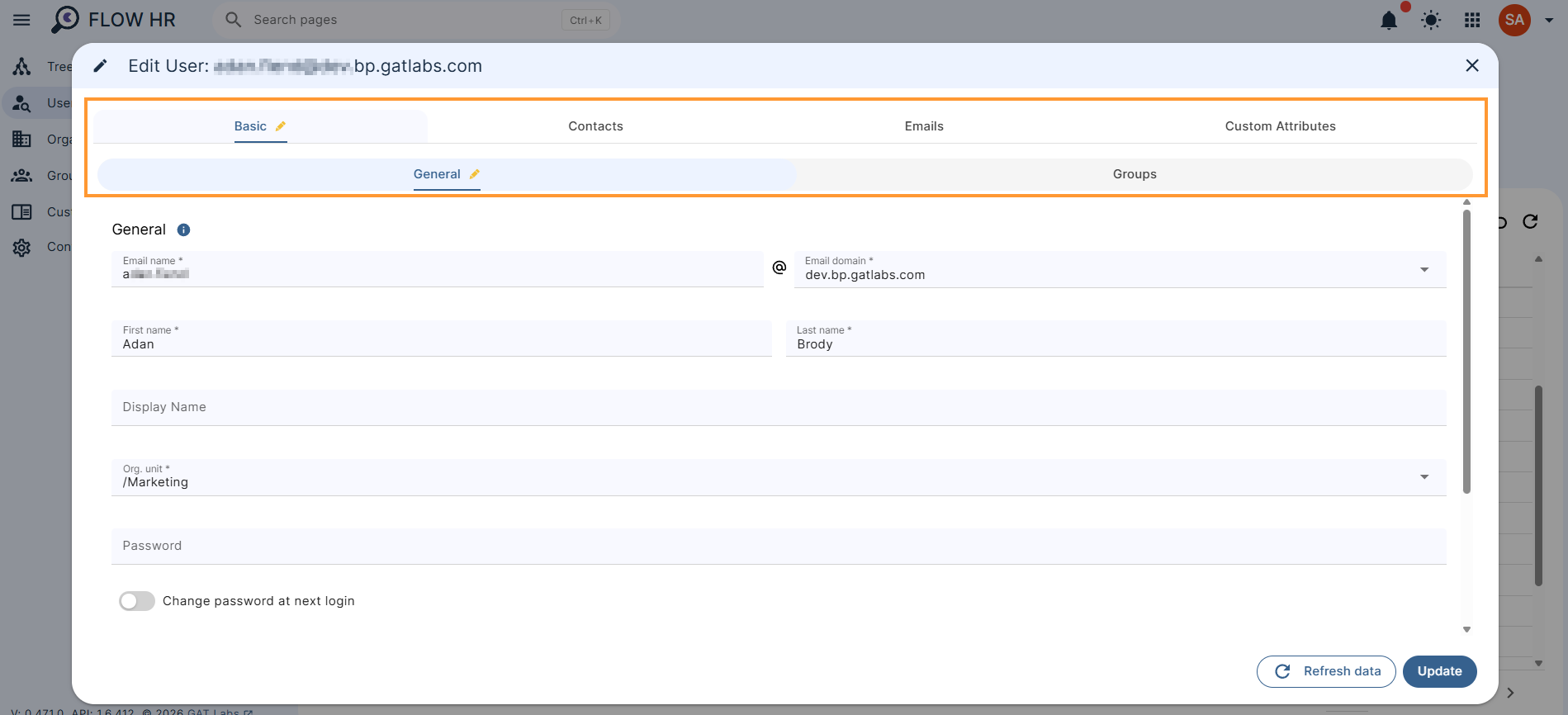
Once the data is updated as needed, simply click on Update.
The user’s data will be updated right away.
Conclusion #
With Flow HR’s centralized user tools, keeping your organization’s directory accurate and compliant takes just a few clicks.
Whether you’re updating contact details, setting up out-of-office auto-replies, or managing permissions for smooth team transitions, you have total control over your workforce management without the administrative friction.
Frequently Asked Questions #
1. Where do I update employee contact details like phone numbers or personal addresses?
Use the Contacts tab. While the General tab handles primary details like names, email addresses, and passwords, the Contacts tab is where you manage personal details, phone numbers, physical addresses, emergency relations, and external IDs.
2. What is the best way to forward an employee’s incoming emails to multiple team members?
Flow HR allows only one active auto-forwarding email address per user at a time. To forward emails to multiple people (for example, during an extended leave), create a Google Group containing those team members and set that group’s address as the single auto-forwarding target.


