

Managing employee data goes far beyond standard names and job titles. Custom attributes give HR teams the flexibility to tailor Google Workspace profiles to reflect your organization’s specific operational and compliance needs.
Whether you need to filter by users’ location, record remote-work stipend eligibility, store emergency contact dates, or tag department-specific cost centers, structured custom fields keep your directory accurate and adaptable.
Add any custom data and “assign” it to any user easily, using the Custom attribute fields in Flow HR.
The guide below outlines how to build, edit, and assign these custom attributes both globally across your organization and individually for specific employees using Flow HR.
How to Create a Custom Attribute #
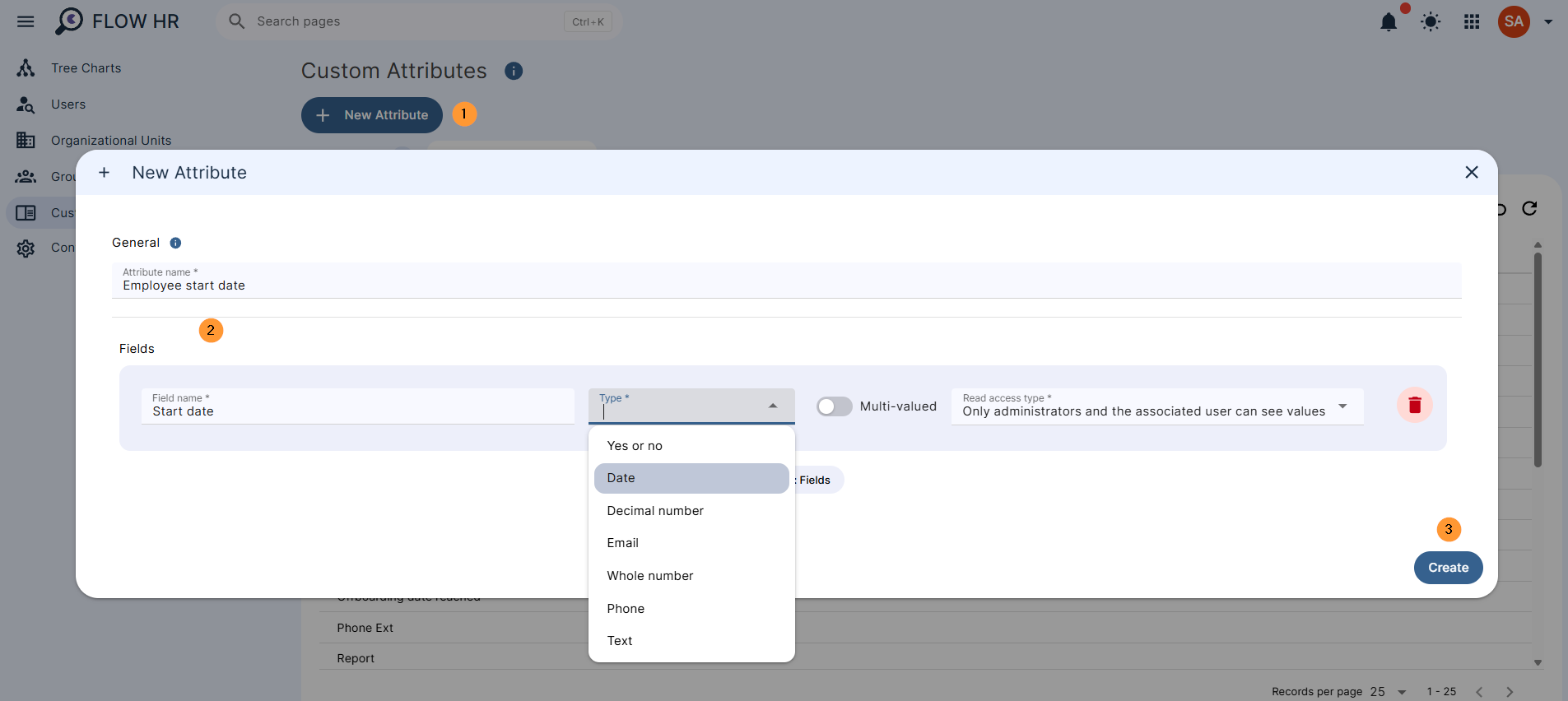
Navigate to Flow HR > Custom attributes > New Attribute.
Fill in the attribute details.
- Name – Enter the name for the attribute
- Fields – Enter the fields you want
- Name – Enter a name for the specific attribute
- Type – Enter the type of attribute, and the users have to fill in the details based on this type
- Yes or No – An input field for a yes or no value
- Date – An input field for a date format
- Decimal number – An input field for a decimal number
- Email – An input field for an email address
- Whole number – An input field for a whole number
- Phone – An input field for a phone number
- Text – An input field for text
- Multi-valued – Enable or disable the multi-valued field
- Read access type – Select the read access type; it can be:
- Only administrators and the associated user can see values
- Any user in your domain can see values
Update Custom Attribute #
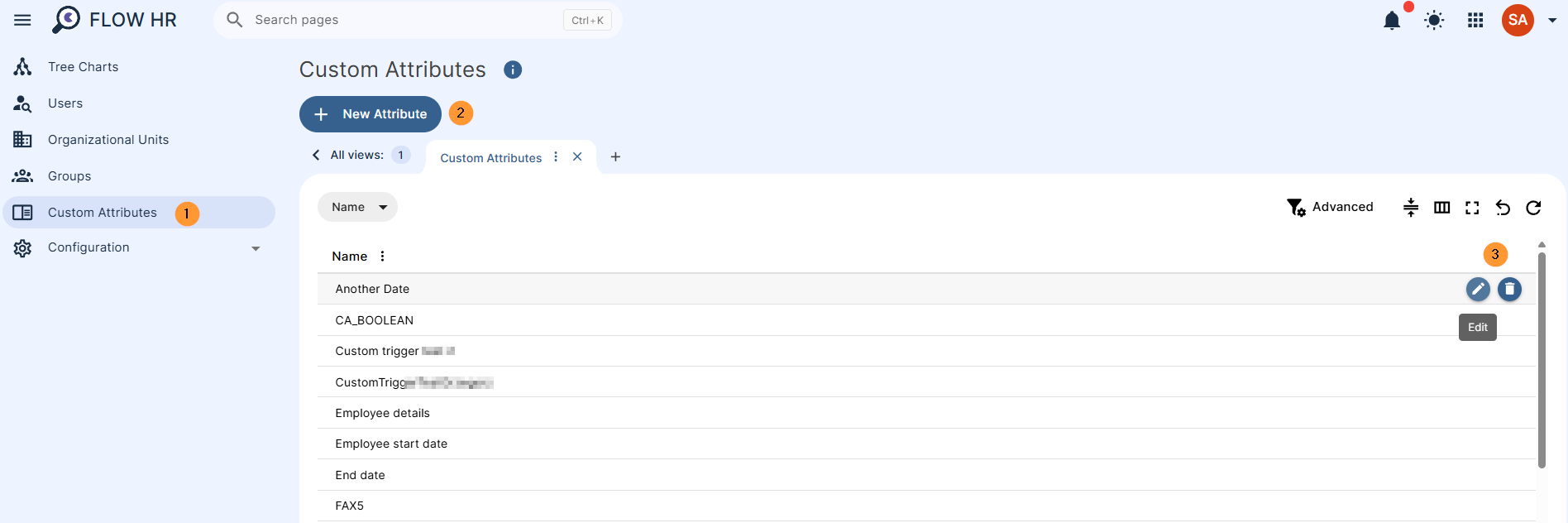
You can use and assign the created custom attributes to any Google Workspace users.
Click on the “pen” icon and edit each of the fields:
- Name – Update/edit the name for each field.
- Read access type – Change the type of access for those fields
- Delete – Click on the bin icon and delete the field
- Add: Field – Click on the button and add a new field
- Update – Click to save the changes to the Custom attribute
Use and Edit Custom Attributes #
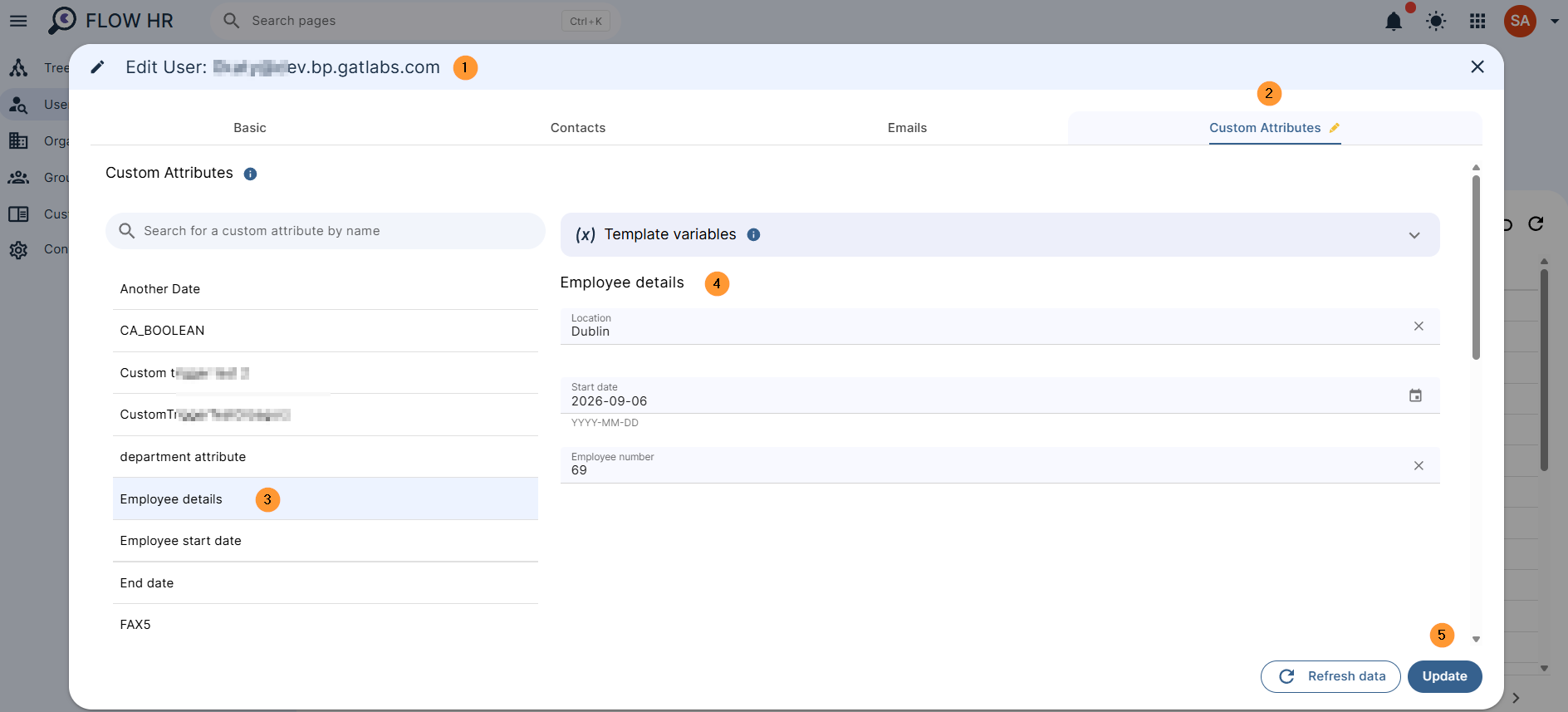
Once attributes are configured globally, HR administrators can apply and update specific values for individual employees by navigating to Flow HR > Users > Edit user > Custom attribute.
Conclusion #
By centralizing custom attributes within Flow HR, HR teams maintain complete control over employee data architecture while reducing manual administrative overhead.
Global controls let you update profile schemas as company policies evolve, while individual user editing ensures accurate, localized record-keeping for every member of your workforce.


