
Teacher Assist Dashboard #
The Teacher Assist Dashboard serves as a centralized analytics hub, giving educators complete visibility into classroom activity, student engagement, and security metrics over time. Rather than just monitoring live screens, the Dashboard aggregates historical session data to help teachers analyze trends, audit browsing behavior, and generate comprehensive attendance and compliance records.
By leveraging flexible time-frame filters and detailed visual reporting, teachers can evaluate classroom focus, monitor blocked content events, and export session summaries directly to PDF or email for administrative documentation.
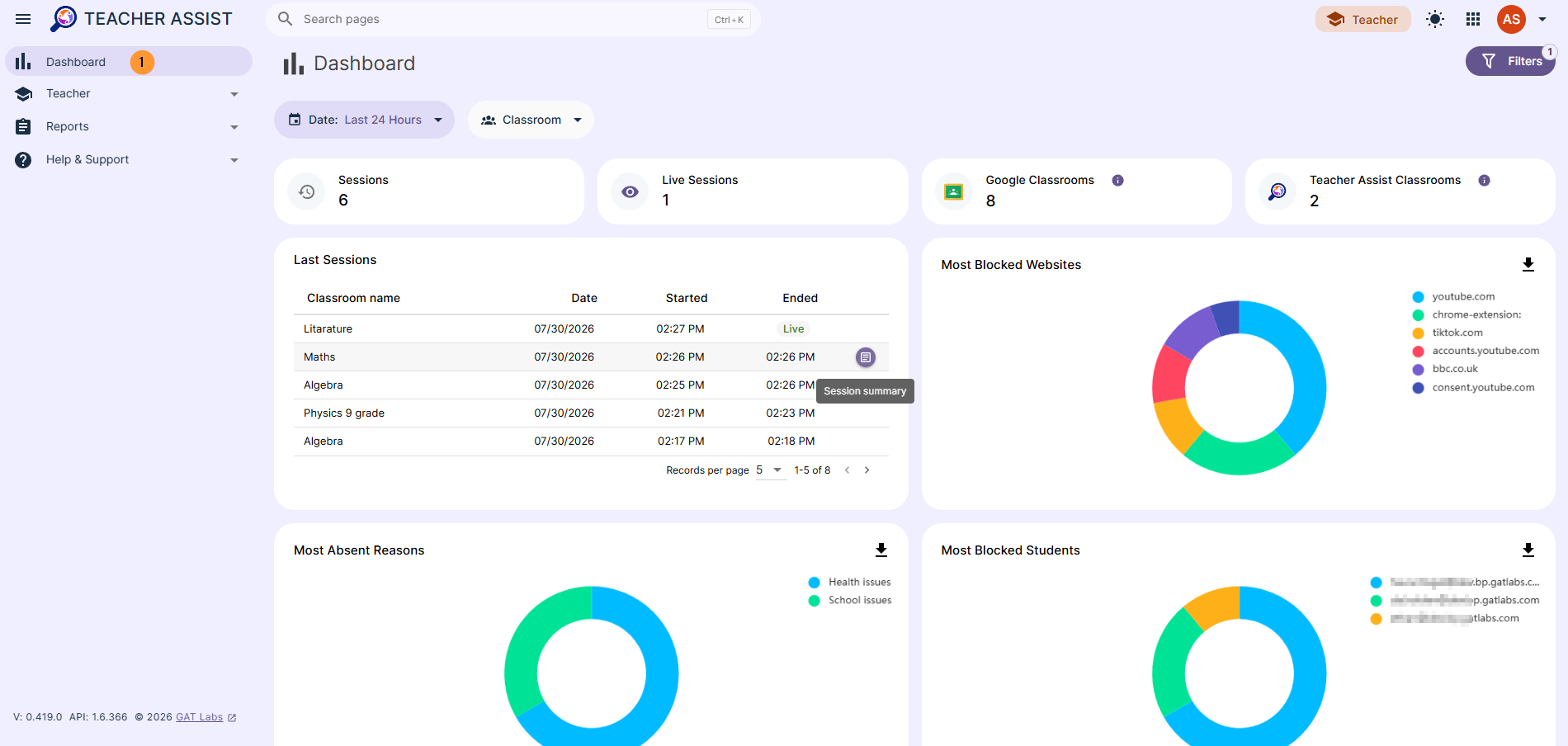
Dashboard view is where the teacher can select a specific time frame, search for a specific classroom, and see its stats.
- Date – Select a specific time frame
- Today
- Yesterday
- Last 24 hours
- Last 7/14/28 days
- This month
- Previous month
- Custom time frame
- Classroom – filter for any classroom
- Sessions – number of sessions in the selected time
- Live sessions – current live sessions
- Google classrooms – Current number of Google Classrooms – does not change depending on the filters applied.
- Teacher Assist Classrooms – Current number of Teacher Assist Classrooms – does not change depending on the filters applied.
- Last sessions – list of last sessions in the selected time frame
- Session summary – for the last/ended sessions, the teacher can click and view details
- Most blocked websites – a pie chart view of all the blocked sites the students visited in the selected time frame
- The pie chart can be downloaded
- Most absent reasons – a pie chart view of the most absent reasons for the selected time frame
- The pie chart can be downloaded
- Most Blocked Students – a pie chart view of the most blocked students for the selected time frame
- The pie chart can be downloaded
Last session details #
In the Last sessions, the teacher can click on any classroom and see its session summary.
View the Date of the classroom session along with the time it happened, the session length, and who started it.
- Attendance – view the attendance of the classroom session
- Website control – view the pages that were blocked or allowed during the session
- Screenshots – list of the screenshots taken during the classroom session
- Blocked events – view the blocked events applied to the students
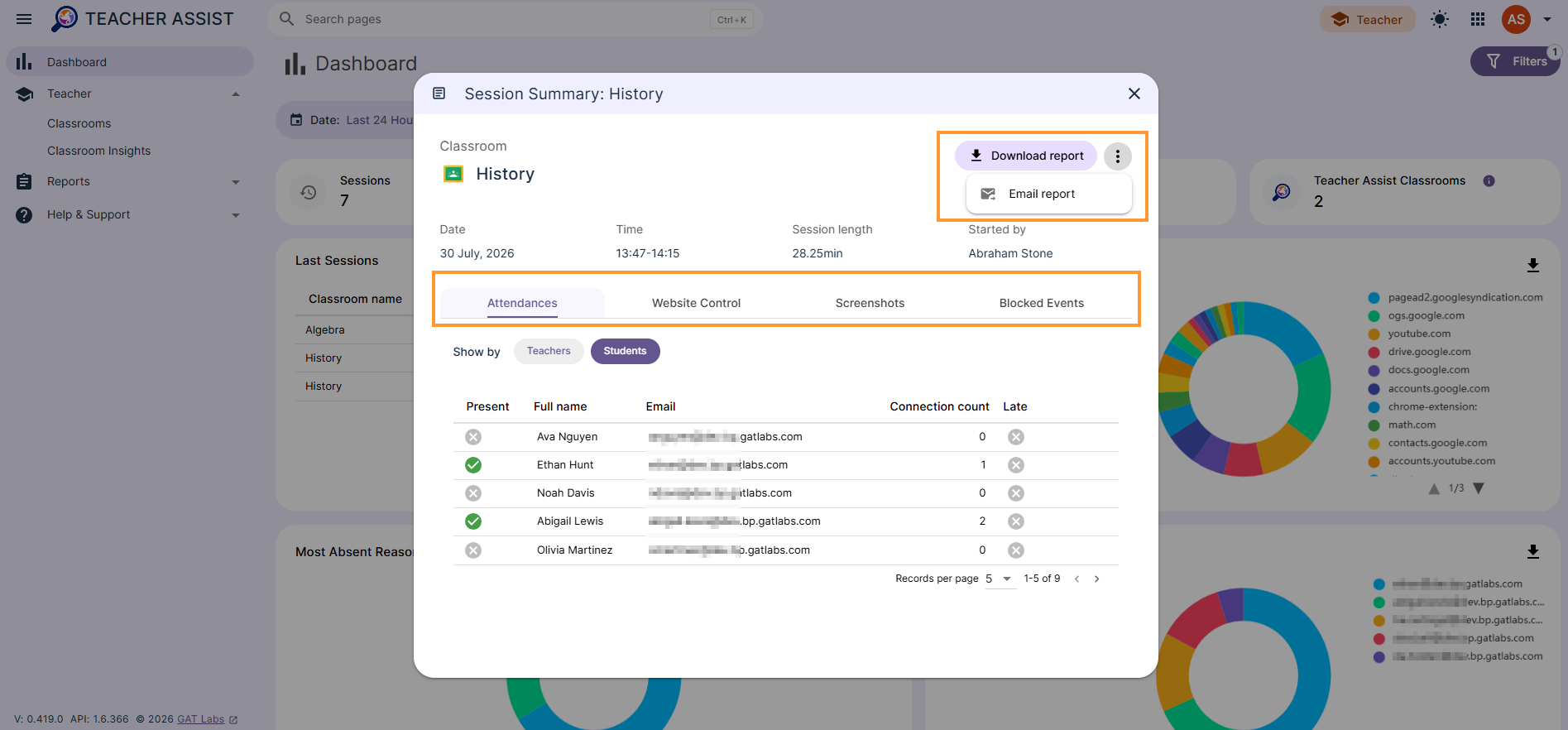
- Download report – this report can be downloaded as a PDF
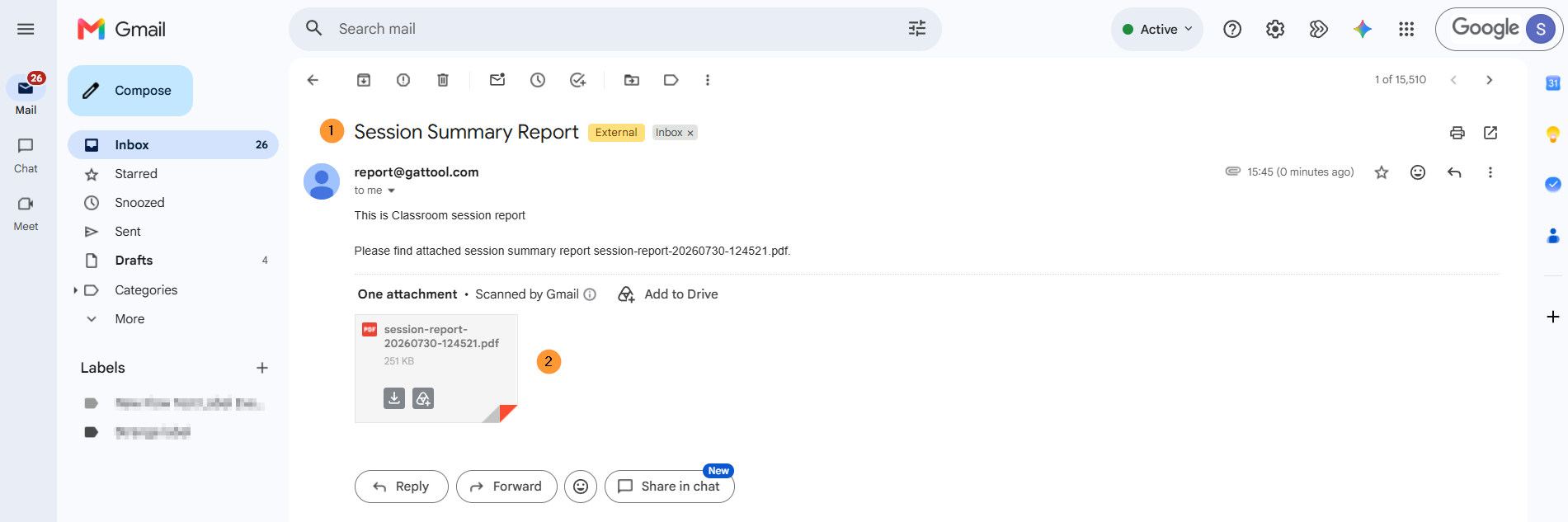
- Email report – send the report as an email to the selected user
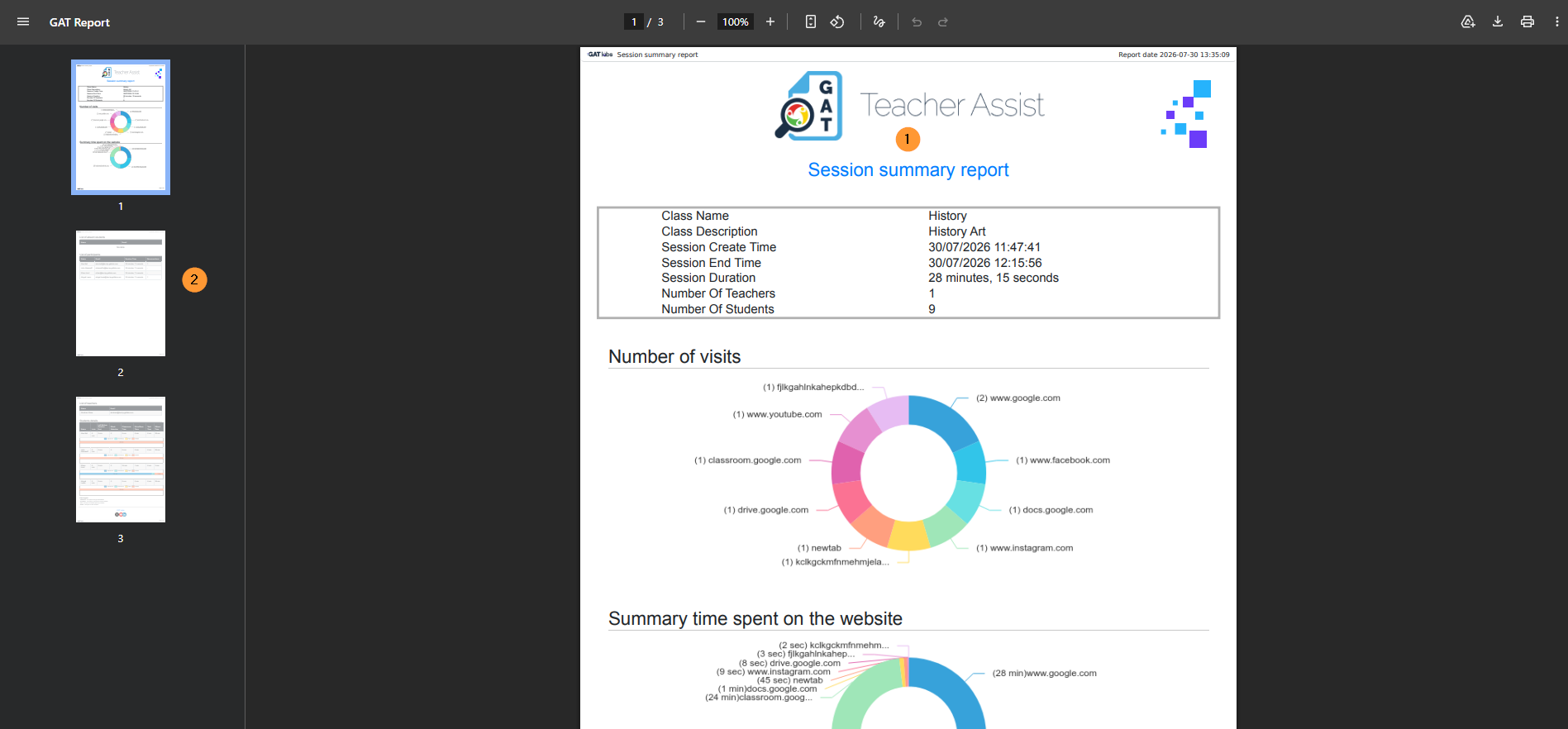
The PDF report will include data for the Teacher Assist classroom session.
- Send report by Email – Select the email address of the user to whom the PDF report is to be sent, as well as add a message.
Summary & Key Data Insights #
The Teacher Assist Dashboard transforms raw classroom browsing activity into actionable insights. By retaining structured session data, educators can:
- Identify Patterns: Track top-blocked websites and frequently distracted students via visual pie charts.
- Audit Session Compliance: Review granular lists of blocked events and take screenshots to address policy breaches.
- Maintain Formal Records: Export standardized PDF session summaries for attendance validation, administrative reporting, or parent-teacher communications.


