

GAT+ empowers admins to seamlessly manage multiple domains from a single admin account. This multi-tenancy management feature streamlines administration by allowing a single admin to oversee various externally owned and entirely separate domains effortlessly.
What is Multi-Tenancy Management? #
GAT+ Multi-Tenancy Management allows administrators to manage and monitor multiple, independently administered Google Workspace environments through a single GAT+ account.
Instead of logging in and out of separate Google Workspace accounts to oversee different GAT+ domains, administrators can use one central account to access all the environments that have granted them permission.
This provides a centralized view of multiple domains, making it easier to audit activity, investigate issues and monitor alerts across different Google Workspace environments.
Whether you’re an IT service provider managing multiple customer environments or an organisation overseeing several Google Workspace domains, Multi-Tenancy Management simplifies administration by bringing everything together in one place.
What are the benefits? #
- Centralized Administration and Auditing: Access and oversee multiple Google Workspace environments through a single Google Workspace account.
- Simplified Auditing: Switch between authorized environments to audit users, investigate activity and review domain-specific information.
- Centralized Alerts: View alerts across the different environments you have access to through a single dashboard.
- Controlled Access: Each external environment independently decides who can access it, and what level of permissions they receive.
- Flexible Permissions: Grant access through either a Super Admin or Delegated Auditor account, depending on the level of access required.
Understanding the Two Administrator Roles #
Multi-Tenancy Management involves two administrator roles. Understanding the difference between them is important before configuring the feature.
Multi-Tenancy Manager #
The Multi-Tenancy Manager is the administrator who wants to oversee multiple Google Workspace environments through a single Google Workspace account.
Once access has been granted and approved, the Multi-Tenancy Manager can switch between the different environments they have permission to access, without needing to log in and out of separate Google Workspace accounts.
Local Authorizing Admin #
The Local Authorizing Admin is the administrator of a separate individual Google Workspace environment who grants the Multi-Tenancy Manager permission to access their GAT Labs account through impersonation.
The Local Authorizing Admin initiates the impersonation request, which must then be approved by a Security Officer on the Local Authorizing Admin’s domain, before access is enabled.
The level of access granted to the Multi-Tenancy Manager depends on the permissions of the account Local Authorizing Admin being impersonated. For example, granting access through a Delegated Auditor account rather than a Super Admin account limits the level of access available.
Prerequisites #
Before enabling Multi-Tenancy Management, ensure that:
- GAT+ has been connected to both Google Workspace environments.
- Both Google Workspace environments have an active GAT+ subscription that includes GAT Unlock.
- Control of, or contact with, the Local Authorizing Admin that has the GAT+ account you wish to impersonate.
- A Security Officer from the Local Authorizing Admin’s domain is available to review and approve the impersonation request.
Once these requirements are met, you can proceed with granting the Multi-Tenancy Manager permission to impersonate their GAT+ account.
Step 1. Submit an Impersonation Request #
Sign into Google workspace with the ‘Local Authorizing Admin’s account’, this is the account you want the Multi-Tenancy Manager account to be able to control.
Navigate to GAT+ and the account name under the GAT+ logo.
A new settings menu will appear.
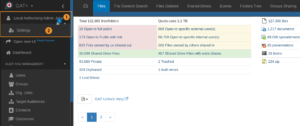
Click ‘Settings’ and navigate to Impersonation.
In the first the ‘Allow my Account to be Impersonated By’ field, enter the email address associated with the Multi-Tenancy Manager’s email address account.
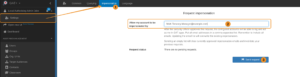
Click ‘Send Request’ to submit the impersonation request.
Step 2. Security Officer Approval #
A Security Officer from the Local Authorizing Admin’s domain must approve it this request.
The Security Officer will receive an email notification, requesting approval of the impersonation request, they can click the link in the email to be brought to the approval area.
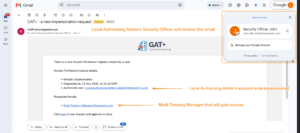
They could also navigate to Security Officer > Impersonation in GAT+ to approve the request directly.
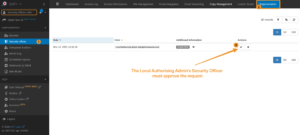
The Local Authorizing Admin’s Security Officer must click the ‘✔️’ icon to approve the impersonation request.
Once approved, the Multi-Tenancy Manager will be able to access Local Authorizing Admin’s the GAT+ account, through their own.
Step 3. Access the Managed Environment #
Once approval has been granted, the Multi-Tenancy Manager can access the newly authorized environment through their own GAT+ account.
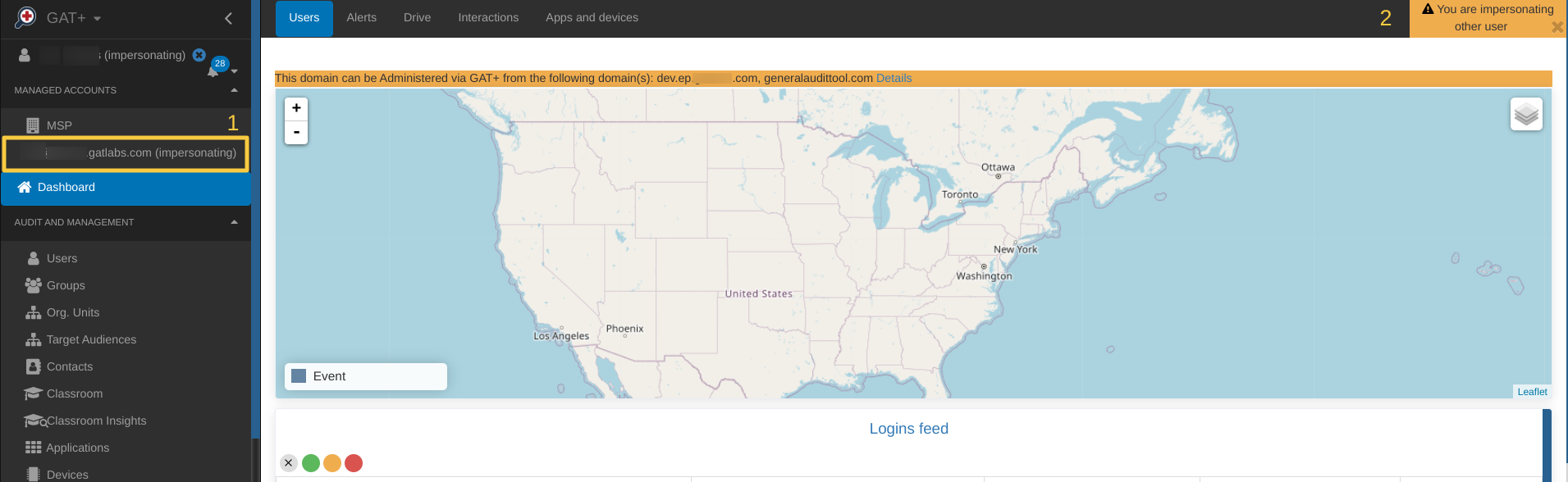
The newly available ‘MSP’ section will appear as the new dashboard when they first access GAT+, allowing them to select it to impersonate the Local Authorized Admin’s account and all associated privileges through that account, along with access to their available GAT Labs products.
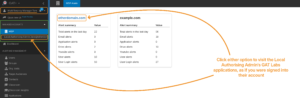
This process should be repeated with each Local Authorizing Admin account and Security officer to add additional Google Workspace and GAT+ environments to the Multi Tenancy Managers account.
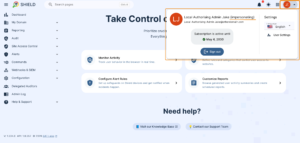
Below are examples of the end-result from the Multi Tenancy Managers perspective while impersonating the Local Authorizing Admin.
#
View of GAT+ Legacy UI
View in the GAT Labs New UI
Extra Notes: #
Some actions may be restricted:
- Scheduled reports will be set by default to work if the local admin created them (additional recipients can be added via advanced mode))
- Export into Google Spreadsheet will be exported to the managers account, but you cannot re-upload this with changes made to the Local Authorizing Admin’s account, please use CSV export instead.
Admin Log Transparency:
-
- The Admin Log functions normally, creating an immutable record of all actions done by the Super Admins.
- Actions, whether on GAT+, Flow, Shield, or Teacher Assist, are meticulously logged for accountability.
Region restrictions #
This feature works only if the domains are in the same server in the Google Cloud Platform
- gs.gatttols.com at the beginning of the GAT Labs application URL means data is in USA servers
- uk.gatttols.com at the beginning of the GAT Labs application URL means data is on UK servers
- eu.gatttols.com at the beginning of the GAT Labs application URL means data is in EU servers


